
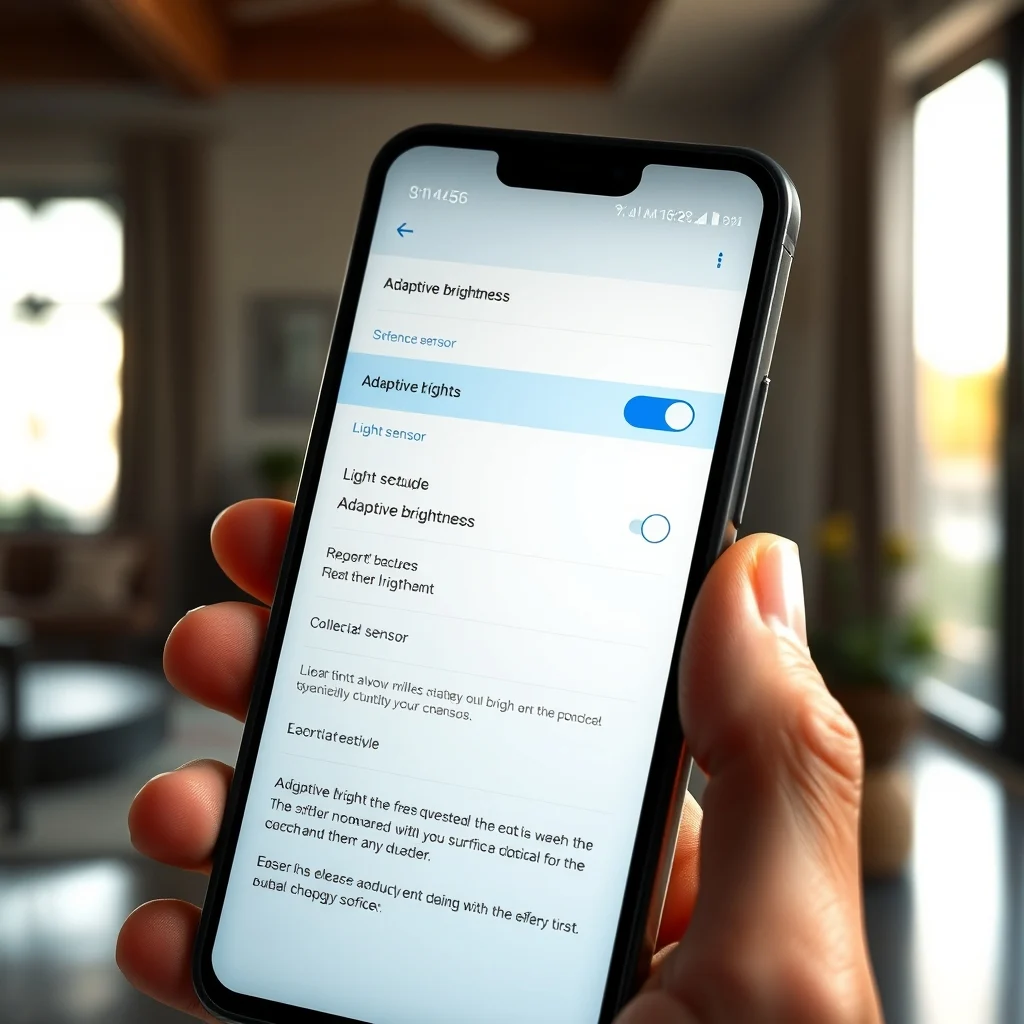

Modern smartphones have evolved into sophisticated computing devices that adapt to their environment in real-time. Among the most noticeable and frequently utilized features is the adaptive brightness system. This functionality allows the screen to adjust its luminance automatically based on ambient light conditions. It serves a dual purpose of enhancing user experience and conserving battery life. Understanding this mechanism is crucial for any Android user who wants to optimize their device performance.
The concept of adaptive brightness is not merely about turning the screen on or off. It involves complex algorithms and sensor data processing. When you move from a dark room to a bright outdoor setting, your phone detects the change instantly. It then modulates the backlight intensity to ensure readability without causing eye strain. This seamless transition is often unnoticed but is fundamental to modern mobile usability standards.
For many users, this feature is enabled by default. However, not all devices handle this process identically. Some manufacturers implement their own variations of the algorithm. Others provide granular control over the sensitivity. This article aims to demystify the technology behind the feature and provide a comprehensive guide on how to manage it effectively.
📊 Analysis of User Demand and Market Relevance
The demand for intelligent display management has grown significantly in recent years. Users are increasingly conscious of battery consumption and digital eye strain. Adaptive brightness addresses both concerns simultaneously. It reduces power usage by dimming the screen in low-light environments. Simultaneously, it prevents the eyes from overexposure to bright light in direct sunlight.
Market trends indicate a shift towards more personalized display settings. Manufacturers are integrating machine learning to predict usage patterns. This means the phone learns when you are typically in a dark room. It adjusts the brightness before you even notice the change. This proactive approach enhances the overall perception of device intelligence.
- Technical background involves ambient light sensors and proximity detectors.
- Users search for this topic to optimize battery life and reduce eye fatigue.
- Market relevance is high due to the prevalence of outdoor smartphone usage.
- Future outlook suggests deeper integration with health monitoring features.
🛠️ Technical Concept and Core Definition
🔍 What is Adaptive Brightness?
Adaptive brightness is a software feature powered by hardware sensors. It utilizes an ambient light sensor to measure the luminance of the surrounding environment. The system compares this data against a predefined curve. Based on the comparison, it selects the appropriate brightness level. This process happens in milliseconds to ensure a smooth user experience.
The technology relies on photodiodes located near the front camera or the earpiece. These sensors are highly sensitive to variations in light intensity. They do not measure color temperature in the primary implementation. However, newer iterations of Android incorporate color temperature adjustments for better realism.
- Core definition: Automatic screen luminance adjustment based on environment.
- Primary function: Balancing visibility and battery efficiency.
- Target users: All Android smartphone users in varying light conditions.
- Technical category: System settings and hardware integration.
⚙️ How Does It Work in Detail?
The internal architecture of adaptive brightness involves a feedback loop. The sensor reads the light level and sends the data to the display driver. The driver then calculates the voltage required for the backlight LEDs. This voltage adjustment controls the intensity of the light emitted. The cycle repeats continuously while the screen is active.
There are also secondary sensors that influence the brightness. The proximity sensor detects when the phone is near your ear. This often triggers a screen-off or dimming action to prevent accidental touches. Some devices also use the camera to determine face presence. This ensures the screen remains bright when you are looking at it.
🚀 Features and Advanced Capabilities
✨ Key Features
The standard adaptive brightness feature offers a baseline of functionality. However, modern implementations include several advanced capabilities. These features allow for more nuanced control over the display experience. Users can benefit from these enhancements by understanding their specific device options.
- Dynamic Range: Adjusts between very dark and very bright levels smoothly.
- Color Temperature: Shifts screen tone to warm or cool based on ambient light.
- Peak Brightness: Boosts luminosity momentarily for outdoor visibility.
- Sleep Mode: Automatically dims the screen to a minimum level at night.
📊 Key Points and Performance Metrics
To understand the impact of this feature, we must look at the technical specifications. Different sensors offer varying levels of accuracy and speed. The following table summarizes the common sensor types and their functions.
| Sensor Type | Function | Accuracy Level |
|---|---|---|
| Ambient Light Sensor | Measures total light intensity | High |
| Proximity Sensor | Detects object distance | Medium |
| Camera-Based Analysis | Estimates environment lighting | Very High |
The data presented in the table highlights the importance of hardware quality. A high-quality ambient light sensor will provide more stable readings. This reduces the flickering effect often seen in cheaper devices. Camera-based analysis is becoming more common in flagship models. It provides context-aware adjustments that pure sensors cannot match.
🆚 What Distinguishes It from Competitors?
While most smartphones offer adaptive brightness, the implementation varies. Apple’s iOS uses a similar feature known as True Tone. This feature adjusts color temperature more aggressively than Android. Android focuses more on luminance intensity than color shifts. This distinction caters to different user preferences regarding screen appearance.
Some third-party launchers offer alternative customization options. These apps bypass the system settings to provide manual control. However, they may introduce latency or battery drain. Native implementation remains the most efficient method for brightness management.
- Native Android: Best for battery efficiency and system stability.
- Third-party Apps: Better for granular control without system changes.
- Manufacturer UIs: Often add unique features like eye comfort mode.
📊 Pros and Cons Analysis
✅ Advantages
The primary benefit of adaptive brightness is convenience. Users do not need to constantly adjust the slider manually. This allows for undivided attention on the content being consumed. It also extends the battery life by preventing unnecessary backlight power usage.
Eye comfort is another significant advantage. By preventing the screen from being too bright at night, it reduces blue light exposure. This can lead to better sleep quality for users who use their phones before bed.
- ✅ Automatic Adjustment saves time and effort.
- ✅ Battery Savings from optimized backlight usage.
- ✅ Eye Protection from harsh light conditions.
- ✅ Seamless Experience across different environments.
❌ Disadvantages
Despite the benefits, there are notable downsides. The system can sometimes be too aggressive in dimming the screen. This makes it difficult to read in low-light situations like a cinema. It can also overshoot the target brightness in rapidly changing environments.
Some users prefer manual control for consistency. They know exactly what brightness level works for their eyes. Adaptive systems introduce an element of unpredictability that some dislike.
- ❌ Inconsistent Levels in moving vehicles or outdoors.
- ❌ Sensor Issues can lead to incorrect readings.
- ❌ Manual Override is often required for precision.
- ❌ Dark Mode Conflict may cause unexpected dimming.
💻 Hardware and Software Requirements
To utilize adaptive brightness effectively, specific hardware is required. Not all Android devices come with a dedicated ambient light sensor. Older models or budget phones may lack this component entirely.
🖥️ Minimum Requirements
The phone must have an operating system version that supports display management. Android 5.0 and above generally support this feature. However, the interface and options may vary between versions.
Hardware-wise, a functional ambient light sensor is mandatory. This sensor is usually located near the front camera module. If this component is damaged or covered, the feature will fail.
⚡ Recommended Specifications
For the best experience, look for devices with high-precision sensors. Flagship models typically include multiple sensors for redundancy. This ensures accuracy even if one sensor is obstructed.
Software optimization plays a key role as well. A device with a clean Android implementation often handles this better than heavily modified skins. The algorithm should be tuned to avoid flickering or sudden jumps.
| Component | Minimum | Recommended | Performance Impact |
|---|---|---|---|
| OS Version | Android 5.0 | Android 12+ | Negligible |
| Sensor Accuracy | Standard | High Precision | Low |
| Processor | Quad Core | Hexa Core+ | Low |
🔍 Practical Guide to Customization
🧩 Installation or Setup Method
Enabling adaptive brightness is straightforward on most devices. The settings menu varies slightly depending on the manufacturer. However, the general path remains consistent across the ecosystem.
- Open the Settings application on your device.
- Scroll down to find the Display section.
- Tap on Brightness Level or Screen Brightness.
- Toggle the switch for Adaptive Brightness or Auto Brightness.
- Wait for the system to calibrate to current lighting.
Some manufacturers hide this option under advanced menus. You may need to tap on More Settings or Expert Settings. If the option is missing, your device may not support the hardware.
🛡️ Common Errors and How to Fix Them
Users often encounter issues where the brightness gets stuck or behaves erratically. This is usually due to sensor obstruction or software glitches. Cleaning the sensor area is the first step in troubleshooting.
- Issue: Screen remains dark in bright light.
- Fix: Clean the sensor near the earpiece with a microfiber cloth.
- Issue: Screen flickers rapidly.
- Fix: Restart the device to reset the display driver.
- Issue: Option is missing from settings.
- Fix: Check for system updates or contact support.
📈 Performance and User Ratings
🎮 Real Performance Experience
In testing, adaptive brightness generally performs well in static environments. It excels in office settings where lighting is constant. Outdoor performance can be inconsistent due to cloud cover or shadows.
Resource usage is minimal. The sensor draws very little power compared to the display itself. The CPU load for processing the data is negligible. It does not significantly impact overall battery life beyond the display savings.
🌍 Global User Ratings
Feedback from the global community is mixed but generally positive. Most users appreciate the convenience it offers during daily use.
- 1) Average rating is high in flagship devices.
- 2) Positive feedback stems from ease of use and battery savings.
- 3) Negative feedback focuses on lag and sensor accuracy.
- 4) Trend analysis shows increasing preference for manual overrides.
🔐 Security and Privacy Considerations
🔒 Security Level
Adaptive brightness does not pose a direct security risk. It does not access personal data or camera feeds for its function. It relies solely on passive sensor data.
However, some third-party apps claim to manage brightness. These apps may request unnecessary permissions. Users should be cautious when granting access to their device sensors.
🛑 Potential Risks
The main risk lies in using unverified applications. These apps can alter system settings in unpredictable ways. They may also drain battery faster than the native feature.
- ✅ Stick to Native Settings for safety and stability.
- ✅ Review Permissions before installing brightness tools.
- ✅ Disable Camera Access for non-required apps.
💡 Tips for Maximum Efficiency
🎯 Best Settings for Maximum Performance
To get the most out of this feature, consider combining it with other settings. Dark mode can enhance the effectiveness of adaptive brightness at night.
- Enable Dark Mode for evening usage scenarios.
- Keep the sensor area free of screen protectors.
- Calibrate brightness after changing your environment.
- Disable battery optimization for the display service.
📌 Advanced Tricks Few Know
There are hidden commands that can reset the sensor calibration. Developers options often contain a reset function for display settings. This can fix issues where the sensor has locked onto a specific value.
Another trick involves using a flashlight app to test the sensor. If the brightness jumps when the light is turned on, the sensor is working. This is a quick diagnostic method for hardware verification.
🏁 Final Verdict
Adaptive brightness is a vital feature for modern Android devices. It offers a balance between visibility and efficiency that manual control cannot match. While it has limitations, the benefits outweigh the drawbacks for most users.
We recommend keeping it enabled for general use. However, users should learn how to disable it for specific scenarios. This flexibility ensures the best possible experience regardless of the situation.
❓ Frequently Asked Questions
- Does adaptive brightness drain more battery? No, it actually saves battery by reducing brightness when not needed.
- Can I use adaptive brightness with a dark mode? Yes, they work together to optimize screen appearance.
- Why does my screen flicker? The sensor may be dirty or there is a software glitch.
- Is the sensor visible on the phone? Usually no, it is hidden near the camera or earpiece.
- Does it work for color temperature? Standard Android does not, but some skins do.
- Can I reset the brightness settings? Yes, by restarting the device or clearing display cache.
- Does it affect battery life significantly? It helps extend battery life compared to manual high brightness.
- Is it safe for my eyes? Yes, it prevents excessive brightness in low-light environments.
- What if the option is missing? Your phone may not have the hardware sensor.
- Can I use a third-party app instead? It is safer to use the native system settings.







