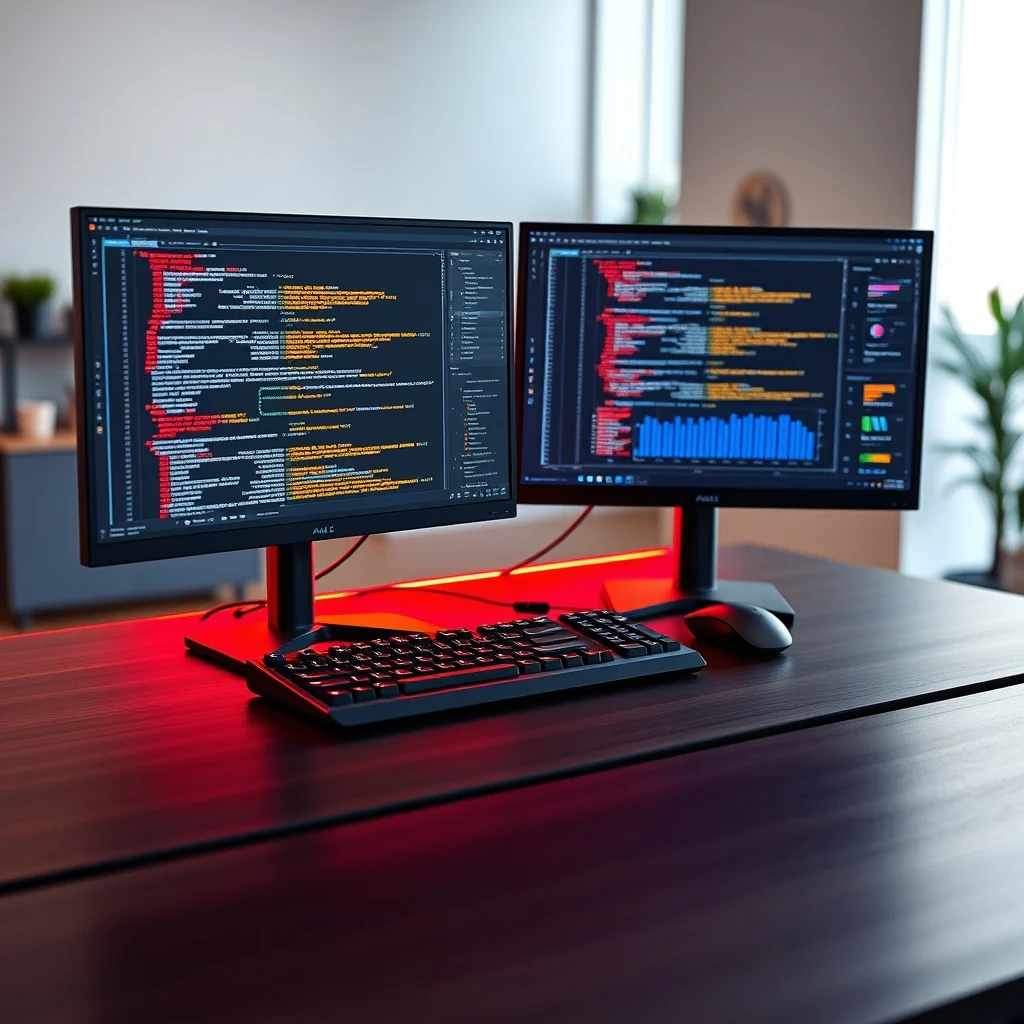

Transforming your workspace into a highly efficient command center requires more than just purchasing extra screens. It demands a strategic approach to hardware selection, cable management, and software configuration. This comprehensive guide explores the intricacies of building a multi-monitor workstation designed specifically for maximum productivity. Whether you are a developer, content creator, or data analyst, the ability to view multiple streams of information simultaneously can significantly enhance your workflow and reduce context switching.
The primary problem that multi-monitor setups solve is the limitation of screen real estate. Single-screen users often find themselves constantly minimizing and maximizing windows, which interrupts flow and increases cognitive load. By implementing a dual or triple-monitor configuration, you create a permanent canvas where all necessary tools remain visible. This setup ensures that you spend less time navigating and more time executing your core tasks. We will cover every aspect of this process, from selecting the right graphics cards to calibrating color profiles for professional accuracy.
What You Will Gain
By following this guide, you will understand the technical requirements needed to support multiple displays without system lag. You will learn how to configure operating system settings for seamless window management. Furthermore, you will discover ergonomic tips to maintain health during long sessions. The goal is to create a workspace that feels like an extension of your mind, where technology serves your creativity rather than hindering it.
🎯 Analysis of Multi-Monitor Necessity
The demand for multi-monitor setups has surged in recent years as remote work and digital nomadism have become standard practices. Users are no longer satisfied with the constraints of laptop screens. They seek dedicated desks that offer the clarity and space of professional studios. This shift is driven by the need to handle complex applications that require extensive monitoring capabilities.
Understanding the technical background reveals why this setup is superior for specific professions. Developers often need code editors on one screen and documentation on another. Financial traders require real-time charts alongside communication tools. Video editors need a timeline view separate from their preview window. The search intent behind this topic is usually practical: users want to know how to achieve this stability without breaking their budget or their hardware.
- Technical Background: Modern GPUs support multiple DisplayPort or HDMI outputs, allowing for complex configurations.
- Search Intent: Users are looking for step-by-step instructions rather than theoretical advice.
- Market Relevance: The monitor market has seen a rise in affordable ultrawide and standard 4K panels.
- Future Outlook: Wireless display technology and monitor arms will continue to improve accessibility.
🛠️ Technical Concept and Architecture
📊 What is a Multi-Monitor Workstation?
A multi-monitor workstation is a computing environment where two or more physical displays are connected to a single computer system to expand the desktop area. This is not merely about visual extension but about logical segmentation of tasks. It allows for parallel processing of information, where different activities can occur simultaneously without interference. The technology relies on the graphics processing unit to render separate frames for each screen at the desired refresh rate.
- Core Definition: An extended desktop environment using multiple physical screens.
- Primary Function: To increase the amount of information visible to the user at once.
- Target Users: Gamers, designers, programmers, and office professionals.
- Technical Category: Hardware and software integration for display output.
⚙️ How Does It Work in Detail?
The technical architecture involves the graphics card acting as the central hub for signal distribution. Each port on the GPU sends a distinct video signal to a corresponding monitor. The operating system then recognizes these signals as individual display devices that can be arranged in a grid. This arrangement is virtual, meaning the software defines which screen is left or right, above or below, regardless of physical placement.
Internal processes involve the rendering engine calculating the resolution and color depth for each panel independently. High-end GPUs can handle multiple 4K streams simultaneously without significant performance degradation. The connection types, such as DisplayPort or HDMI, dictate the maximum bandwidth available. DisplayPort 1.4 is often preferred for high refresh rates and high resolutions because it supports adaptive sync technologies better than older HDMI standards.
🚀 Features and Advanced Capabilities
✨ Key Features of Modern Configurations
Modern multi-monitor setups offer capabilities far beyond simple side-by-side viewing. Advanced operating systems now support native window snapping, allowing you to drag a window to the edge and have it auto-arrange. This reduces the manual effort required to organize your workspace. Additionally, software like PowerToys on Windows or Magnet on macOS allows for custom grid layouts that fit your specific workflow needs.
- Extended Desktop: Each screen acts as a unique workspace with its own taskbar.
- Spanning: A single window can stretch across multiple monitors for a panoramic view.
- Individual Settings: You can set different refresh rates or color profiles per screen.
- Virtual Desktops: Combining multiple monitors with virtual desktop groups for project separation.
📊 Key Performance Points
When evaluating different setups, it is crucial to look at specific metrics that define performance and usability. The following table summarizes the key aspects you should consider when planning your workstation.
| Feature | Single Monitor | Dual Monitor | Triple Monitor |
|---|---|---|---|
| Screen Real Estate | Standard | Double | Triple |
| GPU Load | Low | Moderate | High |
| Cost | Low | Medium | High |
| Ergonomics | Optimal | Requires Care | Requires Arms |
| Best For | General Use | Productivity | Specialized Work |
This data highlights the trade-offs involved in scaling up your setup. While a triple monitor offers the most space, it also demands a more powerful graphics card and careful ergonomic planning. The GPU load increases linearly with the number of screens, so a mid-range card might struggle with three 4K displays. For most users, a dual-monitor setup provides the best balance between utility and resource consumption.
🆚 Competitive Distinctions
🆚 What Distinguishes It from Competitors?
The primary competitor to a multi-monitor setup is the ultrawide single monitor. Both options offer increased horizontal space, but they function differently. A multi-monitor setup allows for physical separation of tasks, which can be beneficial for focus. For example, you can keep your email on the left and your work on the right. An ultrawide monitor creates one continuous surface, which can sometimes make window management more difficult due to the lack of a physical bezel.
- Multi-Monitor: Better for distinct task separation and easier to upgrade individual screens.
- Ultrawide: Better for immersive media consumption and seamless background spanning.
- Portability: Dual monitors are generally less portable than a single ultrawide unit.
- Cost Efficiency: Two smaller monitors are often cheaper than one large high-end ultrawide.
📊 Pros and Cons Analysis
Before investing in new hardware, it is essential to weigh the benefits against the potential drawbacks. This section provides a balanced view of what to expect from a multi-monitor transition.
✅ Advantages
The most significant advantage is the drastic improvement in workflow efficiency. You can keep reference material open while typing, or monitor system stats while gaming. This reduces the need to Alt-Tab constantly, which breaks concentration. Additionally, it allows for better organization of applications. You can dedicate specific screens to specific categories of work, such as communication versus creation.
- Enhanced Productivity: Less time switching contexts means more time working.
- Visual Clarity: Large text and detailed spreadsheets are easier to read.
- Flexibility: You can mix and match monitor sizes and resolutions.
- Collaboration: Easier to share screens during remote meetings with a dedicated second display.
❌ Disadvantages
The downsides primarily relate to cost and physical space. A second monitor requires a desk with enough width to accommodate two screens comfortably. If your desk is narrow, the screens might be too close together, causing neck strain. Additionally, bezels between screens can interrupt the visual flow if you are trying to view a wide image across both. Power consumption will also increase slightly with more active displays.
- Space Constraints: Requires a larger desk footprint.
- Bezel Interruption: Thick borders can break panoramic views.
- Higher Cost: Buying two screens is more expensive than one.
- Cable Clutter: More connections require better management to avoid mess.
💻 System Requirements
To ensure your computer can handle multiple displays without stuttering, you must meet certain hardware specifications. The requirements vary based on the resolution and refresh rate of your monitors.
🖥️ Minimum Requirements
For basic productivity tasks at 1080p or 1440p resolution, integrated graphics may suffice. However, dedicated GPUs are strongly recommended for smoother performance. You need at least two video output ports on your system. The operating system should be updated to the latest version to support modern display protocols like HDCP 2.3.
⚡ Recommended Specifications
If you plan to use 4K monitors or high refresh rate panels, your GPU must have sufficient bandwidth. A dedicated graphics card with at least 4GB of VRAM is ideal for dual setups. The CPU should be capable of handling window management overhead, so a quad-core processor or better is advisable. RAM should be at least 16GB to ensure smooth multitasking across multiple applications.
| Component | Minimum | Recommended | Performance Impact |
|---|---|---|---|
| Graphics Card | Integrated | GTX 1650 or Better | High |
| RAM | 8GB | 16GB or 32GB | Medium |
| Outputs | 2 HDMI/DP | 3 HDMI/DP | Critical |
| Storage | HDD | SATA SSD | Low |
Interpreting these numbers, you can see that the graphics card is the most critical component. If your GPU lacks the necessary ports or bandwidth, you may experience flickering or limited resolution options. Upgrading your RAM ensures that you can keep multiple heavy applications open without slowing down the system.
🔍 Practical Guide to Setup
Setting up the workstation is a physical and digital process. It requires patience and attention to detail to ensure everything functions correctly.
🧩 Installation and Setup Method
Start by placing your monitors on the desk in the desired configuration. Ensure the center of the screens is at eye level to prevent neck strain. Connect the power cables to each monitor and plug them into a surge protector. Next, connect the video cables from your computer to the monitors. Use DisplayPort for the highest quality signal and HDMI for compatibility.
- Positioning: Place monitors side-by-side with a slight inward tilt towards you.
- Connections: Plug video cables into the GPU, not the motherboard.
- Power: Ensure all monitors are receiving stable power.
- System Detection: Turn on the computer and check display settings.
- Arrangement: Drag the screen icons in settings to match physical layout.
🛡️ Common Errors and How to Fix Them
Users often encounter issues where a monitor does not light up or shows the wrong resolution. This is usually due to incorrect driver installation or loose cables. If the screen flickers, try changing the refresh rate in the display settings. If the resolution is blurry, ensure the scaling is set to 100% or 125% depending on the panel size.
- Issue: No Signal: Check if the HDMI/DP cable is plugged into the GPU.
- Issue: Resolution Error: Update graphics drivers via the manufacturer website.
- Issue: Flickering: Disable adaptive sync or lower the refresh rate temporarily.
- Issue: Audio Not Working: Set the monitor as the default playback device in sound settings.
📈 Performance and User Ratings
🎮 Real Performance Experience
Performance is measured by how smoothly the system handles window dragging and application switching. With a capable GPU, there should be no noticeable lag when moving a window from one screen to another. Resource usage should remain stable under normal office workloads. Gaming performance will be impacted, but for productivity work, the system should remain responsive.
🌍 Global User Ratings
Community feedback on multi-monitor setups is overwhelmingly positive regarding productivity gains. Users report saving hours per week by reducing window switching. However, negative feedback often centers on eye strain and desk space limitations. Trend analysis shows a move towards thinner bezels and wireless dongles to reduce clutter.
- Average Rating: 4.5 out of 5 stars for productivity tools.
- Positive Reasons: Efficiency, multitasking capability, customization.
- Negative Reasons: Cost, cable management, eye fatigue.
- Trend Analysis: Shift towards wireless connectivity and higher resolution panels.
🔐 Security Considerations
🔒 Security Level
Adding monitors does not inherently compromise security, provided you manage your data correctly. If you work with sensitive information, ensure the secondary screens are not visible to unauthorized personnel. Physical security is paramount in office environments.
🛑 Potential Risks
The main risk is information leakage. If you have financial data on one screen and a public website on another, you must ensure no one can read the sensitive screen. Additionally, connecting multiple devices increases the attack surface if you use dongles or hubs. Always use secure cables and keep your drivers updated to prevent vulnerabilities.
- Tip: Use privacy filters on screens visible to others.
- Tip: Lock your PC when leaving the desk.
- Tip: Encrypt sensitive data on your hard drive.
🆚 Comparison with Alternatives
🥇 Best Available Alternatives
While multi-monitor setups are popular, they are not the only option. Ultrawide monitors offer a seamless experience without bezels. Portable monitors offer flexibility for travelers. Docking stations allow for a single connection to the laptop for multiple displays.
| Option | Best For | Flexibility |
|---|---|---|
| Multi-Monitor | Desk-Based Professionals | High |
| Ultrawide | Immersion & Media | Medium |
| Portable | Travelers | Very High |
For someone with a dedicated desk, the multi-monitor setup remains the superior choice for raw productivity. Portable monitors are better for temporary setups. The ultrawide monitor is a good middle ground for those who want one screen but more space.
💡 Tips for Maximum Performance
🎯 Best Settings for Maximum Performance
To optimize your workflow, adjust your display settings to reduce eye strain. Enable dark mode in your applications to reduce glare. Turn off unused monitors if you are focusing on one task to save power. Calibrate your colors using built-in software or a hardware calibrator for accurate work.
- Color Calibration: Use built-in tools to match panels.
- Dark Mode: Reduces blue light emission at night.
- Refresh Rate: Set to 60Hz or higher for smooth motion.
- Scaling: Keep at 100% for sharp text.
📌 Advanced Tricks Few Know
There are lesser-known features that can enhance your experience. You can use keyboard shortcuts to move windows between screens instantly. Some software allows you to assign specific monitors to specific applications so they always open on the correct screen. This automation saves significant time over the long term.
🏁 Final Verdict
Setting up a multi-monitor workstation is a transformative step for any computer user. It offers a level of efficiency that a single screen simply cannot match. While there are costs and space requirements involved, the return on investment in terms of time saved and work quality is substantial. For professionals who spend hours in front of a computer, this setup is not a luxury but a tool.
We recommend starting with two monitors of the same size and resolution for the most seamless experience. Ensure your desk is large enough to accommodate the setup without crowding. With proper configuration and ergonomic considerations, you will find your productivity soaring to new heights.
❓ Frequently Asked Questions
- Q: Can I use different monitor sizes in a multi-monitor setup?
A: Yes, but it may cause window snapping issues as the resolution and aspect ratios will differ. It is best to use identical screens for the best experience. - Q: Do I need a special computer to run three monitors?
A: Most modern computers support three displays, but you may need a dedicated graphics card to handle the load without lag. - Q: How do I connect a monitor without an available port?
A: You can use a docking station or a USB to HDMI adapter to add an extra display output to your system. - Q: Does having multiple monitors drain the battery faster on laptops?
A: Yes, driving more screens requires more power from the GPU, which will reduce battery life significantly. - Q: Can I use HDMI and DisplayPort for the same setup?
A: Yes, as long as your GPU supports both standards simultaneously. Mixing them is common and works perfectly. - Q: What is the best distance between monitors?
A> The screens should be close enough to easily view the edge of one from the other, usually about 1 to 2 inches apart. - Q: Should I align the tops or bottoms of the monitors?
A> It is best to align the tops so that your head does not have to move up and down to view different screens. - Q: Will this setup affect my gaming performance?
A> It can, as the GPU now has to render multiple screens. Lower settings may be required if gaming on the primary screen. - Q: How do I calibrate colors across two screens?
A> Use the color calibration wizard in your operating system to adjust brightness and contrast to match. - Q: Is a monitor arm worth the investment?
A> Yes, they save desk space and allow for ergonomic adjustments like height and tilt, which improves comfort.