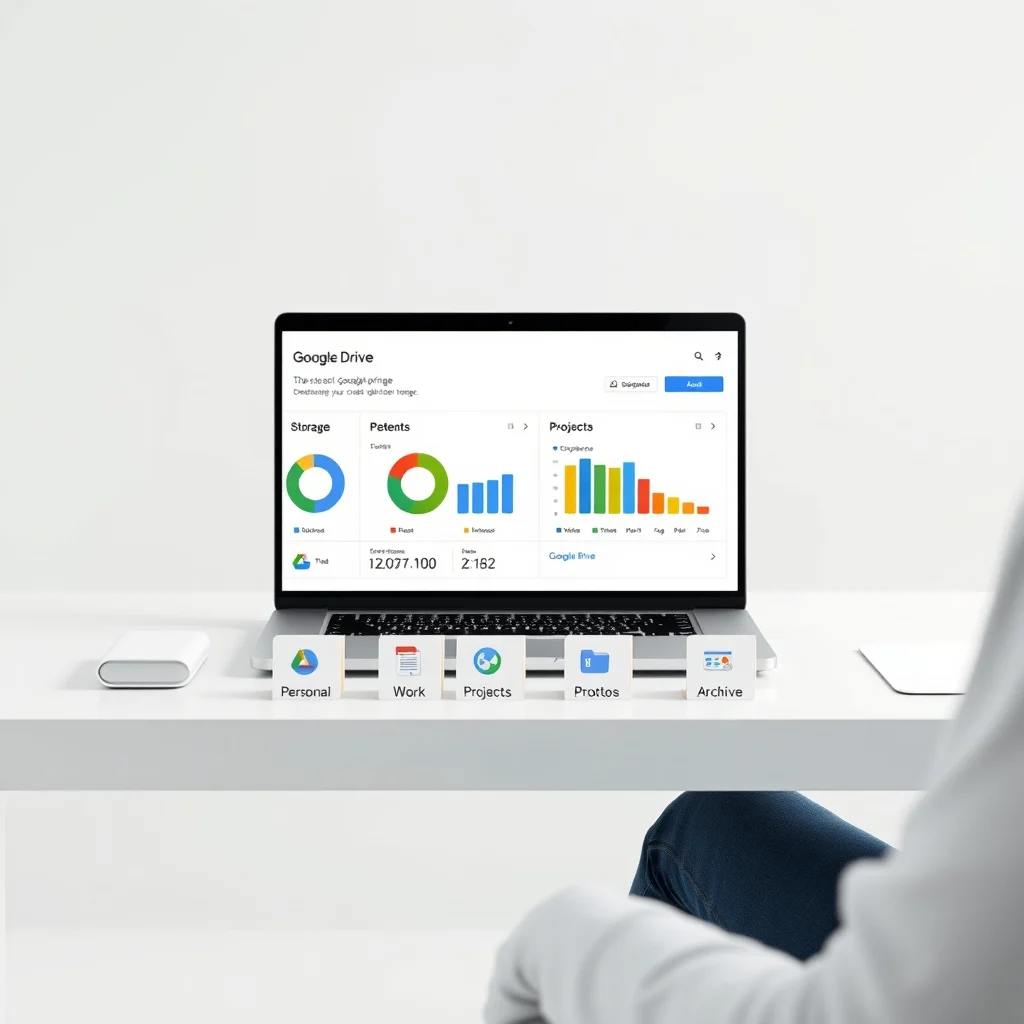

In today’s digital-first world, cloud storage has become an essential part of our professional and personal lives. Among the myriad of cloud storage solutions available, Google Drive stands out as one of the most widely used platforms, offering seamless integration with Google Workspace tools like Docs, Sheets, and Slides. However, as users accumulate files over time, storage space can quickly become a concern, especially for those on free plans with limited capacity. Understanding how to optimize Google Drive storage is crucial for maintaining efficiency, ensuring accessibility, and avoiding unnecessary expenses. This comprehensive guide will walk you through practical strategies to manage and free up space in your Google Drive, helping you make the most of your available storage and streamline your digital workspace.
📌 Why Storage Optimization Matters in Google Drive
Google Drive is a powerful tool for storing, sharing, and collaborating on files, but it is not immune to the challenges of digital clutter. Over time, users often find their storage filling up with unnecessary files, duplicates, and outdated documents. This can lead to several issues:
- Reduced performance: A cluttered Drive can slow down file access, search operations, and sync processes, making it harder to find and manage files quickly.
- Storage limitations: Google Drive’s free tier offers only 15 GB of shared storage across Gmail, Google Photos, and Drive. Exceeding this limit may require purchasing additional storage, which can strain personal or business budgets.
- Security risks: Large volumes of old or unused files increase the attack surface for potential data breaches or accidental exposure of sensitive information.
- Collaboration inefficiencies: Shared folders with outdated or irrelevant files can confuse team members and complicate project management.
By proactively managing your Google Drive storage, you can avoid these pitfalls and ensure your digital workspace remains efficient, secure, and cost-effective.
🔍 Understanding Google Drive Storage Limits
Before diving into optimization techniques, it’s important to understand how Google Drive storage is allocated and measured. Google Drive shares storage space with Gmail and Google Photos, meaning all three services contribute to your total storage usage. Here’s a breakdown of Google Drive’s storage tiers:
- Free tier: 15 GB shared across Gmail, Google Photos, and Google Drive.
- Google One Basic (2026): 100 GB for $1.99/month.
- Google One Standard (2026): 200 GB for $2.99/month.
- Google One Premium (2026): 2 TB for $9.99/month.
Understanding these limits helps you plan your storage needs and decide whether upgrading your plan is necessary. For most users, optimizing existing storage is sufficient to maintain efficiency without additional costs.
🚀 Step-by-Step Guide to Optimizing Google Drive Storage
🧹 Cleaning Up Unnecessary Files
The first step in optimizing your Google Drive storage is identifying and removing unnecessary files. Over time, users accumulate a variety of files that may no longer be needed, including:
- Old drafts and revisions
- Duplicates of files
- Large media files (videos, high-resolution images)
- Outdated project files
- Temporary or cache files
To clean up your Google Drive effectively, follow these steps:
🔎 Step 1: Use Google Drive’s Storage Manager
Google Drive provides a built-in tool called the Storage Manager, which helps you visualize and manage your storage usage. To access it:
- Open Google Drive and click on the gear icon in the top-right corner to open Settings.
- Select Settings from the dropdown menu.
- Click on the Storage tab to view a breakdown of your storage usage by service (Gmail, Google Photos, and Drive).
- Click on View items next to each service to see which files are consuming the most space.
This tool provides a clear overview of your storage consumption, making it easier to identify large or unnecessary files that can be removed.
🗑️ Step 2: Delete Large Files
Large files are often the biggest contributors to storage bloat. To find and delete these files:
- In Google Drive, use the search bar and type size:greater-than:10MB to filter files larger than 10 MB.
- Sort the results by size to prioritize the largest files.
- Review each file to determine if it’s still needed. If not, right-click on the file and select Remove.
For even more precise filtering, you can use search queries like:
- size:greater-than:50MB for files larger than 50 MB.
- type:video to find video files specifically.
- type:image to locate high-resolution images.
This targeted approach ensures you focus on the files that are consuming the most space.
🔄 Step 3: Remove Duplicate Files
Duplicate files are a common source of storage bloat. Google Drive does not automatically detect duplicates, so you’ll need to use third-party tools or manual methods to identify them.
One effective approach is to use Google Drive’s search functionality to find similar files:
- Use the search bar to type keywords related to files you suspect may have duplicates.
- Manually review the results to identify duplicates.
- Delete the duplicates while keeping the original file.
Alternatively, you can use third-party tools like Duplicate Cleaner or Gem for Google Drive to automate the process. These tools scan your Drive and highlight duplicate files for easy removal.
📂 Step 4: Organize Files into Folders
A well-organized Drive is easier to manage and less prone to clutter. Start by creating a logical folder structure that reflects your workflow. For example:
- Personal: For personal documents, photos, and media.
- Work: For professional documents, spreadsheets, and presentations.
- Projects: For files related to specific projects or collaborations.
- Archive: For old or infrequently accessed files that you want to keep but don’t need immediate access to.
Once your folders are organized, regularly review them to remove outdated or irrelevant files. This practice not only frees up space but also enhances productivity by making files easier to locate.
📸 Optimizing Google Photos Storage
Google Photos is a major contributor to storage usage, especially for users who store high-resolution images and videos. However, Google offers several ways to optimize photo storage without sacrificing quality.
🔍 Understanding Google Photos Storage Options
Google Photos provides two storage options:
- High quality: Compresses photos and videos to save space. Files are stored at a slightly reduced resolution but are nearly indistinguishable from the originals. This option does not count toward your storage quota.
- Original quality: Stores photos and videos in their full resolution. This option consumes storage space and contributes to your Google Drive quota.
For most users, the High quality option is sufficient and helps maximize storage efficiency.
🛠️ How to Switch to High Quality Storage
To switch to High quality storage in Google Photos:
- Open the Google Photos app or visit photos.google.com.
- Click on the profile icon in the top-right corner and select Photo settings.
- Choose Backup quality and select High quality.
- Google Photos will automatically re-compress existing photos and videos to High quality, freeing up space in your Drive.
Note that switching to High quality may take some time, depending on the number of files you have. Google Photos will process the files in the background.
🗑️ Deleting Unnecessary Photos and Videos
In addition to switching to High quality storage, regularly delete unnecessary photos and videos to further optimize your Drive. Here’s how:
- Open Google Photos and use the search bar to filter files by criteria such as date, location, or file type.
- Select multiple files by long-pressing on them, then tap the trash icon to delete them.
- Empty the trash to permanently remove the files from your storage.
You can also use Google Photos’ built-in tools to identify and remove blurry, duplicate, or low-quality photos automatically.
🔗 Managing Shared Files Efficiently
Shared files in Google Drive can quickly consume storage space, especially if they are large or frequently updated. Managing shared files effectively is key to maintaining a lean and efficient Drive.
🔄 Reviewing Shared Files
To review the files you are sharing with others:
- Open Google Drive and click on the gear icon to open Settings.
- Select Manage apps and then click on Shared with me.
- This will display a list of files that others have shared with you. Review these files to determine if they are still relevant.
You can also use the search bar to filter files by the owner or shared with me criteria.
📝 Removing Access to Shared Files
If you no longer need to share a file or if the file is no longer relevant to your collaborators, you can remove access to it:
- Right-click on the file and select Share.
- In the sharing dialog, click on the three dots next to the collaborator’s name and select Remove.
- Confirm the removal to revoke access.
Alternatively, you can stop sharing the file entirely by clicking on Change in the sharing dialog and selecting Restricted.
📁 Transferring Ownership of Shared Files
If you are the owner of a file that is no longer relevant to you but is still consuming storage space, consider transferring ownership to a collaborator. This allows you to remove the file from your Drive while ensuring it remains accessible to others.
- Right-click on the file and select Share.
- In the sharing dialog, click on the collaborator’s name and select Make owner.
Once ownership is transferred, you can safely remove the file from your Drive without affecting collaborators.
🔍 Advanced Tips for Google Drive Storage Optimization
🚀 Using Google Drive’s File Stream for Local Access
Google Drive’s File Stream feature allows you to access files directly from your computer without downloading them to your local storage. This can significantly reduce the clutter on your hard drive while still providing easy access to your files.
To enable File Stream:
- Download and install Google Drive for Desktop from the official Google website.
- Sign in with your Google account and follow the setup instructions.
- Once installed, File Stream will create a virtual drive on your computer, allowing you to access Google Drive files as if they were stored locally.
This feature is particularly useful for users with limited local storage or those who want to keep their files organized in the cloud.
📊 Converting Files to Google Workspace Formats
Google Drive supports a variety of file formats, but some, like Microsoft Office files (e.g., .docx, .xlsx), consume more storage than their native Google Workspace counterparts. Converting these files to Google Docs, Sheets, or Slides can reduce their file size and optimize storage.
To convert a file to a Google Workspace format:
- Right-click on the file in Google Drive and select Open with.
- Choose the appropriate Google Workspace app (e.g., Google Docs, Google Sheets).
- Once the file is open, click on File > Save and close to convert it to the native format.
This process not only saves storage space but also enhances collaboration, as Google Workspace files are designed for real-time editing and sharing.
🛡️ Automating File Cleanup with Google Apps Script
For advanced users, Google Apps Script can be used to automate file cleanup tasks in Google Drive. This scripting tool allows you to create custom functions that can identify and remove unnecessary files based on specific criteria.
For example, you can create a script to automatically delete files older than a certain date or files with specific extensions. Here’s a basic example of a script to delete files older than 30 days:
function deleteOldFiles() {
  var cutoffDate = new Date();
  cutoffDate.setDate(cutoffDate.getDate() - 30);

  var files = DriveApp.searchFiles(
    'mimeType != "application/vnd.google-apps.folder" and modifiedDate < "' + cutoffDate.toISOString() + '"'
  );

  while (files.hasNext()) {
    var file = files.next();
    file.setTrashed(true);
  }
}
To use this script:
- Open Google Drive and click on the gear icon to open Settings.
- Select Scripts > New script to open the Google Apps Script editor.
- Paste the script into the editor and click Run to execute it.
Automating file cleanup can save time and ensure your Drive remains optimized without manual intervention.
🔄 Monitoring and Maintaining Google Drive Storage
Optimizing your Google Drive storage is not a one-time task; it requires ongoing monitoring and maintenance to ensure long-term efficiency. Here are some tips to help you stay on top of your storage management:
📅 Scheduling Regular Storage Audits
Set a recurring schedule to review your Google Drive storage, such as once a month. During these audits, use Google Drive’s Storage Manager to identify large or unnecessary files and remove them. Regular audits help prevent storage bloat and keep your Drive organized.
🔔 Setting Up Storage Alerts
Google Drive allows you to set up alerts for when your storage is nearing its limit. To enable storage alerts:
- Open Google Drive and click on the gear icon to open Settings.
- Select Settings > Notifications.
- Enable Storage alerts to receive email notifications when your storage is close to being full.
These alerts serve as a reminder to clean up your Drive before you run out of space.
📈 Tracking Storage Usage Trends
Monitor your storage usage over time to identify patterns and anticipate future needs. Google Drive’s Storage Manager provides a visual breakdown of your storage consumption, but you can also use third-party tools like Google Workspace Reports to track trends and generate detailed analytics.
By understanding your storage usage patterns, you can make informed decisions about when to upgrade your plan or implement additional optimization strategies.
🚫 Common Mistakes to Avoid When Optimizing Google Drive Storage
While optimizing your Google Drive storage, it’s easy to make mistakes that can lead to data loss or inefficiencies. Here are some common pitfalls to avoid:
❌ Mistake 1: Deleting Files Without a Backup
One of the biggest mistakes users make is deleting files without ensuring they have a backup. Always double-check that a file is no longer needed before removing it, and consider downloading a copy to your local device if it contains critical information.
❌ Mistake 2: Ignoring Shared Files
Shared files can consume significant storage space, especially if they are large or frequently updated. Failing to review and manage shared files can lead to unexpected storage bloat. Regularly audit shared files to ensure they are still relevant and necessary.
❌ Mistake 3: Overlooking Google Photos Settings
Google Photos is a major contributor to storage usage, and many users overlook the importance of optimizing its settings. Failing to switch to High quality storage or regularly delete unnecessary photos can result in rapid storage consumption. Always review and adjust your Google Photos settings to maximize efficiency.
❌ Mistake 4: Not Organizing Files Properly
A disorganized Drive is harder to manage and more prone to clutter. Failing to create a logical folder structure or regularly review files can lead to overlooked duplicates, outdated files, and wasted space. Invest time in organizing your Drive to maintain efficiency.
❌ Mistake 5: Relying Solely on Manual Cleanup
While manual cleanup is essential, relying solely on it can be time-consuming and inefficient. Use automation tools, scripts, and Google Drive’s built-in features to streamline the cleanup process and ensure your Drive remains optimized.
🆚 Google Drive vs. Alternative Cloud Storage Solutions
Google Drive is a popular choice for cloud storage, but it’s not the only option available. Comparing Google Drive to alternative solutions can help you determine if it’s the right choice for your needs or if another platform might better suit your requirements.
| Feature | Google Drive | Dropbox | Microsoft OneDrive | iCloud Drive |
|---|---|---|---|---|
| Free Storage | 15 GB | 2 GB | 5 GB | 5 GB |
| Paid Plans | 100 GB to 2 TB | 2 TB | 100 GB to 6 TB | 50 GB to 2 TB |
| Integration | Google Workspace | Third-party apps | Microsoft 365 | Apple ecosystem |
| File Versioning | 30 days | 30 days | 30 days | 30 days |
| Offline Access | Yes (via File Stream) | Yes | Yes | Yes |
| Collaboration | Real-time editing | Real-time editing | Real-time editing | Limited |
Here’s a detailed comparison of Google Drive with other popular cloud storage solutions:
- Google Drive: Best for users who rely on Google Workspace tools and need seamless integration with Gmail and Google Photos. Offers strong collaboration features and generous free storage.
- Dropbox: Ideal for users who prioritize simplicity and third-party app integration. Provides excellent file syncing and sharing capabilities but has limited free storage.
- Microsoft OneDrive: A great choice for users within the Microsoft ecosystem, offering deep integration with Office apps and robust collaboration tools.
- iCloud Drive: Best suited for Apple users who need seamless integration with macOS and iOS devices. Limited collaboration features compared to Google Drive and OneDrive.
Each platform has its strengths and weaknesses, so the best choice depends on your specific needs and workflow.
💡 Frequently Asked Questions About Google Drive Storage Optimization
- What is the best way to find large files in Google Drive?
Use Google Drive’s search bar and type size:greater-than:10MB to filter files larger than 10 MB. You can adjust the size threshold to narrow down your search further.
- Can I recover files after deleting them from Google Drive?
Yes, deleted files are moved to the Trash folder, where they remain for 30 days before being permanently removed. You can restore files from the Trash during this period.
- How do I free up space in Google Photos without losing quality?
Switch to High quality storage in Google Photos settings. This compresses photos and videos to save space without significantly impacting quality.
- What happens if I exceed my Google Drive storage limit?
If you exceed your storage limit, you will not be able to upload new files or create new Google Docs, Sheets, or Slides until you free up space or upgrade your plan.
- Is it safe to use third-party tools to clean up Google Drive?
Use reputable third-party tools and ensure they comply with Google’s policies. Always back up your files before using automated cleanup tools to avoid accidental data loss.
- Can I share files with others without consuming my storage space?
Yes, sharing files does not consume additional storage space for the recipient. However, if the file is updated by the owner, the changes will be reflected for all collaborators.
- How often should I audit my Google Drive storage?
Aim to audit your Google Drive storage at least once a month. Regular audits help prevent storage bloat and keep your Drive organized.
- What is Google Drive File Stream, and how does it help with storage optimization?
Google Drive File Stream allows you to access files directly from your computer without downloading them locally. This reduces clutter on your hard drive while providing easy access to your cloud files.
- Can I convert Microsoft Office files to Google Workspace formats to save space?
Yes, converting files like .docx and .xlsx to Google Docs and Sheets formats can reduce their file size and optimize storage.
- What should I do if I accidentally delete an important file?
Check the Trash folder in Google Drive, where deleted files are stored for 30 days. If the file is not there, you may need to restore it from a backup or contact Google support for assistance.
🏁 Final Verdict: Mastering Google Drive Storage Optimization
Optimizing your Google Drive storage is a critical task for maintaining efficiency, security, and cost-effectiveness in your digital workspace. By following the strategies outlined in this guide, you can free up valuable space, improve file organization, and ensure your Drive remains a streamlined and productive tool. Whether you’re a casual user or a professional managing a team, these tips will help you make the most of your Google Drive storage and avoid the pitfalls of digital clutter.
Start by auditing your current storage usage, identifying large or unnecessary files, and organizing your folders logically. Don’t forget to optimize Google Photos settings, manage shared files effectively, and leverage automation tools to streamline the cleanup process. Regularly monitor your storage usage and adjust your strategies as needed to maintain long-term efficiency.
With these techniques, you’ll not only free up space but also enhance your overall productivity and digital security. Take control of your Google Drive today and transform it into a lean, efficient, and organized workspace that supports your goals.
Start optimizing your Google Drive storage now and experience the benefits of a clutter-free, high-performance digital workspace.