
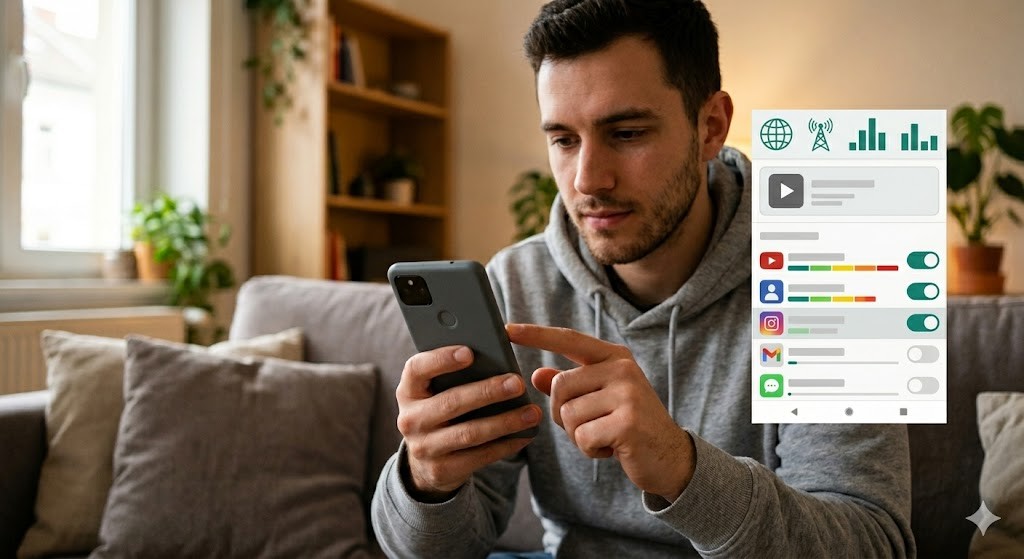

Mobile data usage has become a critical concern for smartphone users worldwide, especially as data plans often come with strict monthly limits. Many individuals find themselves running out of data before the month ends without a clear understanding of where their connectivity is going. A significant portion of this invisible consumption occurs in the background, where applications continue to refresh, sync, and update even when they are not actively in use. This phenomenon is known as background data usage, and it can silently drain your allowance over time.
Reducing background data usage on Android is not just about saving money; it is also about improving battery life and extending your internet connectivity for essential tasks. By understanding how Android manages data in the background and applying the correct settings, you can reclaim control over your connection. This comprehensive guide will walk you through every necessary step to ensure your device operates efficiently without consuming unnecessary data resources.
🚀 Understanding Background Data Consumption
Before diving into the settings, it is crucial to understand what background data actually means in the Android ecosystem. When an app is not open, it is considered to be in the background. However, many developers design their applications to run processes even when you are not interacting with them. These processes include checking for new emails, syncing contacts, updating social media feeds, or receiving push notifications. All of these activities require an internet connection and consume data from your mobile plan.
Android operating systems are designed to be secure and efficient, but they also allow a degree of flexibility for developers. This flexibility often results in apps consuming data without explicit user permission every time. Some apps may use data to pre-load content to make your experience smoother when you return to them. While this improves user experience, it can lead to unexpected data overages. Understanding this mechanism is the first step toward optimization.
📊 Why Background Data Matters
The impact of background data extends beyond just your monthly bill. Heavy data consumption in the background can also affect your device’s performance and battery life. When an app constantly communicates with servers, it keeps the cellular radio active, which draws power. Furthermore, if you are on a limited data plan, running out of data means you lose access to essential services like maps, messaging, or banking apps. This guide aims to prevent that scenario.
🛠️ Managing Data Saver and Settings
Android provides built-in tools to help you manage data usage effectively. The most powerful of these tools is the Data Saver feature. This feature restricts background data usage for most apps by default, allowing only essential apps to use data when the internet connection is limited. Enabling this feature is often the most effective single change you can make to reduce overall consumption.
To access these settings, navigate to the Settings menu on your device. Look for the Network and Internet section or Connections, depending on your phone manufacturer. Within this menu, you will find the Data Saver option. Once you enter this menu, you can toggle the switch to enable the feature. This action will immediately stop most apps from using data when they are not active.
🔹 Enabling Data Saver Mode
Activating Data Saver is straightforward, but it requires understanding the exceptions list. While the feature blocks background data for most applications, you can choose which apps are allowed to break this rule. This is useful for messaging apps like WhatsApp or Telegram, which need to receive messages in real-time even when you are not using them. To configure this, go to the Data Saver settings and select Unrestricted Data settings. Here, you can mark specific apps as essential.
📊 Monitoring Data Usage Statistics
Android also provides detailed statistics on how much data each app has used. This feature helps you identify which applications are the biggest offenders. To view this, go to Settings, then Network and Internet, and select Mobile Network or Data Usage. Here, you will see a list of all installed applications ranked by their data consumption. This list is updated monthly and resets with your billing cycle.
Reviewing this list can reveal hidden culprits. For instance, you might find that a video streaming app is consuming data in the background to cache content for offline viewing. By identifying these apps, you can take targeted action to restrict them specifically rather than applying a blanket restriction that might affect your productivity.
🎯 App-Level Data Restrictions
While global settings like Data Saver are effective, they may not be granular enough for every situation. Some users prefer to manage data limits on a per-application basis. This approach allows you to give specific apps full access while restricting others completely. Android makes this process easy through the App Info menu.
🔍 How to Restrict Background Data for Specific Apps
To restrict an individual app, long-press the app icon on your home screen and select App Info. Alternatively, you can find it in the Settings menu under Apps. Once you are in the App Info screen, look for the Mobile Data and Wi-Fi option. Here, you will find a toggle labeled Allow background data usage. Turning this off will prevent the app from using mobile data when it is not open.
This setting is particularly useful for large applications like games or video players. These apps often download updates, store cached data, or check for new content in the background. By disabling background data for these specific apps, you can save a significant amount of data without losing functionality when you are actively using the app.
📱 Managing Sync and Automatic Updates
Automatic synchronization is another major source of background data consumption. Your Google account syncs contacts, calendar events, photos, and emails across all your devices. While this ensures your data is backed up, it happens constantly in the background. If you have a large number of contacts or photos, this process can consume a substantial amount of data over time.
⚙️ Controlling Account Sync Settings
To manage this, go to Settings and select Accounts and Backup or directly Accounts. Tap on your Google account or the specific account you wish to manage. You will see a list of items that are set to sync. Items like Gmail, Contacts, and Calendar are usually selected by default. You can uncheck these items to stop them from syncing via mobile data.
For users who do not need real-time updates for every category, it is wise to turn off sync for photos and documents. These files are often large, and syncing them daily can eat through data plans quickly. You can change this setting to sync only when the device is connected to Wi-Fi, ensuring that your mobile data remains reserved for web browsing and calls.
🔄 Updating Apps Wisely
The Google Play Store also contributes to background data usage through automatic app updates. By default, the store is configured to download updates automatically over mobile data. This can lead to large downloads happening when you are not even aware of it. To prevent this, change the Play Store settings to update apps only over Wi-Fi.
Navigate to the Play Store app and tap the profile icon in the top right corner. Select Settings, then tap on Network preferences. Under Auto-update apps, select the option for Over Wi-Fi only. This simple change ensures that your device does not download gigabytes of updates without your permission.
🛡️ Security and Privacy Considerations
While reducing background data is beneficial, it is important to consider the security implications of restricting certain apps. Some apps require background data to function securely, such as antivirus software or banking applications. Restricting these apps might prevent them from checking for threats or verifying transactions.
🛑 Potential Risks of Over-Restriction
If you restrict a banking app from using background data, it may fail to refresh token sessions, leading to login issues. Similarly, security apps might not be able to scan for malware in real-time. Therefore, it is crucial to whitelist essential system apps and security-critical applications. Always review the whitelist in the Data Saver settings to ensure critical functions remain active.
📈 Performance and Battery Impact
There is a direct correlation between background data usage and battery life. Every time an app accesses the network, the radio antenna in your phone turns on and consumes energy. This process is repeated frequently if apps are constantly syncing. By reducing background data, you also reduce the frequency of radio activation, which extends your battery life.
Users who travel frequently or rely on mobile data for work will find this optimization particularly valuable. A device that conserves data will also conserve power, allowing you to stay connected for longer periods without needing to charge your battery. This dual benefit makes data management a critical part of device maintenance.
🆚 Comparison with Competing Solutions
Some users consider using third-party data saver apps to achieve the same results. While these apps offer additional features like traffic light indicators or advanced analytics, they often run their own processes in the background, which adds to the very problem they are trying to solve. Android’s native settings are optimized for the operating system and generally use fewer resources than external applications.
For most users, the built-in tools provided by Google and device manufacturers are sufficient. Relying on native settings avoids the risk of installing bloatware that could compromise privacy or performance. Only use third-party tools if you require specific features that are not available in the native settings, such as deep packet inspection or detailed traffic visualization.
📊 Pros and Cons of Data Restriction
✅ Advantages of Limiting Background Data
The primary advantage is cost savings. By preventing apps from using data when you are not actively using them, you can avoid overage charges. Additionally, it improves the user experience by ensuring you have data available for priority tasks. It also contributes to a slightly longer battery life, as the device spends less time maintaining network connections.
- ✅ Cost Savings: Prevents unexpected bills.
- 🎯 Battery Life: Extends usage time.
- ⚠️ Data Security: Reduces exposure to data theft.
❌ Disadvantages of Limiting Background Data
The main downside is the potential for missed notifications. If an app is restricted, you might not receive alerts for messages or emails until you open the app. Some users may also experience slower loading times for apps that rely on pre-loaded data. It requires manual intervention to ensure critical apps remain functional.
- ❌ Delayed Notifications: You might miss messages.
- ⚠️ Slower Performance: Apps may reload data.
- ❌ Setup Time: Requires initial configuration.
🔧 Practical Guide to Optimization
🧩 Step-by-Step Configuration
To properly configure your device, follow these steps carefully. First, enable Data Saver in the Network settings. Second, identify your top data-consuming apps in the Data Usage menu. Third, restrict background data for non-essential apps. Finally, set automatic updates to Wi-Fi only. This systematic approach ensures you do not miss any critical steps.
- Open Settings: Tap the Settings icon on your home screen.
- Find Network: Navigate to Network & Internet.
- Enable Data Saver: Toggle the Data Saver switch to ON.
- Select Unrestricted: Choose your essential apps from the list.
- Check Usage: Verify the data usage graph in the menu.
🛡️ Common Errors and How to Fix Them
Sometimes, users find that data usage continues to spike even after applying these settings. This can happen if a system service is misbehaving or if a rogue app bypasses restrictions. To fix this, ensure that your Android system is up to date. Updates often include patches for data management bugs. Additionally, check for any recently installed apps that might be causing the issue.
If the problem persists, consider resetting network settings. This will clear all saved Wi-Fi passwords and Bluetooth pairings but often resolves persistent connectivity and data issues. To do this, go to Settings, System, and Reset options, then select Reset Wi-Fi, mobile & Bluetooth.
📈 Performance and Real-World Results
Users who implement these changes typically report a significant reduction in data consumption. In many cases, monthly data usage can drop by 30% to 50% depending on the apps used. This reduction translates to reliable connectivity throughout the entire billing cycle. Devices also tend to run cooler as the radio is not constantly active.
📌 Advanced Tricks Few Know
Beyond the standard settings, there are advanced tweaks available for power users. Some manufacturers allow you to limit the data usage for specific apps with a hard cap. This means the app cannot use more than a specific amount of data per day. This feature is often found in the Data Usage menu under App data usage restrictions. You can set a daily limit of 100MB or 500MB for a specific social media app.
Additionally, you can disable auto-play for videos in browsers and apps. Many video platforms allow you to turn off video playback when on mobile data. This prevents hundreds of megabytes of video streaming in the background. Always check the specific settings within the app itself, as some do not rely solely on system settings.
🏁 Final Verdict
Reducing background data usage on Android is a manageable task that requires minimal effort but yields significant benefits. By utilizing the built-in Data Saver feature and carefully managing app permissions, you can maintain control over your mobile plan. This optimization not only saves money but also enhances the overall performance of your device. It is highly recommended that every user review these settings at least once a month to ensure optimal performance.
❓ Frequently Asked Questions
- Does disabling background data affect call quality? No, disabling background data does not affect voice calls or SMS messages, as these use a different channel than data.
- Can I still receive WhatsApp messages if I restrict background data? Yes, if you add WhatsApp to the Unrestricted list in Data Saver settings, it will still receive messages in the background.
- Why does my data usage keep increasing despite restrictions? This could be due to system updates or a rogue app. Check the Data Usage graph to identify the specific app causing the spike.
- Does Wi-Fi calling count towards mobile data? No, Wi-Fi calling uses your internet connection but not your mobile data allowance.
- Is it safe to factory reset my phone to fix data issues? It is a last resort. Try resetting network settings first, as a factory reset will delete all your personal data.
- How often does the Data Saver reset? Data Saver settings do not reset automatically, but the data usage statistics reset with your billing cycle.
- Can games use data in the background? Yes, games often check for updates and downloads. You should restrict background data for games specifically.
- What is the difference between Wi-Fi and Mobile Data Saver? They are separate settings. Mobile Data Saver restricts cellular data, while Wi-Fi settings control internet usage at home or work.
- Will restricting data slow down my phone? No, it will not slow down the phone, but apps may take longer to load if they cannot cache data in the background.
- How can I check if an app is using data secretly? Use the Data Usage menu in Settings and look for any app with an unusually high usage percentage.





