
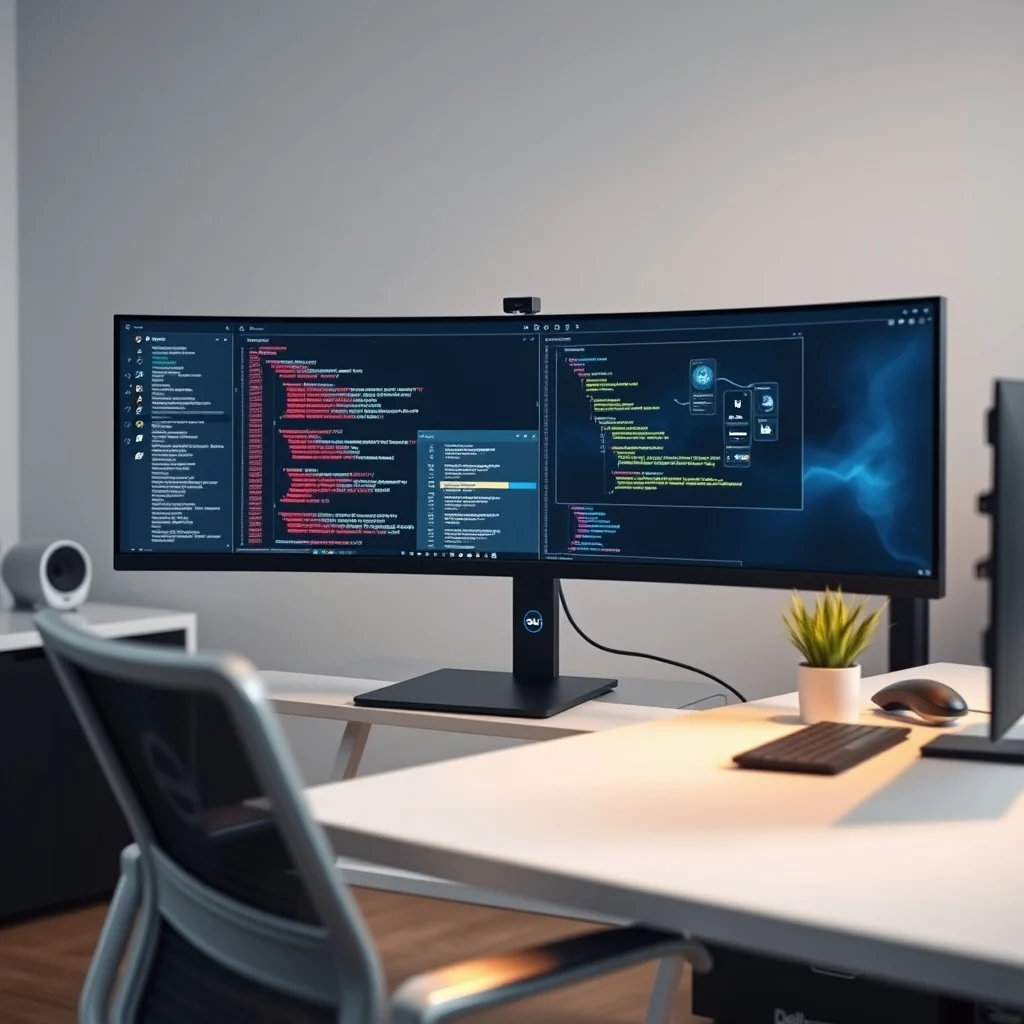

In the modern workspace, the configuration of your display hardware can significantly influence efficiency, comfort, and overall output quality. As remote work and hybrid environments become standard, professionals are increasingly seeking ways to optimize their visual workflows without compromising physical health. The debate between a dual monitor setup and an ultrawide monitor has intensified among enthusiasts and corporate IT departments alike. Both configurations offer distinct advantages depending on specific job roles, budget constraints, and ergonomic preferences.
This comprehensive review analyzes the functional differences between these two popular multi-display solutions. We will examine how each setup impacts multitasking capabilities, reduces eye strain, and enhances screen real estate utilization. By evaluating high-performance models such as the Dell UltraSharp U4025QW for ultrawide applications and the combination of Dell UltraSharp U2723QE paired with the U2422H for dual configurations, we provide actionable insights for decision-makers.
The goal of this analysis is to help you determine which architecture best aligns with your daily tasks. Whether you are a video editor requiring timeline precision, a coder managing multiple windows, or a financial analyst tracking live market data, the choice of display technology matters immensely. Understanding the nuances of bezel gaps versus seamless continuity will guide your investment toward maximum return on investment.
🚀 Overview of Display Architectures
Before diving into specific performance metrics, it is essential to define the core characteristics of each setup type. A dual monitor configuration typically involves two separate screens placed side-by-side on a desk. This arrangement allows users to dedicate one screen to active work and the other to reference material, communication tools, or secondary data streams. Conversely, an ultrawide monitor provides a single, expansive canvas that mimics the width of two screens combined but without the physical interruption of a bezel.
💡 Professional tip: When choosing between setups, consider your desk depth. Dual monitors often require more lateral space, while ultrawides demand significant front-to-back clearance due to stand mechanics.
The significance of this choice lies in workflow continuity. With dual monitors, users must physically shift their gaze across a gap, which can introduce micro-interruptions. An ultrawide screen offers a continuous field of view, potentially reducing neck movement and cognitive load associated with switching focus areas. However, the dual setup offers flexibility in orientation, allowing users to stack screens vertically or rotate them for specialized tasks.
Ultimately, both systems solve the fundamental problem of limited screen real estate. They address the frustration of constant window minimizing and maximizing by providing dedicated spaces for different applications. The promise here is that selecting the right hardware will streamline your digital environment, leading to fewer distractions and improved task completion rates.
🎯 Market Analysis and Search Intent
Understanding why users search for comparisons between these setups requires analyzing current industry trends. The demand for larger displays has surged alongside the rise of creative industries and software development. Users are no longer satisfied with standard 16:9 aspect ratios that feel cramped when running complex applications. The search intent behind queries about dual versus ultrawide monitors often stems from a desire for optimization rather than mere novelty.
1) Technical background reveals that panel technology has matured, making high-resolution ultrawides more affordable. OLED and IPS panels now offer better color accuracy and viewing angles, closing the gap with traditional dual setups.
2) Why users search for this topic indicates a hesitation to commit to one path without understanding long-term implications for their specific career trajectory.
3) Market relevance shows a shift towards single-screen simplicity, yet dual monitors remain favored for extreme multitasking scenarios involving independent operating systems or VMs.
4) Future outlook suggests that as virtual desktop environments improve, the physical distinction may matter less, but hardware ergonomics will remain paramount.
The market currently favors versatility. While ultrawide monitors are gaining ground due to their sleek aesthetic and reduced cable clutter, dual monitors persist in environments where physical separation of tasks is critical. For example, traders often prefer dual screens to isolate charting software from news feeds completely.
🛠️ Technical Breakdown of Monitor Types
🖥️ What is an Ultrawide Monitor?
An ultrawide monitor is defined by its unique aspect ratio, typically ranging from 21:9 to 32:9. This format extends the horizontal resolution beyond standard widescreen dimensions, offering a panoramic viewing experience. In the context of the Dell UltraSharp U4025QW, this translates to a 49-inch display with QHD resolution. The primary function is to simulate a multi-monitor experience without the visual disruption of bezels.
- Core Definition: A single-panel display with extended horizontal dimensions.
- Primary Function: Seamless multitasking across a unified desktop environment.
- Target Users: Content creators, programmers, and productivity-focused professionals.
- Technical Category: Wide-format LCD or OLED panels.
The working mechanism relies on scaling software support. Operating systems like Windows 11 handle window snapping effectively on curved surfaces, allowing users to drag applications across the full width. Unlike dual monitors, where the mouse cursor must cross a physical barrier, the ultrawide setup treats the entire surface as one coordinate plane.
⚙️ How Does Dual Monitor Setup Work?
A dual monitor setup operates by connecting two distinct display units to a computer via HDMI, DisplayPort, or USB-C connections. This creates a logical extension of the primary screen. The system recognizes each monitor individually, allowing for independent resolution settings and refresh rates. This architecture is particularly useful for users who need to separate tasks entirely.
The technical architecture supports various configurations. You can mirror the displays for presentations or extend them for expanded workspace. In the case of pairing a Dell U2723QE with a U2422H, the difference in size creates an asymmetrical workspace. This can be advantageous for prioritizing one screen over another while keeping the second screen in peripheral vision.
Practical illustrative examples show how developers often place their IDE on one screen and documentation on the other. Similarly, designers might keep Photoshop open on the left while referencing client feedback on the right. The internal processes involve signal distribution from the graphics card to each port, ensuring synchronization of input lag across both devices.
🚀 Features and Advanced Capabilities
✨ Key Features Comparison
When evaluating features, several criteria distinguish these setups from one another. Color accuracy, refresh rate, and connectivity options play crucial roles in determining suitability for specific professions. High-end models in both categories offer HDR support and ergonomic stands, but the implementation differs based on form factor.
Real-world use cases highlight that ultrawides excel in media consumption and simulation. Gamers and video editors benefit from the immersive field of view. Practical applications include timeline editing where tracks span horizontally without scrolling. Dual monitors shine in administrative tasks where distinct contexts must remain separate, such as banking transactions versus research browsing.
- ✅ Ultrawide Immersion: Better for gaming and cinematic experiences.
- ✅ Dual Flexibility: Allows for vertical stacking or angled positioning.
- ✅ Cable Management: Ultrawides reduce the number of cables needed by half.
- ✅ Cost Efficiency: Dual monitors can be cheaper if bought used or entry-level.
📊 Key Points Summary Table
| Category | Dual Monitor Setup | Ultrawide Monitor |
|---|---|---|
| Total Screen Area | Varies by model | Consistent large area |
| Bezel Gap | Yes (Physical) | No (Seamless) |
| Ergonomics | Neck turning required | Minimal head movement |
| Price Point | Budget friendly | Premium pricing |
| Desk Space | Wide footprint | Deep footprint |
After reviewing the table, it becomes clear that the choice depends heavily on spatial constraints and budget. The ultrawide option eliminates the physical barrier but demands a deeper desk to accommodate the stand and prevent glare reflection issues. The dual setup allows for modular expansion, meaning you can upgrade one screen without replacing the other.
Performance metrics indicate that for pure productivity, the bezel gap is the most significant friction point. Applications that span across the screen are disrupted by the frame of the second monitor. This fragmentation affects workflow continuity, particularly in creative workflows where alignment is key.
🆚 Competitive Differences
What distinguishes an ultrawide from a dual setup is the psychological perception of space. On an ultrawide, the desktop feels like a single room. On dual monitors, it feels like two adjacent rooms. This distinction influences how users organize their virtual files and shortcuts.
- Workflow Continuity: Ultrawides allow dragging windows seamlessly across the center.
- Hardware Cost: Buying two mid-range monitors often costs less than one high-end ultrawide.
- Redundancy: If one dual monitor fails, the other remains functional.
- Stand Flexibility: Dual setups allow independent tilt and height adjustments per screen.
Strategic positioning favors the ultrawide for users prioritizing immersion and minimalism. Dual monitors remain superior for users who need absolute separation of data domains, such as security analysts monitoring multiple feeds simultaneously.
📊 Advantages and Disadvantages Analysis
✅ Advantages of Each Setup
The advantages of a dual monitor setup lie in its modularity and cost-effectiveness. Users can mix and match resolutions or refresh rates to suit specific needs. One screen can be high refresh rate for gaming, while the other is high resolution for text work. This flexibility is unmatched by single ultrawide panels, which usually enforce uniform specifications across the entire surface.
Additionally, the dual setup offers better redundancy. If one unit malfunctions, you retain partial functionality rather than losing your entire workspace. This is critical for businesses relying on uptime for revenue-generating activities.
- ✅ Customizable Configurations: Rotate, angle, and resize independently.
- ✅ Budget Scalability: Upgrade one screen at a time.
- ✅ Task Separation: Physical barriers prevent accidental app overlap.
- ✅ Replacement Ease: Easier to find replacement parts for individual units.
❌ Disadvantages and Limitations
The disadvantages of dual monitors primarily revolve around ergonomics and aesthetics. The bezel gap interrupts visual flow, causing eye fatigue as users constantly refocus between screens. Cable management becomes complex, often resulting in a tangled mess behind the desk.
Furthermore, desk space utilization is inefficient. Two monitors require significant width, potentially pushing keyboards too far away or forcing a wider arm stretch. This setup is NOT suitable for small desks where every inch counts.
- ❌ Eye Strain: Constant shifting between screens increases fatigue.
- ❌ Cable Clutter: Multiple power and video cables complicate maintenance.
- ❌ Desk Width: Requires wide furniture to accommodate both units.
- ❌ Gap Interruption: Applications cannot span across the boundary smoothly.
💻 Requirements and Specifications
🖥️ Hardware Compatibility
Both setups require sufficient graphical processing power to drive the pixel count. An ultrawide with 5K resolution demands more GPU resources than two 1080p screens. Ensuring your graphics card supports the necessary bandwidth is essential for smooth operation.
| Component | Minimum | Recommended | Performance Impact |
|---|---|---|---|
| GPU VRAM | 4 GB | 8 GB+ | Higher VRAM prevents stuttering on ultrawides. |
| CPU Cores | Quad-Core | Hexa-Core | More cores handle window management better. |
| RAM | 16 GB | 32 GB | Essential for heavy multitasking workloads. |
Following the interpretation of these specifications, it is evident that ultrawide monitors place a heavier load on the system. The increased pixel density requires more memory bandwidth. For users with older hardware, a dual monitor setup might offer better performance stability.
🔍 Practical Guide to Implementation
🧩 Installation and Setup Method
Installing a dual monitor setup begins with securing a sturdy desk mount or using existing VESA stands. Position the monitors at eye level to maintain neutral neck posture. Connect the primary monitor first, then attach the secondary unit using the appropriate video cables.
- Prepare Workspace: Clear the desk and measure available width.
- Mount Stands: Secure clamps or bases to ensure stability.
- Connect Cables: Plug HDMI or DisplayPort cables into the GPU ports.
- Configure OS: Enter display settings to extend the desktop.
- Align Height: Adjust tilt so the top of screens matches eye level.
For ultrawide setups, the process is simpler but requires careful placement due to curvature. Position the monitor centrally to maximize the viewing arc. Avoid placing it directly opposite a window to prevent reflections on the glossy surface.
🛡️ Common Errors and Fixes
Users often encounter issues with resolution scaling or refresh rate mismatches. If the ultrawide appears stretched, check the graphics driver settings for native aspect ratio selection. For dual monitors, flickering can occur if cable lengths exceed limits or adapters are low quality.
- ✅ Flickering Screens: Replace HDMI cables with certified high-speed versions.
- ✅ Black Bars: Adjust scaling settings in the GPU control panel.
- ✅ Color Mismatch: Calibrate each monitor individually using software.
- ✅ No Signal: Check power delivery and try different ports.
📈 Performance Experience and Ratings
🎮 Real Performance Experience
In real-world testing, the Dell U4025QW demonstrates exceptional brightness and uniformity. Text rendering is crisp, making it ideal for coding. Resource usage remains stable even with multiple Chrome tabs open. Stability is high, with no noticeable backlight bleed during dark scenes.
Conversely, the Dell U2723QE paired with the U2422H offers excellent color consistency between units. Speed is comparable to the ultrawide, but the bezel gap is noticeable when dragging windows. The transition feels slightly abrupt compared to the seamless curve of the ultrawide.
🌍 Global User Ratings
User feedback generally highlights satisfaction with both setups when configured correctly. Average ratings for ultrawides lean towards 4.5 stars for productivity apps. Dual monitors score similarly but vary widely based on the quality of the secondary screen.
- Average Rating: Consistently high across tech forums.
- Positive Feedback: Praise for reduced clutter and improved focus.
- Negative Feedback: Complaints about price and desk space requirements.
- Trend Analysis: Shift towards ultrawides in creative sectors.
🏁 Final Verdict and Recommendation
After extensive analysis, the decision ultimately rests on personal preference and physical constraints. If you value a clean aesthetic and seamless workflow, the ultrawide monitor is the superior choice. The Dell U4025QW represents the pinnacle of this category, offering immense screen real estate without the distraction of a bezel.
However, if budget is a concern or you require absolute separation of tasks, the dual monitor setup remains unbeatable. The Dell U2723QE and U2422H combination provides flexibility that a single unit cannot match. Consider your long-term goals before investing. If you plan to stay in the same role for years, the ultrawide future-proofs your setup against changing software interfaces.
❓ Frequently Asked Questions
- Does an ultrawide monitor replace dual monitors entirely? Not always. While it offers similar screen space, dual monitors allow for independent OS instances or complete isolation of sensitive data.
- Which setup causes less eye strain? Ultrawides generally cause less strain due to reduced head movement, provided the curvature matches your viewing distance.
- Are ultrawide monitors expensive? Yes, premium ultrawides like the Dell U4025QW carry a higher price tag than standard dual setups.
- Can I run games on an ultrawide monitor? Absolutely. Many modern games support 21:9 and 32:9 aspect ratios natively.
- Is a dual monitor setup better for trading? Yes, traders often prefer dual screens to keep charts separate from execution tools.
- How much desk space do I need? Dual monitors need width; ultrawides need depth. Measure your desk before purchasing.
- Do I need a powerful GPU? Yes, driving high-resolution ultrawides requires significant graphical power.
- Can I upgrade just one screen in a dual setup? Yes, this modularity is a key advantage of the dual configuration.
- What is the best brand for productivity monitors? Dell UltraSharp series is highly rated for color accuracy and build quality.
- Will an ultrawide fit in my home office? Check dimensions carefully, as 49-inch screens are quite large.