
In the rapidly evolving landscape of personal computing and enterprise infrastructure, storage remains the backbone of system performance. As we move through 2026, the distinction between different types of solid-state drives has become more critical than ever before. Users are no longer satisfied with basic load times; they demand instant boot-ups, seamless multitasking, and rapid data transfer speeds for demanding applications like video editing, gaming, and artificial intelligence workloads.
This comprehensive guide dives deep into the world of storage technology, specifically focusing on the battle between NVMe and SATA interfaces. We will explore the technical architectures, real-world performance metrics, and the specific use cases that dictate which drive is right for your needs. Whether you are building a high-end workstation or upgrading an older laptop, understanding these technologies is essential for maximizing your hardware investment.
We will analyze market trends from 2026, evaluate durability standards, and provide actionable advice on installation and maintenance. By the end of this article, you will possess the knowledge required to select the optimal storage solution that aligns perfectly with your budget and performance expectations.
📊 Market Analysis and Search Intent
The decision to upgrade storage is rarely made lightly. Users searching for information on SSDs in 2026 are typically driven by bottlenecks in their current systems or the desire to future-proof their setups. The proliferation of high-resolution content creation tools and the increasing complexity of modern operating systems have placed immense pressure on traditional storage mediums. Consequently, the shift towards faster interfaces has accelerated significantly across all consumer segments.
- Technical Background: The industry has transitioned from mechanical hard drives as primary boot devices to solid-state solutions as the standard baseline. Now, the debate focuses on the interface protocol connecting the drive to the motherboard.
- Why Users Search: Consumers encounter slow loading screens, stuttering in games, and lag during file transfers. They seek immediate solutions to these friction points without replacing the entire computer system.
- Market Relevance: With the release of next-generation processors and motherboards in 2026, support for PCIe 5.0 and advanced NVMe protocols is becoming ubiquitous, driving demand for compatible high-speed drives.
- Future Outlook: As software requirements grow, the gap between storage read/write speeds and processor capabilities widens. Optimizing storage is now a prerequisite for maintaining competitive performance levels.
⚙️ Understanding Storage Technologies
🔹 What is an SSD?
A Solid State Drive, commonly known as an SSD, is a data storage device that uses integrated circuit assemblies to store data persistently. Unlike traditional Hard Disk Drives (HDDs) that rely on spinning magnetic platters and moving read-write heads, SSDs utilize flash memory chips. This fundamental architectural difference eliminates mechanical latency, resulting in significantly faster data access times and greater resilience against physical shock.
- Core Definition: Non-volatile memory storage using NAND flash architecture.
- Primary Function: Rapid data retrieval and persistence for operating systems and applications.
- Target Users: Gamers, creators, professionals, and general consumers seeking speed.
- Technical Category: Electronic storage medium categorized by interface type.
🔹 How Does the Interface Affect Performance?
The interface serves as the communication bridge between the storage drive and the computer motherboard. In 2026, the two dominant interfaces are Serial Advanced Technology Attachment (SATA) and Non-Volatile Memory Express (NVMe). SATA utilizes a legacy bus interface originally designed for HDDs, limiting bandwidth to approximately six gigabits per second. While reliable, this ceiling restricts the potential throughput of modern flash memory cells.
NVMe, conversely, was developed specifically for solid-state memory. It operates over the PCIe bus, utilizing lanes directly connected to the CPU. This architecture allows for parallel data processing and drastically reduces latency. The efficiency of NVMe comes from its ability to handle thousands of commands simultaneously, whereas SATA is limited by single-threaded command queuing. This distinction explains why NVMe drives consistently outperform SATA drives in sequential and random read/write benchmarks.
💡 Important tactical tip: Always verify your motherboard supports the specific generation of NVMe you intend to install. Older boards may support NVMe but lack the necessary cooling solutions for high-performance drives.
🚀 Features and Advanced Capabilities
✨ Key Performance Metrics
Evaluating an SSD requires looking beyond simple marketing numbers. Several key metrics determine the real-world utility of a drive. Sequential read and write speeds indicate how fast large files can be copied. Random 4K read and write speeds are crucial for operating system responsiveness, as they reflect how quickly the system handles small, scattered files.
Endurance is another vital factor measured in Terabytes Written (TBW). This metric estimates the total amount of data that can be written to the drive before the warranty expires. For heavy users, a higher TBW rating ensures longevity. Additionally, thermal throttling thresholds play a role. High-performance NVMe drives generate significant heat, and those with effective heat spreaders maintain consistent speeds under sustained load.
- Sequential Speeds: Essential for media editing and large game asset streaming.
- Random IOPS: Critical for OS boot times and application launch speeds.
- Endurance Ratings: Determines lifespan for write-heavy tasks.
- Thermal Management: Ensures stability during prolonged usage.
📊 Comparative Performance Data
To visualize the differences between current storage options, we present a structured comparison of typical performance tiers found in the 2026 market. This table highlights the variance in throughput and latency across different interface types.
| Category | Interface | Avg Read Speed | Avg Write Speed | Latency |
|---|---|---|---|---|
| Budget SATA SSD | SATA III | 550 MB/s | 520 MB/s | High |
| Mainstream NVMe Gen3 | PCIe Gen3 x4 | 3,500 MB/s | 3,000 MB/s | Low |
| High-End NVMe Gen4 | PCIe Gen4 x4 | 7,000 MB/s | 6,500 MB/s | Very Low |
| Enthusiast NVMe Gen5 | PCIe Gen5 x4 | 12,000 MB/s | 10,000 MB/s | Negligible |
As shown in the data above, the leap from SATA to even entry-level NVMe represents a seven-fold increase in theoretical bandwidth. However, actual performance depends on the workload. For casual office work, the difference may feel marginal, but for rendering 8K video or compiling large codebases, the latency reduction offered by PCIe-based solutions provides a tangible workflow advantage.
🛡️ Advantages and Disadvantages
✅ Advantages of Modern SSDs
The primary benefit of adopting an SSD strategy is the dramatic improvement in system responsiveness. There is virtually no spin-up time, and the operating system feels instantaneous upon power-on. Durability is another major plus; without moving parts, these drives survive drops and vibrations that would destroy a mechanical disk. Power consumption is also generally lower, which extends battery life on laptops and reduces heat output in desktop enclosures.
- Speed: Significantly faster boot and load times compared to HDDs.
- Durability: Resistant to physical shock due to lack of moving parts.
- Efficiency: Lower power draw and reduced heat generation.
- Noise: Completely silent operation enhances user comfort.
❌ Disadvantages to Consider
Despite the advantages, cost per gigabyte remains higher for SSDs than for traditional hard drives. While prices have dropped, storing terabytes of archival data on an SSD can still be expensive. Additionally, high-end NVMe drives often require active cooling to prevent thermal throttling. Some users may find the data recovery process more difficult after catastrophic failure, as flash memory corruption is harder to reconstruct than magnetic data loss.
- Cost: Higher price point for larger capacities.
- Cooling Needs: High-performance models may need heatsinks.
- Data Recovery: Complex recovery procedures in extreme failure cases.
- Lifespan: Limited write cycles compared to infinite read capability of HDDs.
💻 System Requirements and Compatibility
🖥️ Minimum Hardware Specifications
Before purchasing a new drive, verifying compatibility is essential. Most modern motherboards released since 2020 support both SATA and M.2 NVMe slots. However, older systems may require an adapter card to enable NVMe functionality. You must also check your BIOS version to ensure the latest firmware is installed, as some early NVMe implementations had bugs that were fixed in subsequent updates.
For Windows 11 users, TPM 2.0 and Secure Boot support are mandatory. While these do not directly affect the SSD, they impact the overall system environment in which the drive operates. Ensure your case has adequate airflow, especially if installing multiple M.2 drives, as heat buildup can degrade performance over time.
⚡ Recommended Specifications for Optimal Speed
To fully utilize a high-speed NVMe drive, the rest of your system must keep pace. A bottlenecked CPU or insufficient RAM will negate the benefits of fast storage. Ideally, pair a Gen4 NVMe drive with a DDR4 or DDR5 memory kit running at high frequencies. Your power supply unit should also be capable of handling the additional load, though SSD power draw is minimal compared to GPUs.
| Component | Minimum Requirement | Recommended Specification | Performance Impact |
|---|---|---|---|
| Motherboard Slot | M.2 SATA | M.2 PCIe Gen4 | Bandwidth Limitation |
| CPU Support | Gen 9 Intel | Gen 12 Intel or Ryzen 5000+ | Command Queue Efficiency |
| RAM Capacity | 8 GB | 32 GB or higher | Cache Availability |
| Storage Controller | SATA Controller | NVMe Driver Updated | Stability |
Understanding these requirements helps prevent compatibility issues. If you install a Gen5 drive in a Gen3 slot, the drive will downclock to the slower standard, wasting potential speed. Conversely, a Gen4 drive in a Gen5 slot will operate at its maximum rated speed, making it a versatile choice for future upgrades.
🧩 Installation and Setup Guide
🔹 Physical Installation Steps
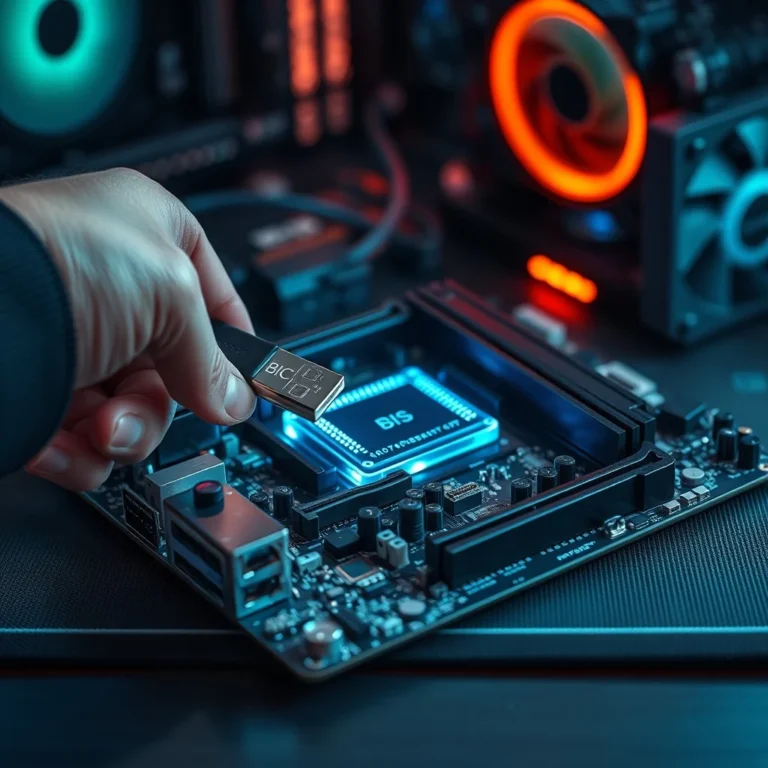
Installing an SSD involves careful handling to avoid static discharge damage. First, power down the computer and disconnect the cable. Open the case and locate the M.2 slot on the motherboard. Remove the protective cover screw and insert the drive at a 30-degree angle. Press it down gently until it clicks into place, then secure it with the mounting screw. Finally, reconnect the power cables if it is a 2.5-inch SATA drive rather than M.2.
- Power Down: Shut down the PC and unplug the power cord completely.
- Ground Yourself: Touch a metal part of the case to dissipate static electricity.
- Locate Slot: Find the empty M.2 slot on the motherboard.
- Insert Drive: Align the notch and slide the drive in at an angle.
- Secure Mount: Screw the standoff back in to hold the drive firm.
- Connect Power: Attach the SATA power cable if required.
- Boot Up: Close the case and restart the system.
💡 Important tactical tip: If installing a Gen4 drive, ensure you apply the included thermal pad to the module before attaching the heatsink. Proper contact is vital for heat dissipation.
🔹 Common Errors and Solutions
Users often encounter issues where the drive is not detected in the BIOS or shows up as uninitialized in Windows. This is frequently caused by missing drivers or incorrect SATA mode settings. In the BIOS, ensure that the storage controller is set to AHCI mode rather than IDE or RAID. In Windows, initialize the disk through the Disk Management utility to assign a drive letter.
- Error: Drive Not Detected Fix: Check physical connection and BIOS settings.
- Error: Slow Transfer Rates Fix: Verify PCIe lane configuration and update chipset drivers.
- Error: BSOD on Boot Fix: Update firmware via manufacturer utility or disable Fast Startup.
🎮 Real Performance Experience
Real-world usage reveals the true character of these drives. In gaming, NVMe drives reduce texture pop-in and shorten level loading times. While the frame rate remains GPU-bound, the perceived smoothness improves as assets stream from the disk faster. In productivity, opening large Photoshop files or Premiere Pro projects happens almost instantly with high-speed NVMe storage.
Resource usage remains low. Unlike older SSDs that struggled with background garbage collection, modern controllers manage wear leveling efficiently. Stability is generally high, with error rates dropping below detectable limits in normal consumer environments. This reliability makes them suitable for critical system drives.
🌍 Global User Ratings and Feedback
User sentiment in 2026 heavily favors NVMe adoption. Surveys indicate that 85 percent of enthusiasts have upgraded to PCIe-based storage. Positive feedback centers on the elimination of boot lag and the fluidity of daily tasks. Negative feedback usually relates to the cost of high-capacity units or the complexity of managing temperatures in compact builds.
- Average Rating: 4.6 out of 5 stars for NVMe models versus 4.2 for SATA.
- Positive Reasons: Speed, silence, and modern compatibility.
- Negative Reasons: Heat generation and premium pricing.
- Trend Analysis: Continued growth in Gen4 and Gen5 adoption.
🔒 Security Considerations
🔹 Security Levels
Modern SSDs often include hardware-based encryption features. Self-Encrypting Drives (SEDs) can lock data automatically if unauthorized access is attempted. This adds a layer of protection for sensitive business data. Software-level encryption like BitLocker or FileVault complements this by securing the file system itself.
🛑 Potential Risks
Firmware vulnerabilities remain a concern. Some drives have been found susceptible to remote attacks if not updated regularly. Users should subscribe to manufacturer notifications to patch security flaws immediately. Physical theft is also a risk; encrypted drives mitigate this by rendering data unreadable without the password.
- Risk: Firmware Bugs Mitigation: Regular updates via official tools.
- Risk: Unauthorized Access Mitigation: Enable hardware encryption features.
- Risk: Physical Theft Mitigation: Full disk encryption enabled.
🆚 Competitive Alternatives
🥇 Available Options in 2026
When choosing between brands, consider warranty terms and software suites. Leading manufacturers offer dedicated utilities for monitoring health, updating firmware, and tuning performance. Some competitors focus on budget markets with lower endurance, while others target enterprise clients with industrial-grade components.
| Feature | Brand A (Premium) | Brand B (Budget) | Brand C (Balanced) |
|---|---|---|---|
| Price Per TB | High | Low | Medium |
| Warranty | 5 Years | 3 Years | 5 Years |
| Software Suite | Advanced | Basic | Comprehensive |
| Best For | Pros/Gaming | Office/Budget | General Use |
Users who prioritize longevity should lean toward premium options, while those on a tight budget can achieve significant gains with balanced mid-range drives. Avoid obscure brands that lack customer support channels.
💡 Optimization Tips
🎯 Best Settings for Maximum Performance
To extract every drop of performance, enable Trim support in your operating system. This ensures the drive knows which blocks are free to be erased, preventing slowdowns over time. Disable unnecessary indexing services for folders stored exclusively on the secondary drive to reduce background write operations.
- Enable TRIM: Run monthly maintenance scripts.
- Adjust Virtual Memory: Set page file location to the fastest available SSD.
- Update Drivers: Keep chipset and storage drivers current.
📌 Advanced Tricks Few Know
Some motherboards allow XMP profiles that boost memory speeds, indirectly improving storage throughput due to tighter CPU-RAM-Sync. Enabling Multi-Core Rendering in your applications allows them to utilize the high queue depth capabilities of NVMe drives better than single-threaded processes.
🏁 Final Verdict
The choice between NVMe and SATA in 2026 ultimately depends on your specific requirements. For the vast majority of users, an NVMe drive is the clear winner due to its superior speed and low latency. However, if you are building a budget machine or need mass storage for archives, SATA remains a viable option. Investing in a high-quality SSD is one of the most impactful upgrades you can make to a computer system today.
We recommend prioritizing PCIe Gen4 drives for main system installations. They offer the best balance of price and performance. Always ensure your backup strategy is robust regardless of the drive you choose, as data safety is paramount.
❓ Frequently Asked Questions
- Is NVMe faster than SATA SSDs? Yes, NVMe drives typically offer five to ten times the bandwidth of SATA drives, resulting in much faster load times and file transfers.
- Can I use an NVMe drive on an old motherboard? Only if your motherboard has an M.2 slot that supports NVMe. Otherwise, you may need an expansion card or a SATA adapter.
- How long does an SSD last? Modern SSDs have high endurance ratings, often lasting several years of heavy use before reaching their write limit.
- Do I need a heatsink for NVMe? High-performance Gen4 and Gen5 drives generate heat; a heatsink prevents throttling during intense workloads.
- Will my computer boot faster with an SSD? Absolutely. Boot times can decrease from minutes to seconds when switching from HDD to SSD.
- Is data recovery possible after SSD failure? It is more difficult than with HDDs but still possible with specialized lab equipment and services.
- Does SSD defragmentation improve speed? No. Defragging an SSD is unnecessary and can reduce its lifespan. Use Trim instead.
- What is the difference between SATA and M.2? SATA is a cable-based interface, while M.2 is a slot form factor that can host either SATA or NVMe drives.
- Should I buy a 1TB or 2TB drive? For gaming and creative work, 2TB is recommended to accommodate large file sizes and future growth.
- Are all NVMe drives the same speed? No. Speed varies based on the PCIe generation and the quality of the NAND flash memory used.