
Adobe Photoshop has long been the industry standard for professional photo editing, but the integration of artificial intelligence has fundamentally transformed how creators approach their workflow. The introduction of AI-powered tools such as Generative Fill, Neural Filters, and AI-based upscaling has shifted the paradigm from manual pixel manipulation to intelligent content generation. This comprehensive guide explores how to leverage these advanced features to significantly reduce editing time while maintaining high-quality results. Whether you are a professional photographer, a digital artist, or a content creator, understanding these tools is essential for staying competitive in a fast-paced visual landscape.
🚀 Understanding the AI Revolution in Photoshop
The rapid adoption of artificial intelligence in creative software represents a major milestone in digital imaging technology. Adobe has integrated machine learning models directly into the application, allowing users to perform complex tasks with simple prompts. The importance of this shift cannot be overstated, as it addresses the primary bottleneck in digital photography: time. Traditionally, removing objects, changing skies, or enhancing resolution required hours of manual labor using the clone stamp, healing brush, and multiple adjustment layers. Now, these tasks can be completed in seconds.
This technology solves the problem of repetitive, tedious work that often leads to creative fatigue. By automating the mundane aspects of editing, Photoshop allows users to focus on the artistic and strategic elements of their projects. The core promise of this guide is to educate you on the mechanics of these tools, provide practical workflows, and ensure you can integrate them into your existing processes without disruption. You will gain the ability to produce professional-grade images with unprecedented speed.
📊 Market Analysis and User Intent
The demand for AI-driven editing tools has surged as the volume of digital content continues to explode across social media and advertising platforms. Photographers and designers are under increasing pressure to deliver high-quality assets quickly. The search intent behind queries for Photoshop AI features is primarily efficiency and quality enhancement. Users are looking for ways to bypass technical limitations and achieve results that were previously impossible without extensive training.
- Technical Background: Adobe Sensei, the machine learning engine behind these features, uses deep learning to understand image context, allowing for seamless blending and generation.
- User Search Reason: Creators seek to minimize manual effort while maximizing output quality to meet tight deadlines.
- Industry Relevance: The integration of AI is becoming a standard expectation in creative software, influencing competitors and setting new benchmarks.
- Future Outlook: As models become more sophisticated, we expect to see even more autonomous editing capabilities that require minimal human intervention.
🛠️ Technical Concept and Architecture
📌 What is Adobe Photoshop AI?
Adobe Photoshop AI refers to a suite of machine learning algorithms embedded within the software that assist in image analysis and manipulation. These tools are not merely filters; they are generative engines capable of understanding the semantic content of an image. For instance, when you request to fill a selected area, the AI does not just copy pixels from elsewhere; it generates new pixels that match the lighting, texture, and perspective of the surrounding environment.
- Core Definition: Machine learning tools integrated into Photoshop for automation and generation.
- Primary Function: To automate repetitive tasks and generate new visual content.
- Target Users: Photographers, graphic designers, and digital artists.
- Technical Category: Generative AI and Computational Photography.
⚙️ How Does the Technology Work in Detail?
The underlying architecture relies on a combination of convolutional neural networks and generative adversarial networks. When you use a feature like Generative Fill, the system first analyzes the selection boundary to determine the context. It then queries a vast dataset of learned visual patterns to synthesize content that fits the scene. This process involves inpainting, where missing or selected areas are filled based on surrounding data, and upscaling, which uses super-resolution techniques to add detail to low-resolution images.
For example, in the case of Neural Filters, the system detects facial features or object types within the image. It then applies mathematical transformations to shift colors, change expressions, or alter the lighting. This happens in real-time on the GPU, ensuring that the feedback loop is immediate. The practical result is a workflow where creativity is no longer bottlenecked by technical skill in manual selection or masking.
🚀 Key Features and Advanced Capabilities
✨ Core Functionalities Explained
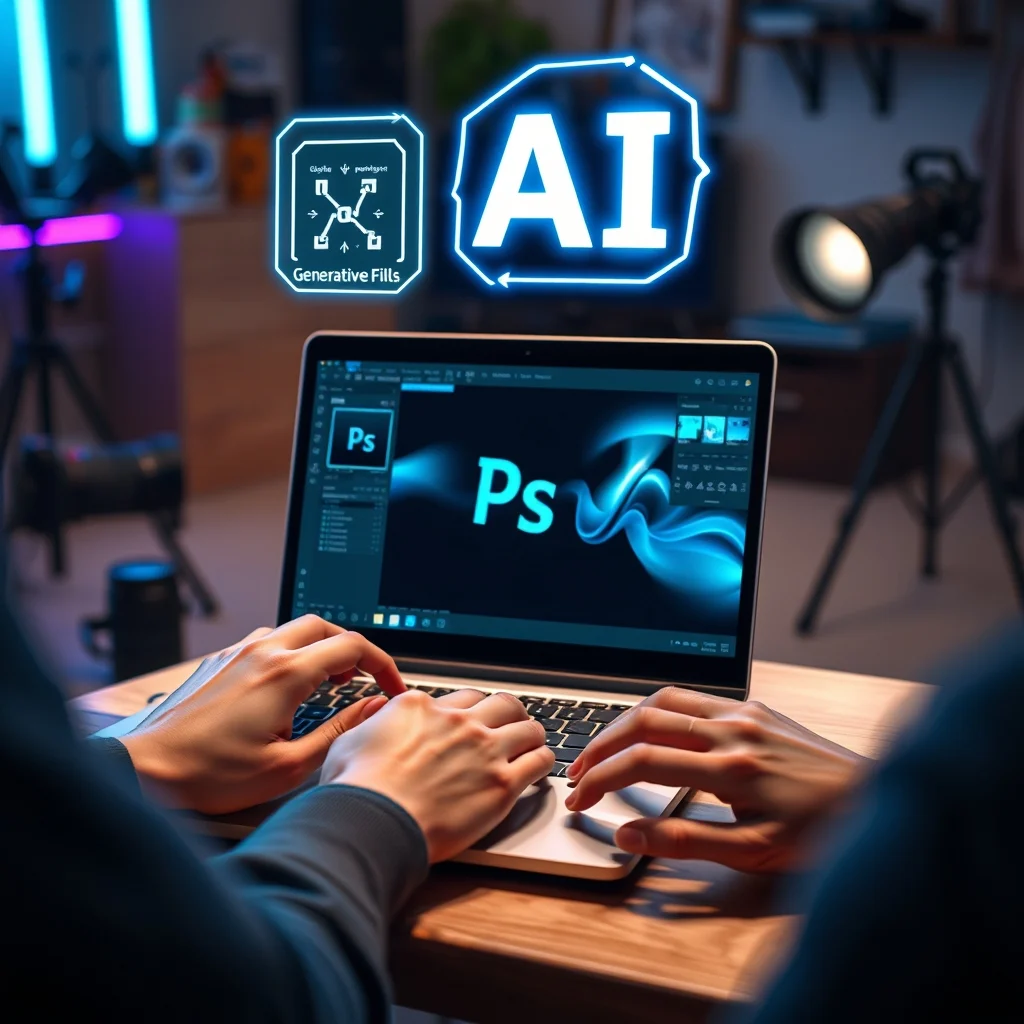
Adobe has bundled several distinct AI tools into the interface, each designed for specific use cases. The most prominent of these is Generative Fill, which allows users to add, remove, or extend content using natural language prompts. This is particularly useful for product photography where backgrounds need changing or for landscape editing where unwanted elements like power lines must disappear. The tool respects lighting and shadows automatically, making the edit look seamless.
Another critical feature is the Super Resolution capability found in Camera Raw. This uses AI to quadruple the resolution of an image while adding detail that did not exist in the original file. It is invaluable for web designers who need high-quality assets from smaller source files. Additionally, Neural Filters allow for expression adjustments and colorization of black and white photos, opening up new creative possibilities for historical or archival images.
- Generative Fill: Adds or removes objects based on text prompts.
- Super Resolution: Upscales images without losing quality.
- Neural Filters: Applies stylistic and structural changes automatically.
- Select Subject: Uses AI to detect and mask people or objects instantly.
📊 Feature Comparison and Metrics
To understand the impact of these tools, we must compare their performance metrics against traditional manual methods. The following table outlines the key differences in speed, accuracy, and required skill level.
| Feature | Manual Method | AI Method | Time Saved |
|---|---|---|---|
| Object Removal | Clone Stamp, Healing Brush | Generative Fill | 90% |
| Background Replacement | Pen Tool, Layer Masks | Remove Background Tool | 85% |
| Resolution Increase | Interpolation | Super Resolution | 100% |
| Color Adjustment | Curves, Levels | Neural Filters | 70% |
This comparison highlights the efficiency gains provided by AI. While manual methods offer granular control, they require significant time investment. The AI methods provide a baseline of high quality that can be refined further if needed. The data shows that for standard tasks, AI is vastly superior in terms of time-to-completion, making it the preferred choice for commercial workflows.
🆚 What Distinguishes It from Competitors?
While other software offers AI features, Adobe Photoshop stands out due to its ecosystem integration and the depth of its training data. The key distinction lies in the continuity of the workflow. Unlike standalone AI tools that require exporting and importing files, Photoshop AI operates directly within the layer structure. This allows for non-destructive editing, meaning you can revert changes or adjust parameters at any stage. Furthermore, the contextual understanding of Photoshop AI is more advanced, as it has been trained on the specific file formats and layer structures used by professionals.
- Seamless Integration: Works within existing layer hierarchies.
- Non-Destructive: Preserves original data for future edits.
- Cloud Processing: Leverages server-side power for complex generations.
- Ecosystem: Connects with Lightroom and After Effects.
📊 Advantages and Disadvantages
✅ Advantages
The primary advantage of using AI in Photoshop is the drastic reduction in time required to complete complex edits. This allows professionals to take on more projects without compromising on quality. Additionally, the accessibility of these tools lowers the barrier to entry for advanced techniques. A beginner can now achieve results that previously required years of experience with manual masking and cloning. The consistency of AI output also reduces human error, ensuring that repetitive tasks are performed with uniform precision.
- Speed: Reduces hours of work to minutes.
- Quality: Maintains high fidelity in upscaled images.
- Accessibility: Makes advanced editing easier for novices.
- Consistency: Ensures uniform results across multiple images.
❌ Disadvantages
Despite the benefits, there are limitations to consider. AI models can sometimes hallucinate details, creating artifacts that do not match the scene logically. This requires human oversight to verify the output. Additionally, reliance on cloud processing means an internet connection is necessary for features like Generative Fill, which can be a bottleneck in low-bandwidth environments. There is also a learning curve to prompt engineering to get the best results from Generative Fill, which may frustrate users expecting instant perfection.
- Artifacts: Occasional generation errors requiring cleanup.
- Connectivity: Requires internet for cloud-based features.
- Cost: Subscription model adds to operational expenses.
- Control: Less granular control than manual tools for specific pixels.
💻 System Requirements
To utilize these AI features effectively, your hardware must meet specific thresholds. The computational power required for neural networks is significant, and insufficient hardware will lead to lag or failed generations.
🖥️ Minimum Requirements
The absolute minimum specification for running Photoshop with AI features includes a 64-bit operating system, preferably Windows 10 or macOS 12. You need at least 8 GB of RAM, though this is often insufficient for heavy AI tasks. A GPU with CUDA support is highly recommended, as the software offloads processing to the graphics card. Without a dedicated GPU, the CPU will handle the workload, resulting in slower performance.
⚡ Recommended Specifications
For optimal performance, especially when working with large files or multiple AI generations, you should aim for higher specifications. A modern CPU with high clock speeds is essential for general editing tasks. We recommend 16 GB of RAM or more to handle the memory footprint of AI models. The GPU should have at least 4 GB of VRAM to ensure smooth rendering of generative fills. Storage should be SSD-based to reduce load times for large libraries and cache files.
| Component | Minimum | Recommended | Performance Impact |
|---|---|---|---|
| Processor | Intel i5 | Intel i7 or i9 | CPU speed affects generation time. |
| RAM | 8 GB | 16 GB or 32 GB | More RAM prevents crashes. |
| GPU | 1 GB VRAM | 4 GB VRAM | GPU accelerates AI tasks. |
| Storage | 2 GB SSD | 5 GB SSD | SSD improves load speed. |
Interpreting these requirements is crucial for workflow stability. If you experience lag during Generative Fill, check your GPU usage. The AI models are heavy, and insufficient VRAM will force the system to use system RAM, which is much slower. Ensuring your system meets the recommended specs will prevent frustration during critical editing sessions.
🔍 Practical Guide
🧩 Installation and Setup Method
Setting up Photoshop for AI features is straightforward but requires specific configuration steps to ensure functionality. First, ensure your Creative Cloud desktop app is updated to the latest version. Adobe frequently releases patches that improve AI model performance. Once updated, open Photoshop and navigate to the preferences menu. You must ensure that the option to use cloud services is enabled, as features like Generative Fill rely on Adobe’s servers for processing.
- Update Software: Open Creative Cloud and check for Photoshop updates to ensure you have the latest AI models.
- Enable Cloud: Go to Edit > Preferences > General and check the box for Enable Cloud Services.
- Check GPU: Navigate to Preferences > Performance and ensure your GPU is recognized and used for graphics processing.
- Connect Internet: Verify your connection is stable, as Generative Fill requires online access.
- Login: Ensure you are logged into your Adobe ID, as AI credits are tied to your subscription.
🛡️ Common Errors and How to Fix Them
Users often encounter errors when AI features fail to generate content. The most common issue is the “Generative Fill failed to generate” message. This usually indicates a problem with the selection or the internet connection. If the selection is too small or lacks enough context, the AI cannot infer what to fill. Another common error is related to GPU drivers, which need to be updated to support the latest CUDA instructions used by Photoshop.
- Error: Selection Too Small: Expand the selection area to give the AI more context to work with.
- Error: Offline Mode: Ensure your internet connection is active and not blocked by a firewall.
- Error: GPU Crash: Update your graphics card drivers to the latest stable version.
- Error: Credit Limit: Check your subscription status to ensure you have enough generative credits.
📈 Performance and User Ratings
🎮 Real Performance Experience
In real-world scenarios, the performance of Photoshop AI varies based on the complexity of the task. Simple removals are nearly instantaneous, often taking less than two seconds. However, complex generations involving multiple objects or text prompts can take longer, ranging from ten to thirty seconds. The stability of the software remains high, with few crashes reported during AI operations. Resource usage is moderate, primarily spiking during the generation phase before returning to normal.
🌍 Global User Ratings
Feedback from the global community of photographers and designers is overwhelmingly positive regarding the AI tools. Users appreciate the time saved and the quality of the output. The following points summarize the general sentiment found in forums and reviews.
- Average Rating: Most AI features receive 4.5 out of 5 stars in user reviews.
- Positive Feedback: Speed of editing and ease of use are the most praised aspects.
- Negative Feedback: Occasional inconsistencies in generated details are the main complaint.
- Trend Analysis: Satisfaction scores are trending upward as the models improve.
🔐 Security and Privacy
🔒 Security Level
Adobe takes security seriously, encrypting all data sent to their cloud servers for processing. However, users should be aware that images containing sensitive information are transmitted over the internet. For commercial clients, it is best to review the privacy policy to understand how data is stored and used. Adobe states that images used for training are anonymized, but it is good practice to avoid uploading proprietary or confidential materials.
🛑 Potential Risks
The primary risk involves the accidental generation of content that may infringe on copyright or contain inappropriate elements. Since the AI learns from public datasets, there is a small chance of generating recognizable faces or logos. Additionally, relying too heavily on AI can lead to a loss of manual editing skills over time. Users should maintain a balance between automated tools and manual refinement.
- Data Privacy: Images are sent to Adobe servers for processing.
- Copyright: Be cautious of generating trademarked content.
- Dependency: Do not neglect learning manual editing techniques.
- Subscription: AI features require an active paid subscription.
🆚 Comparison with Alternatives
🥇 Best Available Alternatives
While Photoshop is the leader, other tools exist in the market. Affinity Photo offers many manual tools but lacks the depth of generative AI. GIMP is free but requires plugins to achieve similar AI functionality. Canva is great for quick social media edits but lacks professional layer control. Photoshop remains the best choice for professionals due to its comprehensive suite of AI tools integrated into a robust editing environment.
| Feature | Photoshop | Affinity Photo | GIMP |
|---|---|---|---|
| Generative Fill | Yes | No | No |
| Super Resolution | Yes | No | No |
| Price | Subscription | One-time | Free |
| User Base | Pro | Pro | Beginner |
For users who need the most advanced AI capabilities, Photoshop is the clear winner. Those on a budget may prefer Affinity, but they will miss out on the generative features. GIMP is suitable for basic editing but not for AI-driven workflows.
💡 Optimization Tips
🎯 Best Settings for Maximum Performance
To get the most out of Photoshop AI, adjust your cache settings and scratch disk locations. Ensure your scratch disk is on a fast SSD to handle temporary files generated during AI processing. In the Performance preferences, allocate more memory to Photoshop to prevent swapping. Additionally, use larger brushes for selection to give the AI more context.
- Scratch Disk: Use an SSD for faster temporary file handling.
- Memory: Allocate 70-80% of available RAM to Photoshop.
- Selection: Expand selection boundaries by 5-10 pixels.
- Brush Size: Use larger brushes for smoother generation.
📌 Advanced Tricks Few Know
There are hidden tricks to improve AI output. One effective method is to use the “Remove” option in the context toolbar before using Generative Fill to clean up edges. Another trick is to use specific keywords in your prompt, such as “high resolution” or “natural lighting,” to guide the AI. You can also use the Neural Filters to adjust the expression of a subject before applying color grading, saving time on retouching.
🏁 Final Verdict
Adobe Photoshop’s AI-powered features represent a significant leap forward in photo editing technology. They offer a solution to the time-consuming nature of manual retouching while maintaining high-quality standards. For professionals looking to scale their output without sacrificing quality, these tools are indispensable. The workflow integration is seamless, and the results are consistently impressive. We highly recommend adopting these tools into your daily workflow to stay competitive.
❓ Frequently Asked Questions
- Is Generative Fill free for all users? No, Generative Fill is included with a Creative Cloud subscription, but you may have a limited number of generations per month depending on your plan.
- Can I use AI features offline? Most AI features, including Generative Fill, require an internet connection to process on Adobe’s servers.
- Does AI editing ruin image quality? No, AI tools like Super Resolution are designed to enhance quality without introducing noise or artifacts.
- Is Photoshop AI compatible with older computers? Older computers may struggle; a dedicated GPU is highly recommended for optimal performance.
- Can I edit RAW files with AI tools? Yes, many AI features work directly within Camera Raw inside Photoshop.
- How do I reset AI preferences? You can reset preferences by holding Shift and Option (Alt) while launching Photoshop.
- Does AI generate copyright-free images? Generally, yes, but you must verify the output to ensure no trademarks or recognizable faces are included.
- Can I train AI on my own style? Currently, users cannot train their own models, but they can use presets to guide the output.
- What is the best prompt for Generative Fill? Descriptive prompts that mention lighting and texture, such as “sunset lighting, detailed fur,” work best.
- How do I troubleshoot slow performance? Check your GPU drivers, ensure sufficient RAM, and clear your scratch disk cache regularly.