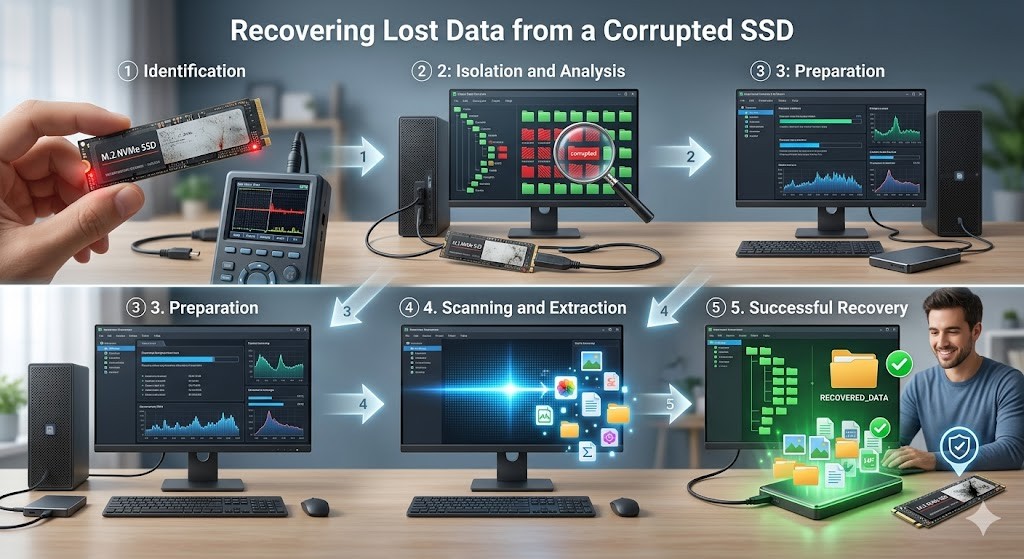

When a solid state drive fails, the panic is immediate. Your files, your work, your memories, all potentially gone in an instant. Recovering data from a corrupted SSD is a complex process that requires patience, the right tools, and a deep understanding of how flash memory works. This comprehensive guide is designed to walk you through the entire recovery process, from initial assessment to final retrieval, ensuring you maximize your chances of saving your critical data.
SSDs are faster and more durable than traditional hard drives, but they are not immune to failure. When logical corruption occurs, the file system becomes unreadable. When physical damage happens, the controller or NAND chips may fail. This article covers both scenarios, providing you with actionable steps and professional advice to navigate this challenging situation successfully.
By the end of this guide, you will understand the nature of SSD corruption, the tools available for recovery, and the best practices to follow to prevent further damage. Whether you are dealing with a simple file system error or a major hardware malfunction, this resource will be your roadmap to data salvation.
🚀 Understanding SSD Data Corruption and Recovery
Before attempting any recovery, it is vital to understand what has happened to your drive. SSD corruption is rarely the same as hard drive corruption. It involves the electronic components that manage data storage rather than magnetic platters. This distinction changes the approach you must take to recover your data effectively.
Logical corruption usually stems from power loss during a write operation, file system errors, or software conflicts. The data is still on the drive, but the map that tells the computer where the data is, is damaged. Physical corruption involves hardware failure, such as a dead controller chip or damaged NAND memory. In severe cases, professional intervention is the only option.
📊 What is SSD Corruption?
SSD corruption refers to the inability of the drive to read or write data correctly due to software or hardware faults. Unlike magnetic drives, SSDs use flash memory cells that store data in binary form. When these cells degrade or the controller logic fails, the data becomes inaccessible. This can happen suddenly or gradually as the drive ages.
The primary causes include firmware bugs, power surges, physical impact, and manufacturing defects. Understanding the root cause helps in choosing the right recovery method. If the drive is not detected by the BIOS, it is likely a hardware issue. If it is detected but not accessible, it is likely a logical issue.
🎯 Why Data Loss Happens on Solid State Drives
Users often assume SSDs are indestructible because they have no moving parts. However, the electronic components inside are sensitive to power fluctuations and heat. Data loss on SSDs is a growing concern as we rely more heavily on digital storage for critical information.
Understanding the why behind the failure is crucial for prevention and recovery. It helps you identify if the issue is isolated or indicative of a larger problem with your system. Most failures are preventable with proper maintenance and backup strategies.
🔍 Common Causes of Failure
There are several specific reasons why an SSD might fail unexpectedly. The most common include sudden power loss, which can interrupt write operations and corrupt the file system. Another major cause is firmware corruption, which can occur due to bugs in the drive management software. Environmental factors like heat and humidity also play a significant role in the longevity of flash memory.
Physical damage is another factor. Dropping a laptop with an SSD can damage the soldering on the circuit board. Overwriting data is also a risk. If you continue to write to a failing drive, you may overwrite the sectors that contain your lost files, making recovery impossible.
🛠️ Technical Mechanisms of SSD Data Storage
To recover data, you must understand how it is stored. SSDs use NAND flash memory, which is organized into pages and blocks. Unlike hard drives, where data is written sequentially, SSDs write data in random blocks to prolong the life of the memory cells.
This random write process is managed by the controller, which also handles wear leveling and garbage collection. When data is deleted on an SSD, it is not immediately erased. It is marked as invalid. However, the TRIM command can instruct the drive to erase this data to prepare for new writes, which complicates recovery efforts.
⚙️ How Flash Memory Works
Flash memory stores data as electrical charges in floating gate transistors. Over time, these transistors degrade. The controller tracks the number of program and erase cycles for each block. When a block reaches its limit, it is retired. This wear leveling is essential for the drive’s lifespan but can affect data recovery.
If the controller fails, it cannot interpret the charge levels in the memory cells. This is why physical recovery often requires specialized equipment to read the raw memory chips directly. The complexity of the data structure means that simple file recovery tools may not work for physical failures.
🔄 The Role of TRIM and Garbage Collection
TRIM is a command that tells the SSD which data blocks are no longer considered in use. This allows the drive to clean them up in advance. While this improves performance, it makes data recovery difficult if the command was executed before the data was recognized as deleted.
Garbage collection is the process where the drive consolidates valid data and erases invalid blocks. If this process runs after data loss, the deleted files may be permanently erased. It is critical to stop using the drive immediately to prevent TRIM and garbage collection from overwriting your lost data.
🚀 Essential Tools and Software for Recovery
Recovery software is the first line of defense for logical corruption. These tools scan the raw data of the drive and attempt to reconstruct the file system. They are effective when the hardware is functioning but the software is damaged.
There are many tools available, ranging from free utilities to professional suites. Choosing the right one depends on the severity of the corruption. It is important to use tools that run from an external drive to avoid writing data to the affected SSD.
✨ Top Recovery Utilities
TestDisk is a powerful open-source tool that is excellent for partition recovery. It can rebuild partition tables and recover lost partitions without modifying the drive. Recuva is another popular option that focuses on file recovery for various file types. It has a user-friendly interface and is good for recent deletions.
For more advanced needs, tools like R-Studio or UFS Explorer offer deep scanning capabilities. These tools can handle complex file systems and RAID configurations. They are more expensive but provide higher success rates for severe corruption. Always download software from official sources to avoid malware.
📊 Comparison of Recovery Methods
Choosing between DIY software and professional services depends on the situation. Software is cost-effective for logical issues, but physical damage requires a clean room environment. Understanding the pros and cons of each method helps you make an informed decision.
🆚 Software vs Professional Services
Software recovery is immediate and can be done at home. It is low cost but carries a risk of further damage if the user is inexperienced. Professional services are expensive but offer expertise and equipment for physical repairs. They can also recover data from drives that are not detected by computers.
The success rate of software is high for logical errors but low for physical damage. Professional services have a high success rate for physical damage but cannot guarantee recovery in all cases. If the data is critical, professional service is often the safer bet.
📊 Pros and Cons of DIY Recovery
DIY recovery empowers users to save money and time. However, it requires technical knowledge and careful handling. Weighing the benefits against the risks is essential before starting the process.
✅ Advantages
Cost is the biggest advantage. Professional services can cost thousands, while software is often free or cheap. Speed is another factor. You can start the scan immediately without waiting for shipping. Control is also a benefit. You manage the process and the data privacy.
❌ Disadvantages
Risk of data loss is the main downside. If you write to the drive during recovery, you may overwrite the data permanently. Technical difficulty is also a hurdle. Incorrect settings can make recovery harder. Hardware compatibility issues can also prevent software from working correctly.
💻 System Requirements and Compatibility
Recovery software has specific requirements. Your computer must meet these specs to run the tools effectively. Compatibility with the file system is also crucial.
🖥️ Hardware Needs
You need a computer with enough RAM to handle large scans. At least 8GB is recommended for modern tools. A stable power source is essential to prevent interruptions. Using a USB hub is not recommended; direct connection is better for stability.
⚡ Software Specs
The operating system must support the file system of the SSD. Windows 10 and 11 are widely supported. Linux tools are also available for advanced users. Ensure the recovery software is 64-bit to handle large drives efficiently.
| Component | Minimum | Recommended | Performance Impact |
|---|---|---|---|
| RAM | 4 GB | 16 GB | High |
| CPU | Dual Core | Quad Core | Medium |
| Storage | 10 GB Free | 50 GB Free | Low |
These specifications ensure that the scanning process does not cause system crashes. Insufficient RAM can lead to software timeouts. A powerful CPU speeds up the scanning process significantly. Adequate storage is needed for the software and temporary files.
🔍 Practical Step-by-Step Guide
Follow these steps carefully to maximize your chances of recovery. Proceed slowly and methodically. Rushing can lead to mistakes that compromise the data.
🧩 Preparing for Recovery
First, stop using the drive immediately. Do not write any new data to it. Connect the SSD to a different computer if possible to isolate the issue. Create a disk image of the drive before attempting any recovery. This protects the original data if the software causes further damage.
Ensure you have enough space on your destination drive to save the recovered files. Never save recovered files back to the same drive you are recovering from. Use an external hard drive or a different partition on your system.
🛡️ Troubleshooting Common Errors
If the software reports errors, do not force it to continue. This can lead to further corruption. Check the connections and cables first. A loose cable can cause read errors that mimic corruption. Try a different USB port or cable to rule out hardware connection issues.
Common errors include file system corruption, unreadable sectors, and access denied. Each error requires a different approach. For file system errors, use repair tools. For unreadable sectors, use deep scan modes. For access denied, check permissions and run as administrator.
📈 Performance and Success Rates
Recovery performance varies based on the drive type and corruption level. SSDs are faster to scan than HDDs due to random access capabilities. However, the success rate depends on how much data has been overwritten.
🎮 Realistic Expectations
Do not expect 100 percent recovery. Some sectors may be permanently damaged. Logical recovery has a higher success rate than physical recovery. If the drive is not detected at all, success rates drop significantly without professional help.
Time is also a factor. Scanning a large drive can take hours or days. Be patient and let the process complete. Interrupting a scan can corrupt the scan database and require starting over.
🌍 User Feedback Analysis
Users report high satisfaction with logical recovery tools. Physical recovery success is mixed. Most failures are due to user error or severe physical damage. Testing on a small scale before full recovery is recommended.
Feedback indicates that early action is critical. The sooner you stop using the drive, the higher the chances of success. Professional services have higher success rates but take longer. Community forums often share success stories with specific tools.
🔐 Security Considerations
Data privacy is paramount during recovery. Ensure the software is trusted and does not upload your data. Physical drives can contain sensitive information that must be protected.
🔒 Protecting Your Data During Recovery
Use encrypted drives for recovery if possible. Avoid public Wi-Fi when downloading recovery tools. Ensure your antivirus is active to prevent malware from interfering with the recovery process. Backup the recovered data immediately to a secure location.
🛑 Risks to Avoid
Downloading cracked software is a major risk. It often contains malware that can steal your data. Avoid clicking on pop-ups during the recovery process. Do not share your recovery files on unsecured networks. Always verify the integrity of the recovered files.
🆚 Alternatives and Prevention
Prevention is better than cure. Regular backups can save you from the need to recover data in the first place. Implementing a backup strategy is essential for data security.
🥇 Best Backup Strategies
Use the 3-2-1 rule. Keep three copies of data on two different media types, with one offsite. Cloud backup is a great option for redundancy. External hard drives are good for local backups. Regular verification of backups ensures they are not corrupted.
💡 Tips for Maximum Success
Optimizing your system before recovery can improve results. Adjusting settings can prevent the drive from trimming data.
🎯 Optimization Settings
Disable TRIM temporarily if possible. Check drive health using SMART tools before starting. Ensure the drive is not overheating. Monitor temperatures during the scan to prevent thermal damage.
📌 Advanced Tricks
Use hardware adapters to bypass a failing controller. Clone the drive sector by sector before scanning. This preserves the state of the drive. Use command-line tools for more control over the scanning process. Advanced users can analyze raw data manually.
🏁 Final Verdict
Recovering data from a corrupted SSD is challenging but often possible. Success depends on acting quickly and using the right tools. DIY recovery is viable for logical issues, but physical damage requires experts.
Always prioritize data safety over speed. Test your recovery methods on non-critical data first. Maintain regular backups to avoid this situation in the future. With patience and care, you can retrieve your lost files.
❓ Frequently Asked Questions
Here are the most common questions regarding SSD recovery to help you understand the process better.
- Can I recover data if the SSD is not detected? This is usually a hardware issue. You may need a professional to replace the controller or read the chips directly. Software cannot help if the drive is not visible to the system.
- Is it safe to run recovery software on a corrupted SSD? It is safe if you use read-only modes. Never write data to the drive during the process. Always create an image first to protect the original state.
- How long does recovery take? It depends on the drive size and corruption level. Small drives may take an hour, while large drives can take days. Deep scans take longer but are more thorough.
- What if the drive makes clicking noises? SSDs should not make noise. If you hear sounds, there may be a mechanical issue with the connectors. Stop immediately and consult a professional.
- Can I recover files after the TRIM command ran? It is very difficult. TRIM erases the data blocks to optimize performance. Recovery is unlikely if TRIM has completed the erasure process.
- Do I need to format the drive before recovery? No. Do not format the drive. Formatting destroys the file system structure and makes recovery much harder. Let the software handle the file system reconstruction.
- Is professional recovery worth the cost? For critical data, yes. The cost of lost business or memories often outweighs the service fee. DIY is better for non-critical data.
- Can physical damage be fixed at home? No. Physical damage requires a clean room and specialized equipment. Attempting repairs at home can cause permanent data loss.
- Should I use the same file names for recovery? Yes, but be careful. The software may rename files if it cannot find the original metadata. Check the integrity of the recovered files before using them.
- How do I prevent SSD failure in the future? Regular backups, avoiding power surges, and monitoring drive health with SMART tools are the best prevention methods. Keep the drive cool and avoid physical shocks.