
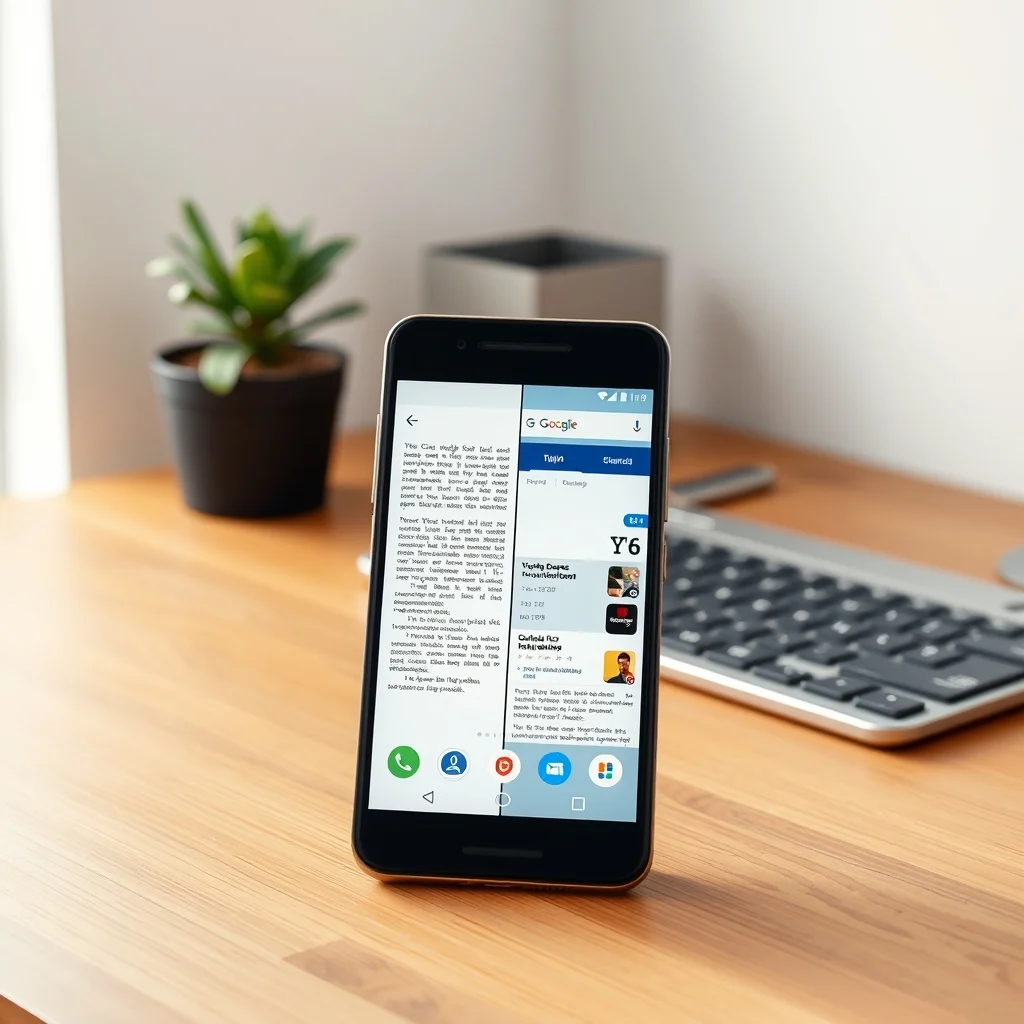

Android’s split-screen mode is one of the most underrated features that can dramatically enhance your productivity. Whether you’re a student, professional, or casual user, learning how to use this feature effectively can save you time and streamline your workflow. In this comprehensive guide, we’ll explore everything you need to know about Android’s split-screen mode, from basic setup to advanced multitasking techniques.
📰 Why Split-Screen Mode is a Game-Changer for Multitasking
In today’s fast-paced digital world, multitasking has become an essential skill. Android’s split-screen mode allows you to run two apps simultaneously on a single screen, making it easier to manage multiple tasks without constantly switching between apps. This feature is particularly useful for professionals who need to reference documents while composing emails, students taking notes while researching online, or anyone who wants to stay productive without sacrificing efficiency.
The beauty of split-screen mode lies in its simplicity and versatility. Unlike external monitors or secondary devices, this built-in feature requires no additional hardware, making it accessible to all Android users. Moreover, it conserves battery life and reduces screen clutter, which is a significant advantage over traditional multitasking methods.
Before diving into the technical aspects, let’s understand the core benefits of using split-screen mode:
- ✅ Enhanced productivity: Perform two tasks simultaneously without interruptions.
- 🎯 Seamless app switching: No need to close one app to open another.
- ⚡ Improved focus: Dedicate specific portions of the screen to essential apps.
- 🛡️ Energy efficient: Reduces the need for opening multiple apps, saving battery.
🔧 How to Activate Split-Screen Mode: Step-by-Step Instructions
Activating split-screen mode on your Android device is straightforward, but the exact steps may vary slightly depending on your device manufacturer and Android version. Below, we’ll cover the general process, along with manufacturer-specific variations.
📱 Activating Split-Screen Mode on Stock Android (Pixel Devices)
If you own a Google Pixel phone or any device running a near-stock version of Android, follow these steps to enable split-screen mode:
- Open the first app you want to use in split-screen mode.
- Tap the Recent Apps button (square icon at the bottom of the screen) to view your open apps.
- Locate the app you want to open in split-screen mode and tap its app icon at the top of the app preview.
- Select Split screen from the pop-up menu. The first app will shrink to the top half of the screen.
- Choose the second app from the Recent Apps list or open it directly from the home screen or app drawer.
- The second app will now appear in the bottom half of the screen.
📱 Activating Split-Screen Mode on Samsung Devices
Samsung’s One UI offers a slightly different approach to split-screen mode, but the process remains intuitive. Here’s how to do it on Samsung Galaxy devices:
- Open the first app you want to use in split-screen mode.
- Swipe up and hold from the bottom of the screen to open the Recent Apps menu.
- Long-press the app icon at the top of the app preview.
- Select Open in split screen view from the menu.
- The app will shrink to the top half of the screen.
- Choose the second app from the Recent Apps list or open it from the home screen.
- The second app will appear in the bottom half of the screen.
Samsung devices also offer an alternative method using the Edge Panel:
- Swipe from the edge of the screen to open the Edge Panel.
- Tap the Split Screen icon.
- Select the first app from the list or search for it.
- Choose the second app from the same list or open it separately.
📱 Activating Split-Screen Mode on Other Android Devices
For devices running custom Android skins like OxygenOS (OnePlus), MIUI (Xiaomi), or ColorOS (Oppo), the process is similar but may include slight variations. Generally, the steps are as follows:
- Open the first app you want to use.
- Access the Recent Apps menu by swiping up and holding or pressing the Recent Apps button.
- Long-press the app’s icon or preview.
- Select Split screen or a similar option.
- Choose the second app from the list or open it separately.
If you’re unsure about your device’s specific method, consult your device’s user manual or search online for manufacturer-specific instructions.
📱 Troubleshooting Split-Screen Activation Issues
If you encounter difficulties activating split-screen mode, consider the following solutions:
- ✅ Ensure your device runs Android 7.0 Nougat or later, as split-screen mode is not available on older versions.
- 🎯 Check if the app you’re trying to use supports split-screen mode. Not all apps are optimized for this feature.
- ⚡ Restart your device to clear any temporary glitches.
- 🛡️ Update your device to the latest Android version for optimal performance.
- 💻 Disable battery optimization for the apps you’re using in split-screen mode to prevent them from being terminated.
🔥 Supported Apps for Split-Screen Mode: What Works and What Doesn’t
Not all apps support split-screen mode, and some may have limitations or bugs when used in this view. Understanding which apps work best can help you maximize the potential of this feature.
📊 Apps That Work Well in Split-Screen Mode
The following apps are known to work seamlessly in split-screen mode:
- ✅ Web browsers (Chrome, Firefox, Edge)
- 🎯 Note-taking apps (Google Keep, Evernote, OneNote)
- ⚡ Messaging apps (WhatsApp, Telegram, Messenger)
- 🛡️ Email clients (Gmail, Outlook)
- 💻 Media players (YouTube, Spotify, VLC)
- 📱 Social media apps (Twitter, Instagram, LinkedIn)
- 🎮 Productivity tools (Google Docs, Sheets, Slides)
These apps are generally optimized for split-screen use, meaning they adjust their layout automatically to fit the smaller screen real estate. They also tend to be more stable, with fewer crashes or freezing issues.
📊 Apps with Limited or No Split-Screen Support
Some apps may not support split-screen mode at all, or they may have significant limitations. Common examples include:
- ❌ Games (many modern games are not optimized for split-screen, and some may not launch at all).
- 🎯 Full-screen apps (apps designed exclusively for immersive experiences, such as certain video players or AR applications).
- ⚡ Apps with DRM protections (some apps with digital rights management may block split-screen functionality).
- 🛡️ System apps (apps like Settings, Calculator, or Dialer may not work in split-screen mode).
- 💻 Apps with non-standard interfaces (apps that use custom launchers or overlays may not be compatible).
It’s important to note that app support for split-screen mode can change over time as developers update their apps. Always check the app’s description in the Google Play Store or try it out before relying on it for critical tasks.
📊 How to Check if an App Supports Split-Screen Mode
If you’re unsure whether an app supports split-screen mode, here are a few ways to check:
- Try it out: The simplest method is to attempt to open the app in split-screen mode. If it works, you’re good to go; if not, the app likely doesn’t support it.
- 🎯 Read the app’s description: In the Google Play Store, check the app’s listing for mentions of split-screen support or multitasking features.
- ⚡ Search online: A quick web search for “[App Name] split-screen support” can provide insights from other users or official documentation.
- 🛡️ Check app settings: Some apps have a dedicated setting for split-screen mode, which you can enable or disable in their preferences.
🎯 Practical Use Cases: How to Leverage Split-Screen Mode for Maximum Productivity
Split-screen mode isn’t just a gimmick; it’s a powerful tool that can revolutionize the way you work and interact with your device. Below are practical scenarios where split-screen mode can significantly boost your productivity.
📌 Taking Notes While Researching Online
One of the most common and effective uses of split-screen mode is for taking notes while researching. Instead of constantly switching between a note-taking app and a web browser, you can dedicate one half of the screen to your notes and the other to your research material.
Example: Open Google Keep or OneNote on the top half of the screen and a web browser like Chrome on the bottom half. As you browse for information, you can jot down notes directly in your note-taking app without losing your place in the research material.
This setup is particularly useful for students, writers, and researchers who need to gather and organize information efficiently.
📌 Composing Emails While Referencing Documents
For professionals who handle a high volume of emails, split-screen mode can streamline the process of drafting and referencing documents. Instead of opening and closing tabs or apps repeatedly, you can keep your email client and document viewer side by side.
Example: Use Gmail or Outlook on one half of the screen and Google Docs or Microsoft Word on the other. This setup allows you to draft emails while referencing the document you’re discussing, reducing errors and improving response times.
📌 Watching Tutorials or Live Streams While Practicing
Whether you’re learning a new skill, following a cooking tutorial, or watching a live stream, split-screen mode can enhance your learning experience by allowing you to follow along hands-free. Instead of pausing the video every few seconds to try something out, you can keep the tutorial visible while practicing on the other half of the screen.
Example: Open a YouTube tutorial on the top half of the screen and a note-taking app or a sketching app on the bottom half. This setup is perfect for artists, musicians, cooks, and anyone who learns by doing.
📌 Managing Social Media While Chatting
For social media managers or anyone who needs to stay active on multiple platforms, split-screen mode can help you juggle conversations and content creation without missing a beat. Instead of constantly switching between apps, you can keep your messaging app and social media dashboard open simultaneously.
Example: Use WhatsApp or Telegram on one half of the screen and Twitter or Instagram on the other. This setup allows you to respond to messages quickly while monitoring your social media feeds in real time.
📌 Comparing Products or Services Side by Side
When shopping online or comparing services, split-screen mode can be a lifesaver. Instead of opening multiple tabs or apps, you can keep your options side by side for easy comparison.
Example: Open two different shopping apps on each half of the screen to compare prices, features, or reviews. This setup is particularly useful for tech gadgets, appliances, or any purchase that requires thorough research.
📌 Coding or Programming While Referencing Documentation
Developers and programmers can benefit greatly from split-screen mode by keeping their code editor and documentation visible at the same time. This eliminates the need to switch between windows and improves workflow efficiency.
Example: Use a code editor like AIDE or DroidScript on one half of the screen and a documentation app or web browser on the other. This setup is ideal for debugging, learning new programming languages, or referencing API documentation.
🛠️ Advanced Techniques: Customizing Split-Screen Mode for Better Efficiency
While split-screen mode is straightforward to use, there are advanced techniques you can employ to customize the experience and maximize productivity. These tips go beyond the basics and cater to users who want to fine-tune their multitasking setup.
📌 Adjusting Split-Screen Ratios for Optimal Viewing
By default, split-screen mode divides the screen into two equal halves. However, you can adjust the ratio to suit your needs. This is particularly useful when one app requires more space than the other.
How to adjust the split-screen ratio:
- Once in split-screen mode, look for a divider between the two apps.
- Touch and hold the divider, then drag it up or down to adjust the ratio.
- Release the divider when you achieve the desired split.
Example scenarios for adjusting ratios:
- ✅ 70/30 split: Ideal for coding or writing, where the primary app needs more space.
- 🎯 60/40 split: Suitable for web browsing and note-taking, providing a balanced view.
- ⚡ 50/50 split: Perfect for comparing two similar apps or documents.
- 🛡️ 80/20 split: Useful for video playback with minimal controls visible.
📌 Using Split-Screen Mode with Multiple Windows (Samsung Devices)
Samsung devices running One UI offer an advanced multitasking feature called Pop-up view, which allows you to open multiple floating windows on top of split-screen apps. This feature is perfect for users who need even more flexibility in their workflow.
How to use Pop-up view with split-screen mode:
- Open an app in split-screen mode as usual.
- Access the Recent Apps menu and long-press the app icon.
- Select Open in pop-up view to detach the app into a floating window.
- You can now resize, move, or close the floating window independently of the split-screen apps.
Example use case: Open Google Docs in split-screen mode on the bottom half and use Pop-up view to open Gmail in a floating window on top. This setup allows you to draft a document while referencing emails without losing your place in either app.
📌 Switching Between Split-Screen Apps Quickly
While in split-screen mode, switching between the two apps can be done in several ways. The method you choose depends on your device and personal preference.
Methods for switching between split-screen apps:
- ✅ Drag the divider: Touch and hold the divider, then drag it to the left or right to focus on one app.
- 🎯 Use the Recent Apps button: Tap the Recent Apps button to see both split-screen apps and switch between them.
- ⚡ Swipe gestures: Some devices support swipe gestures to switch between split-screen apps (e.g., swiping left or right on the divider).
- 🛡️ Voice commands: Use Google Assistant or Bixby to switch between apps by voice.
📌 Using Split-Screen Mode with External Keyboards
If you frequently use an external keyboard with your Android device, split-screen mode can become even more powerful. A physical keyboard allows for faster typing and more precise cursor control, making multitasking more efficient.
Tips for using split-screen mode with a keyboard:
- ✅ Adjust the split ratio: Give more space to the app where you do most of your typing (e.g., 70% for the document editor).
- 🎯 Use keyboard shortcuts: Learn the keyboard shortcuts for switching between apps (e.g., Alt+Tab on Windows or Command+Tab on Mac).
- ⚡ Enable floating keyboard: Some keyboards allow you to detach the keyboard into a floating window, which can be moved and resized independently.
- 🛡️ Optimize screen orientation: Use your device in landscape mode for a wider split-screen view when using a keyboard.
📊 Performance Impact: Does Split-Screen Mode Slow Down Your Device?
One of the most common concerns about using split-screen mode is its impact on device performance. While modern Android devices are equipped to handle multitasking, running two apps simultaneously can still consume more resources than using a single app. Here’s what you need to know about the performance implications of split-screen mode.
📌 How Split-Screen Mode Affects CPU and RAM Usage
When you use split-screen mode, your device’s CPU and RAM are divided between the two active apps. This means that each app receives fewer resources than it would if running alone. The impact on performance depends on several factors:
- ✅ App complexity: Apps with heavy graphics or background processes (e.g., games, video editors) will consume more resources.
- 🎯 Device specifications: High-end devices with powerful processors and ample RAM will handle split-screen mode better than budget devices.
- ⚡ Android version: Newer versions of Android are optimized for multitasking and may handle split-screen mode more efficiently.
Example: Running a lightweight app like Google Keep alongside a demanding app like Chrome may not cause significant performance issues. However, running two heavy apps like Adobe Photoshop and a video editor simultaneously could lead to lag or freezes.
| Device Specification | Expected Performance Impact | Recommendations |
|---|---|---|
| High-end (Snapdragon 8 Gen 2, 12GB RAM) | Minimal impact; smooth multitasking | Use any app combination without concerns |
| Mid-range (Snapdragon 7 Gen 1, 8GB RAM) | Moderate impact; occasional lag with heavy apps | Avoid running two demanding apps simultaneously |
| Budget (Snapdragon 4 Gen 1, 4GB RAM) | Significant impact; noticeable slowdowns | Limit split-screen to lightweight apps |
In most cases, split-screen mode will not cause severe performance issues on modern devices. However, if you notice significant slowdowns, consider closing background apps or reducing the number of active apps to improve performance.
📌 Battery Life Considerations
Using split-screen mode can also impact your device’s battery life, as running two apps simultaneously requires more power than using a single app. The exact impact depends on the apps you’re using and your device’s battery capacity.
Factors affecting battery life:
- ✅ Screen brightness: Higher brightness levels consume more battery, especially when using two apps.
- 🎯 App activity: Apps that frequently update or run background processes (e.g., social media apps) will drain the battery faster.
- ⚡ Device age: Older batteries degrade over time and may not hold a charge as long when using split-screen mode.
📌 Heat Management
Running two apps simultaneously can increase the heat generated by your device, especially if both apps are resource-intensive. Excessive heat can lead to performance throttling, where your device reduces its processing power to cool down.
Tips to manage heat while using split-screen mode:
- ✅ Avoid direct sunlight: Using your device in hot environments can exacerbate heat issues.
- 🎯 Use a cooling pad: If you frequently use split-screen mode for extended periods, consider using a cooling pad or stand to dissipate heat.
- ⚡ Close unnecessary apps: Running too many apps in the background can increase heat output.
- 🛡️ Take breaks: If your device feels warm to the touch, give it a few minutes to cool down before resuming use.
🔒 Security and Privacy Considerations in Split-Screen Mode
While split-screen mode is a convenient feature, it also introduces potential security and privacy concerns. Running two apps simultaneously means that both apps have access to your screen, which could expose sensitive information if not managed properly. Here’s what you need to know to stay safe while using split-screen mode.
📌 Risks of Sharing Sensitive Information
One of the biggest risks of using split-screen mode is accidentally sharing sensitive information between apps. For example, if you’re viewing private emails in Gmail on one half of the screen and a note-taking app on the other, you might inadvertently copy sensitive data into the note-taking app without realizing it.
Common scenarios to avoid:
- ✅ Entering passwords: Avoid typing passwords or PINs while in split-screen mode, as they could be visible to the other app.
- 🎯 Viewing confidential documents: If you’re reviewing sensitive files, keep them in a single app to prevent accidental exposure.
- ⚡ Using banking apps: Avoid using banking or financial apps in split-screen mode, as this increases the risk of exposing account details.
📌 Malware and Split-Screen Mode
While split-screen mode itself doesn’t pose a direct security risk, using it with untrusted apps could expose your device to malware. Some malicious apps may attempt to exploit split-screen mode to steal data or perform unauthorized actions.
Tips to stay safe:
- ✅ Download apps from trusted sources: Only install apps from the Google Play Store or reputable third-party app stores.
- 🎯 Check app permissions: Review the permissions requested by apps before installing them. Avoid apps that ask for unnecessary access to your data or device features.
- ⚡ Keep your device updated: Regularly update your device and apps to patch security vulnerabilities.
If you suspect that an app is behaving suspiciously while in split-screen mode, immediately close both apps and scan your device for malware using a trusted antivirus app.
📌 Protecting Your Privacy in Split-Screen Mode
In addition to security risks, split-screen mode can also compromise your privacy if you’re not careful. For example, if you’re using a messaging app on one half of the screen and a banking app on the other, a passerby could glance at your screen and see sensitive information.
Tips to protect your privacy:
- ✅ Use screen privacy filters: Consider using a privacy filter on your device to prevent others from seeing your screen.
- 🎯 Close split-screen mode when not in use: Always exit split-screen mode when you’re done with it to prevent accidental exposure of sensitive data.
- ⚡ Use app-specific privacy settings: Some apps offer privacy features like screen overlays or hidden content to protect sensitive information.
🆚 Alternatives to Split-Screen Mode: When to Use Other Multitasking Options
While split-screen mode is a powerful tool, it’s not always the best option for multitasking. Depending on your needs, there are several alternatives to consider. Below, we’ll explore these alternatives and when to use them.
📌 Using Picture-in-Picture (PiP) Mode
Picture-in-Picture (PiP) mode is a lightweight alternative to split-screen mode that allows you to watch videos or use certain apps in a small floating window while working in another app. PiP mode is ideal for watching tutorials, video calls, or live streams without interrupting your workflow.
How to use PiP mode:
- Open a video or supported app (e.g., YouTube, Google Meet).
- Start playing the video or begin the call.
- Press the Home button to minimize the app into a floating window.
- Open another app to continue working while the video or call remains visible.
Supported apps for PiP mode:
- ✅ YouTube
- 🎯 Google Meet
- ⚡ Netflix
- 🛡️ Zoom
- 💻 Disney+
📌 Using Multiple Virtual Desktops
Some Android devices support multiple virtual desktops, which allow you to organize your apps and widgets into separate screens. This is a great alternative to split-screen mode if you prefer a cleaner workspace or need to switch between completely different sets of apps.
How to use multiple virtual desktops:
- Swipe up from the bottom of the screen to open the Recent Apps menu.
- Tap the Desktop icon (usually represented by a grid).
- Swipe left or right to switch between virtual desktops.
- Add apps to each desktop by dragging them from the Recent Apps menu.
Example use case: Create a dedicated desktop for work apps (e.g., email, documents) and another for entertainment (e.g., games, social media). This keeps your workspace organized and reduces distractions.
📌 Using Third-Party Multitasking Apps
If your device doesn’t support split-screen mode or you’re looking for more advanced multitasking options, third-party apps can provide additional features. These apps often include customizable split-screen layouts, floating windows, and gesture controls.
Popular third-party multitasking apps:
- ✅ Tasker: A powerful automation app that can create custom multitasking workflows.
- 🎯 Floating Apps: Allows you to open any app in a resizable floating window.
- ⚡ Second Space: Creates a separate user profile for work or personal use.
- 🛡️ Parallel Windows: Forces any app into split-screen mode.
📌 Using External Monitors or Projectors
For users who need even more screen real estate, connecting an external monitor or projector to your Android device can provide a desktop-like multitasking experience. This is especially useful for professionals who need to work with multiple documents or apps simultaneously.
How to connect an external monitor:
- ✅ HDMI adapter: Use a USB-C to HDMI adapter to connect your device to a monitor.
- 🎯 Wireless display: Use Miracast or Chromecast to mirror your screen wirelessly.
- ⚡ Docking station: Connect your device to a docking station for a full desktop experience.
Example use case: Connect your Android device to a monitor and use split-screen mode to run a document editor on one half and a web browser on the other. This setup is ideal for presentations, coding, or content creation.
🎯 Best Settings for Maximum Performance in Split-Screen Mode
To get the most out of split-screen mode, it’s essential to optimize your device’s settings for performance and usability. Below are the best settings to enable or adjust for a smooth split-screen experience.
📌 Adjusting Display Settings
Your device’s display settings can significantly impact the split-screen experience. Here are the key settings to consider:
- ✅ Screen resolution: Set your device to the highest resolution for sharper text and better clarity in split-screen apps.
- 🎯 Display size: Adjust the display size to your preference. A smaller display size can make text more readable, while a larger size provides more screen real estate.
- ⚡ Dark mode: Enable dark mode to reduce eye strain, especially when using split-screen mode for extended periods.
- 🛡️ Night Light: Use the Night Light feature to reduce blue light emissions and improve sleep quality.
📌 Optimizing Performance Settings
To ensure smooth performance while using split-screen mode, adjust your device’s performance settings as follows:
- ✅ Performance mode: Enable performance mode in your device settings to prioritize speed and responsiveness.
- 🎯 Battery optimization: Disable battery optimization for apps you frequently use in split-screen mode to prevent them from being terminated.
- ⚡ Background app limits: Limit the number of background apps to reduce resource consumption.
- 🛡️ Game mode: Enable game mode if you’re using split-screen mode for gaming or graphics-intensive tasks.
📌 Customizing App Settings for Split-Screen Mode
Some apps offer settings specifically for split-screen mode that can enhance your experience. Here are a few settings to look out for:
- ✅ Text scaling: Adjust the text size in apps like Chrome or Gmail to improve readability in split-screen mode.
- 🎯 High-contrast mode: Enable high-contrast mode for better visibility, especially in apps with light text on dark backgrounds.
- ⚡ Keyboard shortcuts: Customize keyboard shortcuts in apps like Microsoft Office or Google Docs for faster navigation.
- 🛡️ App-specific themes: Use dark themes or custom themes in apps like Twitter or Reddit to reduce eye strain.
🚀 Frequently Asked Questions About Android Split-Screen Mode
- How do I exit split-screen mode on my Android device?
To exit split-screen mode, drag the divider all the way to the top or bottom of the screen until one app disappears. Alternatively, tap the Recent Apps button and close one of the apps.
- Can I use split-screen mode with three apps on Android?
No, Android’s built-in split-screen mode only supports two apps simultaneously. However, some third-party apps or manufacturer-specific features (like Samsung’s Pop-up view) may allow for additional floating windows.
- Why is split-screen mode not working on my device?
Split-screen mode requires Android 7.0 Nougat or later. If your device runs an older version of Android, it won’t support this feature. Additionally, some apps may not be optimized for split-screen mode, or your device’s manufacturer may have disabled the feature.
- Can I use split-screen mode with games?
Most modern games are not optimized for split-screen mode and may not work correctly. Some older or simpler games may support split-screen, but it’s not guaranteed. Check the game’s description or try it out to see if it supports split-screen mode.
- How do I adjust the split-screen ratio on my Samsung device?
On Samsung devices, tap and hold the divider between the two apps, then drag it up or down to adjust the ratio. You can also use the drag handles on the edge of the screen to resize each app independently.
- Can I use split-screen mode with split keyboard on Android?
Yes, you can use split-screen mode with a split keyboard if your device supports it. This setup is ideal for typing in one app while viewing another. Enable the split keyboard in your device’s keyboard settings and adjust the split-screen ratio accordingly.
- How do I force an app into split-screen mode if it doesn’t natively support it?
You can use third-party apps like Split Screen Creator or Parallel Windows to force any app into split-screen mode. However, these apps may not work perfectly on all devices and could introduce compatibility issues.
- Does using split-screen mode drain my battery faster?
Yes, using split-screen mode can increase battery consumption since it requires more processing power and screen brightness. To conserve battery, lower the screen brightness and close apps that aren’t actively in use.
- Can I use split-screen mode with split-screen keyboard gestures?
Yes, some Android devices support split-screen keyboard gestures. For example, you can swipe left or right on the spacebar of the Gboard keyboard to switch between split-screen apps. Check your device’s keyboard settings to see if this feature is available.
- Why does my split-screen mode keep crashing or freezing?
Split-screen mode crashes or freezes can occur due to app compatibility issues, insufficient device resources, or software bugs. Try closing background apps, updating your device, or restarting your phone to resolve the issue. If the problem persists, check for app updates or contact the app developer for support.
🏁 Final Verdict: Is Android’s Split-Screen Mode Worth Using?
After exploring the ins and outs of Android’s split-screen mode, it’s clear that this feature is a valuable tool for anyone looking to boost their productivity. Whether you’re a student, professional, or casual user, split-screen mode offers a convenient way to multitask without sacrificing efficiency. In this final section, we’ll summarize the key takeaways and provide a clear recommendation on whether split-screen mode is worth using for your needs.
📌 Summary of Key Benefits
Split-screen mode provides several advantages that make it a must-try feature for Android users:
- ✅ Enhanced productivity: Perform two tasks simultaneously without interruptions, saving time and reducing mental fatigue.
- 🎯 Seamless app switching: No need to close one app to open another, making multitasking more fluid and intuitive.
- ⚡ Improved focus: Dedicate specific portions of the screen to essential apps, reducing distractions and improving workflow.
- 🛡️ Energy efficient: Reduces the need for opening multiple apps, conserving battery life and reducing heat output.
- 💻 Versatile use cases: Ideal for taking notes while researching, composing emails while referencing documents, or watching tutorials while practicing.
📌 Potential Drawbacks to Consider
While split-screen mode is a powerful feature, it’s not without its limitations. Here are a few drawbacks to keep in mind:
- ❌ App compatibility issues: Not all apps support split-screen mode, and some may have significant limitations or bugs.
- 🎯 Performance impact: Running two apps simultaneously can consume more resources, leading to occasional lag or slowdowns on mid-range or budget devices.
- ⚡ Battery drain: Split-screen mode can increase battery consumption, especially when using resource-intensive apps.
- 🛡️ Security risks: Using split-screen mode with sensitive apps (e.g., banking, email) can expose your data to other apps or passersby.
- 💻 Limited flexibility: Split-screen mode only supports two apps at a time, which may not be sufficient for users who need to multitask with three or more apps.
📌 Who Should Use Split-Screen Mode?
Split-screen mode is ideal for the following users:
- ✅ Students: Perfect for taking notes while researching online or watching tutorials while practicing.
- 🎯 Professionals: Ideal for composing emails while referencing documents, attending meetings while working, or comparing data side by side.
- ⚡ Content creators: Useful for editing videos or images while referencing tutorials or source material.
- 🛡️ Multitaskers: Great for anyone who needs to juggle multiple tasks simultaneously without losing focus.
If you fall into one of these categories or simply want to streamline your workflow, split-screen mode is definitely worth trying. However, if you frequently use apps that don’t support split-screen mode or rely on your device’s performance, you may need to weigh the pros and cons before committing to this feature.
📌 Who Should Avoid Split-Screen Mode?
Split-screen mode may not be suitable for everyone. Consider avoiding it if:
- ❌ Your device runs an older version of Android: Split-screen mode requires Android 7.0 Nougat or later. If your device is outdated, consider upgrading or using third-party apps as an alternative.
- 🎯 You frequently use resource-intensive apps: Running demanding apps (e.g., games, video editors) in split-screen mode may cause performance issues on mid-range or budget devices.
- ⚡ You handle sensitive information: If you regularly use banking apps, email clients, or other confidential apps, avoid using split-screen mode to prevent accidental data exposure.
- 🛡️ You need more than two apps open simultaneously: Split-screen mode only supports two apps at a time. If you need to multitask with three or more apps, consider using virtual desktops or third-party multitasking apps.
📌 Final Recommendation
After careful consideration, we highly recommend giving Android’s split-screen mode a try if you haven’t already. This feature is a game-changer for productivity and multitasking, offering a seamless way to manage multiple tasks without sacrificing efficiency. While it has its limitations, the benefits far outweigh the drawbacks for most users.
To get started, follow the step-by-step instructions in this guide and experiment with different app combinations. Over time, you’ll discover new ways to leverage split-screen mode to enhance your workflow. If you encounter issues, refer to the troubleshooting section or consider using third-party alternatives for added flexibility.
In conclusion, Android’s split-screen mode is a powerful tool that can transform the way you use your device. Whether you’re a student, professional, or casual user, this feature is worth mastering for improved productivity and multitasking efficiency.





