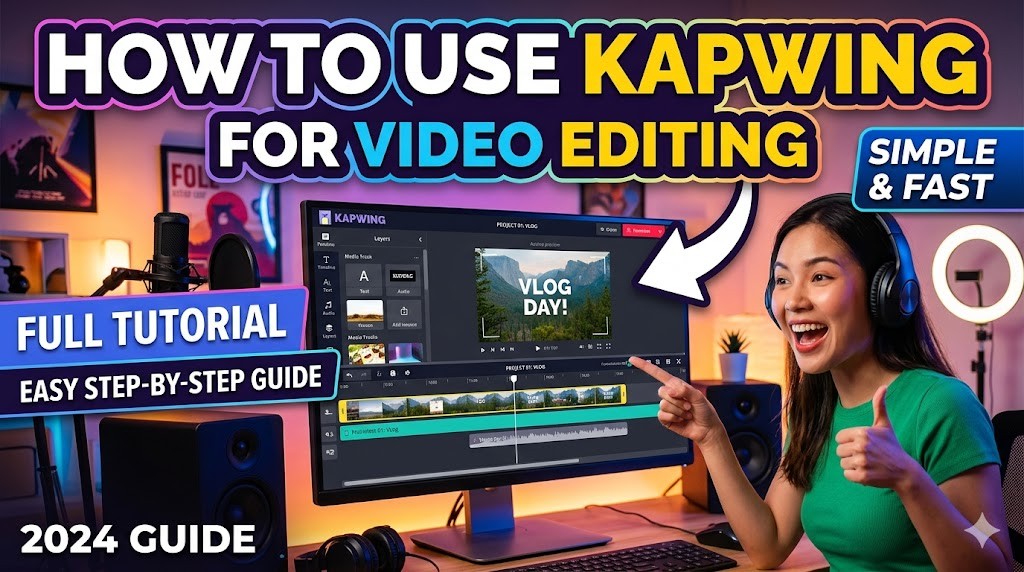

🎬 Introduction to Kapwing
In the rapidly evolving landscape of digital content creation, having access to powerful yet accessible tools is essential for creators, marketers, and educators. Kapwing has emerged as a leading cloud-based video editing platform that democratizes the editing process. Unlike traditional software that requires heavy installation and powerful hardware, Kapwing operates entirely within your web browser, making it accessible from any device with an internet connection. This comprehensive guide will walk you through every aspect of using Kapwing for video editing, ensuring you can produce professional-quality content without the steep learning curve associated with complex desktop applications.
The primary advantage of Kapwing lies in its collaborative nature and intuitive interface. Whether you are creating short-form content for social media platforms like TikTok or Instagram, or producing longer educational videos for YouTube, Kapwing provides the necessary tools to streamline your workflow. We will explore the interface, discuss the core editing tools, and explain how to leverage the platform’s unique features for maximum efficiency. By the end of this tutorial, you will have a complete understanding of how to navigate the editor, manage media assets, and export your final projects with confidence.
🖥️ Understanding the Interface
Before diving into the editing process, it is crucial to familiarize yourself with the workspace layout. Kapwing utilizes a clean, modern design that minimizes clutter while maximizing functionality. The interface is divided into several distinct panels, each serving a specific purpose in the creation pipeline. Understanding these sections will help you work faster and reduce the time spent searching for tools.
📐 The Timeline Area
The timeline is the heart of the editing process, where you arrange and manipulate your media clips. Located at the bottom of the screen, the timeline displays your video tracks horizontally. You can drag and drop clips onto this timeline to order them sequentially. The timeline supports multiple layers, allowing you to overlay text, images, and audio tracks on top of your primary video footage. To edit a specific clip, simply click on it to reveal the editing controls in the toolbar above the timeline. This allows you to trim, split, or adjust the speed of the clip without leaving the main workspace.
🖼️ The Media Library
On the left side of the screen, you will find the Media Library panel. This is where all your uploaded assets are stored, including videos, images, and audio files. Kapwing also provides a vast library of stock media, memes, and stickers that you can drag directly onto your timeline. The panel allows you to organize your files into folders, making it easier to manage large projects. You can upload files from your computer, link URLs from other websites, or import content from your Google Drive account. This centralized hub ensures that all your resources are readily available whenever you need them.
📤 Uploading Media Files
The first step in any video editing project is gathering your raw materials. Kapwing supports a wide range of file formats, ensuring compatibility with most recording devices and software. Whether you have recorded footage on your smartphone, captured a screen recording, or downloaded stock footage, you can easily import it into the editor.
📂 Importing from Your Computer
To upload files from your local storage, click the plus icon in the Media Library panel or drag and drop your files directly into the designated upload area. Kapwing will automatically process the file and convert it to a web-friendly format in the background. This process is seamless and does not require manual conversion steps. Once uploaded, the file appears in your library, ready to be dragged onto the timeline. For large files, Kapwing uses compression algorithms to maintain quality while reducing load times.
🔗 Importing from URLs
One of Kapwing’s unique features is the ability to import media directly from the web. If you have found a video on YouTube, Twitter, or another platform that you want to edit, you can simply paste the URL into the import field. Kapwing will download the video and prepare it for editing within seconds. This feature is incredibly useful for reaction videos, commentary content, or creating compilations from existing online material. It eliminates the need to download files to your hard drive and delete them afterward.
☁️ Cloud Integration
For users who rely on cloud storage, Kapwing integrates seamlessly with Google Drive and Dropbox. You can browse your cloud folders and select files to import without leaving the application. This integration is particularly beneficial for team projects where assets are stored centrally. It ensures that everyone is working with the latest versions of files and reduces the risk of file transfer errors.
✂️ Core Editing Tools
Once your media is on the timeline, the real work begins. Kapwing offers a robust set of editing tools that cover the most common tasks required for video production. These tools are designed to be accessible to beginners while providing enough depth for experienced editors.
🔪 Trimming and Splitting
Trimming allows you to remove unwanted sections from the beginning or end of a clip. To trim a clip, hover over the edge of the video on the timeline and drag it inward. This action cuts off the excess footage. Splitting is used to divide a single clip into two or more separate segments. This is useful when you want to insert other media between parts of the same video. To split a clip, move the playhead to the desired point and select the split option from the toolbar. The clip will be divided, allowing you to treat each section independently.
🔄 Resizing for Platforms
Different social media platforms have different aspect ratio requirements. YouTube typically uses 16:9, while Instagram Stories and TikTok require 9:16. Kapwing makes it easy to adapt your video for these platforms. You can select preset aspect ratios from the settings menu, and the editor will automatically adjust the canvas size. If you resize a landscape video to a vertical format, you can choose to either crop the image or add background blur to fill the empty space. This ensures your content looks professional regardless of where it is published.
🎨 Filters and Effects
Visual enhancement is key to creating engaging videos. Kapwing provides a variety of filters that can change the mood and tone of your footage. You can adjust brightness, contrast, saturation, and hue to correct exposure issues or create a specific aesthetic. Additionally, there are pre-made effects like vintage, black and white, or color grade presets. These effects can be applied with a single click and adjusted using sliders to find the perfect balance. It is important to use effects sparingly to avoid making the video look artificial.
⚡ Speed Control
Changing the playback speed of a video is a powerful technique used for emphasis or comedy. Kapwing allows you to slow down footage to highlight a specific moment or speed it up to condense a long process. You can adjust the speed to any percentage between 0.25x and 4.0x. When slowing down video, the audio pitch may change, but Kapwing offers options to maintain the original audio quality or pitch-shift it back. This feature is essential for creating dynamic content that keeps the viewer engaged.
📝 Adding Text and Subtitles
Text is a fundamental element of video communication. It can convey messages that audio cannot, and it is crucial for accessibility. Kapwing provides advanced text tools that make adding captions and titles simple and effective.
📄 Automatic Subtitles
One of the most time-saving features of Kapwing is its automatic subtitle generation. The platform uses artificial intelligence to transcribe the audio in your video and generate captions in multiple languages. This process happens in the cloud, so it does not slow down your computer. Once generated, you can edit the text to correct any errors in the transcription. The subtitles are synchronized with the audio, and you can style them by changing the font, color, and background opacity. This feature is indispensable for reaching audiences who watch videos without sound.
🎯 Custom Titles and Overlays
Beyond subtitles, you can add custom text overlays for branding or emphasis. Kapwing offers a wide selection of fonts that range from modern sans-serif to classic serif styles. You can animate the text to make it appear on the screen using various entry and exit effects. This includes fade-ins, slides, and typewriter effects. You can also add text outlines to ensure readability against busy backgrounds. Positioning the text is intuitive, using a drag-and-drop interface that allows you to place text anywhere on the canvas.
🖼️ Stickers and Memes
To add personality to your videos, Kapwing includes a library of stickers and memes. These graphic elements can be used to illustrate points, add humor, or highlight specific areas of the screen. You can resize and rotate them to fit your layout. The library is constantly updated with trending content, ensuring you have access to relevant graphics. This feature is particularly popular for social media content where visual engagement is critical.
🤝 Collaboration Features
Kapwing is built with teamwork in mind, allowing multiple users to work on the same project simultaneously. This is a significant advantage over traditional offline software, where files must be shared and version control can become a nightmare.
🔗 Real-Time Editing
With real-time collaboration, team members can see changes as they happen. If one person is editing a clip while another is adding text, both actions are reflected instantly. This eliminates the need to constantly save and upload new versions of the file. It streamlines the feedback loop and allows for faster project completion. You can assign different roles to team members, controlling who can edit, comment, or view the project.
💬 In-Line Comments
Communication is streamlined through the comment feature. Instead of switching to email or messaging apps, you can leave comments directly on the timeline. You can tag specific team members to notify them of your feedback. They can reply to the comment, resolve it, or make the requested edit. This creates a clear record of all feedback and changes, making it easy to track the development of the project. Comments can be pinned to specific frames, ensuring the context is preserved.
📤 Sharing and Permissions
When the project is ready for review or final approval, you can share the link with stakeholders. You can set permissions to allow them to view only or make comments without altering the video. This is useful for client approvals where you want to maintain control over the final output. The sharing link can be set to expire after a certain date for added security. This ensures that your drafts remain private until you are ready to share them.
🎥 Exporting Your Project
The final step is exporting your video in a format suitable for your intended platform. Kapwing offers a variety of export options to ensure compatibility and quality.
📦 Format Selection
The platform supports standard video formats like MP4, which is compatible with almost all devices and platforms. You can choose the resolution based on your needs, ranging from 720p to 4K depending on your subscription plan. The bitrate can also be adjusted to balance file size and quality. For social media, it is often better to use a slightly lower bitrate to ensure smooth playback on mobile networks. Kapwing provides a preview of the export settings before you finalize the download.
🚀 Watermark Removal
Free accounts include a watermark on exported videos to encourage upgrades. However, if you are using the free version for personal projects, you can remove the watermark by editing the video to cover it with other elements. For professional use, upgrading to a paid plan removes the watermark automatically. This ensures your final content looks polished and not like a draft. The watermark is typically placed in the corner and can be distracting if left on a professional video.
📥 Downloading and Sharing
Once the export process is complete, you can download the file directly to your computer or share it via a link. The download link remains active for a limited time, so it is important to save the file promptly. For frequent sharing, you can create a permanent share link from within the editor. This allows you to embed the video on a website or share it on social media without downloading it first. The share link respects the privacy settings you configured earlier.
💻 Requirements and Performance
Since Kapwing is a cloud-based tool, it does not require powerful local hardware. However, understanding the requirements can help you troubleshoot performance issues.
🌐 Browser Compatibility
Kapwing works best on modern web browsers like Google Chrome, Mozilla Firefox, and Microsoft Edge. Older browsers may not support all features or may render the canvas incorrectly. It is recommended to keep your browser updated to the latest version to ensure compatibility with the editing engine. Mobile browsers are also supported, but the experience is optimized for desktop screens due to the complexity of the interface.
🌐 Internet Speed
Because the processing happens on the cloud, a stable internet connection is crucial. Uploading and downloading large files requires sufficient bandwidth. For optimal performance, a connection speed of at least 10 Mbps is recommended. If your internet is slow, you may experience delays when saving changes or rendering exports. In such cases, it is best to work with smaller files or use a wired connection to reduce latency.
🎯 Best Settings for Maximum Performance
To get the best results from Kapwing, it is helpful to configure your project settings correctly from the start.
- ✅ Frame Rate: Use 30fps for standard content and 60fps for smooth action videos.
- ✅ Resolution: Start with 1080p to balance quality and processing speed.
- ✅ Audio: Ensure your audio levels are normalized before importing to avoid distortion.
- ✅ Compression: Use high compression for social media to reduce upload times.
❓ Frequently Asked Questions
- Is Kapwing free to use? Kapwing offers a free plan with limitations, such as a watermark and lower export quality. Paid plans remove these restrictions and add premium features.
- Can I edit videos offline? No, Kapwing is a cloud-based platform that requires an active internet connection for all editing and exporting tasks.
- How does the subtitle feature work? It uses AI transcription to generate captions automatically, which you can then edit and style to your preference.
- Can I collaborate with a team? Yes, real-time collaboration is a core feature, allowing multiple users to work on the same project simultaneously.
- What file formats are supported? Kapwing supports common video formats like MP4, MOV, and GIF, as well as audio and image files.
- Is there a limit on video length? The free plan has a 7-minute limit for videos. Paid plans offer longer duration options.
- Can I remove the watermark? On the free plan, the watermark is automatic. You can upgrade to a paid plan to remove it permanently.
- Is my data secure? Kapwing uses encryption to protect your files, and you can control privacy settings for your shared projects.
- Does it work on mobile? Yes, there is a mobile app available for iOS and Android, though full desktop features are better suited for complex edits.
- Can I edit live streams? No, Kapwing is designed for pre-recorded content, not live streaming production.
🏁 Final Verdict
Kapwing stands out as a versatile and user-friendly video editing solution for creators of all levels. Its cloud-based architecture removes the barrier of hardware requirements, while its collaborative features make it ideal for teams. Although it may lack the granular control of professional desktop software, its ease of use and speed make it the perfect tool for social media content and quick edits. By mastering the tools and features outlined in this guide, you can produce high-quality videos that engage your audience and achieve your content goals.
We recommend starting with the free plan to explore the interface and testing the automatic subtitle feature. As your needs grow, the paid plans offer the flexibility to scale your production. With regular updates and a responsive community, Kapwing is poised to remain a leader in the online editing space. Start editing today and transform your ideas into visual stories.