
Designing user interfaces and experiences has never been as collaborative or accessible as it is today. Figma has emerged as the leading tool in the industry, bridging the gap between design and development. This comprehensive guide will take you through the essential steps of mastering Figma for UI/UX design. Whether you are a beginner looking to create your first prototype or an experienced designer refining your workflow, understanding the core functionalities is crucial. We will explore the interface, discuss advanced tools, and explain how to leverage collaboration features effectively. By the end of this tutorial, you will have a solid foundation to build professional-grade designs that meet modern standards.
The significance of Figma lies in its cloud-based architecture, which allows real-time teamwork without the friction of file versioning issues. This means that designers, developers, and stakeholders can all work on the same file simultaneously. The platform solves the common problem of fragmented communication where design changes are lost or misunderstood. You will gain the ability to create responsive designs, build interactive prototypes, and hand off assets to developers seamlessly. This guide promises to demystify the software, offering practical steps that you can apply immediately to your projects.
🚀 Understanding the Figma Interface and Overview
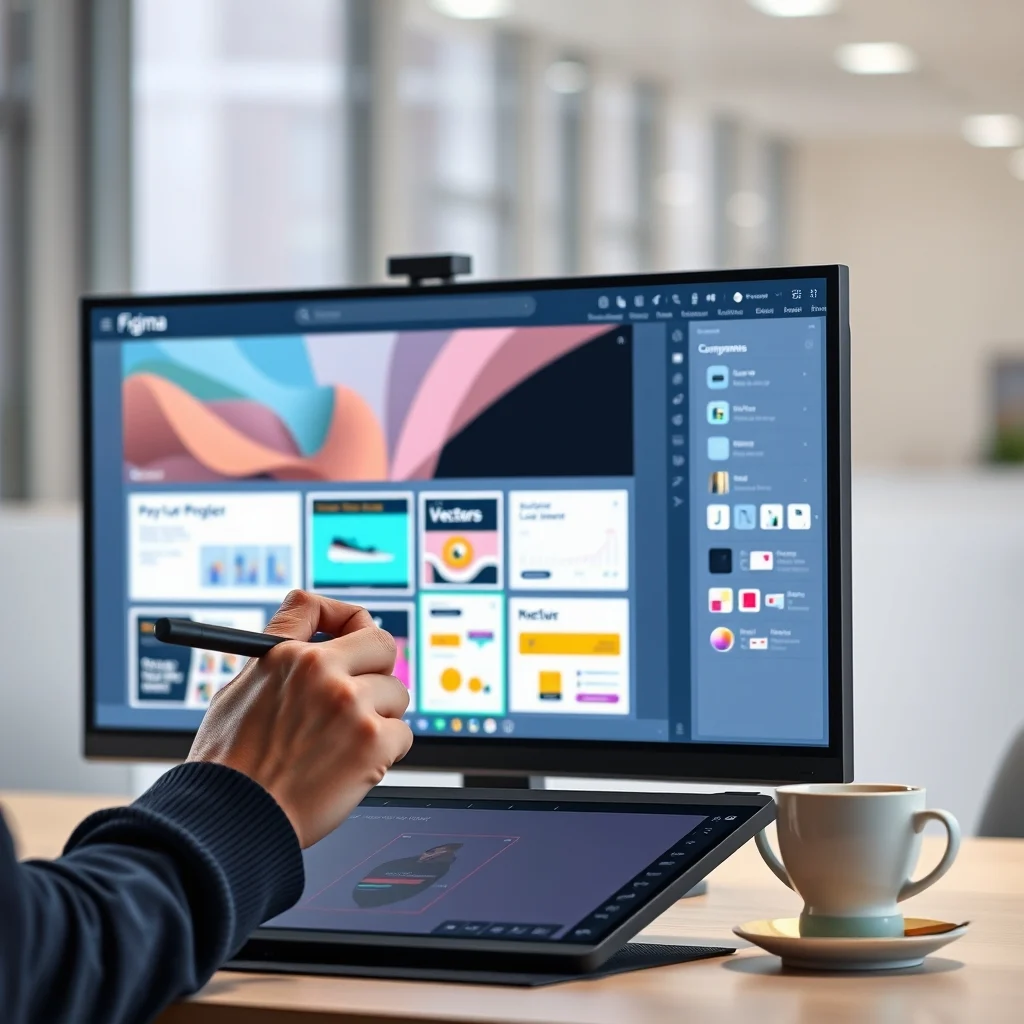
Before diving into specific tools, it is essential to familiarize yourself with the main workspace. The interface is designed to be intuitive, but knowing where to find specific features saves time. The left sidebar contains your file browser and pages. The central area is your canvas where you will design. The right sidebar holds the properties panel, which changes based on the selected element. This dynamic panel allows you to adjust layout settings, text properties, and effects without cluttering your screen.
Navigation is handled through the toolbar at the top, which includes tools for selection, shapes, text, and pen drawing. The bottom bar provides zoom controls and layer management shortcuts. Understanding this layout is the first step toward efficient design. You will find that the workspace adapts to your workflow, allowing you to focus on creativity rather than software mechanics. As you progress, you will customize this layout to suit your specific preferences.
📊 Key Features and Interface Elements
- Canvas Area: The infinite workspace where designs live.
- Layers Panel: Located on the left, it manages the structure of your design.
- Properties Panel: Located on the right, it controls selected object attributes.
- Toolbar: The top menu offering access to essential design tools.
🎯 Technical Analysis and Industry Relevance
Figma operates on a web-based model, which distinguishes it from legacy desktop software. This architecture relies on WebGL technology to render graphics directly in the browser. This approach ensures that the software runs on any operating system without installation. Users search for this topic because they need a reliable, accessible tool that supports cross-platform collaboration. The industry relevance is driven by the shift towards remote work and agile design methodologies.
- Technical background involves WebGL rendering and cloud synchronization.
- Users search for this topic to find collaborative design solutions.
- Market relevance is high due to adoption by major tech companies.
- Future outlook suggests deeper integration with development workflows.
The technical explanation reveals that Figma uses a vector network format to ensure scalability. Unlike raster images, vector graphics can be resized without losing quality. This is critical for UI design where assets must look crisp on various screen resolutions. The market analysis shows that companies prefer tools that reduce the friction between design and engineering teams. By centralizing the design process, Figma reduces the risk of miscommunication.
🛠️ Technical Concept and Core Functionality
📌 What is Figma and Its Primary Function?
Figma is a cloud-based design tool used for creating user interfaces, prototypes, and design systems. It functions as a collaborative platform where multiple users can edit a file at the same time. The primary function is to facilitate the design process from wireframing to high-fidelity mockups. It serves designers, product managers, and developers by providing a single source of truth for visual assets.
- Core Definition: A vector-based design and prototyping tool.
- Primary Function: Creating user interfaces and interactive prototypes.
- Target Users: UI/UX designers, developers, and product teams.
- Technical Category: SaaS design software.
⚙️ How Does the Architecture Support Design?
The internal processes of Figma allow for real-time synchronization of changes. When one user modifies a layer, the update is instantly reflected on all connected devices. This is achieved through a robust backend infrastructure that handles data packets efficiently. Practical examples include a designer updating a button color while a developer inspects the code for that component simultaneously.
The technical architecture also supports version history, allowing teams to revert to previous states if necessary. This feature ensures that design iterations are preserved without cluttering the file structure. The system manages permissions, allowing owners to control who can edit or view specific files. This level of control is essential for enterprise security and team management.
🚀 Features and Advanced Capabilities
✨ Key Features for Modern Designers
Figma offers a suite of features that cater to different stages of the design process. From basic shapes to complex auto-layout grids, the tool provides the necessary flexibility. Real-world use cases include designing mobile apps, web dashboards, and marketing landing pages. Advanced capabilities like component properties allow for dynamic content management without duplicating files.
- Auto Layout: Automatically adjusts spacing and sizing based on content.
- Components: Reusable elements that update globally across the design.
- Prototyping: Connects screens to simulate user flows and interactions.
- Dev Mode: Provides developers with exact measurements and code snippets.
📊 Key Points and Performance Metrics
| Feature | Performance Level | Notes |
|---|---|---|
| Collaboration | High | Real-time updates with zero lag. |
| Load Time | Fast | Depends on internet speed. |
| Export Options | Versatile | Supports SVG, PNG, and PDF. |
The table above summarizes the core performance metrics of the platform. Collaboration is rated high because the system is designed for simultaneous editing. Load time is generally fast, although it relies on a stable internet connection. Export options are versatile, allowing designers to hand off assets in various formats suitable for development. This efficiency ensures that the design process remains smooth and uninterrupted.
🆚 What Distinguishes It from Competitors?
Figma stands out due to its browser-based nature and collaborative features. Competitors often require local installation and struggle with file merging. Figma eliminates these issues by keeping everything in the cloud. Real competitive differences include the ability to comment directly on layers and the robust component library system. Strategic positioning focuses on removing barriers between design and engineering.
Other tools may offer similar design capabilities, but few match the real-time collaboration speed. Figma allows teams to work across different time zones without syncing files manually. This capability is a significant advantage for global teams. The platform also integrates with popular project management tools, enhancing its utility in professional environments.
📊 Pros and Cons Analysis
✅ Advantages of Using Figma
The advantages of Figma are numerous and impactful for modern design teams. It reduces the overhead of managing software installations and updates. Designers can focus on creativity rather than technical maintenance. The learning curve is relatively shallow compared to traditional desktop software.
- Strong Performance: Handles large files efficiently.
- Great Collaboration: Real-time edits and comments.
- Accessibility: Works on any device with a browser.
❌ Disadvantages and Limitations
Despite its strengths, Figma has some limitations that users should consider. Offline functionality is limited, requiring an internet connection for full access. Advanced animation features are not as robust as dedicated prototyping tools. It is not suitable for users who require strict offline capabilities or extremely specialized 3D modeling.
- Internet Dependency: Requires connection for full features.
- Complex Animations: Limited compared to specialized tools.
- Learning Curve: Advanced features take time to master.
💻 System Requirements and Specifications
Since Figma runs in the browser, it does not require heavy hardware like traditional design software. However, performance depends on the capabilities of the device and browser. Below are the specifications to ensure a smooth experience.
| Component | Minimum | Recommended | Performance Impact |
|---|---|---|---|
| RAM | 4 GB | 8 GB | Affects multitasking stability. |
| CPU | Dual Core | Quad Core | Impacts rendering speed. |
| Storage | 256 MB | 1 GB | Stores local cache data. |
The interpretation of these requirements highlights that modern laptops are sufficient for most tasks. The CPU impact is significant when rendering complex vector effects. RAM impacts multitasking stability, especially when running multiple tabs. Storage requirements are minimal because the project files are stored in the cloud.
🔍 Practical Guide to Getting Started
🧩 Installation and Setup Method
Setting up Figma is a straightforward process that requires no physical installation. You simply need a web browser and a Google account. First, navigate to the Figma website and sign up for a free account. Once logged in, you can create a new file from the dashboard. This file serves as your workspace for all design projects.
- Create Account: Sign up using your email address.
- Open Browser: Use Chrome, Firefox, or Safari for best results.
- Create File: Click the New File button on the dashboard.
- Start Designing: Select a frame to begin your layout.
🛡️ Common Errors and How to Fix Them
Users often encounter issues when working with large files or complex layers. One common error is slow performance due to browser caching. Clearing your browser cache can resolve this issue significantly. Another issue is missing fonts, which can break text alignment.
- Slow Performance: Clear browser cache and cookies.
- Missing Fonts: Ensure fonts are installed or use web-safe fonts.
- Sync Errors: Check internet connection stability.
- Export Failures: Verify layer visibility and size limits.
📈 Performance and Global Ratings
🎮 Real Performance Experience
Users report high satisfaction with the speed and stability of the application. Resource usage is optimized, allowing for smooth interactions even on older devices. Stability is maintained through regular updates and cloud redundancy. The application handles thousands of frames without crashing.
🌍 Global User Ratings and Feedback
Global ratings for Figma are consistently high across design communities. Users appreciate the collaboration features and ease of use. Positive feedback reasons include the intuitive interface and powerful component library. Negative feedback reasons often relate to offline limitations and learning advanced features.
- Average Rating: 4.5 out of 5 stars.
- Positive Feedback: Real-time collaboration and accessibility.
- Negative Feedback: Offline mode limitations.
- Trend Analysis: Growing adoption in enterprise sectors.
🔒 Security and Privacy Considerations
🔒 Security Level and Protocols
Figma employs enterprise-grade security measures to protect user data. Files are encrypted both in transit and at rest. This ensures that sensitive design intellectual property remains secure. The platform complies with major data protection regulations.
🛑 Potential Risks and Protection Tips
Risks primarily stem from user error or insecure network connections. Sharing public links can expose designs to unauthorized access. Protection tips include using private links and setting appropriate permissions.
- Public Links: Always restrict access to specific domains.
- Permissions: Regularly audit who has access to files.
- Security: Enable two-factor authentication for accounts.
🆚 Comparison with Alternatives
🥇 Best Available Alternatives
While Figma is a leader, other tools exist for specific use cases. Adobe XD is a strong competitor with deep integration into the Adobe ecosystem. Sketch is popular among Mac users but lacks web-based collaboration. Each option has strengths depending on your existing software stack.
| Feature | Figma | Adobe XD |
|---|---|---|
| Cross-Platform | Yes | No (Web Version Limited) |
| Collaboration | Real-Time | Cloud Based |
| Learning Curve | Low | Medium |
Users who prioritize collaboration should prefer Figma. Those invested in the Adobe ecosystem may prefer XD. The table clarifies which user type prefers each option based on workflow needs.
💡 Tips for Maximum Performance
🎯 Best Settings for Workflow
Optimizing your settings can significantly improve your design speed. Configure your shortcuts to match your workflow habits. Organize layers logically to avoid confusion when editing complex files.
- Shortcuts: Map keys to frequently used tools.
- Organization: Group layers by component type.
- Plugins: Install tools for automation and export.
📌 Advanced Tricks for Efficiency
Experienced users leverage advanced tricks to speed up design. Using variables allows for dynamic content updates across the project. This reduces manual editing time significantly. Another trick is using nested components to simplify complex structures.
These advanced techniques require practice but yield high rewards in productivity. They allow designers to maintain consistency while scaling projects. Mastering these features separates amateur work from professional standards.
🏁 Final Verdict and Recommendation
Figma remains the top choice for modern UI/UX design teams. Its ability to bridge the gap between design and development makes it indispensable. The platform offers a comprehensive suite of tools that cover the entire design lifecycle. We recommend it for individuals and enterprises seeking a collaborative solution.
To get started, create a free account and explore the community files. This will give you a practical understanding of the tools. The investment in learning Figma will pay off in increased efficiency and better design outcomes.
❓ Frequently Asked Questions
- Is Figma free for personal use? Yes, the starter plan is free for individuals and small teams.
- Can I use Figma offline? Limited features are available offline, but full functionality requires internet.
- Does Figma support animation? Yes, basic prototyping and animations are supported.
- How do I export assets? Select layers and use the export panel to choose formats.
- Is Figma secure for enterprise? Yes, it offers enterprise-grade security and compliance.
- Can I import Sketch files? Yes, Figma supports importing Sketch documents directly.
- What is the best plugin for Figma? Plugins vary, but Iconify and Unsplash are popular choices.
- How do I share designs? Use the share button to generate a link with specific permissions.
- Does Figma work on mobile? Yes, the mobile app allows viewing and commenting on designs.
- Can I collaborate with non-Figma users? Yes, viewers can access designs via web links without accounts.