
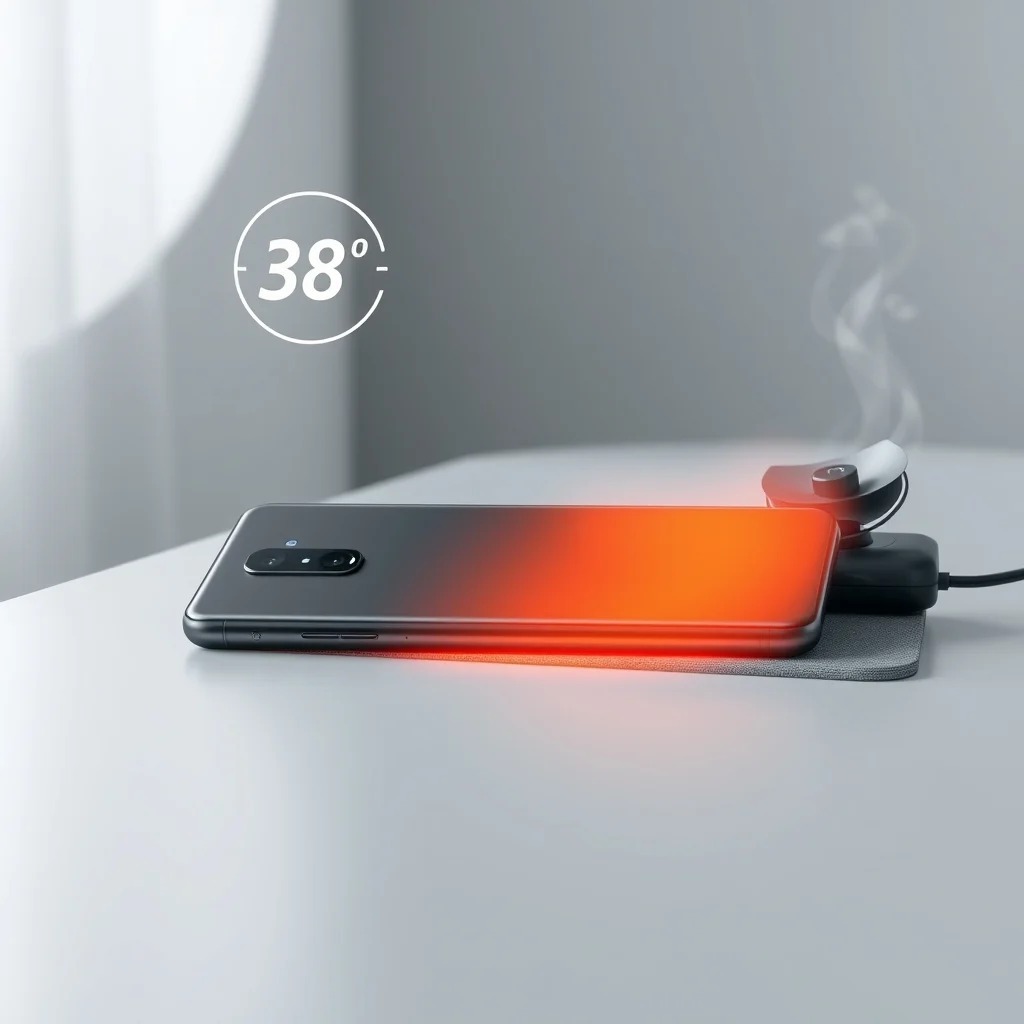

Realme smartphones are known for their impressive performance, sleek design, and affordable pricing. However, like any high-performance device, they can sometimes experience overheating issues, especially during intensive tasks such as gaming, video recording, or multitasking. Overheating not only disrupts your user experience but can also lead to long-term damage if left unaddressed. In this comprehensive guide, we will explore the common causes of overheating on Realme phones, provide step-by-step solutions, and share tips to maintain optimal performance and prevent future issues.
🔥 Understanding Why Realme Phones Overheat
Overheating in smartphones is typically caused by an imbalance between heat generation and heat dissipation. When your Realme phone’s processor works harder to handle demanding tasks, it generates more heat than the device can efficiently dissipate. This imbalance is usually triggered by specific usage patterns, environmental factors, or software configurations. Let’s break down the primary causes of overheating on Realme devices:
- ✅ Intensive usage: Gaming, video editing, and running multiple apps simultaneously generate significant heat due to high CPU and GPU loads.
- ✅ Background processes: Apps running in the background, especially those with high resource consumption, can contribute to overheating over time.
- ✅ Poor ventilation: Using your Realme phone while it’s covered by a blanket, pillow, or even your hand can block airflow and trap heat.
- ✅ Environmental factors: Exposure to direct sunlight or high ambient temperatures can exacerbate overheating issues.
- ✅ Faulty charging habits: Using non-certified chargers or fast-charging while the device is already warm can push temperatures beyond safe limits.
- ✅ Software glitches: Outdated software, buggy apps, or poorly optimized firmware can cause the processor to work harder than necessary, leading to excessive heat generation.
📊 Technical Breakdown: How Heat Affects Your Realme Phone
Realme phones use advanced thermal management systems to regulate temperature. However, when heat exceeds safe thresholds, the device may automatically throttle performance to protect internal components. This throttling can result in reduced frame rates, slower app launches, and even sudden shutdowns if the temperature continues to rise. Understanding this process is critical to diagnosing and resolving overheating issues effectively.
- CPU/GPU Load: The central processing unit (CPU) and graphics processing unit (GPU) are the primary sources of heat during demanding tasks. High clock speeds and sustained usage generate thermal energy that must be dissipated.
- Battery Impact: Lithium-ion batteries are sensitive to temperature fluctuations. Overheating accelerates battery degradation, reduces capacity, and may trigger safety mechanisms to prevent damage.
- Thermal Throttling: When the internal temperature reaches a critical level, Realme phones reduce CPU/GPU performance to lower heat output. This results in noticeable slowdowns and lag.
- Heat Distribution: Heat travels from components like the CPU to the battery, display, and outer casing. Poor heat dissipation can lead to hot spots, particularly near the top or bottom edges of the device.
🛠️ Immediate Fixes to Reduce Overheating on Realme Phones
If your Realme phone is already overheating, follow these quick and effective steps to cool it down and restore normal operation:
📌 Pause Demanding Tasks Immediately
Stop any intensive applications, games, or processes that may be causing excessive load on the CPU and GPU. Close all background apps by swiping them away from the recent apps menu. This reduces thermal load and allows the device to cool down faster.
🔧 Enable Performance Mode (or Power Saver Mode)
Realme devices offer different performance profiles in the Settings > Battery > Performance Profile menu. Switching to Power Saver or Balanced mode reduces CPU/GPU workload, lowers temperatures, and extends battery life. Although this may impact speed, it’s a temporary solution to prevent further overheating.
🌬️ Improve Airflow and Cooling
Move to a cooler environment and ensure your phone has proper ventilation. Avoid placing it on soft surfaces like beds or couches that block airflow. Instead, rest it on a flat, hard surface such as a table. You can also gently fan the back of the device with your hand to accelerate cooling.
🔋 Remove the Case Temporarily
Some phone cases, especially thick or non-breathable ones, trap heat inside the device. Removing the case allows heat to escape more efficiently. If you must use a case, opt for one made of lightweight, heat-resistant materials.
📵 Disable Fast Charging Temporarily
Fast charging generates additional heat due to higher power delivery. If your phone is already warm, unplug the charger and allow the battery to cool before resuming charging. You can re-enable fast charging once temperatures return to normal.
🔍 Deep Dive: Diagnosing the Root Cause of Overheating
To prevent recurring overheating, it’s essential to identify the underlying cause. Realme phones provide built-in tools to monitor temperature and resource usage. Use these tools to diagnose the issue systematically:
📊 Using Realme UI’s Built-in Monitoring Tools
Recent versions of Realme UI include a Battery Health section in Settings > Battery. This displays detailed usage statistics, including:
- ✅ Battery temperature (measured in degrees Celsius)
- ✅ App power consumption (sorted by highest usage)
- ✅ Screen-on time vs. standby time
- ✅ Thermal throttling events
Check this section regularly to identify apps or processes that may be causing excessive heat.
🛠️ Using Developer Options for Advanced Monitoring
For more detailed diagnostics, enable Developer Options on your Realme phone:
- Go to Settings > About Phone.
- Tap Build Number seven times until you see the message: “You are now a developer!”.
- Return to Settings > Additional Settings > Developer Options.
- Enable USB Debugging and Show CPU Usage.
The Show CPU Usage feature overlays real-time CPU load on your screen, helping you identify when and why your phone is overheating.
📈 Analyzing Heat Distribution with Thermal Imaging (Optional)
While Realme phones don’t include built-in thermal imaging, you can use third-party thermal camera apps (available on the Play Store) to visualize heat distribution. These apps use the phone’s internal sensors to simulate thermal images. Pay attention to areas around the camera module, top edge, and charging port, as these regions often retain more heat.
🚀 Long-Term Solutions: Preventing Overheating Before It Starts
Prevention is the best strategy when it comes to overheating. Implement these long-term solutions to keep your Realme phone running cool and efficiently:
🔄 Regular Software Updates
Realme frequently releases software updates that include performance optimizations and bug fixes. These updates often address thermal management issues and improve overall efficiency. Ensure your device is running the latest version of Realme UI by checking Settings > System > Software Update.
Updates may also include revised power profiles and improved background process management, both of which reduce unnecessary heat generation.
🧹 Optimizing Background Processes and App Usage
Many apps continue running in the background long after you close them. These processes consume CPU and RAM, contributing to overheating. To optimize app usage:
- ✅ Use the App Optimizer: Realme UI includes an app optimizer that automatically closes background apps when memory is low. Enable it in Settings > Battery > App Optimizer.
- ✅ Limit background data: Disable background refresh for non-essential apps in Settings > Apps > [App Name] > Mobile Data & Wi-Fi.
- ✅ Uninstall unused apps: Old or rarely used apps may contain outdated code that increases CPU load. Regularly clean up your app drawer.
- ✅ Use Lite versions: Apps like Facebook Lite, YouTube Go, and Twitter Lite consume fewer resources than their full versions.
🔧 Adjusting Display Settings for Lower Heat Output
The display is one of the most power-hungry components on your Realme phone. Adjusting screen settings can significantly reduce heat generation:
- ✅ Lower screen brightness: High brightness levels increase power consumption and heat. Set brightness to auto or manually reduce it in bright environments.
- ✅ Use Dark Mode: Dark themes reduce pixel power consumption, especially on AMOLED displays found in many Realme models.
- ✅ Reduce screen timeout: Shortening the screen-off timeout limits display-on time, reducing overall power usage.
- ✅ Limit refresh rate: If your Realme phone supports a 90Hz or 120Hz display, consider switching to 60Hz for less demanding tasks to reduce GPU load.
🎮 Gaming and Performance Optimization
Gaming is a major contributor to overheating on Realme phones. To optimize gaming performance while keeping temperatures in check:
- ✅ Use Game Mode: Realme Game Mode boosts performance while managing thermal output. Enable it in Settings > Game Space.
- ✅ Lower graphics settings: In high-end games, reduce texture quality, shadow detail, and frame rate caps to decrease GPU workload.
- ✅ Enable FPS limiter: Cap the frame rate at 60 FPS in competitive games to reduce unnecessary CPU/GPU strain.
- ✅ Avoid overclocking: Realme phones are optimized for standard performance. Avoid using root-level overclocking tools, which can significantly increase heat output.
📊 Realme Phone Models and Their Thermal Performance
Different Realme phone models have varying thermal designs and cooling capabilities. Understanding your device’s thermal profile can help you set realistic expectations and apply appropriate cooling strategies. Below is a comparison table summarizing the thermal performance of popular Realme models based on user reports and technical reviews.
| Model | Thermal Design | Common Overheating Areas | Recommended Cooling Tips |
|---|---|---|---|
| Realme 10 Pro+ | Vapor chamber cooling | Top-left corner (camera module), back panel | Use official charger, avoid direct sunlight, remove case during gaming |
| Realme GT Neo 3 | Liquid metal cooling | Middle-back area, charging port | Enable Game Mode, use balanced power profile, clean charging port |
| Realme Narzo 50 | Graphite sheet cooling | Top edge, battery area | Lower display brightness, clean background apps, avoid fast charging when hot |
| Realme X7 Pro | Graphene-based cooling | Gaming sessions, long video calls | Use dark mode, enable power saver, avoid multitasking |
| Realme 9 Pro+ | Graphite thermal film | Camera module, top edge | Remove case, use official fast charger, update to latest firmware |
This table highlights that overheating often occurs in specific areas depending on the thermal design. For example, devices with vapor chamber cooling (like the Realme 10 Pro+) tend to concentrate heat near the camera module due to the concentration of high-performance components in that region. Understanding these patterns helps you apply targeted cooling strategies.
💻 Realme Phone Requirements for Optimal Cooling
While Realme phones are designed to operate within safe temperature ranges, certain environmental and usage conditions can push them beyond those limits. To maintain optimal cooling performance, your device should meet the following requirements:
🖥️ Environmental Conditions
Realme phones function best within a temperature range of 0°C to 35°C (32°F to 95°F). Exposure to temperatures outside this range can trigger thermal throttling or shutdowns. Here’s a breakdown of how temperature affects your device:
- ✅ Ideal operating temperature: 15°C to 25°C (59°F to 77°F)
- ⚠️ Caution zone: 25°C to 35°C (77°F to 95°F) — Light throttling may occur during heavy usage.
- ❌ Danger zone: Above 35°C (95°F) — Aggressive throttling, reduced performance, and potential battery damage.
If you live in a hot climate, consider using your phone in air-conditioned environments or shaded areas. Avoid leaving it in a parked car, as temperatures inside can exceed 60°C (140°F) within minutes.
⚡ Recommended Specifications for Optimal Cooling
While cooling performance depends on the thermal design, certain hardware components influence how quickly your phone can dissipate heat:
| Component | Minimum Requirement | Recommended Specifications | Performance Impact |
|---|---|---|---|
| CPU | Snapdragon 7 series | Snapdragon 8 series or Dimensity 1200 | Higher clock speeds generate more heat; 8-series chips have better thermal management. |
| RAM | 4GB | 6GB or 8GB LPDDR5 | More RAM reduces background app swapping, lowering CPU load. |
| Storage | 64GB eMMC | 128GB UFS 3.1 | Faster storage reduces read/write times, lowering power consumption. |
| Battery | 4000mAh | 5000mAh or larger with power-saving IC | Larger batteries distribute heat more evenly and last longer under load. |
| Display | HD+ LCD | FHD+ AMOLED 90Hz | AMOLED consumes less power in dark mode; higher refresh rates increase GPU load. |
🔍 Common Mistakes That Worsen Overheating
Some user habits inadvertently contribute to overheating issues. By avoiding these mistakes, you can significantly reduce the likelihood of your Realme phone becoming too hot:
⚠️ Using Non-Certified Chargers and Cables
Third-party chargers may deliver inconsistent power, causing the battery to overheat during charging. Always use the charger and cable provided with your Realme phone or purchase certified replacements from official retailers.
🔋 Letting the Battery Drain Completely</h
Allowing your phone’s battery to drain to 0% regularly stresses the battery chemistry and increases internal resistance, which leads to higher heat generation during charging and usage. Aim to keep the battery level between 20% and 80% for optimal longevity and cooling.
📱 Ignoring Software Bloat
Realme UI includes several pre-installed apps that run in the background. Many of these apps (such as Realme Store, Browser, or Weather) are not essential and can be disabled or uninstalled. Software bloat increases background activity, CPU load, and heat output. To manage it:
- ✅ Go to Settings > Apps.
- ✅ Select Disable for non-essential system apps.
- ✅ For bloatware apps that can’t be disabled, use App Cloner or consider rooting (not recommended for most users).
🎯 Running Multiple High-Performance Apps Simultaneously
Multitasking with resource-intensive apps (e.g., Chrome with 10+ tabs, YouTube, and a GPS app) pushes the CPU and RAM to their limits. This sustained load generates excessive heat. Close unused apps regularly and avoid running more than two demanding apps at once.
🔧 Step-by-Step: How to Cool Down Your Realme Phone
If your Realme phone is already overheating, follow this detailed step-by-step guide to safely bring its temperature back to normal:
🧩 Step 1: Stop All Intensive Activities
Close all open apps by swiping them away from the recent apps menu. This includes games, video editors, navigation apps, and streaming services. Pause any ongoing downloads or uploads as these generate constant CPU and network load.
Turn off features like GPS, Bluetooth, Wi-Fi, and Mobile Data if they’re not in use. These radios consume power and generate heat even when idle.
🧹 Step 2: Enable Airplane Mode Temporarily
Switching to Airplane Mode disables all wireless communication, drastically reducing power consumption and heat generation. This is especially useful if you’re in an area with poor signal, as your phone won’t waste energy trying to maintain a connection.
🌬️ Step 3: Remove the Case and Place the Phone in a Cool Location
Remove any protective case to allow heat to escape from the device’s vents and back panel. Place your phone on a flat, hard surface in a shaded or air-conditioned area. Avoid placing it on fabric, carpet, or your lap, as these trap heat.
You can also gently fan the back of the device with your hand to accelerate cooling. Avoid using external cooling fans that blow directly into charging ports or speakers, as moisture or dust can enter.
📵 Step 4: Unplug the Charger (If Connected)
If your phone is charging while overheating, unplug it immediately. Fast charging generates additional heat, and continuing to charge can push temperatures to unsafe levels. Let the device cool down before resuming charging.
🔋 Step 5: Let the Battery Cool Naturally
Do not attempt to cool the phone using refrigeration, ice, or extreme methods. These can cause condensation inside the device, leading to short circuits or permanent damage. Instead, allow the battery to cool naturally at room temperature.
It typically takes 15 to 30 minutes for a Realme phone to cool down from moderate overheating. If the device remains hot after 30 minutes, repeat the process or seek professional assistance.
📱 Step 6: Restart Your Realme Phone
Once the phone has cooled, restart it to clear any stuck processes or memory leaks that may have contributed to overheating. A simple restart can often restore normal thermal behavior.
🔄 Step 7: Check for Software Updates
After restarting, go to Settings > System > Software Update and install any available updates. These updates often include thermal management improvements and bug fixes that prevent overheating.
🆚 Alternatives and Accessories for Enhanced Cooling
While software solutions can help reduce overheating, some users may benefit from external cooling accessories. These tools are particularly useful for gamers, content creators, or those living in hot climates. Below are the most effective cooling accessories and their pros and cons:
🥇 Best Cooling Accessories for Realme Phones
- ✅ Cooling Pads with Fans
- Pros: Provides active airflow, reduces back-panel temperature, easy to use.
- Cons: Requires power source, may be bulky, not portable.
- ✅ Thermal Gel Pads
- Pros: Improves heat transfer between phone and case, lightweight, reusable.
- Cons: Requires precise application, may not fit all models.
- ✅ Chill Pads (Passive Cooling)
- Pros: No power required, slim profile, compatible with most cases.
- Cons: Limited cooling efficiency, may not help during intensive tasks.
- ✅ Phone Cooling Stickers
- Pros: Thin, adhesive, easy to apply, improves heat dissipation.
- Cons: Temporary solution, needs replacement every few months.
- ✅ Radiator Cases
- Pros: Built-in heat sinks, stylish design, improves long-term cooling.
- Cons: Expensive, may add bulk, not all models available.
🎯 Performance Tips for Realme Phone Users
To maintain peak performance while minimizing overheating, consider these advanced performance tips tailored for Realme devices:
⚙️ Best Settings for Maximum Performance and Minimum Heat
- ✅ Set Performance Profile to Balanced: This mode optimizes CPU/GPU usage without aggressive throttling.
- ✅ Enable Dark Mode: Reduces pixel power consumption, especially on AMOLED displays.
- ✅ Limit Background App Refresh: Disable background data for non-essential apps in Settings > Apps.
- ✅ Use a Lightweight Launcher: Third-party launchers like Niagara Launcher or Olauncher consume fewer resources than stock launchers.
- ✅ Disable Animations: Reduce or eliminate window animations in Developer Options > Window Animation Scale to decrease GPU load.
- ✅ Use a Kernel Adjuster App (Advanced Users Only): Apps like Kernel Adiutor allow manual adjustment of CPU governors and thermal throttling thresholds. Use with caution.
📌 Advanced Tricks Few Users Know
These lesser-known tricks can help Realme phone owners optimize performance and reduce heat without rooting or installing third-party software:
- ✅ Use Game Assistant Mode: Realme’s Game Space app includes a performance monitor that shows CPU/GPU usage and temperature in real time. Use this to identify overheating triggers during gaming.
- ✅ Enable Game Turbo Mode: This feature in Game Space optimizes network, CPU, and GPU usage specifically for gaming, reducing unnecessary power consumption.
- ✅ Use a VPN to Reduce Data Load: Some apps constantly sync data in the background. Using a lightweight VPN like Cloudflare Warp can reduce unnecessary data usage and heat generation.
- ✅ Schedule Do Not Disturb Mode: Set DND mode during sleep hours to prevent notifications from waking up the CPU unnecessarily.
- ✅ Use a Dedicated Music Player: Apps like Poweramp or Musicolet consume fewer resources than default music players, especially when playing offline files.
🏁 Final Verdict: Keeping Your Realme Phone Cool and Efficient
Overheating is a common issue on Realme phones, but it’s not an unsolvable one. By understanding the root causes, implementing preventive measures, and applying quick fixes when needed, you can maintain optimal performance and extend the lifespan of your device. Realme’s thermal management systems are robust, but they rely on user behavior and environmental conditions to function effectively.
The key takeaways from this guide are:
- ✅ Monitor temperature regularly using Realme UI’s built-in tools and third-party apps.
- ✅ Optimize app usage by disabling background processes, uninstalling bloatware, and using lightweight alternatives.
- ✅ Adjust display and performance settings to reduce unnecessary power consumption.
- ✅ Avoid environmental and usage triggers such as direct sunlight, non-certified chargers, and intensive multitasking.
- ✅ Use cooling accessories if you frequently engage in high-performance tasks.
- ✅ Keep software updated to benefit from Realme’s latest thermal optimizations.
If your Realme phone continues to overheat despite following these steps, it may indicate a hardware issue such as a faulty battery or damaged thermal paste. In such cases, contact Realme Support or visit an authorized service center for professional diagnosis and repair.
By taking a proactive approach to thermal management, you can enjoy smooth, lag-free performance on your Realme phone without the frustration of overheating interruptions.
❓ Frequently Asked Questions About Realme Phone Overheating
- Why does my Realme phone overheat when charging?
Charging generates heat due to the chemical reaction in the battery and power conversion. Fast charging increases this heat. If your phone is already warm, the combined thermal load can cause overheating. Always use the official charger and unplug the device if it feels hot.
- Is it normal for my Realme phone to get warm during gaming?
Yes. Gaming pushes the CPU and GPU to their limits, generating heat. This is normal, but excessive warmth—especially near the camera or back panel—may indicate a thermal management issue. Use Game Mode and lower graphics settings to reduce heat output.
- Can overheating damage my Realme phone permanently?
Yes. Prolonged overheating can degrade battery health, reduce performance, and even cause hardware failure. Realme phones include thermal throttling to prevent this, but consistent overheating should be addressed immediately.
- How do I check the temperature of my Realme phone?
Go to Settings > Battery > Battery Health. This displays real-time temperature. Alternatively, use third-party apps like AIDA64 or CPU Monitor for detailed thermal data.
- Does using a phone case make overheating worse?
Yes, especially thick or non-breathable cases. These trap heat inside the device. Use lightweight, mesh-backed cases or remove the case during intensive tasks.
- What should I do if my Realme phone shuts down due to overheating?
Let it cool completely before turning it back on. Avoid using it while charging. After it restarts, check for software updates and monitor temperature during future usage.
- Can I use an ice pack or refrigerator to cool down my phone?
No. Extreme temperature changes can cause condensation inside the device, leading to short circuits or permanent damage. Always allow the phone to cool naturally at room temperature.
- Why does my Realme phone overheat more after a software update?
Software updates may include performance improvements that increase CPU/GPU load, or bugs in the new firmware might cause inefficient processing. Monitor temperature closely after updates and report issues to Realme Support.
- How can I prevent overheating while recording videos or live streaming?
Use a cooling pad, lower camera resolution (e.g., 1080p instead of 4K), enable airplane mode to reduce background activity, and take breaks every 15–20 minutes to allow the device to cool.
- Will factory resetting my Realme phone fix overheating issues?
It may help if overheating is caused by software bloat, memory leaks, or corrupted apps. However, if the issue is hardware-related (e.g., faulty battery or thermal paste), a factory reset won’t resolve it. Back up your data before attempting a reset.





