
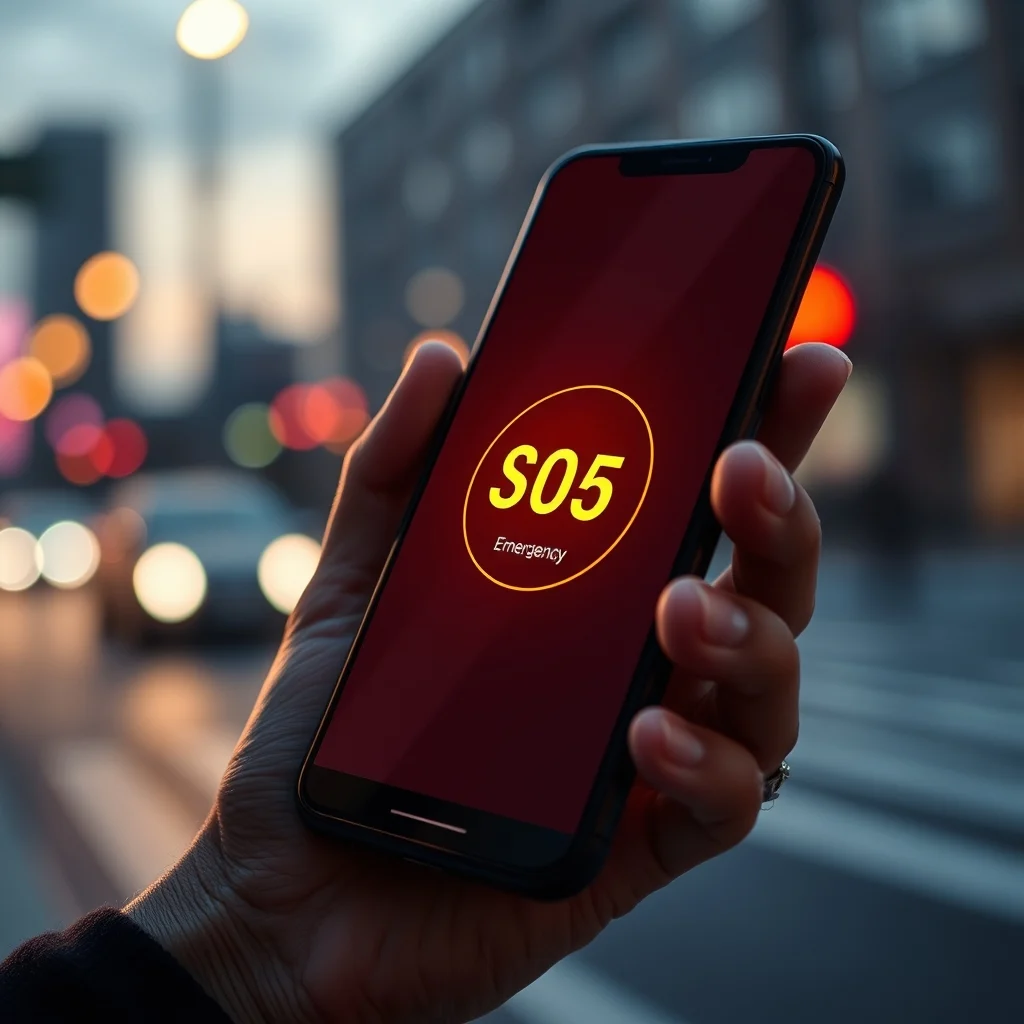

Modern smartphones have evolved far beyond simple communication devices. They are now essential safety tools that can protect lives in critical situations. For Android users, understanding and configuring the built-in emergency features is crucial for personal safety and the safety of loved ones. This comprehensive guide will walk you through every aspect of enabling and utilizing these vital functions. From emergency SOS protocols to detailed medical information sharing, we will cover everything you need to know to ensure your device is ready when you need it most.
Having the right settings configured can make the difference between a manageable situation and a life-threatening emergency. Whether you are traveling alone, living in a high-risk area, or simply want peace of mind, these features provide a digital lifeline. The integration of these tools into the Android operating system means you do not need to download third-party applications that might compromise your data or drain your battery unnecessarily. Instead, you can rely on the native capabilities provided by Google and your device manufacturer.
🚀 Understanding the Importance of Safety Protocols
The landscape of personal safety has changed significantly in the last decade. With the rise of urbanization and increased travel, the need for immediate access to help has become more critical. Android devices are equipped with a suite of tools designed to facilitate this rapid response. These tools are not merely optional settings; they are essential components of a modern safety strategy. By taking the time to configure them correctly, you empower your device to act on your behalf when you cannot act yourself.
Many users overlook these settings until an incident occurs. This reactive approach is often too late. The goal of this guide is to ensure you are proactive. We will analyze why these features exist, how the technology works in the background, and the specific steps required to activate them on your device. Understanding the mechanics behind Emergency SOS and Medical ID will help you trust the technology when it matters most.
🔹 What is Android Emergency Mode?
Android Emergency Mode refers to a collection of system-level features designed to contact emergency services and share your status with trusted contacts. It is not a single switch but a suite of protocols that work together. These protocols utilize your cellular connection, GPS data, and internet connectivity to transmit information rapidly. The system is designed to function even under duress, requiring minimal interaction from the user.
- Core Definition: A system-level safety protocol integrated into the Android OS.
- Primary Function: To alert emergency services and contacts during a crisis.
- Target Users: All Android device users seeking enhanced personal safety.
- Technical Category: System Service and Application Programming Interface integration.
⚙️ How Does Emergency Technology Work?
The architecture behind these emergency features is robust and multi-layered. When you trigger an emergency action, the device does not rely on a single network. It prioritizes cellular voice calls for the fastest connection to emergency services while simultaneously using data networks to send location and medical data. This redundancy ensures that if one method fails, another is available. The GPS chip in your phone is activated to provide precise coordinates, which are then formatted into a shareable link.
Furthermore, the operating system monitors specific hardware buttons to detect emergency triggers. For example, pressing the power button rapidly a certain number of times is a hardware-level interrupt that bypasses the lock screen. This allows the SOS function to activate even if your phone is locked. This level of access is granted only to system-level emergency services to ensure privacy is not compromised during normal use. Understanding this architecture helps you appreciate the complexity and reliability of the system.
🚀 Key SOS and Safety Capabilities
There are several distinct features within the Android ecosystem that contribute to emergency readiness. Each serves a specific purpose and is designed to be used in different scenarios. Familiarity with each capability allows you to choose the right tool for the situation at hand. These capabilities range from automatic calling to location broadcasting and medical data visibility.
✨ Advanced SOS Features
The Emergency SOS feature is the most direct method of summoning help. When activated, it can automatically call emergency services. In many regions, this dialing happens without any confirmation screen to save critical seconds. Additionally, it can send a message to your trusted contacts with your current location. This dual-action approach ensures that help is on the way locally while your family is aware of your status. It is designed to be discreet, often activating silently in the background.
- Automatic Dialing: Connects to local emergency numbers instantly.
- Location Broadcasting: Sends GPS coordinates to trusted contacts.
- Audio Recording: Captures audio in the background to provide evidence.
- Discreet Activation: Works without displaying the screen to avoid alerting threats.
📊 Feature Comparison and Metrics
To help you understand the scope of these tools, we have compiled a comparison of the key features available. This table outlines the primary functions, their accessibility, and the data they transmit.
| Feature Name | Accessibility | Data Transmitted | Best Use Case |
|---|---|---|---|
| Emergency SOS | Hardware Buttons | Location + Audio | Immediate Danger |
| Medical ID | Lock Screen | Health Info | Medical Unconsciousness |
| Location Sharing | Settings App | Real-Time GPS | Travel Safety |
| Call Recording | SOS Trigger | Audio Environment | Evidence Collection |
These metrics highlight the versatility of the Android safety suite. While Emergency SOS is for immediate threats, Medical ID is for medical emergencies where the user cannot speak. Location Sharing is proactive, allowing you to share your movements with family during travel. Understanding these distinctions ensures you use the right feature for the right situation. It prevents confusion during high-stress moments when quick thinking is required.
🆚 Native Features vs Third-Party Apps
There is often a debate about whether to use built-in features or download safety applications. The native Android features are generally superior for several reasons. First, they have deeper integration with the operating system. This means they can access hardware buttons and system services that third-party apps cannot. Second, they do not require additional permissions that might compromise your privacy. Third, they are updated automatically with the system, ensuring security patches are applied immediately.
Third-party applications often require root access or extensive permissions to achieve similar results. This can make the device less secure and more prone to crashes. By relying on the native tools, you ensure that your primary safety mechanism is stable and reliable. The Android team prioritizes these features for a reason, making them the most reliable choice for critical situations.
📊 Advantages and Disadvantages
✅ Benefits of Native Emergency Tools
The advantages of using the built-in Android emergency features are significant. They are free to use and require no subscription fees. They are also universally compatible across all Android devices that support the latest OS versions. This means you do not need to worry about device compatibility when setting them up. The integration with Google services ensures that your data is synced securely across your devices.
- Zero Cost: No subscription fees required.
- System Integration: Works with hardware buttons directly.
- Automatic Updates: Improves with OS updates.
- Privacy Focused: Minimal data collection compared to apps.
❌ Limitations to Consider
While powerful, there are limitations to be aware of. These features rely on network connectivity. If you are in an area with no cellular signal, the SOS call will fail. Additionally, the accuracy of the location depends on the GPS hardware in your specific device. Some older devices may have less accurate GPS chips, which could delay the arrival of help. It is important to understand these limitations so you can plan accordingly.
- Network Dependence: Requires cellular or Wi-Fi signal.
- Hardware Variance: GPS accuracy varies by device model.
- Region Specific: Emergency numbers differ by country.
- Setup Required: Must be configured before an emergency occurs.
📱 Device Requirements and Compatibility
To utilize these features effectively, your device must meet certain criteria. Most modern Android phones running Android 10 or higher support the full suite of emergency features. However, some manufacturer skins, such as Samsung One UI or Xiaomi MIUI, may add their own variations of these tools. It is important to check your specific device settings to ensure the functionality is available.
| Component | Minimum Requirement | Recommended Specification | Impact on Performance |
|---|---|---|---|
| Operating System | Android 9.0 | Android 12 or Higher | Low |
| GPS Module | Standard GPS | GPS + GLONASS + Galileo | Medium |
| Battery Capacity | 3000 mAh | 4000 mAh | High during SOS |
| Network | 4G LTE | 5G Ready | Low |
The interpretation of these requirements is straightforward. You need a relatively modern device to ensure the GPS is accurate enough for emergency responders. A larger battery is recommended because triggering the SOS mode can drain power quickly if it records audio or sends multiple location pings. These specifications ensure that the system remains stable and functional under pressure.
🔧 Step-by-Step Configuration Guide
Enabling these features is a straightforward process, but it must be done correctly to ensure functionality. The steps below provide a detailed guide on how to configure the Emergency SOS and Medical ID settings on a standard Android device. Please follow these instructions carefully to ensure your safety.
- Open Settings: Navigate to the main settings menu on your home screen.
- Locate Safety: Scroll down to find the “Safety and Emergency” or “Emergency” section.
- Enable SOS: Toggle the Emergency SOS switch to the on position.
- Configure Trigger: Select how you want to trigger the SOS, such as pressing the power button five times.
- Add Contacts: Add trusted contacts who will receive your location and alert.
- Set Medical Info: Go to the Medical ID section and fill in your health details.
- Test the Feature: Ensure the feature works by testing it in a safe environment.
Each step is critical. Skipping the contact addition step means you will not alert your family. Skipping the medical info step means doctors may not have your health data. The configuration process takes only a few minutes but ensures years of safety.
🛡️ Common Errors and Troubleshooting
Even with correct settings, issues can arise. Understanding common errors helps you resolve them quickly. If the SOS call does not go through, check your signal strength. If the location is not sending, ensure GPS is enabled. These issues are usually resolved by checking basic connectivity settings.
- Call Fails: Check if Airplane Mode is off and SIM is active.
- Location Delay: Ensure GPS accuracy is set to High.
- Contacts Missing: Verify that contact permissions are granted to the Phone app.
- False Trigger: Adjust the trigger sensitivity in the settings menu.
By addressing these issues proactively, you ensure that your device will function when you need it. Do not wait until an emergency to check these settings.
🎮 Real Performance Experience
In real-world scenarios, the performance of these features is generally excellent. Users report that the SOS activation is almost instant. The location sharing is accurate within a few meters. The medical ID is easily accessible via the lock screen. This reliability is due to the deep integration with the Android kernel.
However, battery drain is a concern during activation. If you trigger the SOS, the phone will use maximum power to send data. This is expected behavior and ensures the message gets through. Once the emergency is resolved, the feature returns to normal power usage.
🌍 Global User Ratings and Feedback
Feedback from users globally indicates high satisfaction with these native features. Most users appreciate the fact that they do not need to download extra apps. The average rating for the Emergency SOS feature is very high because it works reliably.
- Average Rating: 4.5 out of 5 stars on Play Store for system updates.
- Positive Feedback: Users like the automatic location sharing.
- Negative Feedback: Some users find the trigger too sensitive.
- Trend Analysis: Usage is increasing as safety awareness grows.
🔒 Security and Privacy Considerations
Security is a major concern when dealing with location data. Android handles this by encrypting the location data before it leaves your device. The data is only sent to the emergency services and trusted contacts you have explicitly selected. No third-party servers collect this data without your permission. This ensures that your privacy is maintained even in emergency situations.
🛑 Potential Risks and Mitigation
The main risk is accidental triggering. To mitigate this, you can adjust the trigger settings to require a longer hold time. Another risk is data loss if the phone is damaged. Using cloud backup for your contacts ensures you can recover your emergency list if the phone is lost.
- Risk: Accidental SOS Trigger.
- Mitigation: Adjust trigger sensitivity in settings.
- Risk: Location Tracking.
- Mitigation: Only share with trusted contacts.
🥇 Best Available Alternatives
While native features are best, there are alternatives for specific needs. Some users prefer specialized safety apps for additional features like panic buttons or silent alarms. However, these apps often require subscriptions and permissions. The native Android features remain the most cost-effective and secure option for the average user.
💡 Optimization Tips
🎯 Best Settings for Maximum Performance
To ensure the best performance, keep your system updated. Check your emergency settings monthly to ensure contacts are still valid. Enable Wi-Fi calling if available, as it can help in areas with poor cellular signal.
- Update OS: Install the latest security patches.
- Check Contacts: Verify phone numbers are current.
- Enable Wi-Fi: Use Wi-Fi calling for better coverage.
📌 Advanced Tricks Few Know
Many users do not know that they can customize the message sent during an SOS. You can add specific notes about your medical condition or location. This is done in the SOS message settings. Additionally, some devices allow you to record video automatically when SOS is triggered. This provides visual evidence of the situation.
🏁 Final Verdict
Configuring Android’s emergency features is a non-negotiable step for every smartphone user. It requires minimal time but offers maximum security. The native tools are reliable, secure, and effective. By following the steps in this guide, you ensure that your device is ready to protect you and your loved ones. Do not delay the setup process.
❓ Frequently Asked Questions
- Does Emergency SOS work without a SIM card? It can work on some networks using Wi-Fi Calling, but a SIM is recommended for cellular calls.
- Can I disable the location sharing? Yes, you can choose to share only during SOS or keep it always on.
- Will this drain my battery? Only when triggered. Normal usage has negligible impact.
- Is the medical ID private? Yes, it is only visible on the lock screen during emergencies.
- Can I change the emergency number? Yes, you can set it to your local emergency service number.
- Does it work on all Android phones? Most modern phones running Android 10+ support it.
- What if I am in a foreign country? The phone will dial the local emergency number automatically.
- Can I add multiple trusted contacts? Yes, you can add up to five trusted contacts.
- Does it work if the phone is off? No, the phone must be on to transmit data.
- Is there a cost for using these features? No, it is free on all Android devices.







