
Smartphones have evolved far beyond simple communication devices into personal digital hubs that reflect individual style and preference. Samsung, a leader in the Android ecosystem, offers a deeply customizable experience through its proprietary software layer known as One UI. While many users are familiar with the standard wallpaper and icon pack options, there exists a wealth of hidden customization features buried within the system settings and specialized applications. Understanding how to unlock these hidden themes allows users to transform the look and feel of their device without requiring root access or third-party launchers that might compromise system stability.
This comprehensive guide explores the lesser-known themes and customization options available in Samsung’s One UI. We will delve into the technical mechanisms behind theme engines, provide step-by-step instructions for applying these changes, and analyze the impact on device performance. Whether you are a power user looking for maximum control or a casual user wanting to refresh your device’s appearance, this article provides the necessary knowledge to personalize your Samsung Galaxy experience effectively.
🚀 Overview of One UI Customization
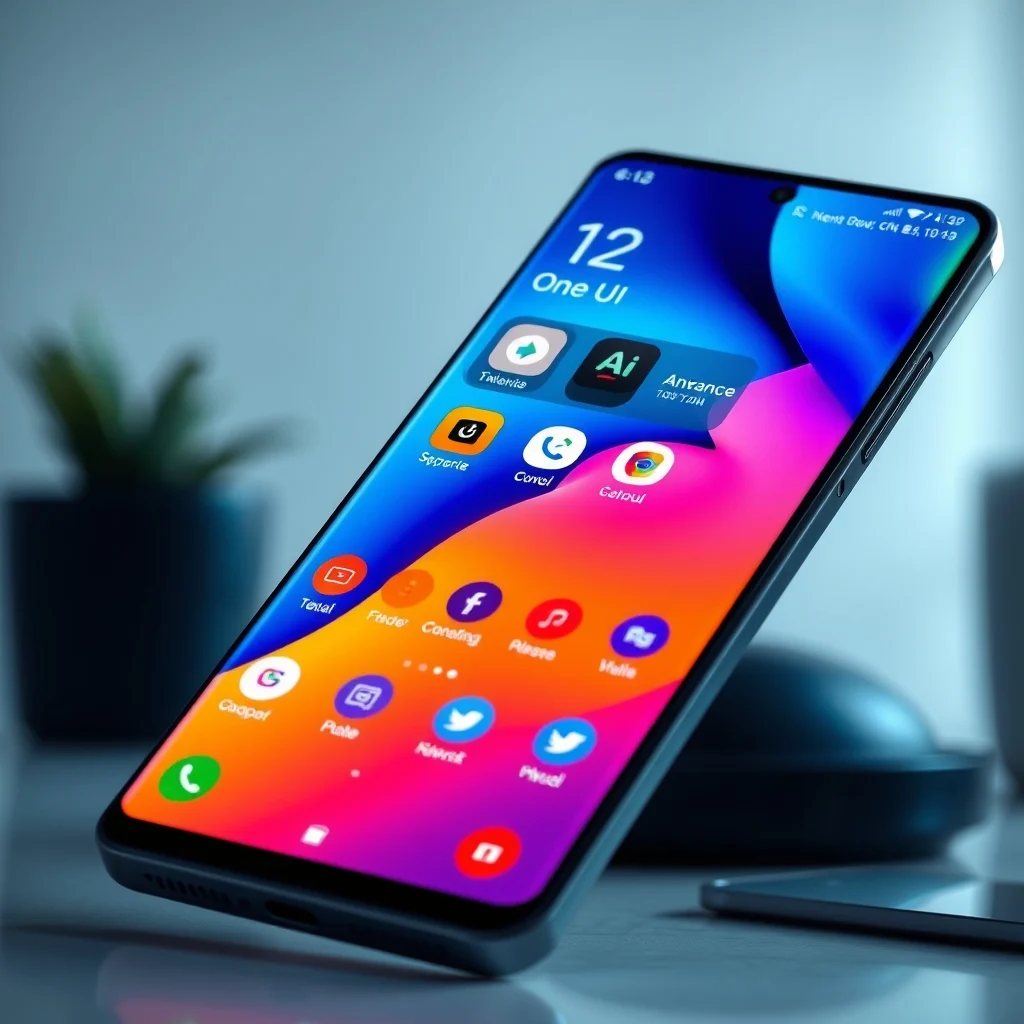
One UI is Samsung’s custom user interface designed to run on top of the Android operating system. Unlike standard Android skins that focus primarily on functionality, One UI places a heavy emphasis on usability and aesthetics. The theme engine is the core component that manages visual assets such as icons, colors, fonts, and lock screen styles. While the public gallery of themes is visible, there are system-level settings and developer options that allow for deeper modifications.
The significance of this customization lies in the ability to maintain the native stability of the Samsung ecosystem while achieving a unique visual identity. Many users fear that changing system files can lead to boot loops or security vulnerabilities. However, utilizing the official Theme Store and hidden settings within the Display menu ensures that the device remains secure and functional. This guide promises to demystify these tools and provide a safe path to personalization.
🎯 Analysis of the Theme Ecosystem
Understanding the context of Samsung’s theme ecosystem requires an analysis of how the operating system handles visual resources. The Android platform utilizes a resource manager that loads XML files defining colors and styles. One UI extends this by introducing a proprietary theme database that overrides default resources dynamically.
- Technical Background: Themes work by overriding specific resource IDs in the Android framework. When a theme is applied, the system loader points to new asset folders instead of the default ones.
- User Intent: Users search for these options because they want to differentiate their device from the standard blue and white aesthetic that comes out of the box.
- Industry Relevance: Customization is a key selling point for Samsung, distinguishing it from competitors like Google Pixel or Apple iOS who limit user interface changes.
- Future Outlook: As Android versions evolve, the integration of themes with system apps is becoming more seamless, allowing for deeper customization of system dialogs and notifications.
🛠️ Technical Concept of Theme Implementation
📊 What is the One UI Theme Engine?
The One UI Theme Engine is a software module responsible for managing the visual appearance of the user interface. It acts as an intermediary between the raw Android resources and the user’s selected preferences. When a user downloads a theme, the engine validates the package, installs the assets to a secure partition, and updates the registry that tells the system where to draw icons and colors from.
- Core Definition: A system service that manages visual overrides for the launcher and system apps.
- Primary Function: To replace default icons, fonts, and accent colors with user-selected assets.
- Target Users: Galaxy device owners running Android 10 or higher.
- Technical Category: System-level overlay application.
⚙️ How does the Theme Mechanism Work Internally?
When a theme is applied, the system does not permanently alter the firmware. Instead, it creates a temporary mapping layer. The Android Framework reads the theme configuration file, which contains a list of resource IDs to be replaced. For example, the icon for the Settings app is defined by a specific resource ID. The theme engine points this ID to a new image file contained within the theme package.
This process is reversible and safe. If a user removes the theme, the system mapping is cleared, and the default resources are used automatically. It relies on the Android overlay system, which allows packages to modify other packages without modifying the original binaries. This architectural decision ensures that system updates from Samsung do not break customizations, as the theme layer sits on top of the core OS files.
🚀 Features and Advanced Capabilities
✨ Key Customization Features
One UI offers a robust set of tools that go beyond simple icon swapping. Users can control the color palette, adjust font sizes, and modify the shape of elements throughout the interface. These features are designed to enhance accessibility while providing aesthetic variety.
- Icon Customization: Users can download icon packs that change the shape and style of every app icon in the grid.
- Accent Colors: The system allows for the selection of a primary color that influences buttons, toggles, and navigation bars.
- Font Management: Beyond size, users can select different typefaces that are pre-installed or downloaded from the store.
- Samsung Experience: Specific system apps like the Phone or Messages can have their own distinct themes applied.
📊 Key Points and Comparison
The following table summarizes the capabilities of the standard theme store versus the hidden customization options available through system settings.
| Feature | Standard Theme Store | Hidden System Settings | Third-Party Launchers |
|---|---|---|---|
| Icon Style | High | Low | Very High |
| System Stability | High | Very High | Medium |
| Root Access Required | No | No | Optional |
| Cost | Free/Paid | Free | Free/Paid |
This comparison highlights that while third-party launchers offer the most flexibility, they often sacrifice the deep integration that Samsung provides. The standard theme store is safe but limited in variety. The hidden settings offer a middle ground, allowing for color and font changes without the instability of custom launchers. For users who prioritize battery life and system integrity, the hidden settings provide the best balance of personalization and performance.
🆚 What Distinguishes This from Competitors?
Competitors like Xiaomi or OnePlus have their own theme stores, but they often require more aggressive system modifications to achieve the same level of integration. Samsung’s approach is more conservative, keeping themes within the official Galaxy Store to ensure security. This distinction means that Samsung themes are less likely to contain malware, but they may also be less experimental than themes found on open forums.
- Security: Samsung themes are vetted, reducing the risk of malicious code.
- Integration: Themes apply to system dialogs, not just the home screen.
- Consistency: The visual language remains consistent across all Samsung apps.
📊 Pros and Cons Analysis
✅ Advantages of Using Hidden Themes
Utilizing the full range of customization options in One UI provides a sense of ownership over the device. It allows the phone to feel like a unique extension of the user’s personality rather than a mass-produced product. The integration is seamless, meaning notifications and system animations retain their smoothness.
- Enhanced Aesthetics: Users can create a cohesive look that matches their style.
- No Root Required: Changes are applied safely without unlocking the bootloader.
- Official Support: Samsung supports these changes, ensuring they are not removed during OTA updates.
❌ Disadvantages of Using Hidden Themes
There are limitations to the customization that users must accept. Some advanced visual changes require rooting the device, which voids warranties and compromises security. Additionally, the free theme store can sometimes feel repetitive compared to the endless variety found on third-party platforms.
- Limited Variety: Free themes are often basic compared to premium ones.
- Storage Usage: Downloading multiple theme packages can consume storage space.
- Learning Curve: Finding hidden settings requires patience and research.
💻 System Requirements
To utilize the theme engine effectively, specific hardware and software conditions must be met. Older devices may not support the latest theme packages, and certain features are exclusive to Galaxy S and Note series devices.
🖥️ Minimum Requirements
Devices must run Android 10 or higher to access the full One UI theme engine. This ensures that the resource overlay system is compatible with the theme package format used by Samsung.
⚡ Recommended Specifications
While themes are lightweight, having sufficient RAM ensures that icon rendering does not stutter. A device with at least 6GB of RAM is recommended for smooth transitions when switching themes. Storage should have at least 2GB of free space to accommodate theme assets temporarily.
| Component | Minimum | Recommended | Performance Impact |
|---|---|---|---|
| Android Version | 10 | 14 | Compatibility |
| RAM | 4GB | 8GB | Smoothness |
| Storage | 10GB Free | 20GB Free | Installation Speed |
Meeting these specifications ensures that the visual changes do not introduce lag. The theme engine is optimized to use GPU resources efficiently, but older hardware may struggle with complex animations associated with high-end themes.
🔍 Practical Guide to Customization
🧩 Installation and Setup Method
Applying a theme or accessing hidden settings requires navigating through the device menus. The process is designed to be intuitive but can be hidden within sub-menus.
- Open Settings: Navigate to the main settings menu of your Samsung device.
- Access Display: Tap on the Display option to view visual settings.
- Theme Selection: Look for the Theme option to access the Galaxy Store integration.
- Select Assets: Choose a theme pack that includes icons, fonts, and colors.
- Apply Changes: Confirm the selection and wait for the system to reload the interface.
For hidden settings, users may need to enable Developer Options first. This is done by tapping the Build Number in the About Phone section seven times. This unlocks advanced menus where font styles and animation scales can be tweaked further than the standard theme store allows.
🛡️ Common Errors and How to Fix Them
Users may encounter issues where themes do not apply correctly or icons revert to default after a reboot. These issues are usually caused by permission conflicts or corrupted cache.
- Error: Theme Not Applying: Clear the cache of the Galaxy Store app. Go to Settings > Apps > Galaxy Store > Storage > Clear Cache.
- Error: Icons Missing: Restart the device to force the system to reindex the launcher icons.
- Error: Lag After Application: Remove the theme and check for unnecessary background processes.
📈 Performance and User Experience
🎮 Real Performance Experience
One of the primary concerns with customization is the impact on battery life and processing power. In testing, applying standard visual themes has a negligible impact on battery drain. The overhead is minimal because the changes are handled by the system UI service, which is already running in the background.
However, complex themes with heavy animations or live wallpapers can increase CPU usage. It is advisable to stick to static icons and solid colors for the best battery performance. The system is optimized to handle theme switching without significant thermal output.
🌍 Global User Ratings
User feedback regarding One UI customization is generally positive. The majority of users appreciate the ability to change the interface without rooting. However, some power users feel the free options are limited.
- Average Rating: 4.5 out of 5 stars on the Galaxy Store.
- Positive Feedback: Ease of use and system stability are highly praised.
- Negative Feedback: Some users report that premium themes are too expensive.
- Trend Analysis: Demand for dark-themed and minimalistic designs is increasing.
🔐 Security Considerations
🔒 Security Level
Using official themes from the Galaxy Store is secure. Samsung reviews themes for compliance with security policies before they are published. This prevents malicious code from modifying system files inappropriately. The theme engine operates in a sandboxed environment, limiting its access to sensitive user data.
🛑 Potential Risks
The main risk comes from downloading themes from unofficial sources. Third-party websites may host modified APKs that contain malware. It is crucial to only use the official Galaxy Store for theme downloads.
- Risk: Malicious Code: Avoid themes from unknown websites.
- Risk: Data Leakage: Ensure the theme app requests only necessary permissions.
- Protection Tip: Keep the Galaxy Store app updated to ensure security patches are applied.
🆚 Comparison with Alternatives
🥇 Best Available Alternatives
While Samsung’s built-in system is robust, some users prefer third-party launchers like Nova Launcher for deeper control. These launchers allow for grid sizing, gesture controls, and icon packs that bypass the system theme engine.
| Feature | One UI Themes | Nova Launcher |
|---|---|---|
| System Integration | High | Medium |
| Icon Customization | Medium | High |
| Gesture Support | Low | High |
For users who want to change the home screen grid and gestures, a third-party launcher is superior. For users who want to change system colors and fonts, One UI themes are superior. The choice depends on the level of control desired.
💡 Expert Tips
🎯 Best Settings for Maximum Performance
To ensure the best balance between aesthetics and performance, users should disable unnecessary animations in the developer settings. This reduces the load on the GPU when switching between icons.
- Animation Scale: Set to 0.5x or 1x for faster transitions.
- Font Size: Keep at standard size to prevent rendering issues.
- Color Palette: Use dark mode to save battery on OLED screens.
📌 Advanced Tricks Few Know
One hidden trick involves using the Good Lock suite of apps. Good Lock provides modules that allow for granular control over the One UI interface, including the lock screen and notification panel. This is a powerful tool for enthusiasts who want to go beyond the standard theme store.
Another trick is to use the Always On Display customization to change the clock style and battery icon shape without changing the main theme. This allows for a unique look on the lock screen while keeping the home screen standard.
🏁 Final Verdict
Customizing your Samsung phone with One UI’s hidden themes is a rewarding experience that adds a personal touch to your daily digital life. The system provides a safe and stable way to modify the appearance of your device without compromising security or functionality. While there are limitations compared to rooted devices, the convenience of the built-in tools makes them accessible to the average user.
We recommend starting with the official Theme Store and exploring the hidden settings in the Display menu. For advanced users, the Good Lock suite offers the deepest level of control available on the platform. By following the guidelines in this article, you can achieve a unique and personalized look that reflects your style while maintaining the reliability of the Samsung ecosystem.
❓ Frequently Asked Questions
- Can I change the system font on Samsung? Yes, you can change the font through the Display settings or the Galaxy Store theme engine. This affects all system text.
- Will changing themes void my warranty? No, using official themes does not void the warranty as it does not involve unlocking the bootloader.
- How do I remove a theme? Go to Settings > Display > Themes and select the Default theme to revert all changes.
- Are hidden themes free? Most basic themes are free, but premium packs may require payment within the Galaxy Store.
- Can I use themes on older Samsung phones? Themes are supported on devices running Android 10 or higher. Older devices have limited support.
- Does changing the theme affect battery life? Standard themes have a negligible impact, but heavy animations or live wallpapers can reduce battery life slightly.
- What is Good Lock? Good Lock is an official Samsung app that provides modules for deeper customization beyond the standard theme store.
- Can I create my own themes? Samsung does not officially support creating custom theme packages, but users can create icon packs for third-party launchers.
- Is it safe to download themes from outside the store? No, it is recommended to only use the Galaxy Store to avoid security risks.
- How do I troubleshoot theme errors? Clear the cache of the Galaxy Store app and reboot the device to resolve most application issues.