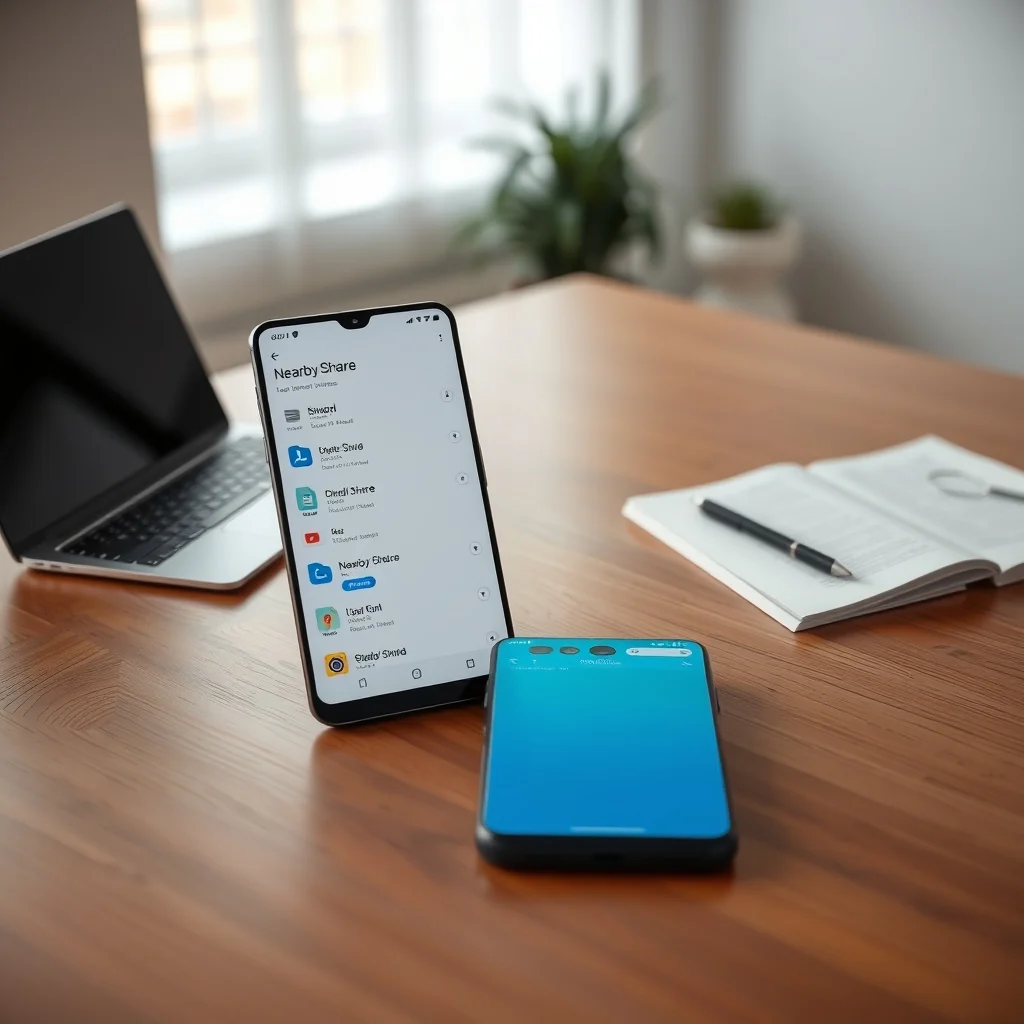

In the age of digital connectivity, transferring files between devices should be seamless, fast, and hassle-free. For Android users, Nearby Share has emerged as a game-changing feature that simplifies file sharing with just a few taps. Whether you’re sending photos to a friend, documents to a colleague, or even large video files to a family member, Nearby Share eliminates the complexity of traditional methods like Bluetooth or email attachments. This powerful tool leverages a combination of Bluetooth, Wi-Fi Direct, and peer-to-peer Wi-Fi to deliver transfers at lightning speeds, often rivaling even Apple’s AirDrop in efficiency and reliability.
Nearby Share is not just another file-sharing app; it’s a built-in feature of modern Android devices, designed to work across different brands, models, and versions of the operating system. This universality makes it an indispensable tool for anyone who values convenience and speed. In this comprehensive guide, we’ll explore how Nearby Share works under the hood, its key advantages over Bluetooth and other methods, a step-by-step guide on how to use it effectively, and solutions to common issues that might arise during its operation.
🔍 What Is Nearby Share and Why Should You Use It?
Nearby Share is Google’s answer to Apple’s AirDrop, offering a seamless way to transfer files between Android devices and even to compatible Windows PCs. Introduced in 2019, this feature has since become a staple in Android’s ecosystem, providing users with a reliable alternative to Bluetooth transfers, which are notoriously slow for large files, or cloud-based sharing, which requires an internet connection and often incurs data charges.
The primary goal of Nearby Share is to make file sharing as effortless as possible. Unlike Bluetooth, which can take minutes to transfer a single photo, Nearby Share can send a 1GB video file in just a few seconds. It achieves this by automatically selecting the fastest available connection method, whether that’s high-speed Wi-Fi, Wi-Fi Direct, or Bluetooth, depending on the devices involved and the type of data being transferred.
Another standout feature of Nearby Share is its cross-platform compatibility. While Apple restricts AirDrop to its own ecosystem, Nearby Share works across different Android devices from brands like Samsung, Google, OnePlus, and Xiaomi. Additionally, Google has expanded its compatibility to include Windows PCs, allowing users to send files to and from their computers without the need for cables or third-party software.
📊 How Nearby Share Works: A Deep Dive into Its Technical Architecture
🧩 The Core Technology Behind Nearby Share
At its heart, Nearby Share is a combination of several wireless technologies designed to work in harmony. When you initiate a file transfer, Nearby Share first scans for nearby devices using Bluetooth Low Energy (BLE) to establish a connection. Once a potential recipient is detected, the system then decides whether to use Bluetooth, Wi-Fi Direct, or peer-to-peer Wi-Fi to complete the transfer, depending on factors like signal strength, file size, and the capabilities of the devices involved.
For smaller files, such as photos or text documents, Nearby Share might rely on Bluetooth to conserve power and maintain simplicity. However, for larger files like videos or high-resolution images, it automatically switches to Wi-Fi Direct or peer-to-peer Wi-Fi, which offer significantly faster transfer speeds. This adaptive approach ensures that users get the best possible performance without having to manually configure anything.
Another critical component of Nearby Share’s architecture is its use of WebRTC, an open-source project that enables real-time communication between devices. WebRTC allows Nearby Share to establish a direct connection between devices without relying on intermediaries like cloud servers, which not only speeds up the transfer process but also enhances privacy and security.
The system also employs QR code scanning for device verification and pairing, particularly in cases where users want to ensure they are sending files to the correct recipient. This feature is especially useful in crowded environments where multiple devices might be discoverable, as it adds an extra layer of security to prevent accidental or unauthorized file transfers.
🔄 The Transfer Process: Step by Step
When you share a file using Nearby Share, the process unfolds in several stages:
1. Discovery Phase: Your device broadcasts a signal using Bluetooth Low Energy to detect nearby devices that have Nearby Share enabled. These devices must also have their visibility set to “All contacts” or “Everyone” for your device to detect them.
2. Connection Establishment: Once a compatible device is found, Nearby Share initiates a handshake process to establish a secure connection. This involves verifying the recipient’s identity using their Google account or a unique QR code.
3. Data Transfer: After the connection is established, your device decides the best method for transferring the file based on its size and the available connection types. For large files, it will prioritize Wi-Fi Direct or peer-to-peer Wi-Fi for maximum speed.
4. Completion and Verification: Once the transfer is complete, both devices receive a notification confirming the successful delivery of the file. The recipient can then choose to save the file to their device or dismiss it if they no longer need it.
This seamless process ensures that file transfers are not only fast but also secure and reliable, even in environments with multiple devices competing for connectivity.
⚡ Nearby Share vs. Bluetooth: Why Nearby Share Wins Every Time
📈 Speed and Efficiency
One of the most significant advantages of Nearby Share over Bluetooth is its speed. Bluetooth transfers are notoriously slow, especially for large files. A 100MB video file could take several minutes to transfer via Bluetooth, whereas Nearby Share can complete the same transfer in under 10 seconds using Wi-Fi Direct. This speed difference becomes even more pronounced with larger files, making Nearby Share the clear winner for users who frequently share media or documents.
Another critical factor is the efficiency of Nearby Share’s adaptive connection system. Instead of locking into a single method like Bluetooth, Nearby Share dynamically selects the fastest available connection based on real-time conditions. This ensures that users get the best possible performance without having to worry about manual settings or compatibility issues.
🔌 Power Consumption
While Bluetooth is known for its low power consumption, Nearby Share’s use of Wi-Fi Direct for large transfers can sometimes consume more battery. However, the difference is minimal in most cases, and the trade-off in speed and efficiency is well worth it. For smaller files, Nearby Share often defaults to Bluetooth, which keeps power usage low while still providing a noticeable speed boost over traditional Bluetooth transfers.
Additionally, Nearby Share is designed to minimize battery drain by optimizing connection times and reducing idle power consumption. This makes it a practical choice for users who want to conserve battery life while still enjoying fast file transfers.
🌐 Cross-Platform Compatibility
One of Nearby Share’s biggest strengths is its ability to work across different operating systems. While Bluetooth is universally supported, it often requires users to pair devices manually, which can be cumbersome and time-consuming. Nearby Share, on the other hand, integrates seamlessly with Google’s ecosystem, allowing users to send files between Android devices and even Windows PCs without any additional setup.
This cross-platform compatibility is a significant advantage for users who work with multiple devices or collaborate with colleagues who use different operating systems. It eliminates the need for third-party apps or workarounds, streamlining the file-sharing process and reducing friction.
📱 User Experience and Ease of Use
Nearby Share excels in user experience, offering a simple and intuitive interface that makes file sharing as easy as selecting a contact and tapping “Send.” Unlike Bluetooth, which often requires users to navigate through multiple menus to initiate a transfer, Nearby Share streamlines the process with a single tap in the share menu of any file on your device.
This simplicity extends to the recipient’s experience as well. When a file is sent via Nearby Share, the recipient receives a notification with options to accept or decline the transfer. If accepted, the file is automatically saved to the appropriate folder on their device, ready for immediate use.
📱 How to Use Nearby Share: A Step-by-Step Guide
🔧 Enabling Nearby Share on Your Android Device
Before you can use Nearby Share, you’ll need to ensure that it’s enabled on your device. Here’s how to do it:
-
Open the Settings app on your Android device.
-
Scroll down and tap on Google.
-
Select Devices & sharing from the menu.
-
Tap on Nearby Share to access its settings.
-
Toggle the switch at the top to enable Nearby Share.
-
Choose your visibility settings. You can select from:
- All contacts: Only devices owned by people in your Google Contacts will be able to discover your device.
- Some contacts: You can manually select specific contacts who can discover your device.
- Hidden: Your device will not be discoverable by others.
- Everyone: Any nearby device with Nearby Share enabled can discover yours.
-
Optionally, you can customize your device name and profile picture to make it easier for others to identify you.
Once Nearby Share is enabled, you’re ready to start transferring files!
📤 Sending a File Using Nearby Share
Sharing a file with Nearby Share is straightforward. Follow these steps:
-
Locate the file you want to share. This could be a photo in your gallery, a document in your file manager, or a link in your browser.
-
Tap the Share button. This is typically represented by a triangle with three dots or a square with an arrow pointing upward.
-
From the share menu, scroll through the options and select Nearby Share.
-
Your device will start scanning for nearby devices with Nearby Share enabled. Once a device is detected, it will appear in the list.
-
Tap the recipient’s device name to initiate the transfer. If the recipient has set their visibility to “All contacts” or “Everyone,” your device should appear in their list as well.
-
The recipient will receive a notification asking them to accept the transfer. Once they tap “Accept,” the file will begin transferring immediately.
-
Once the transfer is complete, both devices will show a confirmation notification. The file will be saved to the recipient’s device, typically in the Downloads folder unless otherwise specified.
🔄 Receiving a File Using Nearby Share
If someone is sending you a file via Nearby Share, you’ll receive a notification on your device. Here’s what to do:
-
When a file transfer is initiated, you’ll see a notification on your device with the sender’s name and the file type.
-
Tap the notification to view the transfer details.
-
You’ll see options to Accept or Decline the transfer. Tap Accept to receive the file.
-
Depending on your settings, the file will be saved to your Downloads folder or another specified location.
-
Once the transfer is complete, you’ll receive a confirmation notification. Tap it to open the file or dismiss it if you no longer need it.
🚀 Advanced Features and Tips for Power Users
⚙️ Customizing Nearby Share Settings for Optimal Performance
Nearby Share offers several advanced settings that can help you tailor the experience to your needs. Here are some key configurations you might want to explore:
-
Data Usage: Nearby Share can use mobile data to transfer files when Wi-Fi is unavailable. You can disable this option in the settings to avoid incurring data charges.
-
Auto-accept Files: If you trust the sender, you can enable auto-accept to automatically receive files without manual confirmation. This is useful for frequent transfers but may pose a security risk if enabled carelessly.
-
Device Visibility: Adjusting your visibility settings can help balance convenience and privacy. For example, choosing “Some contacts” allows you to manually select who can discover your device, reducing the risk of unwanted transfers.
-
Power Saving: Nearby Share can be configured to use less power during transfers by limiting the use of Wi-Fi and prioritizing Bluetooth for smaller files.
🎯 Using Nearby Share with Windows PCs
One of Nearby Share’s most underrated features is its compatibility with Windows PCs. By installing the Nearby Share for Windows app, you can seamlessly transfer files between your Android device and your computer. Here’s how:
-
Download and install the Nearby Share for Windows app from Google’s official website.
-
Open the app and sign in with the same Google account you use on your Android device.
-
Enable Nearby Share on your Android device and set your visibility to “Everyone” or “All contacts.”
-
On your Windows PC, open the Nearby Share app. It will automatically detect your Android device.
-
To send a file from your PC to your Android device, drag and drop the file into the Nearby Share window or use the “Share” context menu.
-
To send a file from your Android device to your PC, use the standard share menu and select Nearby Share. Your PC should appear in the list of available devices.
This feature is particularly useful for professionals who need to transfer files between their phone and computer frequently, such as documents, photos, or even app installers.
🔥 Transferring Large Files Efficiently
Nearby Share is optimized for transferring large files, but there are still a few tips you can follow to ensure the process is as smooth as possible:
-
Use Wi-Fi Direct: For files larger than 100MB, Nearby Share will automatically use Wi-Fi Direct for faster transfers. Ensure that both devices have Wi-Fi enabled and are within range.
-
Close Background Apps: Running apps in the background can consume bandwidth and slow down transfers. Close unnecessary apps before initiating a large file transfer.
-
Keep Devices Close: While Nearby Share can work over longer distances using Wi-Fi, keeping devices within 10 feet (3 meters) ensures the strongest signal and fastest transfer speeds.
-
Use High-Speed Wi-Fi: If both devices are connected to a high-speed Wi-Fi network, Nearby Share may use this connection for even faster transfers. However, this requires both devices to be on the same network.
🔧 Troubleshooting Common Nearby Share Issues
🛑 Connection Failures: Why Won’t Nearby Share Work?
If Nearby Share isn’t working as expected, there are several common issues that could be causing the problem. Here’s a step-by-step guide to diagnosing and fixing connection failures:
-
Check Device Visibility: Ensure that both devices have Nearby Share enabled and are set to “All contacts” or “Everyone.” If either device is set to “Hidden,” it won’t be discoverable.
-
Restart Bluetooth and Wi-Fi: Sometimes, simply toggling Bluetooth and Wi-Fi off and on again can resolve connectivity issues. Go to Settings > Network & internet and disable and re-enable both features.
-
Update Nearby Share: Outdated software can cause compatibility issues. Ensure that both devices are running the latest version of Nearby Share by checking for updates in the Google Play Store or Microsoft Store (for Windows).
-
Clear Cache and Data: Corrupted cache or data can interfere with Nearby Share’s functionality. Go to Settings > Apps > Nearby Share > Storage and tap “Clear cache” and “Clear data.” Then restart the app.
-
Check Google Account Sync: Nearby Share relies on your Google account for device authentication. Ensure that your Google account is synced correctly by going to Settings > Accounts and verifying that your account is listed.
-
Disable VPN or Firewall: If you’re using a VPN or firewall, it might be blocking Nearby Share’s connection. Temporarily disable these services and try again.
-
Reset Network Settings: If all else fails, resetting your network settings can resolve persistent connectivity issues. Go to Settings > System > Reset options > Reset Wi-Fi, mobile & Bluetooth.
If none of these solutions work, it’s possible that the issue is hardware-related, such as a faulty Bluetooth or Wi-Fi chip. In such cases, contacting the manufacturer’s support team may be necessary.
🐢 Slow Transfer Speeds: How to Speed Up Nearby Share
Slow transfer speeds can be frustrating, especially when you’re trying to send a large file quickly. Here are some ways to optimize Nearby Share for maximum speed:
-
Use Wi-Fi Direct Instead of Bluetooth: For large files, Wi-Fi Direct offers significantly faster transfer speeds. Ensure that both devices support Wi-Fi Direct and that it’s enabled in the Nearby Share settings.
-
Close Background Apps: Apps running in the background can consume bandwidth and slow down transfers. Close unnecessary apps before initiating a file transfer.
-
Move Closer to the Recipient Device: Wi-Fi signals weaken over distance. Keep both devices within 10 feet (3 meters) of each other for optimal performance.
-
Disable Mobile Data: If Nearby Share is using mobile data for the transfer, it might be slower than using Wi-Fi. Disable mobile data in the Nearby Share settings to force it to use Wi-Fi only.
-
Check for Interference: Other wireless devices, such as routers, cordless phones, or microwave ovens, can interfere with Wi-Fi signals. Move away from potential sources of interference.
-
Restart Devices: Sometimes, simply restarting both devices can resolve performance issues by refreshing the network stack.
🔒 Security Concerns: Is Nearby Share Safe to Use?
Security is a top priority when transferring files, especially sensitive documents or personal media. Nearby Share incorporates several security measures to protect your data:
-
End-to-End Encryption: All file transfers via Nearby Share are encrypted, ensuring that your data is protected from interception. This is particularly important when transferring files over public Wi-Fi networks.
-
QR Code Verification: When sending files to a new or untrusted device, Nearby Share uses QR code scanning to verify the recipient’s identity. This prevents unauthorized devices from receiving your files.
-
Visibility Settings: By adjusting your visibility settings to “Some contacts” or “All contacts,” you can limit who can discover your device, reducing the risk of unwanted transfers.
-
Auto-Delete Unaccepted Files: If a recipient does not accept a file within a certain time frame, the transfer request will automatically expire, and the file will not be sent. This prevents accidental or unwanted file transfers.
Despite these security measures, it’s important to remain cautious when using Nearby Share. Avoid sending sensitive files to untrusted recipients, and always double-check the recipient’s identity before initiating a transfer.
🆚 Nearby Share vs. AirDrop: Which Is Better?
📱 Platform Compatibility
One of the most significant differences between Nearby Share and AirDrop is their platform compatibility. AirDrop is exclusive to Apple devices, meaning it only works between iPhones, iPads, and Macs. This limits its usefulness for users who work with Android devices or need to share files with non-Apple users.
Nearby Share, on the other hand, is designed to work across different brands and operating systems. It supports Android devices from various manufacturers, as well as Windows PCs. This cross-platform compatibility makes Nearby Share a more versatile solution for users who work in mixed environments.
⚡ Transfer Speeds
Both Nearby Share and AirDrop are known for their fast transfer speeds, often completing large file transfers in seconds. However, Nearby Share’s adaptive connection system gives it a slight edge in certain scenarios. For example, Nearby Share can automatically switch to Wi-Fi Direct for large files, while AirDrop relies on a combination of Bluetooth and Wi-Fi, which can sometimes be slower.
That said, AirDrop’s seamless integration with Apple’s ecosystem ensures that transfers are consistently fast and reliable within its supported devices. The difference in speed becomes negligible for most users, especially when transferring smaller files.
🔒 Security and Privacy
Both Nearby Share and AirDrop prioritize security and privacy, but they take slightly different approaches. AirDrop uses a combination of Bluetooth and peer-to-peer Wi-Fi, with end-to-end encryption to protect transferred files. It also allows users to customize their visibility settings, similar to Nearby Share.
Nearby Share also uses end-to-end encryption and offers visibility settings to control who can discover your device. However, Nearby Share’s use of QR code verification for new devices adds an extra layer of security, particularly when transferring files to unknown recipients.
Overall, both services are secure, but Nearby Share’s additional verification step gives it a slight advantage in preventing unauthorized transfers.
🛠️ Ease of Use
AirDrop’s integration with Apple’s ecosystem makes it incredibly easy to use for iPhone and Mac users. The feature is deeply embedded into the operating system, allowing users to initiate transfers with just a few taps. The interface is intuitive and requires minimal setup.
Nearby Share is also easy to use, but its cross-platform nature can sometimes complicate the process. For example, transferring files between an Android device and a Windows PC requires installing an additional app, which adds a step to the process. However, once set up, Nearby Share is just as straightforward as AirDrop.
🏆 Which One Should You Use?
The choice between Nearby Share and AirDrop ultimately depends on your specific needs and the devices you use. If you’re fully invested in Apple’s ecosystem, AirDrop is the natural choice due to its seamless integration and reliability. However, if you use Android devices or need to transfer files to Windows PCs, Nearby Share is the more versatile and practical option.
For users who work in mixed environments or frequently share files with non-Apple users, Nearby Share is the clear winner. Its cross-platform compatibility and adaptive connection system make it a powerful tool for fast, secure, and efficient file transfers.
🌍 Real-World Performance: User Experiences and Ratings
📊 Global User Feedback
Nearby Share has received overwhelmingly positive reviews from users worldwide, with many praising its speed, reliability, and ease of use. On the Google Play Store, the Nearby Share app has an average rating of 4.5 out of 5 stars, based on hundreds of thousands of reviews. Users frequently highlight the following aspects as standout features:
-
Speed: Many users report that Nearby Share is significantly faster than Bluetooth, especially for large files. One user noted that a 500MB video file transferred in under 20 seconds using Nearby Share, compared to several minutes via Bluetooth.
-
Reliability: Nearby Share is praised for its consistent performance, even in crowded environments with multiple devices. Users appreciate that it rarely fails to connect or drop transfers mid-way.
-
Cross-Platform Compatibility: The ability to transfer files between Android devices and Windows PCs is a major selling point for many users. This feature eliminates the need for third-party apps or workarounds, making file sharing more convenient.
-
Ease of Use: The intuitive interface and one-tap sharing make Nearby Share accessible to users of all technical levels. Even beginners find it easy to use, with minimal setup required.
However, some users have reported occasional issues, such as connection failures or slow transfer speeds. These problems are often attributed to outdated software, network interference, or hardware limitations. Google has addressed many of these issues through software updates, and the overall user experience continues to improve.
🎯 Industry Recognition and Awards
Nearby Share has not only been well-received by users but has also garnered attention from tech reviewers and industry experts. In 2021, it was named one of the best Android features by several tech publications, including Android Authority and XDA Developers. Reviewers praised its speed, reliability, and seamless integration with Google’s ecosystem.
In addition, Nearby Share has been highlighted as a key differentiator for Android devices in competitive markets. Its ability to rival Apple’s AirDrop in terms of speed and user experience has positioned it as a must-have feature for modern Android smartphones and tablets.
💡 Pro Tips and Tricks for Mastering Nearby Share
🎯 Best Practices for Faster and More Reliable Transfers
To get the most out of Nearby Share, follow these pro tips:
-
Keep Your Devices Updated: Regularly update Nearby Share and your device’s operating system to ensure compatibility and access to the latest features. Updates often include performance improvements and bug fixes that enhance the user experience.
-
Use High-Speed Wi-Fi: For the fastest transfers, ensure that both devices are connected to a high-speed Wi-Fi network. This is particularly important when transferring large files or multiple files at once.
-
Enable Wi-Fi Direct: Wi-Fi Direct offers faster transfer speeds than Bluetooth for large files. Go to Settings > Google > Devices & sharing > Nearby Share and enable Wi-Fi Direct if it’s not already turned on.
-
Use QR Code Verification for New Contacts: When sending files to a new or untrusted contact, use the QR code verification feature to ensure that the recipient is legitimate. This adds an extra layer of security to prevent unauthorized transfers.
-
Monitor Battery Usage: Nearby Share can consume more battery when using Wi-Fi Direct for large transfers. Keep an eye on your battery levels, especially if you’re transferring files on the go.
🔥 Advanced Tricks Most Users Don’t Know About
Nearby Share has several hidden features and tricks that can enhance your file-sharing experience. Here are some advanced tips that even seasoned users might not be aware of:
-
Transfer Files in Bulk: Nearby Share supports transferring multiple files at once. Simply select all the files you want to send and choose Nearby Share from the share menu. The recipient can accept or decline the entire batch or individual files.
-
Share Links via Nearby Share: In addition to files, Nearby Share can also share links to websites, apps, or even locations on Google Maps. This is useful for quickly sharing resources with colleagues or friends without copying and pasting URLs.
-
Use Nearby Share with Smart Displays: Google’s smart displays, such as the Nest Hub, also support Nearby Share. You can send photos, videos, or even entire playlists to your display for viewing on a larger screen.
-
Customize Notification Sounds: Nearby Share allows you to customize the notification sounds for incoming transfers. Go to Settings > Google > Devices & sharing > Nearby Share > Notification sounds to change the sound or enable vibrate alerts.
-
Use Nearby Share for App Sharing: If you’ve found a great app on the Google Play Store, you can share the app’s download link via Nearby Share. The recipient can tap the link to open the Play Store and install the app directly.
🏁 Final Verdict: Is Nearby Share Worth Using?
Nearby Share is undeniably one of the most convenient and efficient file-sharing tools available for Android users. It surpasses traditional methods like Bluetooth in speed, reliability, and ease of use, making it an essential feature for anyone who regularly transfers files between devices. Whether you’re sending photos to a friend, documents to a colleague, or large video files to a family member, Nearby Share delivers a seamless experience that saves time and reduces frustration.
Compared to Apple’s AirDrop, Nearby Share holds its own, particularly in terms of cross-platform compatibility. While AirDrop is limited to Apple’s ecosystem, Nearby Share works across different Android devices and even Windows PCs, making it a more versatile solution for users in mixed environments. Its adaptive connection system ensures that transfers are always fast and reliable, regardless of the file size or device type.
Of course, Nearby Share isn’t without its limitations. Occasional connection issues or slow transfer speeds can occur, but these problems are often resolved with simple troubleshooting steps or software updates. Additionally, while Nearby Share is secure, users should always exercise caution when transferring sensitive files to ensure they’re sent to the correct recipient.
In summary, Nearby Share is a game-changer for Android users, offering a fast, reliable, and user-friendly alternative to Bluetooth and other file-sharing methods. If you haven’t already tried it, now is the perfect time to enable Nearby Share on your device and experience the future of file transfers.
Call to action: Enable Nearby Share on your Android device today and start enjoying faster, more efficient file transfers. Whether you’re sharing photos, documents, or large media files, Nearby Share makes the process effortless and reliable.
❓ Frequently Asked Questions About Nearby Share
-
Can I use Nearby Share to transfer files between two Android devices without an internet connection?
Yes, Nearby Share works entirely offline using Bluetooth, Wi-Fi Direct, or peer-to-peer Wi-Fi. An internet connection is not required for file transfers.
-
Does Nearby Share work with all Android devices?
Nearby Share is compatible with most modern Android devices running Android 6.0 (Marshmallow) or later. However, some older or low-end devices may not support all features, such as Wi-Fi Direct.
-
Can I transfer files from my Android device to a Windows PC using Nearby Share?
Yes, you can transfer files between Android devices and Windows PCs using the Nearby Share for Windows app. This app is available for download from Google’s official website.
-
Why is Nearby Share slower than expected for large files?
If Nearby Share is slower than expected, it could be due to several factors, such as weak Wi-Fi signal, interference from other devices, or outdated software. Ensure that both devices are close to each other and connected to a strong Wi-Fi network.
-
Is Nearby Share secure for transferring sensitive files?
Yes, Nearby Share uses end-to-end encryption to protect transferred files. Additionally, you can use QR code verification to ensure that the recipient is legitimate, adding an extra layer of security.
-
Can I use Nearby Share to send files to multiple recipients at once?
Yes, Nearby Share supports transferring multiple files to multiple recipients. However, each recipient must accept the transfer individually.
-
What should I do if Nearby Share fails to connect to the recipient’s device?
If Nearby Share fails to connect, try the following troubleshooting steps: ensure both devices have Nearby Share enabled, check visibility settings, restart Bluetooth and Wi-Fi, update Nearby Share, and clear cache and data.
-
Does Nearby Share consume a lot of battery?
Nearby Share’s battery consumption depends on the transfer method. Using Wi-Fi Direct for large files will consume more battery than Bluetooth for smaller files. However, the difference is minimal in most cases.
-
Can I use Nearby Share to transfer files between two Android devices that are not on the same Wi-Fi network?
Yes, Nearby Share can transfer files between devices on different Wi-Fi networks using peer-to-peer Wi-Fi or Bluetooth. However, the transfer speed may be slower than when both devices are on the same network.
-
What is the maximum file size I can transfer using Nearby Share?
There is no strict limit to the file size you can transfer using Nearby Share. However, larger files may take longer to transfer, depending on the connection method and network conditions.