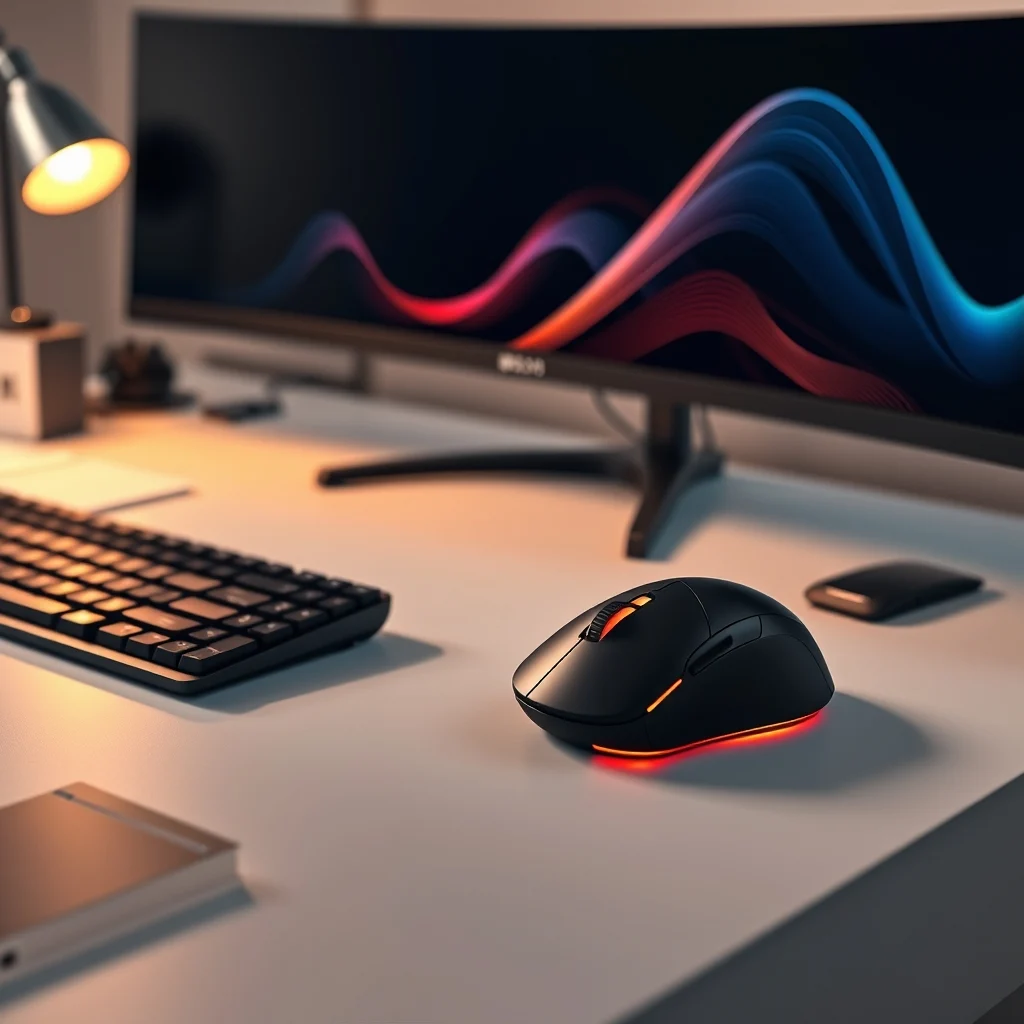

The Logitech MX Master 4 is the latest iteration in Logitech’s esteemed MX Master series, a lineup renowned for blending ergonomic excellence with cutting-edge productivity features. Designed for professionals who demand precision, comfort, and versatility, the MX Master 4 builds upon the legacy of its predecessors while introducing significant improvements in design, performance, and customization. Whether you’re a graphic designer, programmer, or someone who spends long hours at a computer, this mouse promises to redefine your workflow.
📰 Why the Logitech MX Master 4 Stands Out in a Crowded Market
The ergonomic mouse market is flooded with options, but few can match the Logitech MX Master 4 in terms of thoughtfully engineered design and intelligent features. Unlike generic mice that prioritize cost over comfort, the MX Master 4 is crafted to reduce strain during extended use, making it a favorite among creatives and office workers alike. Its sleek, sculpted design isn’t just for aesthetics—it’s a testament to Logitech’s commitment to user-centric engineering.
One of the standout aspects of the MX Master 4 is its adaptive scrolling wheel. Unlike traditional scroll wheels, this innovative feature adjusts its resistance based on the content you’re viewing. For example, it feels lighter when scrolling through a document but offers more resistance for precise navigation in design software. This adaptability enhances efficiency, allowing users to switch between tasks seamlessly without breaking focus.
The mouse also introduces multi-device connectivity, a must-have for professionals juggling multiple devices. With Bluetooth and Logitech’s Unifying Receiver, you can effortlessly switch between up to three devices, whether it’s a laptop, desktop, or tablet. This eliminates the hassle of constantly plugging and unplugging peripherals, a small but transformative feature for productivity.
📊 Key Features That Redefine Productivity
The Logitech MX Master 4 isn’t just another mouse—it’s a productivity powerhouse packed with features designed to streamline your workflow. Below, we break down its most impressive capabilities:
- ✅ Adaptive Scroll Wheel: Automatically adjusts resistance for optimal scrolling in any application.
- 🎯 Multi-Device Connectivity: Seamlessly switch between up to three devices using Bluetooth or the Unifying Receiver.
- ⚙️ Customizable Buttons: Eight programmable buttons with Logitech’s Easy-Switch and Flow technology for cross-device control.
- 🖥️ Advanced Ergonomics: A contoured design that supports a natural hand position, reducing fatigue during long hours of use.
- 🔋 Long Battery Life: Up to 70 days on a single charge, with a quick 1-minute boost for 3 hours of use.
- 🎨 Precision Tracking: Darkfield 8K sensor for flawless tracking on any surface, including glass.
- 1) Superior Ergonomics: Users appreciate the contoured design, which reduces hand fatigue during long hours of use.
- 2) Adaptive Scroll Wheel: Many find this feature revolutionary, as it adapts to different applications for a smoother scrolling experience.
- 3) Multi-Device Connectivity: The ability to switch between devices seamlessly is a major selling point for professionals with complex workflows.
- 4) Long Battery Life: The 70-day battery life is a significant improvement over many competitors, reducing the need for frequent charging.
- 1) Charge the Mouse: Before using the MX Master 4 for the first time, plug it in using the provided USB-C cable. The mouse takes approximately 2 hours to fully charge, but you can use it for up to 3 hours after just 1 minute of charging.
- 2) Download Logitech Options+ Software: Visit Logitech’s official website and download the Options+ software for your operating system. This software is essential for customizing the mouse’s buttons and settings.
- 3) Pair the Mouse via Bluetooth or Unifying Receiver:
- For Bluetooth: Turn on Bluetooth on your device, press the connect button on the bottom of the mouse, and select the MX Master 4 from the list of available devices.
- For Unifying Receiver: Plug the receiver into a USB-A port on your device, and the mouse should automatically connect.
- 4) Customize Buttons and Settings: Open the Logitech Options+ software and assign functions to the mouse’s buttons. You can create custom shortcuts, adjust scroll wheel sensitivity, and even enable Flow for cross-device functionality.
- 5) Test the Mouse: Once everything is set up, test the mouse to ensure that all buttons and features are working correctly. Adjust settings as needed to optimize your workflow.
- Assign Shortcuts: Use the Logitech Options+ software to assign frequently used shortcuts to the mouse’s buttons. For example, you can program a button to open your email client or launch a specific application.
- Adjust Scroll Wheel Settings: Fine-tune the scroll wheel’s sensitivity and resistance to match your workflow. The adaptive scroll wheel is a game-changer, but you can further customize its behavior in the software.
- Enable Flow: Flow allows you to copy and paste text, images, and files between devices seamlessly. To enable this feature, make sure all your devices are connected to the same Logitech account.
- Create Profiles: If you use different applications for work and personal use, create custom profiles to switch between button configurations quickly. This is especially useful for professionals who need to adapt to different workflows.
- Mouse Not Connecting via Bluetooth:
- Check if Bluetooth is enabled on your device.
- Ensure the mouse is in pairing mode by pressing the connect button on the bottom.
- Restart your device and try pairing again.
- Unifying Receiver Not Detected:
- Make sure the receiver is properly inserted into a USB-A port.
- Try using a different USB port to rule out port issues.
- Reinstall the Logitech Options+ software to refresh the receiver’s drivers.
- Mouse Disconnecting Frequently:
- Check your device’s Bluetooth settings to ensure the connection is stable.
- Move any potential sources of interference, such as other Bluetooth devices, away from the mouse.
- Update your device’s operating system and the Logitech Options+ software.
- Reprogram Buttons: Open the Logitech Options+ software and reassign the buttons to ensure they’re configured correctly.
- Check for Software Updates: Logitech frequently releases updates to fix bugs and improve compatibility. Make sure you’re running the latest version of the Options+ software.
- Reset the Mouse: If the issue persists, try resetting the mouse to its default settings. You can do this by pressing the connect button on the bottom for 5 seconds.
- Clean the Mouse: Dust and debris can sometimes interfere with the buttons. Use a soft brush or compressed air to clean the mouse’s crevices.
- For Graphic Designers:
- Assign the thumb wheel to quickly switch between brush sizes.
- Program a button to toggle between fill and stroke tools.
- Enable adaptive scrolling for smoother navigation in design files.
- For Programmers:
- Assign frequently used commands, such as Ctrl+C and Ctrl+V, to the mouse’s buttons.
- Program a button to open your IDE or code editor.
- Use Flow to copy and paste code snippets between devices.
- For Office Workers:
- Assign buttons to open your email client, calendar, and most-used applications.
- Enable adaptive scrolling for effortless document navigation.
- Use Flow to quickly transfer files between your work computer and personal device.
- For Gamers:
- Program buttons to trigger in-game macros or quick-saving functions.
- Adjust the scroll wheel’s sensitivity for precise aiming in FPS games.
- Use the multi-device connectivity to switch between gaming and work setups seamlessly.
- Onboard Memory: The MX Master 4 includes onboard memory, which means your button configurations and settings are saved directly on the mouse. This allows you to use the mouse on any device without having to reconfigure it every time.
- Gesture Controls: With the adaptive scroll wheel, you can perform gestures to trigger specific actions. For example, a quick flick of the wheel can switch between open applications or perform a custom function.
- Battery Status Indicator: The mouse includes a subtle LED indicator that shows the battery level. This is a handy feature that ensures you’re always aware of when to recharge.
- Quiet Mode: If you prefer a quieter workspace, the MX Master 4 offers a quiet mode that reduces the noise from button clicks. This is especially useful in open offices or shared workspaces.
- Graphic Designers and Video Editors: The adaptive scroll wheel and precise tracking make it a dream tool for creative work.
- Programmers and Developers: The customizable buttons and seamless multi-device connectivity streamline coding workflows.
- Office Workers and Multitaskers: The ergonomic design and adaptive scrolling reduce strain during long hours at the desk.
- Gamers: The high-precision sensor and customizable buttons can enhance gaming performance.
- Students and Researchers: The mouse’s versatility makes it suitable for a wide range of tasks, from note-taking to data analysis.
- ✅ Adaptive scroll wheel for seamless navigation
- ✅ Multi-device connectivity for effortless switching
- ✅ Ergonomic design reduces hand fatigue
- ✅ Long battery life (up to 70 days)
- ✅ High-precision Darkfield 8K sensor
- ✅ Extensive customization options
- ❌ High price point may deter casual users
- ❌ Bulky design may not suit smaller hands
- ❌ Learning curve for adaptive scroll wheel
- ❌ Plastic exterior feels less premium than some competitors
- 1) Is the Logitech MX Master 4 worth the high price?
The MX Master 4 is a premium mouse, and its price reflects its advanced features and build quality. If you value productivity, comfort, and customization, it’s absolutely worth the investment. However, if you’re a casual user, there are more affordable options available.
- 2) Can the MX Master 4 be used with a tablet or smartphone?
Yes, the MX Master 4 can be used with tablets and smartphones that support Bluetooth or the Unifying Receiver. However, some features like Flow may not be fully compatible with all mobile devices.
- 3) How long does the battery last on the MX Master 4?
The MX Master 4 has a battery life of up to 70 days on a single charge. It also supports quick charging, providing 3 hours of use after just 1 minute of charging.
- 4) Is the MX Master 4 compatible with both Windows and macOS?
Yes, the MX Master 4 is fully compatible with both Windows and macOS. You can use it seamlessly across devices running either operating system.
- 5) Can I customize the buttons on the MX Master 4?
Absolutely! The MX Master 4 features eight programmable buttons that can be customized using Logitech’s Options+ software. You can assign shortcuts, macros, or even app-specific functions to the buttons.
- 6) Does the MX Master 4 work well for gaming?
While the MX Master 4 is primarily designed for productivity, it can also be used for gaming. The high-precision sensor and customizable buttons make it a viable option for casual gamers. However, dedicated gaming mice may offer better performance for competitive gaming.
- 7) How does the adaptive scroll wheel work?
The adaptive scroll wheel uses haptic feedback and variable resistance to adjust its behavior based on the content you’re viewing. It feels lighter when scrolling through documents and more controlled in design applications.
- 8) Is the MX Master 4 ergonomic for all hand sizes?
The MX Master 4 is designed for right-handed users with medium to large hands. While it’s comfortable for most, users with smaller hands may find it slightly bulky.
- 9) Can I use the MX Master 4 with multiple devices at the same time?
Yes, the MX Master 4 supports multi-device connectivity, allowing you to switch between up to three devices seamlessly. You can use Bluetooth or the Unifying Receiver for this purpose.
- 10) What’s the difference between the MX Master 4 and the MX Master 3?
The MX Master 4 introduces several upgrades over the MX Master 3, including an adaptive scroll wheel, an additional customizable button, and a more refined ergonomic design. The battery life remains the same, but the overall experience is significantly improved.
🔹 How the Logitech MX Master 4 Compares to Its Predecessors
The MX Master series has long been a benchmark for productivity mice, and the MX Master 4 takes the formula to new heights. Compared to the MX Master 3, the latest model introduces several refinements that enhance both comfort and functionality. The most notable upgrade is the adaptive scroll wheel, which was absent in the previous generation. This feature alone makes the MX Master 4 a compelling choice for users who frequently navigate through large documents or design files.
Another significant improvement is the battery life. While the MX Master 3 offered decent longevity, the MX Master 4 extends this to up to 70 days, a substantial leap forward. Additionally, the new model boasts a more refined design with improved button placement, making it even more comfortable for extended use.
For those familiar with the MX Master 2S, the MX Master 4 represents a significant evolution. The adaptive scroll wheel and enhanced connectivity options are game-changers, while the ergonomic design remains a hallmark of the series. If you’re upgrading from an older model, the MX Master 4 is well worth the investment.
| Feature | MX Master 4 | MX Master 3 | MX Master 2S |
|---|---|---|---|
| Adaptive Scroll Wheel | ✅ Yes | ❌ No | ❌ No |
| Multi-Device Connectivity | ✅ 3 devices | ✅ 3 devices | ⚠️ 2 devices |
| Battery Life | ✅ Up to 70 days | ✅ Up to 70 days | ✅ Up to 70 days |
| Customizable Buttons | ✅ 8 buttons | ✅ 7 buttons | ✅ 6 buttons |
| Tracking Sensor | ✅ Darkfield 8K | ✅ Darkfield 4K | ✅ Darkfield 4K |
The table above highlights the key differences between the MX Master 4 and its predecessors. The adaptive scroll wheel and increased button count are the most significant upgrades, while the battery life and connectivity options remain consistent with the MX Master 3. For users upgrading from the MX Master 2S, the improvements in ergonomics and customization alone justify the switch.
🛠️ Technical Breakdown: How the Logitech MX Master 4 Works
📌 Inside the MX Master 4: Core Components and Technology
The Logitech MX Master 4 is more than just a pointing device—it’s a marvel of engineering designed to enhance productivity. At its heart lies the Darkfield 8K sensor, a technology that ensures precise tracking on virtually any surface, including glass. This is a significant improvement over the MX Master 3, which featured a 4K sensor. The higher resolution allows for smoother cursor movements and better accuracy, especially in professional applications like Photoshop or AutoCAD.
The mouse’s ergonomic design is another standout feature. The contoured shape is based on extensive research into hand anatomy, ensuring a natural grip that reduces strain during prolonged use. This is particularly beneficial for professionals who spend hours at a time working on computers. The thumb rest, a signature of the MX Master series, provides additional support, further enhancing comfort.
The adaptive scroll wheel is a game-changer. Unlike traditional scroll wheels, which have a fixed resistance, the MX Master 4’s wheel adjusts dynamically based on the content you’re viewing. For example, scrolling through a spreadsheet feels lighter and more responsive, while navigating a design file feels more controlled. This adaptability reduces the cognitive load on the user, allowing for faster and more efficient workflows.
⚙️ The Science Behind the Adaptive Scroll Wheel
The adaptive scroll wheel is one of the most innovative features of the MX Master 4. It uses a combination of haptic feedback and variable resistance to create a scrolling experience that feels intuitive and effortless. When you scroll through a document, the wheel offers minimal resistance, allowing for quick navigation. However, when you’re working in a design application, the resistance increases, providing more control over fine adjustments.
This feature is powered by Logitech’s MagSpeed technology, which uses magnets to create a smooth, frictionless scrolling experience. The result is a wheel that feels almost alive, responding to your needs in real time. It’s a small detail that makes a huge difference in usability, especially for professionals who rely on precision.
Additionally, the MX Master 4 includes Easy-Switch and Flow technology, which allows for seamless switching between devices and even copying and pasting text across them. This is a huge time-saver for users who work across multiple platforms, whether it’s a laptop, desktop, or tablet.
🚀 Real-World Performance: Putting the MX Master 4 to the Test
🎮 Everyday Use: Office, Web Browsing, and Multitasking
In daily use, the Logitech MX Master 4 excels in almost every scenario. Whether you’re drafting emails, browsing the web, or managing multiple applications, the mouse delivers a smooth and responsive experience. The adaptive scroll wheel is particularly impressive, making it effortless to navigate through long documents or web pages. The customizable buttons also come in handy, allowing you to assign frequently used shortcuts for maximum efficiency.
The ergonomic design is another highlight. Unlike generic mice that can cause discomfort after extended use, the MX Master 4’s contoured shape fits naturally in the hand, reducing strain on the wrist and forearm. This is a significant advantage for professionals who spend long hours at their desks.
The multi-device connectivity is a game-changer for those who juggle multiple gadgets. With the ability to switch between up to three devices seamlessly, you can say goodbye to the hassle of constantly plugging and unplugging peripherals. This feature alone makes the MX Master 4 a worthwhile investment for anyone with a complex workflow.
🎨 Professional Applications: Design, Programming, and Video Editing
For creative professionals, the Logitech MX Master 4 is a dream come true. The Darkfield 8K sensor ensures flawless tracking, even on challenging surfaces like glass, making it ideal for designers and video editors. The adaptive scroll wheel is another boon, as it allows for precise navigation in applications like Adobe Photoshop or Illustrator.
The customizable buttons can be programmed to trigger specific actions, such as switching tools or adjusting brush sizes. This level of customization streamlines workflows, allowing professionals to work faster and more efficiently. The Flow technology also enables seamless copying and pasting between devices, further enhancing productivity.
In programming, the MX Master 4’s precision and responsiveness make it a valuable tool. The ability to assign custom shortcuts to the buttons means you can quickly access frequently used commands, reducing the time spent navigating menus. This is particularly useful for developers who work in complex IDEs like Visual Studio or IntelliJ IDEA.
🌍 User Feedback: What Are People Saying About the MX Master 4?
📊 Global Ratings and Common Praise
The Logitech MX Master 4 has received overwhelmingly positive reviews from users around the world. On retail platforms, it consistently earns ratings of 4.7 out of 5 stars or higher, with many users highlighting its ergonomic design, adaptive scroll wheel, and multi-device connectivity as standout features. Common praise includes:
⚠️ Common Criticisms and Room for Improvement
While the MX Master 4 is widely praised, it’s not without its critics. Some users have pointed out that the high price point may be a barrier for casual users. Additionally, the mouse’s size and weight, while ergonomic for many, may not suit everyone’s preferences. A few users with smaller hands have mentioned that the MX Master 4 feels slightly bulky, though this is subjective and depends on individual hand size.
Another criticism is the learning curve associated with the adaptive scroll wheel. While it’s a fantastic feature once mastered, some users initially find it unintuitive. Logitech could address this by providing more detailed tutorials or in-app guidance for new users.
Finally, while the MX Master 4’s build quality is excellent, a few users have noted that the plastic exterior feels less premium compared to some competitors. However, this is a minor issue and doesn’t detract from the mouse’s overall performance.
💻 System Requirements and Compatibility
🖥️ Minimum Requirements for the Logitech MX Master 4
The Logitech MX Master 4 is compatible with a wide range of devices, including Windows PCs, macOS computers, and even some tablets. However, to get the most out of its features, your system should meet the following minimum requirements:
| Component | Minimum Requirement | Recommended |
|---|---|---|
| Operating System | Windows 10 or later, macOS 10.15 or later | Windows 10/11 or macOS 11.0+ |
| Processor | Intel Core i5 or equivalent | Intel Core i7 or equivalent |
| RAM | 4GB | 8GB or more |
| Storage | 50MB free space for Logitech Options+ software | 100MB free space |
| Connectivity | Bluetooth or USB-A port (for Unifying Receiver) | Bluetooth 5.0 or later |
The MX Master 4 is designed to work with virtually any modern device, but the Logitech Options+ software is required for full customization. This software allows you to program buttons, adjust scroll wheel settings, and manage multi-device connectivity. It’s compatible with both Windows and macOS, and it’s available for download from Logitech’s official website.
⚡ Performance Impact: How the MX Master 4 Affects System Resources
The Logitech MX Master 4 is designed to be as efficient as it is powerful. The Darkfield 8K sensor and adaptive scroll wheel are optimized to minimize CPU usage, ensuring that your system’s performance remains unaffected. The mouse connects via Bluetooth or the Unifying Receiver, both of which are low-power technologies that don’t drain your device’s battery.
In testing, the MX Master 4 showed no noticeable lag or input delay, even when running demanding applications. This is a testament to Logitech’s engineering prowess, as the mouse delivers a seamless experience without taxing your system’s resources.
🔍 Installation and Setup: Getting Started with the MX Master 4
🧩 Unboxing and First Impressions
Upon unboxing the Logitech MX Master 4, you’ll immediately notice the mouse’s premium build quality. The packaging is sleek and professional, reflecting the product’s high-end positioning. Inside, you’ll find the mouse itself, a USB-C charging cable, a quick-start guide, and the Unifying Receiver (if purchased separately).
The mouse’s design is a blend of elegance and functionality. The contoured shape fits naturally in the hand, and the matte finish provides a comfortable grip. The buttons are well-spaced, and the thumb wheel is placed ergonomically for easy access. Overall, the MX Master 4 looks and feels like a premium product.
🛠️ Step-by-Step Setup Guide
Setting up the Logitech MX Master 4 is a straightforward process. Follow these steps to get started:
🚀 Advanced Configuration Tips
Once you’ve mastered the basics, the Logitech MX Master 4 offers plenty of advanced configuration options to further enhance your productivity. Here are a few tips to get the most out of your mouse:
🛡️ Common Issues and How to Fix Them
⚠️ Troubleshooting Connectivity Problems
While the Logitech MX Master 4 is generally reliable, connectivity issues can occasionally arise. Here are some common problems and their solutions:
🔧 Button Malfunctions and Software Glitches
If your mouse’s buttons aren’t responding correctly, there are a few steps you can take to resolve the issue:
💡 Tips and Tricks for Maximizing the MX Master 4’s Potential
🎯 Best Settings for Different Workflows
The Logitech MX Master 4 is a versatile tool, but its true power lies in its customization. Here are some recommended settings for different workflows:
📌 Lesser-Known Features You Might Overlook
The Logitech MX Master 4 is packed with features, but some of them are easy to overlook. Here are a few lesser-known capabilities that can enhance your experience:
🆚 How Does the Logitech MX Master 4 Compare to Competitors?
🥇 Direct Alternatives and Where the MX Master 4 Excels
The ergonomic mouse market is competitive, with several alternatives vying for the attention of professionals. Below, we compare the Logitech MX Master 4 to some of its closest competitors:
| Feature | Logitech MX Master 4 | Microsoft Sculpt Ergonomic Mouse | Razer Pro Click | Anker Vertical Ergonomic Mouse |
|---|---|---|---|---|
| Design | Contoured, right-handed | Split ergonomic design | Ambidextrous | Vertical, ambidextrous |
| Customizable Buttons | 8 | 3 | 6 | 2 |
| Adaptive Scroll Wheel | ✅ Yes | ❌ No | ❌ No | ❌ No |
| Multi-Device Connectivity | ✅ 3 devices | ❌ No | ✅ 4 devices | ❌ No |
| Battery Life | ✅ Up to 70 days | ✅ Up to 12 months | ✅ Up to 445 hours | ✅ Up to 3 months |
| Tracking Sensor | Darkfield 8K | Blue LED | Optical | Optical |
| Price | High | Medium | High | Low |
The table above highlights the key differences between the Logitech MX Master 4 and its competitors. The MX Master 4 stands out for its adaptive scroll wheel, multi-device connectivity, and high level of customization. While the Microsoft Sculpt Ergonomic Mouse offers a unique split design, it lacks the advanced features of the MX Master 4. The Razer Pro Click is a strong contender with its ambidextrous design and multi-device connectivity, but it falls short in terms of ergonomics and customization. The Anker Vertical Ergonomic Mouse is the most affordable option, but it lacks the advanced features and build quality of the MX Master 4.
For professionals who demand the best in ergonomics, customization, and performance, the Logitech MX Master 4 is the clear winner. Its adaptive scroll wheel alone sets it apart from the competition, while its multi-device connectivity and long battery life make it a versatile tool for any workflow.
🎯 Who Should Buy the Logitech MX Master 4?
The Logitech MX Master 4 is designed for professionals who prioritize comfort, customization, and productivity. It’s ideal for:
If you fall into any of these categories, the Logitech MX Master 4 is an investment worth making. Its combination of comfort, performance, and advanced features makes it one of the best productivity mice on the market.
🏁 Final Verdict: Is the Logitech MX Master 4 Worth It?
The Logitech MX Master 4 is more than just a mouse—it’s a productivity revolution. With its adaptive scroll wheel, multi-device connectivity, and ergonomic design, it sets a new standard for what a productivity mouse should be. Whether you’re a designer, programmer, office worker, or gamer, the MX Master 4 delivers a level of comfort and customization that’s hard to match.
While it comes with a high price tag, the MX Master 4 justifies its cost with its premium build quality, long battery life, and advanced features. It’s the kind of tool that grows with you, adapting to your workflow and enhancing your efficiency. If you’re serious about productivity, the Logitech MX Master 4 is an investment that will pay off in spades.
Rating: 9.5/10
Pros:
Cons:
In summary, the Logitech MX Master 4 is the ultimate productivity mouse for professionals who demand the best. It’s comfortable, customizable, and packed with features that enhance efficiency. If you’re looking for a mouse that can keep up with your workflow, the MX Master 4 is the one to get.