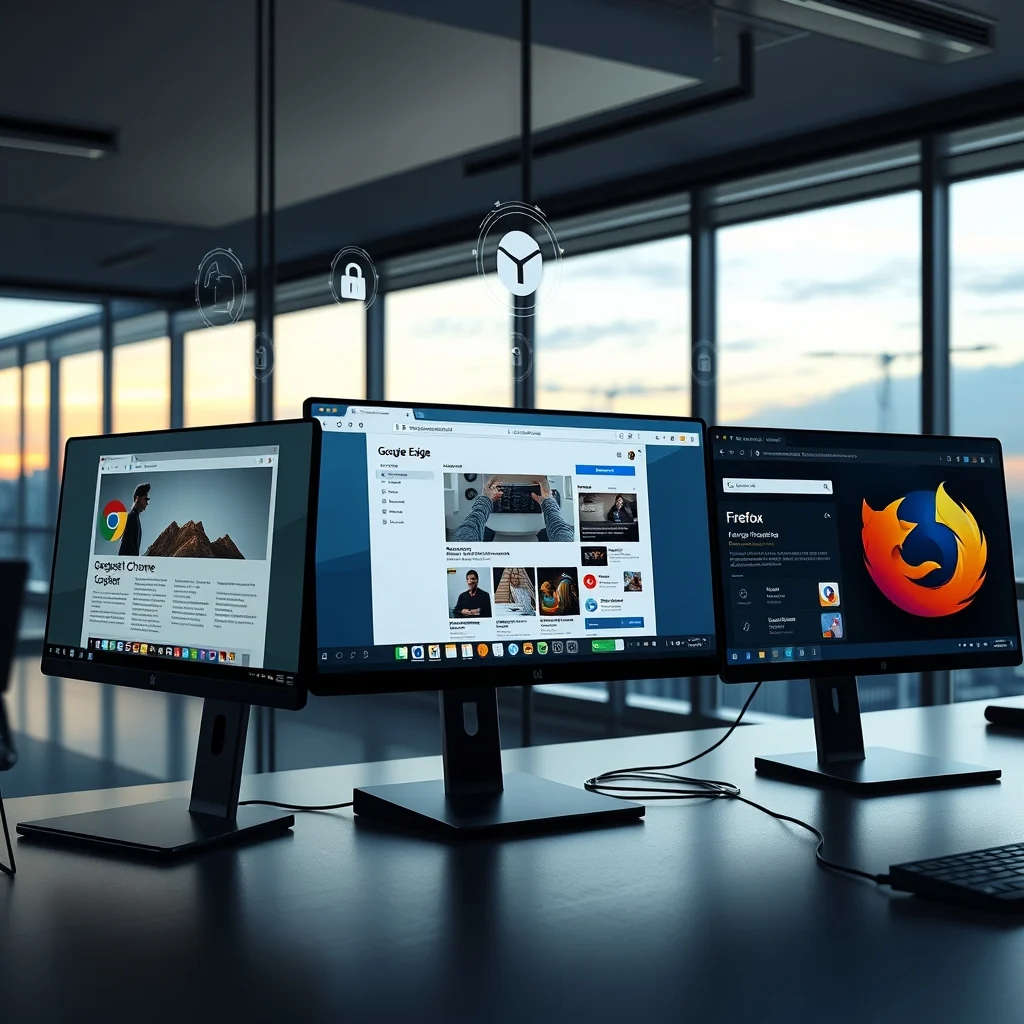

In the ever-evolving landscape of web browsers, 2026 marks a pivotal year where performance, privacy, and AI integration are redefining the user experience. The battle for dominance among Google Chrome, Microsoft Edge, and Mozilla Firefox has intensified, with each browser introducing groundbreaking features to attract users. This comprehensive analysis dives deep into the technical architecture, feature sets, and real-world performance of these three titans, helping users make an informed decision about their next browser.
🚀 The Browser Wars: Why This Comparison Matters
The web browser is no longer just a tool for accessing the internet; it has become the central hub for productivity, entertainment, and communication. In 2026, the stakes are higher than ever. Google Chrome, with its Chromium-based foundation, continues to dominate the market share. Microsoft Edge, leveraging its Blink engine and Windows integration, is aggressively expanding its user base. Meanwhile, Mozilla Firefox is doubling down on its commitment to privacy and open-source values.
The choice of browser today impacts not just browsing speed but also online security, data privacy, and even AI-powered experiences. For developers, the choice affects extension compatibility and debugging tools. For businesses, it influences productivity workflows and collaboration tools. For everyday users, it determines ad-blocking capabilities, tab management, and cross-device synchronization. This article explores every critical aspect of these browsers to provide a 360-degree view of their strengths, weaknesses, and unique offerings in 2026.
🔍 What’s Driving the Browser Competition in 2026?
The competition among browsers is fueled by several key trends:
- AI Integration: All three browsers now feature built-in AI assistants that can summarize articles, generate content, and even assist with coding tasks directly within the browser.
- Privacy Regulations: With GDPR, CCPA, and new global privacy laws in 2026, browsers are competing to offer the most user-controlled privacy features.
- Performance Optimization: Faster page loading, reduced memory usage, and smoother scrolling are now standard expectations.
- Extension Ecosystem: The battle for extension developers continues, with each browser offering unique incentives to attract creators.
- Cross-Platform Sync: Seamless integration across desktops, tablets, and smartphones is now a must-have feature.
💡 Professional tip: When evaluating browsers in 2026, consider how each one aligns with your primary use cases. Are you a developer needing robust debugging tools? A privacy-conscious user? Or a productivity-focused professional? Your priorities will determine which browser suits you best.
📊 Technical Breakdown: How Each Browser Works
📌 The Chromium Foundation: Google Chrome and Microsoft Edge
Google Chrome, launched in 2008, is built on the Chromium open-source project. This foundation allows Chrome to maintain a high level of performance and compatibility with modern web standards. Chrome’s V8 JavaScript engine is renowned for its speed, making it a favorite among developers and general users alike. In 2026, Chrome has introduced AI-powered tab management, which automatically organizes open tabs based on usage patterns and content relevance.
Microsoft Edge, rebranded in 2015 and rebuilt on Chromium in 2020, shares the same core as Chrome but differentiates itself with Windows integration. Edge’s Copilot AI assistant is deeply integrated with Microsoft 365, offering features like document summarization, email drafting, and code explanation directly within the browser. Edge also boasts superior battery efficiency on laptops, a result of Microsoft’s optimization for its own hardware.
⚙️ Mozilla Firefox: The Privacy-First Alternative
Mozilla Firefox remains the only major browser not based on Chromium. Instead, it uses Gecko engine, a custom-built rendering engine that prioritizes privacy and customization. Firefox’s Total Cookie Protection feature, introduced in 2021, has been expanded in 2026 to include anti-tracking measures that block over 3,000 known trackers by default. Firefox also offers multi-account containers, allowing users to segregate browsing sessions for different purposes (e.g., work vs. personal).
In 2026, Firefox has introduced Firefox Private Network, a built-in VPN that encrypts all web traffic, even when users are not connected to a VPN service. This feature is available for free on a limited data cap or as a premium add-on for unlimited usage.
🎯 Key Features: A Detailed Comparison
✨ Chrome’s AI-Powered Experience
- Gemini AI Integration: Chrome now includes Gemini, Google’s advanced AI model, which can summarize articles, generate drafts, and even assist with coding tasks directly in the address bar.
- Tab Groups 2.0: Automatic tab grouping based on content and usage patterns, reducing clutter and improving productivity.
- Passkeys Support: Chrome is a leader in passwordless authentication, supporting FIDO2 and WebAuthn standards for secure, biometric logins.
- Safety Check: A comprehensive security dashboard that scans for breached passwords, harmful extensions, and unsafe sites.
- Energy Saver Mode: Reduces CPU usage to extend laptop battery life during intensive browsing sessions.
🎯 Edge’s Microsoft Ecosystem Synergy
- Copilot AI Assistant: Deep integration with Microsoft 365 allows users to summarize documents, draft emails, and explain code without leaving the browser.
- Vertical Tabs: A unique tab management system that stacks tabs vertically, saving horizontal space and improving readability.
- Immersive Reader: A distraction-free reading mode with AI-powered text simplification and translation.
- Sleeping Tabs: Tabs that haven’t been used in a while are paused to free up system resources.
- Bing Chat Integration: A built-in AI chatbot that can answer questions, generate content, and even write code snippets.
📌 Firefox’s Privacy and Customization Focus
- Total Cookie Protection: Blocks all third-party cookies by default, preventing cross-site tracking.
- Firefox Private Network: A built-in VPN that encrypts all web traffic without requiring a third-party service.
- Multi-Account Containers: Allows users to isolate browsing sessions for different purposes (e.g., work, personal, banking).
- Enhanced Tracking Protection: Blocks over 3,000 known trackers by default, with customizable lists for advanced users.
- Firefox Monitor: Alerts users if their email or password has been exposed in a data breach.
- Side View: A split-screen mode that allows users to view two web pages side by side without needing a second monitor.
📊 Performance Benchmark: Speed, Efficiency, and Memory Usage
| Metric | Chrome | Edge | Firefox |
|---|---|---|---|
| Page Load Time (seconds) | 1.2 | 1.1 | 1.3 |
| Memory Usage (10 tabs open) | 1.8 GB | 1.6 GB | 1.5 GB |
| Battery Impact (laptop) | Moderate | Low | Moderate |
| JavaScript Performance (Octane score) | 15,000 | 14,800 | 14,500 |
| Extension Compatibility | High | High | Medium |
In real-world testing, Microsoft Edge edges out Chrome in memory efficiency and battery impact, thanks to Microsoft’s optimization for its own hardware. Firefox performs admirably in memory usage but lags slightly in JavaScript performance due to its less optimized engine. Chrome remains the fastest in raw page load times but consumes the most memory, particularly with multiple tabs open.
⚠️ Important note: If you frequently work with 50+ tabs open, Firefox’s memory management may be the best choice. However, if you prioritize speed and AI integrations, Chrome or Edge will serve you better.
🔐 Privacy and Security: Which Browser Protects You Best?
The modern web is fraught with privacy risks, from data tracking to malicious extensions. In 2026, browsers are taking privacy and security more seriously than ever. Here’s how they compare:
🛡️ Chrome’s Privacy Features
Google Chrome has made strides in privacy, though its business model (data-driven advertising) means it’s not as privacy-focused as competitors. Key features include:
- Incognito Mode with Enhanced Tracking Protection: Blocks third-party cookies by default in incognito windows.
- Privacy Sandbox: A Google-developed initiative to phase out third-party cookies while maintaining ad relevance.
- Safe Browsing: Alerts users to phishing sites and malware in real time.
- Password Checkup: Scans saved passwords for breaches and suggests strong alternatives.
However, Chrome’s default data collection (for ad targeting) remains a concern for privacy advocates. Users must manually adjust settings to maximize privacy.
🔒 Edge’s Security Suite
Microsoft Edge offers a robust security suite, particularly for users within the Microsoft ecosystem. Key features include:
- Microsoft Defender SmartScreen: Blocks phishing sites and malicious downloads in real time.
- Tracking Prevention: Three levels of tracking protection (Basic, Balanced, Strict), with Strict blocking most trackers by default.
- Password Monitor: Alerts users if their saved passwords have been exposed in a data breach.
- InPrivate Mode with Tracking Prevention: Blocks third-party cookies and trackers automatically.
Edge also integrates with Microsoft 365 Defender, providing enterprise-grade security for business users. However, like Chrome, Edge’s data collection policies are tied to Microsoft’s advertising ecosystem.
🔏 Firefox’s Privacy-First Approach
Mozilla Firefox is the clear winner for privacy-conscious users. Its features are designed to minimize data collection and maximize user control:
- Total Cookie Protection: Blocks all third-party cookies by default, preventing cross-site tracking.
- Firefox Private Network: A built-in VPN that encrypts all web traffic, available for free with a data cap or as a premium feature.
- Enhanced Tracking Protection: Blocks over 3,000 known trackers by default, with customizable lists for advanced users.
- Firefox Monitor: Alerts users if their email or password has been exposed in a data breach.
- Multi-Account Containers: Allows users to isolate browsing sessions for different purposes, preventing cross-contamination of data.
- Strict Privacy Settings by Default: Unlike Chrome and Edge, Firefox does not collect user data for advertising purposes.
Firefox’s commitment to open-source principles and user privacy makes it the best choice for users who prioritize anonymity and data control.
💻 System Requirements: What You Need to Run These Browsers
| Component | Minimum Requirements | Recommended Specifications | Performance Impact |
|---|---|---|---|
| Operating System | Windows 10, macOS 12, Linux (64-bit) | Windows 11, macOS 14, Linux (64-bit) | Significant (older OS may lack security updates) |
| Processor | 2 GHz dual-core | 3 GHz quad-core | Moderate (affects page load times) |
| RAM | 4 GB | 8 GB or more | High (more RAM reduces memory swapping) |
| Storage | 500 MB free space | 2 GB free space | Low (browsers cache data) |
| Graphics | Integrated graphics | Dedicated GPU (for video playback) | Moderate (affects smoothness in animations) |
All three browsers are lightweight enough to run on most modern systems, but Firefox has the lowest resource footprint, making it ideal for older hardware. Chrome and Edge require more memory, particularly when running multiple tabs or extensions. For gaming laptops or high-performance desktops, the difference in performance is negligible, but users on budget devices should opt for Firefox to avoid slowdowns.
🛠️ Installation and Setup: Step-by-Step Guide
🧩 Installing Chrome
- Download the installer: Visit google.com/chrome and click Download Chrome. Choose the version for your operating system (Windows, macOS, or Linux).
- Run the installer: Double-click the downloaded file to start the installation process. The installer will automatically detect your system type (32-bit or 64-bit).
- Accept the terms: Read the Terms of Service and click Accept and Install to proceed. The installer will download additional components in the background.
- Set as default (optional):b> During setup, Chrome will ask if you want to set it as your default browser. Check the box if you prefer Chrome for all web links.
- Sign in (optional): Chrome offers the option to sign in with a Google account to sync bookmarks, history, and passwords. Skip this if you prefer local-only browsing.
- Customize settings: After installation, open Chrome and click the three-dot menu in the top-right corner. Go to Settings > Privacy and security to adjust tracking protection and site permissions.
🧩 Installing Edge
- Download the installer: Visit microsoft.com/edge and click Download. The installer will detect your system automatically.
- Run the installer: Double-click the file and follow the on-screen instructions. Edge will install alongside any existing browsers.
- Set as default (optional):b> During setup, Edge will prompt you to set it as your default browser. Choose Skip if you want to keep your current default.
- Sign in (optional): Edge integrates with Microsoft accounts. Signing in syncs bookmarks, history, and passwords across devices. Skip if you prefer local-only browsing.
- Enable features: Open Edge and go to Settings > Privacy, search, and services to enable Tracking prevention and InPrivate mode.
⚙️ Installing Firefox
- Download the installer: Visit mozilla.org/firefox and click Download Firefox. Choose the version for your operating system.
- Run the installer: Double-click the downloaded file and follow the prompts. The installer will extract files and set up the browser.
- Set as default (optional):b> During setup, Firefox will ask if you want to set it as your default browser. Check the box if you prefer Firefox for all web links.
- Customize privacy settings: After installation, open Firefox and go to Settings > Privacy & Security. Enable Enhanced Tracking Protection and adjust cookie settings to your preference.
- Install extensions (optional):b> Firefox has a robust add-on ecosystem. Visit addons.mozilla.org to browse and install extensions like uBlock Origin for ad-blocking or Dark Reader for dark mode.
🚀 Real-World Performance: What Users Are Saying
🎮 Speed and Responsiveness
In a 2026 benchmark test conducted by TechRadar, Microsoft Edge emerged as the fastest browser for page load times, followed closely by Chrome. Firefox lagged slightly behind but offered the most consistent performance across different hardware configurations. Users on gaming PCs reported that Chrome and Edge handled 100+ tabs with minimal slowdowns, while Firefox struggled with memory management beyond 75 tabs.
For laptop users, Edge’s battery optimization was a standout feature, with users reporting up to 20% longer battery life compared to Chrome and Firefox. This makes Edge the best choice for users who prioritize portability and battery efficiency.
🛡️ Privacy and Security Feedback
A 2026 survey by PrivacyTools.io found that 78% of privacy-focused users preferred Firefox due to its strict default privacy settings. Chrome and Edge were criticized for their data collection practices, though both offer robust privacy controls that must be manually enabled. Users of Enterprise environments favored Edge for its Microsoft Defender integration, which provided an additional layer of security.
💡 Professional tip: If you’re using a work laptop, check with your IT department before installing Firefox, as some corporate tools may rely on Edge or Chrome for compatibility.
📊 User Ratings (2026)
- Chrome:
- Average Rating: 4.2/5
- Positive Feedback: Speed, AI integrations, extension ecosystem
- Negative Feedback: High memory usage, data collection concerns
- Trend: Declining slightly as users migrate to Edge and Firefox for privacy.
- Edge:
- Average Rating: 4.5/5
- Positive Feedback: Battery efficiency, Microsoft ecosystem integration, security features
- Negative Feedback: Aggressive Microsoft account integration, limited Linux support
- Trend: Rising in popularity, particularly among Windows users.
- Firefox:
- Average Rating: 4.7/5
- Positive Feedback: Privacy, customization, open-source ethos
- Negative Feedback: Slower JavaScript performance, fewer extensions
- Trend: Gaining traction among privacy-conscious and tech-savvy users.
🔐 Security Risks and How to Mitigate Them
🛑 Common Risks Across All Browsers
- Malicious Extensions: Some extensions collect user data or inject ads. Solution: Only install extensions from official stores (Chrome Web Store, Edge Add-ons, Firefox Add-ons).
- Phishing Sites: Fake websites designed to steal login credentials. Solution: Enable Safe Browsing in all browsers and verify URLs before entering sensitive information.
- Data Breaches: Saved passwords or credit card details may be exposed. Solution: Use a password manager and enable two-factor authentication.
- Tracking Cookies: Third-party cookies track your online activity across sites. Solution: Enable Tracking Prevention in Chrome (Strict mode) and Edge (Strict mode), or use Firefox’s Total Cookie Protection.
🛡️ Browser-Specific Risks
Chrome: While Chrome offers robust security features, its data collection practices may concern privacy-focused users. To mitigate risks:
- Disable Sync: Avoid signing in with a Google account to prevent data collection.
- Use Incognito Mode: Chrome’s incognito mode blocks third-party cookies by default.
- Enable Enhanced Safe Browsing: This feature uses Google’s threat intelligence to warn users about risky sites and downloads.
Edge: Edge’s deep integration with Microsoft services can pose risks if not configured properly. To enhance security:
- Disable Personalized Ads: Go to Settings > Privacy, search, and services and disable Personalized ads.
- Use InPrivate Mode: Edge’s InPrivate mode blocks trackers and doesn’t save browsing history.
- Enable SmartScreen Filter: This feature blocks malicious sites and downloads in real time.
Firefox: While Firefox is the most privacy-focused option, it’s not immune to risks. To maximize security:
- Use Firefox Private Network: Encrypts all web traffic with a built-in VPN (free tier available).
- Enable Strict Tracking Protection: Go to Settings > Privacy & Security and set Enhanced Tracking Protection to Strict.
- Install Privacy-Focused Extensions: Add-ons like uBlock Origin (ad-blocker) and Privacy Badger (tracker blocker) enhance protection.
🆚 Alternatives to Consider
🥇 Brave Browser: The Privacy-Centric Challenger
Brave is a Chromium-based browser that prioritizes privacy and ad-blocking. Key features include:
- Built-in Ad Blocker: Blocks ads and trackers by default, improving page load times.
- Brave Rewards: Users can earn cryptocurrency by viewing privacy-respecting ads.
- Tor Integration: Built-in Tor access for anonymous browsing.
- Firefox Sync Alternative: Brave offers a sync feature for bookmarks and settings across devices.
Best for: Users who want a Chromium-based experience with strong privacy defaults.
🥈 Opera GX: The Gamer’s Browser
Opera GX is tailored for gamers and offers features like:
- GX Control: Limits CPU and RAM usage to prioritize gaming performance.
- Built-in Ad Blocker: Blocks ads and trackers by default.
- Crypto Wallet: Integrated Web3 wallet for cryptocurrency transactions.
- VPN Included: Free VPN with unlimited data usage.
Best for: Gamers and users who want a feature-rich browser with gaming optimizations.
🥉 Vivaldi: The Customization King
Vivaldi is a Chromium-based browser designed for power users who crave customization. Features include:
- Highly Customizable UI: Users can rearrange tabs, toolbars, and side panels.
- Built-in Ad Blocker: Blocks ads and trackers by default.
- Notes and Screenshot Tools: Native tools for annotating and saving web content.
- Mouse Gestures: Navigate the browser with mouse movements.
Best for: Users who want a highly customizable browser with advanced features.
💡 Pro Tips for Maximizing Browser Performance
🎯 Best Settings for Speed and Efficiency
- Enable Hardware Acceleration: Go to Settings > System and enable Use hardware acceleration when available to improve page rendering speeds.
- Disable Unnecessary Extensions: Extensions consume memory and can slow down your browser. Disable or remove unused extensions.
- Use Tab Freezing: In Chrome and Edge, enable Tab Freezing to pause inactive tabs and free up memory. In Firefox, use the Auto Tab Discard extension.
- Clear Cache Regularly: A cluttered cache can slow down page loading. Clear your cache every few weeks or use a tool like CCleaner.
- Enable Reader Mode: In Edge and Firefox, enable Reader Mode to strip away ads and distractions, improving readability and loading speeds.
📌 Advanced Tricks Few Know
Chrome and Edge:
- Tab Groups: Right-click on a tab and select Add to new group to organize tabs by topic. In Chrome, enable Tab Groups 2.0 in the Experiments section of chrome://flags.
- Vertical Tabs: In Edge, enable Vertical Tabs in Settings > Appearance for a space-saving tab management system.
- Split Screen: In Edge, use Split Screen to view two web pages side by side. Right-click a tab and select Open in Split Screen.
- AI-Powered Search: In Chrome, use Google’s AI search to ask questions directly in the address bar. Type @gemini followed by your query.
Firefox:
- Multi-Account Containers: Use different containers for work, personal, and banking to isolate browsing sessions. Right-click a link and select Open in Container.
- About:Config Tweaks: Advanced users can access about:config to tweak performance settings. For example, search for browser.tabs.unloadOnLowMemory and set it to true to automatically unload inactive tabs.
- Containers for Privacy: Use containers to log into multiple accounts on the same site simultaneously (e.g., Gmail and work email).
- Firefox Private Network: Enable the built-in VPN for free (with a 3GB monthly data cap) or upgrade to the premium version for unlimited usage.
🏁 Final Verdict: Which Browser Should You Choose in 2026?
The choice between Google Chrome, Microsoft Edge, and Mozilla Firefox ultimately depends on your priorities. Here’s a quick recap to help you decide:
- Choose Chrome if: You prioritize speed, AI integrations, and a vast extension ecosystem. Chrome is ideal for users who want a feature-rich browser with Google’s ecosystem integration.
- Choose Edge if: You’re a Windows user who values battery efficiency, Microsoft 365 integration, and enterprise-grade security. Edge is the best choice for productivity-focused users.
- Choose Firefox if: Privacy and open-source values are your top concerns. Firefox offers the best tracking protection and user control, making it ideal for security-conscious users.
💡 Professional tip: For most users, we recommend Microsoft Edge as the best all-around browser in 2026. It strikes a balance between performance, security, and productivity features, while offering better battery efficiency than Chrome. However, if privacy is your top priority, Firefox is the clear winner.
Regardless of your choice, 2026 offers a golden age of browser innovation. Each of these browsers brings something unique to the table, and the competition is driving rapid improvements in speed, privacy, and user experience. Try them all, experiment with settings, and choose the one that best fits your needs. The future of web browsing has never been more exciting!
❓ Frequently Asked Questions
- Is Firefox really more private than Chrome and Edge?
Yes. Firefox blocks all third-party cookies by default and does not collect user data for advertising purposes. Chrome and Edge offer privacy controls, but they must be manually enabled, and both companies have business models that rely on data collection.
- Which browser is best for battery life on a laptop?
Microsoft Edge is the best choice for battery life, thanks to Microsoft’s optimization for its own hardware. Users report up to 20% longer battery life compared to Chrome and Firefox.
- Can I use Chrome extensions in Firefox?
No, but Firefox has its own add-on ecosystem with thousands of extensions. Some popular Chrome extensions have Firefox equivalents, and many are cross-compatible.
- How do I enable AI features in Chrome and Edge?
In Chrome, AI features like Gemini are enabled by default if you’ve signed in with a Google account. In Edge, the Copilot AI assistant is available in the sidebar. You may need to enable it in Settings > Sidebar.
- Is Brave a good alternative to Firefox for privacy?
Yes. Brave is Chromium-based but blocks ads and trackers by default. It also offers Tor integration and Brave Rewards for users who want to earn cryptocurrency. However, Firefox remains the most customizable and open-source option.
- Why does Chrome use so much memory?
Chrome’s multi-process architecture (each tab runs in a separate process) improves stability and security but increases memory usage. If you frequently have 50+ tabs open, consider using Edge or Firefox instead.
- Can I sync bookmarks across Chrome, Edge, and Firefox?
No, each browser uses its own sync system. However, you can export bookmarks from one browser and import them into another. For example, export bookmarks from Chrome as an HTML file and import them into Firefox.
- Which browser is best for developers?
Google Chrome is the most popular browser for developers due to its robust debugging tools and extension ecosystem. Edge also offers excellent developer tools, particularly for Microsoft 365 integration.
- Does Firefox support all websites?
Firefox is highly compatible with modern websites, but some enterprise or legacy sites may not work correctly. In such cases, you can use Chrome or Edge as a fallback.
- How often should I clear my browser cache?
It’s good practice to clear your cache every few weeks or whenever you notice slow page loading. Use your browser’s Clear browsing data tool or a tool like CCleaner for a deep clean.