
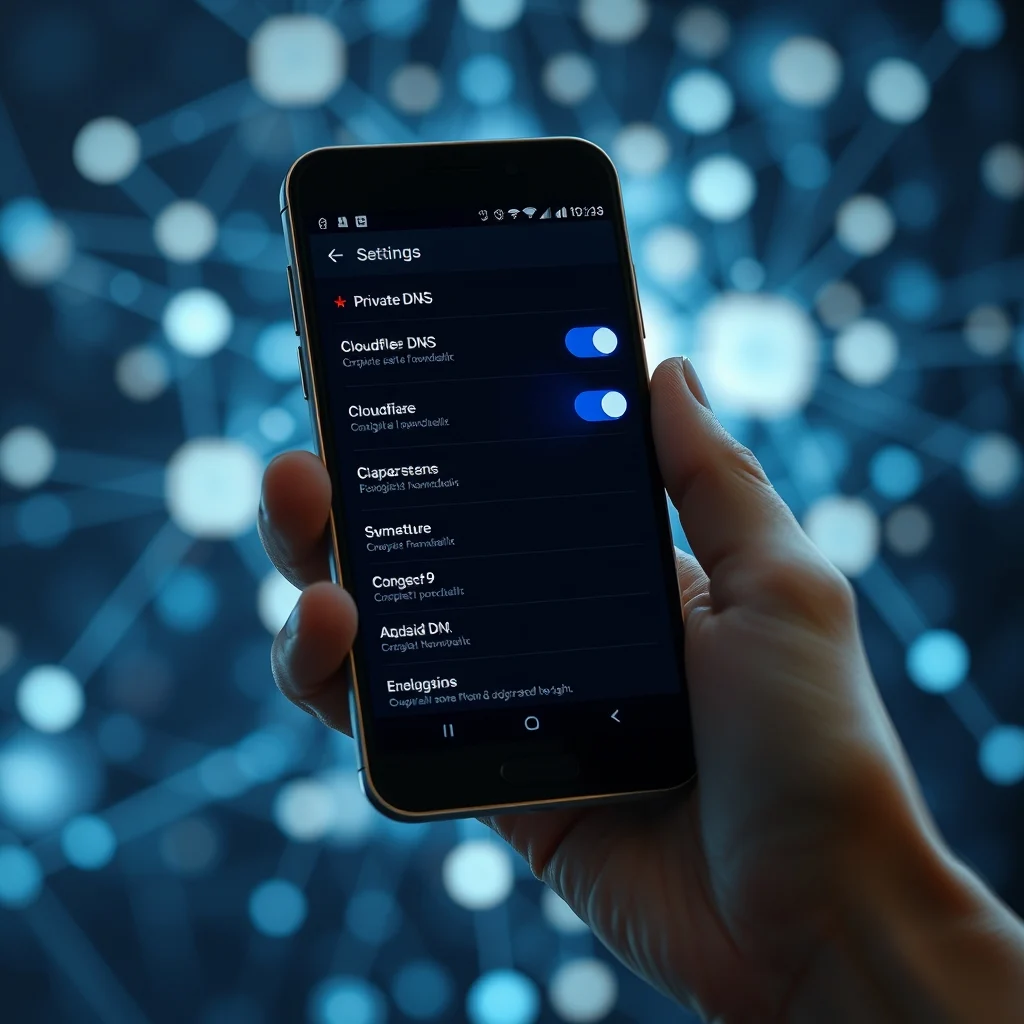

Understanding the modern digital landscape requires acknowledging that every online action leaves a trace. For Android users, this trace is often managed by Domain Name System servers that translate human-readable addresses into machine-readable IP addresses. While this process is fundamental to internet connectivity, it also presents opportunities for monitoring and tracking. Fortunately, Android has introduced a robust feature known as Private DNS, which empowers users to take control of their network privacy without needing complex tools or root access. This comprehensive guide explores how to configure, utilize, and maximize the benefits of Private DNS on your Android device, ensuring a more secure and private browsing experience.
In an era where data breaches and targeted advertising are commonplace, protecting your digital footprint has become a priority for tech-savvy individuals. Private DNS operates at a protocol level, encrypting your DNS queries to prevent your Internet Service Provider and other network intermediaries from seeing which websites you visit. Unlike a Virtual Private Network, which encrypts all traffic, Private DNS focuses specifically on the domain resolution process, making it a lightweight yet powerful tool for privacy enthusiasts. By the end of this article, you will possess a deep understanding of how this feature works, how to set it up on various Android versions, and how to choose the right DNS provider for your specific needs.
🔍 Understanding DNS and Your Privacy
Before diving into the configuration steps, it is essential to grasp the underlying technology. The Domain Name System is essentially the phonebook of the internet. When you type a URL into your browser, your device needs to find the corresponding IP address where the website is hosted. Without this translation, the internet would be a chaotic mess of numbers that humans cannot easily remember. Traditionally, this request was sent to a DNS server provided by your ISP, which could log your activity and potentially sell that data to third parties.
Private DNS changes this dynamic by utilizing a protocol called DNS over TLS. This protocol encrypts the communication between your device and the DNS server. This means that even if someone is monitoring the network traffic, they cannot see the specific domain names you are querying. This is particularly useful on public Wi-Fi networks, such as those found in cafes, airports, or hotels, where security is often compromised. By using Private DNS, you add a layer of encryption that is independent of the website itself, protecting your browsing habits from prying eyes.
🛠️ Configuring Private DNS on Android
Setting up Private DNS is a straightforward process that does not require any third-party applications or rooting your device. The feature has been integrated directly into the Android operating system since version 9 Pie. This native integration ensures that the system handles the encryption efficiently, consuming minimal battery life compared to running a full VPN application in the background. The process involves navigating to your network settings and selecting a provider hostname manually.
To begin the configuration, open the Settings application on your Android device. From the main menu, scroll down to find the Network and Internet section. Within this menu, you will locate the Private DNS option. If you do not see it immediately, it may be listed under Additional Settings or within the Mobile Network settings depending on your specific device manufacturer. Once you tap on the Private DNS option, you will be presented with three distinct choices: Automatic, Off, and Private DNS provider hostname.
📱 Selecting the Automatic Mode
The Automatic mode is the default setting for most devices. In this mode, Android will attempt to use DNS over TLS if the ISP supports it. If the ISP does not support it, the connection will fall back to standard DNS. While this is convenient, it relies on the ISP to implement the feature correctly. For maximum privacy, it is recommended to switch to the Private DNS provider hostname option, allowing you to choose a specific server that you trust implicitly.
🔧 Manually Entering the Hostname
To manually configure the setting, select the option labeled Private DNS provider hostname. You will need to enter the hostname of the DNS provider you wish to use. Do not enter an IP address; you must use a domain name. You can find the hostnames for popular providers in the documentation provided by the companies themselves. Once you have entered the correct hostname, tap the Save button. The system will test the connection to ensure the configuration is valid. If the connection is successful, your device will begin routing DNS queries through the encrypted channel immediately.
🌍 Top Private DNS Providers for 2026
Choosing the right DNS provider is crucial for balancing privacy, speed, and security. There are several reputable providers available, each with unique features and privacy policies. While there are hundreds of DNS servers, sticking to well-known, open-source, or reputable companies ensures that your data is handled responsibly. Below are the top recommendations that you can use with the Private DNS feature on Android.
☁️ Cloudflare 1.1.1.1
Cloudflare is widely recognized for its speed and privacy commitments. Their 1.1.1.1 service promises not to log user data, making it an excellent choice for privacy-focused users. Their hostname is one.doh.cloudflare-dns.com. Users often report faster page load times because Cloudflare has a vast network of servers globally, reducing latency. Additionally, they offer a malware blocking feature in their 1.1.1.2 service, though this requires specific configuration.
🛡️ Google Public DNS
Google offers a reliable and fast DNS service with the hostname dns.google. While Google is a data collection company, their DNS service is generally considered secure and fast. They provide a consistent experience across devices. However, privacy advocates may prefer other options due to Google’s broader data practices. This option is best for users who prioritize speed and reliability over strict anonymity.
🔒 Quad9
Quad9 is a non-profit organization that focuses heavily on security. Their DNS service automatically blocks known malicious domains, protecting users from phishing and malware attacks. This makes it an ideal choice for families or users concerned about security threats. The hostname for Quad9 is dns.quad9.net. By using Quad9, you gain an extra layer of defense without needing to install additional security software.
| Provider | Hostname | Primary Benefit | Privacy Focus |
|---|---|---|---|
| Cloudflare | one.doh.cloudflare-dns.com | Speed and Low Latency | High |
| dns.google | Reliability and Global Reach | Medium | |
| Quad9 | dns.quad9.net | Malware Blocking | High |
⚙️ Technical Architecture and Encryption
To understand why Private DNS is effective, one must look at the technical architecture. Traditional DNS queries are sent in plain text over port 53. This means anyone on the same network can intercept these packets and read them. Private DNS utilizes DNS over TLS, which wraps the DNS query in a TLS encryption layer. This process happens before the data leaves your device, ensuring that the content of the query is unreadable to intermediate parties.
The Android implementation of Private DNS uses the DNS over TLS protocol directly. This bypasses the need for a full VPN tunnel, which can slow down internet speeds due to the overhead of encrypting all traffic. With Private DNS, only the DNS queries are encrypted. This makes it a lightweight solution that preserves battery life and data usage while still offering significant privacy benefits. The system also handles certificate verification automatically, ensuring that you are connecting to the legitimate DNS server and not an imposter.
🛡️ Security Benefits and Limitations
While Private DNS offers substantial privacy benefits, it is important to understand its limitations. It protects your DNS queries, but it does not encrypt the actual content of your web browsing unless the website itself uses HTTPS. This means that while someone cannot see the website you are visiting, they can still see the data transmitted if the site does not use encryption. However, most major websites today use HTTPS, so the combination of Private DNS and HTTPS provides near-total privacy for standard browsing.
Another significant benefit is the ability to bypass ISP censorship. Some Internet Service Providers block access to certain websites by manipulating DNS responses. Private DNS bypasses these blocks because the query is sent to an external server that is not controlled by your ISP. This allows you to access content that might otherwise be restricted in your region. However, it is not a complete anonymity tool. For complete anonymity, a VPN or Tor network is still required.
🚀 Features and Advanced Capabilities
Private DNS offers several advanced capabilities that enhance the user experience beyond basic encryption. These features include automatic failover, which ensures that if the chosen DNS server is unavailable, the device can switch back to the system default without disrupting your internet connection. This stability is crucial for maintaining a seamless user experience. Additionally, Private DNS supports DNSSEC, which validates the authenticity of DNS responses, protecting against DNS hijacking attacks.
🆚 Private DNS vs. Virtual Private Network
Many users confuse Private DNS with a Virtual Private Network, but they serve different purposes. A VPN encrypts all internet traffic and masks your IP address, making it appear as though you are connecting from a different location. Private DNS only encrypts the DNS queries and does not change your IP address. This means that websites can still see your location, but they cannot see the specific domain resolution history stored by your ISP.
The choice between the two depends on your privacy needs. If you need to hide your location or bypass geo-blocks, a VPN is necessary. If your main goal is to prevent your ISP from tracking your browsing habits and to ensure secure DNS resolution, Private DNS is sufficient. Using both together is possible but may result in increased latency and battery consumption. For most users, Private DNS is the preferred method for daily browsing privacy due to its efficiency.
🔧 Troubleshooting Common Issues
Despite the simplicity of the setup, users may encounter connectivity issues. One common problem is that the device cannot connect to the specified hostname. This usually happens if the hostname is incorrect or if the network blocks port 853, which is used for DNS over TLS. In such cases, you should verify the hostname spelling and ensure that your network does not have firewall rules blocking encrypted DNS traffic. If the issue persists, try switching to a different provider.
Another issue is that some websites may fail to load. This can occur if the DNS provider blocks certain content or if there is a routing issue with the provider. To resolve this, you can switch back to the Automatic mode to see if the ISP DNS works better for specific sites. Additionally, clearing the cache of the browser and the system DNS cache can sometimes resolve persistent loading errors. These steps ensure that your device maintains a stable connection while enjoying the benefits of encrypted DNS.
🎯 Best Practices for Maximum Privacy
To maximize the privacy benefits of Private DNS, users should adopt a comprehensive approach. This includes regularly updating your Android operating system to ensure you have the latest security patches. It is also advisable to use HTTPS-only mode in your browser, which forces websites to use encrypted connections whenever possible. Combining these practices with Private DNS creates a robust defense against surveillance and data tracking.
Additionally, consider using a DNS provider that offers additional security features, such as malware blocking or phishing protection. These features add an extra layer of safety to your browsing experience. It is also important to review the privacy policy of your chosen provider to ensure they do not log your activity. Transparency is key when selecting a service that handles your sensitive data.
📌 Advanced tricks few know
One advanced trick is to configure multiple DNS providers in your backup list if the feature allows, though Android typically supports one primary hostname. Another trick is to use a custom DNS client on rooted devices for more granular control. However, for the average user, sticking to the native Private DNS setting is the most stable and secure option. Regularly testing your DNS leaks ensures that your configuration remains effective over time.
❓ Frequently Asked Questions
- Is Private DNS available on all Android devices? Private DNS is available on Android 9 Pie and later versions. Devices running older versions of Android may not support this feature natively.
- Does Private DNS work on Wi-Fi and Mobile Data? Yes, Private DNS works on both Wi-Fi and mobile data connections, providing consistent privacy protection regardless of the network type.
- Can Private DNS block ads? Standard Private DNS does not block ads, but some providers like Quad9 can block malicious domains which may indirectly reduce ad load.
- Will Private DNS slow down my internet? Generally, no. Private DNS is lightweight and often connects to servers that are geographically closer, potentially improving speed.
- Do I need a paid subscription for Private DNS? No, most top DNS providers like Cloudflare and Google offer their services for free.
- Can I use Private DNS with a VPN? Yes, but it is usually redundant as a VPN already handles DNS encryption and routing.
- What happens if I enter the wrong hostname? If the hostname is incorrect, the device will fail to connect to the DNS server, and you may need to switch back to Automatic mode.
- Is Private DNS secure against government surveillance? It encrypts your DNS queries, making it harder for network operators to see your activity, but it does not hide your IP address.
- Can I change my DNS provider anytime? Yes, you can change the hostname in the settings at any time without needing to restart your device.
- Does Private DNS affect battery life? It has a negligible impact on battery life compared to running a full VPN application.
🏁 Final Verdict
Implementing Private DNS on your Android device is a simple yet powerful step towards enhancing your digital privacy. It provides a layer of encryption that protects your browsing habits from your Internet Service Provider and network administrators. While it is not a complete solution for anonymity, it is an essential tool for anyone concerned about online tracking and data security. By choosing a reputable provider and following the setup instructions, you can enjoy a safer and more private internet experience.
We highly recommend configuring Private DNS as part of your regular device maintenance routine. It requires no ongoing cost and minimal effort, making it accessible to all users. As the internet landscape continues to evolve, staying informed about privacy tools like Private DNS ensures that you remain in control of your digital footprint. Take the time to set it up today and experience the difference it makes in your daily browsing.





