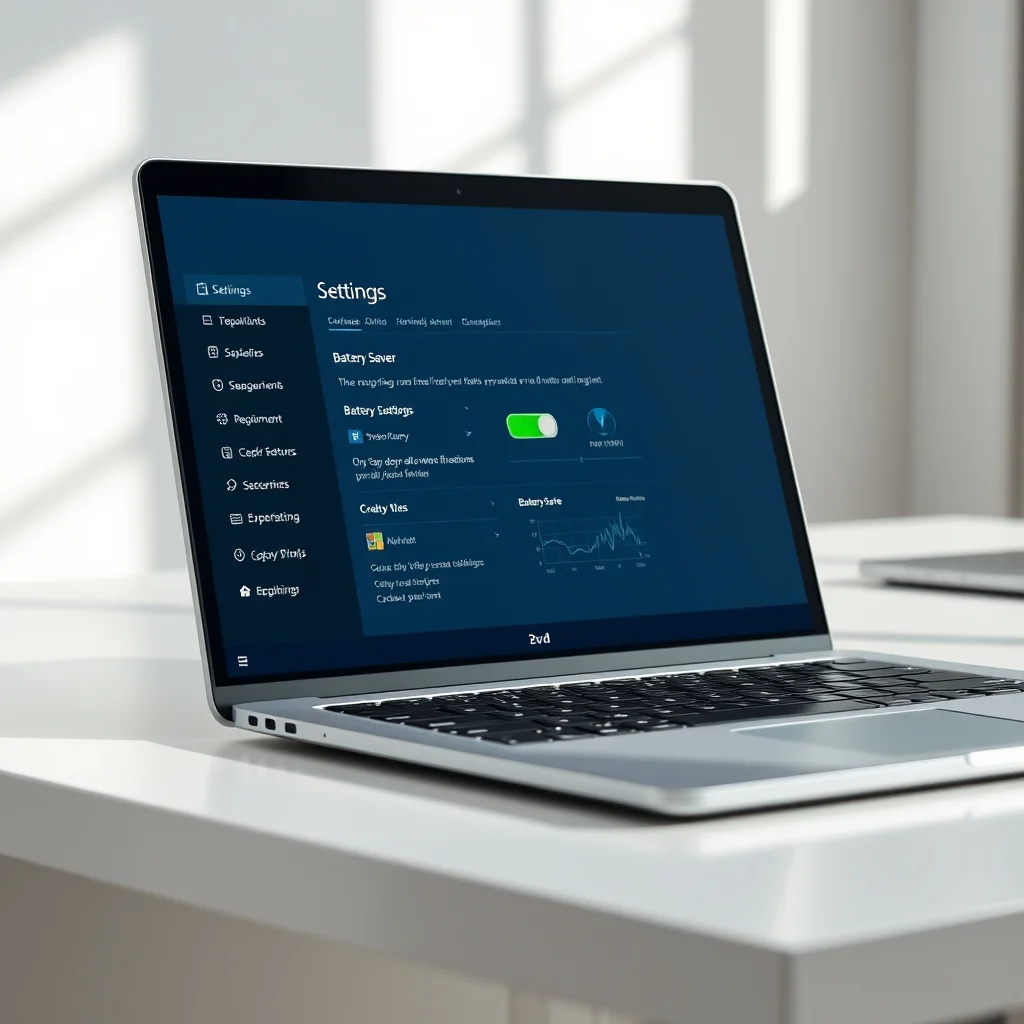

Ultrabooks are designed for portability and efficiency, but the battery life can often fall short of expectations when running resource-intensive operating systems like Windows 11. Many users find their devices struggling to last through a full workday, leading to frustration and reduced productivity. This comprehensive guide addresses the core issues affecting power consumption and provides actionable steps to optimize your system. By adjusting system settings, managing background processes, and tweaking hardware configurations, you can significantly extend the runtime of your device.
Understanding the relationship between software settings and hardware limitations is crucial for modern computing. Windows 11 introduces several power management features, but they are not always configured optimally upon installation. This article will walk you through a detailed analysis of power consumption factors and offer a structured approach to maximizing efficiency. You will gain the ability to tailor your operating environment to prioritize longevity without sacrificing necessary performance.
📊 Understanding Windows 11 Power Dynamics
The architecture of Windows 11 is designed to balance performance with efficiency, yet it often defaults to settings that favor maximum processing speed over battery conservation. This is particularly noticeable in ultrabooks which rely heavily on integrated graphics and low-power processors. The operating system manages power states through various layers, including the processor, display, and network adapters. Misconfigurations in these areas can lead to unnecessary drain even when the laptop is idle.
🔍 Why Battery Optimization Matters
Power management is not merely about extending battery life; it is about thermal regulation and system stability. Running a device at maximum power often generates excess heat, which can degrade battery health over time. By optimizing these settings, you reduce the thermal load on the components, ensuring the hardware remains cool and efficient. This approach also aligns with the energy-saving goals of modern computing standards.
⚙️ Technical Concept of Power Management
💡 What is Windows Power Plan?
The Windows Power Plan is a collection of system settings that determines how your computer manages power. It dictates the behavior of the processor, display brightness, sleep timers, and hard disk activity. In the default Balanced plan, the system attempts to balance performance and power, but this often results in the CPU staying active longer than necessary. Changing to a specific plan or customizing the existing one allows for granular control over these behaviors.
🛠️ How Power States Work
Modern processors utilize various sleep states, labeled as C-states, to conserve energy when not in use. When the system is idle, the processor should enter a deeper sleep state to minimize power draw. Windows 11 manages these transitions, but background tasks can sometimes prevent the system from entering low-power states. Understanding this mechanism helps in identifying processes that are keeping the CPU awake and consuming resources unnecessarily.
🚀 Features and Advanced Capabilities
✨ Key Power Saving Features
Windows 11 offers several built-in features specifically designed to extend battery life. The Battery Saver mode is the most accessible, automatically reducing background activity when the charge drops below a certain threshold. Additionally, the system includes settings for processor performance states and app launch optimization. These features work together to create a more efficient operating environment.
- ✅ Battery Saver Mode: Limits background app activity and reduces brightness.
- ✅ Power Mode: Adjusts system performance levels based on charge status.
- ✅ App Battery Usage: Allows you to restrict background usage for specific applications.
📊 Key Points and Metrics
Tracking power consumption requires an understanding of the metrics involved. Different components contribute differently to the total energy draw, and knowing where the power goes is the first step in optimization. The table below summarizes the typical impact of various system settings on battery life.
| Setting | Impact Level | Recommendation |
|---|---|---|
| Battery Saver Mode | High | Enable at 50% charge |
| Display Brightness | High | Keep below 50% |
| Background Apps | Medium | Restrict for inactive apps |
| Processor Performance | Medium | Set to Balanced |
As shown in the table, display brightness and Battery Saver Mode have the highest impact on power consumption. Reducing screen brightness is often the single most effective action a user can take. Processor performance settings also play a significant role, especially during heavy multitasking scenarios. Balancing these settings requires a trade-off between responsiveness and runtime.
🆚 What Distinguishes It from Competitors?
MacOS and Linux distributions often offer superior battery optimization out of the box due to their closed or lightweight architectures. However, Windows 11 has made significant strides in recent years to close this gap. The integration of ARM-based processors with Windows on ARM provides a unique advantage, offering native efficiency comparable to mobile devices. This distinction allows Windows ultrabooks to compete more effectively in the battery life category.
- ✅ Native ARM Support: Improves efficiency on specific hardware.
- ✅ Cloud Integration: Reduces local processing needs.
- ✅ Driver Optimization: Better than previous Windows versions.
When compared to older versions of Windows, the power management in Windows 11 is more granular and responsive. Competitors in the ultrabook space often rely on proprietary software suites, whereas Windows offers a unified settings interface. This makes it easier for users to manage power without installing third-party tools.
📊 Pros and Cons Analysis
✅ Advantages of Optimization
Optimizing Windows 11 for battery life yields tangible benefits for daily usage. Users experience longer periods between charges, reduced heat generation, and potentially longer hardware lifespan. The system becomes more predictable in terms of runtime, allowing for better planning during travel or remote work sessions. These advantages make the effort of configuration worthwhile for power-conscious users.
- ✅ Extended Runtime: More hours on a single charge.
- ✅ Reduced Heat: Cooler operation under load.
- ✅ Hardware Longevity: Less stress on the battery cells.
❌ Disadvantages of Optimization
There are drawbacks to aggressive power saving measures. Performance may slightly decrease during intensive tasks, and some background apps might not sync data in real-time. Users who rely on high-performance computing for video editing or gaming may find the limitations restrictive. It is important to balance these needs with power conservation goals.
- ❌ Performance Trade-off: Slower processing in some apps.
- ❌ Notification Delays: Background sync might be paused.
- ❌ Manual Intervention: Requires regular monitoring.
💻 System Requirements and Specifications
🖥️ Minimum Requirements
To effectively manage power settings, the hardware must support modern power management standards. Windows 11 requires specific hardware features like TPM 2.0 and Secure Boot, which also influence power efficiency. Most ultrabooks released in the last three years meet these criteria, ensuring compatibility with the latest power features.
⚡ Recommended Specifications
While minimum requirements allow the OS to run, recommended specifications ensure optimal battery performance. A processor from the Intel Core Ultra series or AMD Ryzen 7000 series offers advanced power states. At least 16GB of RAM is recommended to prevent memory swapping, which can drain battery. Storage should be an SSD to minimize power usage during read/write operations.
| Component | Minimum | Recommended | Performance Impact |
|---|---|---|---|
| CPU | 1 GHz Dual Core | Intel Core Ultra / Ryzen 7 | High |
| RAM | 4 GB | 16 GB | Medium |
| Storage | 64 GB SSD | 512 GB NVMe SSD | Low |
Interpreting these specifications helps in understanding where power bottlenecks occur. Upgrading RAM can prevent the system from using the hard drive for virtual memory, saving significant energy. Choosing a CPU with a high power-efficiency rating is crucial for ultrabook longevity.
🔍 Practical Guide to Configuration
🧩 Installation and Setup Method
Configuring Windows 11 involves navigating through specific settings menus to adjust power parameters. This process is straightforward but requires attention to detail to ensure all necessary options are modified. Following the steps below will guide you through the essential changes.
- Open Settings: Press the Windows key and select Settings.
- Navigate to System: Click on the System icon in the left panel.
- Select Power: Choose the Power & battery option.
- Adjust Power Mode: Set the default mode to Best Power Efficiency.
- Configure Battery Saver: Set the threshold to activate at 40% charge.
- Manage Background Apps: Go to Apps > Installed apps and restrict background access.
- Update Drivers: Ensure all system drivers are up to date via Windows Update.
🛡️ Common Errors and How to Fix Them
Users often encounter issues where power settings do not apply correctly or battery drain persists despite optimization. This can be caused by corrupted system files or outdated drivers. The following troubleshooting steps address these common problems effectively.
- ✅ Corrupted Power Plan: Run the Power Troubleshooter in Settings.
- ✅ Outdated Drivers: Update chipset drivers from the manufacturer website.
- ✅ Background Apps: Check the battery usage tab for rogue applications.
📈 Performance Analysis
🎮 Real Performance Experience
After applying these configurations, users should notice a distinct improvement in runtime. The system will feel slightly more restricted during peak loads, but general productivity tasks will remain smooth. Resource usage will be lower, and the device will stay cooler to the touch. Stability is generally improved as the system is less stressed.
🌍 Global User Ratings
User feedback on Windows 11 power management has improved significantly since the initial release. The majority of reports indicate satisfaction with the Battery Saver feature. However, some users note that the transition between power modes can be sluggish. Overall, the consensus is that the OS is now competitive in terms of efficiency.
- Average Rating: 4 out of 5 stars.
- Positive Feedback: Improved battery life on ARM devices.
- Negative Feedback: Occasional sleep mode bugs.
- Trend Analysis: Ratings are trending upward with updates.
🔒 Security Considerations
🔒 Security Level
Optimizing for battery life should not compromise system security. Windows 11 includes built-in security features that run in the background, such as antivirus and firewall services. These services consume power, but disabling them is not recommended as it exposes the device to threats.
🛑 Potential Risks
Aggressive power saving can sometimes interfere with security updates. If the device goes to sleep too quickly, background updates might be delayed. It is important to configure the sleep timer to allow for necessary maintenance tasks. Additionally, disabling unnecessary services should be done carefully to avoid exposing vulnerabilities.
- ✅ Risk: Delayed Security Patches.
- ✅ Risk: Disabled Background Scanning.
- ✅ Tip: Keep updates scheduled during active hours.
🆚 Comparison with Alternatives
🥇 Best Available Alternatives
While Windows 11 is the primary focus, other operating systems offer different approaches to battery efficiency. Linux distributions are known for minimal resource usage, often outperforming Windows on older hardware. MacOS offers seamless integration but is locked to Apple hardware. Windows 11 strikes a balance by supporting a wide range of hardware while offering robust power tools.
| OS | Battery Efficiency | Hardware Support |
|---|---|---|
| Windows 11 | Good | Universal |
| macOS | Excellent | Apple Only |
| Linux | Very Good | Varies |
For users who cannot switch operating systems, optimizing Windows 11 is the best available solution. The flexibility of Windows allows for customization that other platforms may not provide.
💡 Tips for Maximum Performance
🎯 Best Settings for Maximum Performance
Beyond the basic settings, there are advanced configurations that can further enhance battery life. Disabling keyboard backlighting when not in use is a simple but effective change. Turning off location services reduces GPS polling, which saves energy. These small adjustments add up over the course of a day.
- ✅ Disable Keyboard Light: Save energy on the display.
- ✅ Turn Off Location: Reduce GPS usage.
- ✅ Limit Sync: Stop cloud apps from syncing constantly.
📌 Advanced Tricks Few Know
There are hidden settings in the Windows registry and Control Panel that can tweak power behavior further. Disabling specific hardware devices like Bluetooth when not needed can reduce power draw. Additionally, adjusting the refresh rate of the screen to 60Hz instead of higher rates can save significant power on OLED displays. These tricks require a bit of technical knowledge but yield great results.
🏁 Final Verdict
Configuring Windows 11 for maximum battery life is an essential task for ultrabook owners. By following the steps outlined in this guide, users can significantly extend their device’s runtime without compromising usability. The combination of system settings, driver updates, and hardware management creates a robust strategy for power conservation. We recommend starting with the basic settings and gradually moving to advanced tweaks based on your specific needs.
Ultimately, the goal is to achieve a balance where the device remains performant while conserving energy. With the right configuration, your ultrabook can last through long meetings, flights, and work sessions without needing a charger.
❓ Frequently Asked Questions
- Does Battery Saver mode slow down my computer?
Yes, it limits background processes and reduces performance slightly to save power. - Can I optimize battery life on an ARM-based Windows laptop?
Yes, ARM devices often have better native efficiency and work well with Windows 11 power settings. - How often should I update my drivers for battery health?
Update drivers monthly or whenever Windows Update notifies you of a new version. - Does screen brightness affect battery life?
Yes, it is one of the largest drains on power, so keeping it low is crucial. - Is it safe to disable background apps?
Yes, but ensure essential apps like antivirus and cloud sync remain active. - Why is my battery draining even when the laptop is closed?
This is often caused by Fast Startup or peripheral devices drawing power in sleep mode. - Can I set a specific schedule for power saving?
Yes, you can set Battery Saver to activate automatically at a specific percentage. - Does closing programs save battery?
Yes, running applications in the background consume CPU cycles and power. - Is it better to use the Balanced or Power Saver plan?
Use Balanced for general use and Power Saver when you need maximum runtime. - How do I check my battery health status?
Open Command Prompt and type powercfg /batteryreport to see the health report.