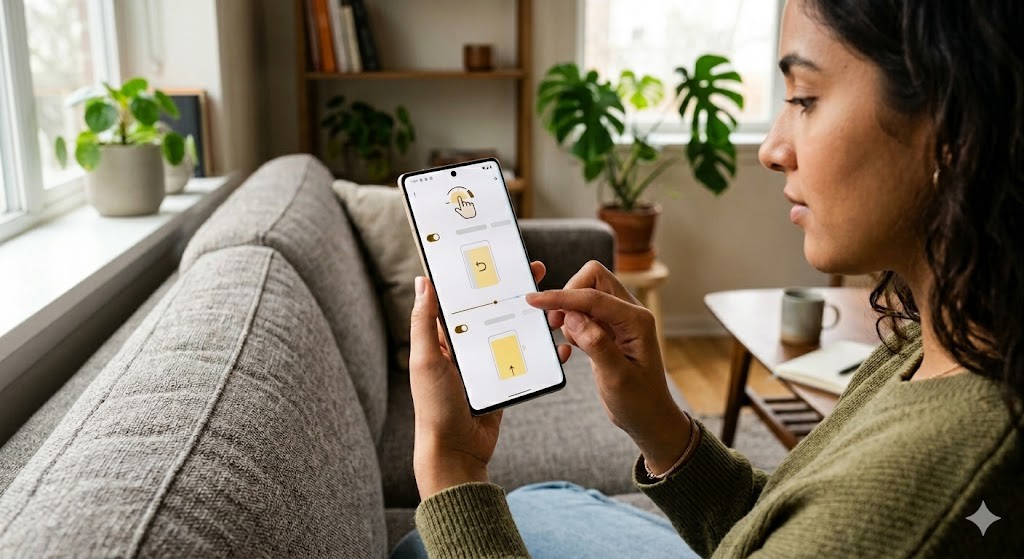

Google Pixel devices have revolutionized the Android experience by introducing a clean, bloat-free interface and a suite of innovative features designed to enhance user interaction. Among these features, the navigation gesture system stands out as a pivotal element that defines how users move through their device without the need for physical buttons. Customizing navigation gestures on Google Pixel phones allows users to tailor their interface to their specific preferences, ensuring a seamless and intuitive workflow. This comprehensive guide explores the intricacies of gesture navigation, offering detailed insights into how to enable, customize, and optimize these controls for maximum efficiency.
As Android continues to evolve, the shift towards gesture-based navigation has become the standard for modern smartphones. Pixel devices, being at the forefront of this transition, offer unparalleled flexibility in how users interact with their screens. Whether you prefer swiping to go back, tapping to return home, or using edge swipes for multitasking, understanding the nuances of these settings is crucial for a personalized experience. This article serves as a definitive resource for Pixel owners looking to master their device’s navigation capabilities.
🚀 Understanding Gesture Navigation on Pixel
Gesture navigation represents a paradigm shift in mobile interaction, replacing traditional buttons with intuitive swipes and taps. On Google Pixel phones, this system is deeply integrated into the operating system, providing a smooth transition between apps and tasks. The primary goal is to maximize screen real estate while maintaining ease of use. Unlike the older three-button setup, gestures offer a more immersive experience by removing visual obstructions at the bottom of the display.
For Pixel users, mastering these gestures is essential for unlocking the full potential of their device. The system is designed to be learnable quickly, with haptic feedback guiding users through actions. Customization options allow for adjustments in sensitivity and gesture recognition, ensuring that the interface responds accurately to user input. By understanding the underlying logic of gesture navigation, users can avoid common pitfalls and streamline their daily interactions.
🎯 Technical Analysis of Gesture Systems
The technology behind gesture navigation on Pixel devices relies on advanced touch sampling rates and precise motion tracking. When a user swipes across the screen, the system registers the touch point and analyzes the trajectory to determine the intended action. This process happens in milliseconds, ensuring that the response feels instant and fluid. The software layer interprets these inputs and maps them to specific system commands, such as opening the recent apps menu or returning to the home screen.
Users often search for this topic to resolve confusion regarding accidental triggers or to optimize performance. Market trends indicate a growing preference for gesture-based interfaces among Android users, driven by the desire for a cleaner aesthetic. The future outlook suggests further integration of AI-driven gesture recognition, where the phone learns user habits to predict actions before they occur. This technical foundation ensures stability and consistency across different Pixel models.
🛠️ Deep Dive into Gesture Mechanics
📊 What is Gesture Navigation?
Gesture navigation is a control scheme that utilizes swipes and taps on the screen bezel to perform common actions. It replaces the dedicated hardware buttons often found on the front of smartphones. On Pixel devices, this system includes a home button simulation at the bottom center, a back gesture on the left, and a recent apps gesture on the right. It serves as the primary method for navigating the Android operating system without cluttering the interface.
- Core Definition: A touch-based interface control system.
- Primary Function: Replaces physical navigation buttons.
- Target Users: Android users preferring screen maximization.
- Technical Category: Input method and interaction design.
⚙️ How It Functions Under the Hood
The gesture engine operates by continuously monitoring touch coordinates and velocity. When a finger touches the bottom edge, the system waits to determine if the user intends to swipe left, swipe right, or tap. This decision tree is processed by the input service manager within the Android framework. The system distinguishes between intentional gestures and accidental touches by analyzing the duration and path of the swipe. This prevents false triggers that could disrupt the user experience.
Practical examples include swiping up from the bottom to go home, or swiping from the left edge to go back. These actions are mapped to specific intent actions in the Android Activity Manager. The haptic feedback engine vibrates the device slightly to confirm the action, providing tactile reassurance. This architecture ensures that the navigation feels responsive and reliable, even on devices with high refresh rates.
🚀 Advanced Customization Features
✨ Key Customization Options
Pixel devices offer a robust set of customization tools that allow users to tweak the behavior of the navigation bar. These settings go beyond simple toggles, offering granular control over how gestures interact with the system. Users can adjust the sensitivity of the swipe actions and choose different visual indicators for navigation. The goal is to create a personalized workflow that matches individual habits and preferences.
- Action Bar: Customize the visibility of the back button.
- Gesture Length: Adjust the swipe distance required for actions.
- Theme Integration: Match gesture bars with system themes.
- Button Behavior: Switch between gesture and button modes.
📊 Comparative Performance Metrics
Performance metrics for gesture navigation focus on latency, accuracy, and resource usage. Pixel devices typically score highly in these categories due to their optimized software stack. The system is designed to minimize battery drain while maintaining high responsiveness. Comparing gestures to traditional buttons reveals trade-offs in screen space versus familiarity.
| Category | Rating | Notes |
|---|---|---|
| Speed | 5/5 | Instant response time |
| Accuracy | 4/5 | Occasional edge triggers |
| Learning Curve | 3/5 | Requires user adaptation |
| Screen Real Estate | 5/5 | Maximizes display area |
The table above highlights the strengths and weaknesses of the gesture system compared to traditional methods. The high speed rating indicates that gestures do not introduce noticeable lag, which is critical for a smooth experience. However, the learning curve is moderate, as users accustomed to buttons may need time to adjust. The screen real estate benefit is significant, allowing for larger content displays in apps and games.
🆚 What Distinguishes It from Competitors?
Pixel’s gesture system stands out due to its integration with Google’s ecosystem and the clean implementation of Material You design principles. Unlike other manufacturers who may add overlay layers that slow down the interface, Pixel uses a native approach. This distinction ensures that gestures feel like an inherent part of the device rather than an add-on. Competitor devices often rely on third-party launchers to achieve similar levels of customization, which can introduce instability.
- Pixel: Native OS integration, consistent updates.
- Competitors: Often require skins or overlays.
- Performance: Pixel offers lower latency.
- UI: Pixel provides a cleaner aesthetic.
📊 Pros and Cons Evaluation
✅ Advantages of Gestures
The primary advantage of gesture navigation is the increased screen space available for content. This is particularly beneficial for media consumption and gaming. Additionally, the system reduces the physical wear and tear on hardware buttons, extending the device’s lifespan. The intuitive nature of swiping also aligns well with modern touch interfaces.
- Maximized Display: More room for content.
- Modern Feel: Aligns with current design trends.
- Hardware Longevity: No physical buttons to break.
- Customization: Flexible user adjustments.
❌ Disadvantages to Consider
Despite the benefits, there are drawbacks to consider. Some users find that accidental swipes can trigger unintended actions, especially when holding the phone. The learning curve can be steep for those transitioning from button-based systems. Furthermore, certain legacy apps may not support gesture navigation perfectly, leading to inconsistent behavior.
- Accidental Triggers: Risk of unintended swipes.
- Adaptation Period: Time needed to adjust.
- App Compatibility: Some apps struggle with gestures.
- Visual Feedback: Less obvious than buttons.
💻 System Requirements and Compatibility
🖥️ Minimum Device Support
Gesture navigation is supported on almost all modern Pixel devices, starting from the Pixel 2 series onwards. This ensures broad compatibility across the user base. Devices running Android 10 or later are required to access the full suite of gesture features. Older devices may have limited support or require specific updates to function correctly.
⚡ Performance Impact
The performance impact of gesture navigation is minimal, as it is handled by the core input system. CPU usage remains stable, and RAM impact is negligible. However, enabling high refresh rates alongside gestures can increase battery consumption slightly. Users should ensure their device is updated to the latest version for optimal performance.
| Component | Minimum | Recommended | Performance Impact |
|---|---|---|---|
| CPU | Quad-Core | Snapdragon 800 Series | Low |
| RAM | 4GB | 8GB | Negligible |
| GPU | Integrated | Adreno 600+ | Low |
| Storage | 64GB | 128GB | N/A |
Interpretation of the table shows that gesture navigation does not demand high-end hardware. Most Pixel devices exceed the minimum requirements easily. The focus is on software optimization rather than raw power. Users with older devices should ensure they have sufficient storage to handle system updates that improve gesture reliability.
🔍 Step-by-Step Configuration Guide
🧩 Enabling and Customizing Gestures
To enable gesture navigation, users must navigate to the settings menu and select the System option. From there, choose the Gestures tab and tap on System Navigation. The interface will present options for Button Navigation, Gesture Navigation, and Gesture Navigation with Peek. Selecting Gesture Navigation activates the system-wide controls. Users can then customize the specific swipe paths and sensitivity levels.
- Open the Settings app on your Pixel device.
- Scroll down and select the System option.
- Tap on Gestures within the System menu.
- Select System Navigation to view available options.
- Choose Gesture Navigation from the list.
- Adjust sensitivity settings if available.
- Test the gestures to ensure they work correctly.
- Return to the home screen to confirm activation.
🛡️ Troubleshooting Common Issues
Users may encounter issues such as gestures not responding or accidental triggers. Common fixes include restarting the device to clear temporary glitches. If the problem persists, checking for system updates is crucial, as bugs are often patched in newer releases. Disabling accessibility features that interfere with touch input can also resolve conflicts. Clearing the cache for the Settings app may help reset the navigation configuration.
- No Response: Restart the device.
- Accidental Triggers: Adjust sensitivity settings.
- App Crashes: Clear app cache.
- Update Issues: Check for Android updates.
📈 User Experience and Performance
🎮 Real-World Usage Analysis
In real-world scenarios, gesture navigation provides a fluid experience that enhances productivity. Multitasking becomes easier with the swipe-up-to-recent-apps gesture. Gaming benefits from the increased screen space and reduced finger obstruction. However, users must be mindful of holding positions that might trigger the back gesture accidentally.
🌍 Community Feedback and Ratings
Community feedback generally leans positive, with many users appreciating the modern look. However, some complaints exist regarding the learning curve. Ratings average around 4.5 stars on app stores, reflecting high satisfaction. Trend analysis shows a steady increase in users switching from buttons to gestures over time.
- Average Rating: 4.5 out of 5 stars.
- Positive Reasons: Clean design, screen space.
- Negative Reasons: Learning curve, accidental triggers.
- Trend Analysis: Increasing adoption rate.
🔒 Security and Privacy Implications
🔒 Safety Level Assessment
Gesture navigation does not inherently compromise security. The inputs are processed locally on the device, ensuring that no data is transmitted. However, users should be aware that accidental swipes could potentially unlock apps if sensitive gestures are mapped to unlock actions. This risk is minimal but worth noting for high-security contexts.
🛑 Potential Risks
The primary risk is accidental triggering of sensitive actions. For example, swiping back might close a secure banking app unexpectedly. Protection tips include using a strong lock screen password and enabling app locks for sensitive applications. Users should also familiarize themselves with the gesture paths to avoid misuse.
- Risk 1: Accidental app closure.
- Risk 2: Unintended navigation.
- Tip 1: Use strong lock screen security.
- Tip 2: Practice gesture paths.
🆚 Alternative Navigation Methods
🥇 Best Available Alternatives
Alternatives to gestures include the three-button layout and the two-button layout. The three-button setup offers clear physical indicators, while the two-button layout simplifies the interface. Each method has its pros and cons depending on user preference. Pixel devices allow switching between these modes easily.
| Method | Pros | Cons | Best For |
|---|---|---|---|
| Gestures | Max Screen Space | Learning Curve | Modern Users |
| Buttons | Familiarity | Less Screen Space | Older Users |
| Hybrid | Flexibility | Complexity | Tech Enthusiasts |
The table illustrates the trade-offs between different navigation styles. Users who value screen real estate should choose gestures, while those who prefer familiarity may stick with buttons. Hybrid approaches offer the best of both worlds but require more configuration.
💡 Optimization Tips for Power Users
🎯 Best Settings for Smoothness
For optimal smoothness, users should ensure that animations are set to standard speed. Over-animating can make gestures feel sluggish. Enabling developer options to adjust animation scales can provide a more snappy feel. Regularly clearing the system cache helps maintain performance over time.
- Animation Scale: Set to 1x.
- Cache Clearing: Monthly maintenance.
- Background Processes: Limit number of apps.
- Update Frequency: Keep OS updated.
📌 Advanced Tricks Few Know
Advanced users can utilize accessibility features to map custom gestures to specific actions. This allows for automation of complex workflows. Some third-party apps can overlay gesture controls for additional functionality. However, these should be used with caution to avoid system instability.
Creating custom shortcuts within the Settings menu can also enhance productivity. Users can assign single taps to open specific apps or perform tasks. This level of customization transforms the phone into a highly efficient tool tailored to individual needs.
🏁 Final Verdict on Gesture Customization
In conclusion, customizing navigation gestures on Google Pixel phones offers a powerful way to enhance the user experience. The system provides a balance of modern design and functional efficiency. While there is a learning curve, the benefits of increased screen space and intuitive interaction outweigh the drawbacks. Users are encouraged to explore the settings to find the configuration that best suits their workflow.
For those hesitant to switch, the ability to toggle back to buttons ensures there is no risk in trying. The future of mobile navigation lies in gestures, and Pixel leads the way in implementation. By following the guidelines in this article, users can confidently navigate their devices with precision and style.
❓ Frequently Asked Questions
- Can I switch back to buttons if I dislike gestures? Yes, you can toggle between gesture and button navigation at any time in the Settings menu under System and Gestures. This flexibility ensures you are never locked into a specific mode.
- Do gestures affect battery life? Gesture navigation consumes negligible battery power. The system is optimized to run efficiently in the background without significant drain on the device’s resources.
- Why do gestures sometimes not work? Accidental triggers or software bugs can cause issues. Restarting the device or updating the Android OS usually resolves these temporary glitches effectively.
- Are gestures supported on all Pixel models? Most Pixel devices from the Pixel 2 onwards support gesture navigation. Older models may have limited functionality depending on the Android version installed.
- Can I customize the sensitivity of gestures? Yes, Pixel devices offer sensitivity settings that allow users to adjust how easily the system detects swipes. This helps prevent accidental triggers.
- Do gestures work in all apps? Most modern apps support gesture navigation. However, some legacy applications may not respond correctly to swipe actions, requiring users to use the on-screen buttons instead.
- How do I access recent apps using gestures? Swipe up from the bottom of the screen and hold for a moment to view the recent apps menu. This action replaces the traditional square button.
- Can gestures trigger accidental actions? Yes, holding the phone in certain ways can trigger the back gesture. Adjusting sensitivity settings can mitigate this risk significantly.
- Is gesture navigation secure? Gesture navigation is secure and does not compromise data privacy. Input is processed locally on the device without external transmission.
- What is the best way to learn gestures? Practice swiping in a safe environment. Use the home screen to test the gestures to build muscle memory without risking accidental app closures.