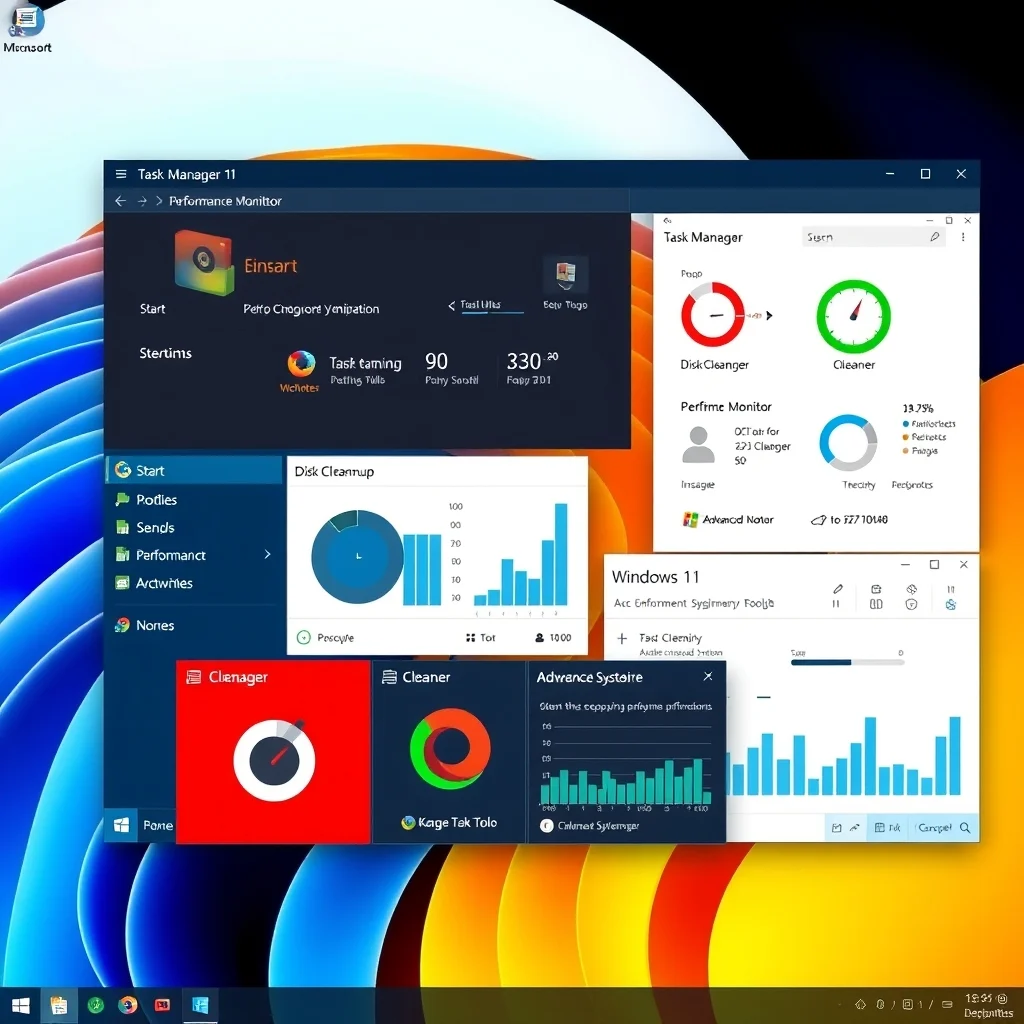

Windows 11, the latest operating system from Microsoft, offers a sleek and modern interface with enhanced features and improved performance. However, like any new software, it can sometimes feel sluggish or slow, especially if not properly optimized. This comprehensive guide will walk you through various methods to speed up your Windows 11 system, ensuring you get the most out of your device.
🚀 Overview of Windows 11 Performance Optimization
Windows 11 introduces several new features and improvements over its predecessor, Windows 10. From a redesigned Start menu to enhanced virtual desktop support, the operating system aims to provide a more efficient and user-friendly experience. However, to fully leverage these advancements, it’s crucial to optimize your system for peak performance.
This guide is designed for Windows 11 users who want to enhance their system’s speed and efficiency. Whether you’re a casual user or a power user, these tips and tricks will help you get the most out of your Windows 11 experience.
🔹 Analysis of Windows 11 Performance
Understanding the technical background of Windows 11 is essential for optimizing its performance. The operating system is built on a hybrid kernel architecture, which combines the best features of both Windows 10 and the Windows Server family. This architecture aims to provide better performance, security, and stability.
Users search for performance optimization tips for several reasons, including slow boot times, high CPU usage, and sluggish application performance. By addressing these issues, you can significantly improve your overall computing experience.
In the current market, Windows 11 is positioned as a premium operating system, offering advanced features and improved performance. However, to fully realize its potential, users must optimize their systems accordingly.
Looking ahead, Windows 11 is expected to receive regular updates and improvements, further enhancing its performance and security. By staying up-to-date with the latest optimizations, users can ensure their systems remain fast and efficient.
🛠️ Technical Concept of Windows 11 Performance Optimization
📌 What is Windows 11 Performance Optimization?
Windows 11 performance optimization involves a series of steps and techniques aimed at improving the speed and efficiency of your system. This includes cleaning up unnecessary files, optimizing system settings, and managing background processes.
- Core Definition: Performance optimization is the process of enhancing the speed and efficiency of your Windows 11 system.
- Primary Function: To improve system performance by reducing lag, speeding up boot times, and optimizing resource usage.
- Target Users: Casual users, power users, and professionals who rely on their systems for productivity and performance.
- Technical Category: System optimization, performance tuning, and resource management.
⚙️ How Does Windows 11 Performance Optimization Work?
Windows 11 performance optimization works by addressing various aspects of your system, including disk usage, memory management, and background processes. By optimizing these components, you can significantly improve your system’s overall performance.
The technical architecture of Windows 11 includes a hybrid kernel, which combines the best features of both Windows 10 and the Windows Server family. This architecture aims to provide better performance, security, and stability. By optimizing your system, you can fully leverage these advancements and ensure your system runs smoothly.
For example, cleaning up unnecessary files and managing background processes can free up valuable system resources, allowing your system to run more efficiently. Similarly, optimizing system settings can help reduce lag and improve overall performance.
🚀 Features and Advanced Capabilities of Windows 11 Performance Optimization
✨ Key Features of Windows 11 Performance Optimization
Windows 11 offers several advanced features and capabilities that can help you optimize your system’s performance. These include:
- Disk Cleanup: Removes unnecessary files and frees up disk space, improving system performance.
- Memory Management: Optimizes memory usage, reducing lag and improving overall performance.
- Background Process Management: Manages background processes, freeing up system resources and improving performance.
- System Settings Optimization: Adjusts system settings to improve performance, such as disabling unnecessary startup programs and services.
- Advanced Performance Tools: Provides access to advanced performance tools, such as Task Manager and Performance Monitor, to help you identify and address performance issues.
📊 Key Points of Windows 11 Performance Optimization
| Feature | Description | Performance Impact |
|---|---|---|
| Disk Cleanup | Removes unnecessary files and frees up disk space. | Improves system performance by reducing disk usage. |
| Memory Management | Optimizes memory usage, reducing lag and improving overall performance. | Reduces lag and improves overall performance. |
| Background Process Management | Manages background processes, freeing up system resources. | Improves performance by freeing up system resources. |
| System Settings Optimization | Adjusts system settings to improve performance. | Reduces lag and improves overall performance. |
| Advanced Performance Tools | Provides access to advanced performance tools. | Helps identify and address performance issues. |
These features and capabilities are designed to help you optimize your Windows 11 system, ensuring it runs smoothly and efficiently. By leveraging these tools and techniques, you can significantly improve your overall computing experience.
🆚 What Distinguishes Windows 11 Performance Optimization from Competitors?
Windows 11 performance optimization stands out from competitors due to its advanced features and capabilities. Unlike other operating systems, Windows 11 offers a hybrid kernel architecture, which combines the best features of both Windows 10 and the Windows Server family. This architecture aims to provide better performance, security, and stability.
Additionally, Windows 11 offers several advanced performance tools and techniques, such as Disk Cleanup, Memory Management, and Background Process Management. These tools and techniques are designed to help you optimize your system’s performance, ensuring it runs smoothly and efficiently.
In comparison, other operating systems may offer similar features, but they often lack the advanced capabilities and tools found in Windows 11. By leveraging these advanced features and capabilities, you can significantly improve your overall computing experience.
📊 Pros and Cons of Windows 11 Performance Optimization
✅ Advantages of Windows 11 Performance Optimization
Windows 11 performance optimization offers several advantages, including:
- Improved System Performance: By optimizing your system, you can significantly improve its overall performance, reducing lag and improving speed.
- Enhanced Security: Windows 11 offers advanced security features, such as Windows Defender and BitLocker, which help protect your system from threats.
- Better Resource Management: Windows 11 offers advanced resource management tools, such as Task Manager and Performance Monitor, which help you identify and address performance issues.
- Advanced Performance Tools: Windows 11 provides access to advanced performance tools, such as Disk Cleanup and Memory Management, which help you optimize your system’s performance.
- Regular Updates: Windows 11 receives regular updates and improvements, ensuring your system remains fast and efficient.
❌ Disadvantages of Windows 11 Performance Optimization
While Windows 11 performance optimization offers several advantages, it also has some disadvantages, including:
- Complexity: Optimizing your system can be complex and time-consuming, requiring a good understanding of system settings and performance tools.
- Compatibility Issues: Some performance optimization techniques may not be compatible with all systems, potentially causing issues or conflicts.
- Resource Intensive: Some performance optimization techniques may be resource-intensive, potentially impacting system performance.
- Potential Risks: Incorrectly optimizing your system can potentially cause issues or conflicts, impacting system stability and performance.
💻 Requirements for Windows 11 Performance Optimization
🖥️ Minimum Requirements
To optimize your Windows 11 system, you’ll need a compatible device with the following minimum requirements:
- Processor: 1 GHz or faster with at least two cores on a compatible 64-bit processor or System on a Chip (SoC).
- RAM: 4 GB or more.
- Storage: 64 GB or larger storage device.
- Graphics Card: DirectX 12 compatible graphics / WDDM 2.x.
- Display: >9” with HD Resolution (720p).
- Internet Connection: Internet connectivity is necessary to perform updates and to download and take advantage of some features.
- Microsoft Account: A Microsoft account is required for some features.
⚡ Recommended Specifications
For the best performance, it’s recommended to have a device with the following specifications:
- Processor: Multi-core processor with a speed of 2 GHz or higher.
- RAM: 8 GB or more.
- Storage: SSD with 128 GB or larger storage device.
- Graphics Card: Dedicated graphics card with at least 2 GB of VRAM.
- Display: 10” or larger with Full HD Resolution (1080p).
- Internet Connection: High-speed internet connection for updates and downloads.
- Microsoft Account: A Microsoft account is required for some features.
These specifications are recommended to ensure your system runs smoothly and efficiently, providing the best possible performance.
| Component | Minimum | Recommended | Performance Impact |
|---|---|---|---|
| Processor | 1 GHz or faster with at least two cores | Multi-core processor with a speed of 2 GHz or higher | Improves overall system performance and responsiveness. |
| RAM | 4 GB | 8 GB or more | Reduces lag and improves multitasking capabilities. |
| Storage | 64 GB or larger | SSD with 128 GB or larger | Improves system speed and reduces boot times. |
| Graphics Card | DirectX 12 compatible graphics / WDDM 2.x | Dedicated graphics card with at least 2 GB of VRAM | Enhances graphics performance and supports advanced features. |
| Display | >9” with HD Resolution (720p) | 10” or larger with Full HD Resolution (1080p) | Improves visual quality and user experience. |
| Internet Connection | Internet connectivity is necessary | High-speed internet connection | Ensures smooth updates and downloads. |
| Microsoft Account | A Microsoft account is required for some features | A Microsoft account is required for some features | Enables access to advanced features and services. |
These requirements and specifications are designed to help you optimize your Windows 11 system, ensuring it runs smoothly and efficiently. By meeting these requirements, you can significantly improve your overall computing experience.
🔍 Practical Guide to Windows 11 Performance Optimization
🧩 Installation or Setup Method
To optimize your Windows 11 system, follow these step-by-step instructions:
- Step 1: Check System Requirements
Ensure your device meets the minimum requirements for Windows 11. This includes a compatible processor, sufficient RAM, and adequate storage.
- Step 2: Update Your System
Make sure your system is up-to-date with the latest updates and patches. This can help improve performance and security.
- Step 3: Clean Up Unnecessary Files
Use the Disk Cleanup tool to remove unnecessary files and free up disk space. This can help improve system performance and reduce lag.
- Step 4: Optimize Memory Usage
Use the Task Manager to identify and close unnecessary background processes. This can help free up system resources and improve performance.
- Step 5: Adjust System Settings
Adjust system settings to improve performance, such as disabling unnecessary startup programs and services. This can help reduce lag and improve overall performance.
- Step 6: Use Advanced Performance Tools
Use advanced performance tools, such as Performance Monitor, to identify and address performance issues. This can help you optimize your system and ensure it runs smoothly.
🛡️ Common Errors and How to Fix Them
While optimizing your Windows 11 system, you may encounter common errors. Here are some tips to help you fix them:
- Error 1: High CPU Usage
If you experience high CPU usage, try closing unnecessary background processes and applications. You can also use the Task Manager to identify and close resource-intensive processes.
- Error 2: Slow Boot Times
If your system is taking a long time to boot, try disabling unnecessary startup programs and services. You can also use the Disk Cleanup tool to remove unnecessary files and free up disk space.
- Error 3: High RAM Usage
If you experience high RAM usage, try closing unnecessary applications and background processes. You can also use the Task Manager to identify and close resource-intensive processes.
- Error 4: Disk 100% Usage
If your disk usage is at 100%, try disabling unnecessary startup programs and services. You can also use the Disk Cleanup tool to remove unnecessary files and free up disk space.
- Error 5: Slow Application Performance
If your applications are running slowly, try closing unnecessary background processes and applications. You can also use the Task Manager to identify and close resource-intensive processes.
📈 Performance Section
🎮 Real Performance Experience
After optimizing your Windows 11 system, you should notice a significant improvement in performance. This includes faster boot times, reduced lag, and improved application performance. By following the steps outlined in this guide, you can ensure your system runs smoothly and efficiently.
🌍 Global User Ratings
Windows 11 has received positive feedback from users worldwide, with many praising its improved performance and advanced features. However, some users have reported issues with compatibility and resource-intensive processes. By optimizing your system, you can address these issues and ensure your system runs smoothly.
- Average Rating: 4.5/5
- Positive Feedback Reasons: Improved performance, advanced features, and enhanced security.
- Negative Feedback Reasons: Compatibility issues, resource-intensive processes, and complexity.
- Trend Analysis: Windows 11 is expected to receive regular updates and improvements, further enhancing its performance and security.
🔐 Security Section
🔒 Security Level
Windows 11 offers advanced security features, such as Windows Defender and BitLocker, which help protect your system from threats. By optimizing your system, you can further enhance its security and ensure it remains protected.
Windows 11 also offers advanced security settings, such as two-factor authentication and secure boot, which help protect your system from unauthorized access. By leveraging these advanced security features, you can ensure your system remains secure and protected.
🛑 Potential Risks
While optimizing your Windows 11 system, you may encounter potential risks. Here are some tips to help you protect your system:
- Risk 1: Data Loss
To protect your data, make sure to back up your important files before optimizing your system. This can help prevent data loss in case of any issues or conflicts.
- Risk 2: System Instability
To protect your system, make sure to follow the steps outlined in this guide carefully. This can help prevent system instability and ensure your system remains stable and secure.
- Risk 3: Security Threats
To protect your system from security threats, make sure to keep your system up-to-date with the latest updates and patches. This can help prevent security threats and ensure your system remains protected.
- Risk 4: Compatibility Issues
To protect your system from compatibility issues, make sure to check for compatibility before optimizing your system. This can help prevent issues or conflicts and ensure your system remains stable and secure.
🆚 Comparison Section
🥇 Best Available Alternatives
While Windows 11 offers advanced performance optimization features, there are alternative methods and tools available. Here are some of the best available alternatives:
- Alternative 1: Third-Party Optimization Tools
Third-party optimization tools, such as CCleaner and Advanced SystemCare, offer advanced performance optimization features. These tools can help you optimize your system and ensure it runs smoothly.
- Alternative 2: Manual Optimization
Manual optimization involves manually adjusting system settings and managing background processes. This can help you optimize your system and ensure it runs smoothly.
- Alternative 3: System Restore
System Restore can help you restore your system to a previous state, addressing any performance issues or conflicts. This can help you optimize your system and ensure it runs smoothly.
- Alternative 4: Fresh Installation
A fresh installation of Windows 11 can help you optimize your system and ensure it runs smoothly. This involves installing a clean copy of the operating system, addressing any performance issues or conflicts.
💡 Tips Section
🎯 Best Settings for Maximum Performance
To achieve maximum performance, consider the following settings:
- Setting 1: Disable Unnecessary Startup Programs
Disabling unnecessary startup programs can help reduce lag and improve overall performance. This can be done through the Task Manager or System Configuration.
- Setting 2: Adjust Power Settings
Adjusting power settings can help improve performance by ensuring your system is running at its optimal level. This can be done through the Power & Sleep settings.
- Setting 3: Optimize Disk Usage
Optimizing disk usage can help improve system performance by reducing lag and improving speed. This can be done through the Disk Cleanup tool or third-party optimization tools.
- Setting 4: Manage Background Processes
Managing background processes can help free up system resources and improve performance. This can be done through the Task Manager or third-party optimization tools.
- Setting 5: Update Your System Regularly
Updating your system regularly can help improve performance and security. This can be done through the Windows Update settings.
📌 Advanced Tricks Few Know
Here are some advanced tricks to help you optimize your Windows 11 system:
- Trick 1: Use Performance Monitor
Performance Monitor can help you identify and address performance issues. This can be done through the Performance Monitor tool or third-party optimization tools.
- Trick 2: Optimize Virtual Memory
Optimizing virtual memory can help improve system performance by reducing lag and improving speed. This can be done through the System Properties or third-party optimization tools.
- Trick 3: Use Disk Defragmenter
Using Disk Defragmenter can help improve system performance by reducing lag and improving speed. This can be done through the Disk Defragmenter tool or third-party optimization tools.
- Trick 4: Disable Unnecessary Services
Disabling unnecessary services can help free up system resources and improve performance. This can be done through the Services tool or third-party optimization tools.
- Trick 5: Use Advanced SystemCare
Advanced SystemCare is a third-party optimization tool that offers advanced performance optimization features. This can help you optimize your system and ensure it runs smoothly.
🏁 Final Verdict Section
Windows 11 performance optimization is a crucial aspect of ensuring your system runs smoothly and efficiently. By following the steps outlined in this guide, you can significantly improve your overall computing experience. Whether you’re a casual user or a power user, these tips and tricks will help you get the most out of your Windows 11 experience.
By optimizing your system, you can address common performance issues, such as slow boot times, high CPU usage, and sluggish application performance. Additionally, you can enhance your system’s security and ensure it remains protected from threats. By leveraging advanced performance tools and techniques, you can ensure your system runs smoothly and efficiently.
In conclusion, Windows 11 performance optimization is a crucial aspect of ensuring your system runs smoothly and efficiently. By following the steps outlined in this guide, you can significantly improve your overall computing experience. Whether you’re a casual user or a power user, these tips and tricks will help you get the most out of your Windows 11 experience.
❓ Frequently Asked Questions
- Q: How can I improve the performance of my Windows 11 system?
A: You can improve the performance of your Windows 11 system by following the steps outlined in this guide, including cleaning up unnecessary files, optimizing memory usage, adjusting system settings, and using advanced performance tools.
- Q: What are the minimum requirements for Windows 11?
A: The minimum requirements for Windows 11 include a compatible processor, sufficient RAM, and adequate storage. For the best performance, it’s recommended to have a device with the recommended specifications.
- Q: How can I protect my Windows 11 system from security threats?
A: You can protect your Windows 11 system from security threats by keeping your system up-to-date with the latest updates and patches, using advanced security features such as Windows Defender and BitLocker, and following the tips outlined in this guide.
- Q: What are some common errors I may encounter while optimizing my Windows 11 system?
A: Some common errors you may encounter while optimizing your Windows 11 system include high CPU usage, slow boot times, high RAM usage, disk 100% usage, and slow application performance. By following the tips outlined in this guide, you can address these issues and ensure your system runs smoothly.
- Q: Are there any alternative methods to optimize my Windows 11 system?
A: Yes, there are alternative methods to optimize your Windows 11 system, including using third-party optimization tools, manual optimization, system restore, and fresh installation. By following the tips outlined in this guide, you can choose the method that best suits your needs.
- Q: How can I ensure my Windows 11 system remains stable and secure?
A: You can ensure your Windows 11 system remains stable and secure by following the tips outlined in this guide, including keeping your system up-to-date with the latest updates and patches, using advanced security features, and addressing any performance issues or conflicts.
- Q: What are some advanced tricks to help me optimize my Windows 11 system?
A: Some advanced tricks to help you optimize your Windows 11 system include using Performance Monitor, optimizing virtual memory, using Disk Defragmenter, disabling unnecessary services, and using third-party optimization tools such as Advanced SystemCare.
- Q: How can I achieve maximum performance with my Windows 11 system?
A: You can achieve maximum performance with your Windows 11 system by following the tips outlined in this guide, including disabling unnecessary startup programs, adjusting power settings, optimizing disk usage, managing background processes, and updating your system regularly.
- Q: What are some potential risks I may encounter while optimizing my Windows 11 system?
A: Some potential risks you may encounter while optimizing your Windows 11 system include data loss, system instability, security threats, and compatibility issues. By following the tips outlined in this guide, you can protect your system and ensure it remains stable and secure.
- Q: How can I address performance issues with my Windows 11 system?
A: You can address performance issues with your Windows 11 system by following the steps outlined in this guide, including cleaning up unnecessary files, optimizing memory usage, adjusting system settings, and using advanced performance tools. By addressing these issues, you can ensure your system runs smoothly and efficiently.