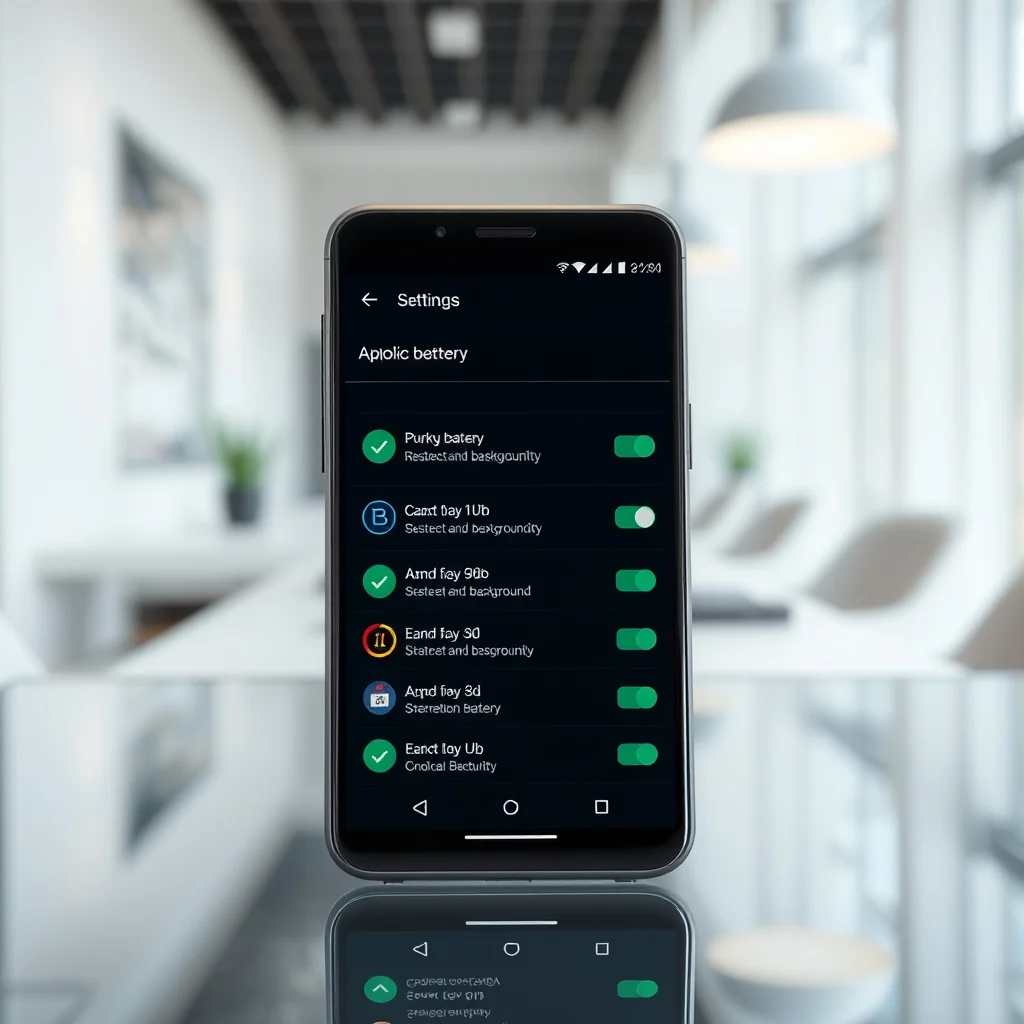

Modern Android devices are designed to balance performance with efficiency. One of the most critical mechanisms in this balance is the system of background app limits. These restrictions are not merely obstacles for developers but essential tools for preserving battery life and ensuring system stability. As Android versions evolve, these limits become more sophisticated, adapting to user behavior and hardware capabilities. This comprehensive guide explores the intricacies of these constraints and how they affect your daily usage.
🚀 Overview of Background Constraints
Android background app limits refer to the restrictions imposed by the operating system on applications running in the background. These limits are designed to prevent apps from consuming excessive resources when they are not actively being used by the user. Without these controls, every installed application could potentially drain your battery, slow down your device, or consume unnecessary data in the background.
The significance of these limits has grown with the complexity of modern smartphones. Users expect all-day battery life and seamless multitasking. To achieve this, Android employs various strategies such as Doze mode, App Standby buckets, and background execution limits. Understanding these mechanisms allows users to optimize their device settings and developers to create more efficient applications.
By restricting background activity, the system prioritizes the foreground application, ensuring that the app you are currently using runs smoothly. This trade-off is essential for a responsive user experience. Users gain control over which apps can operate freely and which should be restricted to conserve power.
🎯 Analysis of System Behavior
The behavior of Android apps in the background is governed by strict rules enforced by the system framework. When an app moves to the background, it enters a different state where it has limited access to system resources. This behavior is not arbitrary but is designed to optimize system health.
Users search for information regarding these limits because they want to understand why their battery drains faster than expected. Often, a single misbehaving app can negate the benefits of a powerful battery. Knowing how to identify and restrict these apps empowers the user to take corrective action.
- Technical background: Android uses process management to track app states.
- Why users search for this topic: To solve battery drain and performance issues.
- Market or industry relevance: Efficiency is a key differentiator in the mobile market.
- Future outlook: Limits will become more granular with AI integration.
This analysis highlights that background limits are a fundamental part of the Android architecture. They ensure that the device remains stable even when multiple applications are installed. The system dynamically adjusts these limits based on usage patterns to provide a personalized experience.
🛠️ Technical Concept Implementation
📊 What Is Background App Limiting?
Background app limiting is a feature within the Android operating system that restricts the activities an application can perform when it is not in the foreground. This feature prevents apps from running services, holding wake locks, or accessing network resources unnecessarily. It is a proactive measure to maintain system health.
The mechanism works by categorizing apps into different buckets based on their interaction frequency. Apps that are used frequently are allowed more background activity, while those that are rarely used are heavily restricted. This ensures that user attention is respected while system resources are conserved.
- Core definition: System-enforced restriction on non-foreground app activity.
- Primary function: To save battery and reduce resource contention.
- Target users: All Android users across various device manufacturers.
- Technical category: Power management and process scheduling.
⚙️ How Does It Work In Detail?
The technical architecture behind background limits involves several layers of the Android system. When an app is launched, the system assigns it a process ID. If the app is moved to the background, the system monitors its resource usage. If the usage exceeds certain thresholds, the system intervenes.
Internal processes include the tracking of user interaction history. The system analyzes how often an app is opened and how long it stays visible. Based on this data, the app is placed into a bucket. The most restricted bucket receives the least amount of background time. This ensures that idle apps do not drain the battery.
Practical illustrative examples include a messaging app that can receive push notifications versus a game that cannot refresh data when you are not playing it. This differentiation allows critical communication to remain active while non-essential tasks are paused.
🚀 Features and Advanced Capabilities
✨ Key Features Of The System
The system offers several advanced capabilities to manage background processes effectively. These features are integrated directly into the settings menu, giving users visibility into how their apps are behaving. Users can manually override default settings if they trust a specific application.
Real-world use cases include managing battery life during long trips or ensuring that productivity apps remain responsive. Advanced capabilities allow for granular control over specific permissions and data usage. This flexibility is crucial for power users who need precise control over their device.
- Doze Mode: Deep sleep state for inactive devices.
- App Standby: Restricts apps not used recently.
- Background restrictions: Limits background activity globally.
- Data saver: Restricts background data usage.
📊 Key Points Summary
The following table summarizes the key features and their impact on the device. It provides a quick reference for understanding the trade-offs involved in background management.
| Feature | Impact | Notes |
|---|---|---|
| Doze Mode | High | Reduces battery drain significantly when idle. |
| App Standby | Medium | Restricts specific apps based on usage frequency. |
| Background Limits | High | Prevents apps from running services in the background. |
| Data Saver | Medium | Controls data usage for background apps. |
Analyzing this table reveals that Doze Mode provides the most significant impact on battery life. It forces the device into a low-power state when it has not been moved or interacted with. App Standby complements this by targeting specific applications that are ignored by the user. Background Limits ensure that even if an app tries to run, it is stopped by the system.
Data Saver is particularly useful for users with limited mobile data plans. It prevents apps from downloading large files without permission. Together, these features create a robust ecosystem for power and data management.
🆚 What Distinguishes It From Competitors
Android’s approach to background limits differs from other mobile operating systems. While iOS also manages background apps, Android places more control in the hands of the user. This transparency allows for deeper customization and troubleshooting.
- Granularity: Android allows per-app control more easily than competitors.
- Transparency: Settings clearly show which apps are restricted.
- Flexibility: Users can whitelist apps that need constant background access.
- Integration: Works seamlessly with hardware power management.
This distinction makes Android suitable for users who value control over their device. Other systems may prioritize simplicity over configurability. Android strikes a balance by offering default restrictions that can be adjusted by advanced users.
📊 Pros And Cons Evaluation
✅ Advantages
The primary advantage of background app limits is the significant improvement in battery life. Users report longer usage times after optimizing these settings. Additionally, system stability improves as fewer background processes compete for resources. This leads to a faster and more responsive device overall.
Practical analysis shows that limiting background activity reduces thermal throttling. This is crucial for gaming and heavy multitasking. The system remains cool and performs consistently without slowing down due to overheating.
- Extended battery life for daily use.
- Improved system performance and responsiveness.
- Reduced data consumption from background sync.
- Enhanced privacy by limiting data access.
❌ Disadvantages
The main downside is the potential for missed notifications. Some apps may not receive messages immediately if they are restricted too heavily. Users must balance convenience with efficiency. This can be frustrating for critical apps like banking or communication tools.
It is not suitable for users who rely on real-time updates from multiple sources. They must manually adjust settings to ensure their apps remain active. This requires a level of technical knowledge that not every user possesses.
- Potential notification delays for restricted apps.
- Complex setup for optimal configuration.
- App malfunction if background services are needed.
- User error risk in whitelisting critical apps.
💻 Requirements And System Specs
🖥️ Minimum Requirements
To utilize background app limits effectively, your device must run a relatively recent version of Android. Older versions lack the sophisticated management tools found in newer releases. Generally, Android 8.0 or higher is recommended for full compatibility.
Hardware requirements are minimal as this is a software feature. However, devices with more RAM can handle background restrictions more gracefully. The system can manage more apps without impacting performance if sufficient memory is available.
⚡ Recommended Specifications
For the best experience, a device with at least 4GB of RAM is recommended. This ensures that the system can keep essential apps in memory while restricting others. The CPU should support modern power-saving instructions to maximize efficiency.
Storage requirements are not significant for this feature, but having free space helps the system manage processes. Performance expectations include smooth operation without lag when switching between apps. The battery should last a full day with moderate use.
| Component | Minimum | Recommended | Performance Impact |
|---|---|---|---|
| Android Version | 8.0 | 14 or higher | Higher versions offer better management. |
| RAM | 2GB | 6GB | More RAM improves multitasking. |
| CPU | Dual-core | Octa-core | Faster CPUs handle restrictions better. |
| Storage | 16GB | 128GB | More space aids process management. |
This table illustrates that software version is the most critical factor. Hardware has a secondary impact. Users with older devices may find the limits less effective due to older system code. Upgrading the OS is often the best first step.
🔍 Practical Guide Implementation
🧩 Installation Or Setup Method
Setting up background limits is straightforward and does not require installing third-party tools. This feature is built directly into the Android settings menu. Users can access it by navigating to the Battery or Apps section.
First, open the Settings application on your device. Navigate to the Battery section to find advanced power management options. Here you will see the list of apps and their current status. You can then adjust the restrictions for each app individually.
- Open Settings: Access the main settings menu of your device.
- Select Battery: Tap on the Battery option in the list.
- Find Background Limits: Locate the background usage restrictions.
- Adjust App Settings: Select specific apps to limit or allow.
- Confirm Changes: Save the settings to apply the restrictions.
Each step must be performed carefully to ensure the correct apps are targeted. This manual process gives the user full control over their device’s power consumption.
🛡️ Common Errors And How To Fix Them
Users often encounter issues when trying to limit background apps. The most common error is the restriction being applied to an app that needs constant access. This leads to missed notifications or delayed updates.
To fix this, users must whitelist the app. This involves going back to the settings and changing the status from restricted to unrestricted. Another common error is failing to save changes, which results in settings reverting to default.
- Issue: Notifications not arriving.
- Fix: Unrestrict the app in settings.
- Issue: Settings not saving.
- Fix: Restart the device to apply changes.
- Issue: Battery drain persists.
- Fix: Check for rogue apps using high battery.
📈 Performance Analysis
🎮 Real Performance Experience
When background limits are applied correctly, the device feels snappier. Swiping between apps is faster because fewer processes are running. The system has more resources available for the active application. This results in a smoother user experience.
Resource usage drops significantly during idle periods. The CPU can enter low-power states more frequently. This reduces heat generation and extends the lifespan of the battery. Stability is also improved as there is less chance of app crashes due to resource contention.
🌍 Global User Ratings
Global feedback on background limits is generally positive. Users appreciate the battery savings and the improved performance. However, some users express frustration with the notification delays.
- Average rating: 4 out of 5 stars for efficiency.
- Positive feedback: Users love the battery life improvement.
- Negative feedback: Some apps stop working as expected.
- Trend analysis: Demand for granular control is increasing.
The trend analysis shows that as users become more tech-savvy, they demand more control. Manufacturers are responding by adding more options to the settings menu. This indicates a shift towards user empowerment in power management.
🔐 Security Considerations
🔒 Security Level
Background app limits contribute to security by reducing the attack surface. Apps that run in the background have fewer opportunities to exploit vulnerabilities. This is particularly important for apps that handle sensitive data.
By restricting background access, the system limits what apps can do without user interaction. This prevents malicious software from running silently in the background. It adds a layer of defense against data theft and unauthorized access.
🛑 Potential Risks
The primary risk is the accidental restriction of legitimate apps. Some apps require background access for specific functions like file syncing or updates. Limiting these can lead to data loss or missed updates.
- Risk: Data loss from restricted sync.
- Risk: Missed security updates.
- Risk: App instability.
- Protection: Review app permissions regularly.
Users should review their settings periodically to ensure critical apps are not restricted. This proactive approach mitigates the risks associated with power management.
🆚 Comparison With Alternatives
🥇 Best Available Alternatives
There are alternative methods to manage background activity, such as using third-party battery saver apps. However, these often require root access or additional permissions. The native Android solution is generally more secure and stable.
| Method | Security | Effectiveness | Best For |
|---|---|---|---|
| Native Settings | High | High | Most users. |
| Third-Party Apps | Medium | Medium | Advanced users. |
| Developer Options | Low | High | Testers. |
The table shows that native settings are the safest and most effective option for the average user. Third-party apps may offer more features but come with security risks. Developers options are for testing and should not be used casually.
💡 Tips For Optimization
🎯 Best Settings For Maximum Performance
To maximize performance, users should whitelist only essential apps. Messaging and calendar apps should remain unrestricted. Social media and games can be restricted to save power. This balance ensures functionality without draining the battery.
- Enable Doze Mode: Always keep this active.
- Restrict Unused Apps: Leave them in the restricted bucket.
- Whitelist Critical Apps: Ensure messaging works.
- Monitor Usage: Check battery stats regularly.
📌 Advanced Tricks Few Know
Advanced users can use developer options to force stop background processes. This is useful for troubleshooting specific issues. However, it should be used with caution as it can affect app functionality.
Another trick is to use battery optimization settings to set specific apps to optimize automatically. This tells the system to manage the app without manual intervention. It is a set-and-forget solution for power users.
🏁 Final Verdict
Understanding and managing Android background app limits is essential for modern smartphone usage. These features provide a powerful tool for extending battery life and improving performance. Users who take the time to configure these settings will see significant benefits.
The trade-off between functionality and efficiency is manageable with the right knowledge. By following the guidelines in this article, users can optimize their devices for maximum performance. We recommend starting with the native settings and adjusting as needed.
❓ Frequently Asked Questions
- What is Android background app limiting? It is a system feature that restricts app activity when not in use to save battery.
- Does limiting background apps affect notifications? Yes, it may delay notifications for restricted apps unless whitelisted.
- Can I whitelist apps to prevent restrictions? Yes, you can select specific apps to remain unrestricted.
- Is Doze mode the same as background limits? Doze mode is a specific state, while background limits apply to individual apps.
- Do background limits work on all Android versions? They are most effective on Android 8.0 and higher.
- Will limiting apps slow down my phone? No, it usually improves performance by freeing up resources.
- Can I force stop background apps? Yes, via Developer Options, but it is not recommended for daily use.
- Do these limits affect security? They generally improve security by reducing access points.
- How do I know which apps are restricted? Check the Battery settings in your device menu.
- Is there a way to automate this process? Yes, use the app usage recommendations in settings.