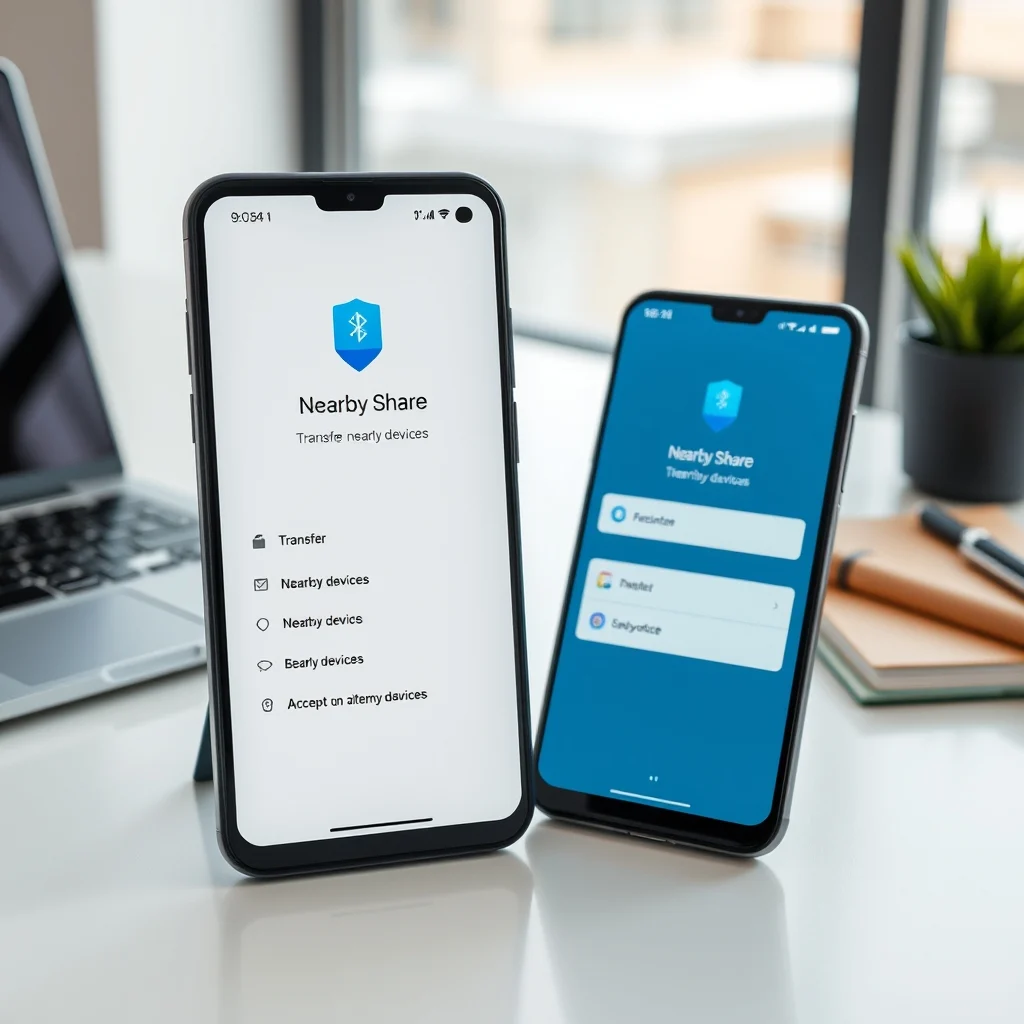

File sharing has become an integral part of our daily digital lives, and the demand for quick, secure, and wireless transfer solutions is higher than ever. Android devices have long relied on third-party applications or cloud services to move photos, documents, and videos between smartphones and tablets. However, the introduction of Nearby Share has revolutionized this process by providing a native, seamless, and secure way to transfer files directly between devices without needing an internet connection or a subscription. This comprehensive guide will walk you through every aspect of utilizing this powerful tool, ensuring you can maximize its potential for your personal and professional needs.
Understanding the technology behind Nearby Share is the first step toward mastering it. This feature is built on top of the existing Bluetooth and Wi-Fi Direct technologies, combining the low-power discovery of Bluetooth with the high-speed data transfer capabilities of Wi-Fi. This hybrid approach ensures that your devices can find each other quickly without draining the battery, while the actual file transfer happens at lightning speeds. Whether you are working in a corporate environment, sharing large video files with a friend, or simply moving a document from one tablet to another, Nearby Share offers a unified experience that is both intuitive and efficient.
As we move into 2026, the ecosystem for wireless file sharing continues to evolve, but Nearby Share remains a cornerstone of the Android experience. It is designed to work across a wide range of devices, from flagship smartphones to budget-friendly models, and even Chromebooks. By following the detailed steps and technical insights provided in this article, you will be able to set up, troubleshoot, and optimize your file transfers with confidence. We will cover everything from initial configuration to advanced troubleshooting, ensuring that you never face a barrier when you need to share data quickly.
🔍 Understanding Nearby Share Technology
Before diving into the practical steps, it is essential to understand what makes Nearby Share tick. This feature is not just a simple Bluetooth transfer; it is a sophisticated protocol that bridges the gap between different connection types. When you initiate a transfer, your device first uses Bluetooth Low Energy to broadcast its presence to nearby devices. This process is energy-efficient and allows devices to remain discoverable without consuming significant power. Once a connection is established, the devices negotiate a Wi-Fi Direct connection to handle the bulk of the data transfer.
This architecture offers several distinct advantages over traditional methods. Wi-Fi Direct allows for data transfer speeds that are significantly faster than Bluetooth alone, often reaching speeds comparable to standard Wi-Fi networks. This is crucial when transferring large files such as high-resolution videos or extensive document folders. Additionally, because the connection is established directly between devices, there is no need for a router or an internet connection. This makes Nearby Share ideal for travel, events, or situations where network connectivity is unavailable.
- Energy Efficiency: The use of Bluetooth Low Energy for discovery ensures that your battery life is preserved during the scanning phase.
- High Speed: Wi-Fi Direct handles the actual data transfer, providing speeds that can exceed 20 megabytes per second depending on the hardware.
- Security: All connections are encrypted, and files are transferred over a private channel that is not accessible to other devices.
- Compatibility: The protocol supports a wide range of Android devices and Chromebooks, ensuring broad interoperability.
🛠️ Prerequisites and Setup
For Nearby Share to function correctly, certain conditions must be met on your device. While the feature is designed to be user-friendly, understanding the prerequisites will help you avoid common pitfalls and ensure a smooth experience. The primary requirement is that both the sending and receiving devices must be running a version of Android that supports the feature. Most modern Android devices from the last few years come with this capability built-in, but older models may require updates to the Google Play Services.
📱 Enabling Nearby Share on Your Device
The setup process is straightforward, but it requires navigating through your settings carefully. You need to ensure that both Bluetooth and Location services are enabled, as these are critical for the discovery mechanism to work. Bluetooth is used to broadcast your presence, while Location services are required to help the system determine the proximity of other devices accurately. Without location services, the feature may not be able to find nearby devices reliably.
To begin, open your device settings and navigate to the Connected Devices or Google section. Look for the Nearby Share option and tap on it. From here, you can choose your visibility settings. You can set your device to be visible to all nearby devices, contacts only, or specific contacts. Choosing contacts only is generally recommended for security, as it prevents unknown devices from attempting to connect to your phone unexpectedly.
🔒 Privacy and Visibility Settings
Privacy is a major concern when sharing files wirelessly. Nearby Share provides granular control over who can see your device. When you set your visibility to Contacts, only people in your address book can initiate a transfer. This is a robust security measure that prevents strangers from sending unsolicited files to your device. You can also set a timer for visibility, allowing your device to be discoverable for a specific period before automatically reverting to a hidden state.
Additionally, you can verify which contacts have access to your device by checking the contacts list within the Nearby Share settings. This list is updated automatically based on your saved contacts. If you have recently added a new contact, ensure that your device has synced with the Google account to reflect this change. This synchronization step is crucial for the new contact to appear in your shareable list.
📤 Step-by-Step Guide to Sending Files
Once your device is set up and visible, you are ready to send files. The process is initiated from the app where the file is stored, such as the Photos app, Files app, or Gallery. The sharing interface is consistent across most Android applications, making it easy to learn and use. The following steps outline the exact procedure for sending a file to another device.
🚀 Initiating the Transfer
Open the application containing the file you wish to share. Select the specific photo, document, or video you want to transfer. Tap the share icon, which is typically represented by a node symbol or the word Share. In the list of sharing options, look for Nearby Share. If you do not see it immediately, you may need to tap More or See All to expand the list of available apps.
Once you select Nearby Share, your device will begin scanning for other visible devices nearby. This process usually takes only a few seconds. You will see a list of available devices pop up on your screen. Each device will display its name, which is the custom name you have set for that device. Ensure that you select the correct recipient from the list to avoid sending files to the wrong person.
After selecting the recipient, the receiving device will receive a notification requesting permission to accept the transfer. The receiver must tap Accept for the transfer to begin. If they decline, the transfer will be cancelled. This two-step confirmation process adds an extra layer of security, ensuring that files are only sent when both parties agree to the exchange.
- ✅ Select File: Choose the specific file you want to send from your gallery or file manager.
- ✅ Tap Share: Use the standard share menu accessible from any app.
- ✅ Choose Nearby Share: Select the icon from the expanded sharing list.
- ✅ Select Device: Tap on the name of the recipient device shown on the screen.
- ✅ Confirm: Wait for the recipient to accept the incoming request.
📥 Receiving Files via Nearby Share
The receiving process is equally straightforward, but it requires attention to notifications and permissions. When a device sends a file to you, your phone will display a notification indicating that a transfer is incoming. This notification will show the sender’s name and the number of files being sent. It is important to respond to this notification quickly to ensure the transfer completes successfully.
🔔 Managing Incoming Requests
Upon receiving the notification, you must tap to open it. This will display a preview of the files being sent. You can choose to accept or decline the request. If you accept, the files will begin downloading immediately. During the transfer, you will see a progress bar indicating the status of the download. You can continue using your device for other tasks, but do not lock the screen or turn off the display, as this may interrupt the connection.
Once the transfer is complete, you will receive a notification confirming the success of the download. The files will be saved to the Downloads folder by default. If you wish to move them to a different location, you can use your file manager app to organize them. For photos and videos, they will also be automatically added to your Gallery app for easy access.
🛡️ Security and Privacy Features
Security is a paramount concern in wireless file sharing, and Nearby Share incorporates several features to protect your data. All transfers are encrypted end-to-end, meaning that the data cannot be intercepted by third parties during the transmission. This encryption ensures that sensitive documents or personal photos remain private throughout the entire process.
🛑 Potential Risks and Mitigation
While the technology is secure, users must remain vigilant about their settings. One potential risk is leaving your device visible to all nearby devices for extended periods. This could allow strangers to attempt to send you files or request access to your device. To mitigate this, always set your visibility to Contacts Only or Visible for a specific time window.
Additionally, be cautious of accepting files from unknown devices. Even if a device is visible, it does not mean it is safe to transfer data. If you receive a file from a stranger, it is best to decline the request unless you can verify the identity of the sender. This practice helps prevent the accidental download of malware or unwanted content.
- ⚠️ Visibility Settings: Avoid setting to Visible to All if possible.
- ⚠️ Sender Verification: Only accept transfers from known contacts.
- ⚠️ Storage Management: Monitor your storage to prevent transfer failures.
- ⚠️ Screen Lock: Keep your device unlocked during the transfer process.
🔧 Troubleshooting Common Issues
Despite its reliability, users may occasionally encounter issues with Nearby Share. Understanding these problems and their solutions can save you time and frustration. The following section addresses the most common errors and provides actionable steps to resolve them.
🚫 Device Not Visible
If your device is not appearing in the list of nearby devices, check your Bluetooth and Location settings first. Ensure that both are turned on. Sometimes, the device may be in Do Not Disturb mode, which can hide notifications and affect visibility. Try turning off Do Not Disturb and refreshing the Nearby Share settings.
🐢 Slow Transfer Speeds
If the transfer speed is slower than expected, check the distance between the devices. Wi-Fi Direct works best when devices are within a few feet of each other. Additionally, ensure that there are no physical obstructions blocking the connection. Interference from other wireless devices can also slow down the transfer.
❌ Transfer Fails
If the transfer fails, restart Bluetooth on both devices. You can toggle Bluetooth off and on again in your settings. If the problem persists, restart both devices completely. This clears the temporary cache and resets the network interfaces, which often resolves persistent connection issues.
🎯 Optimization Tips for Best Performance
To get the most out of Nearby Share, consider implementing the following optimization tips. These strategies will help you maintain a stable connection and maximize transfer speeds.
First, keep your Android OS and Google Play Services up to date. Updates often include performance improvements and bug fixes that enhance the stability of Nearby Share. Second, avoid running heavy applications in the background during a transfer. This ensures that your device has sufficient resources to handle the Wi-Fi Direct connection.
Finally, organize your files before sharing. Large folders with hundreds of files can take longer to process. If possible, compress multiple files into a single ZIP archive before sending. This reduces the overhead of managing multiple file headers and can speed up the overall transfer process.
- ✅ Update Software: Keep your OS and Google Play Services current.
- ✅ Clean Background: Close unnecessary apps before transferring.
- ✅ Proximity: Keep devices close together for better signal strength.
- ✅ Archive Files: Use ZIP files for multiple documents to improve speed.
🆚 Comparison with Other Transfer Methods
When comparing Nearby Share to other methods like Bluetooth or cloud storage, it stands out for its balance of speed and convenience. Bluetooth is widely supported but is significantly slower. Cloud storage requires an internet connection and often involves upload and download times. Nearby Share operates offline and is much faster than Bluetooth, making it the superior choice for local transfers.
Additionally, Nearby Share integrates directly into the Android ecosystem, whereas third-party apps often require installation and account creation. This native integration reduces friction and makes the sharing process feel more seamless. For users within the Android and Chromebook ecosystem, Nearby Share is the most logical choice for file sharing.
📊 Key Points Summary
To summarize the essential aspects of Nearby Share, consider the following comparison of its key features against traditional methods.
| Feature | Nearby Share | Bluetooth | Cloud Storage |
|---|---|---|---|
| Speed | High | Low | Medium |
| Internet Required | No | No | Yes |
| Setup | Native | Native | App Required |
| Security | Encrypted | Encrypted | Provider Dependent |
As shown in the table above, Nearby Share offers a superior balance of speed and convenience without the need for an internet connection. This makes it an ideal tool for modern Android users who value efficiency and security.
❓ Frequently Asked Questions
- What is the maximum file size I can send using Nearby Share?
Nearby Share does not have a strict file size limit, but it depends on the available storage space on both devices. Large files may take longer to transfer. - Can I use Nearby Share between Android and iPhone?
No, Nearby Share is currently designed for Android devices and Chromebooks. iPhone users must use AirDrop or other third-party apps. - Does Nearby Share work without Wi-Fi?
Yes, Nearby Share uses Wi-Fi Direct, which creates a direct connection between devices without requiring a Wi-Fi network or internet access. - Why is my device not visible to others?
Check your visibility settings and ensure that Bluetooth and Location services are enabled. You may also need to restart the device. - Can I send multiple files at once?
Yes, you can select and send multiple files in a single batch transfer. - Is Nearby Share secure for sensitive documents?
Yes, all transfers are encrypted, but you should still exercise caution and only share with trusted contacts. - What happens if the transfer is interrupted?
If the connection is lost, you will need to restart the transfer from the beginning. Ensure both devices remain unlocked during the process. - Can I send files to a desktop computer?
Currently, Nearby Share supports Android devices and Chromebooks. It does not support Windows or macOS directly. - Does Nearby Share consume data?
No, Nearby Share does not use mobile data or Wi-Fi internet. It uses a direct peer-to-peer connection. - How do I stop Nearby Share from scanning?
You can turn off Nearby Share in your settings or set your visibility to Hidden to stop scanning for devices.
🏁 Final Verdict
In conclusion, Nearby Share is a powerful and essential tool for Android users looking to transfer files quickly and securely. Its seamless integration with the operating system, combined with high-speed transfer capabilities and strong privacy features, makes it the preferred method for local file sharing. By following the guidelines and troubleshooting steps outlined in this article, you can ensure a smooth and efficient experience every time you share data.
We recommend enabling Nearby Share on all your Android devices and configuring your visibility settings to match your privacy preferences. Whether you are in a business meeting, at a family gathering, or traveling, Nearby Share provides the reliability and speed you need to stay connected. Embrace this technology to enhance your digital workflow and enjoy the benefits of modern wireless connectivity.
Take control of your file transfers today by mastering Nearby Share. With its robust feature set and user-friendly design, it is an indispensable part of the Android ecosystem that every user should utilize to its full potential.
🔍 Additional Technical Insights
For those interested in the technical architecture, Nearby Share utilizes a combination of protocols to ensure reliability. The initial handshake is performed via Bluetooth Low Energy, which broadcasts the device’s UUID and capabilities. Once the devices discover each other, they establish a secure Wi-Fi Direct link. This link is authenticated using a token-based system that verifies the identity of both parties.
The encryption standard employed is AES-256, which is the same standard used by financial institutions for securing sensitive data. This ensures that even if the connection is intercepted, the data remains unreadable to unauthorized parties. Furthermore, the transfer protocol includes error correction mechanisms that allow for retransmission of corrupted packets without restarting the entire transfer.
Understanding these underlying technologies can help users appreciate the complexity and security of the feature. It is not merely a convenience tool but a sophisticated piece of software engineering that prioritizes user privacy and data integrity. As Android continues to evolve, we can expect to see further enhancements to Nearby Share, potentially expanding its compatibility to more platforms and introducing new security features.
For now, the current iteration offers a robust solution for the vast majority of file sharing needs. By keeping your software updated and following best practices, you can ensure that your experience remains seamless and secure. The future of wireless file sharing is bright, and Nearby Share is leading the way in defining what that future looks like for Android users worldwide.