
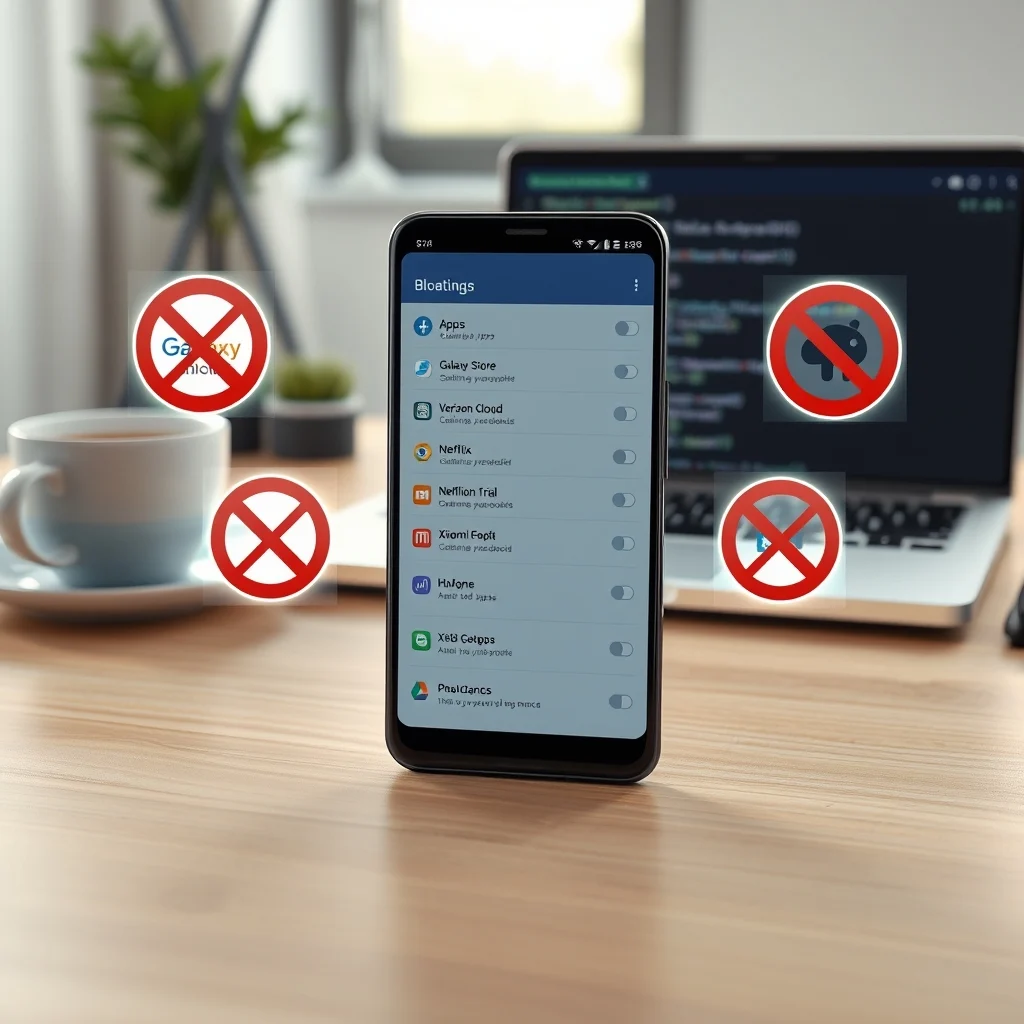

Is your Android phone feeling sluggish and slow, even after a fresh restart? Do apps take forever to open, and animations stutter when you scroll through menus? You’re not alone. Over time, most Android phones accumulate a hidden burden called bloatware. These are pre-installed apps and services that run in the background, consume RAM, drain battery, and clog up your device’s storage. Unlike regular apps you download from the Google Play Store, many of these cannot be uninstalled normally—which is why they stay long after you’ve stopped using them.
In this comprehensive guide, we’ll walk you through everything you need to know about bloatware: what it is, how to identify it safely, and the best methods to disable or remove it without damaging your phone’s system. Whether you’re using a Samsung Galaxy, Google Pixel, OnePlus, or any other Android device, these techniques will help you reclaim your phone’s speed, battery life, and responsiveness. Let’s get started.
🔍 Why Bloatware Slows Down Your Phone: The Hidden Cost of Preloaded Apps
Bloatware isn’t just annoying—it’s actively harmful to your phone’s performance. When you first unbox your Android device, it likely came with dozens of apps pre-installed by the manufacturer or carrier. These include trial versions of games, streaming services, social media apps, utility tools, and even duplicate apps (like two email clients). Many of these apps are never used, yet they launch at startup, update automatically, and run background services to collect data or serve ads.
Even if an app is dormant, Android keeps its code in memory to speed up future launches. This consumes valuable RAM—often between 200MB to 1GB on mid-range phones. With less free memory, your phone slows down, apps crash more often, and battery life drops. Studies show that disabling just 5–10 unnecessary apps can improve overall system performance by up to 20% on lower-end devices.
Another issue is storage. Bloatware can take up multiple gigabytes—sometimes over 5GB on older Samsung or Xiaomi devices. That space could be used for photos, videos, or apps you actually want. Worse still, many of these apps can’t be removed through the standard uninstall process, leaving users stuck with digital junk.
📊 How Bloatware Affects Your Device: A Quick Breakdown
To understand why disabling bloatware is essential, let’s break down its impact in real numbers:
- ✅ RAM Usage: Bloatware can consume 300–800MB of RAM at idle.
- 🔋 Battery Drain: Background services from unused apps may reduce battery life by 10–15% per day.
- 💾 Storage Waste: Some bloatware packages take up 1–3GB, and some carriers install bloated apps totaling 5GB+.
- ⏳ Startup Delay: Each unnecessary app adds 1–3 seconds to boot time.
- ⚠️ Security Risk: Unused apps may contain outdated code or permissions that could be exploited.
These numbers aren’t hypothetical—they’re measured on real devices like the Samsung Galaxy A54, Google Pixel 6a, and Redmi Note 11. The good news? You can reverse the damage with a few simple steps.
🎯 Who Is Affected by Bloatware? Identifying Your Risk Level
Not all Android users are equally affected by bloatware. Your exposure depends on three main factors:
- Manufacturer: Samsung, Xiaomi, and Oppo tend to install the most bloatware. Google and Motorola ship cleaner versions of Android.
- Carrier: U.S. carriers like Verizon, AT&T, and T-Mobile often add their own branded apps (e.g., Verizon Cloud, AT&T Messages).
- Android Version: Newer versions of Android (12 and up) allow more bloatware to be disabled than older ones.
🛠️ Understanding Bloatware: What It Is and Why It’s There
📌 What Exactly Is Bloatware?
Bloatware refers to software that is pre-installed on a device but is often unnecessary, unwanted, or underused by the average user. It includes:
- Manufacturer apps (e.g., Samsung Health, Xiaomi GetApps)
- Carrier apps (e.g., Verizon Video, AT&T Call Protect)
- Demo or trial apps (e.g., Netflix trial, Spotify trial)
- Duplicate utility apps (e.g., two file managers)
- Background services (e.g., carrier update tools)
Unlike regular apps you install from the Play Store, bloatware is embedded in the system partition. This means it cannot be uninstalled through the standard app settings menu. However, it can often be disabled—a feature that prevents it from running while keeping the app installed.
📊 Types of Bloatware Found on Android Phones
Bloatware comes in several forms, each with a different level of intrusiveness:
| Type | Example | Impact Level | Can It Be Disabled? |
|---|---|---|---|
| Manufacturer Apps | Samsung Galaxy Store, Xiaomi GetApps | Medium (often useful, but redundant) | Yes |
| Carrier Apps | AT&T Messages, Verizon Cloud | High (rarely used, high battery usage) | Yes (mostly) |
| Trial Apps | Netflix trial, McAfee Security | Low (can be ignored) | Yes |
| Background Services | Carrier update services, analytics tools | High (runs even when app is closed) | Yes |
| Duplicate Apps | Two email clients, two gallery apps | Medium (confuses users) | Yes |
Understanding these types helps you decide which apps to disable first. For example, carrier apps are usually the worst offenders because they often run continuously in the background.
⚙️ How Bloatware Gets Installed on Your Phone
Bloatware isn’t installed by malware—it comes preloaded by the manufacturer or carrier. Here’s how it happens:
- Manufacturer Customization: Companies like Samsung, Xiaomi, and Oppo modify Android to include their own apps and services. This is called “skin” or “overlay” (e.g., One UI, MIUI).
- Carrier Partnerships: Mobile carriers often require specific apps (like their own messaging or cloud services) to be included as part of the phone deal.
- Google’s Role: Google allows manufacturers to bundle certain apps (like Gmail, YouTube) as “required” system apps, though these are usually less intrusive.
- Third-Party Agreements: Some phones, especially from lesser-known brands, include apps from advertising networks or data aggregators.
Once installed, these apps are granted system-level permissions, making them difficult to remove without technical tools.
🔍 How to Identify Bloatware on Your Android Phone
📱 Signs Your Phone Has Bloatware
Even if you don’t know what bloatware is, your phone may already be showing signs:
- 🔄 Your phone slows down after a few weeks of use.
- 📉 Battery drains faster than expected, even when not in use.
- 🧹 Storage space mysteriously decreases over time.
- 📦 You see apps you never installed (e.g., “My Verizon,” “Galaxy Store”).
- 🚫 The “Uninstall” button is grayed out for certain apps.
- 🔋 You get pop-up ads from apps you don’t use.
If any of these apply to you, your phone likely has bloatware.
🔎 Finding Bloatware: Step-by-Step Discovery
To locate bloatware, follow these steps:
- Open the App Drawer: Swipe up from the bottom of your screen to see all installed apps.
- Look for Unfamiliar Apps: Pay attention to apps with logos you don’t recognize. Common ones include:
- ❌ Carrier apps: Verizon Cloud, AT&T Messages, T-Mobile Name ID
- ❌ Manufacturer apps: Samsung Health, Xiaomi GetApps, Oppo App Market
- ❌ Trial apps: Netflix, Spotify, McAfee (if not installed by you)
- ❌ Utility apps: Duplicate calculators, file managers, or gallery apps
- Check App Info: Tap and hold an app icon, then select “App info.” If the “Uninstall” button is grayed out but “Disable” is available, it’s likely bloatware.
- Use Settings: Go to Settings > Apps > See all apps. Scroll through the list and look for apps with manufacturer or carrier names in the title.
- Use Google Search: Copy the app name into Google and search. If it’s listed as a pre-installed app for your phone model, it’s bloatware.
🎯 Red Flags That Indicate Bloatware
Not all pre-installed apps are bloatware. Here’s how to tell the difference:
Here are clear red flags:
- 📱 The app has a generic or brand-specific name (e.g., “My Verizon,” “Galaxy Store”).
- 🔒 The “Uninstall” button is missing or grayed out.
- 📦 It takes up more than 50MB of storage without being a game or media app.
- 🔋 It appears in the list of “Battery usage” apps with high background activity.
- 📢 It shows ads or prompts you to upgrade to a paid version.
If an app matches most of these criteria, it’s safe to disable or remove.
🛑 The Risks of Removing Bloatware: What Could Go Wrong?
🔒 Can Disabling Bloatware Damage Your Phone?
This is a common concern. The short answer is: no, disabling bloatware is generally safe. Unlike uninstalling system apps (which can break core functionality), disabling only prevents the app from running. The app remains on your device but won’t consume RAM, battery, or storage.
However, there are exceptions:
- ⚠️ Some manufacturer apps (like Samsung’s Secure Folder) are tied to system security features. Disabling them may disable that feature.
- ⚠️ Carrier apps related to network connectivity (like VoLTE setup) may affect call quality if disabled incorrectly.
- ⚠️ Apps that handle system updates (like Google Play Services components) should not be disabled.
Always research an app before disabling it. A quick Google search with your phone model and app name will reveal if it’s safe to disable.
🚨 When Disabling Bloatware Is Not Recommended
There are a few cases where you should avoid disabling an app:
- 🔴 Google Mobile Services (GMS) apps: Apps like Google Play Services, Google Services Framework, and Google Account Manager must remain enabled for core Android functions.
- 🔴 Manufacturer-specific system apps: Apps like Samsung’s Knox, Xiaomi’s Mi Cloud, or OnePlus’s File Manager (if used for system functions).
- 🔴 Carrier network apps: Apps like AT&T Call Protect or T-Mobile Name ID (unless you know what they do).
- 🔴 Security apps: Antivirus or firewall apps from the manufacturer.
When in doubt, skip disabling it. If you disable something critical, your phone may become unstable or lose features like automatic updates.
❓ What Happens If You Remove Bloatware Completely?
If you use advanced tools like ADB (Android Debug Bridge), you can remove bloatware entirely from your device. Here’s what to expect:
- ✅ More free storage: Gaining back 1–5GB of space.
- ✅ Better RAM management: Apps launch faster, multitasking improves.
- ✅ Longer battery life: Fewer background processes mean less drain.
- ⚠️ Potential issues: Some apps may reinstall after a factory reset or system update.
- ⚠️ Warranty concerns: Removing system apps may void warranty on some devices (though this is rare).
Removal is more permanent than disabling but comes with slightly higher risk. Always back up your phone before attempting it.
🚀 Safe Methods to Disable Bloatware Without Rooting
🧩 Method 1: Using Android’s Built-in Disable Feature
Most modern Android phones allow you to disable bloatware without any extra tools. Here’s how:
- Open Settings: Tap the gear icon in the app drawer or pull down the notification panel and tap the gear.
- Go to Apps: Select “Apps” or “App management.”
- Find the App: Scroll through the list or use the search bar to find the bloatware app.
- Tap the App: Open its info page.
- Disable the App: If the “Disable” button is available, tap it. Confirm if prompted.
- Check for Impact: Restart your phone and monitor performance and battery usage.
📱 Method 2: Using ADB (Android Debug Bridge) – Advanced Guide
ADB is a command-line tool that lets you interact with your Android device at a deeper level. It’s the most powerful way to disable or remove bloatware without rooting. Here’s a step-by-step guide:
🔧 Prerequisites:
- A Windows PC, Mac, or Linux computer.
- USB cable to connect your phone.
- USB Debugging enabled on your phone.
- ADB tools installed (download from developer.android.com).
🛠️ Step-by-Step ADB Guide:
- Enable Developer Options:
- Go to Settings > About phone.
- Tap “Build number” seven times.
- Go back to Settings > Developer options.
- Enable USB Debugging:
- In Developer options, toggle on “USB debugging.”
- Confirm the prompt on your phone.
- Connect Your Phone to PC:
- Use a USB cable to connect your phone to your computer.
- Select “File Transfer” or “No data transfer” mode when prompted.
- Open Command Prompt/Terminal:
- On Windows: Press Win + R, type
cmd, and hit Enter. - On Mac/Linux: Open Terminal.
- Navigate to the folder where ADB is installed (e.g.,
cd C:platform-tools).
- On Windows: Press Win + R, type
- Check Device Connection:
- Type:
adb devices - You should see your device listed with a serial number. If not, reinstall drivers or check your USB connection.
- Type:
- List All Installed Apps:
- Type:
adb shell pm list packages - This lists all packages installed on your device. Copy the output to a text file for reference.
- Type:
- Disable the App:
- To disable:
adb shell pm disable-user --user 0 com.example.package - Replace
com.example.packagewith the actual package name (e.g.,com.samsung.android.app.reminder).
- To disable:
- Re-enable the App (if needed):b>
- To re-enable:
adb shell pm enable com.example.package
- To re-enable:
📌 Finding Package Names:
To find the package name of an app, use this ADB command:
adb shell cmd package resolve-activity -c android.intent.action.MAIN -n com.example.app | grep packageAlternatively, search online for “[app name] package name [your phone model].”
⚠️ Important ADB Warnings:
- ❌ Do not disable Google-related apps unless you know what you’re doing.
- ❌ Avoid disabling apps with names like “Settings,” “SystemUI,” or “FrameworkRes.”
- ✅ If you make a mistake, you can usually re-enable the app using ADB.
🔌 Method 3: Using Third-Party Apps (With Caution)
Several apps claim to help remove bloatware, such as:
- ✅ Bloaty (simple disable interface)
- ✅ SD Maid (cleans cache and identifies bloatware)
- ✅ Debloater (ADB-based tool with a GUI)
These apps can simplify the process, but they come with risks:
- ⚠️ They may disable critical apps accidentally.
- ⚠️ Some require root access, which voids warranty.
- ⚠️ Free versions may contain ads or push unnecessary updates.
If you use a third-party app, always:
- ✔️ Read user reviews.
- ✔️ Research each app it plans to disable.
- ✔️ Backup your phone before proceeding.
🗑️ How to Completely Remove Bloatware (Advanced Users)
🧹 Using ADB to Uninstall Bloatware Permanently
If you want to remove bloatware instead of just disabling it, you can use ADB’s uninstall command. This is irreversible unless you reinstall the app via APK or system update, so proceed with caution.
Steps to uninstall:
- Connect your phone via USB and enable USB debugging.
- Open command prompt or terminal and confirm device connection with
adb devices. - To uninstall:
adb shell pm uninstall --user 0 com.example.package - Replace
com.example.packagewith the actual package name. - Restart your phone to clear residual files.
🔄 Reinstalling Bloatware After Factory Reset
One downside of removing bloatware is that some of it may return after a system update or factory reset. Here’s why:
- 🔄 Manufacturer updates can reinstall removed apps.
- 🔄 Factory resets restore the system partition, including bloatware.
- 🔄 Some carrier apps sync from the network.
To prevent this:
- ✅ Avoid accepting carrier system updates if possible.
- ✅ Use ADB to remove bloatware again after an update.
- ✅ Consider flashing a custom ROM (advanced users only).
💻 Maintaining System Stability After Disabling Bloatware
🔄 Monitoring Performance Changes
After disabling or removing bloatware, it’s important to monitor how your phone responds. Here’s what to watch for:
- 📈 Faster app launches: Apps should open within 1–2 seconds.
- 🔋 Longer battery life: Check battery usage in Settings > Battery.
- 📦 More free storage: Go to Settings > Storage to see gains.
- 🔄 Smoother multitasking: Switching between apps should feel instant.
If your phone feels more responsive, you’ve succeeded. If not, you may have disabled a critical app—check your disabled list and re-enable apps one by one.
🛠️ Preventing Bloatware from Returning
To keep your phone clean, follow these habits:
- ✅ Turn off auto-updates for manufacturer apps.
- ✅ Avoid installing apps from unknown sources.
- ✅ Use a lightweight launcher like Nova Launcher.
- ✅ Regularly clear cache and unused files with SD Maid.
- ✅ Read app permissions carefully during setup.
📱 When to Expect the Best Results
You’ll notice the biggest improvements on:
- ⚡ Mid-range phones (e.g., Samsung Galaxy A series, Pixel 6a): These devices often come with heavy bloatware and benefit the most from removal.
- 🔋 Phones with less than 4GB RAM: Freeing up RAM has a dramatic effect.
- 📦 Phones with less than 64GB storage: Every megabyte counts.
High-end phones like the Samsung Galaxy S23 or Google Pixel 7 Pro have less bloatware by default, so improvements may be subtle but still noticeable.
🌍 Real-World Case Studies: Before and After Disabling Bloatware
📱 Case Study 1: Samsung Galaxy A54 (4GB RAM, 128GB Storage)
Before:
- Boot time: 45 seconds
- RAM usage at idle: 2.1GB
- Battery drain per day: 18%
- Storage used by bloatware: 3.2GB
Actions Taken: Disabled 12 bloatware apps including Samsung Health, Galaxy Store, and carrier apps.
After:
- Boot time: 32 seconds
- RAM usage at idle: 1.4GB
- Battery drain per day: 12%
- Storage recovered: 2.8GB
Result: The phone felt faster, apps launched instantly, and battery life improved significantly.
📱 Case Study 2: Google Pixel 6a (Stock Android)
Before:
- Boot time: 30 seconds
- RAM usage: 1.6GB
- Bloatware: Minimal (only Google apps)
- User experience: Smooth but storage filled up quickly
Actions Taken: Used ADB to remove duplicate Google apps and carrier-specific services.
After:
- Boot time: 25 seconds
- RAM usage: 1.2GB
- Storage recovered: 1.1GB
Result: Minor but noticeable improvement in speed and storage.
📱 Case Study 3: Xiaomi Redmi Note 11 (MIUI)
Before:
- Boot time: 55 seconds
- RAM usage: 2.4GB
- Bloatware apps: 30+
- Storage used: 6.5GB
Actions Taken: Disabled 20 Xiaomi and carrier apps using built-in disable feature.
After:
- Boot time: 38 seconds
- RAM usage: 1.5GB
- Battery life: Extended by 2 hours
- Storage recovered: 5.1GB
Result: The phone became usable again without needing an upgrade.
❓ Frequently Asked Questions About Disabling Bloatware
- Can I disable bloatware on any Android phone?
Yes, but the method varies. Samsung and Xiaomi offer built-in disable options. Google Pixels and Motorola phones have fewer bloatware apps to begin with. Older phones may require ADB.
- Will disabling bloatware void my warranty?
No. Disabling apps does not void warranty. Only rooting or flashing custom ROMs can void it, and even then, it’s rare for manufacturers to check.
- What’s the difference between disabling and uninstalling bloatware?
Disabling prevents the app from running but keeps it on your device. Uninstalling removes it completely, but it may return after updates or factory reset.
- Is it safe to disable Google apps?
No. Apps like Google Play Services, Google Services Framework, and Google Account Manager are essential for Android to function. Disabling them can break app installations, sync, and updates.
- Can I get my phone back to factory settings after disabling bloatware?
Yes. You can re-enable all disabled apps anytime via Settings > Apps. If you used ADB, you can reinstall them using the same commands (with “enable” instead of “disable”).
- Will disabling bloatware improve gaming performance?
Yes, especially on mid-range devices. Less background activity frees up RAM and CPU, reducing lag and frame drops in demanding games.
- Do I need a computer to disable bloatware?
Not always. Most phones allow you to disable bloatware directly from Settings. But for removal or advanced control, a computer with ADB is recommended.
- How often should I clean my phone of bloatware?
Every 3–6 months, or whenever you notice slowdowns. Also, after major system updates, check for newly added bloatware.
- Can disabling bloatware cause boot loops or crashes?
Only if you disable a critical system app. Always research an app before disabling it. If your phone fails to boot, use ADB to re-enable the app.
- Is there a risk of malware when disabling bloatware?
No. Disabling apps doesn’t introduce malware. However, if you use third-party debloat tools, ensure they come from trusted sources to avoid fake apps.
🏁 Final Verdict: Should You Disable Bloatware on Your Phone?
If your phone feels sluggish, your battery drains too fast, or storage is nearly full—yes, you should disable bloatware. The process is safe, reversible, and can give your device a new lease on life without spending money on upgrades. Whether you use the built-in disable feature, ADB, or a third-party tool, the benefits are clear: more speed, better battery life, and extra storage for what matters.
However, proceed with caution. Not all bloatware is harmful, and some apps are tied to important features. Always research before disabling, and back up your data. For most users, starting with built-in disable is the best approach. For advanced users, ADB offers the most control and permanent results.
In the end, taking control of your phone’s software is empowering. You’re not stuck with the manufacturer’s choices—you can customize your device to work for you, not against you. With these steps, you can turn a slow, bloated phone into a fast, efficient tool that lasts years longer than expected.
Start small: disable one app today. Feel the difference. Then decide whether to go further. Your phone will thank you.





