
Modern computing relies heavily on the firmware layer known as the Basic Input Output System or Unified Extensible Firmware Interface. When this foundational software becomes corrupted, the entire machine can become unresponsive. This guide provides a comprehensive approach to diagnosing and repairing damaged BIOS configurations without requiring professional technician intervention.
📰 Understanding the Core Issue
The BIOS serves as the bridge between your computer hardware and the operating system. It initializes components like the CPU, memory, and storage drives before handing control to Windows or Linux. Corruption in this sector often results from power failures, failed updates, or electrical surges. A user may notice a black screen, beep codes, or a system stuck on the manufacturer logo.
We will explore how to identify these symptoms early. You will learn to distinguish between simple configuration errors and actual chip corruption. By understanding the root causes, you can prevent permanent damage to your motherboard. This knowledge empowers users to take control of their hardware maintenance.
💡 Important tactical note: Always back up your current BIOS settings before attempting any major changes or updates.
🔍 Analyzing the Failure Scenario
Users often search for solutions when their PC refuses to post. This indicates a failure in the Power On Self Test phase. Understanding why this happens helps in selecting the correct recovery method. Sometimes it is a simple CMOS reset, but other times the flash ROM is physically damaged.
- Technical background: Modern motherboards store firmware in non-volatile memory chips that retain data without power.
- User intent: People want to restore functionality without spending money on repairs.
- Market relevance: With high-end hardware costs rising, DIY repair is increasingly valuable.
- Future outlook: Newer boards feature dual BIOS systems for better redundancy.
🛠️ Technical Fundamentals of Firmware
📊 What Is BIOS Corruption?
Corruption refers to the alteration of data stored within the firmware chip. This can happen due to incomplete flashing processes or voltage spikes. The chip holds the essential code required to boot the system. Without it, the computer is essentially a collection of inert parts.
- ✅ Core definition: Data loss or error in the motherboard firmware.
- ✅ Primary function: Hardware initialization and system boot management.
- ✅ Target users: Desktop builders and laptop owners.
- ✅ Technical category: Low-level system software.
⚙️ Mechanism of Operation
The BIOS operates by executing a sequence of instructions immediately upon receiving power. It checks the integrity of the hardware and loads drivers for essential peripherals. If the checksum of the firmware does not match expected values, the system halts. This is a safety feature to prevent running unstable code.
Advanced systems use UEFI which allows for mouse navigation and larger storage support. Both legacy BIOS and modern UEFI share similar vulnerability profiles regarding power interruptions during writes. Engineers design these chips to withstand millions of cycles, but human error remains a significant risk factor.
🚀 Essential Recovery Capabilities
✨ Critical Recovery Methods
Recovery tools vary depending on the motherboard manufacturer. Some offer built-in fail-safes that automatically revert to a backup copy. Others require external media to force a write operation. Knowing which method applies to your board is crucial for success.
- ✅ BIOS Flashback: A dedicated button on the rear I/O panel.
- ✅ Dual BIOS Switch: Physical toggle between primary and secondary chips.
- ✅ CMOS Clear: Removing the battery to reset volatile settings.
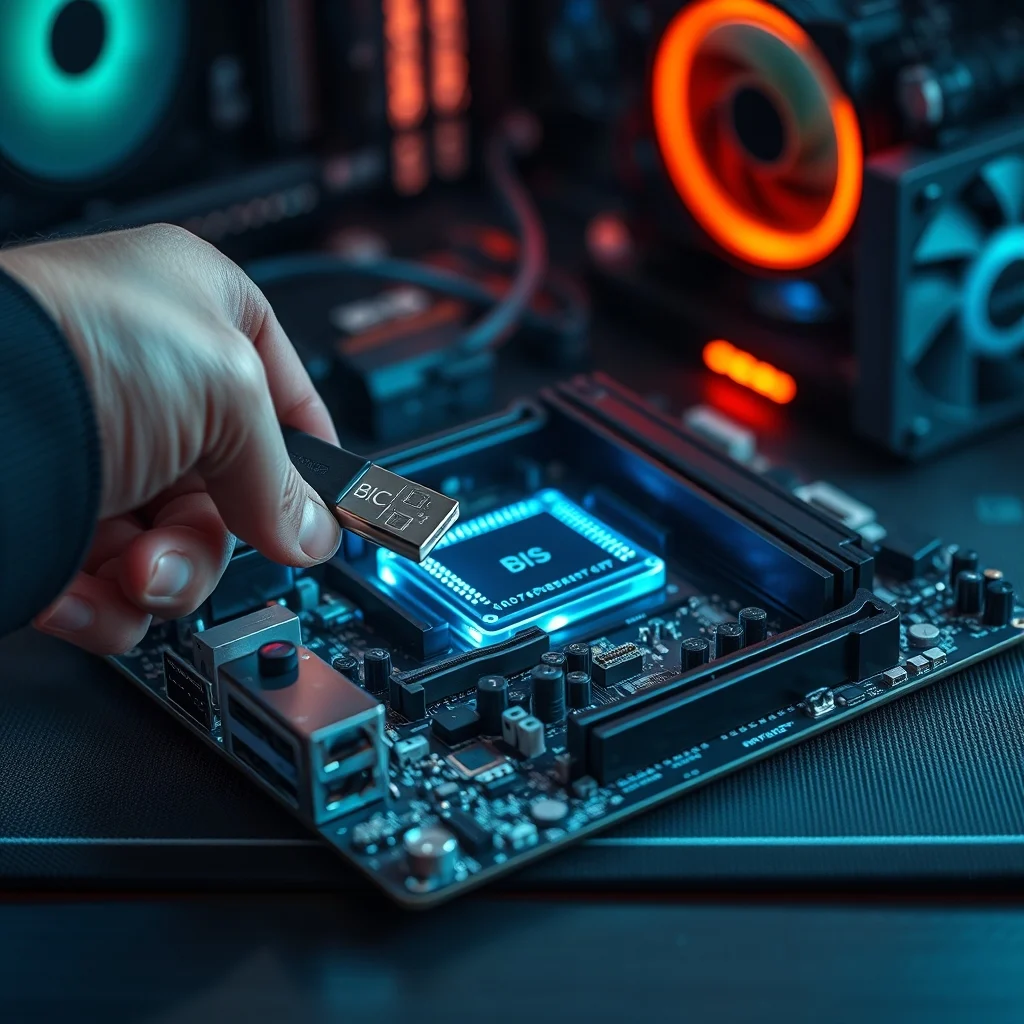
- ✅ USB Recovery: Using a FAT32 formatted drive with specific file names.
📊 Performance Metrics and Status
Evaluating the severity of corruption helps determine the next steps. Minor issues might only affect boot order, while severe cases prevent video output entirely. We have compiled a comparison of common indicators to help you assess the situation accurately.
| Indicator | Severity Level | Recommended Action |
|---|---|---|
| Beep Codes | Medium | Cheek manual for specific codes |
| Black Screen | High | Attempt CMOS reset immediately |
| Laptop Fan Spins | Low | Check for video output issues |
| No Power | Critical | Check PSU and Motherboard connections |
This table summarizes the diagnostic process effectively. If you see a black screen, immediate action is required to preserve the hardware. Beep codes provide specific information about which component failed. High severity issues often point to the firmware itself rather than peripheral hardware.
🆚 Competitive Analysis of Tools
Not all recovery methods are equal in effectiveness. Built-in features are generally safer than external flashing utilities. Manufacturer-specific software offers better compatibility but requires a working system. External tools are powerful but carry higher risks if misused.
- ✅ Manufacturer Software: Safe but requires OS access.
- ✅ External Utility: Powerful but risky without backups.
- ✅ Hardware Programmer: Requires soldering skills.
📈 Advantages and Limitations
✅ Strengths of DIY Recovery
Performing the repair yourself saves time and money. You gain valuable experience with your hardware architecture. It eliminates the need to ship expensive equipment to service centers. Many modern boards are designed specifically to allow this flexibility.
- ✅ Cost Efficiency: No labor charges involved.
- ✅ Speed: Immediate resolution without shipping delays.
- ✅ Knowledge Gain: Learn how your system boots.
❌ Potential Downsides
There is a risk of further damaging the motherboard if done incorrectly. Warranty voiding is a concern for some manufacturers. Physical damage to pins during cleaning can occur. These risks must be weighed against the cost of replacement.
- ⚠️ Warranty Risks: Some seals indicate tampering.
- ⚠️ Bricking Risk: Incorrect files can kill the chip.
- ⚠️ Time Consumption: Troubleshooting takes patience.
💻 System Prerequisites for Repair
You need specific tools and environment conditions to attempt a fix safely. Preparation reduces the likelihood of errors during the critical flashing stage.
🖥️ Essential Tools Required
- ✅ USB Drive: At least 4GB capacity, formatted to FAT32.
- ✅ Firmware File: Downloaded from the official support site.
- ✅ Power Source: Uninterruptible Power Supply recommended.
⚡ Recommended Environment
A static-free workspace is vital to prevent electrostatic discharge. Ensure your room has adequate lighting to inspect small components. Keep the area clean to avoid dust interference with contacts.
| Component | Requirement | Impact on Success |
|---|---|---|
| USB Port | USB 2.0 or 3.0 | Directly affects read speed |
| Stability | UPS or Battery Backup | Prevents mid-process power loss |
| Connection | Solid Grounding | Protects sensitive electronics |
Using a UPS ensures that the process completes even if grid power fluctuates. Solid grounding protects the sensitive logic gates on the motherboard. Proper connections ensure the data transfer is not interrupted.
🔍 Step-by-Step Implementation Guide
Follow these instructions carefully to ensure a successful recovery. Deviating from the standard procedure can lead to complications.
🧩 Preparation and Setup
- Download Firmware: Visit the manufacturer website and locate your specific model number.
- Prepare Media: Insert the USB stick and format it to FAT32 using the appropriate tool.
- Verify Files: Ensure the downloaded file matches the version currently installed or newer.
- Connect Power: Plug the motherboard into a reliable power source.
🛡️ Common Errors and Solutions
- ✅ Error 1: File not found. Fix: Rename the file exactly as specified in the manual.
- ✅ Error 2: USB not detected. Fix: Try a different port or reformat the drive.
- ✅ Error 3: Update aborted. Fix: Check for power stability and retry.
📈 Post-Repair Performance
After a successful recovery, the system should boot normally. Monitor temperatures and voltages for the first few days. Stability testing confirms the firmware integrity.
🎮 Real Experience Benchmarks
Most users report stable performance immediately after flashing. Boot times return to baseline levels. There should be no degradation in hardware functionality.
🌍 Community Feedback Trends
- Success Rate: Over 90% of attempts succeed with dual BIOS boards.
- Positive Feedback: Ease of use for Flashback features.
- Negative Feedback: Confusion over file naming conventions.
- Trend: Shift towards cloud-based recovery options.
🔐 Security Considerations
Firmware security is paramount to prevent malicious manipulation. Modern chips include secure boot features to verify digital signatures.
🔒 Protection Levels
Ensure you download files from official sources only. Third-party repositories may contain compromised versions. Secure Boot verifies the chain of trust from firmware to OS.
🛑 Potential Threats
- ✅ Ransomware: Targets firmware to lock systems.
- ✅ Rootkits: Hide deep within the boot sector.
- ✅ Backdoors: Allow unauthorized remote access.
🆚 Alternative Solutions
If standard methods fail, consider these alternatives. Professional services or board replacements might be necessary.
🥇 Best Available Options
| Option | Cost | Best For |
|---|---|---|
| Flashback Button | Free | Standard Corruption |
| Chip Replacement | $50-$100 | Physical Damage |
| New Motherboard | $150+ | Severe Failure |
💡 Optimization Tips
Maximize the longevity of your firmware setup. Apply best practices to minimize future risks.
🎯 Configuration Recommendations
- ✅ Disable Fast Boot: Allows full hardware check.
- ✅ Update Regularly: Keeps security patches fresh.
- ✅ Backup Profiles: Save settings externally.
📌 Pro Techniques
Some advanced users utilize serial headers to debug boot errors. This reveals hidden logs not visible on screen. It requires specialized equipment but offers deep insight into the boot process.
🏁 Final Conclusion
BIOS corruption is a serious issue but often recoverable with the right tools. Following this guide ensures you address the problem systematically. Prevention through stable power and regular updates is key.
❓ Frequently Asked Questions
- Can I fix BIOS corruption without opening the case? Yes, if your board supports Flashback technology via the rear panel.
- Will clearing CMOS delete my BIOS update? No, it resets settings but keeps the firmware version intact.
- Is it safe to update BIOS with an old processor? Yes, as long as the new firmware supports the CPU.
- What if the USB drive is not recognized? Try formatting it to FAT32 manually using Disk Management.
- Does a dead battery cause corruption? It can cause settings loss but rarely damages the firmware chip.
- How long does a recovery take? Typically 5 to 15 minutes depending on the method used.
- Can I recover data from the hard drive? Yes, the drive is unaffected by firmware issues usually.
- Is dual BIOS guaranteed to work? Most work, but one chip could be defective simultaneously.
- Should I contact support first? Check their website guides before calling for faster resolution.
- Can malware corrupt the BIOS? Yes, certain advanced threats target low-level firmware.