
Your Facebook account holds some of your most personal data—photos, messages, financial details linked to ads, and even connections to family and friends. Without proper security, it becomes a high-value target for hackers and scammers. In 2026, phishing attacks continue to evolve, using increasingly sophisticated tactics to trick users into revealing login credentials. The threat isn’t just theoretical: compromised accounts are often used to spread malware, send scams to contacts, or even blackmail victims. This guide provides a step-by-step, end-to-end strategy to protect your Facebook account from hacking and phishing attacks, ensuring your digital identity remains secure.
🔐 Why Facebook Account Security Matters More Than Ever in 2026
Social media platforms like Facebook have become central hubs for personal and professional communication. Unfortunately, this centralization makes them prime targets for cybercriminals. In 2026, phishing schemes have grown more convincing, often bypassing traditional spam filters. Hackers don’t just steal your password—they use your compromised account to impersonate you, access linked apps, and even drain connected payment methods. A single security oversight can lead to identity theft, financial loss, or reputational damage that’s difficult to reverse.
A recent report from Cybersecurity Ventures projected that cybercrime damages will cost the world $10.5 trillion annually by 2026. Facebook specifically reported over 1.5 million account compromises each month in early 2026. Many of these incidents stem from credential-stealing phishing pages mimicking the Facebook login screen. Unlike brute-force attacks, which are detectable by rate-limiting, phishing relies on human error—users unknowingly entering their credentials on fake websites. This makes education and proactive security measures essential.
🚀 Step 1: Enable Two-Factor Authentication (2FA) – Your First Line of Defense
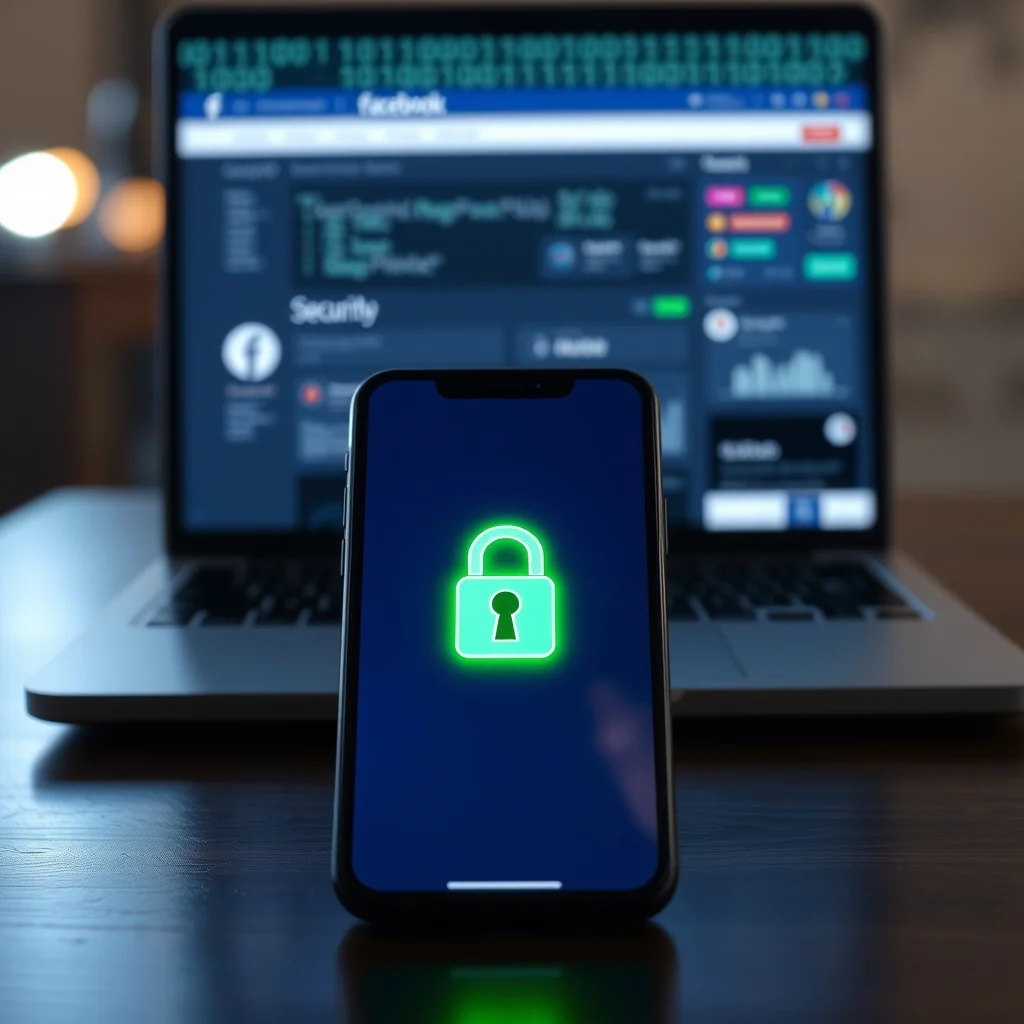
Two-factor authentication (2FA) adds a second layer of security beyond your password. Even if a hacker steals your password, they can’t access your account without the second factor—typically a code sent to your phone or generated by an app. This simple step reduces the risk of unauthorized access by over 99%. Facebook supports multiple 2FA methods, each with unique pros and cons.
📱 Setting up 2FA on Facebook
- Open your Facebook settings. Click the downward arrow at the top-right corner of any Facebook page, then select Settings & Privacy, followed by Settings.
- Navigate to Security and Login. In the left sidebar, click Security and Login.
- Enable Two-Factor Authentication. Under the Two-Factor Authentication section, click Edit. Choose your preferred method: Authentication App, Text Message (SMS), or Security Key.
- Follow the prompts. If using an authentication app like Google Authenticator or Authy, scan the QR code displayed on screen. If using SMS, enter the code sent to your phone. For a security key, plug in a USB key or use NFC for mobile devices.
- Backup codes. Facebook will provide a set of backup codes. Store these securely offline in a password manager or printed copy. These codes are your lifeline if you lose access to your 2FA device.
🔍 Choosing the Best 2FA Method
Each 2FA method has trade-offs in convenience, security, and reliability:
- ✅ Authentication Apps (e.g., Google Authenticator, Authy): Most secure, offline, and immune to SIM swapping. Highly recommended for users with multiple accounts.
- ⚠️ Text Message (SMS): Convenient but vulnerable to SIM swapping attacks, where attackers trick carriers into transferring your phone number.
- 🔐 Security Keys: Physical devices like YubiKey or Titan Security Key. Extremely secure but require purchasing a key and compatible device.
🔍 Step 2: Review Login Activity – Spot Suspicious Access Immediately
Facebook tracks every login attempt to your account, including device type, location, and IP address. Reviewing this log helps you detect unauthorized access before it escalates into a full breach. A sudden login from a new city or an unknown device is often the first sign of compromise.
🔎 How to Check Active Sessions
- Go to Security and Login. Open Settings & Privacy > Settings > Security and Login.
- Locate ‘Where You’re Logged In’. Under the Login section, click See more next to Where You’re Logged In.
- Analyze each session. Facebook displays a list of active logins, including devices, browsers, and approximate locations. Look for:
- 🌍 Unfamiliar locations or IP addresses from different countries.
- 📱 Unrecognized devices, especially mobile devices you don’t own.
- ⏱️ Old sessions that should no longer be active.
- Log out suspicious sessions. Click the three dots next to any unfamiliar session and select Log Out. If you see a login from a location you’ve never visited, consider resetting your password immediately.
🛑 What to Do If You Spot a Suspicious Login
If you notice an unauthorized login:
- Change your password immediately. Use a strong, unique password you haven’t used elsewhere.
- Enable 2FA if not already active. This prevents further unauthorized access.
- Revoke access to third-party apps. Go to Settings & Privacy > Settings > Apps and Websites. Remove any apps you don’t recognize or no longer use.
- Enable login alerts. Under Security and Login, turn on Get alerts about unrecognized logins. Facebook will notify you via email or push notification if a new device logs in.
🛡️ Step 3: Set Up Trusted Contacts – Your Account Recovery Lifeline
Trusted contacts are friends or family members you designate to help you regain access to your account if you’re locked out. This feature is especially useful if you lose access to your email or phone number linked to Facebook. Trusted contacts don’t have access to your account—they simply help you verify your identity during recovery.
👥 How to Add Trusted Contacts
- Open Security and Login. Go to Settings & Privacy > Settings > Security and Login.
- Find ‘Trusted Contacts’. Scroll to the Setting Up Extra Security section and click Edit next to Trusted Contacts.
- Choose your contacts. Facebook will prompt you to select 3 to 5 friends. These should be people you trust and have reliable access to their accounts and phones. Each contact must have their own Facebook account.
- Confirm your selection. After adding contacts, Facebook sends them a notification. They don’t need to do anything unless you request help.
🆘 How Trusted Contacts Work During Recovery
If you’re locked out of your account:
- Go to the Facebook login page and click Forgot Password?.
- Enter your phone number or email linked to your account.
- Follow the prompts to request help from trusted contacts.
- Facebook sends a unique recovery code to each trusted contact’s account.
- Contact each friend and collect the codes. Enter the codes on Facebook to regain access.
🎯 Step 4: Recognize and Avoid Phishing Scams – Don’t Take the Bait
Phishing remains the most common method hackers use to steal Facebook credentials. In 2026, attackers use advanced tactics like voice phishing (vishing), fake customer support calls, and deepfake videos to trick users. These scams often mimic official Facebook communications, including emails, messages, and even ads. Recognizing phishing attempts is critical to preventing account compromise.
📧 Common Phishing Scams Targeting Facebook Users
- 📧 Fake Login Pages: Emails or messages with links to websites that look identical to Facebook’s login screen but use a different URL (e.g., facebook-login.com instead of facebook.com).
- 📞 Vishing Calls: Automated calls claiming to be from Facebook support, asking you to “verify your account” or risk suspension.
- 💬 Fake Messenger Bots: Bots that send urgent messages like “Your account will be deleted in 24 hours—click here to save it.”
- 📱 Malicious Apps: Fake apps that promise features like “Facebook Dark Mode” but steal your login credentials.
- 🔗 Shortened URLs: Links in posts or messages that use services like Bit.ly to hide the real destination.
🔎 How to Identify a Phishing Attempt
Check the sender’s email address: Official Facebook emails come from @facebook.com or @fb.com. Be wary of addresses like support@facebook-security.com or noreply@meta-accounts.net.
Hover over links before clicking: On desktop, hover your mouse over a link to see the real URL. On mobile, long-press the link to preview it. If the URL doesn’t start with https://www.facebook.com/, it’s likely fake.
Look for poor grammar or urgency: Scammers often use urgent language like “Your account is suspended!” or “Immediate action required!” Official Facebook communications are professional and avoid pressure tactics.
Verify through official channels: If you receive an email or message about your account, log in directly to Facebook (not via the link) and check your settings or notifications.
🛑 What to Do If You Click a Phishing Link
If you realize you’ve entered your password on a fake site:
- Change your Facebook password immediately. Use a different device if possible to avoid session hijacking.
- Enable 2FA if not already active. This locks down your account even if the password is compromised.
- Scan your device for malware. Use a trusted antivirus tool like Malwarebytes or Windows Defender to check for keyloggers or spyware.
- Review connected apps. Go to Settings & Privacy > Settings > Apps and Websites and remove any unrecognized apps.
- Report the phishing page. Forward the email to phish@fb.com or report the link via Facebook’s help center.
🔗 Step 5: Secure Linked Apps and Payment Methods – Close the Backdoors
Many users link their Facebook account to third-party apps for convenience—games, shopping platforms, or productivity tools. However, these integrations create additional attack vectors. A compromised app can access your Facebook data or even charge purchases to your linked payment method. Securing these connections is essential for full account protection.
🔍 Reviewing Connected Apps and Websites
- Open Apps and Websites settings. Go to Settings & Privacy > Settings > Apps and Websites.
- Analyze the list. Facebook displays apps you’ve used to log in, including games like Candy Crush, shopping apps, and business tools. Look for:
- 🔴 Apps you don’t recognize or no longer use
- 💳 Apps with access to your payment information
- 📊 Apps that request excessive permissions (e.g., access to your friends list or private messages)
- Remove or edit permissions. Select an app and click Remove to disconnect it. If you want to keep it, click View and Edit to revoke specific permissions like access to your profile or friends list.
- Disable app login entirely. Under Preferences, you can disable Apps, Websites and Plugins to prevent any future logins via Facebook.
💳 Managing Linked Payment Methods
Facebook allows you to save payment methods for ads, games, or in-app purchases. These details are a prime target for hackers. To secure them:
- Go to Payment Settings. Navigate to Settings & Privacy > Settings > Facebook Pay.
- Remove unused cards. Click Manage Payment Methods and delete any cards you no longer use.
- Update saved cards. If you must keep a card, ensure the billing address is correct and the card is not expired.
- Enable transaction alerts. Turn on email or SMS notifications for any purchases made using your Facebook Pay account.
📱 Step 6: Use a Password Manager – Eliminate Weak Password Risks
A password manager generates, stores, and fills in strong, unique passwords for every account. This eliminates the risk of reusing passwords across sites—a common cause of account breaches. In 2026, password managers have evolved to include features like breach monitoring, secure sharing, and emergency access, making them indispensable tools for digital security.
🔐 Setting Up a Password Manager
Popular options include Bitwarden, 1Password, and KeePass. Here’s how to get started with Bitwarden:
- Create a Bitwarden account. Visit bitwarden.com and sign up. Choose a strong master password—this is the only password you need to remember.
- Install the browser extension or mobile app. Bitwarden offers extensions for Chrome, Firefox, and Edge, as well as apps for iOS and Android.
- Autofill your Facebook password. Log in to Facebook as usual. Bitwarden will prompt you to save the password. Next time, it will autofill the login fields securely.
- Generate a strong password. When changing your Facebook password, use Bitwarden’s password generator to create a 16+ character password with symbols and numbers.
- Enable two-factor authentication for the password manager. Add an extra layer of security by enabling 2FA on your password manager account.
🔍 Benefits of Using a Password Manager
- ✅ Prevents password reuse across websites, reducing the impact of data breaches.
- 🛡️ Protects against keyloggers by autofilling passwords instead of typing them.
- 📈 Monitors for breaches using services like Have I Been Pwned to alert you if your password is exposed.
- 🔄 Syncs across devices so you have access to all passwords everywhere.
🔄 Step 7: Regularly Update Your Recovery Information – Stay Connected
Facebook allows you to add multiple recovery options, including email addresses and phone numbers. These are crucial for regaining access if you forget your password or get locked out. However, recovery information can become outdated—especially if you change phone numbers or email providers. Regularly updating this data ensures you’re never permanently locked out of your account.
📧 Managing Recovery Email Addresses
- Open Settings and Privacy. Go to Settings & Privacy > Settings.
- Navigate to Contact Information. Click Contact in the left sidebar.
- Add or update emails. Under Email, click Add Another Email or edit existing entries. Make sure at least one email is active and accessible.
- Verify new emails. Facebook sends a verification link to each new email. Click the link to confirm ownership.
📱 Updating Phone Numbers
Phone numbers are used for password resets and 2FA via SMS. To update yours:
- Go to Contact Information. Open Settings > Contact.
- Edit phone number. Click Add a Phone Number or edit the existing one.
- Confirm the new number. Facebook sends a verification code via SMS. Enter the code to complete the update.
- Remove old numbers. Delete outdated numbers to prevent confusion during recovery.
🛠️ Step 8: Enable Login Alerts – Get Notified Before It’s Too Late
Login alerts notify you whenever someone logs in to your Facebook account from a new device or browser. These alerts are sent via email, push notification, or SMS, depending on your settings. Receiving an alert about a login you didn’t initiate is often the first sign of a compromised account. Enabling this feature is a simple yet powerful way to stay vigilant.
🔔 Configuring Login Alerts
- Open Security and Login. Go to Settings & Privacy > Settings > Security and Login.
- Find Login Alerts. Under the Setting Up Extra Security section, locate Get alerts about unrecognized logins.
- Choose notification method. Select how you want to receive alerts:
- 📱 Push notification (via the Facebook app)
- 📟 SMS (if a phone number is linked)
- Save changes. Click Save Changes to activate alerts.
🚨 What to Do When You Receive a Login Alert
If you get an alert about a login you didn’t initiate:
- Don’t panic. Check the device and location details in the alert.
- Change your password immediately. Use a different device if possible.
- Log out the suspicious session. Go to Where You’re Logged In and log out any unfamiliar devices.
- Enable 2FA if not active. This prevents further unauthorized access.
- Scan your device for malware. Run a full antivirus scan to check for keyloggers or spyware.
🔧 Troubleshooting: How to Recover a Hacked Facebook Account
Even with robust security measures, account compromise can still occur. If you suspect your account has been hacked, act quickly to minimize damage. Facebook provides several recovery options, but success depends on how quickly you respond and the security measures you’ve already put in place.
🛑 Signs Your Account Has Been Hacked
- 🚫 You can’t log in despite entering the correct password.
- 📱 Unknown posts or messages appear in your name.
- 📧 Password reset emails you didn’t request.
- 🔗 Unfamiliar apps appear in your Apps and Websites list.
- 💬 Friends report receiving scams or spam from you.
🆘 Recovery Steps If Locked Out
- Go to the Facebook login page. Click Forgot Password?.
- Enter your email, phone number, or username. Use a recovery method you’ve previously set up.
- Choose how to reset your password. Facebook offers options to reset via email, SMS, or trusted contacts.
- Follow the instructions. If using trusted contacts, contact each friend to collect the recovery codes.
- Set a new password. Choose a strong, unique password you haven’t used before.
- Enable 2FA and review security settings. Once logged in, go to Security and Login and activate 2FA and login alerts.
- Check for suspicious activity. Review Where You’re Logged In and Apps and Websites to remove any unauthorized access.
🔄 What If Facebook Won’t Let Me Recover My Account?
In rare cases, Facebook may block recovery due to suspicious activity or policy violations. If this happens:
- Visit the Facebook Help Center. Go to facebook.com/help and search for “account recovery.”
- Use the appeal form. Submit an appeal explaining your situation. Provide as much detail as possible, including the email and phone number linked to your account.
- Contact Facebook Support directly. Use the Report a Problem option in the Help Center or reach out via Twitter (@fbcompliance) for urgent cases.
🔐 Additional Security Measures for Advanced Users
For users with high-value accounts—such as influencers, business owners, or activists—standard security measures may not be enough. Advanced users can implement additional layers of protection to further harden their accounts against attacks.
🔐 Using a VPN for Added Privacy
A Virtual Private Network (VPN) encrypts your internet traffic and masks your IP address. This prevents hackers from tracking your location or intercepting data on public Wi-Fi networks. When logging in to Facebook, always use a VPN, especially on unsecured networks like coffee shop Wi-Fi. Popular VPNs include NordVPN, ExpressVPN, and ProtonVPN.
🛡️ Enabling Security Keys for 2FA
Security keys are physical devices like YubiKey or Google Titan that provide the highest level of 2FA security. These keys use cryptographic protocols to verify your identity and are immune to phishing attacks that target SMS or authentication apps. To set up a security key:
- Purchase a compatible key. Ensure it supports FIDO2/WebAuthn standards.
- Go to Security and Login. Open Settings & Privacy > Settings > Security and Login.
- Add a security key. Under Two-Factor Authentication, click Add Method and select Security Key. Follow the prompts to register your key.
- Test the key. Log out and log back in using the security key to ensure it works correctly.
🔍 Monitoring Account Activity with Third-Party Tools
Third-party tools like Have I Been Pwned and DeHashed monitor the dark web for leaked credentials. By entering your email address, you can check if your Facebook password has been exposed in a data breach. If a breach is detected, change your password immediately and enable 2FA. Tools like Bitdefender Digital Identity Protection also monitor social media for impersonation attempts.
📊 Comparing Facebook’s Security Features: What’s Worth Using?
Facebook offers a range of security features, but not all are equally effective or necessary for every user. This table compares the most important features based on security level, ease of use, and reliability.
| Feature | Security Level | Ease of Use | Reliability | Best For |
|---|---|---|---|---|
| Two-Factor Authentication (2FA) | High | Medium | High | All users |
| Login Alerts | Medium | High | High | Users who want real-time notifications |
| Trusted Contacts | Medium | Low | Medium | Users without reliable 2FA access |
| Security Keys | Very High | Medium | Very High | High-value accounts, advanced users |
| Password Manager | High | High | High | All users, especially those with multiple accounts |
| VPN Usage | High | Medium | Medium | Users on public Wi-Fi or with privacy concerns |
Analysis: Two-factor authentication is the most universally effective feature, reducing compromise risk by over 99%. Security keys offer the highest security but require additional investment and setup. Login alerts are easy to enable and provide immediate value for detecting unauthorized access. Trusted contacts are less reliable due to dependency on others’ availability but can be a lifeline in emergencies. Password managers and VPNs provide foundational security layers that benefit all users regardless of account value.
🎯 Frequently Asked Questions (FAQs)
- What should I do if I receive a phishing email claiming to be from Facebook?
Do not click any links or download attachments. Forward the email to phish@fb.com and delete it. If you entered your password on a fake site, change your Facebook password immediately and enable 2FA.
- Is it safe to save my password in my browser?
While convenient, browser-stored passwords are vulnerable if your device is compromised. Use a dedicated password manager instead, which encrypts passwords and provides breach monitoring.
- How often should I change my Facebook password?
Change your password every 6 to 12 months, or immediately if you suspect compromise. Use a strong, unique password and enable 2FA to reduce risk.
- Can hackers access my Facebook account even with 2FA enabled?
Enabling 2FA significantly reduces the risk, but not 100%. Attackers could trick you into revealing the 2FA code via phishing or use SIM swapping to intercept SMS codes. Use authentication apps or security keys for maximum security.
- What is the difference between Facebook’s 2FA methods?
SMS 2FA is convenient but vulnerable to SIM swapping. Authentication apps are more secure and offline. Security keys are the most secure but require purchasing a physical device. Choose the method that balances security and convenience for your needs.
- How can I tell if my Facebook account has been compromised?
Look for unfamiliar posts, messages, or apps in your account. Check Where You’re Logged In for suspicious sessions. If you receive password reset emails you didn’t request, your account may be compromised.
- What happens if I lose my phone used for 2FA?
If you lose your phone, you can use backup codes to log in. Store these codes securely offline. Alternatively, use an authentication app on a secondary device or a security key as a backup.
- Can I use a work email for Facebook recovery if I no longer have access to my personal email?
Yes, but ensure the work email is accessible and you have permission to use it for personal recovery. Update your recovery email as soon as possible to avoid future issues.
- Is Facebook’s account recovery process reliable?
Facebook’s recovery process works well for most users but can be unreliable for accounts linked to outdated information. Always keep your recovery email and phone number updated. If recovery fails, contact Facebook Support directly via the Help Center.
- Should I disable Facebook’s app platform entirely?
Disabling the app platform prevents third-party logins, reducing attack vectors. However, it also removes convenience for apps you trust. Instead, review and remove untrusted apps regularly while keeping trusted ones secure.
🏁 Final Verdict: Your Path to a Fully Secured Facebook Account
Securing your Facebook account isn’t a one-time task—it’s an ongoing commitment to vigilance and proactive measures. By enabling two-factor authentication, reviewing login activity, setting up trusted contacts, and recognizing phishing scams, you create multiple layers of defense against hacking attempts. Regularly updating your recovery information, managing linked apps, and using a password manager further strengthen your account’s resilience.
Remember, the most common cause of account compromise is human error—clicking a malicious link or entering credentials on a fake site. Stay alert, verify everything, and never share your password or 2FA codes. If your account is hacked, act quickly using Facebook’s recovery tools and enable 2FA immediately to prevent future breaches.
Start today: go to your Facebook Security and Login settings and enable 2FA. It only takes a few minutes but can save you from weeks of recovery stress. Your digital identity deserves the same level of protection as your physical one. Take control now—before it’s too late.
📌 Summary: Quick Security Checklist
- ✅ Enable two-factor authentication (2FA) using an authentication app or security key.
- ✅ Review login activity weekly for suspicious sessions.
- ✅ Set up 3 to 5 trusted contacts for account recovery.
- ✅ Recognize phishing scams by checking sender addresses and URLs.
- ✅ Remove unused third-party apps and revoke unnecessary permissions.
- ✅ Use a password manager to generate and store strong, unique passwords.
- ✅ Update recovery email and phone number regularly.
- ✅ Enable login alerts to receive real-time notifications of new logins.
- ✅ Use a VPN on public Wi-Fi to encrypt your connection.
- ✅ Change your password every 6 to 12 months or immediately after any suspected breach.
By following this comprehensive guide, you transform your Facebook account from a vulnerable target into a fortified stronghold. Security isn’t just about tools—it’s about habits. Make these practices part of your routine, and you’ll stay one step ahead of hackers and scammers in 2026 and beyond.