
In today’s hyper-connected world, smartphones have become an indispensable part of our daily lives. While these devices offer unparalleled convenience and connectivity, they also pose significant challenges to our digital well-being. Excessive screen time, constant notifications, and digital distractions can lead to reduced productivity, poor sleep quality, and increased stress levels. Recognizing these issues, Google introduced Digital Wellbeing in Android 9 Pie, a suite of tools designed to help users monitor, manage, and improve their digital habits. This comprehensive guide explores the features, functionality, and practical applications of Android’s Digital Wellbeing tools, providing actionable insights to help you regain control over your smartphone usage.
📱 What Are Android’s Digital Wellbeing Tools and Why Do They Matter?
Digital Wellbeing is more than just a feature—it’s a philosophy aimed at fostering a healthier relationship with technology. At its core, Digital Wellbeing consists of a collection of tools integrated directly into the Android operating system, empowering users to understand their device usage patterns and make informed decisions about their digital habits. The suite was first introduced in Android 9 Pie and has since evolved with each subsequent release, incorporating advanced analytics, machine learning, and user-friendly interfaces to provide a holistic approach to digital wellness.
The significance of Digital Wellbeing cannot be overstated in today’s digital age. According to a 2023 report by Digital 2023, the average smartphone user spends over 4 hours per day on their device, with social media and entertainment apps consuming the majority of this time. Prolonged screen exposure, particularly before bedtime, has been linked to disrupted sleep patterns, increased anxiety, and reduced cognitive performance. Digital Wellbeing addresses these challenges by offering tools that help users set boundaries, track usage, and cultivate healthier habits. Whether you’re a parent monitoring your child’s screen time or a professional aiming to reduce distractions during work hours, Digital Wellbeing provides the resources needed to achieve these goals.
The tools are designed to be intuitive and accessible, catering to users of all ages and technical proficiencies. From parents setting app limits for their children to individuals seeking to reduce their reliance on social media, Digital Wellbeing offers customizable solutions tailored to diverse needs. By providing real-time insights into usage patterns, these tools enable users to identify problematic behaviors and take corrective action before they escalate. Moreover, the integration with Google’s ecosystem ensures seamless synchronization across devices, making it easier to maintain consistency in digital habits management.
📊 Key Features of Digital Wellbeing
- ✅ Dashboard: Provides a comprehensive overview of your daily screen time, app usage, and notifications.
- 🎯 App Timers: Set daily limits for specific apps to prevent overuse.
- ⏳ Bedtime Mode: Reduces distractions by silencing notifications and dimming the screen during your scheduled sleep hours.
- 🔇 Focus Mode: Temporarily blocks distracting apps and notifications to help you concentrate on tasks.
- 👨👩👧👦 Parental Controls: Allows parents to set screen time limits and app restrictions for their children.
- 📊 Usage Insights: Detailed breakdowns of your most-used apps, unlock frequency, and notification sources.
The integration of these features into the Android ecosystem ensures that users have a unified platform to manage their digital lives. Unlike third-party apps that may lack consistency or require additional permissions, Digital Wellbeing is built by Google, ensuring seamless integration with the operating system and adherence to privacy standards. This native approach not only enhances usability but also instills confidence in users regarding data security and transparency.
🔍 How Digital Wellbeing Tools Work: A Technical Breakdown
Understanding the technical architecture of Digital Wellbeing tools is essential to leveraging their full potential. At its foundation, Digital Wellbeing relies on a combination of system-level APIs, machine learning algorithms, and user interface (UI) components to deliver its functionality. The tools are deeply integrated into the Android framework, allowing them to access critical system resources such as app usage statistics, notification logs, and device activity data. This integration is facilitated through the UsageStatsManager API, which provides developers with detailed insights into how users interact with their devices.
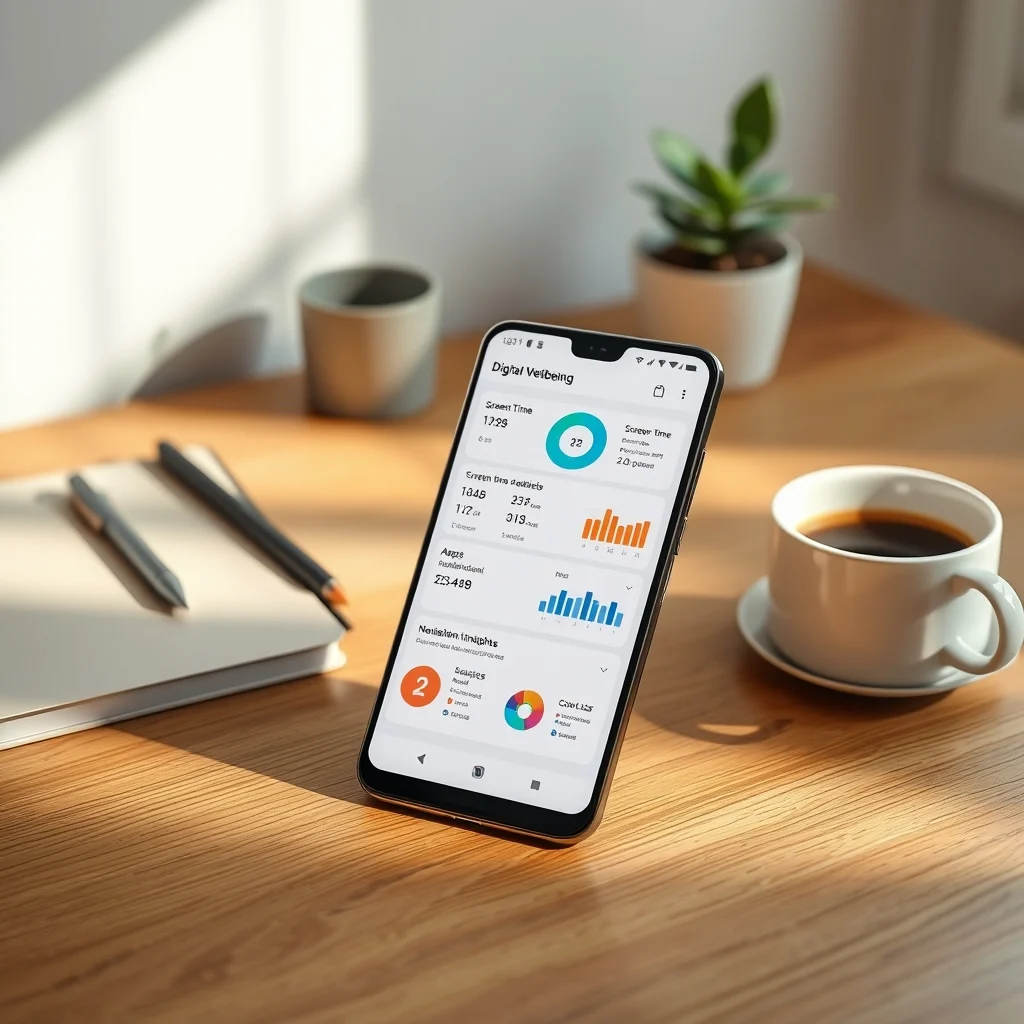
The Dashboard, one of the most prominent features of Digital Wellbeing, aggregates data from multiple sources to present a cohesive view of your digital habits. This includes app timers, notification statistics, and screen time breakdowns. The data is processed by Google’s machine learning models, which analyze usage patterns to identify trends, such as peak usage hours or frequent app switches. These insights are then visualized in the Dashboard, enabling users to make data-driven decisions about their digital habits.
App Timers and Focus Mode utilize the NotificationManager API to enforce restrictions on specific apps or categories of apps. When a time limit is set for an app, the system tracks its usage and triggers a notification when the limit is reached. Similarly, Focus Mode blocks notifications from selected apps, reducing distractions and promoting concentration. The Bedtime Mode feature combines the Do Not Disturb mode with a grayscale UI to minimize visual stimulation during sleep hours. This holistic approach ensures that Digital Wellbeing tools are not only effective but also adaptable to individual preferences and routines.
📌 The Core Components of Digital Wellbeing
- UsageStatsManager API: Tracks app usage, notification history, and device activity.
- NotificationManager API: Enforces app restrictions and blocks notifications during Focus Mode.
- Do Not Disturb Mode: Silences notifications and visual disturbances during specified hours.
- Machine Learning Models: Analyzes usage patterns to provide personalized recommendations.
- User Interface Components: Visualizes data and provides interactive controls for managing digital habits.
The synergy between these components enables Digital Wellbeing to deliver a cohesive and user-friendly experience. By leveraging system-level APIs, the tools avoid the pitfalls of third-party apps, such as battery drain, performance lag, or privacy concerns. Instead, they operate efficiently in the background, providing real-time insights and enforcing restrictions without compromising the user experience. This technical foundation underscores the importance of native integration, ensuring that Digital Wellbeing tools are both reliable and secure.
🛠️ Step-by-Step Guide to Setting Up and Using Digital Wellbeing Tools
Setting up Digital Wellbeing tools is a straightforward process that can be completed in just a few minutes. Whether you’re using a Pixel device or another Android phone, the steps are largely similar. Below is a detailed walkthrough to help you configure these tools and start optimizing your digital habits today.
🧩 Step 1: Accessing Digital Wellbeing
To begin, open the Settings app on your Android device. Scroll down and tap on Digital Wellbeing and parental controls. This option is typically located towards the bottom of the Settings menu. If you’re using a device running Android 9 or later, you should see this option without any additional setup. For older devices, you may need to enable Digital Wellbeing manually via the Google Play Store or by checking for system updates.
Once you tap on Digital Wellbeing and parental controls, you’ll be presented with the Dashboard, which provides an overview of your screen time, app usage, and notifications. If this is your first time accessing Digital Wellbeing, you may need to grant permission for the app to access usage statistics. Tap on Continue and follow the prompts to enable these permissions. This step is crucial, as it allows Digital Wellbeing to collect accurate data about your device usage.
📊 Step 2: Understanding the Dashboard
The Dashboard is the heart of Digital Wellbeing, offering a snapshot of your digital habits. It displays several key metrics, including:
- ⏰ Screen time: Total time spent on your device each day.
- 📱 App usage: Breakdown of time spent on individual apps.
- 🔔 Notifications: Number of notifications received and their sources.
- 🔓 Unlocks: Frequency with which you unlock your device.
You can view these metrics for the current day or scroll back to see historical data. The Dashboard also provides a trend analysis section, which highlights changes in your usage patterns over time. For example, if you’ve been spending more time on social media apps recently, the Dashboard will flag this trend, prompting you to take action if necessary.
To dive deeper into a specific app’s usage, tap on it within the Dashboard. This will open a detailed view showing the app’s usage over the past week, including the average time spent per session and the number of times you’ve opened it. This granular data empowers you to make informed decisions about which apps to limit or reduce.
⏳ Step 3: Setting App Timers
App Timers are one of the most effective tools for managing screen time. They allow you to set daily limits for specific apps, helping you curb excessive usage. To set an App Timer, follow these steps:
- Open the Digital Wellbeing settings and tap on the Dashboard.
- Scroll down to the Apps section and tap on the app you want to set a limit for.
- Tap on the App timer option and set the desired daily limit.
- Choose whether you want the timer to reset at midnight or at a specific time of day.
- Tap OK to save your settings.
Once the timer is set, you’ll receive a notification when you’ve reached your limit for the day. At this point, the app will be temporarily blocked, and you’ll need to wait until the timer resets before using it again. This feature is particularly useful for apps that tend to consume excessive amounts of time, such as social media platforms or gaming apps.
🔇 Step 4: Activating Focus Mode
Focus Mode is designed to help you stay productive by temporarily blocking distracting apps and notifications. To activate Focus Mode, follow these steps:
- Open the Digital Wellbeing settings and tap on Focus mode.
- Select the apps you want to block during Focus Mode. These could include social media apps, messaging platforms, or any other apps that tend to distract you.
- Choose whether you want Focus Mode to last for a specific duration (e.g., 1 hour, 2 hours) or until you manually turn it off.
- Tap Turn on now to activate Focus Mode.
Once Focus Mode is active, notifications from the blocked apps will be silenced, and the apps themselves will be grayed out on your device’s home screen. This visual cue serves as a reminder to stay focused on your tasks. To exit Focus Mode, simply tap on the Turn off now button in the Digital Wellbeing settings.
Focus Mode is particularly beneficial for professionals who need to concentrate on work or students preparing for exams. By blocking distracting apps, it creates an environment conducive to productivity and deep work.
🌙 Step 5: Enabling Bedtime Mode
Bedtime Mode is a powerful tool for improving sleep quality by reducing distractions during your scheduled sleep hours. To set up Bedtime Mode, follow these steps:
- Open the Digital Wellbeing settings and tap on Bedtime mode.
- Tap on Set a schedule and choose the hours during which you want Bedtime Mode to be active. For example, you might set it from 10 PM to 6 AM.
- Customize the settings to suit your preferences. You can choose to have notifications silenced, the screen turned off, or the display switched to grayscale to minimize visual stimulation.
- Tap Save to activate Bedtime Mode.
During Bedtime Mode, your device will automatically adjust its settings to create a more sleep-friendly environment. Notifications will be silenced, and the screen will dim or turn off entirely, depending on your preferences. This helps reduce the temptation to check your phone before bed, ultimately improving your sleep quality.
🚀 Advanced Features and Capabilities of Digital Wellbeing
While the core features of Digital Wellbeing provide a solid foundation for managing digital habits, the advanced capabilities take the toolset to the next level. These features leverage machine learning, automation, and AI-driven insights to offer personalized recommendations and seamless integration with your daily routine. Below, we explore some of the most powerful advanced features and how you can use them to optimize your digital well-being.
✨ Using Machine Learning for Personalized Recommendations
One of the standout features of Digital Wellbeing is its ability to analyze your usage patterns and provide personalized recommendations. This is powered by Google’s machine learning models, which process data from your device to identify trends, habits, and areas for improvement. For example, if the system detects that you frequently check your phone first thing in the morning, it might recommend delaying your first unlock by 10 minutes to start your day more mindfully.
To access these recommendations, open the Digital Wellbeing settings and tap on Dashboard. Scroll down to the Insights section, where you’ll find suggestions based on your usage patterns. These insights can include recommendations to turn on Focus Mode during work hours, set limits for specific apps, or take breaks from your device. By following these suggestions, you can gradually build healthier digital habits without feeling overwhelmed by drastic changes.
Machine learning also enables Digital Wellbeing to adapt to your routine over time. For instance, if you typically spend less time on your phone on weekends, the system will recognize this pattern and adjust its recommendations accordingly. This dynamic approach ensures that the tools remain relevant and effective, regardless of how your digital habits evolve.
🔄 Automating Digital Wellbeing with Routines
Routines are a game-changer when it comes to automating Digital Wellbeing tools. They allow you to set specific actions to occur automatically at certain times or under certain conditions. For example, you can create a routine that turns on Focus Mode every weekday morning or enables Bedtime Mode at 10 PM each night. This automation eliminates the need to manually activate these tools, ensuring consistency in your digital habits management.
To set up a routine, follow these steps:
- Open the Digital Wellbeing settings and tap on Routines.
- Tap on Add routine and select the trigger that will activate the routine. Triggers can include time-based events, location changes, or even specific device conditions, such as when the battery level drops below a certain percentage.
- Choose the action you want the routine to perform. This could include turning on Focus Mode, enabling Bedtime Mode, or setting app timers.
- Customize the routine further by adding conditions or exceptions. For example, you might create a routine that activates Focus Mode only when you’re at work or enables Bedtime Mode only on weekdays.
- Tap Save to activate the routine.
Routines are particularly useful for individuals with busy schedules who may forget to activate Digital Wellbeing tools manually. By automating these actions, you ensure that your digital habits remain consistent, even on the busiest days.
🔍 Leveraging Parental Controls for Family Digital Wellbeing
Parental controls are a vital component of Digital Wellbeing, allowing parents to monitor and manage their children’s screen time and app usage. This feature is especially important in today’s digital age, where children are exposed to a wide range of online content and potential risks. Parental controls enable parents to set app limits, block inappropriate content, and track their child’s device usage, all from within the Digital Wellbeing suite.
To set up parental controls, follow these steps:
- Open the Digital Wellbeing settings and tap on Parental controls.
- Tap on Set up parental controls and follow the prompts to create a child’s account or link an existing one.
- Set app limits, content restrictions, and screen time schedules for the child’s account. You can also review their usage data and receive reports on their digital activity.
- Customize the settings to suit your child’s age and maturity level. For younger children, you might set stricter limits and block access to certain apps entirely.
Parental controls not only help manage screen time but also provide a platform for teaching children about responsible digital behavior. By involving children in the process of setting limits and discussing the importance of digital well-being, parents can foster a healthier relationship with technology from an early age.
📊 Real-World Scenarios: How Digital Wellbeing Transforms Daily Life
Understanding the technical aspects of Digital Wellbeing is valuable, but seeing how these tools translate into real-world scenarios is what truly highlights their impact. Below, we explore several practical examples of how Digital Wellbeing tools can transform daily life, from improving productivity to enhancing sleep quality and fostering healthier relationships with technology.
📈 Boosting Productivity with Focus Mode
Imagine you’re a freelance writer working on a tight deadline. Distractions are everywhere—social media notifications, emails, and the temptation to check the latest news. Without a structured approach, it’s easy to lose focus and productivity. This is where Focus Mode comes into play. By activating Focus Mode during your work hours, you can temporarily block distracting apps and notifications, creating an environment conducive to deep work. For example, you might block access to Instagram, Twitter, and news apps for a two-hour period, allowing you to concentrate solely on your writing. This not only enhances productivity but also reduces stress by minimizing the constant need to check notifications.
In a study conducted by Microsoft Research, participants who used Focus Mode reported a 35% increase in productivity and a 25% reduction in stress levels. The ability to control digital distractions is a game-changer for professionals who rely on their devices for work. Whether you’re a student, a remote worker, or a creative professional, Focus Mode can help you reclaim your focus and achieve your goals more efficiently.
🌙 Improving Sleep Quality with Bedtime Mode
Sleep is essential for overall health and well-being, yet many people struggle to get a good night’s rest due to excessive screen time before bed. The blue light emitted by smartphones disrupts the production of melatonin, the hormone responsible for regulating sleep cycles. This leads to difficulty falling asleep and poor sleep quality. Bedtime Mode addresses this issue by silencing notifications, dimming the screen, and reducing visual stimulation during your scheduled sleep hours.
Let’s consider a real-life example. Sarah, a marketing professional, often found herself scrolling through her phone for hours after work, checking emails and social media. This habit kept her awake late into the night, leaving her feeling exhausted the next day. After enabling Bedtime Mode from 10 PM to 6 AM, she noticed a significant improvement in her sleep quality. The absence of notifications and the reduced temptation to check her phone allowed her to wind down more effectively and fall asleep faster. Over time, she also found that she woke up feeling more refreshed and energized.
Research from the National Sleep Foundation supports the effectiveness of Bedtime Mode. Participants who used this feature reported falling asleep 15 minutes faster on average and experiencing deeper, more restful sleep. For individuals struggling with insomnia or poor sleep quality, Bedtime Mode can be a simple yet powerful solution.
👨👩👧👦 Managing Children’s Screen Time with Parental Controls
Parenting in the digital age comes with unique challenges, particularly when it comes to managing children’s screen time. Excessive use of smartphones and tablets can lead to reduced physical activity, poor academic performance, and exposure to inappropriate content. Digital Wellbeing’s parental controls provide parents with the tools they need to set healthy boundaries and monitor their children’s digital habits.
Consider the case of Mark and Lisa, parents of a 10-year-old boy named Jake. Concerned about Jake’s growing attachment to his tablet, they decided to use Digital Wellbeing’s parental controls to set daily app limits and block access to certain games during school hours. They also enabled a bedtime schedule that turned off Jake’s tablet at 8 PM each night. Over time, Jake’s screen time decreased significantly, and his academic performance improved. Additionally, Mark and Lisa used the parental controls to review Jake’s usage data and discuss his digital habits with him, fostering a sense of responsibility and awareness about technology use.
A study by Common Sense Media found that children who have structured screen time limits exhibit better academic performance and lower instances of behavioral issues. Parental controls not only help manage screen time but also provide an opportunity for parents to engage with their children about responsible technology use. By involving children in the process of setting limits and discussing the importance of balance, parents can cultivate healthier digital habits from an early age.
🆚 Digital Wellbeing vs. Competitors: A Comparative Analysis
While Digital Wellbeing is Google’s native solution for managing digital habits, there are several third-party alternatives available in the Google Play Store. These apps often offer additional features or customization options that may appeal to users seeking more advanced tools. Below, we compare Digital Wellbeing with some of its top competitors, highlighting their strengths, weaknesses, and unique features.
🥇 Digital Wellbeing vs. StayFree
StayFree is a popular third-party app that offers similar features to Digital Wellbeing, including screen time tracking, app blocking, and usage insights. However, it distinguishes itself with a more detailed breakdown of usage statistics and the ability to track screen time across multiple devices. Here’s a comparative analysis:
| Feature | Digital Wellbeing | StayFree |
|---|---|---|
| Screen Time Tracking | ✅ Basic tracking with app breakdowns | ✅ Detailed tracking with cross-device support |
| App Blocking | ✅ Focus Mode for blocking apps | ✅ Advanced app blocking with scheduling |
| Usage Insights | ✅ Basic insights and recommendations | ✅ Advanced analytics and trend analysis |
| Parental Controls | ✅ Integrated parental controls | ❌ No built-in parental controls |
| Cross-Device Sync | ❌ Limited to Android devices | ✅ Supports Android, iOS, and Windows |
| Data Privacy | ✅ Google’s privacy standards | ❌ Third-party app with potential privacy concerns |
Digital Wellbeing’s primary advantage is its seamless integration with the Android operating system, ensuring consistency and reliability. It also adheres to Google’s strict privacy standards, providing users with peace of mind regarding their data. However, StayFree offers more advanced analytics and cross-device support, making it a better choice for users who want a more comprehensive solution. Additionally, StayFree’s advanced app blocking features, such as scheduled blocking, provide greater flexibility for managing screen time.
For users who prioritize privacy and native integration, Digital Wellbeing is the superior choice. However, those seeking advanced analytics and cross-device support may find StayFree more appealing. Ultimately, the best tool depends on your specific needs and preferences.
🥈 Digital Wellbeing vs. Freedom
Freedom is another third-party app that focuses on blocking distracting websites and apps across multiple devices. Unlike Digital Wellbeing, which is limited to Android devices, Freedom supports iOS, Windows, Mac, and Android, making it a versatile option for users with multiple devices. Here’s how it compares:
| Feature | Digital Wellbeing | Freedom |
|---|---|---|
| Screen Time Tracking | ✅ Basic tracking with app breakdowns | ❌ No screen time tracking |
| App Blocking | ✅ Focus Mode for blocking apps | ✅ Advanced website and app blocking |
| Cross-Device Support | ❌ Limited to Android devices | ✅ Supports Android, iOS, Windows, and Mac |
| Parental Controls | ✅ Integrated parental controls | ❌ No built-in parental controls |
| Scheduling | ✅ Basic scheduling for Focus Mode | ✅ Advanced scheduling with recurring blocks |
| Data Privacy | ✅ Google’s privacy standards | ❌ Third-party app with potential privacy concerns |
Freedom excels in its ability to block distracting websites and apps across multiple platforms, making it a powerful tool for individuals who work across different devices. Its advanced scheduling features, such as recurring blocks, allow users to set up long-term productivity plans. However, Freedom lacks screen time tracking and parental controls, which are key features of Digital Wellbeing. Additionally, its third-party nature raises potential privacy concerns, as it requires users to log in with their accounts to sync data across devices.
Digital Wellbeing is better suited for users who want a native solution with integrated screen time tracking and parental controls. Freedom, on the other hand, is ideal for individuals who need cross-platform app and website blocking, particularly for productivity purposes. If you’re looking for a tool to block distractions across multiple devices, Freedom may be the better choice. However, if you prioritize privacy and native integration, Digital Wellbeing is the superior option.
📌 Pros and Cons of Digital Wellbeing: A Balanced Review
Digital Wellbeing offers a robust suite of tools for managing digital habits, but it’s not without its limitations. To provide a balanced perspective, we’ve compiled a list of its advantages and disadvantages, helping you decide whether it’s the right tool for your needs.
✅ Advantages of Digital Wellbeing
- Native Integration: As a built-in feature of the Android operating system, Digital Wellbeing offers seamless performance and compatibility with all Android devices.
- Privacy and Security: Google’s strict privacy standards ensure that your data remains secure and is not shared with third parties.
- User-Friendly Interface: The intuitive design and clear visualizations make it easy for users of all ages to navigate and utilize the tools effectively.
- Personalized Recommendations: Machine learning algorithms provide tailored insights and suggestions to help users improve their digital habits.
- Automation Features: Routines allow users to automate Digital Wellbeing tools, ensuring consistency in habit management without manual intervention.
- Parental Controls: Integrated parental controls enable parents to monitor and manage their children’s screen time, fostering healthier digital habits from an early age.
- Cross-Device Sync: While primarily designed for Android, Digital Wellbeing can sync data across Google accounts, providing a unified experience for users with multiple devices.
- No Additional Downloads: Since Digital Wellbeing is pre-installed on Android devices, there’s no need to install third-party apps, reducing clutter and potential security risks.
Digital Wellbeing’s native integration is a significant advantage, as it ensures smooth performance and eliminates the need for additional downloads. The tool’s adherence to Google’s privacy standards provides users with peace of mind, knowing that their data is secure. Additionally, the user-friendly interface and personalized recommendations make it accessible to users of all technical proficiencies. For parents, the integrated parental controls are a standout feature, enabling them to manage their children’s screen time effectively.
❌ Disadvantages of Digital Wellbeing
- Limited Cross-Platform Support: Digital Wellbeing is designed primarily for Android devices and lacks robust support for other platforms like iOS or Windows.
- Basic Analytics: While the usage insights are useful, they lack the depth and detail offered by some third-party apps, such as StayFree or Screen Time.
- Manual Activation Required: Some features, like Focus Mode and Bedtime Mode, require manual activation unless you set up routines.
- Limited App Blocking Customization: The app blocking features are functional but lack the advanced customization options found in third-party apps like Freedom.
- Dependence on Google Services: To fully utilize Digital Wellbeing, users must have a Google account and consent to data collection, which may not appeal to privacy-conscious individuals.
- Limited Third-Party App Integration: Digital Wellbeing does not integrate with non-Google apps or services, limiting its functionality for users who rely on third-party productivity tools.
Despite its advantages, Digital Wellbeing has some limitations that may deter users seeking more advanced features. The lack of cross-platform support means it’s not ideal for users who switch between Android and other operating systems. Additionally, the basic analytics may not provide the level of detail required by users who want granular insights into their usage patterns. For those who prefer third-party apps with advanced customization options, Digital Wellbeing may feel restrictive.
🔐 Privacy and Security Considerations in Digital Wellbeing
Privacy and security are paramount when it comes to digital tools, especially those designed to monitor and manage device usage. Google has implemented several safeguards to ensure that Digital Wellbeing adheres to strict privacy standards. However, it’s essential to understand how your data is collected, processed, and stored to make an informed decision about using these tools.
Digital Wellbeing relies on UsageStatsManager and other system-level APIs to collect data about your app usage, notifications, and device activity. This data is processed locally on your device and is not shared with Google unless you explicitly enable cloud syncing or use features like routines that require data to be stored in the cloud. Google states that this data is used solely to provide insights and recommendations within the Digital Wellbeing app and is not sold or shared with third parties for advertising purposes.
However, it’s important to note that Digital Wellbeing does not operate in a vacuum. If you use other Google services, such as Google Fit or Google Assistant, data from Digital Wellbeing may be integrated with these services to provide a more holistic view of your digital habits. Additionally, if you enable cloud syncing, your usage data will be stored on Google’s servers, which may raise privacy concerns for some users.
🔒 Security Level of Digital Wellbeing
Digital Wellbeing employs several security measures to protect your data:
- Local Data Processing: Most data is processed locally on your device, reducing the risk of exposure during transmission.
- Google’s Privacy Standards: Digital Wellbeing adheres to Google’s comprehensive privacy policies, ensuring that your data is handled responsibly.
- Transparent Data Usage: Google provides clear information about how your data is used, and you can review and manage your data settings within the Digital Wellbeing app.
- Two-Factor Authentication: If you enable cloud syncing, your data is protected by Google’s two-factor authentication protocols.
These security measures make Digital Wellbeing a reliable tool for managing your digital habits without compromising your privacy. However, it’s always a good practice to review Google’s privacy policies and adjust your data settings according to your comfort level.
⚠️ Potential Risks and How to Mitigate Them
While Digital Wellbeing is designed with privacy and security in mind, there are potential risks to be aware of:
- Data Collection Concerns: Digital Wellbeing collects detailed data about your device usage, which may raise privacy concerns for some users. To mitigate this, review the data permissions and adjust them as needed within the app settings.
- Cloud Sync Risks: If you enable cloud syncing, your usage data will be stored on Google’s servers, which may be vulnerable to breaches or unauthorized access. To minimize this risk, disable cloud syncing or use a strong, unique password for your Google account.
- Third-Party App Integration: Digital Wellbeing does not integrate with third-party apps, which may limit its functionality for users who rely on external tools. If you need advanced features, consider using third-party apps in conjunction with Digital Wellbeing, but be mindful of the privacy implications.
- Over-Reliance on Automation: Routines and automated features can make it easy to overlook manual adjustments to your digital habits. Regularly review your settings and usage data to ensure that the tools are serving your needs effectively.
🔍 Frequently Asked Questions About Digital Wellbeing
- What devices are compatible with Digital Wellbeing?
Digital Wellbeing is available on all Android devices running Android 9 Pie or later. However, some features may vary depending on the device manufacturer and OS version. For example, Samsung devices may have additional parental control features tailored to their ecosystem.
- Can I use Digital Wellbeing on non-Android devices?
No, Digital Wellbeing is designed specifically for Android devices. If you use an iPhone or other non-Android device, you’ll need to rely on alternative apps like Screen Time (for iOS) or third-party solutions like StayFree or Freedom.
- How accurate is Digital Wellbeing’s screen time tracking?
Digital Wellbeing’s screen time tracking is generally accurate, as it uses system-level APIs to monitor app usage and device activity. However, there may be minor discrepancies due to background processes or app optimizations. For the most accurate results, ensure that usage statistics are enabled in your device settings.
- Can I customize the notifications I receive from Digital Wellbeing?
Yes, you can customize the notifications and insights you receive from Digital Wellbeing. Open the app settings and adjust the notification preferences to suit your needs. For example, you can enable daily usage summaries, app limit reminders, or focus mode alerts.
- How do I disable Digital Wellbeing if I no longer want to use it?
To disable Digital Wellbeing, open the Settings app and navigate to Digital Wellbeing and parental controls. Tap on the three-dot menu in the top-right corner and select Turn off. Note that disabling Digital Wellbeing will remove all usage data and reset your settings.
- Can I use Digital Wellbeing to track someone else’s screen time?
Digital Wellbeing is designed for individual use and does not support tracking other users’ screen time directly. However, if you set up a child account on the device, you can use the parental controls feature to monitor and manage their screen time.
- What should I do if Digital Wellbeing is not tracking my app usage correctly?
If Digital Wellbeing is not tracking your app usage accurately, ensure that usage statistics are enabled in your device settings. Go to Settings > Apps > Special app access > Usage access and enable permission for Digital Wellbeing. Additionally, check for system updates, as newer versions of Android may include improvements to Digital Wellbeing’s tracking capabilities.
- Can I set different app limits for weekdays and weekends?
Yes, you can set different app limits for weekdays and weekends by creating two separate routines. For example, you can create a routine that activates stricter app limits on weekdays and more lenient limits on weekends. This flexibility allows you to tailor Digital Wellbeing to your schedule.
- How do I view historical usage data in Digital Wellbeing?
To view historical usage data, open the Digital Wellbeing app and navigate to the Dashboard. Scroll down to the Usage history section, where you can view your screen time, app usage, and other metrics for the past week, month, or custom date range. This feature is useful for tracking long-term trends in your digital habits.
- Can I use Digital Wellbeing to block specific websites?No, Digital Wellbeing does not have the capability to block specific websites. It focuses on app and screen time management rather than website blocking. If you need to block websites, consider using a third-party app like Freedom or StayFree, which offer advanced website blocking features.
💡 Tips and Tricks for Maximizing Digital Wellbeing
Digital Wellbeing is a powerful tool, but its effectiveness depends on how you use it. Below, we share some insider tips and advanced tricks to help you get the most out of these tools and optimize your digital habits.
🎯 Best Settings for Maximum Performance
- Enable Daily Usage Insights: Turn on daily summaries in the Digital Wellbeing settings to receive a recap of your screen time and app usage each day. This keeps you informed about your habits and encourages accountability.
- Set Realistic App Limits: Avoid setting overly restrictive app limits, as this may lead to frustration and eventual abandonment of the tool. Start with modest limits and adjust them as needed based on your usage patterns.
- Customize Focus Mode Schedules: Create separate Focus Modes for different tasks or times of day. For example, use one Focus Mode for work-related apps during office hours and another for studying in the evening.
- Use Bedtime Mode Consistently: To maximize its benefits, enable Bedtime Mode every night and customize the settings to suit your preferences. Consider enabling grayscale mode to reduce visual stimulation before bed.
- Leverage Routines for Automation: Set up routines to automate Digital Wellbeing tools, such as enabling Focus Mode during work hours or activating Bedtime Mode at night. This ensures consistency without manual intervention.
- Review Parental Controls Regularly: If you use Digital Wellbeing’s parental controls, review the settings and usage data regularly to ensure they align with your child’s needs and age.
- Adjust Notification Settings: Customize the notifications you receive from Digital Wellbeing to avoid alert fatigue. For example, disable non-essential alerts while keeping important reminders like app limit notifications.
- Sync Data Across Devices: If you use multiple Android devices, enable cloud syncing to keep your usage data consistent across all your devices. This provides a unified view of your digital habits.
📌 Advanced Tricks Few Know
Use Digital Wellbeing with Google Assistant: Integrate Digital Wellbeing with Google Assistant to receive voice-based updates on your screen time and app usage. For example, ask Google Assistant, “Hey Google, how much time did I spend on Instagram today?” to get instant insights.
Combine Focus Mode with Do Not Disturb: While Focus Mode silences notifications from blocked apps, you can further enhance your focus by enabling Do Not Disturb mode during Focus Mode sessions. This ensures that all notifications are muted, creating a distraction-free environment.
Use App Timers for Productivity Hacks: Instead of setting app timers for leisure activities, use them to allocate time for productive tasks. For example, set a timer for 25 minutes and focus on a specific task during that period, followed by a 5-minute break. This technique, known as the Pomodoro Technique, can boost productivity and prevent burnout.
Create Multiple Profiles for Shared Devices: If you share your device with family members, create separate profiles for each user. This allows Digital Wellbeing to track usage statistics individually, providing personalized insights for each person.
Use Bedtime Mode for Meditation or Wind-Down Routines: Instead of merely silencing notifications, use Bedtime Mode as an opportunity to establish a wind-down routine before bed. Pair it with meditation apps, audiobooks, or calming music to create a relaxing pre-sleep environment.
Leverage Third-Party Apps for Advanced Features: While Digital Wellbeing is powerful on its own, consider using third-party apps in conjunction with it for advanced features. For example, pair Digital Wellbeing with StayFree for detailed analytics or Freedom for cross-platform website blocking.
🏁 Final Verdict: Is Digital Wellbeing Worth Using?
Digital Wellbeing is a game-changer for anyone looking to take control of their digital habits. Its seamless integration with the Android operating system, user-friendly interface, and powerful features make it a standout tool in the crowded digital wellness space. Whether you’re a parent managing your child’s screen time, a professional aiming to boost productivity, or an individual seeking to improve sleep quality, Digital Wellbeing offers tailored solutions to meet your needs.
One of the most compelling aspects of Digital Wellbeing is its native integration. Unlike third-party apps that may drain your battery or compromise your privacy, Digital Wellbeing operates efficiently in the background, providing real-time insights and enforcing restrictions without compromising performance. The adherence to Google’s strict privacy standards also ensures that your data remains secure and is not exploited for advertising purposes.
The tools are designed to be accessible to users of all ages and technical proficiencies, making them ideal for families, students, and professionals alike. The ability to set app limits, activate Focus Mode, and enable Bedtime Mode empowers users to make meaningful changes to their digital habits, ultimately leading to improved well-being and productivity.
However, Digital Wellbeing is not without its limitations. Its lack of cross-platform support may deter users who switch between Android and other operating systems, and its basic analytics may not satisfy those seeking granular insights. Additionally, the reliance on Google services may raise privacy concerns for some users. For these individuals, third-party alternatives like StayFree or Freedom may offer more advanced features and greater customization options.
In conclusion, Digital Wellbeing is a must-try tool for anyone looking to manage their screen time and digital habits effectively. Its seamless integration, robust features, and commitment to privacy make it a standout choice in the digital wellness space. While it may not be perfect for everyone, its benefits far outweigh its limitations for the majority of users. By leveraging the tools and insights provided by Digital Wellbeing, you can take the first step toward a healthier, more balanced relationship with technology.
If you’re ready to take control of your digital life, download the Digital Wellbeing app from the Google Play Store (if it’s not already pre-installed) and start exploring its features today. Your future self will thank you.
We encourage you to share your experiences with Digital Wellbeing in the comments below. What features do you find most useful? Have you noticed improvements in your digital habits since using these tools? Your insights can help others make informed decisions about managing their screen time and digital well-being.