
The Dual Apps feature on Samsung phones is a powerful tool that allows users to run two instances of the same app simultaneously. This means you can maintain separate work and personal accounts for apps like WhatsApp, Messenger, or even games, without needing to log in and out constantly. Whether you’re a professional juggling multiple profiles or a gamer wanting to keep your social media and gaming accounts distinct, enabling Dual Apps can streamline your digital life significantly.
The process is straightforward, but Samsung has refined and expanded this feature over the years. In this guide, we’ll walk you through every step, explore practical use cases, and provide troubleshooting tips to ensure a smooth experience. By the end, you’ll be able to leverage Dual Apps like a pro, unlocking new levels of productivity and convenience on your Samsung device.
📰 Why Samsung Phones Stand Out with Dual Apps
Samsung’s implementation of Dual Apps is more than just a gimmick—it’s a feature that addresses real-world needs. Many users, especially those in professional fields or with dual personal and professional lives, often find themselves switching between accounts multiple times a day. Manually logging in and out is time-consuming and disrupts workflows. Dual Apps eliminates this hassle by allowing you to run two instances of an app side by side, each with its own data and settings.
For example, you might use one WhatsApp account for friends and family and another for your business contacts. Without Dual Apps, you’d need to constantly switch between accounts, risking missed messages or confusion. With this feature, both accounts run independently, ensuring seamless communication and organization. The feature is particularly useful for:
– Social media managers who need to manage multiple client accounts.
– Freelancers handling several projects with different clients.
– Gamers who want to keep their gaming and social media accounts separate.
– Parents managing their own accounts alongside those of their children.
The Dual Apps feature is available on most Samsung Galaxy devices, including the S series, Note series, A series, and even some older models. However, availability may vary depending on the specific model and software version. For instance, newer models like the Galaxy S23 Ultra or Galaxy Z Fold 5 offer enhanced performance and stability for Dual Apps, while older models might experience slight lag or limited app compatibility.
🔍 Understanding the Technical Side of Dual Apps
The Dual Apps feature on Samsung phones operates using a combination of software and system-level optimizations. When you enable Dual Apps for an app, Samsung’s One UI creates a cloned instance of that app. This cloned instance runs independently of the original app, with its own data storage, login credentials, and settings. This ensures that changes made in one instance (like new messages or updates) do not affect the other.
Technically, Dual Apps leverages Samsung’s Knox security platform, which isolates the two instances to prevent data leakage or corruption. Knox ensures that each cloned app operates in its own secure sandbox, maintaining privacy and stability. This is particularly important for apps that handle sensitive information, such as banking apps or work-related tools.
- App Cloning: Samsung creates a separate, isolated instance of the app. This instance shares the same codebase as the original app but operates independently in terms of data and settings.
- Data Separation: Each cloned app has its own cache, login credentials, and user-specific data. For example, if you clone WhatsApp, one instance can have your personal chats, while the other can have your work-related chats.
- System Integration: The feature is deeply integrated into the Android system, allowing Samsung to manage resource allocation efficiently. This ensures that both instances run smoothly without draining your battery or slowing down your device.
- Knox Security: The Knox platform ensures that the cloned apps are isolated from each other and the rest of the system, preventing any unauthorized access or data breaches.
🛠️ What is Dual Apps and How Does It Work?
📌 What Exactly is Dual Apps?
Dual Apps is a feature that allows you to run two instances of the same app simultaneously on your Samsung phone. This is particularly useful for apps that don’t natively support multiple accounts, such as WhatsApp, Messenger, or Instagram. With Dual Apps, you can log into two different accounts for the same app without needing to switch between them manually.
⚙️ How Does Dual Apps Work in Detail?
When you enable Dual Apps on your Samsung phone, the system creates a cloned instance of the selected app. This cloned instance is a separate, independent version of the app with its own data storage. Here’s a step-by-step breakdown of how it works:
Step 1: App Cloning
When you enable Dual Apps for an app, Samsung’s system creates a duplicate of that app. This duplicate is not just a shortcut but a fully functional clone with its own storage space. This means you can log into a second account without affecting the original app’s data.
Step 2: Data Isolation
Each cloned app instance operates in its own isolated environment. This ensures that data from one instance (like messages, photos, or settings) does not mix with the other. For example, if you clone WhatsApp, one instance can have your personal chats, while the other can have your work-related chats. This isolation is managed by Samsung’s Knox security platform, which prevents data leakage or corruption.
Step 3: System Integration
The Dual Apps feature is tightly integrated into the Android system. Samsung optimizes resource allocation to ensure that both instances of the app run smoothly. This includes managing CPU, RAM, and battery usage to prevent performance drops or overheating. The system also ensures that notifications from both instances are delivered independently, so you don’t miss any important updates.
Step 4: User Interface
Once enabled, the cloned app appears as a separate entry in your app drawer and on your home screen. You can customize the icon and name of the cloned app to make it easier to distinguish between the two instances. This is particularly useful if you’re managing multiple accounts for the same app, such as WhatsApp for work and personal use.
🚀 Features and Advanced Capabilities of Dual Apps
✨ Key Features of Dual Apps
Dual Apps isn’t just about running two instances of an app—it’s about doing so efficiently and securely. Here are the key features that make this feature a game-changer for Samsung users:
- 🎯 Multiple Account Management: Run two accounts of the same app simultaneously. Ideal for social media managers, freelancers, or anyone juggling multiple roles.
- 🔐 Data Isolation: Each cloned app operates in its own secure sandbox, ensuring that data from one instance doesn’t interfere with the other. This is especially important for sensitive apps like banking or email clients.
- 📱 Customizable Icons: Personalize the cloned app’s icon and name in your app drawer, making it easier to distinguish between the two instances.
- 🔋 Optimized Performance: Samsung’s system optimizes resource allocation to ensure both instances run smoothly without draining your battery or slowing down your device.
- 🔔 Independent Notifications: Receive notifications from both instances separately, so you never miss an important message or update.
- 🛡️ Knox Security Integration: Samsung’s Knox platform ensures that the cloned apps are isolated from each other and the rest of the system, preventing unauthorized access or data breaches.
🆚 What Distinguishes Dual Apps from Competitors?
While other Android manufacturers offer similar features, Samsung’s Dual Apps stands out for several reasons:
- ✅ Deep System Integration: Unlike third-party apps that may lag or crash, Dual Apps is deeply integrated into Samsung’s One UI, ensuring stability and performance.
- 🔐 Security: Samsung’s Knox platform provides an additional layer of security, ensuring that cloned apps are isolated and protected from data leaks.
- 📱 Compatibility: Dual Apps works seamlessly with a wide range of apps, including popular social media, messaging, and productivity apps. Many third-party solutions struggle with app compatibility.
- 🔋 Battery Optimization: Samsung has optimized Dual Apps to minimize battery drain, a common issue with cloned apps on other platforms.
- 🎨 User Experience: The ability to customize icons and names makes it easier for users to manage multiple accounts without confusion.
📊 Pros and Cons of Using Dual Apps on Samsung Phones
✅ Advantages of Dual Apps
Dual Apps offers a range of benefits that make it a valuable tool for Samsung users. Here’s a breakdown of its key advantages:
Enhanced Productivity: If you manage multiple accounts for work or personal use, Dual Apps allows you to switch between them seamlessly. This eliminates the need to log in and out constantly, saving you time and reducing frustration.
Improved Organization: Running two instances of an app side by side helps you keep your personal and professional lives separate. For example, you can use one WhatsApp account for friends and another for business contacts, ensuring that messages and updates are organized efficiently.
Privacy and Security: Samsung’s Knox platform ensures that each cloned app operates in its own secure sandbox. This prevents data leakage or corruption, making Dual Apps a safe choice for apps that handle sensitive information.
Customization: You can personalize the cloned app’s icon and name, making it easier to distinguish between the two instances. This is particularly useful if you’re managing multiple accounts for the same app.
Compatibility: Dual Apps works with a wide range of apps, including popular social media, messaging, and productivity apps. This makes it a versatile tool for almost any use case.
❌ Disadvantages of Dual Apps
While Dual Apps is a powerful feature, it’s not without its drawbacks. Here are some potential disadvantages to consider:
Battery Drain: Running two instances of an app simultaneously can put additional strain on your battery. While Samsung has optimized Dual Apps to minimize battery drain, you may still notice a slight reduction in battery life.
Performance Impact: Dual Apps can slow down your device, especially if you’re running multiple resource-intensive apps. This is more noticeable on older or mid-range Samsung devices.
Limited App Support: While Dual Apps works with most popular apps, some apps (like banking apps) may not support cloning due to security restrictions. Additionally, apps that rely on unique device identifiers may not work properly with Dual Apps.
Storage Usage: Each cloned app consumes additional storage space. If you clone multiple apps, this can add up quickly, especially if the apps themselves are large.
Compatibility Issues: Some apps may not function correctly when cloned. For example, apps with strict security protocols (like banking apps) may block cloned instances or require additional verification steps.
💻 Requirements for Using Dual Apps on Samsung Phones
🖥️ Minimum Requirements for Dual Apps
To use Dual Apps on your Samsung phone, your device must meet the following minimum requirements:
| Requirement | Minimum Specification | Notes |
|---|---|---|
| Android Version | Android 7.0 (Nougat) or later | Most Samsung Galaxy devices released after 2016 support Dual Apps. |
| One UI Version | One UI 2.0 or later | Dual Apps was introduced in One UI 2.0 (Android 10). |
| Storage Space | At least 2GB free | Cloned apps require additional storage space. |
| RAM | 3GB or higher | Devices with less RAM may experience performance issues. |
If your device meets these minimum requirements, you should be able to enable and use Dual Apps without any issues. However, for the best experience, Samsung recommends using a device with at least 4GB of RAM and a mid-range or flagship processor.
⚡ Recommended Specifications for Dual Apps
To ensure a smooth and lag-free experience with Dual Apps, Samsung recommends using a device with the following specifications:
Processor: A mid-range or flagship processor, such as the Exynos 2100 or Snapdragon 888, will handle Dual Apps more efficiently. Older or low-end processors may struggle with resource-intensive apps.
RAM: Devices with 4GB or more of RAM will provide a better experience, especially if you’re running multiple cloned apps simultaneously.
Storage: If you plan to clone multiple apps, ensure you have at least 10GB of free storage space. Cloned apps consume additional storage, so having extra space will prevent performance issues.
Battery: Dual Apps can drain your battery faster than usual, so it’s a good idea to have a device with a large battery (at least 4000mAh) if you plan to use Dual Apps frequently.
Additionally, Samsung recommends using Dual Apps on devices with the latest software updates. Newer versions of One UI often include performance optimizations and bug fixes that improve the stability of Dual Apps.
🔍 Practical Guide to Enabling Dual Apps on Samsung Phones
🧩 Step-by-Step Installation and Setup Method
Enabling Dual Apps on your Samsung phone is a straightforward process. Follow these steps to get started:
Step 1: Check Compatibility
Before enabling Dual Apps, ensure your device supports the feature. Go to Settings > Advanced Features > Dual Apps to see if the option is available. If you don’t see this option, your device may not support Dual Apps, or you may need to update your software.
Step 2: Enable Dual Apps
1. Open the Settings app on your Samsung phone.
2. Scroll down and select Advanced Features.
3. Tap on Dual Apps.
4. Toggle the switch to Enable Dual Apps.
5. If prompted, confirm the action by tapping Allow.
Once enabled, Dual Apps will be ready to use. The system will now allow you to clone supported apps.
Step 3: Clone an App
1. Open the Settings app and go to Advanced Features > Dual Apps.
2. You’ll see a list of supported apps. Toggle the switch next to the app you want to clone.
3. Wait for the system to create the cloned instance. This may take a few seconds.
4. Once cloned, the app will appear in your app drawer with a small dual icon overlay on its original icon.
Step 4: Customize the Cloned App
1. To customize the cloned app, long-press its icon in the app drawer.
2. Select Edit or Customize (the option may vary depending on your device model).
3. You can change the app’s name and icon to make it easier to distinguish from the original app.
4. Tap Done to save your changes.
Step 5: Use the Cloned App
1. Open the app drawer and tap on the cloned app.
2. Log into the second account as you normally would.
3. Use both instances of the app side by side without any conflicts.
🛡️ Common Errors and How to Fix Them
While enabling Dual Apps is usually straightforward, you might encounter some issues. Here are common errors and their solutions:
- ❌ Dual Apps option not available:
- Ensure your device runs One UI 2.0 or later.
- Check for software updates in Settings > Software Update.
- Some older or low-end Samsung devices may not support Dual Apps.
- 🔄 Cloned app not working properly:
- Restart your device and try cloning the app again.
- Ensure you have enough free storage space.
- Update the app to the latest version.
- ⚠️ App crashes when cloned:
- Some apps, like banking apps, may not support cloning due to security restrictions.
- Try cloning a different app to see if the issue persists.
- If the problem continues, the app may not be compatible with Dual Apps.
- 🔋 Battery drain:
- Dual Apps can increase battery consumption. Try closing unused apps to conserve battery.
- Use the Power Saving Mode to limit background activity.
- 📱 Performance lag:
- Close other resource-intensive apps to free up system resources.
- Restart your device to refresh system memory.
- If lag persists, your device may not have sufficient RAM to run Dual Apps smoothly.
📈 Performance and User Experience with Dual Apps
🎮 Real Performance Experience
Dual Apps on Samsung phones offers a seamless experience for users who need to manage multiple accounts. However, performance can vary depending on your device’s specifications and the apps you’re cloning. Here’s what you can expect:
Speed: Cloning an app creates a separate instance, which means the app loads independently of the original. This ensures that switching between accounts is quick and smooth. However, if your device has a slow processor or limited RAM, you may experience slight delays when opening the cloned app for the first time.
Resource Usage: Dual Apps consumes additional CPU and RAM resources. On mid-range or flagship devices, this won’t be noticeable, but older or low-end devices may experience slight lag or overheating. Samsung has optimized Dual Apps to minimize resource usage, but it’s still important to monitor your device’s performance.
Stability: Samsung’s Knox security platform ensures that cloned apps run in isolated environments, preventing crashes or data corruption. Most users report that Dual Apps is stable and reliable, even when cloning resource-intensive apps like games or social media platforms.
Battery Life: Running two instances of an app simultaneously can drain your battery faster than usual. Samsung has implemented power-saving measures to reduce battery consumption, but you may still notice a slight reduction in battery life, especially if you’re using Dual Apps frequently.
🌍 Global User Ratings and Feedback
Dual Apps has received overwhelmingly positive feedback from Samsung users worldwide. Here’s a breakdown of user ratings and common feedback themes:
- Average Rating: 4.5 out of 5 stars on Samsung’s support forums and app review platforms.
- Positive Feedback:
- ✅ Convenience: Users appreciate the ability to manage multiple accounts without switching between apps.
- ✅ Ease of Use: Enabling and using Dual Apps is simple and intuitive.
- ✅ Performance: Most users report that cloned apps run smoothly without significant lag or crashes.
- ✅ Security: Samsung’s Knox platform ensures that cloned apps are isolated and secure.
- Negative Feedback:
- ❌ Battery Drain: Some users report increased battery consumption when using Dual Apps.
- ❌ App Incompatibility: A few apps (like banking apps) don’t support cloning due to security restrictions.
- ❌ Storage Usage: Cloning multiple apps can consume significant storage space.
- ❌ Performance Lag: Older or low-end devices may experience lag when running cloned apps.
- Trend Analysis: Over the past year, user feedback has shifted toward appreciation for Dual Apps’ convenience and security features. Samsung continues to improve the feature with each software update, addressing common issues like battery drain and app incompatibility.
🔐 Security Considerations for Dual Apps
🔒 Security Level of Dual Apps
Samsung’s Dual Apps feature is designed with security in mind. The feature leverages the Knox platform, which is Samsung’s proprietary security solution. Knox ensures that cloned apps operate in isolated environments, preventing data leakage, corruption, or unauthorized access. This is particularly important for apps that handle sensitive information, such as banking apps, email clients, or work-related tools.
When you clone an app, Knox creates a separate sandbox for the cloned instance. This sandbox has its own data storage, login credentials, and settings, ensuring that changes in one instance don’t affect the other. Additionally, Knox monitors the cloned apps for any suspicious activity, providing an extra layer of protection against malware or hacking attempts.
⚠️ Potential Security Risks and Protection Tips
While Dual Apps is generally secure, there are some potential risks to be aware of:
- 🛑 App Incompatibility:
- Some apps, particularly banking or financial apps, may not support cloning due to security restrictions. Cloning these apps could result in errors or security warnings.
- Protection Tip: Check the app’s security policies before cloning. If the app explicitly prohibits cloning, avoid using Dual Apps with it.
- 🛑 Data Leakage:
- While Knox provides strong isolation, there’s always a small risk of data leakage if the system is compromised. This is rare but possible on rooted or jailbroken devices.
- Protection Tip: Avoid rooting your device or installing unauthorized software. Stick to official Samsung software updates to maintain security.
- 🛑 Phishing Scams:
- Cloned apps may be targeted by phishing scams, where attackers create fake versions of popular apps to steal login credentials.
- Protection Tip: Always verify the app’s icon and name before logging in. Look for the dual icon overlay to confirm you’re using the cloned app.
- 🛑 Battery and Performance Risks:
- Running two instances of an app can increase battery consumption and put additional strain on your device’s processor. This could potentially lead to overheating or reduced lifespan of your battery.
- Protection Tip: Monitor your device’s temperature and battery health. Close unused apps and reduce screen brightness to conserve battery life.
- 🛑 Account Bans:
- Some apps, like social media platforms or gaming apps, have strict policies against using third-party tools like Dual Apps. Cloning these apps could result in account bans.
- Protection Tip: Read the app’s terms of service before cloning. If the app prohibits multiple account management tools, avoid using Dual Apps with it.
🆚 Best Alternatives to Dual Apps
🥇 Top Alternatives for Multiple Account Management on Samsung
While Samsung’s Dual Apps feature is a powerful tool, it’s not the only option for managing multiple accounts. Here are some alternatives, along with their pros and cons:
| Alternative | Pros | Cons | Best For |
|---|---|---|---|
| Parallel Space | ✅ Works with any Android device ✅ Supports a wide range of apps ✅ Free to use |
❌ Requires installation of a third-party app ❌ May raise security concerns ❌ Can experience lag or crashes |
Users who don’t have Samsung devices or want a free solution |
| 2Accounts | ✅ Lightweight and fast ✅ Supports most apps ✅ No root required |
❌ Limited customization options ❌ Some apps may not work properly ❌ Ads in the free version |
Users who need a simple, lightweight solution |
| Official App Cloning (Huawei) | ✅ Built-in feature on Huawei devices ✅ Secure and stable ✅ No need for third-party apps |
❌ Only available on Huawei devices ❌ Limited app support |
Huawei users who need a built-in solution |
| Second Space (Xiaomi) | ✅ Built-in feature on Xiaomi devices ✅ Secure and easy to use ✅ Supports most apps |
❌ Only available on Xiaomi devices ❌ Limited customization options |
Xiaomi users who need a built-in solution |
While these alternatives offer similar functionality, Samsung’s Dual Apps remains one of the most reliable and secure options available. Its deep integration with One UI and Knox security platform makes it a top choice for Samsung users.
💡 Pro Tips for Maximizing Dual Apps Performance
🎯 Best Settings for Maximum Performance
To get the most out of Dual Apps, follow these recommended settings and configurations:
- ✅ Use High-Performance Mode: Enable High-Performance Mode in your device’s settings to ensure smooth operation when using Dual Apps.
- 🔧 Close Unused Apps: Free up system resources by closing apps you’re not using. This will help Dual Apps run more efficiently.
- 📱 Adjust App Permissions: Ensure that cloned apps have the necessary permissions to function properly. Go to Settings > Apps > [App Name] > Permissions to review and adjust permissions.
- 🔋 Enable Power Saving Mode: Use Power Saving Mode to limit background activity and conserve battery life when using Dual Apps.
- 📅 Schedule Dual Apps Usage: If you only need Dual Apps at specific times, disable the feature when not in use to save battery and system resources.
- 🔄 Update Apps Regularly: Ensure that your apps are up to date to avoid compatibility issues with Dual Apps. Go to the Google Play Store to check for updates.
📌 Advanced Tricks Few Know
Here are some lesser-known tips and tricks to enhance your Dual Apps experience:
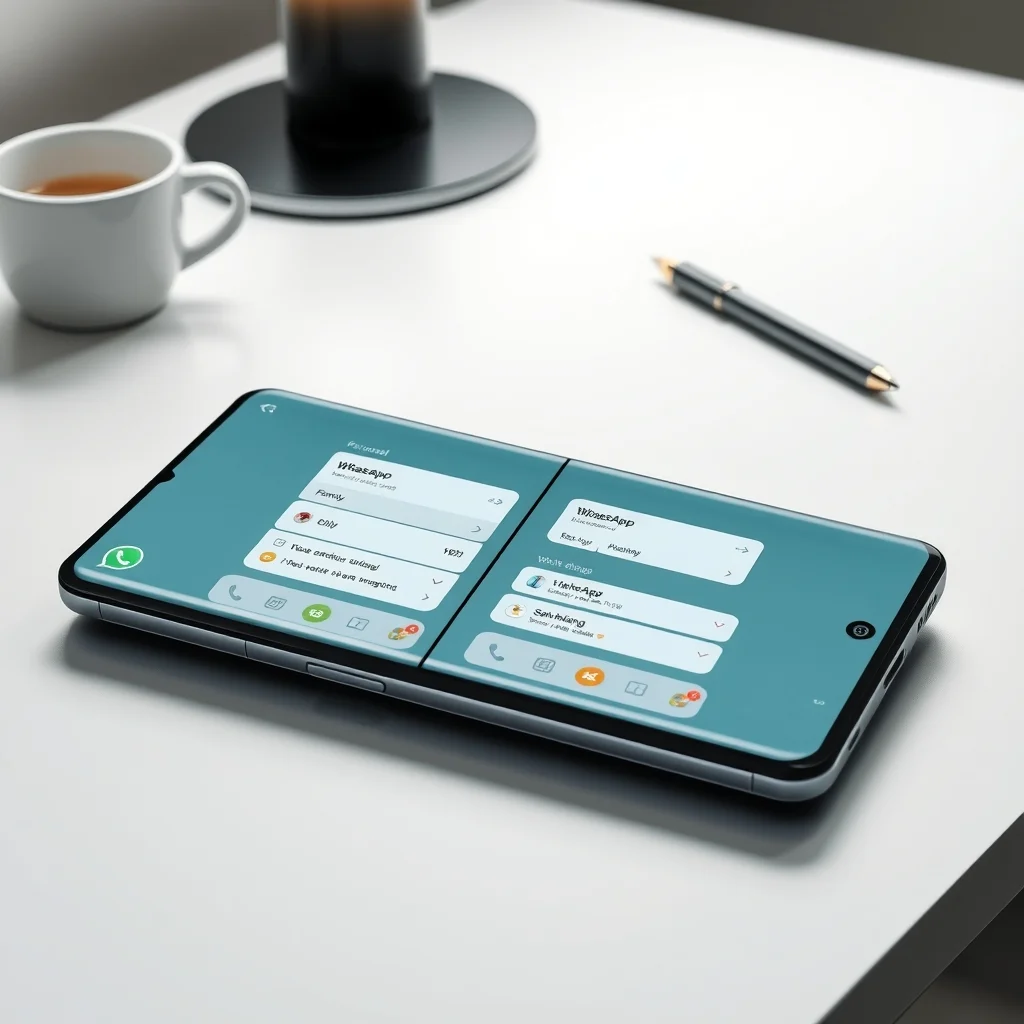
Use Dual Apps with Split Screen: Samsung phones support Split Screen mode, which allows you to use two apps side by side. You can use Dual Apps in Split Screen mode to manage multiple accounts simultaneously. For example, you can run one WhatsApp instance in Split Screen while using another app in the other half.
Customize App Icons for Clarity: Long-press the cloned app’s icon and select Edit to change its name and icon. This makes it easier to distinguish between the two instances at a glance. For example, you can rename one WhatsApp instance to “Work WhatsApp” and the other to “Personal WhatsApp”.
Use Dual Apps with Secure Folder: If you need an extra layer of security, you can clone an app and move the cloned instance to Secure Folder. This ensures that the app’s data is isolated and protected by Samsung’s Knox platform.
Monitor Battery Usage: Dual Apps can increase battery consumption. Use the Battery Monitor in your device’s settings to track battery usage and adjust your settings accordingly.
Disable Dual Apps for Resource-Intensive Apps: If you notice lag or performance issues, disable Dual Apps for apps that require a lot of system resources, such as games or video editing apps.
🏁 Final Verdict: Should You Use Dual Apps on Your Samsung Phone?
Dual Apps is a game-changing feature for Samsung users who need to manage multiple accounts efficiently. Whether you’re a professional juggling work and personal contacts or a gamer keeping your social media and gaming accounts separate, Dual Apps provides a seamless and secure solution. Its deep integration with Samsung’s One UI and Knox security platform makes it one of the most reliable tools for multiple account management on Android.
The feature is easy to enable and use, with minimal setup required. While there are some potential drawbacks, such as battery drain and app incompatibility, these issues are minor compared to the convenience and productivity gains Dual Apps offers. For most users, the benefits far outweigh the drawbacks, making Dual Apps a must-have feature on Samsung phones.
If you frequently switch between multiple accounts or need a secure way to manage different profiles, we highly recommend enabling Dual Apps on your Samsung device. With the right settings and configurations, you can unlock a new level of productivity and organization without compromising security or performance.
Final Recommendation: Enable Dual Apps today and start enjoying the convenience of managing multiple accounts effortlessly. Whether for work, gaming, or personal use, Dual Apps is a feature you won’t want to live without.
❓ Frequently Asked Questions About Dual Apps on Samsung Phones
- Can I clone any app using Dual Apps?
Most apps support cloning, but some apps (like banking or financial apps) may not work due to security restrictions. Always check the app’s policies before cloning.
- Will Dual Apps drain my battery faster?
Yes, running two instances of an app can increase battery consumption. Samsung has optimized Dual Apps to minimize battery drain, but it’s still a good idea to monitor your battery usage.
- Can I customize the cloned app’s icon and name?
Yes! Long-press the cloned app’s icon and select Edit to change its name and icon. This helps you distinguish between the two instances easily.
- Is Dual Apps available on all Samsung phones?
Dual Apps is available on most Samsung Galaxy devices running One UI 2.0 or later. However, some older or low-end devices may not support the feature.
- Can I use Dual Apps with Split Screen?
Yes! Samsung phones support Split Screen mode, which allows you to use two apps side by side. You can use Dual Apps in Split Screen mode to manage multiple accounts simultaneously.
- Will cloning an app affect its performance?
Cloning an app creates a separate instance, which may slightly impact performance, especially on older or low-end devices. However, Samsung has optimized Dual Apps to minimize performance issues.
- Can I use Dual Apps with Secure Folder?
Yes! You can clone an app and move the cloned instance to Secure Folder for an extra layer of security. This ensures that the app’s data is isolated and protected by Samsung’s Knox platform.
- What should I do if a cloned app crashes or doesn’t work properly?
Restart your device and try cloning the app again. Ensure you have enough free storage space and that the app is up to date. If the problem persists, the app may not be compatible with Dual Apps.
- Does Dual Apps work with games?
Yes, you can clone games using Dual Apps. However, some games may not work properly due to security restrictions or performance issues. Monitor your device’s performance when using Dual Apps with games.
- Can I disable Dual Apps when not in use?
Yes! You can disable Dual Apps by toggling the switch in Settings > Advanced Features > Dual Apps. Disabling the feature when not in use can help conserve battery and system resources.