
In today’s fast-paced world, unexpected emergencies can arise at any moment. Whether it’s a medical crisis, a dangerous situation, or an accident, having immediate access to the right tools on your Android device can be a lifesaver. Android’s emergency features are designed to provide quick assistance, share critical information, and even contact emergency services when every second counts. This comprehensive guide explores every emergency feature available on Android, from setting up Emergency SOS to configuring Medical ID and enabling crash detection. By the end of this article, you’ll know how to leverage these tools effectively to ensure safety for yourself and your loved ones.
📱 Why Android’s Emergency Features Matter
Emergency situations are unpredictable, and preparation is key. Android’s built-in emergency features are not just optional add-ons; they are essential safety nets that can make the difference between a manageable situation and a life-threatening crisis. For instance, Emergency SOS allows users to quickly call emergency services and share their location with trusted contacts without needing to unlock their phone. This feature is particularly crucial in cases where a person is unable to verbally communicate or access their device’s home screen.
The Medical ID function, on the other hand, provides first responders with immediate access to vital health information, such as allergies, blood type, and emergency contacts. This can be invaluable in medical emergencies where the patient is unresponsive. Additionally, crash detection technology can automatically detect severe car accidents and alert emergency services, even if the driver is incapacitated. These features collectively transform an Android phone from a communication device into a critical safety tool.
Understanding and utilizing these features can empower users to act swiftly and decisively during emergencies. Whether you’re a parent, a traveler, or someone managing a chronic health condition, these tools provide peace of mind knowing that help is just a tap away. The following sections will guide you through setting up and using each of Android’s emergency features to their fullest potential.
🔍 Emergency SOS: Your Lifeline in Critical Moments
📞 How to Enable Emergency SOS on Your Android Device
Emergency SOS is one of Android’s most powerful emergency features, allowing users to call emergency services with a single action. The setup process varies slightly depending on the device manufacturer, but the general steps are consistent across most modern Android devices. To enable Emergency SOS:
-
Open the Settings app on your Android device.
-
Scroll down and tap on Safety & Emergency. If you don’t see this option, look for Emergency SOS or Emergency Information in the search bar at the top of the Settings menu.
-
Tap on Emergency SOS to access the setup options.
-
Toggle the switch to Enable Emergency SOS. You may be prompted to confirm your decision.
-
Customize your emergency settings by selecting the actions you want to include, such as calling emergency services, sharing your location, and recording audio.
🎯 How Emergency SOS Works During an Emergency
Once Emergency SOS is enabled, activating it is straightforward. On most Android devices, you can trigger Emergency SOS by rapidly pressing the power button five times. This sequence is designed to be easy to perform even under stress. When activated, the feature will:
- ✅ Call emergency services automatically, using your phone’s cellular network.
- 📍 Share your real-time location with emergency contacts and services.
- 🔊 Record audio from your surroundings to provide context to responders.
- 📞 Notify emergency contacts with a message containing your location and status.
This multi-step approach ensures that even if you’re unable to speak or provide information, emergency services can still locate and assist you. The feature is particularly useful in situations like abductions, medical emergencies, or accidents where mobility is limited.
⚙️ Advanced Settings for Emergency SOS
For users who want more control over their emergency settings, Android offers advanced configurations. These include:
- 🔄 Custom Emergency Numbers: You can add additional emergency contacts who will be notified when Emergency SOS is triggered. This is useful for family members or close friends who need to be informed immediately.
- 📍 Location Accuracy: Adjust the GPS accuracy to balance between battery life and precision. Higher accuracy provides more precise location data but may drain the battery faster.
- 🎵 Audio Recording Duration: Set how long the feature should record audio during an emergency. Shorter durations save storage and battery, while longer durations provide more context.
- 🔒 Auto-Reply Messages: Configure automatic responses to be sent to emergency contacts when Emergency SOS is activated. This ensures they receive immediate updates without needing to check their phones.
To access these settings, navigate to Settings > Safety & Emergency > Emergency SOS and explore the available options. Tailoring these settings to your specific needs can enhance the effectiveness of Emergency SOS.
🚨 Real-Life Scenario: Using Emergency SOS
Imagine you’re hiking alone in a remote area when you suddenly experience severe chest pain. You’re unable to call for help due to the pain, but you remember that Emergency SOS is enabled on your phone. You quickly press the power button five times, and within seconds, your phone:
- Calls the local emergency services.
- Shares your exact GPS coordinates with the responders.
- Records audio from your surroundings, which includes your labored breathing and possible distress calls.
- Sends a message to your emergency contacts with your location and status.
Within minutes, rescue teams are dispatched to your location, guided by your precise coordinates. Even though you’re unable to speak clearly, the responders can hear the audio recording and understand the urgency of the situation. This scenario highlights how Emergency SOS can save lives by bridging the gap between an emergency and the arrival of professional help.
🏥 Medical ID: Your Health Information at First Responders’ Fingertips
📋 What is Medical ID and Why It’s Crucial
Medical ID is a feature within the Android ecosystem that stores vital health information, such as allergies, medications, blood type, and emergency contacts. This information is accessible even when your phone is locked, providing first responders with critical details that can influence treatment decisions. For individuals with chronic illnesses, allergies, or conditions like diabetes, Medical ID can be a game-changer in emergencies.
The setup process for Medical ID is simple, but its impact can be life-saving. Imagine a situation where you’re involved in a car accident and are unconscious. First responders can access your Medical ID from the lock screen, allowing them to:
- ✅ Identify any allergies you may have to medications or treatments.
- 🩸 Determine your blood type to ensure compatibility with blood transfusions.
- 💊 Check for medications you’re currently taking to avoid dangerous drug interactions.
- 📞 Contact your emergency contacts for additional information or permissions.
Without Medical ID, responders would have to rely on guesswork or wait for medical records to be accessed, which can delay critical care. By setting up Medical ID, you take proactive steps to ensure your health information is readily available when it matters most.
🔧 How to Set Up Medical ID on Your Android Phone
Setting up Medical ID involves a few straightforward steps. Follow these instructions to configure your profile:
-
Open the Settings app on your Android device.
-
Scroll down and tap on Safety & Emergency.
-
Select Medical ID from the list of options.
-
Tap on Create Medical ID or Edit if you’re updating an existing profile.
-
Fill in the following details:
- 👤 Name and Date of Birth
- 🩸 Blood Type (e.g., O+, A-, etc.)
- 🚫 Allergies and Reactions (e.g., penicillin, nuts)
- 💊 Medications (e.g., insulin, blood thinners)
- 🏥 Medical Conditions (e.g., diabetes, epilepsy)
- 📞 Emergency Contacts (add at least one trusted person)
- 📝 Additional Notes (e.g., organ donor status, specific instructions)
-
Once you’ve entered all the necessary information, tap Save to finalize your Medical ID.
📊 How First Responders Access Medical ID
Medical ID is designed to be accessible even when your phone is locked. To view Medical ID, first responders can follow these steps:
-
On the lock screen, tap on Emergency or swipe to access the emergency dialer.
-
Tap on Medical ID at the bottom of the screen. This option will appear even if the phone is locked with a PIN, pattern, or password.
-
The responder can now view all the information you’ve entered, including allergies, medications, and emergency contacts.
This accessibility ensures that responders can make informed decisions quickly, even in high-pressure situations. It’s important to keep your Medical ID updated regularly, especially if your health status or medications change.
🚑 Real-Life Scenario: The Importance of Medical ID
Consider the case of a 65-year-old individual with a severe allergy to bee stings. While gardening, they are stung by a bee and go into anaphylactic shock. They collapse and are unable to communicate their condition to bystanders or emergency services. However, their Medical ID is set up on their phone, which is nearby.
A first responder arrives on the scene and accesses the Medical ID from the lock screen. They immediately see the allergy to bee stings and administer the appropriate treatment (e.g., epinephrine). Thanks to the Medical ID, the responder knows exactly what action to take, potentially saving the individual’s life. Without this feature, the responder might have delayed treatment or administered a medication that could have worsened the situation.
This scenario underscores the importance of setting up and maintaining an accurate Medical ID. It’s a small step that can have a significant impact on health outcomes.
🚗 Crash Detection: Automatically Alerting Emergency Services in Car Accidents
📡 How Crash Detection Uses Technology to Save Lives
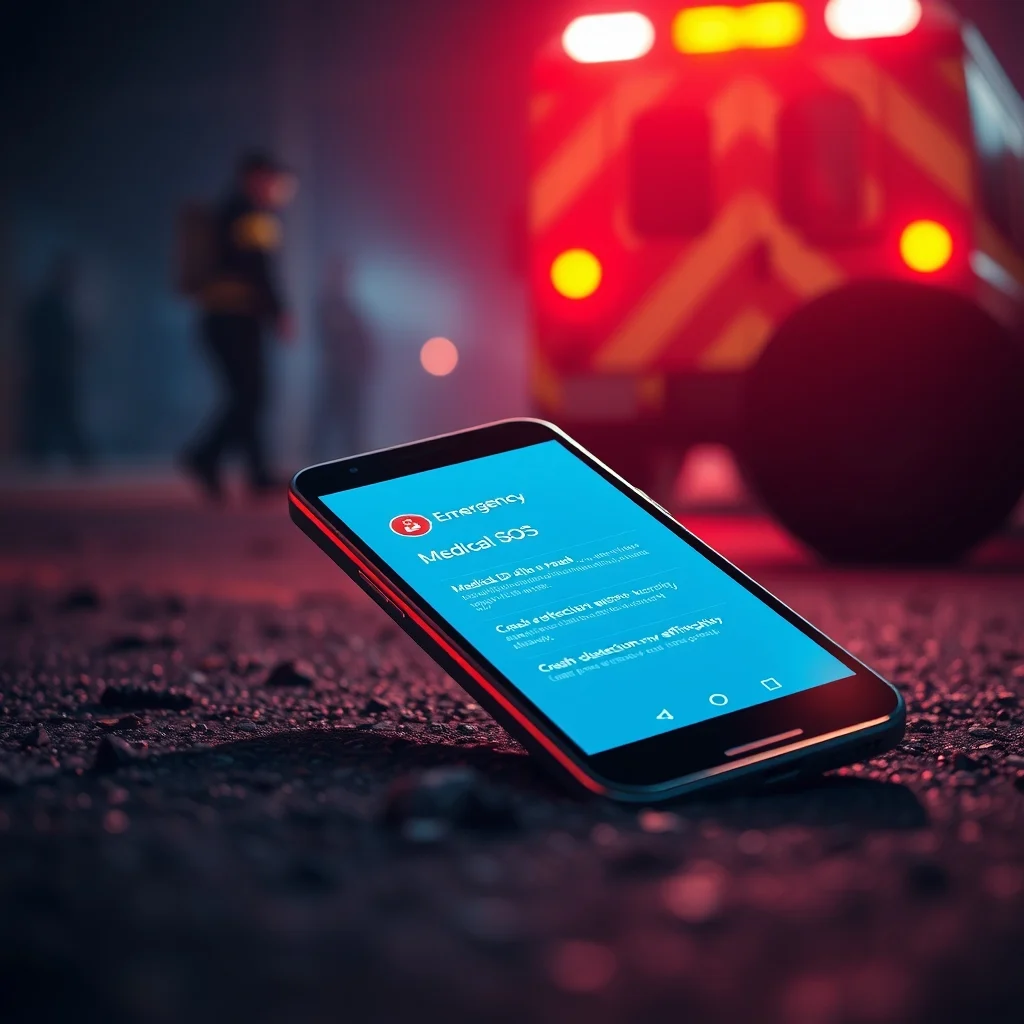
Crash Detection is an advanced safety feature available on many Android devices, particularly those equipped with the necessary sensors. This feature uses accelerometers, gyroscopes, and other motion sensors to detect the sudden deceleration and impact typical of a car crash. When a crash is detected, the device can automatically call emergency services and share the user’s location with their emergency contacts.
The technology behind Crash Detection is sophisticated. It analyzes the data from the device’s sensors to determine if the movement patterns match those of a severe car accident. If the system concludes that a crash has occurred, it initiates the emergency protocols without requiring any user input. This is especially useful in situations where the driver or passengers are incapacitated or unable to act.
For drivers, parents of teenage drivers, or individuals who frequently travel by car, Crash Detection provides an additional layer of safety. It ensures that help is on the way even if the occupants of the vehicle are unable to call for assistance.
🔧 Enabling Crash Detection on Your Android Device
Not all Android devices support Crash Detection, as it requires specific hardware capabilities. However, for compatible devices, enabling the feature is simple. Here’s how to do it:
-
Open the Settings app on your Android device.
-
Scroll down and tap on Safety & Emergency.
-
Select Crash Detection from the list of options.
-
Toggle the switch to Enable Crash Detection.
-
Follow the on-screen instructions to complete the setup, which may include testing the feature to ensure it’s working correctly.
🎯 How Crash Detection Works During a Real Accident
When Crash Detection is activated, the sequence of events is designed to maximize the chances of a successful emergency response. Here’s what happens when a crash is detected:
- 📉 Detection of Impact: The device’s sensors detect a sudden, severe deceleration, similar to what occurs in a car crash.
- 📞 Automatic Call to Emergency Services: The device dials the local emergency number (e.g., 911, 112, or 999) and connects the call automatically.
- 📍 Location Sharing: The device shares the user’s real-time GPS coordinates with emergency services and designated contacts.
- 🎤 Audio Recording: The device begins recording audio from the surroundings to provide context to responders.
- 📞 Notification to Emergency Contacts: A message is sent to the user’s emergency contacts, informing them of the crash and providing the location.
This automated process ensures that even if the driver or passengers are unconscious or unable to act, emergency services are notified promptly. The feature is particularly valuable for lone drivers, long-distance travelers, or those in areas with poor cell reception.
🚨 Real-Life Scenario: Crash Detection in Action
Picture a scenario where a driver is traveling alone at night on a highway when they lose control of their vehicle and crash into a guardrail. The impact is severe, and the driver is knocked unconscious. Their Android phone, which is mounted on the dashboard, detects the crash using its motion sensors.
Within seconds, the phone:
- Automatically calls emergency services and connects the call.
- Shares the vehicle’s exact location with the responders.
- Begins recording audio from the surrounding area, capturing the sound of the crash.
- Sends a notification to the driver’s emergency contacts, including their spouse and a close friend.
The emergency services receive the call and dispatch a rescue team to the crash site. Thanks to the precise location data, they locate the vehicle quickly. Even though the driver is unconscious, the responders can assess the situation using the audio recording and the vehicle’s location. This rapid response increases the chances of the driver receiving timely medical attention and surviving the incident.
🔍 Limitations and Considerations for Crash Detection
While Crash Detection is a powerful feature, it’s not without limitations. Understanding these can help users set realistic expectations:
- ⚠️ False Alarms: The feature may occasionally trigger false alarms, especially in situations involving sudden jolts or impacts that aren’t crashes (e.g., dropping the phone, roller coasters).
- 📶 Cellular Reception: Crash Detection relies on cellular networks to make calls and share location data. In areas with poor reception, the feature may not work as intended.
- 🔋 Battery Drain: The continuous monitoring of sensors can drain the battery faster than usual. Ensure your device is charged before long trips.
- 🚗 Vehicle Compatibility: Crash Detection works best when the phone is securely mounted in the vehicle. Loose placement may lead to inaccurate readings or false triggers.
To mitigate these issues, regularly test the feature and ensure it’s calibrated correctly. If you frequently experience false alarms, consider disabling the feature and relying on manual emergency calls.
🔐 Security and Privacy: Safeguarding Your Emergency Data
🛡️ How Android Protects Your Emergency Information
Android takes the security and privacy of your emergency data seriously. The Emergency SOS, Medical ID, and Crash Detection features are designed with multiple layers of protection to ensure your information is only accessed by authorized parties during genuine emergencies. Here’s how Android safeguards your data:
- 🔒 Encryption: All emergency data, including your Medical ID and emergency contacts, is encrypted and stored securely on your device. This ensures that even if your phone is lost or stolen, your information remains protected.
- 📱 Lock Screen Access: Medical ID information is accessible from the lock screen, but only when explicitly requested by a first responder. This prevents unauthorized access to your sensitive health data.
- 🔄 User Control: You have full control over the information stored in your Medical ID and the contacts notified during an emergency. You can update or remove this data at any time through the Settings app.
- 📡 Secure Transmission: When Emergency SOS or Crash Detection shares your location or calls emergency services, the data is transmitted securely over encrypted channels to prevent interception.
These security measures ensure that your emergency features are both effective and private. However, it’s essential to take additional steps to protect your device, such as setting up a strong PIN, pattern, or password lock, and enabling biometric authentication (e.g., fingerprint or facial recognition).
⚠️ Potential Risks and How to Mitigate Them
While Android’s emergency features are designed with security in mind, there are still potential risks to be aware of:
- 🚨 Unauthorized Access: Though unlikely, there’s a small risk that someone could access your Medical ID if they have physical access to your locked phone. To minimize this risk, ensure your device is always in a secure location when not in use.
- 📞 False Emergency Calls: Accidental activation of Emergency SOS or Crash Detection can lead to unnecessary emergency services being dispatched. Always double-check before triggering these features.
- 🌐 Data Privacy Concerns: While Android encrypts your emergency data, it’s important to review the privacy policies of any third-party apps that might interact with these features. Ensure they comply with data protection regulations.
- 🔄 Outdated Information: If your Medical ID or emergency contacts are outdated, first responders may not receive the correct information. Regularly review and update your emergency data to ensure accuracy.
To address these risks, follow these protective measures:
- 🔐 Use Strong Authentication: Set up a robust lock screen PIN, pattern, or password. Enable biometric authentication if your device supports it.
- 📵 Disable Unnecessary Features: If you’re not comfortable with Crash Detection, consider disabling it and relying on manual emergency calls.
- 🔄 Regular Updates: Keep your Android device and all apps up to date to ensure you have the latest security patches and feature improvements.
- 📝 Review Permissions: Periodically review the permissions granted to apps that access your emergency data. Revoke permissions for apps that don’t need access to this sensitive information.
🔒 Best Practices for Protecting Your Emergency Data
Taking proactive steps to protect your emergency data can provide additional peace of mind. Here are some best practices to follow:
- ✅ Regularly Update Medical ID: Review and update your Medical ID at least once every three months, or whenever there’s a change in your health status, medications, or emergency contacts.
- 🔐 Use a Complex Lock Screen Pattern: Avoid simple patterns or PINs that can be easily guessed. Use a combination of letters, numbers, and symbols for maximum security.
- 📱 Enable Find My Device: Activate Android’s Find My Device feature to locate your phone if it’s lost or stolen. This can also help responders find you in an emergency.
- 🔄 Test Emergency Features: Periodically test your Emergency SOS and Crash Detection features to ensure they’re working correctly. This can help identify any issues before an actual emergency occurs.
- 📞 Inform Trusted Contacts: Make sure your emergency contacts are aware of your setup and know how to respond if they receive an alert from your device.
By following these best practices, you can ensure that your emergency features are not only functional but also secure. Remember, the goal is to have these tools ready and reliable when you need them most.
🔄 Comparing Android’s Emergency Features with iOS
📱 Key Similarities Between Android and iOS Emergency Features
Both Android and iOS offer robust emergency features designed to enhance user safety. While the implementations differ slightly, the core functionalities are often similar. Here’s a comparison of the key features available on both platforms:
| Feature | Android | iOS |
|---|---|---|
| Emergency SOS | Rapidly press power button 5 times to call emergency services and share location. | Press and hold the side button and volume buttons simultaneously to activate Emergency SOS. |
| Medical ID | Accessible from lock screen; stores health information and emergency contacts. | Accessible from lock screen; stores health information and emergency contacts. |
| Crash Detection | ||
| Emergency Information | Part of Safety & Emergency settings. | Part of Health app. |
| Emergency Contacts | Stored in Medical ID and can be notified during an emergency. | Stored in Medical ID and can be notified during an emergency. |
As the table illustrates, both Android and iOS provide similar emergency features, though the setup and activation methods may vary. The primary difference lies in the user interface and the specific steps required to enable and use these features. For users who switch between Android and iOS devices, this consistency ensures that they can quickly adapt to the emergency tools available on any platform.
🔄 Key Differences Between Android and iOS Emergency Features
While the core functionalities are similar, there are notable differences between Android and iOS in how these features are implemented and what additional capabilities they offer. Here are some key distinctions:
| Feature | Android | iOS |
|---|---|---|
| Activation Method | Rapidly press power button 5 times. | Press and hold side button and volume buttons simultaneously. |
| Audio Recording | Can record audio during Emergency SOS activation. | Does not natively support audio recording during emergency calls. |
| Third-Party App Integration | Supports third-party apps like Noonlight for additional safety features. | Supports third-party apps like Noonlight but has stricter app store guidelines. |
| Customization | Highly customizable with advanced settings for Emergency SOS. | Limited customization options for emergency features. |
| Device Compatibility | Available on most modern Android devices, but varies by manufacturer. | Available on all iPhones running iOS 11 or later. |
The table highlights that Android offers more customization and third-party integration options, while iOS provides a more standardized experience across all compatible devices. For users who prefer flexibility and additional features, Android’s emergency tools may be more appealing. However, iOS’s simplicity and consistency can be advantageous for users who prioritize ease of use.
🏆 Which Platform is Better for Emergency Features?
The answer to this question depends on your specific needs and preferences. Here’s a breakdown to help you decide which platform might be better suited for your emergency feature requirements:
- 🔹 Choose Android if:
- You want highly customizable emergency features with advanced settings.
- You prefer third-party app integration for additional safety tools.
- You use multiple devices and want consistency across platforms.
- You need features like audio recording during emergencies.
- 🔹 Choose iOS if:
- You prefer a simple, standardized emergency feature setup.
- You value consistency across all compatible devices.
- You don’t need advanced customization or third-party app integration.
- You prioritize ease of use and reliability.
Ultimately, both platforms offer robust emergency features that can save lives. The best choice depends on your individual preferences and how you plan to use these tools. Regardless of the platform, the most important step is to set up and familiarize yourself with the emergency features available on your device.
💡 Tips for Maximizing the Effectiveness of Android’s Emergency Features
🎯 Best Settings for Emergency SOS
To ensure Emergency SOS works effectively when you need it most, consider the following best settings and configurations:
- ✅ Enable Location Sharing: Ensure your device’s location services are turned on and set to high accuracy. This allows emergency responders to locate you quickly and precisely.
- 🔊 Enable Audio Recording: If your device supports it, enable audio recording during Emergency SOS activation. This can provide crucial context to responders, especially in situations where you’re unable to speak.
- 📞 Add Multiple Emergency Contacts: Include at least two trusted contacts who can be notified during an emergency. This ensures that someone is alerted even if the primary contact is unreachable.
- 🔄 Customize Auto-Reply Messages: Set up automatic replies to be sent to your emergency contacts when Emergency SOS is activated. This keeps them informed without requiring manual action from you.
- 🚫 Disable False Triggers: If you frequently experience accidental triggers (e.g., while exercising or in high-movement environments), consider adjusting the sensitivity settings or disabling the feature temporarily.
By fine-tuning these settings, you can enhance the reliability and effectiveness of Emergency SOS, ensuring it’s ready to assist you in critical moments.
🏥 Best Practices for Medical ID
Maintaining an accurate and up-to-date Medical ID is essential for ensuring first responders have the information they need. Follow these best practices to maximize its effectiveness:
- ✅ Update Regularly: Review and update your Medical ID at least once every three months, or whenever there’s a change in your health status, medications, or emergency contacts. This ensures the information is always current.
- 📝 Include All Relevant Information: Add details such as allergies, blood type, medications, medical conditions, and any specific instructions (e.g., organ donor status). The more comprehensive the information, the better prepared responders will be.
- 🔐 Secure Your Device: Use a strong lock screen PIN, pattern, or password to prevent unauthorized access to your Medical ID. Additionally, enable biometric authentication if your device supports it.
- 📞 Inform Emergency Contacts: Make sure your emergency contacts are aware of your Medical ID setup and know how to access the information if needed. Provide them with clear instructions on what to do if they receive an alert.
- 🚨 Test Accessibility: Periodically test accessing your Medical ID from the lock screen to ensure it’s working correctly. This can help identify any issues before an actual emergency occurs.
By following these practices, you can ensure that your Medical ID is a reliable resource for first responders, providing them with the critical information needed to deliver appropriate care.
🚗 Optimizing Crash Detection for Your Needs
Crash Detection can be a lifesaver, but it’s important to optimize it for your specific use case. Here are some tips to ensure it works effectively:
- ✅ Secure Your Device: Mount your phone securely in your vehicle using a dashboard or windshield mount. This ensures the sensors can accurately detect the movements associated with a crash.
- 🔋 Keep Your Battery Charged: Crash Detection relies on your device’s sensors and cellular connectivity. Ensure your phone is charged before long trips to avoid battery-related issues.
- 📶 Check Cellular Coverage: Crash Detection requires a strong cellular signal to call emergency services and share location data. If you frequently travel through areas with poor reception, consider disabling the feature or investing in a signal booster.
- 🔄 Calibrate the Feature: Some devices allow you to calibrate Crash Detection for better accuracy. Refer to your device’s user manual or settings to adjust the sensitivity if needed.
- 🚨 Inform Passengers: If you frequently travel with others, inform them about Crash Detection and how it works. This ensures they understand the feature and won’t be alarmed if it activates accidentally.
By taking these steps, you can maximize the reliability and effectiveness of Crash Detection, ensuring it’s ready to assist you in the event of a real accident.
🔍 Advanced Tricks Few Know About
Beyond the basic setup and usage, there are some lesser-known tricks and advanced configurations that can enhance your experience with Android’s emergency features. Here are a few to consider:
- 🎯 Use Emergency SOS with Wear OS: If you own a Wear OS smartwatch, you can configure it to activate Emergency SOS on your phone. This is useful if your phone is out of reach or difficult to access during an emergency.
- 📊 Enable Emergency Alerts for Natural Disasters: In addition to personal emergencies, Android can alert you to nearby natural disasters like earthquakes, tsunamis, or severe weather warnings. Enable these alerts in the Settings > Safety & Emergency > Emergency Alerts menu.
- 🔄 Set Up Multiple Profiles: If you share your device with family members, consider setting up separate profiles with individual Medical IDs and emergency contacts. This ensures everyone’s information is readily accessible in an emergency.
- 📞 Use Third-Party Apps for Enhanced Safety: Apps like Noonlight integrate with Android’s emergency features to provide additional safety tools, such as location sharing with trusted contacts or one-tap emergency calls. Explore the Google Play Store for apps that complement your device’s built-in features.
- 🔒 Enable Find My Device for Location Sharing: Activate Android’s Find My Device feature to track your phone’s location in real-time. This can be invaluable if you’re lost or need assistance during an emergency.
These advanced tricks can provide additional layers of safety and convenience, ensuring you’re fully prepared for any emergency scenario.
❓ Frequently Asked Questions About Android’s Emergency Features
-
What should I do if I accidentally trigger Emergency SOS?
If you accidentally activate Emergency SOS, quickly end the call with emergency services by pressing the red hang-up button. You can then cancel any notifications sent to your emergency contacts by accessing the notification and selecting Cancel or Dismiss.
-
Can I customize the emergency number that Emergency SOS dials?
On most Android devices, Emergency SOS will automatically dial the local emergency number (e.g., 911, 112, or 999). However, some third-party apps or manufacturer-specific versions of Android may allow you to customize the number. Check your device’s settings or the app’s documentation for more information.
-
How accurate is Crash Detection in detecting real crashes?
Crash Detection uses advanced sensors to analyze movement patterns and determine if a crash has occurred. While it’s highly accurate, there’s a small chance of false positives, especially in situations involving sudden jolts or impacts that aren’t crashes. Regularly testing the feature can help ensure it’s calibrated correctly.
-
Is Medical ID available on all Android devices?
Medical ID is available on most modern Android devices running recent versions of the operating system. However, the exact implementation may vary depending on the device manufacturer. If you don’t see the Medical ID option in your settings, check if your device supports the feature or consider updating to the latest version of Android.
-
Can I share my Medical ID information with healthcare providers outside of an emergency?
Currently, Android’s Medical ID is designed for emergency use and isn’t easily shareable with healthcare providers outside of an emergency scenario. However, you can manually share your health information with providers during routine visits or by exporting the data from your Medical ID profile.
-
What happens if I’m in an area with no cellular reception during an emergency?
Android’s emergency features rely on cellular networks to call emergency services and share location data. If you’re in an area with no reception, these features may not work as intended. To mitigate this risk, consider enabling offline location sharing or using third-party apps that support offline emergency alerts.
-
How do I update my Medical ID if my health status changes?
To update your Medical ID, open the Settings app, navigate to Safety & Emergency > Medical ID, and tap Edit. Update the relevant information and tap Save to finalize your changes. It’s a good practice to review and update your Medical ID regularly.
-
Can I disable Crash Detection if I don’t want to use it?
Yes, you can disable Crash Detection at any time by navigating to Settings > Safety & Emergency > Crash Detection and toggling the feature off. If you frequently experience false alarms, consider disabling the feature and relying on manual emergency calls.
-
Does Emergency SOS work if my phone is locked?
Yes, Emergency SOS can be activated even if your phone is locked. On most devices, rapidly pressing the power button five times will trigger the feature regardless of the lock screen status. However, you may need to unlock your phone to access additional features like audio recording or location sharing.
-
Are there any privacy concerns with using Android’s emergency features?
Android takes privacy seriously and encrypts your emergency data to protect it from unauthorized access. However, it’s important to review the privacy policies of any third-party apps that interact with these features. Additionally, ensure your device is secured with a strong lock screen PIN or password to prevent unauthorized access to your Medical ID or emergency contacts.
🏁 Final Verdict: Are Android’s Emergency Features Worth Using?
Android’s emergency features—Emergency SOS, Medical ID, and Crash Detection—represent a significant leap forward in mobile safety technology. These tools are not just gimmicks or optional extras; they are designed to provide tangible, life-saving benefits in critical situations. Whether you’re a parent, a frequent traveler, or someone managing a chronic health condition, these features offer peace of mind knowing that help is always within reach.
The setup process for these features is straightforward, and the configurations are highly customizable, allowing users to tailor them to their specific needs. While there are minor limitations, such as the occasional false alarm from Crash Detection or the need for a strong cellular signal, the benefits far outweigh the drawbacks. The ability to automatically call emergency services, share your location, and provide first responders with critical health information can make all the difference in an emergency.
Moreover, Android’s commitment to security and privacy ensures that your emergency data is protected. Encryption and secure transmission methods are in place to safeguard your information, giving you confidence that your data won’t fall into the wrong hands. The integration of these features with third-party apps like Noonlight further enhances their utility, providing users with a comprehensive safety net.
In conclusion, Android’s emergency features are absolutely worth using. They transform your smartphone into a powerful tool for personal safety, ensuring that you and your loved ones are prepared for any emergency. The time and effort required to set up these features are minimal compared to the potential lifesaving benefits they provide. Take the initiative today to enable these tools on your Android device. You never know when you might need them.
So, don’t wait for an emergency to occur before exploring these features. Spend a few minutes today configuring Emergency SOS, Medical ID, and Crash Detection. Share this knowledge with your family and friends, and encourage them to do the same. Together, you can create a safer environment for everyone. Remember, safety is not just about being prepared; it’s about being proactive. Android’s emergency features give you the tools to do just that.
Stay safe, stay prepared, and empower yourself with the knowledge to act swiftly and decisively in critical moments.