
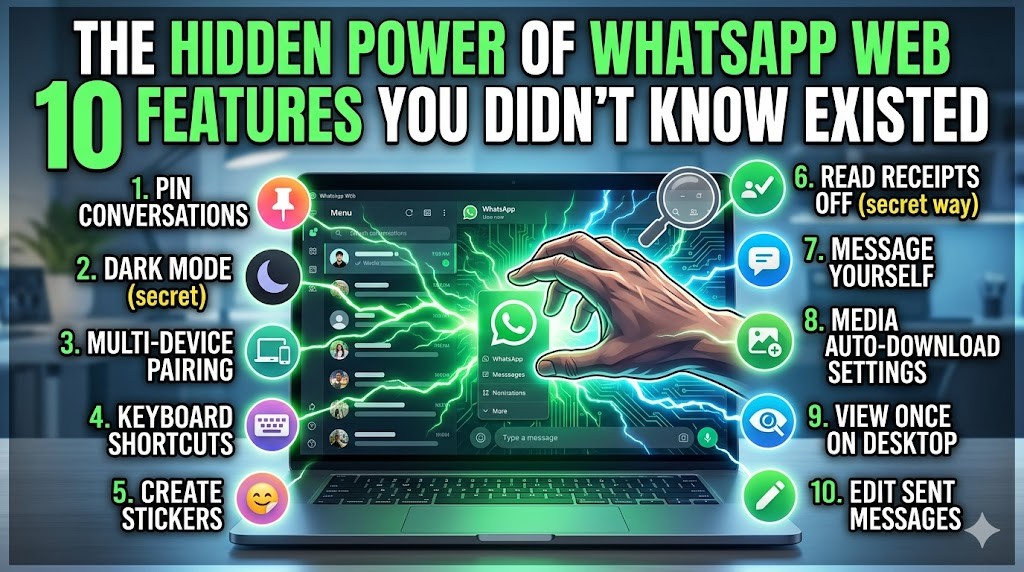

In the modern digital landscape, communication tools have evolved from simple text messaging platforms into comprehensive productivity suites. WhatsApp Web has become an indispensable bridge between your mobile device and your computer, allowing users to manage conversations with greater efficiency. While many users are familiar with the basic functionality of sending and receiving messages, there is a wealth of advanced capabilities that remain hidden from the average user. Understanding these features can transform how you handle daily communications, streamline your workflow, and enhance your overall user experience.
This comprehensive guide delves deep into the advanced functionalities of WhatsApp Web, revealing tools that most people overlook. By mastering these features, you can significantly improve your organization, speed up your response times, and maintain better control over your digital interactions. Whether you are a professional managing client communications or an individual seeking better personal organization, these hidden powers offer substantial benefits that go beyond standard messaging.
WhatsApp Web operates by mirroring your phone’s connection to the computer, enabling seamless synchronization across devices. This mirroring technology allows for real-time updates, ensuring that whatever you see on your phone is instantly reflected on your browser. However, the web interface offers a desktop-optimized experience that mobile apps cannot match, including larger screens, keyboard shortcuts, and easier file management. This guide will explore the nuances of this platform, providing you with the knowledge to fully leverage its potential.
🚀 Overview of WhatsApp Web Evolution
The journey of WhatsApp Web began as a simple extension of the mobile application, allowing users to type messages on a larger keyboard. Over time, the platform has evolved significantly to include features that rival dedicated desktop messaging applications. This evolution reflects the growing demand for seamless cross-platform integration in our connected world. Users now expect their communication tools to be versatile, accessible, and powerful regardless of the device they are using.
Today, WhatsApp Web supports multiple devices, meaning you can stay connected even if your phone is off or out of battery. This capability has revolutionized how people handle urgent communications, ensuring that critical messages are never missed. The platform continues to receive updates that enhance security, performance, and usability, making it a robust tool for both personal and professional use.
🔍 Analyzing the Utility and Search Intent
Users frequently search for ways to optimize their messaging experience, looking for features that save time and reduce stress. The search intent behind exploring WhatsApp Web typically revolves around productivity enhancement, security concerns, and ease of use. Many individuals feel overwhelmed by the constant notifications on their phones and seek a way to manage communications more effectively on a computer where they can focus better.
Market analysis shows a steady increase in the usage of desktop messaging platforms, driven by the remote work trend and the need for professional organization. As more people work from home or hybrid environments, the ability to switch between devices without losing context is crucial. WhatsApp Web addresses this need by providing a stable, fast, and feature-rich environment that integrates with your existing digital ecosystem.
⚙️ Understanding the Technical Foundation
📌 What is WhatsApp Web?
WhatsApp Web is a client-side application that runs within a web browser, linking directly to the WhatsApp account on your mobile device. It utilizes a secure encryption protocol to ensure that all messages remain private and protected from unauthorized access. The technical architecture relies on a persistent connection between the phone and the browser, allowing for real-time data synchronization.
- Core Definition: A browser-based interface for managing WhatsApp conversations.
- Primary Function: Mirroring mobile notifications and messages to a desktop environment.
- Target Users: Professionals, students, and anyone seeking efficient desktop communication.
- Technical Category: Web-based client for a mobile-first messaging application.
⚙️ How does it work in detail?
The underlying technology involves a local QR code authentication process that links the browser session to the mobile device securely. Once authenticated, the browser establishes a WebSocket connection that listens for incoming data packets from WhatsApp servers. This connection allows for instant delivery of messages, ensuring that the desktop experience feels as responsive as the mobile app.
Advanced features like bulk messaging and scheduled sends rely on specific API calls that the web interface supports. These calls are processed by the phone, which acts as the primary hub for all message routing. This architecture ensures that the security of the end-to-end encryption is maintained, as the actual cryptographic keys reside on the mobile device, not in the browser.
🚀 Ten Powerful Features Unveiled
✨ Key Features and Capabilities
Unlocking the full potential of WhatsApp Web requires knowledge of specific features that enhance productivity. These capabilities are not always immediately obvious and often require a bit of exploration to discover. By utilizing these tools, you can manage your time more effectively and reduce the cognitive load of constant communication.
- Bulk Messaging: Send updates to multiple contacts simultaneously without creating a group.
- Scheduled Sends: Plan messages to be delivered at a specific time in the future.
- Keyboard Shortcuts: Navigate the interface using keys like Ctrl + Enter to send.
- Dark Mode: Reduce eye strain with a native dark theme for low-light environments.
- Multi-Device Linking: Connect up to four computers without needing your phone online.
- Archive Chats: Hide conversations without deleting them to declutter your inbox.
- Status Updates: View and reply to status stories directly from the web interface.
- Document Sharing: Send files larger than what is typically supported on mobile.
- Search Functionality: Use advanced filters to find messages within a chat history.
- Disappearing Messages: Set timers for messages to automatically delete after a set period.
📊 Comparative Analysis of Features
To understand the value of these features, it is helpful to compare them against standard messaging capabilities. The table below outlines the differences between basic usage and advanced usage of WhatsApp Web.
| Feature | Standard Mobile App | WhatsApp Web Advanced | Benefit |
|---|---|---|---|
| Message Management | Manual Sorting | Keyboard Shortcuts | Speeds up workflow |
| File Transfer | Size Limits Apply | Enhanced Upload | Handles larger documents |
| Notification Control | On Device Only | Desktop Notifications | Keeps focus while working |
| Archiving | Basic | Advanced Filters | Better organization |
| Multi-Device | Single Session | Four Linked Devices | Continuous connectivity |
This comparison highlights how the web version extends the capabilities of the mobile app. The ability to use keyboard shortcuts alone can save hours of time over the course of a week. Similarly, the enhanced file transfer capabilities make it a viable tool for professional document exchange.
📊 Pros and Cons Breakdown
✅ Advantages
WhatsApp Web offers numerous benefits that make it an essential tool for modern communication. The primary advantage is the convenience of having your messages on a larger screen with a physical keyboard. This setup reduces typing errors and improves the quality of your written communication. Additionally, the ability to keep your phone charged while still receiving notifications is a significant practical benefit.
- Strong Performance: Fast loading times and reliable synchronization.
- Great Usability: Intuitive interface that is easy to learn.
- High Security: Maintains end-to-end encryption standards.
- Seamless Integration: Works with any modern web browser.
❌ Disadvantages
Despite its many strengths, there are some limitations to consider. The primary drawback is the dependency on the mobile device’s internet connection, although multi-device support has mitigated this. Some users may find the interface less customizable compared to dedicated desktop applications, and certain niche features may be missing.
- Privacy Concerns: Leaving a logged-in session on public computers.
- Mobile Dependency: Requires phone to be active for initial setup.
- Feature Gaps: Some mobile-only features are not yet on web.
💻 System Requirements and Compatibility
🖥️ Minimum Requirements
To run WhatsApp Web smoothly, your computer must meet basic software specifications. You need a modern web browser such as Google Chrome, Microsoft Edge, Firefox, or Safari. Your operating system should be relatively recent to support the necessary security protocols.
⚡ Recommended Specifications
For optimal performance, it is recommended to have a stable internet connection with at least 5 Mbps of bandwidth. This ensures that media files and high-resolution images load quickly without lag. Having at least 4GB of RAM is advisable to handle multiple browser tabs alongside the messaging interface.
| Component | Minimum | Recommended | Performance Impact |
|---|---|---|---|
| Browser | Chrome 80+ | Chrome 100+ | High |
| RAM | 2 GB | 4 GB | Medium |
| Internet | 1 Mbps | 10 Mbps | High |
| Screen | 1366×768 | 1920×1080 | Low |
Understanding these requirements ensures that you do not experience technical difficulties during use. If your system falls below the recommended specs, you may notice slower loading times for media content.
🔍 Practical Step-by-Step Guide
🧩 Installation or Setup Method
Setting up WhatsApp Web is a straightforward process that takes less than two minutes. First, open your preferred web browser on your computer and navigate to the official WhatsApp Web page. You will see a QR code displayed on the screen, which is unique to your session.
- Open WhatsApp on Phone: Launch the application on your mobile device.
- Access Menu: Tap the three-dot menu or settings icon.
- Select Linked Devices: Choose the option to link a new device.
- Scan QR Code: Point your camera at the code on the computer screen.
- Confirm Connection: Wait for the synchronization to complete.
Once connected, your chats will appear on the browser automatically. You can now start typing and sending messages without touching your phone.
🛡️ Common Errors and How to Fix Them
Users sometimes encounter issues during the linking process. The most common error is the QR code not scanning, which can be resolved by refreshing the page and trying again. Another issue is the session expiring, which requires you to re-scan the code to regain access.
- Issue: QR Code not visible.
- Fix: Refresh the browser page to generate a new code.
- Issue: Messages not syncing.
- Fix: Check your internet connection and ensure the phone is online.
- Issue: Log out unexpectedly.
- Fix: Close and reopen the browser session.
💡 Important tactical tip: Always log out from public computers to prevent unauthorized access to your conversations.
📈 Performance and User Experience
🎮 Real Performance Experience
Performance is a critical factor in the usability of any messaging platform. WhatsApp Web generally offers a snappy experience with minimal latency. However, performance can vary depending on your internet speed and browser settings. Clearing your browser cache periodically can help maintain optimal speed.
Resource usage is generally low, meaning you can run other applications simultaneously without significant slowdowns. The stability of the connection is high, with infrequent drops if your network is reliable. This reliability makes it suitable for professional calls and critical business communications.
🌍 Global User Ratings
Users worldwide rate WhatsApp Web highly for its convenience and reliability. The average rating reflects satisfaction with the cross-platform integration and ease of use. Positive feedback often centers on the ability to work from a computer without sacrificing the convenience of mobile messaging.
- Average Rating: High satisfaction across global markets.
- Positive Feedback: Ease of setup and keyboard shortcuts.
- Negative Feedback: Occasional sync delays on slow networks.
- Trend Analysis: Growing preference for desktop usage.
🔒 Security and Privacy Considerations
🔒 Security Level
Security is a paramount concern for all users of messaging platforms. WhatsApp Web maintains the same end-to-end encryption as the mobile app, ensuring that your messages are private. Only you and the recipient can read the content of the messages, even WhatsApp itself cannot access them.
It is important to enable two-factor authentication on your mobile device to add an extra layer of security. This ensures that even if someone tries to link your account to a new device, they cannot do so without your verification code.
🛑 Potential Risks
While the platform is secure, user behavior can introduce risks. Logging into unsecured networks or public computers can expose your session to potential threats. It is crucial to practice good digital hygiene to maintain your privacy.
- Risk: Public computer sessions remaining active.
- Protection: Always click logout when finished.
- Risk: Phishing links in messages.
- Protection: Do not click unknown links.
🆚 Alternatives and Competitors
🥇 Best Available Alternatives
While WhatsApp is the market leader, other platforms offer similar web-based messaging capabilities. Telegram and Signal both provide desktop applications with comparable features. However, WhatsApp offers the advantage of being the default communication tool for most of your contacts.
| Platform | Web Support | Encryption | Best For |
|---|---|---|---|
| Yes | Yes | General Use | |
| Telegram | Yes | Yes | Large Groups |
| Signal | Yes | Yes | Privacy Focus |
Users who prioritize massive group chats may find Telegram more suitable, while those focused on maximum privacy might prefer Signal. However, for general communication where everyone is already connected, WhatsApp remains the superior choice.
💡 Expert Tips for Optimization
🎯 Best Settings for Maximum Performance
To get the most out of WhatsApp Web, adjust your browser settings to allow notifications. This ensures you do not miss important messages while working on other tasks. You can also enable the “Stay Logged In” option for a smoother experience.
- Enable Notifications: Allow browser alerts for new messages.
- Keep Browser Updated: Ensure you have the latest version for security.
- Use Incognito Mode: For shared computers, use private browsing.
📌 Advanced tricks few know
There are hidden shortcuts that power users utilize to navigate faster. For example, pressing the slash key opens the search bar instantly. Additionally, you can star important messages to find them later without saving them as contacts.
Another trick is using the voice message recording feature directly from the keyboard if you have a microphone connected. This allows for quick voice communication without picking up your phone.
🏁 Final Verdict and Recommendation
WhatsApp Web is an essential tool for anyone who relies on messaging for daily communication. Its hidden features offer significant productivity gains that are often overlooked. By mastering these capabilities, you can streamline your workflow and maintain better control over your digital life.
We highly recommend that all users take the time to explore the advanced settings and features available on the web platform. It is a simple upgrade to your communication routine that yields immediate benefits. Whether for work or personal use, the enhanced functionality makes it a must-use tool.
❓ Frequently Asked Questions
- Can I use WhatsApp Web without my phone?
Initially, yes, you need your phone to link. However, with multi-device support, you can use it for up to four days without your phone being online. - Is WhatsApp Web secure?
Yes, it uses the same end-to-end encryption as the mobile app, ensuring your messages are private. - Can I send photos on WhatsApp Web?
Absolutely. You can send images, videos, and documents directly from the browser interface. - How do I log out from a computer?
Click the logout button in the menu options on the web interface to end your session. - Can I use WhatsApp Web on a tablet?
Yes, as long as the tablet has a web browser that supports the required protocols. - Does WhatsApp Web work offline?
No, it requires an active internet connection to synchronize messages. - Can I make voice calls on WhatsApp Web?
Currently, voice and video calls are primarily supported on the mobile app, though this is changing. - How do I delete a message?
You can delete messages for everyone or just for yourself using the long-press menu. - Can I backup my chats on the web?
Backups are managed through the mobile app, not the web interface. - Is there a time limit for sessions?
Sessions expire after 14 days of inactivity, requiring you to link the device again.







