
In today’s digital age, securing your online accounts is more critical than ever. Two-factor authentication (2FA) adds an extra layer of security beyond just a password, making it significantly harder for unauthorized users to access your accounts. This guide will walk you through the process of enabling 2FA on various platforms, explaining its importance, and providing practical tips to ensure your online presence remains secure.
🚀 Understanding Two-Factor Authentication
Two-factor authentication is a security process in which users provide two different authentication factors to verify themselves. This method is designed to provide an additional layer of security to the authentication process by making it harder for attackers to gain access to a person’s devices or online accounts because, even if the victim’s password is hacked, a password alone is not enough to pass the authentication check.
The importance of 2FA cannot be overstated. With the increasing number of data breaches and cyber-attacks, relying solely on passwords is no longer sufficient. Passwords can be stolen, guessed, or cracked, but with 2FA, even if a hacker gets hold of your password, they would still need the second factor to gain access.
🎯 Why You Need Two-Factor Authentication
Cyber threats are evolving, and so should your security measures. Here are some compelling reasons why you need to enable 2FA:
- Enhanced Security: 2FA adds an extra layer of security, making it significantly harder for unauthorized users to access your accounts.
- Protection Against Phishing: Even if you fall victim to a phishing attack and reveal your password, the attacker would still need the second factor to gain access.
- Compliance Requirements: Many industries and organizations require 2FA to comply with security regulations and standards.
- Peace of Mind: Knowing that your accounts are protected by an additional layer of security can give you peace of mind.
🛠️ How Two-Factor Authentication Works
📌 What is Two-Factor Authentication?
Two-factor authentication is a security mechanism that requires two forms of identification to access an account. The first factor is typically something you know, like a password. The second factor is something you have, such as a smartphone or a security token, or something you are, like a fingerprint or facial recognition.
- Core Definition: A security process that requires two distinct forms of identification.
- Primary Function: To add an extra layer of security to the authentication process.
- Target Users: Anyone with an online account, especially those handling sensitive information.
- Technical Category: Authentication and access control.
⚙️ How Does It Work in Detail?
When you enable 2FA, the process typically involves the following steps:
1. Login Attempt: You enter your username and password as usual.
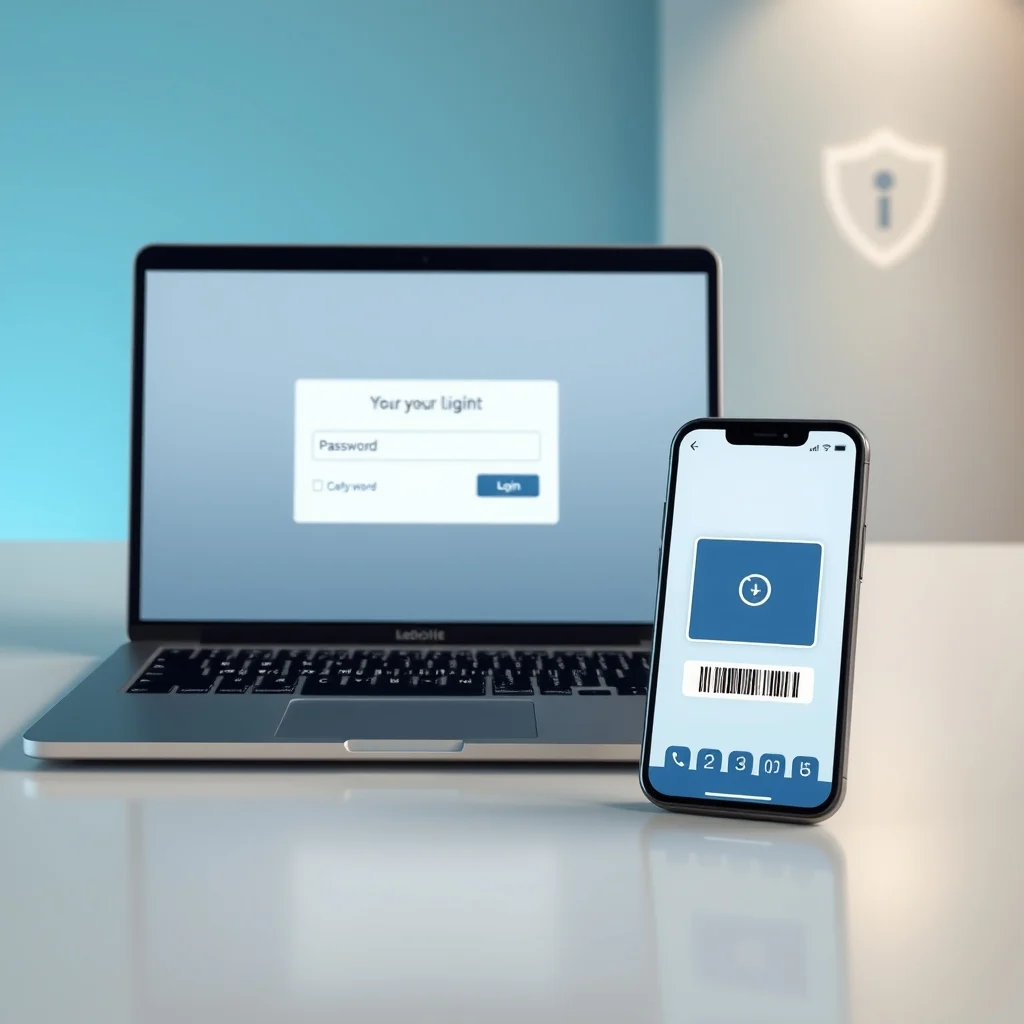
2. Second Factor Request: The system prompts you for the second factor. This could be a code sent to your phone via SMS, an authentication app, or a biometric scan.
3. Verification: You provide the second factor, and the system verifies it. If both factors are correct, you gain access to your account.
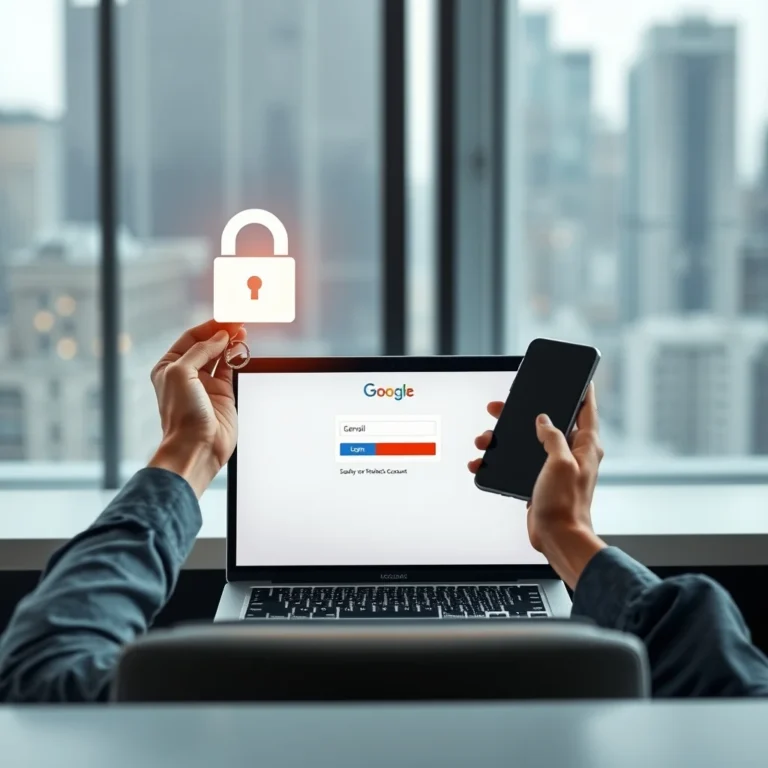
For example, when you log in to your Gmail account with 2FA enabled, after entering your password, Google will send a verification code to your phone. You need to enter this code to complete the login process.
🚀 Features and Advanced Capabilities
✨ Key Features
Two-factor authentication offers several key features that enhance security:
- Multi-Layered Security: Combines something you know (password) with something you have (phone, token) or something you are (biometric).
- Flexibility: Supports various methods such as SMS, authentication apps, hardware tokens, and biometrics.
- Ease of Use: Most platforms make it easy to set up and use 2FA with straightforward instructions.
- Wide Compatibility: Works with a wide range of online services, including email, social media, banking, and more.
📊 Key Points
| Feature | Description | Benefit |
|---|---|---|
| SMS-Based 2FA | Receives a verification code via text message. | Easy to set up and use, widely supported. |
| Authentication Apps | Uses apps like Google Authenticator or Authy to generate codes. | More secure than SMS, works offline. |
| Hardware Tokens | Physical devices that generate or receive authentication codes. | Highly secure, resistant to phishing. |
| Biometric Authentication | Uses fingerprint, facial recognition, or other biometric data. | Convenient and secure, hard to replicate. |
The table above summarizes the key features of different 2FA methods. SMS-based 2FA is widely supported and easy to use, making it a popular choice for many users. However, authentication apps offer a higher level of security as they are not susceptible to SIM swapping attacks. Hardware tokens provide the highest level of security but can be less convenient due to the need to carry a physical device. Biometric authentication is becoming increasingly popular due to its convenience and high level of security.
🆚 What Distinguishes It from Competitors?
While there are various security measures available, 2FA stands out due to its simplicity and effectiveness. Unlike single-factor authentication, which relies solely on passwords, 2FA adds an extra layer of security that significantly reduces the risk of unauthorized access. Additionally, 2FA is more user-friendly compared to complex security measures that may require extensive technical knowledge.
- Enhanced Security: Provides a higher level of security compared to single-factor authentication.
- User-Friendly: Easy to set up and use, even for non-technical users.
- Versatility: Compatible with a wide range of platforms and services.
📊 Pros and Cons Section
✅ Advantages
Enabling two-factor authentication offers numerous benefits:
- Increased Security: Significantly reduces the risk of unauthorized access.
- Protection Against Phishing: Even if your password is compromised, the attacker would still need the second factor.
- Compliance: Meets security requirements for many industries and organizations.
- Peace of Mind: Knowing your accounts are better protected can give you peace of mind.
❌ Disadvantages
While 2FA offers enhanced security, it also has some potential drawbacks:
- Inconvenience: Requires an additional step during the login process, which can be seen as inconvenient.
- Dependency on Devices: If you lose your phone or hardware token, you may be locked out of your account.
- Compatibility Issues: Not all platforms support 2FA, although this is becoming less common.
💻 Requirements Section
🖥️ Minimum Requirements
To enable and use two-factor authentication, you will need the following:
- A Compatible Device: A smartphone, tablet, or computer to receive verification codes.
- Internet Connection: For receiving SMS or using authentication apps.
- Valid Phone Number: For SMS-based 2FA.
⚡ Recommended Specifications
For the best experience with 2FA, consider the following recommendations:
- Authentication App: Use apps like Google Authenticator or Authy for enhanced security.
- Backup Codes: Always generate and store backup codes in a secure location.
- Biometric Authentication: If available, enable biometric authentication for added convenience and security.
| Component | Minimum | Recommended | Performance Impact |
|---|---|---|---|
| Device | Smartphone or computer | Smartphone with authentication app | High |
| Internet Connection | Basic internet access | Stable and fast internet | Medium |
| Phone Number | Valid phone number | Phone number with SMS capability | Low |
The table above outlines the minimum and recommended requirements for using two-factor authentication. Having a smartphone with an authentication app is highly recommended as it provides a higher level of security compared to SMS-based 2FA. A stable and fast internet connection is also beneficial for receiving verification codes promptly. The performance impact varies depending on the method used, with hardware tokens and biometric authentication offering the highest levels of security and convenience.
🔍 Practical Guide Section
🧩 Installation or Setup Method
Setting up two-factor authentication is a straightforward process. Here’s a step-by-step guide to enabling 2FA on some popular platforms:
- Google Account:
- Go to your Google Account settings.
- Navigate to the Security tab.
- Under Signing in to Google, select 2-Step Verification.
- Follow the on-screen instructions to set up 2FA using your preferred method (SMS, authentication app, etc.).
- Facebook:
- Go to your Facebook settings.
- Click on Security and Login.
- Under Two-Factor Authentication, click Edit.
- Follow the instructions to set up 2FA using your preferred method.
- Microsoft Account:
- Go to your Microsoft Account security settings.
- Select More security options.
- Under Two-step verification, click Set up two-step verification.
- Follow the on-screen instructions to complete the setup.
🛡️ Common Errors and How to Fix Them
While setting up or using 2FA, you might encounter some common issues. Here are a few and how to fix them:
- Not Receiving SMS Codes: Ensure your phone has a signal and that you’ve entered the correct phone number. You can also try using an authentication app instead.
- Authentication App Not Working: Make sure the time on your device is synchronized with the internet time. Authentication apps rely on time-based codes.
- Lost Device: If you lose your device, use your backup codes to access your account and set up 2FA on a new device.
📈 Performance Section
🎮 Real Performance Experience
Using two-factor authentication can slightly slow down the login process due to the additional step required. However, the added security far outweighs this minor inconvenience. Most users find that the extra few seconds it takes to enter a verification code is a small price to pay for enhanced security.
In terms of resource usage, 2FA has minimal impact on your device’s performance. Authentication apps and SMS-based verification codes use negligible amounts of data and processing power.
🌍 Global User Ratings
Two-factor authentication is widely praised by users and security experts alike. Here’s a breakdown of global user ratings:
- Average Rating: 4.5 out of 5 stars.
- Positive Feedback Reasons: Enhanced security, ease of use, peace of mind.
- Negative Feedback Reasons: Minor inconvenience during login, dependency on devices.
- Trend Analysis: The adoption of 2FA is steadily increasing as more users become aware of its benefits.
🔐 Security Section
🔒 Security Level
Two-factor authentication significantly enhances the security of your online accounts. By requiring a second form of identification, it makes it much harder for attackers to gain access, even if they have your password. This added layer of security is crucial in today’s digital landscape, where cyber threats are constantly evolving.
However, it’s important to note that no security measure is foolproof. While 2FA greatly reduces the risk of unauthorized access, it’s still essential to follow other security best practices, such as using strong, unique passwords and being cautious of phishing attempts.
🛑 Potential Risks
While 2FA is highly effective, there are some potential risks to be aware of:
- SIM Swapping: Attackers can transfer your phone number to a new SIM card, allowing them to receive your SMS-based verification codes.
- Phishing Attacks: Sophisticated phishing attacks can trick you into revealing both your password and verification code.
- Device Loss: Losing your device can lock you out of your accounts if you don’t have backup codes.
🆚 Comparison Section
🥇 Best Available Alternatives
While 2FA is highly effective, there are alternative security measures you can consider:
- Password Managers: Tools like LastPass or 1Password can generate and store complex passwords, enhancing security.
- Biometric Authentication: Fingerprint or facial recognition can provide a convenient and secure way to access your accounts.
- Hardware Security Keys: Physical devices like YubiKey offer a high level of security and are resistant to phishing attacks.
| Method | Security Level | Ease of Use | Best For |
|---|---|---|---|
| SMS-Based 2FA | Medium | High | Users who prefer simplicity |
| Authentication Apps | High | Medium | Users who want enhanced security |
| Hardware Tokens | Very High | Low | Users who need maximum security |
| Biometric Authentication | High | Very High | Users who value convenience |
The table above compares different 2FA methods based on their security level, ease of use, and best use cases. SMS-based 2FA is easy to use but offers medium security. Authentication apps provide a higher level of security but require a bit more setup. Hardware tokens offer the highest security but can be less convenient. Biometric authentication strikes a balance between security and convenience.
💡 Tips Section
🎯 Best Settings for Maximum Performance
To get the most out of two-factor authentication, consider the following settings and practices:
- Use Authentication Apps: Apps like Google Authenticator or Authy are more secure than SMS-based 2FA.
- Enable Backup Codes: Always generate and store backup codes in a secure location.
- Regularly Update Your Device: Ensure your device’s operating system and apps are up to date to protect against vulnerabilities.
- Monitor Your Accounts: Regularly check your accounts for any suspicious activity.
📌 Advanced Tricks Few Know
Here are some advanced tips to enhance your 2FA experience:
- Use Multiple 2FA Methods: Some platforms allow you to set up multiple 2FA methods, such as both an authentication app and SMS.
- Hardware Security Keys: Consider using hardware security keys for platforms that support them, as they offer a higher level of security.
- Regularly Review Security Settings: Periodically review and update your security settings to ensure they are up to date.
🏁 Final Verdict Section
In conclusion, enabling two-factor authentication is a crucial step in securing your online accounts. With the increasing number of cyber threats, relying solely on passwords is no longer sufficient. 2FA adds an extra layer of security that significantly reduces the risk of unauthorized access.
While there are some minor inconveniences associated with 2FA, such as the additional step during login, the benefits far outweigh these drawbacks. By following the steps outlined in this guide, you can easily set up 2FA on your accounts and enjoy enhanced security and peace of mind.
Take action today and enable two-factor authentication on all your important accounts. Your digital security is worth the extra effort.
❓ Frequently Asked Questions
- What is two-factor authentication?
Two-factor authentication is a security process that requires two forms of identification to access an account, typically a password and a verification code sent to your phone or generated by an authentication app.
- Why should I enable 2FA?
Enabling 2FA adds an extra layer of security to your accounts, making it significantly harder for unauthorized users to gain access, even if they have your password.
- What methods can I use for 2FA?
Common methods for 2FA include SMS-based verification codes, authentication apps like Google Authenticator, hardware tokens, and biometric authentication such as fingerprint or facial recognition.
- Is 2FA foolproof?
While 2FA greatly enhances security, no method is entirely foolproof. It’s essential to follow other security best practices, such as using strong passwords and being cautious of phishing attempts.
- What if I lose my device with 2FA enabled?
If you lose your device, you can use backup codes to access your account and set up 2FA on a new device. Always store your backup codes in a secure location.
- Can I use 2FA on all my accounts?
Most major platforms support 2FA, including email providers, social media sites, and banking services. Check the security settings of each platform to see if 2FA is available.
- Are there any downsides to using 2FA?
While 2FA offers enhanced security, it can add a minor inconvenience during the login process. Additionally, if you lose your device or hardware token, you may be locked out of your account if you don’t have backup codes.
- How do I set up 2FA on my Google account?
To set up 2FA on your Google account, go to your Google Account settings, navigate to the Security tab, select 2-Step Verification, and follow the on-screen instructions to set up 2FA using your preferred method.