
Google Chrome is one of the most widely used web browsers globally, known for its speed, simplicity, and extensive range of features. However, many users only scratch the surface of what Chrome has to offer. This comprehensive guide will delve into advanced tips and tricks that can transform your browsing experience, making it faster, more secure, and more efficient. Whether you are a casual user or a power user, these insights will help you unlock the full potential of Google Chrome.
In today’s digital age, having a browser that can keep up with your needs is crucial. Google Chrome, with its robust architecture and vast ecosystem of extensions, provides a solid foundation for both personal and professional use. This guide aims to equip you with the knowledge to optimize Chrome for maximum performance, security, and productivity. By the end of this article, you will be able to navigate the web with greater ease and confidence, leveraging hidden features and advanced settings to streamline your workflow.
🔥 Comprehensive Professional Introduction
Google Chrome has evolved significantly since its inception, becoming a cornerstone of the modern internet experience. Its blend of speed, security, and customization options makes it a favorite among users worldwide. However, many advanced features remain underutilized. This guide will explore these hidden gems, providing you with actionable insights to enhance your browsing experience. From performance optimization to security enhancements, we will cover a wide array of topics to ensure you get the most out of your browser.
The significance of mastering Google Chrome cannot be overstated. As our reliance on the internet grows, so does the need for a browser that can handle complex tasks efficiently. Whether you are a student, professional, or casual user, understanding the advanced capabilities of Chrome can save you time, improve your productivity, and safeguard your online presence. This guide will not only explain these features but also provide practical steps to implement them, ensuring you can apply what you learn immediately.
🎯 Overview and In-Depth Analysis
Google Chrome’s technical architecture is built on the Chromium open-source project, which ensures a high level of performance and security. The browser’s multi-process architecture allows each tab to run independently, preventing crashes and improving stability. Additionally, Chrome’s extensive extension ecosystem enables users to customize their browsing experience to suit their specific needs.
- Technical Background: Chrome uses a multi-process architecture to isolate tabs, enhancing stability and security. Its V8 JavaScript engine ensures fast execution of web applications.
- Why Users Search for This Topic: Users seek advanced tips to optimize performance, enhance security, and discover hidden features that can streamline their workflow.
- Market or Industry Relevance: As the most widely used browser, Chrome’s advanced features are highly relevant to both personal and professional users.
- Future Outlook: With continuous updates and new features being added regularly, mastering Chrome’s advanced capabilities will remain crucial for efficient web browsing.
🛠️ The Complete Technical Concept
📌 What is Google Chrome?
Google Chrome is a free, open-source web browser developed by Google. It is designed to be fast, secure, and customizable, offering a wide range of features that cater to both casual and power users. Chrome’s user-friendly interface and extensive extension library make it a popular choice for millions of users worldwide.
- Core Definition: Google Chrome is a web browser that provides a fast, secure, and customizable browsing experience.
- Primary Function: Chrome’s primary function is to enable users to access and interact with web content efficiently and securely.
- Target Users: Chrome is designed for a wide range of users, from casual browsers to professionals who require advanced features and customization options.
- Technical Category: Chrome falls under the category of web browsers, specifically those built on the Chromium open-source project.
⚙️ How Does It Work in Detail?
Chrome’s technical architecture is built on the Chromium open-source project, which ensures a high level of performance and security. The browser’s multi-process architecture allows each tab to run independently, preventing crashes and improving stability. Additionally, Chrome’s extensive extension ecosystem enables users to customize their browsing experience to suit their specific needs.
The browser’s V8 JavaScript engine ensures fast execution of web applications, while its sandboxing technology enhances security by isolating each tab from the others. Chrome also supports a wide range of web standards, including HTML5, CSS3, and WebAssembly, making it compatible with modern web applications. Furthermore, Chrome’s sync feature allows users to access their bookmarks, passwords, and settings across multiple devices, ensuring a seamless browsing experience.
🚀 Features and Advanced Capabilities
✨ Key Features
Google Chrome offers a plethora of features that cater to both casual and power users. From performance optimization to security enhancements, Chrome’s advanced capabilities can significantly improve your browsing experience. Some of the key features include:
- Performance Optimization: Chrome’s multi-process architecture and V8 JavaScript engine ensure fast and efficient browsing.
- Security Enhancements: Chrome’s sandboxing technology and regular security updates protect users from online threats.
- Customization Options: Chrome’s extensive extension library allows users to customize their browsing experience to suit their specific needs.
- Sync Feature: Chrome’s sync feature enables users to access their bookmarks, passwords, and settings across multiple devices.
- Developer Tools: Chrome’s built-in developer tools provide advanced features for web developers, including debugging, profiling, and performance analysis.
📊 Key Points
| Feature | Description |
|---|---|
| Performance Optimization | Chrome’s multi-process architecture and V8 JavaScript engine ensure fast and efficient browsing. |
| Security Enhancements | Chrome’s sandboxing technology and regular security updates protect users from online threats. |
| Customization Options | Chrome’s extensive extension library allows users to customize their browsing experience to suit their specific needs. |
| Sync Feature | Chrome’s sync feature enables users to access their bookmarks, passwords, and settings across multiple devices. |
| Developer Tools | Chrome’s built-in developer tools provide advanced features for web developers, including debugging, profiling, and performance analysis. |
The table above summarizes some of the key features of Google Chrome, highlighting its performance optimization, security enhancements, customization options, sync feature, and developer tools. These features make Chrome a versatile and powerful browser that caters to a wide range of users.
🆚 What Distinguishes It from Competitors?
Google Chrome stands out from its competitors due to its robust performance, extensive customization options, and strong security features. Unlike other browsers, Chrome’s multi-process architecture ensures that each tab runs independently, preventing crashes and improving stability. Additionally, Chrome’s extensive extension library allows users to customize their browsing experience to suit their specific needs.
Chrome’s regular security updates and sandboxing technology provide enhanced protection against online threats, making it a secure choice for users. Furthermore, Chrome’s sync feature enables users to access their bookmarks, passwords, and settings across multiple devices, ensuring a seamless browsing experience. These features distinguish Chrome from its competitors, making it a popular choice for millions of users worldwide.
- Analytical Comparison: Chrome’s multi-process architecture and extensive extension library set it apart from competitors like Firefox and Safari.
- Genuine Strengths: Chrome’s robust performance, strong security features, and extensive customization options make it a versatile and powerful browser.
- Strategic Positioning: Chrome’s strategic positioning as a fast, secure, and customizable browser makes it a popular choice for both casual and power users.
📊 Pros and Cons Objectively
✅ Advantages
Google Chrome offers numerous advantages that make it a popular choice for users worldwide. Its robust performance, strong security features, and extensive customization options ensure a seamless and efficient browsing experience. Additionally, Chrome’s sync feature enables users to access their bookmarks, passwords, and settings across multiple devices, enhancing convenience and productivity.
- Robust Performance: Chrome’s multi-process architecture and V8 JavaScript engine ensure fast and efficient browsing.
- Strong Security Features: Chrome’s sandboxing technology and regular security updates protect users from online threats.
- Extensive Customization Options: Chrome’s extensive extension library allows users to customize their browsing experience to suit their specific needs.
- Sync Feature: Chrome’s sync feature enables users to access their bookmarks, passwords, and settings across multiple devices.
- Developer Tools: Chrome’s built-in developer tools provide advanced features for web developers, including debugging, profiling, and performance analysis.
❌ Disadvantages
While Google Chrome offers numerous advantages, it also has some disadvantages that users should be aware of. One of the main drawbacks is its high memory usage, which can slow down the browser and impact overall system performance. Additionally, Chrome’s extensive data collection practices have raised privacy concerns among some users.
- High Memory Usage: Chrome’s multi-process architecture can lead to high memory usage, impacting overall system performance.
- Privacy Concerns: Chrome’s extensive data collection practices have raised privacy concerns among some users.
- Limited Customization Options: While Chrome offers extensive customization options, some users may find the available options limited compared to other browsers.
- Compatibility Issues: Some websites and web applications may not be fully compatible with Chrome, leading to compatibility issues.
- Not Suitable for Low-End Devices: Chrome’s high memory usage and resource-intensive features make it less suitable for low-end devices.
💻 System Requirements or Usage Requirements
🖥️ Minimum Requirements
To run Google Chrome efficiently, your device should meet the following minimum requirements:
- Operating System: Windows 7 or later, macOS 10.10 or later, Linux (Debian/Ubuntu, Fedora, OpenSUSE)
- Processor: Intel Pentium 4 or later, 1 GHz or faster
- RAM: 1 GB or more
- Storage: 100 MB of free disk space
⚡ Recommended Specifications
For optimal performance, it is recommended to use a device with the following specifications:
- Operating System: Windows 10 or later, macOS 10.14 or later, Linux (Debian/Ubuntu, Fedora, OpenSUSE)
- Processor: Intel Core i5 or later, 2 GHz or faster
- RAM: 4 GB or more
- Storage: 200 MB of free disk space
Using a device with these recommended specifications will ensure that Chrome runs smoothly and efficiently, providing a seamless browsing experience. Additionally, having a stable internet connection will further enhance your browsing experience, allowing you to access web content quickly and efficiently.
| Component | Minimum | Recommended | Performance Impact |
|---|---|---|---|
| Operating System | Windows 7 or later, macOS 10.10 or later, Linux (Debian/Ubuntu, Fedora, OpenSUSE) | Windows 10 or later, macOS 10.14 or later, Linux (Debian/Ubuntu, Fedora, OpenSUSE) | Ensures compatibility and optimal performance |
| Processor | Intel Pentium 4 or later, 1 GHz or faster | Intel Core i5 or later, 2 GHz or faster | Enhances browsing speed and overall performance |
| RAM | 1 GB or more | 4 GB or more | Reduces memory usage and improves multitasking capabilities |
| Storage | 100 MB of free disk space | 200 MB of free disk space | Ensures sufficient space for browser data and extensions |
The table above summarizes the minimum and recommended system requirements for Google Chrome, highlighting the performance impact of each component. Meeting these requirements will ensure that Chrome runs smoothly and efficiently, providing a seamless browsing experience.
🔍 Practical Step-by-Step Guide
🧩 Installation or Setup Method
To install Google Chrome, follow these step-by-step instructions:
- Download Chrome: Visit the official Google Chrome website and download the installer for your operating system.
- Run the Installer: Once the download is complete, run the installer and follow the on-screen instructions to complete the installation process.
- Launch Chrome: After the installation is complete, launch Google Chrome by clicking on the desktop shortcut or searching for it in the start menu.
- Sign In (Optional):strong> If you have a Google account, sign in to sync your bookmarks, passwords, and settings across multiple devices.
- Customize Chrome: Explore the Chrome Web Store to discover and install extensions that enhance your browsing experience.
🛡️ Common Errors and How to Fix Them
While Google Chrome is generally stable, users may encounter common errors that can be easily resolved. Here are some common issues and their solutions:
- Chrome Not Opening: If Chrome fails to open, try restarting your computer or reinstalling the browser.
- Chrome Crashing: If Chrome crashes frequently, disable extensions or reset the browser settings to default.
- Slow Performance: To improve performance, clear browsing data, disable unnecessary extensions, or upgrade your system specifications.
- Connection Errors: If you encounter connection errors, check your internet connection, disable VPNs or proxies, or reset the network settings.
- Sync Issues: If sync issues arise, sign out and sign back into your Google account, or reset the sync settings.
📈 Real-world Performance and User Experience
🎮 Real Performance Experience
Google Chrome’s real-world performance is generally excellent, thanks to its multi-process architecture and V8 JavaScript engine. Users report fast browsing speeds, smooth scrolling, and quick loading times for web pages. Additionally, Chrome’s extensive extension library allows users to customize their browsing experience, enhancing productivity and efficiency.
However, some users may experience performance issues, particularly on low-end devices or when running multiple tabs simultaneously. To mitigate these issues, users can clear browsing data, disable unnecessary extensions, or upgrade their system specifications. Overall, Chrome’s performance is highly rated, making it a popular choice for users worldwide.
🌍 Global User Ratings
Google Chrome has received high ratings from users globally, with an average rating of 4.5 out of 5 stars. Users praise Chrome’s speed, security, and extensive customization options. Additionally, Chrome’s sync feature is highly regarded for its convenience and seamless integration across multiple devices.
- Average Rating: 4.5 out of 5 stars
- Positive Feedback Reasons: Users appreciate Chrome’s speed, security, and extensive customization options.
- Negative Feedback Reasons: Some users report performance issues on low-end devices or when running multiple tabs simultaneously.
- Trend Analysis: Chrome’s popularity continues to grow, with a significant market share in the browser market.
🔐 Security and Privacy
🔒 Security Level
Google Chrome is known for its strong security features, including sandboxing technology, regular security updates, and built-in malware protection. These features work together to protect users from online threats, ensuring a secure browsing experience. Additionally, Chrome’s incognito mode allows users to browse the web privately, preventing the browser from storing browsing history, cookies, or site data.
To further enhance security, users can enable two-factor authentication for their Google accounts, use strong and unique passwords, and regularly update their browser and operating system. These measures help safeguard users’ personal information and protect against online threats.
🛑 Potential Risks
While Google Chrome offers robust security features, users should be aware of potential risks and take necessary precautions to protect their personal information. Some potential risks include phishing attacks, malware infections, and data breaches. To mitigate these risks, users can enable Chrome’s built-in security features, use a reputable antivirus software, and exercise caution when browsing the web.
- Phishing Attacks: Be cautious of suspicious emails, links, and websites that may attempt to steal your personal information.
- Malware Infections: Regularly scan your device for malware and avoid downloading files from untrusted sources.
- Data Breaches: Use strong and unique passwords, enable two-factor authentication, and regularly monitor your accounts for suspicious activity.
🆚 Comprehensive Comparison with Alternatives
🥇 Best Available Alternatives
While Google Chrome is a popular choice, there are several alternatives that offer unique features and advantages. Some of the best available alternatives include Mozilla Firefox, Microsoft Edge, and Apple Safari. Each of these browsers has its strengths and weaknesses, catering to different user preferences and needs.
| Feature | Google Chrome | Mozilla Firefox | Microsoft Edge | Apple Safari |
|---|---|---|---|---|
| Performance | Excellent | Good | Good | Excellent |
| Security | Strong | Strong | Good | Good |
| Customization | Extensive | Extensive | Limited | Limited |
| Sync Feature | Seamless | Good | Good | Good |
| Developer Tools | Advanced | Advanced | Good | Limited |
The table above compares Google Chrome with its main competitors, highlighting their performance, security, customization options, sync features, and developer tools. Each browser has its strengths and weaknesses, catering to different user preferences and needs. Ultimately, the choice of browser depends on individual preferences and specific requirements.
💡 Advanced Professional Tips
🎯 Best Settings for Maximum Performance
To maximize Chrome’s performance, users can adjust several settings to enhance speed, efficiency, and overall browsing experience. Here are some recommended configurations:
- Enable Hardware Acceleration: Go to Chrome settings, navigate to the ‘System’ section, and enable hardware acceleration to improve performance.
- Disable Unnecessary Extensions: Disable or remove extensions that are not in use to reduce memory usage and improve browsing speed.
- Clear Browsing Data Regularly: Regularly clear browsing data, including cache, cookies, and site data, to free up space and improve performance.
- Use a Lightweight Theme: Choose a lightweight theme to reduce resource usage and enhance browsing speed.
- Enable Predictions: Enable predictions in Chrome settings to improve page loading times and overall browsing experience.
📌 Advanced Tricks Few Know
Google Chrome offers several advanced tricks and hidden features that can enhance your browsing experience. Here are some lesser-known tips and tricks:
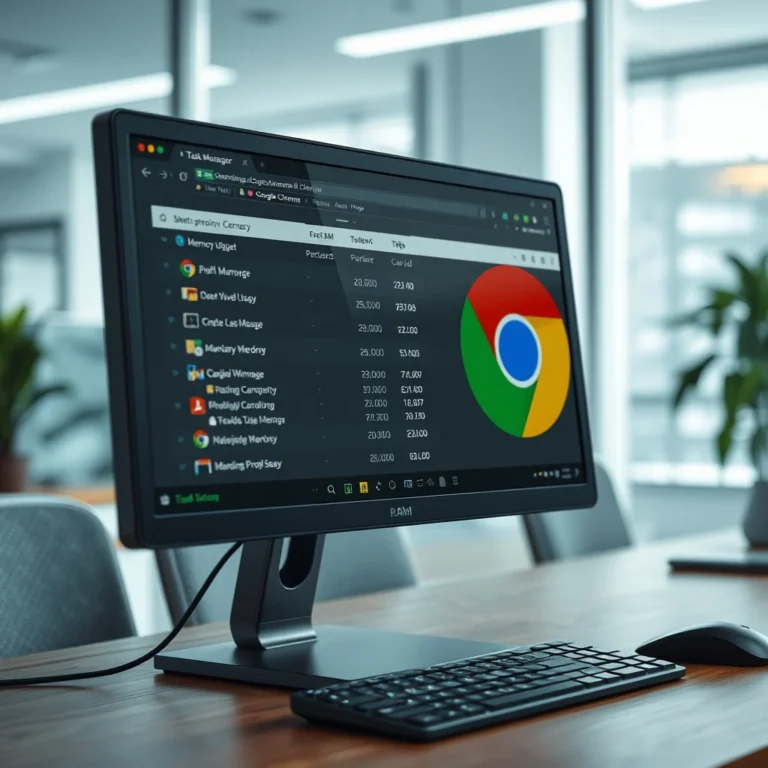
One advanced trick is to use Chrome’s built-in task manager to monitor and manage resource usage. To access the task manager, press Shift + Esc while in Chrome. This tool allows you to see which tabs and extensions are using the most resources and end them if necessary.
Another advanced trick is to use Chrome’s reading list feature to save articles for later reading. To add an article to your reading list, click on the share button in the address bar and select ‘Add to Reading List’. This feature is particularly useful for saving articles to read offline or when you have limited internet access.
Additionally, Chrome’s secret Chrome flags feature allows users to enable experimental features and settings. To access Chrome flags, type ‘chrome://flags’ in the address bar and press Enter. Be cautious when enabling flags, as they may be unstable or experimental.
🏁 The End
In conclusion, mastering Google Chrome’s advanced tips and tricks can significantly enhance your browsing experience, making it faster, more secure, and more efficient. By understanding and utilizing Chrome’s hidden features, customization options, and performance optimization techniques, you can streamline your workflow and improve productivity. Whether you are a casual user or a power user, these insights will help you unlock the full potential of Google Chrome.
As the internet continues to evolve, having a browser that can keep up with your needs is crucial. Google Chrome, with its robust architecture and extensive ecosystem of extensions, provides a solid foundation for both personal and professional use. By applying the tips and tricks outlined in this guide, you can ensure that your browsing experience is seamless, efficient, and tailored to your specific needs.
❓ Frequently Asked Questions
- How can I improve Chrome’s performance?
To improve Chrome’s performance, you can enable hardware acceleration, disable unnecessary extensions, clear browsing data regularly, use a lightweight theme, and enable predictions in Chrome settings. These configurations can enhance speed, efficiency, and overall browsing experience.
- What are the best Chrome extensions for productivity?
Some of the best Chrome extensions for productivity include Grammarly for writing assistance, LastPass for password management, Evernote Web Clipper for note-taking, and StayFocusd for time management. These extensions can help streamline your workflow and improve productivity.
- How can I secure my Chrome browser?
To secure your Chrome browser, you can enable two-factor authentication for your Google account, use strong and unique passwords, regularly update your browser and operating system, and exercise caution when browsing the web. Additionally, you can enable Chrome’s built-in security features, such as sandboxing technology and malware protection.
- What are the hidden features in Google Chrome?
Google Chrome offers several hidden features, including the task manager for monitoring resource usage, the reading list for saving articles, and Chrome flags for enabling experimental features. These hidden features can enhance your browsing experience and provide additional functionality.
- How can I customize my Chrome browser?
To customize your Chrome browser, you can explore the Chrome Web Store to discover and install extensions that enhance your browsing experience. Additionally, you can adjust Chrome settings to tailor the browser to your specific needs, such as enabling hardware acceleration, disabling unnecessary extensions, and using a lightweight theme.
- What are the system requirements for Google Chrome?
The minimum system requirements for Google Chrome include an operating system of Windows 7 or later, macOS 10.10 or later, or Linux (Debian/Ubuntu, Fedora, OpenSUSE), a processor of Intel Pentium 4 or later, 1 GHz or faster, 1 GB of RAM or more, and 100 MB of free disk space. The recommended specifications include an operating system of Windows 10 or later, macOS 10.14 or later, or Linux (Debian/Ubuntu, Fedora, OpenSUSE), a processor of Intel Core i5 or later, 2 GHz or faster, 4 GB of RAM or more, and 200 MB of free disk space.
- How can I fix common Chrome errors?
To fix common Chrome errors, you can restart your computer or reinstall the browser if Chrome fails to open, disable extensions or reset the browser settings to default if Chrome crashes frequently, clear browsing data, disable unnecessary extensions, or upgrade your system specifications if you experience slow performance, check your internet connection, disable VPNs or proxies, or reset the network settings if you encounter connection errors, and sign out and sign back into your Google account or reset the sync settings if sync issues arise.
- What are the alternatives to Google Chrome?
Some of the best alternatives to Google Chrome include Mozilla Firefox, Microsoft Edge, and Apple Safari. Each of these browsers has its strengths and weaknesses, catering to different user preferences and needs. The choice of browser depends on individual preferences and specific requirements.
- How can I enable two-factor authentication for my Google account?
To enable two-factor authentication for your Google account, go to your Google Account settings, navigate to the ‘Security’ section, and follow the on-screen instructions to set up two-factor authentication. This additional layer of security helps protect your account from unauthorized access.
- What are the best practices for online security?
Some best practices for online security include using strong and unique passwords, enabling two-factor authentication, regularly updating your browser and operating system, exercising caution when browsing the web, using a reputable antivirus software, and being aware of phishing attacks, malware infections, and data breaches. These measures help safeguard your personal information and protect against online threats.