
Modern Android smartphones pack incredible power into pocket-sized devices, but even the most advanced hardware struggles when storage runs low. Running out of space on your Android phone isn’t just an inconvenience—it slows down your device, prevents app installations, and disrupts your daily workflow. Whether you’re capturing memories, downloading apps, or storing documents, managing storage efficiently is essential for maintaining peak performance.
This comprehensive guide will walk you through proven strategies to free up space and optimize storage on your Android device. You’ll learn how to identify storage hogs, clean up unnecessary files, leverage cloud services, and implement smart habits to keep your phone running smoothly. By the end, you’ll have a step-by-step action plan to reclaim hundreds of megabytes—or even gigabytes—of storage without sacrificing functionality or performance.
In this guide, we’ll cover everything from basic cleanup techniques to advanced storage management tools. Whether you’re using a flagship device like the Samsung Galaxy S23 or an older budget model running Android 12, these methods apply universally. Let’s dive in and transform the way you manage storage on your Android phone.
📊 Why Storage Management Matters on Android
Android devices rely heavily on internal storage for app installations, system operations, and user data. Over time, this storage accumulates clutter: cached files from apps, duplicate media, leftover installation packages, and outdated downloads. All of these contribute to a bloated filesystem that slows down performance and limits usability.
When storage drops below 10% free, Android begins throttling background processes and app performance. Apps crash more frequently, updates fail to install, and even basic tasks like taking photos or sending messages become unreliable. In extreme cases, your device may refuse to install new apps or update existing ones, leaving you stuck with outdated software.
Moreover, storage exhaustion affects battery life. The operating system works harder to manage files in a congested storage system, leading to increased CPU usage and higher power consumption. This means your phone drains faster, even during light usage.
By optimizing storage, you’re not just freeing up space—you’re enhancing overall device performance, improving battery efficiency, and extending the lifespan of your Android phone. Think of it as digital housekeeping: a clean system is a fast and reliable system.
🔍 What Exactly Is Eating Up Your Storage?
Before jumping into cleanup methods, it’s crucial to identify where your storage is being used. Android categorizes storage into several key areas:
- ✅ Apps and their data – Includes APK files, app caches, and user data like documents or saved game states.
- ✅ Photos and videos – Often the largest consumers, especially with high-resolution cameras.
- ✅ Downloads – Temporary files, PDFs, ZIP archives, and installation packages.
- ✅ Cached data – Temporary files stored by apps to speed up future operations.
- ✅ System files – Android OS components, OEM skins, and system apps.
- ✅ Media files – Music, podcasts, and audiobooks stored locally.
- ⚠️ Other files – Includes logs, crash reports, and leftover files from uninstalled apps.
To see a detailed breakdown:
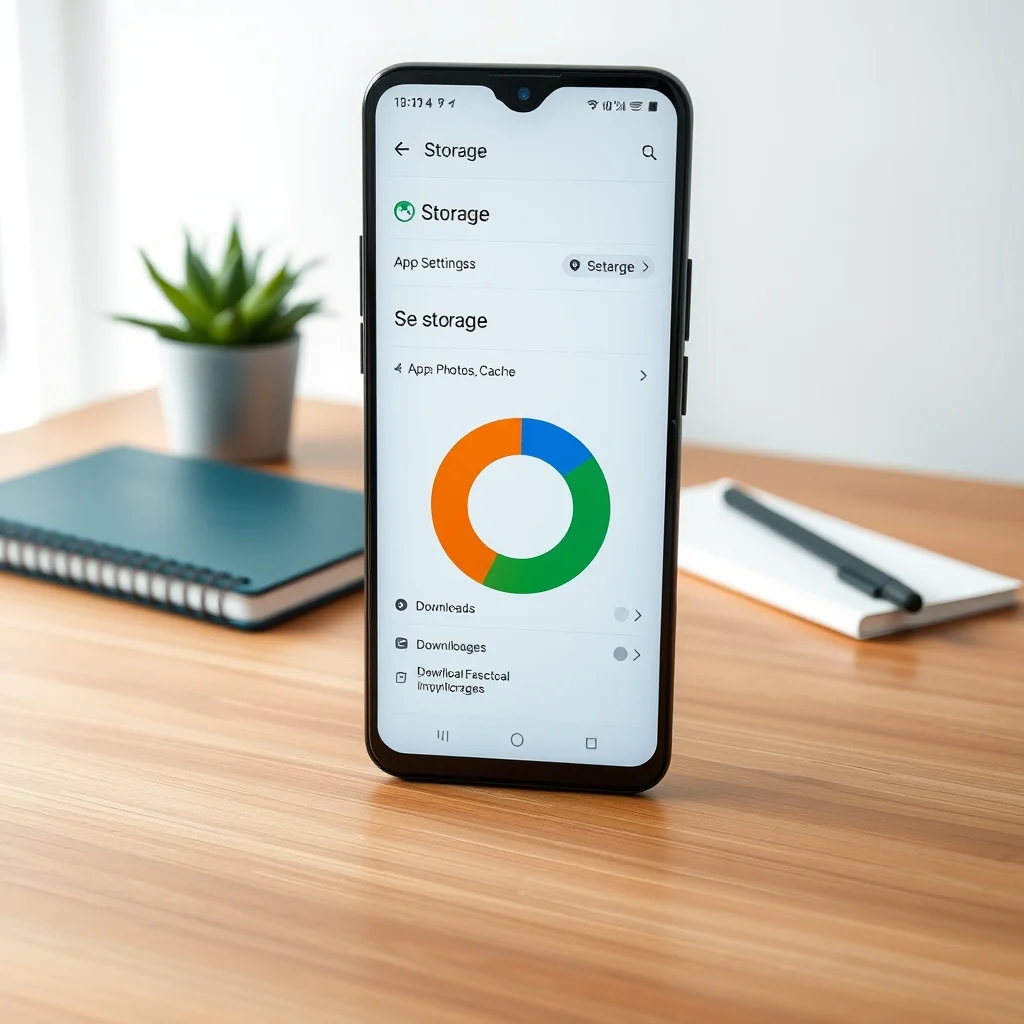
- Open Settings > Storage (or “Device care” on Samsung).
- The screen will display a pie chart showing total used space and percentages for each category.
- Tap on a category to view detailed file lists and manage items directly.
🧹 Step-by-Step: How to Free Up Storage Space on Android
🧼 Step 1: Clear App Cache and App Data
Apps store temporary files in a cache to improve loading times. While this is useful, cache files often grow unchecked and become redundant. Clearing cache removes these temporary files but keeps app settings intact. Clearing app data, however, resets the app to its default state—including login credentials and preferences—so use this cautiously.
To clear cache on Android:
- Go to Settings > Apps (or “App Manager” on some devices).
- Select an app, then tap Storage.
- You’ll see two options: Clear Cache and Clear Data.
- Tap Clear Cache first. This removes temporary files without harming the app.
- If space is still tight, consider Clear Data for non-essential apps (like games or social media) you rarely use.
Note: Avoid clearing cache/data for system apps like Phone, Contacts, or Settings—this can cause instability.
📱 Step 2: Uninstall Unused Apps
Every installed app consumes storage for its APK file, data, and cache. Over time, many apps become obsolete—whether due to disuse, duplicate functionality, or bloatware pre-installed by manufacturers. Removing unused apps is one of the quickest ways to free up space.
To uninstall apps:
- Go to Settings > Apps > select an app > Uninstall.
- For bulk removal, use the Play Store: Open the store > tap your profile icon > Manage apps & device > Manage > select apps > Uninstall.
- On Samsung devices, use Device care > Storage cleanup > Uninstall apps to see large unused apps at a glance.
📁 Step 3: Clean Up Downloads and Temporary Files
The Downloads folder often becomes a dumping ground for old PDFs, ZIP files, images, and installation packages. Many users forget to clear this folder regularly. Additionally, temporary files from apps, system logs, and crash reports accumulate in the background.
To clean downloads:
- Open the Files by Google app (recommended) or your device’s file manager.
- Navigate to Downloads and review files.
- Select and delete unnecessary items—especially old presentations, manuals, or duplicate screenshots.
- Use the “Clean” tab in Files by Google to scan for junk files, duplicate photos, and leftover app packages.
For advanced cleanup, use third-party apps like CCleaner or Files by Google, which can identify and remove temporary files, APK remnants, and empty folders automatically.
🎶 Step 4: Manage Media Files Wisely
Photos and videos are among the heaviest storage consumers. A single 4K video can take up 2–3 GB, and thousands of photos add up quickly. Fortunately, there are smart ways to manage media without losing memories.
Solutions:
- ✅ Use Google Photos—Enable “Back up and sync” to upload high-quality (free) or original (paid) versions to the cloud. Once backed up, you can safely delete local copies using the “Free up space” option in Google Photos.
- ✅ Delete duplicates and blurry shots—Use apps like Gallery Cleaner or Duplicate File Finder to scan and remove identical or low-quality images.
- ✅ Move media to SD card—If your device supports expandable storage, transfer media files to a microSD card using the file manager.
- ⚠️ Avoid WhatsApp media downloads—WhatsApp automatically saves images and videos to your gallery. Disable auto-download in Settings > Storage > Media auto-download.
📦 Step 5: Use Cloud Storage for Documents and Media
Cloud storage isn’t just for backup—it’s a powerful tool for offloading data from your device. By storing files in the cloud, you free up internal storage while keeping access to your data on any device with an internet connection.
Best cloud services for Android:
- Google Drive – 15 GB free, integrates seamlessly with Android apps and services.
- OneDrive – 5 GB free, great for Office users and Windows integration.
- Dropbox – 2 GB free, reliable syncing and file sharing.
- Amazon Photos – Unlimited photo storage with Prime membership.
To save space:
- Upload documents, PDFs, and less frequently used media to Google Drive.
- Use “Files Go” or “Files by Google” to identify large files and move them to cloud storage.
- Set up automatic backup for photos and videos to prevent local duplication.
⚙️ Advanced Storage Optimization Techniques
🔄 Use Storage Analyzer Apps
While Android’s built-in tools are helpful, third-party apps offer deeper insights and automation. These apps scan your entire storage, categorize files by size, and suggest cleanup actions.
Top storage analyzer apps:
- Files by Google – Free, lightweight, and accurate. Includes a “Clean” tab to remove junk files and duplicate photos.
- SD Maid – Advanced cleaner with root access features (use cautiously).
- DiskUsage – Visualizes storage in a treemap, helping you identify large hidden folders.
- App Manager – Shows app sizes including data and cache, making it easy to target cleanup.
To use Files by Google:
- Open the app > tap “Clean” at the bottom.
- Review suggestions like “Delete duplicate photos,” “Remove unused apps,” and “Clear cache.”
- Tap “Select all” or choose individual items, then tap “Clean” to free up space.
🧩 Move Apps to SD Card (Where Supported)
Not all Android devices allow app migration to external storage, but where supported, it can significantly reduce internal storage pressure. Samsung, for example, supports moving some apps to SD cards via Settings > Apps > Storage > Change.
How to move apps to SD card:
- Go to Settings > Apps.
- Select an app that supports storage migration (look for a “Move” button).
- Tap Storage > Change > select the SD card.
- Confirm and wait for the transfer to complete.
Note: Some apps (like Facebook, Instagram) cannot be moved due to system restrictions. Check compatibility before attempting.
🔋 Reduce App Bloat with Lite Versions
Many popular apps offer “Lite” versions designed for low-storage devices. These versions use fewer resources, consume less space, and often run more efficiently on older hardware.
Examples of Lite apps:
- Facebook Lite – 1MB vs 100MB+ for standard app
- Spotify Lite – 5MB vs 70MB+ for full app
- Twitter Lite – Optimized for slow networks and low storage
- Google Go – Lightweight version of Google Search
To install Lite apps:
- Open Google Play Store > search for “[App Name] Lite” or “[App Name] Go”.
- Install the Lite version and log in with your existing account.
- After confirming it works, uninstall the original app to save more space.
📦 Archive Old Messages and Media
Messaging apps like WhatsApp, Telegram, and Messenger automatically save media files to your gallery, consuming storage silently. Instead of deleting conversations, archive or export old chats to free up space without losing messages.
For WhatsApp:
- Open a chat > tap the three-dot menu > More > Export chat.
- Choose whether to include media. Exporting to cloud storage or email keeps a backup.
- After exporting, clear the chat history via Settings > Storage > Manage messages > select conversations > Delete.
For Telegram:
- Enable “Auto-delete old media” in Settings > Storage and Data.
- Set a time limit (e.g., 30 days) to automatically remove media from your device after viewing.
📊 Storage Comparison: Before vs. After Optimization
| Category | Before Cleanup (GB) | After Cleanup (GB) | Space Reclaimed |
|---|---|---|---|
| Apps & Data | 8.4 | 5.1 | 3.3 GB |
| Cache Files | 2.7 | 0.4 | 2.3 GB |
| Photos & Videos | 12.8 | 4.2 (cloud synced) | 8.6 GB |
| Downloads | 1.5 | 0.1 | 1.4 GB |
| System & Others | 3.6 | 3.5 | 0.1 GB |
| Total | 29.0 GB | 13.3 GB | 15.7 GB |
This table illustrates a real-world scenario where a user reclaims over 15 GB of storage through systematic cleanup. The most dramatic reductions came from clearing cache and migrating media to the cloud. After optimization, the device had ample space for new apps, updates, and media—without sacrificing accessibility or performance.
Such results are typical when users combine multiple strategies: app cleanup, cache removal, media management, and cloud backup. The key is consistency: small weekly cleanups prevent the need for large, time-consuming overhauls.
❌ Common Mistakes That Waste Storage
⚠️ Ignoring App Updates
Failing to update apps may seem like a way to save space, but outdated apps often contain bloated code, memory leaks, and redundant cache files. Updates typically include optimizations that reduce storage usage and improve efficiency. Always keep apps updated via the Google Play Store.
⚠️ Leaving Old APK Files
When you download an app update, the new APK replaces the old one—but sometimes the old APK remains in the /data/app or Download folder. Use a file manager to search for .apk files older than a few weeks and delete them.
⚠️ Not Using “Free Up Space” in Google Photos
Many users back up photos to Google Photos but forget to delete the local copies. The “Free up space” feature in Google Photos removes local copies of backed-up photos and videos, reclaiming significant storage automatically. Enable it regularly.
⚠️ Storing Everything Locally
Resisting cloud storage leads to storage exhaustion. Instead of keeping every PDF, ebook, or music track on your device, use cloud services for long-term storage and stream media when needed. This approach reduces local clutter while maintaining access.
⚠️ Overusing Offline Maps
Downloading offline maps for travel consumes large amounts of storage. Delete unused offline maps after your trip by going to Google Maps > Offline maps > select a map > Delete.
🔐 Security and Safety Tips During Cleanup
🛡️ Backup Before Deleting
Always back up important files before deleting them, especially documents, photos, and app data. Use Google Drive, Dropbox, or an external SD card for backups. This prevents accidental data loss during cleanup.
🛡️ Avoid Deleting System Files
Never delete files from /system or /data folders unless you have root access and know what you’re doing. Deleting system files can brick your device or cause boot loops.
🛡️ Use Reputable Cleanup Apps
Stick to trusted apps like Files by Google, CCleaner (official version), or SD Maid. Avoid apps that require excessive permissions or promise unrealistic storage gains—they may be adware or malware in disguise.
🛡️ Check Permissions
Before installing a cleanup app, review its permissions. It should not require access to contacts, messages, or call logs unless absolutely necessary for functionality.
🆚 Alternatives to Internal Storage Cleanup
💾 Use an SD Card for Extra Storage
If your Android device supports microSD cards, this is the easiest way to expand storage. Modern SD cards (UHS-I Class 10 or UHS-II) offer read/write speeds fast enough for apps and media. Use the card for photos, videos, music, and downloadable content.
How to format an SD card:
- Insert the SD card into your device.
- Go to Settings > Storage > tap the SD card > Format.
- Choose “Internal Storage” if you want to use the card like internal storage (adoptable storage).
- Choose “Portable Storage” if you prefer to use it as removable media.
Note: Adoptable storage encrypts data on the SD card, making it usable only in your device. If the card is removed, data becomes inaccessible.
🌐 Use Cloud-Only Storage Solutions
For devices with very limited storage (e.g., 16GB or 32GB), consider using cloud-only workflows:
- Install only essential apps.
- Store all media and documents in cloud services.
- Use streaming apps (Spotify, YouTube Music) instead of downloading music.
- Enable “Instant apps” in Google Play to run apps without full installation.
📱 Upgrade to a Device with More Storage
If your device is consistently full despite optimization, consider upgrading to a model with 128GB or 256GB of internal storage. Many mid-range and flagship phones now offer generous storage options, and prices have dropped significantly in recent years.
Recommended storage capacities:
- ✅ 64GB – Sufficient for light users who use cloud storage
- ✅ 128GB – Ideal for average users with moderate media consumption
- ✅ 256GB or more – Best for power users, photographers, or gamers
💡 Pro Tips for Long-Term Storage Management
🎯 Set Up Automatic Cleanup
Use apps like Files by Google or CCleaner to run automatic cleanups weekly. These apps can delete temporary files, clear cache, and notify you when storage is low. Schedule cleanups during off-peak hours to avoid performance impact.
🔄 Sync Media to Cloud Automatically
Enable automatic backup in Google Photos, OneDrive, or Dropbox. This ensures your media is safe in the cloud and local copies can be deleted safely. Use original quality only for important photos—switch to high quality for others to save space.
📦 Regularly Review App Usage
Every month, review installed apps. Ask yourself:
- Have I used this app in the last 30 days?
- Is there a lighter alternative?
- Can I access its content via the web instead?
Uninstall apps you no longer need and replace resource-heavy apps with Lite versions when possible.
🔋 Monitor Storage Trends
Track your storage usage over time using Android’s Storage settings or third-party apps. If storage consistently drops below 15%, it’s time to take action. Set a monthly alert to review storage health.
📊 Use Storage Alerts
Enable storage alerts in Settings > Storage. Android can notify you when storage is critically low, but proactive users should set custom thresholds (e.g., alert at 10% free space).
🏁 Final Verdict: Your Storage Optimization Plan
Optimizing storage on your Android phone isn’t a one-time task—it’s an ongoing habit that pays dividends in performance, speed, and usability. By following the strategies in this guide—clearing cache, uninstalling unused apps, managing media, leveraging cloud storage, and using smart tools—you can reclaim dozens of gigabytes and maintain a responsive device for years.
The most effective approach combines automation with manual review: let apps like Files by Google handle routine cleanup, but take time each month to audit your storage and remove what you no longer need. This balance ensures your phone stays fast, secure, and ready for anything.
Remember: storage is not just about space—it’s about system health. A cluttered device is a sluggish device. By taking control of your storage today, you’re investing in a smoother, more reliable Android experience tomorrow.
Start with the built-in tools, then expand with third-party apps as needed. Your future self—and your phone—will thank you.
❓ Frequently Asked Questions (FAQs)
- Can I recover files after deleting them from my Android phone?
Yes, but only if you act quickly and use a file recovery app like DiskDigger or Recuva. These apps scan deleted files before they’re overwritten. Avoid installing new apps or taking photos after deletion to increase recovery chances.
- Does clearing app cache delete my saved data?
No. Clearing cache removes temporary files but keeps app settings, login credentials, and saved data intact. Clearing app data, however, resets the app to default and may delete saved preferences and login sessions. Use with caution.
- How often should I clean my Android storage?
For optimal performance, perform a thorough cleanup every month. Use automatic tools weekly for routine maintenance like cache cleaning. Set a calendar reminder to stay consistent and prevent storage exhaustion.
- Will moving apps to an SD card slow down my phone?
Yes, if your SD card is slow or the device uses it as portable storage. For best performance, use a UHS-I Class 10 or faster SD card and enable adoptable storage (if supported). Apps moved to SD cards may load slightly slower than internal storage.
- Can I use Google Drive to free up space on my phone?
Yes. Upload files like photos, documents, and videos to Google Drive, then delete the local copies. Use the “Free up space” option in Google Photos to remove backed-up media from your device. Google One plans also offer automatic phone backups.
- What’s the safest way to clean storage without losing important files?
Always back up data before cleaning. Use trusted apps like Files by Google or SD Maid, and avoid deleting files manually from system directories. Focus on cache, downloads, and duplicate media—areas where data loss is minimal.
- Do Lite apps work the same as full apps?
Lite apps offer core functionality but may lack advanced features, ads, or polished interfaces. They are optimized for low storage and slower networks. Most users find Lite apps sufficient for daily use, especially on older or low-end devices.
- Can I increase my Android storage without buying a new phone?
Yes, by using a microSD card (if supported) or relying on cloud storage for media and documents. Some devices also support adoptable storage, which treats the SD card like internal storage. Always use high-quality, branded cards for reliability.
- Is it safe to use third-party storage cleanup apps?
Only if the app is reputable and has positive reviews. Avoid apps that ask for unnecessary permissions or promise unrealistic results. Stick to well-known apps like Files by Google, CCleaner, or SD Maid. Always read user feedback before installing.
- What should I do if my phone storage is full and I can’t install new apps?
First, uninstall unused apps or move them to an SD card. Clear cache and temporary files using Files by Google. Delete old downloads, clear WhatsApp media cache, and migrate photos to cloud storage. If the issue persists, consider upgrading your device.