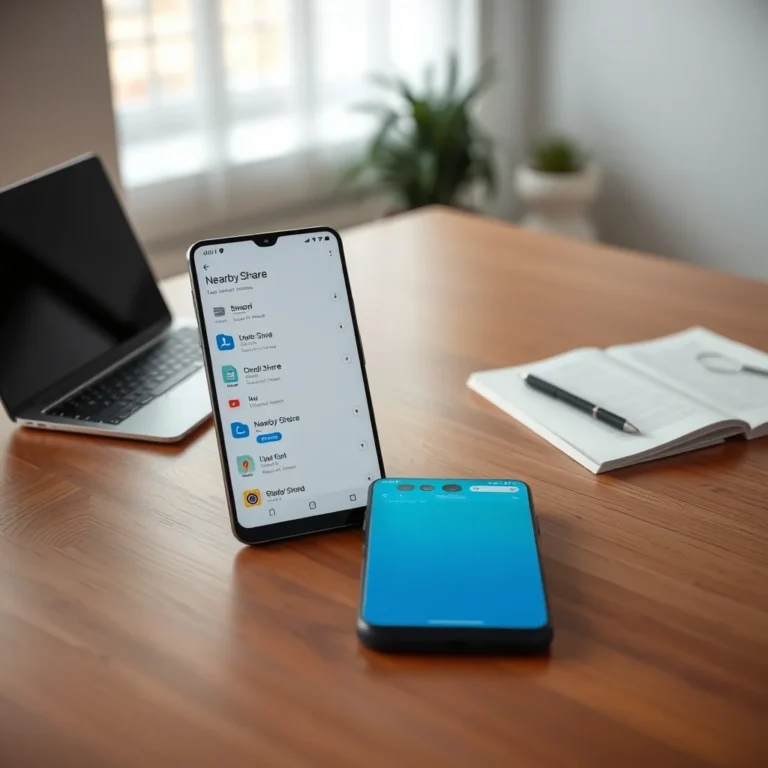
Android’s Nearby Share is a powerful feature designed to simplify file transfers between devices. Whether you’re sharing photos with friends, sending documents for work, or transferring large media files, Nearby Share makes the process seamless and efficient. Unlike traditional methods like Bluetooth or cloud services, Nearby Share leverages multiple wireless technologies to deliver fast and reliable file transfers without the need for an internet connection.
This feature, built into modern Android devices, supports a variety of file types, including images, videos, documents, and even app data. It’s particularly useful in situations where internet connectivity is unreliable or when you need to transfer large files quickly. With Nearby Share, you can send files to nearby devices in just a few taps, making it one of the most convenient tools for Android users.
In this comprehensive guide, we’ll explore everything you need to know about Nearby Share. From setting it up and enabling it on your device to optimizing its performance and troubleshooting common issues, this article will provide step-by-step instructions to ensure you get the most out of this feature. We’ll also dive into its technical aspects, compare it with other file-sharing methods, and share expert tips to enhance your experience.
📌 Why Nearby Share is a Game-Changer for Android Users
Nearby Share eliminates the hassle of traditional file-sharing methods. Instead of relying on slow Bluetooth connections or uploading files to cloud services, Nearby Share uses a combination of Wi-Fi Direct, Bluetooth, and peer-to-peer Wi-Fi to transfer files at high speeds. This means you can send large files in seconds, not minutes, and without the need for an internet connection.
The feature is deeply integrated into Android, making it accessible across all compatible devices. Whether you’re using a flagship smartphone from Samsung, Google, or OnePlus, or an older device running a recent version of Android, Nearby Share is designed to work efficiently. It also supports cross-platform sharing, allowing you to transfer files between Android devices and even Windows PCs, provided they have the Nearby Share app installed.
Another standout feature of Nearby Share is its privacy-focused design. Unlike cloud-based services that require you to upload files to a server, Nearby Share keeps your data local. Files are transferred directly between devices, ensuring that your personal information remains secure and private. This makes it an ideal solution for sharing sensitive documents or private media files.
🔍 How Nearby Share Works: A Technical Breakdown
At its core, Nearby Share uses a combination of wireless technologies to establish a direct connection between devices. When you initiate a file transfer, Nearby Share first checks for available devices nearby using Bluetooth or Wi-Fi. Once a connection is established, it dynamically selects the fastest available method to transfer the file.
The process involves several key steps:
- Device Discovery: Nearby Share scans for nearby devices using Bluetooth Low Energy (BLE) or Wi-Fi. This step ensures that only devices within close proximity can initiate or receive transfers.
- Connection Establishment: Once a nearby device is detected, Nearby Share establishes a secure connection using Wi-Fi Direct or peer-to-peer Wi-Fi. This allows for high-speed data transfer without relying on an internet connection.
- File Transfer: The file is split into smaller chunks and transferred over the established connection. Nearby Share automatically selects the fastest available method, whether it’s Wi-Fi Direct or Bluetooth, depending on the devices involved.
- Verification and Completion: After the transfer is complete, Nearby Share verifies the integrity of the file and notifies both the sender and receiver. If any issues occur during the transfer, Nearby Share will attempt to resolve them automatically or prompt you to retry.
This technical approach ensures that Nearby Share is not only fast but also energy-efficient. Unlike Bluetooth, which can drain battery life, Nearby Share uses optimized protocols to minimize power consumption while maximizing transfer speeds.
📊 Key Technologies Behind Nearby Share
- ✅ Wi-Fi Direct: Allows devices to connect directly without a Wi-Fi network, enabling high-speed file transfers.
- 🎯 Bluetooth Low Energy (BLE): Used for device discovery and low-power connections when Wi-Fi Direct is unavailable.
- 🔥 Peer-to-Peer Wi-Fi: Creates a direct Wi-Fi connection between devices for faster transfers than Bluetooth.
- 🔒 End-to-End Encryption: Ensures that files are transferred securely without the risk of interception.
🛠️ Setting Up Nearby Share: A Step-by-Step Guide
Before you can start using Nearby Share, you’ll need to ensure it’s enabled on your Android device. The setup process is straightforward, but there are a few prerequisites to keep in mind:
📌 Prerequisites for Using Nearby Share
To use Nearby Share, your device must meet the following requirements:
- ✅ Android 6.0 (Marshmallow) or later: Nearby Share is built into Android, but older versions may not support all features.
- 🎯 Google Play Services: Required for the Nearby Share feature to function properly. Ensure it’s updated to the latest version.
- 🔥 Wi-Fi or Bluetooth: Your device must have at least one of these wireless technologies enabled.
- 🔒 Location Permissions: Nearby Share uses location services to discover nearby devices. Ensure location access is enabled in your device settings.
If your device meets these requirements, you’re ready to enable Nearby Share. Here’s how to do it:
🔧 Enabling Nearby Share on Your Android Device
- Open Settings: Swipe down from the top of your screen and tap the gear icon to open the Settings menu. Alternatively, you can access Settings from the app drawer.
- Navigate to Google: Scroll down and tap Google. This will open the Google settings menu, where you can manage various Google-related features.
- Select Devices & Sharing: In the Google settings menu, tap Devices & sharing. This section contains settings related to device connections and sharing options.
- Enable Nearby Share: Tap Nearby Share to open its settings. Here, you’ll see an option to toggle the feature on or off. Tap the toggle to enable Nearby Share.
- Configure Visibility: Once enabled, you can configure your device’s visibility settings. Tap Device visibility and choose one of the following options:
- ✅ All Contacts: Your device will be visible to all nearby devices that have Nearby Share enabled.
- 🎯 Some Contacts: You can select specific contacts who will be able to see your device. This is useful for privacy.
- 🔥 Hidden: Your device will not be visible to any nearby devices. You’ll need to manually accept incoming transfers.
- Set Your Name: Nearby Share will use your device name by default, but you can customize it. Tap Device name and enter a name that will help others identify your device during transfers.
- Enable Location Access: Nearby Share requires location permissions to discover nearby devices. Go to Settings > Location and ensure it’s enabled for Nearby Share.
Once you’ve completed these steps, Nearby Share will be active on your device. You can now start sending and receiving files with nearby Android devices.
🚀 How to Use Nearby Share: A Practical Walkthrough
Using Nearby Share is intuitive and requires just a few taps. Whether you’re sending a single file or multiple files, the process is straightforward. Below, we’ll cover the steps for both sending and receiving files using Nearby Share.
📤 Sending Files via Nearby Share
Sending files with Nearby Share is as simple as selecting the file and choosing the recipient. Here’s a step-by-step guide:
- Open the File Manager: Navigate to the file you want to share using your device’s file manager or a third-party app like Google Files. Long-press the file to select it, or tap the checkbox if multiple files are involved.
- Tap the Share Button: Once the file is selected, tap the Share button. This will open the Android sharing menu, where you’ll see Nearby Share as one of the options.
- 🎯 If Nearby Share isn’t visible, tap More or swipe up to reveal additional sharing options. Nearby Share should appear in the list.
- Select Nearby Share: Tap Nearby Share from the sharing menu. Your device will start scanning for nearby devices that have Nearby Share enabled.
- Choose a Recipient: Once nearby devices are detected, you’ll see a list of available devices. Tap the device you want to send the file to. If the recipient’s device is set to Hidden visibility, you’ll need to request permission to send the file.
- Wait for Acceptance: The recipient will receive a notification asking them to accept the file transfer. Once they accept, the transfer will begin automatically.
- ✅ If the file is successfully sent, you’ll see a confirmation message on your device.
- 🔥 If the transfer fails, Nearby Share will notify you and provide options to retry or cancel.
That’s it! The file will be transferred directly to the recipient’s device without the need for an internet connection or cloud storage.
📥 Receiving Files via Nearby Share
Receiving files with Nearby Share is equally simple. When someone sends you a file, you’ll receive a notification asking for permission to accept the transfer. Here’s what to do:
- Wait for the Notification: When someone initiates a file transfer to your device, you’ll receive a notification in the notification panel. The notification will display the sender’s device name and the file being sent.
- 🎯 If you don’t see the notification, check your device’s notification settings to ensure Nearby Share alerts are enabled.
- Tap the Notification: Open the notification to view the file transfer request. You’ll see options to Accept or Decline the transfer.
- ✅ Tap Accept to begin the transfer.
- 🔥 Tap Decline if you don’t want to receive the file.
- Save the File: Once you accept the transfer, Nearby Share will save the file to your device’s default Downloads folder. You can access the file immediately after the transfer is complete.
- 🎯 If you want to save the file to a different location, tap Save to and choose a folder.
- View the File: After the transfer is complete, you can open the file directly from the notification or navigate to the Downloads folder in your file manager.
- ⚠️ If the file doesn’t appear, refresh your file manager or check the Downloads folder again.
Receiving files via Nearby Share is seamless and requires minimal effort. The entire process is designed to be user-friendly, ensuring that even non-technical users can use it without any issues.
💻 Optimizing Nearby Share for Maximum Performance
While Nearby Share is designed to work efficiently out of the box, there are several ways to optimize its performance for faster and more reliable file transfers. Below, we’ll explore some expert tips to help you get the most out of this feature.
🎯 Best Settings for Faster Transfers
Nearby Share automatically selects the fastest available transfer method based on the devices involved. However, you can tweak a few settings to further enhance performance:
- ✅ Use Wi-Fi Direct Whenever Possible: Wi-Fi Direct offers the fastest transfer speeds compared to Bluetooth. Ensure both devices are connected to the same Wi-Fi network or have Wi-Fi Direct enabled.
- 🎯 Keep Devices Close Together: The closer the devices are, the stronger the signal and the faster the transfer speed. Avoid obstacles like walls or other electronic devices that may interfere with the connection.
- 🔥 Disable Battery Saver Mode: Battery saver mode can limit background processes, including Nearby Share. Disable it temporarily for faster transfers.
- 🔒 Enable High-Accuracy Location Mode: Nearby Share uses location services to discover nearby devices. Using high-accuracy mode improves device detection and reduces transfer delays.
- ⚡ Close Unnecessary Apps: Running multiple apps in the background can consume system resources and slow down file transfers. Close any unnecessary apps before initiating a transfer.
By optimizing these settings, you can significantly improve the speed and reliability of file transfers using Nearby Share.
🚀 Advanced Tricks to Enhance Your Experience
Beyond basic optimizations, there are several advanced tricks you can use to enhance your Nearby Share experience. These include customizing visibility settings, using Nearby Share with multiple devices, and troubleshooting common issues.
Here are some advanced tips to try:
- 🎯 Customize Device Visibility: If you frequently share files with specific contacts, set your device visibility to Some Contacts and add those contacts. This ensures they can always see your device without needing to manually accept each transfer.
- ✅ Use Nearby Share with Multiple Devices: Nearby Share supports transferring files to multiple devices simultaneously. When sharing a file, tap the + button to add additional recipients.
- 🔥 Prioritize Wi-Fi Over Bluetooth: If your device supports both Wi-Fi and Bluetooth, Nearby Share will automatically choose the faster method. However, if you’re experiencing slow speeds, try disabling Bluetooth temporarily to force Nearby Share to use Wi-Fi.
- 🔒 Use Nearby Share with Windows PCs: If you have a Windows PC, you can install the Nearby Share app from the Microsoft Store. This allows you to transfer files between your Android device and PC seamlessly.
- ⚠️ Ensure both your Android device and Windows PC have the Nearby Share app installed and updated.
- ⚡ Monitor Transfer Speed: If you notice that transfers are slower than expected, check your device’s network settings. Ensure Wi-Fi is enabled and that there are no other apps consuming bandwidth.
These advanced tips can help you unlock the full potential of Nearby Share, making file transfers faster, more efficient, and more convenient.
⚠️ Common Issues and How to Fix Them
While Nearby Share is a reliable feature, users may encounter occasional issues that can disrupt file transfers. Below, we’ll cover some of the most common problems and provide step-by-step solutions to resolve them.
🛠️ Troubleshooting Nearby Share Issues
If Nearby Share isn’t working as expected, try the following troubleshooting steps:
- ✅ Check Device Compatibility: Ensure both devices are running Android 6.0 (Marshmallow) or later and have the latest version of Google Play Services installed.
- 🎯 Enable Location Services: Nearby Share requires location services to discover nearby devices. Go to Settings > Location and ensure it’s enabled for Nearby Share.
- 🔥 Restart Bluetooth and Wi-Fi: Sometimes, simply restarting Bluetooth or Wi-Fi can resolve connection issues. Toggle these settings off and on to refresh the connection.
- 🔒 Update Nearby Share: Ensure you’re using the latest version of Nearby Share. Go to the Google Play Store, search for Nearby Share, and update the app if an update is available.
- ⚡ Clear App Cache: If Nearby Share is behaving erratically, try clearing its cache. Go to Settings > Apps > Nearby Share > Storage and tap Clear Cache.
🔧 Resolving Specific Transfer Problems
If you’re experiencing issues with specific transfers, here are some targeted solutions:
- 📌 Transfer Fails to Start:
- ✅ Ensure both devices are unlocked and have Nearby Share enabled.
- 🎯 Check that the recipient’s device is set to All Contacts or Some Contacts visibility.
- 🔥 Restart both devices and try the transfer again.
- 📊 Slow Transfer Speeds:
- ✅ Ensure both devices are connected to the same Wi-Fi network.
- 🎯 Move the devices closer together to improve signal strength.
- 🔒 Disable Bluetooth temporarily to force Nearby Share to use Wi-Fi Direct.
- 📥 File Doesn’t Appear After Transfer:
- ✅ Check the Downloads folder in your file manager.
- 🎯 Refresh the file manager or restart your device.
- 🔥 Ensure the file wasn’t saved to a different location due to custom settings.
- 🔄 Transfer Keeps Failing:
- ✅ Delete and reinstall the Nearby Share app.
- 🎯 Disable battery optimization for Nearby Share in your device settings.
- 🔒 Update your device’s software to the latest version.
By following these troubleshooting steps, you can resolve most issues with Nearby Share and ensure smooth, reliable file transfers.
🆚 Nearby Share vs. Other File-Sharing Methods
Nearby Share is one of the most convenient ways to transfer files between Android devices, but it’s not the only option. Below, we’ll compare Nearby Share with other popular file-sharing methods to help you understand its advantages and limitations.
📊 Comparison Table: Nearby Share vs. Alternatives
| Feature | Nearby Share | Bluetooth | Cloud Services (Google Drive, Dropbox) | USB Cable |
|---|---|---|---|---|
| Transfer Speed | ⚡ Very Fast (Wi-Fi Direct) | ⏳ Slow (Bluetooth) | ⏳ Depends on Internet Speed | 🐢 Slow (USB 2.0) |
| Internet Required | ❌ No | ❌ No | ✅ Yes | ❌ No |
| File Size Limit | 📦 No Limit | 📦 No Limit | 📦 Depends on Storage (Free Tier) | 📦 No Limit |
| Ease of Use | 🎯 Very Easy | 🎯 Easy | 🎯 Easy (But Requires Upload/Download) | 🎯 Easy |
| Privacy | 🔒 High (Local Transfer) | 🔒 Medium (Local Transfer) | 🔒 Low (Stored on Servers) | 🔒 High (Local Transfer) |
| Cross-Platform Support | ✅ Android & Windows | ✅ Android | ✅ Cross-Platform | ✅ Cross-Platform |
As the table shows, Nearby Share offers several advantages over other file-sharing methods. It’s faster than Bluetooth, doesn’t require an internet connection like cloud services, and is more convenient than using a USB cable. However, it’s important to note that Nearby Share is limited to Android devices and Windows PCs, whereas cloud services and USB cables support cross-platform transfers.
🥇 When to Use Nearby Share vs. Alternatives
While Nearby Share is a powerful tool, there are scenarios where other methods might be more suitable:
- ✅ Use Nearby Share When:
- You need to transfer large files quickly without an internet connection.
- You want to share files privately without uploading them to a server.
- You’re transferring files between Android devices or to a Windows PC.
- 🎯 Use Cloud Services When:
- You need to share files with someone who isn’t nearby.
- You want to back up files to the cloud for safekeeping.
- You’re sharing files across different platforms (e.g., Android to iOS).
- 🔥 Use Bluetooth When:
- You’re transferring small files and don’t have access to Wi-Fi.
- Your devices don’t support Nearby Share or Wi-Fi Direct.
- ⚡ Use USB Cable When:
- You need to transfer very large files (e.g., videos or backups).
- You’re transferring files between devices that don’t support wireless methods.
By understanding the strengths and limitations of each method, you can choose the best option for your specific needs.
💡 Pro Tips for Power Users
If you’re a power user looking to get the most out of Nearby Share, these pro tips will help you optimize your experience even further. From automating transfers to customizing settings, these tricks will make file sharing effortless.
🎯 Automating Nearby Share Transfers
Nearby Share can be integrated with other apps and services to automate file transfers. For example, you can set up automation rules to automatically send files to specific contacts or devices when certain conditions are met. Here’s how:
Here’s an example of how to set up automation:
- 📌 Trigger: A specific app opens (e.g., a file manager).
- 📌 Action: Automatically share the most recently opened file via Nearby Share to a predefined contact.
- 📌 Condition: Only trigger if the contact is nearby (using location services).
By automating transfers, you can save time and ensure files are shared efficiently without manual intervention.
🚀 Customizing Nearby Share Settings
Nearby Share offers several customization options to tailor the experience to your preferences. Here are some settings you can tweak for a better experience:
- ✅ Change Device Name: Customize your device name in Nearby Share settings to make it easier for others to identify you.
- 🎯 Set Default Transfer Method: Choose whether Nearby Share prioritizes Wi-Fi Direct or Bluetooth for transfers.
- 🔥 Enable Dark Mode: If your device supports dark mode, enable it in Nearby Share settings for a more comfortable viewing experience.
- 🔒 Adjust Visibility Duration: Set how long your device remains visible to others after Nearby Share is activated.
- ⚠️ Shorter durations improve privacy but may require you to re-enable visibility for each transfer.
- ⚡ Enable Battery Optimization: Disable battery optimization for Nearby Share to ensure it runs smoothly in the background.
By customizing these settings, you can optimize Nearby Share to suit your workflow and preferences.
🏁 Final Verdict: Is Nearby Share Worth Using?
Nearby Share is one of the most convenient and efficient ways to transfer files between Android devices. Its integration with the Android ecosystem, support for multiple wireless technologies, and privacy-focused design make it a standout feature. Whether you’re sharing photos with friends, sending documents for work, or transferring large media files, Nearby Share delivers a seamless experience.
While it may not be perfect—users may encounter occasional connection issues or slower speeds in certain environments—Nearby Share’s advantages far outweigh its limitations. It’s faster than Bluetooth, more convenient than cloud services, and more secure than many alternative methods. For Android users, Nearby Share is a must-have tool that simplifies file transfers and enhances productivity.
If you’re not already using Nearby Share, now is the perfect time to enable it and start enjoying faster, more reliable file transfers. With its intuitive interface and powerful features, Nearby Share is poised to become the go-to solution for Android file sharing.
❓ Frequently Asked Questions
-
What is Nearby Share, and how does it work?
Nearby Share is an Android feature that allows you to transfer files quickly and securely between nearby devices. It uses a combination of Wi-Fi Direct, Bluetooth, and peer-to-peer Wi-Fi to establish a direct connection and transfer files at high speeds. Unlike traditional methods, Nearby Share doesn’t require an internet connection, making it ideal for offline transfers.
-
Which Android devices support Nearby Share?
Nearby Share is available on all Android devices running Android 6.0 (Marshmallow) or later. This includes devices from Samsung, Google, OnePlus, Xiaomi, and other manufacturers. However, some older devices may not support all features or may experience slower transfer speeds.
-
Can I use Nearby Share on Windows PCs?
Yes! Google offers a Nearby Share app for Windows PCs, which you can download from the Microsoft Store. This allows you to transfer files between your Android device and Windows PC seamlessly. Ensure both devices have the Nearby Share app installed and updated for the best experience.
-
Why is Nearby Share faster than Bluetooth?
Nearby Share uses Wi-Fi Direct or peer-to-peer Wi-Fi for transfers, which offers significantly faster speeds than Bluetooth. Wi-Fi Direct can transfer data at speeds of up to 250 Mbps, while Bluetooth typically maxes out at 25 Mbps. This makes Nearby Share ideal for transferring large files quickly.
-
How do I fix Nearby Share if it’s not working?
If Nearby Share isn’t working, try the following troubleshooting steps:
- Ensure both devices have Nearby Share enabled and are running Android 6.0 or later.
- Check that location services are enabled for Nearby Share.
- Restart Bluetooth and Wi-Fi on both devices.
- Update Nearby Share and Google Play Services to the latest versions.
- Clear the Nearby Share app cache in your device settings.
-
Can I transfer files to multiple devices at once?
Yes! Nearby Share supports transferring files to multiple devices simultaneously. When sharing a file, tap the + button to add additional recipients. This is useful for sharing files with a group of friends or colleagues at the same time.
-
Is Nearby Share secure?
Yes, Nearby Share is designed with privacy and security in mind. Files are transferred directly between devices using end-to-end encryption, ensuring that your data remains private. Unlike cloud services, Nearby Share doesn’t upload files to a server, reducing the risk of data breaches.
-
Why does Nearby Share sometimes fail to detect nearby devices?
Nearby Share relies on Bluetooth and Wi-Fi for device discovery. If devices aren’t within close proximity or if there are obstacles like walls or other electronic devices interfering with the signal, Nearby Share may struggle to detect nearby devices. Ensure both devices are close together and have a clear line of sight for the best results.
-
Can I use Nearby Share offline?
Yes! Nearby Share works entirely offline, as it transfers files directly between devices using Wi-Fi Direct or Bluetooth. This makes it ideal for situations where internet connectivity is unreliable or unavailable.
-
What should I do if a Nearby Share transfer fails?
If a transfer fails, Nearby Share will notify you and provide options to retry or cancel. Try the following steps to resolve the issue:
- Ensure both devices are unlocked and have Nearby Share enabled.
- Restart Bluetooth and Wi-Fi on both devices.
- Move the devices closer together to improve signal strength.
- Check for software updates for Nearby Share and Google Play Services.