
Adobe Photoshop stands as the industry standard for digital image editing, graphic design, and photo manipulation. Its powerful features enable professionals and enthusiasts alike to transform raw images into stunning visual masterpieces. However, Photoshop’s demanding nature can strain even high-end computers, leading to sluggish performance, lagging interfaces, and delayed rendering times. Whether you’re editing a single high-resolution image or managing a complex multi-layered project, optimizing your PC is essential to unlock Photoshop’s full potential.
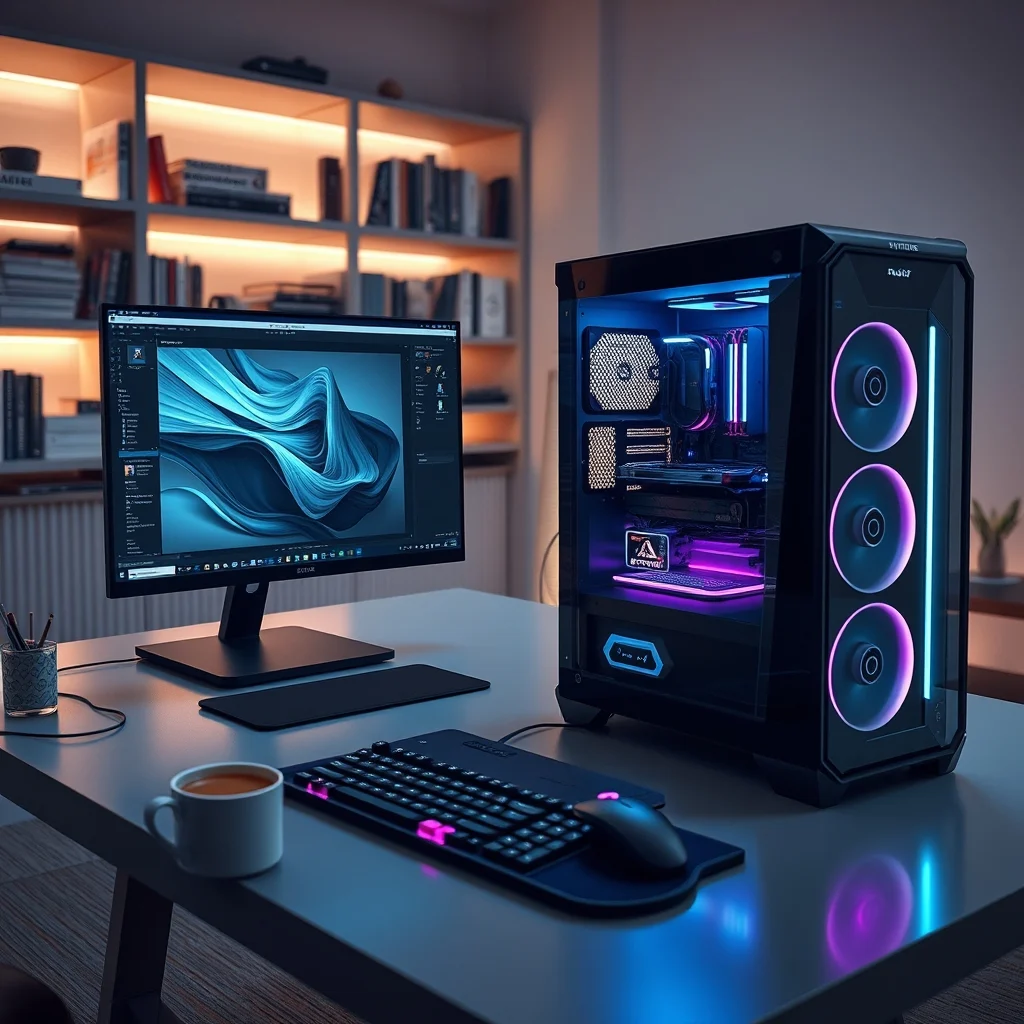
This comprehensive guide explores every aspect of optimizing your computer for Adobe Photoshop, from hardware enhancements to software tweaks. We will delve into GPU acceleration settings, scratch disk configuration, RAM allocation strategies, and display performance improvements. You’ll also discover hardware recommendations tailored for different usage scenarios—whether you’re a casual user working with smaller files or a professional handling massive 8K images or 3D mockups. By the end of this article, you’ll have a fully optimized system that allows Photoshop to run smoothly, efficiently, and without frustrating interruptions.
📌 Why Optimizing Your PC for Photoshop Matters
Adobe Photoshop is a resource-intensive application that relies heavily on your computer’s CPU, GPU, RAM, and storage. When these components are not properly configured or are outdated, Photoshop can become painfully slow. Common symptoms include delayed brush strokes, lag when zooming or panning, sluggish filter application, and extended save times. These issues not only disrupt your workflow but also increase frustration and reduce productivity.
The consequences of an underperforming system are especially severe for professionals. Graphic designers, photographers, and digital artists often work with large files containing multiple layers, high-resolution textures, and complex effects. Without optimization, a single project can consume excessive system resources, leading to crashes or system freezes. By optimizing your PC, you ensure that Photoshop runs efficiently, allowing you to focus on creativity rather than technical limitations.
📊 The Core Components That Impact Photoshop Performance
Before diving into optimization techniques, it’s crucial to understand which hardware components have the most significant impact on Photoshop performance:
- CPU (Central Processing Unit): Photoshop heavily relies on CPU power for tasks such as applying filters, performing calculations, and executing complex operations. A modern multi-core processor significantly improves performance, especially for CPU-intensive tasks like image rendering and batch processing.
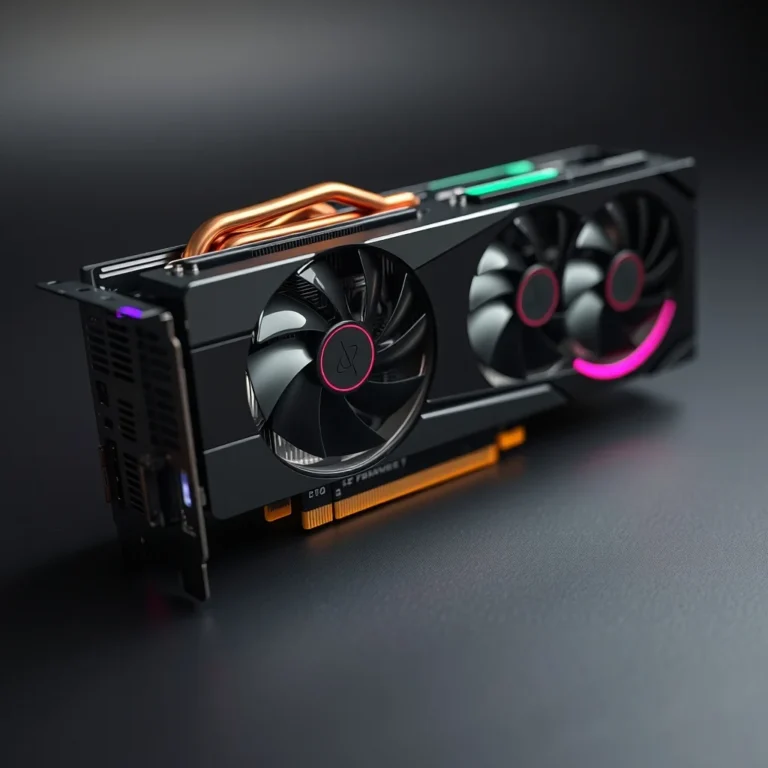
- GPU (Graphics Processing Unit): The GPU accelerates display rendering, enables real-time previews, and offloads certain graphical tasks from the CPU. Enabling GPU acceleration in Photoshop can drastically improve responsiveness and reduce lag when working with large documents or complex visual effects.
- RAM (Random Access Memory): Photoshop requires substantial RAM to handle large files and multiple layers. Insufficient RAM forces the program to rely on slower storage (via the scratch disk), which can cripple performance. Increasing RAM capacity allows Photoshop to store more data in memory, reducing reliance on disk-based caching.
- Storage (SSD vs. HDD): The type and speed of your storage drive significantly affect Photoshop’s performance. Solid-state drives (SSDs) offer faster read/write speeds compared to traditional hard disk drives (HDDs), enabling quicker file access and smoother operation. Using an SSD for your Photoshop cache, scratch disk, and project files can improve responsiveness.
- Display and Monitor: High-resolution monitors and color-accurate displays require substantial GPU resources. Optimizing display settings, such as disabling unnecessary animations and reducing color depth, can lighten the load on your GPU and improve performance.
With these components in mind, let’s explore how to optimize each one for maximum Photoshop performance.
🔧 Step-by-Step Hardware Optimization Guide
🖥️ Upgrading Your System for Photoshop
If your current system struggles with Photoshop, upgrading specific components can provide a noticeable performance boost. Here’s a breakdown of the most effective upgrades based on your budget and usage needs:
🖥️⚡ CPU Upgrades: Maximizing Processing Power
Photoshop is highly dependent on CPU performance, particularly for tasks involving image rendering, filter application, and batch processing. When selecting a CPU, prioritize the following specifications:
- ✅ Core Count: A higher core count (e.g., 8 cores or more) improves performance in multi-threaded tasks like filter application and batch processing.
- ✅ Clock Speed: Higher base and boost clock speeds (measured in GHz) ensure faster single-threaded performance, which is critical for tasks like brush strokes and layer transformations.
- ✅ Cache Size: A larger CPU cache reduces latency by storing frequently accessed data closer to the processor.
For most Photoshop users, Intel Core i7 or i9 processors, or AMD Ryzen 7/9 series, provide an excellent balance of speed and efficiency. If you frequently work with large files or complex projects, consider a high-end desktop (HEDT) processor like the Intel Core i9-14900K or AMD Ryzen 9 7950X3D. These processors offer superior multi-core performance and are ideal for professionals handling demanding workloads.
🎮 GPU Acceleration: Leveraging Graphics Power
Photoshop supports GPU acceleration, which offloads graphical processing tasks to your dedicated graphics card. Enabling GPU acceleration can significantly improve performance, especially when working with large files or applying complex effects. To take full advantage of this feature, follow these steps:
- Check GPU Compatibility: Adobe maintains a list of supported GPUs on its website. Ensure your graphics card is compatible with Photoshop’s GPU acceleration features.
- Update GPU Drivers: Outdated drivers can cause instability or performance issues. Regularly update your GPU drivers from the manufacturer’s website (e.g., NVIDIA, AMD, or Intel).
- Enable GPU Acceleration in Photoshop: Navigate to Edit > Performance. Under the Advanced Graphics Processor Settings section, select Advanced and choose your GPU from the dropdown menu. Enable Use Graphics Processor and select Normal or Advanced mode depending on your GPU’s capabilities.
- Optimize GPU Settings: In the same menu, you can adjust settings like Memory Usage and Advanced Graphics Settings. Increasing GPU memory allocation (e.g., to 50% or more) can improve performance for memory-intensive tasks.
Popular GPUs for Photoshop include NVIDIA GeForce RTX 40-series, AMD Radeon RX 7000-series, and professional-grade cards like NVIDIA Quadro or AMD Radeon Pro. These GPUs offer excellent performance for display rendering, real-time previews, and GPU-accelerated filters.
🧠 RAM Allocation: Ensuring Smooth Multitasking
Photoshop relies heavily on RAM to store and manage large files, layers, and undo states. Insufficient RAM forces Photoshop to use the scratch disk (a virtual memory space on your storage drive), which is significantly slower than physical RAM. To optimize RAM usage, follow these guidelines:
- ✅ Minimum RAM: For casual users, 16GB of RAM is sufficient for basic photo editing and small projects. However, this may feel restrictive when working with multiple high-resolution images.
- ✅ Recommended RAM: For professionals handling complex projects, 32GB to 64GB of RAM is ideal. This ensures Photoshop can store large files and multiple layers in memory, reducing reliance on the scratch disk.
- ✅ Optimal RAM Speed: Faster RAM (e.g., DDR4-3200 or DDR5-6000) improves overall system performance, including Photoshop’s responsiveness. Pair your RAM with a compatible CPU to maximize efficiency.
To allocate more RAM to Photoshop, navigate to Edit > Performance. Under Memory Usage, adjust the Let Photoshop Use slider to allocate a higher percentage of your system’s RAM to the application. However, avoid allocating more than 70-80% of your total RAM to Photoshop, as this can leave insufficient resources for other applications.
💾 Storage Optimization: Speeding Up File Access
The speed of your storage drive directly impacts Photoshop’s performance, particularly when saving, opening, or applying resource-intensive operations. Here’s how to optimize your storage setup:
- ✅ Use an SSD for Photoshop Files: SSDs offer faster read/write speeds compared to HDDs, enabling quicker file access and smoother operation. Store your Photoshop project files, scratch disk, and cache on an SSD for optimal performance.
- ✅ Configure Scratch Disks: The scratch disk is a temporary storage space used by Photoshop when RAM is insufficient. To configure scratch disks, navigate to Edit > Performance. Select an SSD as your primary scratch disk, and add a secondary drive (preferably another SSD or a fast HDD) as a backup. Avoid using the same drive that contains your operating system or Photoshop installation.
- ✅ Enable Disk Caching: Photoshop uses disk caching to store frequently accessed data temporarily. Increasing the disk cache size (e.g., to 1-2GB) can improve performance for large files. Navigate to Edit > Preferences > Performance to adjust the cache settings.
- ✅ Defragment Your Storage Drive: If you’re using an HDD, regular defragmentation can improve file access speeds. However, SSDs do not require defragmentation and can be negatively impacted by excessive defragmentation.
For professionals working with very large files (e.g., 8K images or 3D mockups), consider using a high-speed NVMe SSD like the Samsung 990 Pro or WD Black SN850X. These drives offer exceptional read/write speeds, reducing load times and improving overall responsiveness.
🖥️ Display Settings: Reducing GPU Load
High-resolution monitors and color-accurate displays require substantial GPU resources. Optimizing your display settings can reduce the load on your GPU and improve Photoshop’s performance. Here are some tips to optimize your display:
- ✅ Use a Supported Resolution: Ensure your monitor’s resolution is supported by your GPU. Avoid using resolutions higher than your monitor’s native resolution, as this can strain your GPU.
- ✅ Adjust Color Depth: If you don’t require 10-bit or 16-bit color depth, reduce it to 8-bit to lighten the load on your GPU. Navigate to Edit > Performance > Advanced Graphics Processor Settings to adjust color depth.
- ✅ Disable Unnecessary Animations: Windows and macOS include animations and visual effects that can consume GPU resources. Disabling these effects can improve Photoshop’s performance. On Windows, navigate to System > Display > Advanced display settings > Display adapter properties to adjust visual effects.
- ✅ Use a Fast Refresh Rate: If your monitor supports high refresh rates (e.g., 120Hz or 144Hz), enable it to reduce latency and improve responsiveness. However, ensure your GPU can handle the increased refresh rate without performance drops.
🛠️ Software Optimization: Fine-Tuning Photoshop for Peak Performance
📂 File Handling and Organization
Efficient file handling and organization can significantly improve Photoshop’s performance, especially when working with large or complex projects. Here are some best practices to follow:
- ✅ Use the Right File Format: Whenever possible, work with Photoshop’s native .PSD format, as it preserves layers and supports transparency. However, if you need to share files with collaborators, consider using .TIFF or .PNG formats, which offer better compatibility.
- ✅ Minimize File Size: Large file sizes slow down Photoshop’s performance. To reduce file size, flatten layers when possible, merge visible layers, and avoid excessive use of high-resolution textures or effects.
- ✅ Use Smart Objects: Smart Objects allow you to embed external files (e.g., logos, icons) into your Photoshop document without increasing the file size. This reduces the load on Photoshop’s memory and improves performance.
- ✅ Organize Layers: Use layer groups and naming conventions to keep your project organized. This makes it easier to navigate and manage large documents.
🖼️ Image Size and Resolution
The size and resolution of your images play a critical role in Photoshop’s performance. Here are some guidelines to optimize image dimensions and resolution:
- ✅ Match Image Size to Output: If you’re designing for web use, avoid working with unnecessarily large images. For print projects, ensure the resolution matches the intended output (e.g., 300 DPI for high-quality prints).
- ✅ Use Smart Resampling: When resizing images, use Photoshop’s Image > Image Size dialog to apply smart resampling. This preserves image quality and reduces the load on your CPU and RAM.
- ✅ Avoid Extreme Scaling: Scaling images up or down excessively can strain your system resources. If possible, work with images at their intended size to minimize performance issues.
🎨 Brush and Tool Optimization
Photoshop’s brush and tool settings can be optimized to improve performance, especially when working with large brushes or complex brush dynamics. Here are some tips to optimize your brush settings:
- ✅ Use Hardness and Spacing: Adjust the hardness and spacing of your brush to reduce the number of pixels Photoshop needs to process. Softer brushes (lower hardness) and increased spacing can improve performance.
- ✅ Disable Brush Dynamics: Brush dynamics (e.g., shape, scattering, texture) consume additional GPU resources. If you don’t need these features, disable them to improve performance.
- ✅ Use the Pencil Tool for Precision: The Pencil tool is less resource-intensive than the Brush tool, making it ideal for detailed work on large documents.
🔄 Undo and History States
Photoshop’s undo and history states consume significant RAM, especially when working with large files. To optimize undo behavior, follow these tips:
- ✅ Limit History States: Navigate to Edit > Preferences > Performance to reduce the number of history states Photoshop stores. This frees up RAM for other tasks.
- ✅ Use Non-Destructive Editing: Techniques like adjustment layers, smart filters, and layer masks allow you to make changes without altering the original image. This reduces the need for undo operations and conserves RAM.
- ✅ Save Incremental Versions: Instead of relying solely on undo, save incremental versions of your project. This ensures you can revert to earlier stages without consuming excessive memory.
🔍 Advanced Optimization Techniques
🌐 Network and Collaboration Settings
If you’re working in a collaborative environment or using cloud-based tools, optimizing network settings can improve Photoshop’s performance. Here are some tips to optimize network and collaboration workflows:
- ✅ Use Local Storage for Assets: Store frequently used assets (e.g., brushes, gradients, patterns) on your local drive rather than a network share. This reduces latency and improves access speeds.
- ✅ Optimize Cloud Sync: If you’re using Adobe Creative Cloud or other cloud services, schedule sync operations during off-peak hours to avoid network congestion.
- ✅ Use Proxy Files: For video editing or animation projects, use proxy files to reduce the load on your system. Proxy files are lower-resolution versions of your assets that Photoshop can use for preview and editing.
🔌 Plugin and Extension Management
Photoshop plugins and extensions can enhance functionality but may also impact performance. To optimize plugin usage, follow these tips:
- ✅ Disable Unused Plugins: Navigate to Edit > Preferences > Plugins to disable plugins you don’t use regularly. This reduces startup time and conserves system resources.
- ✅ Update Plugins Regularly: Outdated plugins can cause instability or performance issues. Regularly update your plugins to the latest versions.
- ✅ Use Lightweight Plugins: For resource-intensive tasks (e.g., 3D rendering or AI-based enhancements), consider using lightweight alternatives or built-in Photoshop features.
📊 Performance Monitoring and Benchmarking
Regularly monitoring Photoshop’s performance can help you identify bottlenecks and optimize your system proactively. Here’s how to monitor and benchmark your setup:
- ✅ Use Adobe’s Performance Metrics: Navigate to Edit > Performance to view real-time data on CPU, GPU, and RAM usage. This helps you identify which component is causing performance issues.
- ✅ Benchmark Your System: Use benchmarking tools like Cinebench, 3DMark, or Geekbench to test your CPU and GPU performance. Compare your results with industry standards to determine if upgrades are necessary.
- ✅ Monitor Storage Performance: Use tools like CrystalDiskMark to test your storage drive’s read/write speeds. If your SSD or HDD is underperforming, consider upgrading to a faster model.
📈 Real-World Performance Experience: What to Expect
🎮 Speed and Responsiveness
After optimizing your PC for Photoshop, you should notice a significant improvement in speed and responsiveness. Tasks like zooming, panning, and applying filters should feel smoother and more immediate. Large files (e.g., 8K images or multi-layered compositions) should load faster, and complex operations (e.g., liquify, warp, or neural filters) should complete in less time.
However, the degree of improvement depends on your specific hardware and the complexity of your projects. For example, a system with a high-end CPU, GPU, and sufficient RAM will outperform a budget setup, even after optimization. Similarly, a user working with small JPEGs will experience less noticeable improvements compared to someone editing 8K RAW images.
💾 Resource Usage and Stability
Optimized systems should exhibit lower resource usage during Photoshop operations. CPU and GPU temperatures should remain within safe limits, and RAM usage should stabilize without excessive spikes. Stability is particularly important for professionals who rely on Photoshop for extended periods. Crashes and freezes should become rare, if not eliminated entirely.
If you’re still experiencing instability after optimization, consider the following troubleshooting steps:
- ⚠️ Check for Driver Conflicts: Ensure your GPU and CPU drivers are up to date and compatible with Photoshop.
- ⚠️ Disable Background Applications: Close unnecessary programs running in the background to free up system resources.
- ⚠️ Adjust Power Settings: Set your system to High Performance mode in your power settings to maximize hardware utilization.
🌍 Global User Ratings and Feedback
User reviews and ratings consistently highlight the importance of hardware optimization for Photoshop. Many professionals report significant improvements in workflow efficiency after upgrading their systems or tweaking software settings. Common praise includes faster rendering times, smoother brush strokes, and improved stability. However, some users note that optimization alone may not compensate for outdated hardware, emphasizing the need for periodic upgrades.
Feedback also highlights the importance of balancing performance with budget constraints. While high-end setups deliver the best results, mid-range systems can achieve excellent performance with proper optimization. For example, a user with an Intel Core i5-13600K, NVIDIA RTX 4060, and 32GB of RAM reported near-flawless performance with 4K images, while a budget user with an Intel Core i3-12100F and 16GB of RAM still achieved satisfactory results with smaller projects.
🔐 Security and Maintenance for Photoshop Users
🔒 Security Level and Risks
While Photoshop itself is a secure application, working with large files and online assets introduces potential security risks. Here are some security considerations to keep in mind:
- ⚠️ Malware in PSD Files: PSD files can contain embedded scripts or macros that may execute malicious code. Always scan downloaded PSD files with antivirus software before opening them.
- ⚠️ Phishing Scams: Be cautious when downloading Photoshop brushes, plugins, or templates from unofficial sources. Some files may contain malware or ransomware. Stick to reputable sources like Adobe’s official website or trusted design communities.
- ⚠️ Cloud Storage Risks: If you’re using Adobe Creative Cloud or other cloud services, ensure your account is protected with strong passwords and two-factor authentication. Avoid storing sensitive project files in unsecured cloud storage.
To mitigate these risks, follow these security best practices:
- ✅ Keep Software Updated: Regularly update Photoshop and your operating system to patch security vulnerabilities.
- ✅ Use Antivirus Software: Install a reputable antivirus program to scan files and detect malware.
- ✅ Backup Important Files: Use cloud storage or external drives to back up your Photoshop projects regularly. This protects against data loss due to hardware failures or cyberattacks.
🛡️ Potential Risks and Protection Tips
In addition to security risks, Photoshop users should be aware of potential hardware and software risks. Here are some common issues and how to address them:
- ⚠️ Overheating: Intensive Photoshop operations can cause your CPU and GPU to overheat, leading to performance throttling or hardware damage. Ensure your system has adequate cooling and monitor temperatures using tools like HWMonitor or Core Temp.
- ⚠️ Storage Failures: SSDs and HDDs can fail over time, especially when handling large files. Regularly back up your Photoshop projects to prevent data loss.
- ⚠️ Driver Conflicts: Outdated or incompatible drivers can cause instability or crashes. Regularly update your GPU, CPU, and chipset drivers to avoid conflicts.
🆚 Best Available Alternatives to Photoshop
While Adobe Photoshop is the industry leader, several alternatives cater to different needs and budgets. Here’s a comparison of the top Photoshop alternatives:
| Feature | Adobe Photoshop | Affinity Photo | GIMP | Corel PaintShop Pro | Canva |
|---|---|---|---|---|---|
| Price | Subscription-based ($20.99/month) | One-time purchase ($69.99) | Free and open-source | One-time purchase ($79.99) | Freemium (Pro version: $12.99/month) |
| Platform | Windows, macOS | Windows, macOS, Linux | Windows, macOS, Linux | Windows | Web-based, Windows, macOS |
| GPU Acceleration | ✅ Yes | ✅ Yes | ❌ No (except experimental support) | ✅ Yes | ✅ Yes (limited) |
| Layer Support | ✅ Advanced | ✅ Advanced | ✅ Basic | ✅ Advanced | ❌ Limited |
| RAW Editing | ✅ Yes | ✅ Yes | ✅ Yes (via plugins) | ✅ Yes | ❌ No |
| AI Features | ✅ Yes (Neural Filters) | ✅ Yes (AI-powered tools) | ❌ Limited | ✅ Yes (AI-powered tools) | ✅ Yes (AI-powered features) |
| Best For | Professionals, advanced users | Professionals, budget-conscious users | Casual users, hobbyists | Beginner to intermediate users | Social media, marketing, beginners |
The choice of alternative depends on your specific needs, budget, and level of expertise. For professionals requiring advanced features, Adobe Photoshop remains the best option. However, Affinity Photo and Corel PaintShop Pro offer excellent alternatives for those seeking a one-time purchase model. GIMP is ideal for budget-conscious users who don’t mind a steeper learning curve, while Canva is perfect for quick, web-based design tasks.
💡 Tips and Tricks for Maximum Photoshop Performance
🎯 Best Settings for Maximum Performance
Optimizing Photoshop’s internal settings can further enhance performance. Here are some recommended configurations for different scenarios:
- ✅ For Large Files (8K+ Images):
- Allocate 70-80% of your system RAM to Photoshop.
- Set your primary scratch disk to a fast SSD.
- Enable GPU acceleration and allocate 50%+ of your GPU memory to Photoshop.
- Use 16-bit color depth for better color accuracy.
- Disable unnecessary plugins and background applications.
- ✅ For Complex Projects (Multi-Layered Compositions):
- Use Smart Objects to reduce file size.
- Limit history states to 20-30 to conserve RAM.
- Flatten layers when possible to reduce memory usage.
- Use adjustment layers instead of destructive edits.
- ✅ For Real-Time Editing (Brush Strokes, Liquify):
- Reduce brush hardness and increase spacing.
- Disable brush dynamics and texture for smoother strokes.
- Use the Pencil tool for precision work.
📌 Advanced Tricks Few Know
Here are some lesser-known tips and tricks to further optimize Photoshop’s performance:
- ✅ Use the “Cache” Setting for Large Files: Navigate to Edit > Preferences > Performance and adjust the Cache Levels slider. Increasing the cache level (e.g., to 4 or 6) can improve performance for large files by storing more data in memory.
- ✅ Disable “Show Tool Tips”: Tool tips consume GPU resources, especially on high-resolution displays. Disable this feature in Edit > Preferences > Interface to improve performance.
- ✅ Use the “Purge” Command: Navigate to Edit > Purge to clear Photoshop’s memory cache. This frees up RAM and can improve performance, especially after working with large files for extended periods.
- ✅ Optimize “Scratch Disk” Placement: If you’re using multiple scratch disks, place them on separate physical drives to distribute the load. Avoid using the same drive for your operating system and Photoshop installation.
- ✅ Use “Purge All” for Maximum RAM Release: If Photoshop feels sluggish, use Edit > Purge > All to clear the entire memory cache. Note that this will also clear your undo history.
🏁 Final Verdict: Is Your PC Optimized for Photoshop?
Optimizing your PC for Adobe Photoshop is a multi-faceted process that requires attention to hardware, software, and settings. By upgrading your CPU, GPU, and RAM, configuring your scratch disk and storage, and fine-tuning Photoshop’s internal settings, you can achieve near-flawless performance. Whether you’re a casual user or a professional, these optimizations will help you work faster, smoother, and with fewer interruptions.
Remember that hardware upgrades provide the most significant performance boost, but software optimizations can also make a substantial difference. Regularly monitor your system’s performance, update your drivers, and keep your storage drives in good condition to ensure long-term stability. With a fully optimized system, you’ll be able to focus on creativity rather than technical limitations, unlocking the full potential of Adobe Photoshop.
If you’re still experiencing performance issues after optimization, consider consulting Adobe’s support resources or seeking professional assistance. Sometimes, specific hardware configurations or software conflicts require deeper troubleshooting. However, in most cases, a combination of hardware upgrades and software tweaks will resolve performance bottlenecks and deliver the smooth, responsive experience Photoshop users expect.
❓ Frequently Asked Questions
-
What are the minimum hardware requirements for running Adobe Photoshop smoothly?
Adobe recommends a minimum of 8GB RAM, an Intel or AMD processor with at least 2 GHz, and 3.1GB of available storage. However, these specifications are for basic functionality only. For smooth performance with large files, aim for at least 16GB RAM, a modern multi-core CPU (e.g., Intel Core i5 or Ryzen 5), and a dedicated GPU with 4GB+ VRAM.
-
How can I tell if my GPU is being used by Photoshop?
Navigate to Edit > Performance and check the Advanced Graphics Processor Settings section. If your GPU is being used, it will be listed under the Graphics Processor dropdown. You can also view GPU usage in real-time using tools like MSI Afterburner or NVIDIA GeForce Experience.
-
Why does Photoshop slow down when I zoom or pan large images?
Zooming and panning large images require significant GPU resources to render the display. If your GPU is outdated or your display settings are too demanding, Photoshop may struggle to keep up. To improve performance, enable GPU acceleration, use a supported resolution, and reduce color depth if necessary.
-
How do I allocate more RAM to Photoshop?
Navigate to Edit > Performance and adjust the Let Photoshop Use slider to allocate a higher percentage of your system’s RAM to the application. Aim for 70-80% of your total RAM, but avoid exceeding this limit to ensure stability for other applications.
-
Can I use an external SSD for Photoshop’s scratch disk?
Yes, using an external SSD for your scratch disk is a great way to improve performance, especially if your internal drive is an HDD. Connect the SSD via USB 3.1 or Thunderbolt for the best speeds. Ensure the external drive is formatted as NTFS (Windows) or APFS (macOS) for compatibility.
-
What’s the best file format for Photoshop projects?
For maximum compatibility and performance, use Photoshop’s native .PSD format. It preserves layers, transparency, and other Photoshop-specific features. If you need to share files with collaborators, consider using .TIFF or .PNG formats, which support high quality and transparency.
-
How do I reduce Photoshop’s file size without losing quality?
Use Smart Objects to embed external files without increasing file size. Flatten layers when possible, merge visible layers, and avoid excessive use of high-resolution textures or effects. Additionally, use Photoshop’s File > Export > Save for Web (Legacy) feature to optimize images for web use.
-
Why does Photoshop crash or freeze frequently?
Crashes or freezes are often caused by insufficient RAM, outdated drivers, or conflicts with other software. Ensure your system meets Photoshop’s recommended specifications, update your GPU and CPU drivers, and disable unnecessary background applications. If the issue persists, try resetting Photoshop’s preferences or reinstalling the application.
-
Can I use Photoshop on a laptop with integrated graphics?
Yes, but performance will be limited compared to a dedicated GPU. Laptops with integrated graphics (e.g., Intel Iris Xe or AMD Radeon Vega) can run Photoshop, but tasks like zooming, panning, and applying GPU-accelerated filters will be slower. For best results, use a laptop with a dedicated GPU (e.g., NVIDIA RTX or AMD Radeon RX).
-
How often should I update my GPU drivers for Photoshop?
Update your GPU drivers every 1-2 months to ensure compatibility with the latest Photoshop features and optimizations. Use the manufacturer’s official website (e.g., NVIDIA, AMD, or Intel) to download the latest drivers. Avoid using generic or third-party driver updaters, as they may install incompatible or outdated versions.