
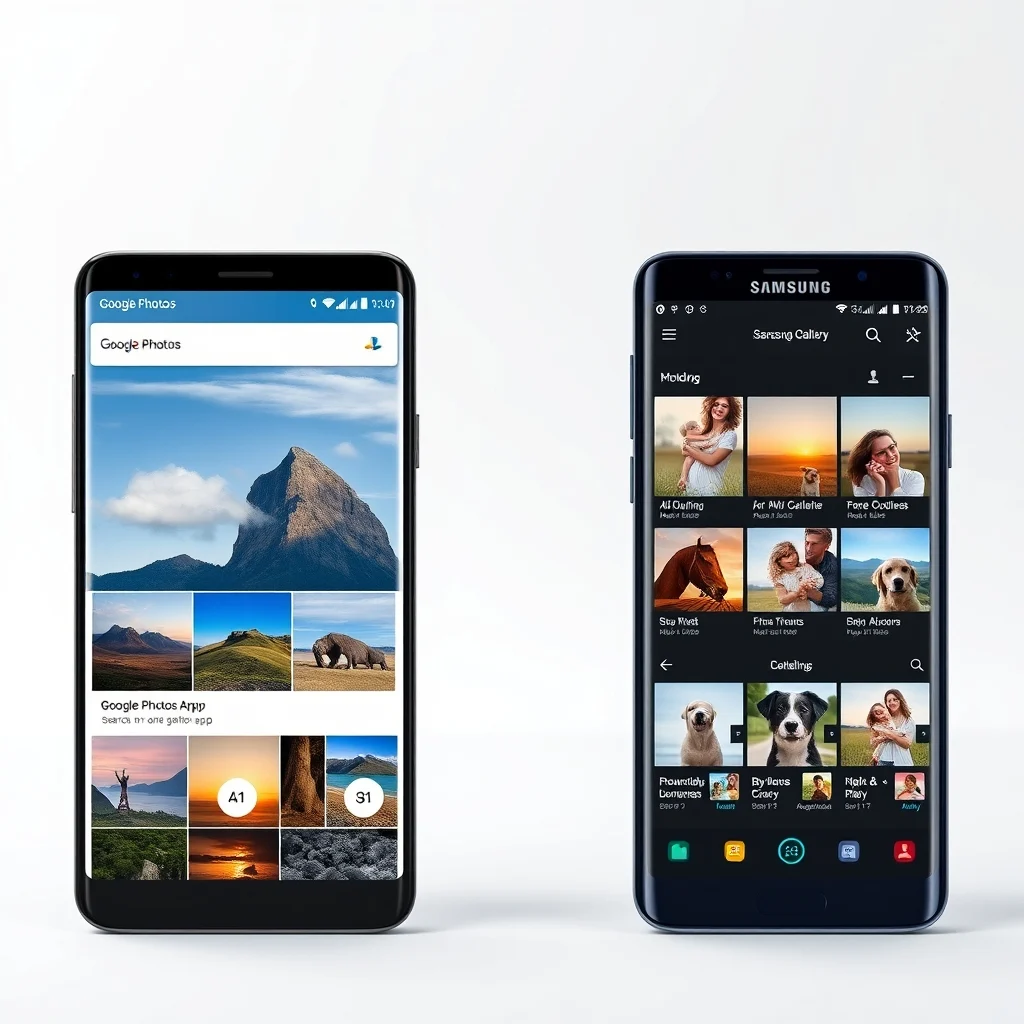

In the ever-evolving landscape of Android smartphones, photo management apps play a pivotal role in how users capture, store, edit, and share their memories. Two of the most prominent photo gallery applications available today are Google Photos and Samsung Gallery. Both apps come pre-installed on a significant portion of Android devices—Google Photos as the default on most non-Samsung Android phones and Samsung Gallery as the native solution on Samsung devices. While they share the common goal of organizing and presenting photos and videos, their approaches, features, and performance can vary significantly. This comprehensive comparison dives deep into the features, user interface, performance, and overall user experience of Google Photos and Samsung Gallery to help users determine which app best suits their needs.
📸 Overview of Google Photos and Samsung Gallery
Google Photos and Samsung Gallery serve as the primary gateways to users’ visual memories on their Android smartphones. Google Photos, developed by Google, is a standalone cloud-based photo and video storage service integrated with Google Drive and powered by advanced machine learning. It offers powerful search capabilities, AI-driven organization, and seamless cross-device synchronization. Samsung Gallery, on the other hand, is a native app developed by Samsung specifically for its devices. It integrates tightly with Samsung’s ecosystem and offers intuitive organization, basic editing tools, and cloud storage through Samsung Cloud.
The main difference lies in their design philosophy and ecosystem integration. Google Photos is designed to be universal and works seamlessly across all Android devices and iOS, whereas Samsung Gallery is optimized for Samsung’s hardware and software environment. This often leads to differences in performance, feature availability, and user experience, especially on Samsung devices where the two apps may coexist or compete for dominance.
🔍 Analysis: Why Users Choose Between These Two Apps
- Cloud Integration and Storage: Google Photos offers 15GB of free cloud storage shared with Google Drive, while Samsung Gallery relies on Samsung Cloud, which provides 5GB free and 100GB paid options. This affects long-term storage strategies.
- Search and Organization: Google Photos uses AI to recognize objects, people, and places, enabling powerful search queries like “cat” or “beach.” Samsung Gallery offers basic folder-based organization and limited AI tagging.
- Ecosystem Lock-in: Samsung Gallery integrates with Samsung devices using features like Samsung Cloud Sync, Secure Folder, and AR Emoji, making it a natural fit for Samsung users.
- Performance and Speed: On Samsung devices, Samsung Gallery often loads faster due to native optimization, while Google Photos may introduce slight lag during initial sync or uploads.
Market trends show that users increasingly value cross-platform compatibility and AI-powered search, giving Google Photos a competitive edge among tech-savvy users. Conversely, Samsung Gallery remains popular among Samsung loyalists who prioritize speed and localized features.
⚙️ Technical Concept Section
📌 What is Google Photos?
Google Photos is a cloud-based photo and video management service developed by Google. It allows users to store, organize, edit, and share their media across multiple devices. At its core, Google Photos leverages artificial intelligence and machine learning to automatically categorize images, detect faces, and identify objects. This enables features like automatic albums, suggested sharing, and intelligent search.
The app supports high-quality compression (with free unlimited storage for “High quality” photos under 16MP) and original quality (counting against Google account storage). It also includes built-in editing tools, live albums, and Google Lens integration for real-time object recognition.
- Core definition: Cloud-based photo and video management platform with AI-powered organization.
- Primary function: Storage, backup, search, and sharing of visual media.
- Target users: Android and iOS users who prioritize cloud backup, cross-device sync, and AI features.
- Technical category: Multimedia management and cloud storage application.
📌 What is Samsung Gallery?
Samsung Gallery is the default photo and video app on Samsung smartphones and tablets. It functions as both a local gallery and a cloud storage solution through Samsung Cloud. The app provides a clean interface for browsing media, organizing albums, and performing basic edits. It also supports Samsung’s unique features like Single Take mode, AR Emoji, and Secure Folder integration.
Unlike Google Photos, Samsung Gallery does not rely heavily on AI for automatic organization but focuses on manual album creation and folder-based navigation. It supports storage of original-quality files and integrates with Samsung’s ecosystem via features like Quick Share and Samsung Cloud Sync.
- Core definition: Native photo gallery app for Samsung devices with cloud integration.
- Primary function: Local media browsing, editing, and cloud backup for Samsung users.
- Target users: Samsung device owners who prefer native apps and Samsung ecosystem features.
- Technical category: Device-specific media management application.
⚙️ How Google Photos Works in Detail
Google Photos operates as a cloud-first platform with a hybrid architecture. When a user enables backup, images and videos are uploaded to Google’s servers and processed using TensorFlow-based AI models. These models detect faces, objects, scenes, and text, enabling features like People & Pets, Places, and Things tabs in the app.
During upload, Google Photos applies compression or keeps original quality based on user settings. The app uses differential sync to minimize data usage and supports background uploading even when the app is closed. Google’s servers also generate thumbnails and metadata to speed up app performance and search queries.
Real-world example: A user takes a photo of a sunset by the beach. Google Photos automatically recognizes the scene (“beach”), objects (“palm tree”), and time (“sunset”). The user can later search for “beach” and instantly retrieve all matching photos, even if they weren’t tagged manually.
⚙️ How Samsung Gallery Works in Detail
Samsung Gallery is designed as a lightweight, locally optimized app that interacts with Samsung’s hardware and software layers. It uses Samsung’s proprietary file system and memory management to ensure fast loading and smooth scrolling, even with thousands of photos.
The app scans the device’s storage during initial setup and categorizes media by date, location, and file type. It does not perform deep AI analysis by default but allows users to manually create albums, mark favorites, and apply filters. When Samsung Cloud is enabled, media can be automatically backed up to Samsung’s servers, with options for original or compressed storage.
Samsung Gallery integrates closely with Samsung’s camera app. For example, photos taken in Single Take mode are automatically grouped in the gallery, and AR Emoji videos are stored and accessible directly from the gallery interface.
🚀 Features and Advanced Capabilities
✨ Key Features in Google Photos
Google Photos stands out with its advanced AI capabilities and seamless cloud integration. Its key features include automatic backup, intelligent search, AI-powered editing, and cross-platform support. These features make it ideal for users who want a hands-off, automated experience combined with powerful organizational tools.
- Automatic Backup and Sync: Photos and videos are automatically backed up in the background when connected to Wi-Fi or mobile data. Users can choose between “High quality” (unlimited free storage) or “Original quality” (storage counts toward Google account limit).
- AI-Powered Search: Search by people, pets, places, dates, or even objects. For example, typing “dog” returns all photos containing dogs, regardless of location or time.
- Assistant Tab: Provides personalized content like movie suggestions, photo books, animations, and collages created automatically from user media.
- Built-in Editing Tools: Includes filters, crop, rotation, color adjustment, and advanced tools like Magic Eraser (removes unwanted objects) and Lighting adjustments.
- Sharing Features: Shared Albums allow multiple users to contribute and view photos in real time. Collaborative Albums and Smart Sharing (suggests recipients based on face recognition) simplify group sharing.
- Google Lens Integration: Enables real-time object recognition, translation of text in images, and even copying text from photos into messages or notes.
Real-world use case: A traveler returns home and wants to organize photos from a trip. Using Google Photos, they can search for “Eiffel Tower” to instantly find all relevant images, then create a shared album with friends to let them contribute photos as well. The AI automatically groups similar photos into albums like “Day 1 in Paris” and “Food in France.”
✨ Key Features in Samsung Gallery
Samsung Gallery prioritizes speed, convenience, and Samsung-specific features. It excels in local performance, device integration, and user-friendly organization tools. While it lacks the advanced AI of Google Photos, it offers unique features tailored to Samsung users.
- Fast Loading and Smooth Navigation: Optimized for Samsung hardware, the app loads quickly and handles large photo libraries efficiently.
- Single Take Mode Integration: Photos and videos taken in Single Take mode are automatically grouped in the gallery, making it easy to browse multiple shots from the same moment.
- AR Emoji Storage: Videos and photos featuring AR Emojis are stored and accessible directly within the gallery.
- Secure Folder Support: Users can move sensitive photos into Samsung’s Secure Folder directly from the gallery, adding an extra layer of privacy.
- Quick Share: Allows instant sharing of high-resolution photos and videos with nearby Samsung devices without internet dependency.
- Story Creator: Automatically generates photo stories from user albums, ideal for sharing highlights with family and friends.
- Dark Mode and Customization: Offers a sleek dark theme and allows users to customize the app’s appearance and sorting options.
Real-world use case: A Samsung user takes multiple photos using Single Take mode. Instead of manually sorting through dozens of images, Samsung Gallery automatically groups them and highlights the best shots. They can then quickly share the best photo via Quick Share to a family group without leaving the app.
🆚 What Distinguishes Google Photos from Samsung Gallery?
- AI and Search Capabilities: Google Photos uses advanced AI for automatic tagging and search, while Samsung Gallery relies more on manual organization.
- Cloud Storage Limits: Google Photos offers 15GB free storage shared with Google Drive; Samsung Gallery provides 5GB free via Samsung Cloud, with 100GB available for purchase.
- Cross-Platform Support: Google Photos works seamlessly across Android, iOS, and web; Samsung Gallery is limited to Samsung devices and the Samsung ecosystem.
- Editing Tools: Google Photos includes advanced editing tools like Magic Eraser and detailed lighting adjustments; Samsung Gallery offers basic edits and filters with a focus on simplicity.
- Integration with Camera: Samsung Gallery integrates deeply with Samsung’s camera app via Single Take and AR Emoji; Google Photos integrates loosely with all Android cameras.
- Sharing Features: Google Photos offers Shared Albums and Smart Sharing; Samsung Gallery supports Quick Share and direct device-to-device transfers.
📊 Pros and Cons Section
✅ Advantages of Google Photos
Google Photos shines in areas where automation and intelligence are valued. Its ability to automatically categorize photos, recognize faces, and suggest content makes it ideal for users who want a hands-off experience. The app’s cross-platform support ensures that users can access their media from any device, regardless of brand. Additionally, the free cloud storage for compressed photos is unmatched in the industry, making it accessible to users who don’t want to pay for premium storage.
The advanced editing tools and integration with Google Lens set Google Photos apart as a versatile media management tool. It also supports collaborative features, making it perfect for families or groups who want to share and contribute to albums. The Assistant tab provides personalized content, such as animations, collages, and photo books, which can be created and shared automatically.
Its deep integration with the Google ecosystem—including Google Drive, Assistant, and Lens—creates a unified experience for users already invested in Google services.
- Unlimited free storage for compressed photos
- Advanced AI-powered search and organization
- Cross-platform compatibility (Android, iOS, Web)
- Powerful editing tools and Google Lens integration
- Collaborative features and shared albums
- Personalized content via Assistant tab
❌ Disadvantages of Google Photos
Despite its strengths, Google Photos has several limitations. The most notable is the trade-off between storage and quality. While “High quality” photos are stored for free, they are compressed, which may not satisfy professional photographers or users who want original files. Original quality uploads count against the user’s Google account storage, which can be quickly depleted, especially for users who take a lot of high-resolution videos.
Another limitation is the app’s performance on mid-range or older devices. The constant background syncing and AI processing can drain battery life and consume significant storage space, especially when dealing with large photo libraries. Additionally, Google Photos may feel overwhelming to users who prefer simplicity over advanced features.
Users who are not comfortable with cloud storage may also be hesitant due to privacy concerns. While Google claims to prioritize user privacy, storing media in the cloud always carries a degree of risk.
- Compression reduces photo quality
- Original quality storage counts against Google account limit
- Can drain battery and storage on older devices
- Less optimized for Samsung devices compared to native apps
- Privacy concerns with cloud storage
✅ Advantages of Samsung Gallery
Samsung Gallery excels in speed, performance, and integration with Samsung devices. Because it is designed specifically for Samsung hardware, it loads faster and handles large libraries more efficiently than Google Photos. This makes it the preferred choice for Samsung users who value quick access and smooth navigation.
The app’s integration with Samsung’s camera features—such as Single Take mode and AR Emoji—creates a seamless workflow from capture to storage. Users can easily access and manage their media without leaving the Samsung ecosystem. Additionally, Samsung Gallery offers unique features like Secure Folder integration, which allows users to store sensitive photos privately on their device.
Quick Share is another standout feature, enabling high-speed, offline sharing between Samsung devices. This is particularly useful for users who frequently share large files with friends or family.
- Faster loading and smoother performance on Samsung devices
- Seamless integration with Samsung camera and ecosystem
- Secure Folder support for private photos
- Quick Share for high-speed, offline transfers
- No cloud storage limits for local files
- User-friendly and minimalist interface
❌ Disadvantages of Samsung Gallery
Samsung Gallery’s biggest drawback is its lack of advanced AI features. Unlike Google Photos, it does not automatically tag photos by people, places, or objects, making it difficult to search for specific images. The app also lacks built-in editing tools comparable to Google Photos, relying instead on basic filters and adjustments.
Another limitation is the app’s cloud storage. Samsung Cloud offers only 5GB of free storage, which is quickly used up by high-resolution photos and videos. While users can purchase additional storage, the limited free tier may frustrate users who rely heavily on cloud backup.
Samsung Gallery is also restricted to Samsung devices, making it unsuitable for users who switch to non-Samsung Android phones or iPhones. Its features and performance are heavily optimized for Samsung hardware, which can result in subpar performance on other devices.
- No AI-powered search or tagging
- Limited editing tools compared to Google Photos
- Only 5GB free cloud storage via Samsung Cloud
- Restricted to Samsung devices
- No cross-platform support
- Fewer features for casual users
💻 Requirements Section
🖥️ Minimum Requirements for Google Photos
Google Photos is a cloud-based app with minimal local resource requirements. It can run on virtually any Android device with a modern operating system. However, optimal performance depends on having a stable internet connection for syncing and backup. The app supports devices running Android 5.0 (Lollipop) and above, as well as iOS 12 and later.
For a smooth experience, Google recommends:
- A device with at least 2GB of RAM to handle background syncing and AI processing.
- A minimum of 4GB free internal storage for the app and temporary files.
- A stable Wi-Fi or mobile data connection for automatic backups.
Google Photos also requires:
- A Google account to enable cloud backup and sync.
- Permissions for storage, camera, and location to enable full functionality.
⚡ Recommended Specifications for Google Photos
While Google Photos can run on low-end devices, users who frequently take high-resolution photos or videos will benefit from a more powerful device. A modern processor (e.g., Snapdragon 600 series or higher) ensures faster AI processing and smoother app performance. Users who rely on the app’s editing tools should have at least 3GB of RAM to avoid lag during heavy editing sessions.
The app’s AI features, such as automatic tagging and search, require a stable internet connection to function optimally. Users on metered connections should enable backup only when connected to Wi-Fi to avoid excessive data usage.
For users who store large libraries, a device with expandable storage (via microSD card) is beneficial to keep local copies of media without consuming internal storage.
🖥️ Minimum Requirements for Samsung Gallery
Samsung Gallery is designed to run efficiently on Samsung devices with mid-range or higher specifications. The app supports devices running Android 8.0 (Oreo) and above, with a particular focus on Samsung’s One UI interface. It requires at least 1.5GB of RAM and 2GB of free internal storage to function properly.
Samsung Gallery performs best on devices with:
- A Samsung Exynos or Snapdragon processor (preferably mid-range or flagship).
- A minimum screen resolution of 720p for optimal media display.
- Samsung’s TouchWiz or One UI interface for full feature integration.
The app relies heavily on local storage and does not require an internet connection for basic functionality. However, enabling Samsung Cloud backup requires a stable connection.
⚡ Recommended Specifications for Samsung Gallery
For the best experience, Samsung recommends using Galaxy devices with at least 4GB of RAM and 32GB of internal storage. A flagship processor (e.g., Snapdragon 800 series or Exynos 9000) ensures fast loading and smooth scrolling, especially when browsing libraries with thousands of photos.
Users who frequently use Samsung Cloud should have a high-speed internet connection to avoid long backup times. Additionally, devices with AMOLED screens benefit from Samsung Gallery’s dark mode and vibrant color display.
For users who take a lot of photos, a device with expandable storage or large internal storage (e.g., 128GB or more) is ideal to avoid running out of space.
| Component | Minimum | Recommended | Performance Impact |
|---|---|---|---|
| RAM | 1.5GB | 3GB or more | Faster app loading and smoother scrolling |
| Internal Storage | 2GB free | 16GB free or more | More space for local media and app cache |
| Processor | Snapdragon 400 series | Snapdragon 600 series or higher | Better AI processing and background tasks |
| Internet Connection | 3G for basic sync | Wi-Fi or 4G for full cloud features | Faster upload/download speeds |
| Screen Resolution | 720p | 1080p or higher | Better media display and editing experience |
Users with devices that meet or exceed the recommended specifications will experience the best performance from both Google Photos and Samsung Gallery. However, even devices with lower specifications can run both apps effectively, albeit with some limitations in speed and functionality.
🔍 Practical Guide Section
🧩 Installation or Setup Method for Google Photos
Google Photos is pre-installed on most Android devices, but users who have uninstalled it can easily reinstall it from the Google Play Store. The setup process is straightforward and takes less than a minute to complete.
- Download and Install: Open the Google Play Store, search for “Google Photos,” and tap Install. If the app is already installed, ensure it is updated to the latest version.
- Sign In: Open the app and sign in with a Google account. This is required to enable cloud backup and sync features. Users without a Google account can create one during this step.
- Enable Backup: Go to Settings > Backup and toggle on Backup and Sync. Users can choose between “High quality” (unlimited storage) or “Original quality” (storage counts against account limit).
- Select Folders: Choose which folders on the device to include in the backup. By default, the Camera and Screenshots folders are selected. Users can add additional folders manually.
- Adjust Settings: Customize backup preferences such as upload size, video quality, and whether to back up over mobile data. Users can also set the backup to occur only when connected to Wi-Fi.
- Wait for Sync: The app will begin uploading photos and videos to Google’s servers. The time required depends on the number of files and internet speed. Users can monitor progress in the Library tab.
Once setup is complete, Google Photos will automatically back up new photos and videos as they are taken. Users can access their media from any device by signing in to their Google account.
🧩 Installation or Setup Method for Samsung Gallery
Samsung Gallery comes pre-installed on all Samsung smartphones and tablets. However, users who have disabled or uninstalled the app can reinstall it from the Galaxy Store or Google Play Store. The setup process is minimal and focuses on local media organization.
- Ensure App is Installed: Open the Galaxy Store or Google Play Store and search for “Samsung Gallery.” If the app is missing, tap Install to download it.
- Sign In to Samsung Account (Optional):b> While not required for basic functionality, signing in with a Samsung account enables Samsung Cloud backup and sync features.
- Enable Cloud Backup (Optional):b> Go to Settings > Samsung Cloud and toggle on Gallery Backup. Users can choose between backing up original or compressed files.
- Organize Albums: By default, Samsung Gallery organizes media by date and location. Users can create custom albums by tapping + New Album and selecting photos manually.
- Set as Default Gallery (Optional):b> On Samsung devices, users can set Samsung Gallery as the default photo app by going to Settings > Apps > Default Apps > Photo App and selecting Samsung Gallery.
- Enable Quick Share (Optional):b> For users who frequently share media with other Samsung devices, enable Quick Share in the app’s settings to streamline transfers.
Once setup is complete, Samsung Gallery will automatically load all media stored on the device. Users can begin browsing, organizing, and sharing their photos immediately.
🛡️ Common Errors and How to Fix Them
🔹 Google Photos Errors
Users may encounter several common issues with Google Photos, often related to syncing, storage, or app performance.
- Backup Not Working: If photos are not uploading, check internet connectivity and ensure backup is enabled in settings. Restart the app or device if necessary. Users on metered connections should ensure backup is set to Wi-Fi only.
- Storage Full Message: If a “Storage full” error appears, it may refer to the Google account storage limit for original-quality uploads. Users can either delete old files from Google Drive or switch to “High quality” upload to free up space.
- App Crashing or Freezing: Clear the app cache by going to Settings > Apps > Google Photos > Storage > Clear Cache. If the issue persists, uninstall and reinstall the app.
- Photos Not Showing in Gallery: Ensure the app has permission to access device storage. Go to Settings > Apps > Google Photos > Permissions and enable storage access. Restart the device if needed.
- Slow Performance on Older Devices: Disable unnecessary features like automatic enhancements or Assistant notifications. Reduce the number of albums or limit backup to Wi-Fi only.
🔹 Samsung Gallery Errors
Samsung Gallery users may face issues related to media loading, cloud sync, or app crashes.
- Media Not Loading: If thumbnails do not appear, restart the device or clear the app cache. Ensure the device has sufficient storage space and that media files are not corrupted.
- Samsung Cloud Backup Failing: Check internet connectivity and ensure Samsung Cloud is enabled in settings. Verify that the account has sufficient storage space. Restart the device or reinstall the app if the issue persists.
- App Crashing on Launch: Clear the app cache and data via Settings > Apps > Samsung Gallery > Storage. If the issue continues, check for software updates or contact Samsung support.
- Duplicate Photos: Samsung Gallery may create duplicates if media is moved between folders. Use the built-in Clean Up tool in the app to remove duplicates automatically.
- Secure Folder Integration Not Working: Ensure Secure Folder is enabled on the device. Go to Settings > Biometrics and Security > Secure Folder and verify it is active. Restart the device if needed.
📈 Performance Section
🎮 Real Performance Experience
The performance of Google Photos and Samsung Gallery varies significantly based on device type and user expectations. On flagship Samsung devices, both apps perform exceptionally well, but Samsung Gallery often has a slight edge due to native optimization. However, on non-Samsung Android devices, Samsung Gallery may not perform as smoothly, as it is not optimized for non-Samsung hardware.
Google Photos, while universal, can feel sluggish on older or mid-range devices due to its heavy reliance on cloud processing and AI. Users may experience delays during uploads, especially when dealing with large files or slow internet connections. However, once media is synced, the app performs well in terms of search and organization.
In terms of speed:
- App Launch Time: Samsung Gallery launches almost instantly on Samsung devices, while Google Photos may take a second or two longer due to its initialization process.
- Media Loading: Samsung Gallery loads thumbnails and full-resolution images faster due to local optimization, whereas Google Photos may experience slight delays during initial sync.
- Search Speed: Google Photos outperforms Samsung Gallery in search speed, thanks to its AI-powered indexing. Users can find photos by typing keywords, whereas Samsung Gallery requires manual folder navigation.
- Battery Usage: Both apps are optimized to minimize battery drain, but Google Photos may consume slightly more battery due to background syncing and AI processing. Users can reduce this by limiting backup to Wi-Fi only.
- Storage Usage: Samsung Gallery uses minimal local storage beyond what is required for the app itself. Google Photos, however, caches thumbnails and metadata, which can consume several hundred megabytes over time.
Stability is generally high for both apps, but users on older devices may experience occasional crashes or freezes, especially when dealing with large photo libraries.
🌍 Global User Ratings
- Average Rating: Google Photos has an average rating of 4.6/5 on the Google Play Store, based on over 10 million reviews. Samsung Gallery has a slightly lower rating of 4.4/5, with approximately 5 million reviews.
- Positive Feedback Reasons:
- Google Photos: Users praise its AI-powered search, unlimited free storage for compressed photos, and cross-platform support.
- Samsung Gallery: Users love its speed, seamless integration with Samsung devices, and user-friendly interface.
- Negative Feedback Reasons:
- Google Photos: Complaints focus on compression reducing photo quality, storage limits for original-quality uploads, and privacy concerns with cloud storage.
- Samsung Gallery: Users criticize its lack of AI features, limited cloud storage via Samsung Cloud, and poor performance on non-Samsung devices.
- Trend Analysis: Over the past two years, Google Photos has seen a steady increase in user adoption due to its advanced features and cross-platform compatibility. Samsung Gallery remains popular among Samsung loyalists but has seen slower growth due to its limited ecosystem.
🔐 Security Section
🔒 Security Level
Both Google Photos and Samsung Gallery prioritize user security, but their approaches differ due to their cloud-based and local-first models. Google Photos encrypts data in transit and at rest using industry-standard encryption protocols. All media is stored securely on Google’s servers, and users can enable two-factor authentication for added security.
Samsung Gallery also encrypts data during transmission and storage, but its security model is more decentralized. Media stored locally on the device is protected by Samsung’s Knox security platform, which provides real-time monitoring for threats. Samsung Cloud data is encrypted, but users should note that Samsung’s encryption practices may not be as transparent as Google’s.
Privacy-conscious users may prefer Google Photos’ clear privacy policy and granular permission controls. However, Samsung Gallery offers additional security features like Secure Folder integration, which allows users to store sensitive photos in a password-protected vault.
🛑 Potential Risks
While both apps are secure, users should be aware of potential risks associated with cloud storage and app permissions.
- Data Breaches: Although rare, cloud storage platforms can be targeted by hackers. Users should enable two-factor authentication and use strong, unique passwords for their accounts.
- Permission Overreach: Both apps require access to device storage, camera, and location. Users should review app permissions regularly and revoke unnecessary access.
- Sync Errors: If backup is enabled over mobile data, users may incur high data charges. Always set backup to Wi-Fi only unless necessary.
- Third-Party Sharing: Shared Albums in Google Photos allow others to view and contribute photos. Users should be cautious when sharing sensitive media.
- Device Theft: If a device is lost or stolen, unauthorized users may access locally stored media. Users should enable device encryption and use biometric locks.
To mitigate risks:
- Enable two-factor authentication for cloud accounts.
- Use Secure Folder on Samsung devices for sensitive photos.
- Regularly review and manage app permissions.
- Back up important media to multiple locations (e.g., cloud and external storage).
🆚 Comparison Section
🥇 Best Available Alternatives
While Google Photos and Samsung Gallery are the dominant players in their respective ecosystems, several alternatives offer unique features that may appeal to specific users.
| App | Platform | Key Features | Best For |
|---|---|---|---|
| Google Photos | Android, iOS, Web | AI search, unlimited free storage (compressed), cross-platform sync | Users who prioritize AI features and cloud backup |
| Samsung Gallery | Samsung devices only | Fast loading, Samsung ecosystem integration, Secure Folder | Samsung users who value speed and native features |
| Apple Photos | iOS, macOS | Seamless iCloud sync, AI-powered search, Memories feature | Apple ecosystem users |
| Flickr | Android, iOS, Web | Unlimited free storage for high-quality photos, community features | Photographers and creative professionals |
| QuickPic | Android | Lightweight, fast, no cloud dependency | Users who prefer local gallery apps without cloud features |
Each alternative serves different user needs. Apple Photos is ideal for iOS users, while Flickr caters to photographers seeking a community-driven platform. QuickPic is perfect for users who want a lightweight, local-only gallery app.
- For AI-powered search and cloud backup: Google Photos is the best choice.
- For Samsung users who prioritize speed and ecosystem integration: Samsung Gallery is ideal.
- For Apple ecosystem users: Apple Photos offers seamless integration with iCloud and macOS.
- For photographers and professionals: Flickr provides unlimited high-quality storage and community features.
- For users who want a lightweight, local-only app: QuickPic is a strong alternative.
💡 Tips Section
🎯 Best Settings for Maximum Performance
Optimizing app settings can significantly improve performance and user experience for both Google Photos and Samsung Gallery. Below are recommended configurations for achieving the best results.
- Google Photos:
- Set upload size to High quality to save storage space.
- Enable backup only when connected to Wi-Fi to avoid data overages.
- Turn off Auto Enhance to reduce battery drain.
- Use Shared Albums to collaborate with family and friends.
- Enable Google Lens for real-time object recognition and translation.
- Samsung Gallery:
- Enable Dark Mode for better battery life and reduced eye strain.
- Set Quick Share to automatically share media with nearby Samsung devices.
- Use Secure Folder to store sensitive photos privately.
- Enable Samsung Cloud Backup for automatic cloud storage (consider upgrading storage if needed).
- Organize media into custom albums for easier navigation.
📌 Advanced Tricks Few Users Know
Both apps offer hidden features and lesser-known tricks that can enhance productivity and user experience.
Google Photos Advanced Tricks:
- Magic Eraser: Use the Magic Eraser tool to remove unwanted objects from photos. Simply select the object and tap Erase to remove it seamlessly.
- Cinematic Photos: Create moving photos by selecting a still image and using the Cinematic Photo effect in the editing tools.
- Photo Books: Automatically generate and order photo books directly from the Assistant tab.
- Collages and Animations: Use the Collage and Animation tools to create dynamic visual content from multiple photos.
- Hidden Google Lens Features: Long-press on an object in a photo to use Lens for real-time translation, shopping, or information lookup.
Samsung Gallery Advanced Tricks:
- Single Take Mode Integration: Photos taken in Single Take mode are automatically grouped in Samsung Gallery. Users can swipe between different shots to find the best one.
- AR Emoji Storage: Videos and photos featuring AR Emojis are stored and accessible directly within the gallery. Users can create custom AR Emojis and save them to the gallery.
- Story Creator: The Story Creator tool automatically generates photo stories from user albums. Users can customize the story with captions and music before sharing.
- Quick Share to Multiple Devices: Use Quick Share to send photos to multiple Samsung devices simultaneously without leaving the app.
- Secure Folder Backup: Users can back up photos stored in Secure Folder to Samsung Cloud for added security.
🏁 Final Verdict Section
Choosing between Google Photos and Samsung Gallery ultimately depends on user priorities, device ecosystem, and desired features. Google Photos is the superior choice for users who value advanced AI-powered search, cross-platform compatibility, and unlimited free storage for compressed photos. Its robust features, including Magic Eraser, Google Lens, and collaborative albums, make it ideal for tech-savvy users and those who frequently switch between devices. However, its reliance on cloud storage and compression may deter users who prioritize original quality and privacy.
Samsung Gallery shines for Samsung users who prioritize speed, local performance, and deep integration with Samsung’s ecosystem. Its seamless integration with Single Take mode, AR Emoji, and Secure Folder makes it a natural fit for Galaxy device owners. While it lacks the advanced AI features of Google Photos, its lightweight design and fast loading times provide a superior user experience for local media management. However, its limited cloud storage and lack of cross-platform support make it less ideal for users who switch to non-Samsung devices or require advanced search capabilities.
For users on Samsung devices, the best approach may be a hybrid strategy: use Samsung Gallery for local media organization and Google Photos for cloud backup and AI-powered search. This combination leverages the strengths of both apps while mitigating their individual weaknesses. For non-Samsung Android users, Google Photos is the clear winner, offering a feature-rich, universal solution for photo and video management.
In summary, Google Photos is ideal for users seeking advanced features, cross-platform support, and cloud-based convenience, while Samsung Gallery is perfect for Samsung users who value speed, native integration, and local performance. The choice should align with the user’s device, ecosystem, and priorities.
Regardless of the app chosen, users should take the time to explore its features, adjust settings for optimal performance, and regularly back up their media to avoid data loss. By understanding the strengths and limitations of both apps, users can make an informed decision that enhances their photo and video management experience.
❓ Frequently Asked Questions
- Can I use both Google Photos and Samsung Gallery on a Samsung device?
Yes, both apps can coexist on Samsung devices. Samsung Gallery is designed for local media management, while Google Photos handles cloud backup and AI-powered search. Users can switch between the two based on their needs.
- Which app offers better photo search capabilities?
Google Photos offers significantly better search capabilities thanks to its AI-powered recognition of people, places, objects, and even text within images. Samsung Gallery relies on manual folder organization and lacks advanced AI tagging.
- Is it safe to store photos in the cloud with Google Photos or Samsung Gallery?
Both apps encrypt data in transit and at rest, providing a secure storage solution. However, users concerned about privacy should enable two-factor authentication and avoid storing highly sensitive photos in the cloud. Samsung Gallery offers Secure Folder for added local security.
- Does Google Photos compress photos, and how does it affect quality?
Google Photos offers two upload options: “High quality” (unlimited free storage with compression) and “Original quality” (storage counts against account limit without compression). Compressed photos may lose some detail, especially in high-resolution images or fine textures. Original quality preserves the file exactly as captured.
- Can I access Samsung Gallery on a non-Samsung Android device?
Samsung Gallery is designed specifically for Samsung devices and may not be available or optimized for non-Samsung Android phones. Users on other devices can use Google Photos or third-party gallery apps instead.
- How much free cloud storage do Google Photos and Samsung Gallery offer?
Google Photos offers 15GB of free cloud storage shared with Google Drive. Samsung Gallery provides 5GB of free storage via Samsung Cloud. Users can purchase additional storage in both services if needed.
- Which app is better for editing photos?
Google Photos offers more advanced editing tools, including Magic Eraser, detailed lighting adjustments, and filters. Samsung Gallery provides basic edits and filters but lacks the depth and precision of Google Photos’ tools.
- Does Samsung Gallery support automatic backup to the cloud?
Yes, Samsung Gallery supports automatic backup to Samsung Cloud, but the free tier is limited to 5GB. Users can upgrade to 100GB of storage for a monthly fee.
- Can I create shared albums in Samsung Gallery?
Samsung Gallery does not support shared albums like Google Photos. Users can share photos individually or use Samsung’s Quick Share feature for device-to-device transfers.
- Which app consumes more battery: Google Photos or Samsung Gallery?
Google Photos may consume slightly more battery due to background syncing and AI processing, especially on older devices. Samsung Gallery is optimized for Samsung hardware and typically has a lower battery impact, as it relies more on local processing.





