
Android’s Privacy Dashboard is a powerful tool introduced in Android 12 that empowers users to take control of their digital privacy. It provides a centralized hub where you can monitor, manage, and revoke app permissions with ease. In an era where data privacy concerns are at an all-time high, understanding how to leverage this feature is essential for every Android user. This comprehensive guide will walk you through the process of configuring and optimizing the Privacy Dashboard to ensure your personal data remains secure.
📊 What is Android’s Privacy Dashboard?
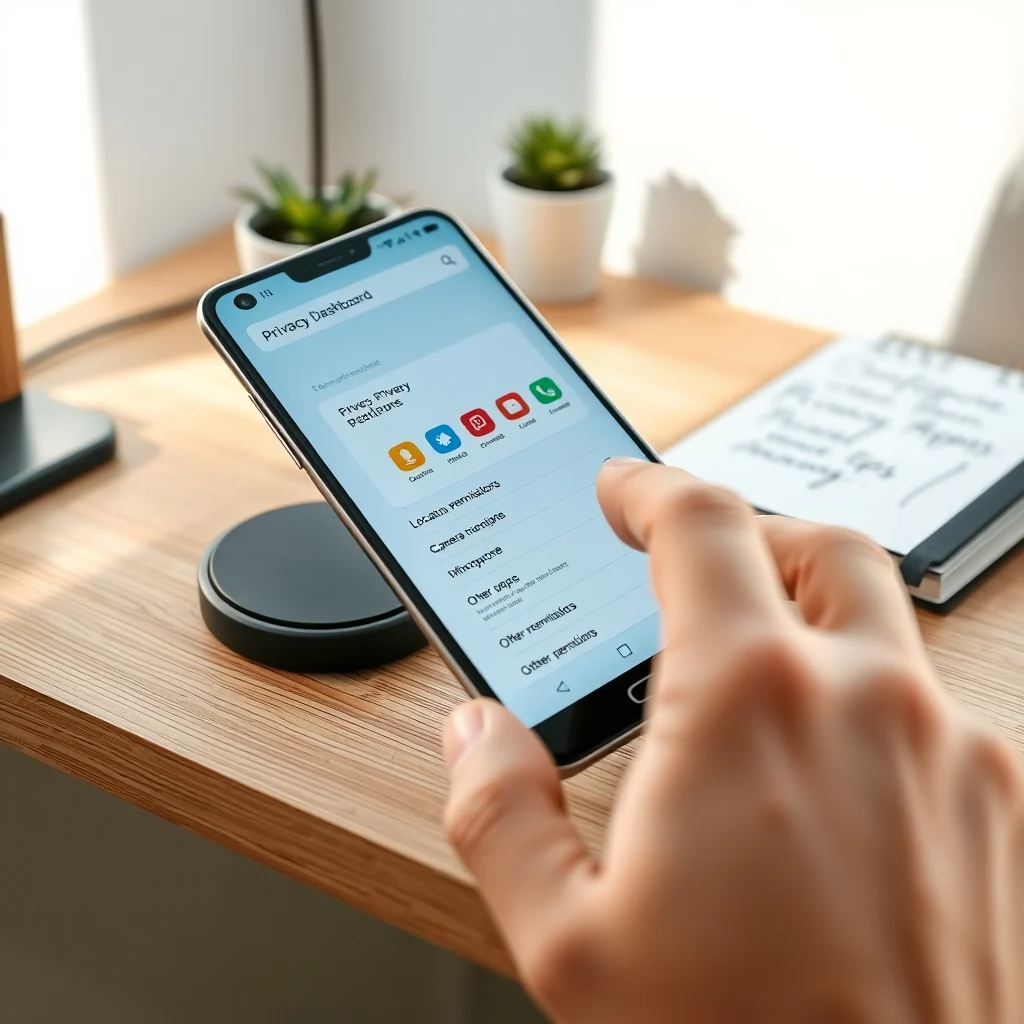
Android’s Privacy Dashboard is a built-in feature designed to give users a clear overview of how apps access sensitive permissions such as location, camera, microphone, and more. Introduced with Android 12, this tool aggregates data from all installed applications, presenting it in an intuitive interface. The dashboard tracks permissions in real-time, allowing you to see which apps have accessed specific features and when. This transparency is crucial for identifying potentially intrusive apps and preventing unauthorized data collection. By providing a timeline of permission usage, the Privacy Dashboard enables users to make informed decisions about their app usage.
The dashboard categorizes permissions into three main types: Location, Camera, Microphone, and Other (which includes contacts, storage, and more). Each category displays a list of apps that have requested or used the permission, along with the most recent access times. This feature is particularly useful for detecting apps that access your data in the background without your knowledge. Additionally, the Privacy Dashboard integrates with Android’s Permission Auto-Reset feature, which automatically revokes permissions for unused apps after a set period.
🔍 Core Functionality of the Privacy Dashboard
The Privacy Dashboard operates by logging every instance an app requests or uses a sensitive permission. This includes both foreground and background access. For example, if an app accesses your location in the background, the dashboard will record this activity along with the timestamp. This level of detail helps you understand exactly how apps are using your data. The dashboard also highlights apps that frequently request permissions, allowing you to assess whether their functionality justifies the access they require.
-
– ✅ Real-time monitoring of app permissions
– 🎯 Detailed access logs for each permission type
– ⚠️ Automatic alerts for unusual permission usage
– 🔄 Seamless integration with Android’s permission management system
📈 Why Use the Privacy Dashboard?
The primary benefit of the Privacy Dashboard is transparency. In a digital landscape where apps often collect more data than necessary, having a clear view of permission usage is invaluable. Many users are unaware of how frequently apps access their data, especially when these apps operate in the background. The Privacy Dashboard eliminates this blind spot by providing a detailed record of every permission request and usage. This empowers users to make informed decisions about which apps to keep, update, or remove.
Another significant advantage is control. The dashboard not only shows you what apps are doing but also allows you to revoke permissions directly from the interface. This means you can instantly block an app’s access to your location, camera, or microphone without navigating through multiple settings menus. For users concerned about privacy, this feature is a game-changer, as it puts the power back in their hands. Additionally, the Privacy Dashboard encourages developers to adopt more responsible data practices, as users can easily identify and penalize apps that misuse permissions.
🚀 How to Access and Navigate the Privacy Dashboard
🎯 Step-by-Step Access Guide
Accessing the Privacy Dashboard is straightforward, but the exact steps may vary slightly depending on your Android version and device manufacturer. Below is a general guide that works for most devices running Android 12 or later. If you’re using a custom Android skin like Samsung One UI or Xiaomi MIUI, the menu names might differ slightly, but the core functionality remains the same.
-
Open Settings: Start by unlocking your device and tapping the Settings app, which is typically represented by a gear icon. You can also swipe down from the top of your screen and tap the gear icon in the quick settings panel.
-
Navigate to Privacy: Scroll down the settings menu until you see the Privacy option. On some devices, this might be labeled as Privacy and Security. Tap on it to proceed.
-
Select Privacy Dashboard: Within the Privacy menu, look for the Privacy Dashboard option. It may be listed under a submenu like Permission Manager or App Permissions. Tap on it to open the dashboard.
-
View Permission Activity: Once inside the Privacy Dashboard, you’ll see a summary of recent permission usage. The dashboard is divided into sections for Location, Camera, Microphone, and Other permissions. Each section displays a list of apps along with the most recent access times.
-
Tap an App to View Details: To see more detailed information about a specific app’s permission usage, tap on the app’s name. This will open a new screen showing a timeline of when the app requested or used the permission, along with options to manage the permission.
📱 Understanding the Dashboard Interface
The Privacy Dashboard interface is designed to be user-friendly, with a clean layout that prioritizes clarity. At the top of the screen, you’ll see a summary of recent permission activities, including the total number of apps that have accessed sensitive permissions in the last 24 hours. Below this, you’ll find four main sections:
| Section | Description | Example Use Case |
|---|---|---|
| Location | Shows apps that have accessed your device’s location, including background access. | Identifying a weather app that tracks your location even when closed. |
| Camera | Lists apps that have used your device’s camera, whether in the foreground or background. | Detecting a game that accesses the camera without a clear reason. |
| Microphone | Displays apps that have requested or used your device’s microphone. | Finding a messaging app that records audio in the background. |
| Other | Includes permissions like contacts, storage, phone, and SMS. | Spotting an app that reads your contacts without permission. |
Each section provides a list of apps, sorted by the most recent access. You can tap on any app to view a detailed timeline of its permission usage. The timeline includes timestamps, whether the access was in the foreground or background, and the specific permission that was used. This level of detail helps you understand exactly how apps are interacting with your device’s sensitive features.
🛠️ Managing App Permissions Through the Privacy Dashboard
🔄 How to Revoke Permissions
One of the most powerful features of the Privacy Dashboard is the ability to revoke permissions directly from the interface. This allows you to instantly block an app’s access to sensitive features without uninstalling the app. Below are the steps to revoke permissions for specific apps:
-
Open the Privacy Dashboard: Follow the steps outlined in the previous section to access the Privacy Dashboard.
-
Select a Permission Category: Choose the permission category you want to manage (e.g., Location, Camera, Microphone, or Other).
-
Tap the App: From the list of apps, tap on the one you want to modify. This will open a detailed view of the app’s permission usage.
-
Manage the Permission: In the app’s detail screen, you’ll see the permission you’re managing (e.g., Location). Tap on the permission to open the management screen.
-
Revoke the Permission: On the permission management screen, you’ll see options to Allow or Deny the permission. Tap Deny to revoke the app’s access. You can also choose to Ask Every Time, which prompts you before the app can use the permission.
-
Confirm the Action: A confirmation dialog will appear, asking if you’re sure you want to revoke the permission. Tap Deny Anyway to proceed. The app will no longer have access to the permission unless you manually allow it again.
🎯 Fine-Tuning Permission Settings
The Privacy Dashboard allows you to fine-tune permission settings for greater control over your data. In addition to revoking permissions entirely, you can adjust how apps access sensitive features. For example, you can allow an app to access your location only when you’re using it, rather than granting continuous background access. Here’s how to adjust these settings:
-
Open the App’s Permission Screen: Navigate to the Privacy Dashboard and tap on an app to open its permission details.
-
Select the Permission: Choose the specific permission you want to adjust (e.g., Location).
-
Choose the Access Level: On the permission screen, you’ll see options like Allow all the time, Allow only while using the app, Ask every time, and Don’t allow. Select the option that best suits your privacy needs.
-
Apply the Changes: Tap Apply or Save to confirm your selection. The app will now adhere to the new permission settings.
-
– ✅ Allow all the time: Grants the app continuous access to the permission.
– 🎯 Allow only while using the app: Limits access to when the app is in use.
– ⚠️ Ask every time: Prompts you before the app can use the permission.
– 🔒 Don’t allow: Revokes the permission entirely.
🔍 Reviewing Permission Timelines
The Privacy Dashboard’s timeline feature is one of its most valuable tools. It allows you to see exactly when and how apps have accessed your data. This is particularly useful for identifying suspicious activity, such as an app accessing your microphone in the middle of the night. To review a permission timeline:
-
Open the App’s Permission Screen: Tap on an app in the Privacy Dashboard to open its permission details.
-
Navigate to the Timeline: Scroll down to the timeline section, which displays a chronological list of permission usage events.
-
Analyze the Events: Each event includes a timestamp, the type of access (foreground or background), and the permission that was used. Reviewing this timeline can help you spot patterns or anomalies in app behavior.
-
Take Action: If you notice an app using a permission inappropriately, you can revoke its access directly from the timeline screen.
The timeline also includes a “Show All Events” option, which expands the view to include older events. This is useful for auditing an app’s behavior over a longer period. For example, you might discover that a social media app accessed your location multiple times in the past week, even when you weren’t using it. Armed with this information, you can decide whether to revoke the app’s location access or uninstall it entirely.
🔐 Advanced Privacy Controls and Tips
🛡️ Enabling Permission Auto-Reset
Android’s Permission Auto-Reset feature works in tandem with the Privacy Dashboard to enhance your privacy automatically. When enabled, this feature revokes permissions for apps that haven’t been used for an extended period (typically 3 months). This ensures that apps don’t retain access to your data if you stop using them. Here’s how to enable Permission Auto-Reset:
-
Open Settings: Go to your device’s Settings app.
-
Navigate to Privacy: Scroll down and tap on Privacy or Privacy and Security.
-
Select Permission Manager: Look for the Permission Manager option and tap on it.
-
Enable Auto-Reset: Scroll down to the Permission Auto-Reset section and toggle the switch to On. You can also tap on the option to customize the reset period or review which apps are affected.
-
Confirm the Action: A confirmation dialog will appear, explaining how Permission Auto-Reset works. Tap Enable to proceed.
🎯 Using App-Specific Permission Controls
Some apps offer their own permission controls within their settings menus. These controls allow you to fine-tune how an app accesses your data, often providing more granular options than Android’s built-in tools. To access app-specific permission controls:
-
Open the App’s Settings: Go to Settings > Apps and select the app you want to configure.
-
Navigate to Permissions: Tap on Permissions to see a list of all the permissions the app has requested.
-
Adjust Permissions: For each permission, you can choose to allow or deny access, or set a specific access level (e.g., allow only while using the app).
-
Save Changes: Tap Back or Save to apply your changes.
While app-specific controls can be useful, they are not a substitute for the Privacy Dashboard. The dashboard provides a centralized view of all apps and permissions, making it easier to spot and manage privacy risks across your device. However, using both tools together can give you even greater control over your data.
📊 Monitoring Background App Activity
Apps running in the background can silently access sensitive permissions, making them a significant privacy risk. The Privacy Dashboard helps you monitor this activity by logging background accesses in the permission timeline. To check for background activity:
-
Open the Privacy Dashboard: Navigate to the dashboard as described earlier.
-
Select a Permission Category: Choose a permission type (e.g., Location, Camera) to review.
-
Review the Timeline: Look for entries labeled as “Background” in the timeline. These entries indicate that an app accessed the permission while running in the background.
-
Take Action: If you see an app accessing a permission in the background without a valid reason, consider revoking its access or uninstalling the app.
🚀 Optimizing the Privacy Dashboard for Maximum Efficiency
💡 Best Practices for Regular Use
The Privacy Dashboard is most effective when used regularly. Here are some best practices to help you get the most out of this tool:
- 📅 Check Weekly: Make it a habit to review the Privacy Dashboard at least once a week. This ensures you stay on top of any changes in app behavior and can address privacy concerns promptly.
- 🔄 Update Permissions Seasonally: Apps evolve over time, and their permission requirements may change with updates. Reviewing and updating your permission settings every few months can help you maintain optimal privacy.
- 🚫 Remove Unused Apps: If you haven’t used an app in months, it’s a good idea to uninstall it. This not only frees up storage space but also removes any potential privacy risks associated with the app’s permissions.
- 📱 Use App Alternatives: If an app is overly intrusive, consider switching to a more privacy-focused alternative. For example, you might replace a social media app with a version that offers better privacy controls.
🎯 Customizing Notification Alerts
The Privacy Dashboard can send you alerts when an app accesses a sensitive permission for the first time or when an app requests a new permission. These alerts are useful for staying informed about app behavior in real-time. To customize notification settings:
-
Open Settings: Go to Settings > Notifications.
-
Find Privacy Dashboard: Scroll through the list of apps and locate Privacy Dashboard. Tap on it to open its notification settings.
-
Adjust Alerts: Choose which types of alerts you want to receive, such as permission requests, background accesses, or permission revocations. You can also set the alert style (e.g., sound, vibration, or silent).
-
Save Changes: Tap Back or Save to confirm your settings.
Customizing alerts ensures you’re always aware of important changes in app behavior, allowing you to take action quickly if something seems amiss. For example, if you receive an alert that a messaging app accessed your microphone in the background, you can investigate the incident and revoke the permission if necessary.
🔍 Leveraging Third-Party Privacy Tools
While the Privacy Dashboard is a powerful tool, it’s not the only option for protecting your privacy on Android. Third-party apps can provide additional layers of security and control. Here are a few popular options:
- 🔒 AppLock: This app allows you to lock individual apps with a PIN, pattern, or fingerprint, preventing unauthorized access.
- 🛡️ Exodus Privacy: Exodus scans your installed apps for trackers and permissions, providing a detailed report of potential privacy risks.
- 📊 Permission Manager X: This app offers advanced permission management features, including batch permission revocation and detailed permission logs.
Third-party tools can complement the Privacy Dashboard by offering features like app locking, tracker detection, and more granular permission controls. However, be cautious when using these apps, as some may themselves pose privacy risks. Always research an app thoroughly before installing it, and stick to reputable developers with positive reviews.
🔐 Security Considerations and Common Mistakes
⚠️ Potential Risks and How to Avoid Them
While the Privacy Dashboard is designed to enhance your privacy, there are still risks to be aware of. Below are some common mistakes users make and how to avoid them:
- 🚫 Ignoring Background Access: Many users focus only on foreground permission usage, overlooking the risks of background access. Always review the timeline for background events and revoke permissions for apps that don’t need continuous access.
- 🔄 Granting Permissions Without Thinking: It’s easy to tap “Allow” when an app requests a permission, especially if you’re in a hurry. Always consider whether an app truly needs the permission it’s requesting. For example, a calculator app doesn’t need access to your location.
- 📱 Not Updating Apps: Outdated apps may have security vulnerabilities that could be exploited to access your data. Regularly update your apps to ensure you’re protected against known threats.
- 🛠️ Relying Solely on the Privacy Dashboard: The Privacy Dashboard is a powerful tool, but it’s not foolproof. Combine it with other privacy measures, such as using a VPN, enabling two-factor authentication, and reviewing your Google Account activity.
🛑 Protecting Against Permission Abuse
Permission abuse occurs when an app collects more data than necessary or uses permissions in ways that violate user trust. To protect yourself against permission abuse:
-
Review App Reviews and Ratings: Before installing an app, check its reviews on the Google Play Store. Look for comments about privacy issues or permission abuses. Apps with a history of such complaints should be avoided or used with caution.
-
Research Apps Thoroughly: Use tools like Exodus Privacy or the Google Play Store’s “About this App” section to learn more about an app’s permissions and trackers. This can help you identify potential risks before installing the app.
-
Use App Alternatives: If an app is known for privacy violations, consider switching to a more trustworthy alternative. For example, you might replace a social media app with one that offers better privacy controls.
-
Report Suspicious Apps: If you encounter an app that is abusing permissions, report it to Google by selecting “Flag as inappropriate” in the Google Play Store. This helps Google investigate and take action against violators.
🆚 Comparing the Privacy Dashboard to Alternatives
🥇 Built-in vs. Third-Party Solutions
The Privacy Dashboard is a built-in feature of Android, which means it’s tightly integrated with the operating system and doesn’t require additional installations. However, third-party solutions offer unique advantages. Below is a comparison of the two approaches:
| Feature | Privacy Dashboard (Built-in) | Third-Party Tools (e.g., Permission Manager X) |
|---|---|---|
| Integration | Fully integrated with Android, no additional installation required. | Requires separate installation, may not integrate as seamlessly with the operating system. |
| Features | Centralized permission monitoring and management, basic alerts. | Advanced features like batch permission revocation, detailed logs, and app locking. |
| Ease of Use | Simple and intuitive, ideal for casual users. | May require more technical knowledge, better suited for advanced users. |
| Privacy Risks | No additional privacy risks, as it’s a built-in feature. | May pose privacy risks if the third-party tool is not reputable. |
| Cost | Free, included with Android. | May require a paid subscription for advanced features. |
For most users, the Privacy Dashboard is sufficient for monitoring and managing app permissions. However, third-party tools can provide additional features and granularity for users who need more control. If you decide to use a third-party tool, choose one with a strong reputation and positive reviews.
🔄 When to Use the Privacy Dashboard vs. Manual Settings
The Privacy Dashboard is designed to simplify permission management, but there are scenarios where manual settings may be more appropriate. Here’s when to use each approach:
- 📊 Use the Privacy Dashboard when: You want a centralized view of all app permissions, need to revoke permissions quickly, or want to monitor background activity.
- 🛠️ Use Manual Settings when: You need to configure permissions for specific apps in greater detail, want to adjust system-level permissions, or need to troubleshoot permission issues.
For example, if you suspect a specific app is misusing a permission, you might use the app’s individual settings menu to fine-tune its access. On the other hand, if you want to review all apps and permissions at once, the Privacy Dashboard is the better choice.
💡 Tips for Maintaining Optimal Privacy
🎯 Best Settings for Maximum Control
To get the most out of the Privacy Dashboard, consider implementing the following settings and practices:
- ⚙️ Enable Permission Auto-Reset: This feature automatically revokes permissions for unused apps, reducing the risk of data exposure.
- 📅 Review Permissions Monthly: Make it a habit to check the Privacy Dashboard at least once a month to stay on top of app behavior.
- 🔄 Use “Ask Every Time” for Sensitive Permissions: For apps that don’t need continuous access, set permissions to “Ask Every Time” to retain full control.
- 🚫 Uninstall Unused Apps: Regularly review your app list and remove apps you no longer use to minimize privacy risks.
- 📱 Use a VPN: A virtual private network (VPN) encrypts your internet traffic, adding an extra layer of protection against data interception.
📌 Advanced Tricks Few Users Know
Here are some lesser-known tips to enhance your privacy using the Privacy Dashboard and related tools:
- 🔍 Check for “Permission Whitelisting”: Some apps, particularly those from Google, may have whitelisted permissions that bypass standard restrictions. Review the Special App Access menu in Settings to see if any apps have these privileges.
- 🛠️ Use ADB to Revoke Permissions: Advanced users can use Android Debug Bridge (ADB) to revoke permissions for apps without opening the Privacy Dashboard. This method is useful for batch revocations or troubleshooting permission issues.
- 📊 Monitor Google Play Services: Google Play Services has extensive permissions that can impact your privacy. Use the Privacy Dashboard to review its permission usage and consider limiting its access if necessary.
- 🔄 Reset App Preferences: If you’re experiencing persistent permission issues, resetting app preferences (via Settings > Apps > Reset App Preferences) can restore default settings and resolve conflicts.
🏁 Final Verdict: Is the Privacy Dashboard Worth It?
Android’s Privacy Dashboard is a game-changer for users who prioritize privacy and control over their digital lives. It provides unparalleled transparency into how apps access your data, allowing you to make informed decisions about your app usage. The ability to revoke permissions, monitor background activity, and fine-tune access levels makes it an essential tool for modern Android users. While it may not be perfect—third-party tools offer additional features, and some users may prefer more granular control—it remains the most accessible and integrated solution for managing app permissions on Android.
For casual users, the Privacy Dashboard is more than sufficient to maintain a strong level of privacy. Simply reviewing the dashboard weekly and revoking unnecessary permissions can significantly reduce your exposure to data collection risks. For power users and privacy enthusiasts, combining the Privacy Dashboard with third-party tools and advanced techniques can provide even greater control. Ultimately, the Privacy Dashboard is a must-use feature for anyone who values their digital privacy and wants to take a proactive approach to data protection.
If you’re not already using the Privacy Dashboard, now is the time to start. Take control of your app permissions, audit your data usage, and enjoy a safer, more private Android experience. Your personal data is valuable—don’t leave it unprotected. Configure the Privacy Dashboard today and reclaim your digital privacy.
❓ Frequently Asked Questions
-
Does the Privacy Dashboard work on all Android devices?
The Privacy Dashboard is available on devices running Android 12 or later. If you’re using an older version of Android, you won’t have access to this feature. However, you can still manage app permissions through the Settings > Apps menu, where you can review and revoke permissions manually.
-
Can I use the Privacy Dashboard to block ads or trackers?
The Privacy Dashboard is designed to manage app permissions, not to block ads or trackers directly. However, by revoking unnecessary permissions, you can reduce the amount of data apps collect, which may indirectly limit ad targeting. For blocking ads and trackers, consider using a third-party ad blocker or a privacy-focused browser like Firefox Focus.
-
Will revoking permissions break my apps?
Revoking permissions may affect the functionality of some apps, particularly those that rely on sensitive data to operate. For example, a navigation app won’t work if you deny its location access. Always review an app’s permissions before revoking them and be prepared to grant access again if the app stops functioning properly.
-
How often should I check the Privacy Dashboard?
It’s a good idea to check the Privacy Dashboard at least once a week to stay on top of any changes in app behavior. You can also set up notification alerts to be informed when an app accesses a sensitive permission for the first time or when an app requests a new permission.
-
Can I use the Privacy Dashboard to manage permissions for system apps?
Yes, the Privacy Dashboard allows you to manage permissions for both third-party and system apps. However, be cautious when revoking permissions for system apps, as this may affect core functionality. Always research the consequences before making changes to system app permissions.
-
What should I do if an app keeps requesting a permission I’ve revoked?
If an app repeatedly requests a permission you’ve revoked, it may be due to a bug or a design choice by the app developer. Try updating the app to see if the issue is resolved. If the problem persists, consider uninstalling the app or using an alternative that respects your privacy settings.
-
Does the Privacy Dashboard log all permission requests, or just the ones I approve?
The Privacy Dashboard logs all permission requests, regardless of whether you approve them. This includes both granted and denied permissions, allowing you to see which apps are attempting to access sensitive data.
-
Can I export the Privacy Dashboard’s data for further analysis?
Currently, the Privacy Dashboard does not offer a built-in option to export its data. However, you can manually screenshot the dashboard or take notes to review later. For advanced users, using ADB commands or third-party tools may provide a way to export permission logs.
-
Is the Privacy Dashboard available on tablets and foldables?
Yes, the Privacy Dashboard is available on all Android devices running Android 12 or later, including tablets and foldables. The interface may adapt slightly to fit larger screens, but the core functionality remains the same.
-
What happens if I factory reset my device? Will the Privacy Dashboard’s data be lost?
A factory reset will remove all data from your device, including the Privacy Dashboard’s logs and permission settings. After resetting, you’ll need to reconfigure your permissions from scratch. It’s a good idea to review and document your privacy settings before performing a factory reset.