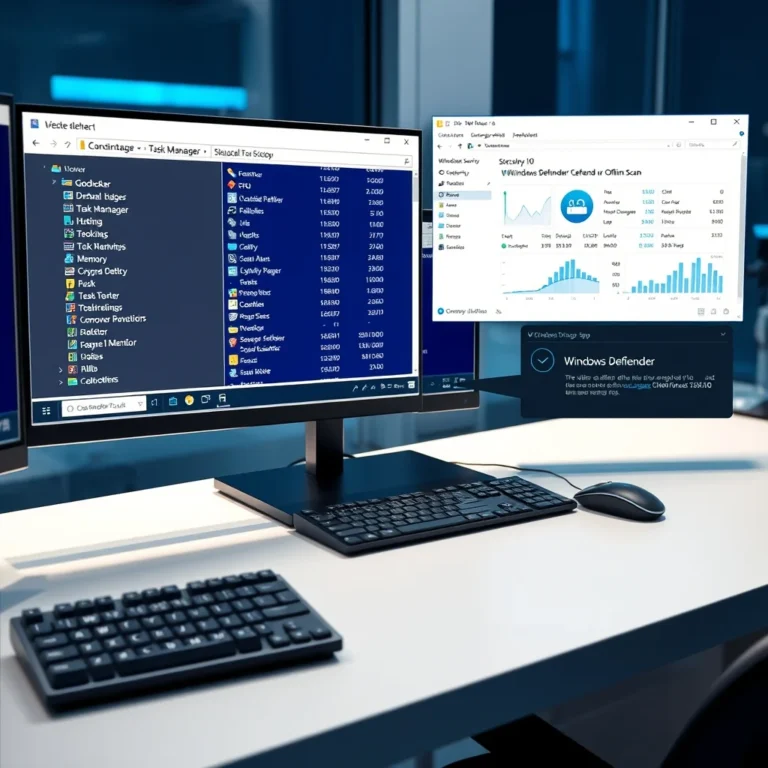

In today’s digital landscape, securing your Windows system against malware and hackers is not just an option—it’s a necessity. Cyber threats are evolving at an alarming rate, with ransomware, spyware, and phishing attacks becoming more sophisticated by the day. A single vulnerability can expose your sensitive data, financial information, or even grant unauthorized access to your device. While Windows includes built-in security tools, relying on default settings may leave gaps that attackers exploit. This comprehensive guide will walk you through configuring Windows Defender, firewall rules, User Account Control (UAC), and Group Policies to create a robust defense against cyber threats. You’ll also learn how to schedule regular scans, keep your system updated, and monitor suspicious activity effectively.
🛡️ Why Windows Security Matters: Understanding the Threat Landscape
Windows remains the most widely used operating system globally, making it a prime target for cybercriminals. According to recent reports from Microsoft Security Intelligence, over 65% of global cyber attacks in 2026 target Windows systems. These attacks range from simple phishing emails to advanced persistent threats (APTs) that can remain undetected for months. Common threats include:
- ✅ Malware infections – Viruses, Trojans, and ransomware that encrypt files or steal data.
- ✅ Zero-day exploits – Vulnerabilities unknown to Microsoft that attackers weaponize before patches are released.
- ✅ Man-in-the-middle attacks – Hackers intercepting unencrypted network traffic to steal credentials.
- ✅ Social engineering – Tricking users into downloading malicious software or revealing passwords.
🔍 Step 1: Strengthening Windows Defender for Real-World Protection
📌 Understanding Windows Defender’s Core Functions
Windows Defender, now called Microsoft Defender Antivirus, is more than just a basic scanner. It combines multiple layers of protection:
- ✅ Real-time protection – Monitors files and processes as they run.
- ✅ Cloud-delivered protection – Uses Microsoft’s threat intelligence to block emerging malware.
- ✅ Behavioral analysis – Detects suspicious activities like unusual process execution.
- ✅ Network inspection – Scans incoming and outgoing network traffic for threats.
To maximize its effectiveness, you need to configure Defender beyond default settings. Start by accessing it through the Windows Security app:
- Open Windows Security: Press Win + I to open Settings, click Update & Security, then select Windows Security.
- Navigate to Virus & threat protection: Click on Virus & threat protection to access the main dashboard.
- Adjust protection settings: Under Virus & threat protection settings, toggle on Cloud-delivered protection and Automatic sample submission. These features enhance threat detection by leveraging Microsoft’s global threat database.
🛠️ Configuring Custom Scan Options
Default scans are thorough but may miss certain threats. To ensure comprehensive protection, set up custom scan schedules:
- ✅ Quick scans – Run daily during off-peak hours (e.g., 2 AM) to check critical system areas.
- ✅ Full scans – Schedule weekly (e.g., every Sunday at 3 AM) to examine every file.
- ✅ Custom scans – Target specific folders (e.g., Downloads, Documents) where malware often hides.
To set up scheduled scans:
- Open Task Scheduler: Type Task Scheduler in the Start menu and press Enter.
- Create a new task: Right-click Task Scheduler Library, select Create Task.
- Configure triggers: Under the Triggers tab, set a daily or weekly schedule.
- Define actions: Under the Actions tab, set the program to C:Program FilesWindows DefenderMpCmdRun.exe with arguments: -Scan -ScanType 2 (for a full scan) or -Scan -ScanType 1 (for a quick scan).
- Set conditions: Under the Conditions tab, ensure the task runs even if the computer is on battery power (for laptops).
🔄 Keeping Defender Updated Automatically
Windows Defender relies on definition updates to detect new threats. By default, these updates install automatically, but it’s wise to verify:
- ✅ Check update status: In Windows Security, go to Virus & threat protection > Protection updates. Ensure the last update was recent (within 24 hours).
- ✅ Enable forced updates: If you’re concerned about delays, open Windows Update (Settings > Update & Security > Windows Update) and click Check for updates manually every few days.
For enterprise users, Group Policies can enforce stricter update policies. We’ll cover this later in the guide.
🔥 Step 2: Configuring the Windows Firewall for Network Security
📌 The Role of the Windows Firewall in Cybersecurity
The Windows Firewall acts as a gatekeeper, monitoring incoming and outgoing network traffic based on predefined rules. Unlike third-party firewalls, it’s deeply integrated into Windows and doesn’t require additional installation. Its key functions include:
- ✅ Blocking unauthorized access – Prevents hackers from exploiting open ports.
- ✅ Controlling app permissions – Restricts which programs can send/receive data.
- ✅ Network profile separation – Applies different rules for Domain, Private, and Public networks.
While the default firewall settings provide basic protection, custom configurations can significantly enhance security. Start by accessing the Windows Defender Firewall:
- Open Firewall settings: Type Windows Defender Firewall in the Start menu and press Enter.
- Review active networks: Check if your current network is set to Private (for trusted networks like home) or Public (for coffee shops or airports).
- Adjust notification settings: In the left pane, click Turn Windows Defender Firewall on or off. Enable the firewall for both Private and Public networks.
🛠️ Creating Custom Inbound and Outbound Rules
Default firewall rules allow most outbound traffic but block unsolicited inbound connections. For advanced users, manually configuring rules can prevent data exfiltration by malware. Follow these steps:
- Open Advanced Firewall Settings: In the Firewall window, click Advanced settings in the left pane.
- Create a new inbound rule: Right-click Inbound Rules > New Rule.
- Choose rule type: Select Port > TCP or UDP > specify port numbers (e.g., 445 for SMB). Choose Block the connection.
- Apply to profiles: Select all three profiles (Domain, Private, Public).
- Name the rule: Give it a descriptive name like Block SMB Port 445.
Example scenario: The EternalBlue exploit, used in the WannaCry ransomware attack, targeted port 445. Blocking this port prevents such attacks from succeeding.
🌐 Securing Public Wi-Fi Connections
Public networks are hotspots for man-in-the-middle attacks. The Windows Firewall can mitigate risks by:
- ✅ Enabling stealth mode: In Advanced Firewall Settings, go to Windows Defender Firewall Properties. Under the Public Profile tab, set Stealth to Yes. This prevents the system from responding to ping requests, making it less visible to attackers.
- ✅ Blocking file and printer sharing: In the same properties window, disable File and Printer Sharing for the Public profile. This prevents attackers from accessing shared folders.
- ✅ Using a VPN: While not a firewall feature, a Virtual Private Network (VPN) encrypts all traffic, making it unreadable even if intercepted. Configure a VPN in Settings > Network & Internet > VPN.
🛡️ Step 3: Enforcing User Account Control (UAC) for Privilege Escalation Prevention
📌 What is UAC and Why It’s Critical
User Account Control (UAC) is a security feature that prompts users for confirmation before allowing applications to make system-wide changes. It mitigates the risk of malware gaining administrative privileges, which is often the first step in a successful attack. UAC works by:
- ✅ Running apps with least privilege – Even administrators run with standard user permissions by default.
- ✅ Prompting for elevation – When an app needs admin rights, UAC displays a confirmation dialog.
- ✅ Blocking unauthorized changes – Prevents malware from installing drivers or modifying system files without consent.
To check and adjust UAC settings:
- Open UAC settings: Type UAC in the Start menu and select Change User Account Control settings.
- Adjust the slider: The default setting is Notify me only when apps try to make changes to my computer (default). For maximum security, move the slider to Always notify.
- Test UAC: Try installing a harmless app (e.g., Notepad++). You should see a UAC prompt confirming the action.
🔒 Configuring UAC for Specific Scenarios
In enterprise environments, UAC can be fine-tuned using Group Policies. For home users, manual adjustments can enhance security in specific cases:
- Disable UAC for specific apps: While not recommended, you can create a shortcut to run an app as administrator without a prompt. Right-click the app > Properties > Shortcut > Advanced > Check Run as administrator. Be cautious—this can expose you to risk if the app is malicious.
- Audit UAC prompts: To track which apps trigger UAC prompts, enable UAC auditing in Event Viewer. Navigate to Windows Logs > Security and filter for Event ID 4688 (process creation). Look for events with a SubjectSecurity ID of SYSTEM or Administrators.
⚙️ Step 4: Leveraging Group Policies for Enterprise-Grade Security
📌 When to Use Group Policies (Even on Home PCs)
Group Policy is a Windows feature that allows administrators to enforce security settings across multiple computers. While typically used in businesses, Windows Pro, Enterprise, and Education editions include Group Policy Editor (gpedit.msc). Home users on Windows Home can enable it via third-party tools or registry tweaks. Group Policies are powerful because they:
- ✅ Override user settings – Prevent users from disabling critical security features.
- ✅ Enforce consistent policies – Ensure all computers in a network follow the same security rules.
- ✅ Reduce human error – Automate security configurations instead of relying on manual adjustments.
To open Group Policy Editor:
- Windows Pro/Enterprise/Education: Press Win + R, type gpedit.msc, and press Enter.
- Windows Home: Enable it by running gpedit.msc from an elevated Command Prompt (Win + X > Terminal (Admin) > type command). If gpedit.msc isn’t found, download and install Policy Plus (a third-party tool).
🛠️ Key Group Policies for Malware Prevention
Below are the most critical Group Policies for hardening Windows against attacks. Navigate to each policy using the Computer Configuration path provided.
| Policy | Path | Recommended Setting | Impact |
|---|---|---|---|
| Disable Windows Defender Real-Time Protection | Computer Configuration > Administrative Templates > Windows Components > Microsoft Defender Antivirus > Real-time Protection | Disabled | Prevents users from disabling real-time scanning. |
| Turn off Windows Defender AntiSpyware | Computer Configuration > Administrative Templates > Windows Components > Microsoft Defender Antivirus > Real-time Protection | Disabled | Ensures spyware protection remains active. |
| Configure Automatic Updates | Computer Configuration > Administrative Templates > Windows Components > Windows Update > Configure Automatic Updates | Enabled, with 4 – Auto download and schedule the install selected | Ensures critical security updates install automatically. |
| Prevent installation of devices not described by other policy settings | Computer Configuration > Administrative Templates > System > Device Installation > Device Installation Restrictions | Enabled | Blocks unauthorized USB or peripheral device installations. |
| Turn on Script Execution | Computer Configuration > Administrative Templates > Windows Components > Windows PowerShell | Enabled, with Turn on Script Execution set to Allow all scripts | Prevents script-based attacks while allowing legitimate scripts. |
| Deny access to this computer from the network | Computer Configuration > Windows Settings > Security Settings > Local Policies > User Rights Assignment | Enabled, with no users listed | Blocks remote network access entirely (use only in high-security environments). |
Why these settings matter: The table above highlights policies that directly impact malware prevention. For example, disabling Real-Time Protection would allow malware to run unchecked, while restricting USB device installation prevents ransomware from spreading via infected thumb drives. Always test policies in a non-production environment first to avoid locking yourself out of critical functions.
🔄 Applying Group Policies to a Local Machine
After configuring policies, apply them immediately using the following steps:
- Open Command Prompt as Administrator: Press Win + X > Terminal (Admin).
- Force policy update: Type gpupdate /force and press Enter.
- Verify changes: Some policies require a reboot. Check Event Viewer > Application > Group Policy for errors.
To back up your Group Policy settings (highly recommended):
- Export policies: Open Command Prompt as Admin and run gpresult /H C:policy_report.html to generate a report.
- Backup registry: Group Policies are stored in the registry under HKEY_LOCAL_MACHINESOFTWAREPolicies. Right-click > Export to save a backup.
🔍 Step 5: Monitoring and Responding to Suspicious Activity
📌 Setting Up Windows Event Viewer for Security Alerts
Windows logs every significant system event, including security-related activities. By configuring Event Viewer, you can detect potential threats early. Key logs to monitor include:
- ✅ Security logs – Track logins, failed authentication attempts, and privilege changes.
- ✅ System logs – Monitor hardware failures or driver issues that could indicate tampering.
- ✅ Application logs – Check for unusual app behavior, such as unexpected network connections.
To access Event Viewer:
- Open Event Viewer: Type Event Viewer in the Start menu and press Enter.
- Navigate to Security logs: Go to Windows Logs > Security.
- Filter critical events: Right-click Security > Filter Current Log. Set Event IDs to monitor common attack indicators like:
- 4624 – Successful logon
- 4625 – Failed logon (brute force attempt)
- 4672 – Special privileges assigned
- 4688 – Process creation (check for unsigned executables)
🚨 Automating Threat Detection with Windows Defender ATP
For users with Windows 10/11 Pro or Enterprise, Microsoft Defender for Endpoint (formerly ATP) offers advanced threat detection. It uses machine learning to identify anomalies and can:
- ✅ Detect living-off-the-land attacks – Malware that uses legitimate tools like PowerShell or WMI.
- ✅ Analyze behavioral patterns – Identifies unusual processes or network traffic.
- ✅ Provide automated response – Isolates infected devices from the network.
To enable Defender ATP:
- Open Windows Security: Go to Virus & threat protection > Microsoft Defender Antivirus options.
- Enable cloud protection: Toggle on Microsoft Defender for Endpoint.
- Monitor alerts: Access the Defender ATP portal at https://security.microsoft.com to view detected threats. You’ll need a Microsoft 365 E5 license for full features.
Alternative for home users: Tools like Process Explorer (from Microsoft Sysinternals) or HijackThis can manually inspect running processes for suspicious activity. Download them from Microsoft’s official Sysinternals site.
📊 Creating a Security Incident Response Plan
Even with the best defenses, breaches can occur. A response plan ensures you act quickly to minimize damage. Your plan should include:
- ✅ Isolation steps – Disconnect the infected device from the network immediately.
- ✅ Backup verification – Ensure you have recent, uninfected backups before attempting recovery.
- ✅ Forensic analysis – Use tools like Autopsy or FTK Imager to analyze the attack vector.
- ✅ Restoration process – Wipe and reinstall Windows if necessary, then restore files from backup.
🔄 Step 6: Keeping Your System Updated for Long-Term Security
📌 The Critical Role of Windows Updates
Microsoft releases Patch Tuesday updates on the second Tuesday of every month. These updates include security patches for vulnerabilities discovered in the previous month. Skipping updates is one of the most common mistakes users make, leaving systems exposed to known exploits. Key update types include:
- ✅ Security updates – Fix vulnerabilities in Windows components.
- ✅ Critical updates – Address severe issues like remote code execution flaws.
- ✅ Definition updates – Improve Windows Defender’s ability to detect new malware.
To ensure updates install automatically:
- Open Windows Update: Go to Settings > Update & Security > Windows Update.
- Check update settings: Click Advanced options > ensure Automatic (recommended) is selected.
- Pause updates (if needed): During critical work, you can pause updates for up to 35 days. However, avoid doing this long-term.
🛠️ Managing Updates in Group Policies
For granular control over updates, use Group Policies:
- Defer feature updates: Navigate to Computer Configuration > Administrative Templates > Windows Components > Windows Update > Defer Windows Updates. Set Defer Feature Updates to 365 days to avoid major version upgrades until they’re stable.
- Automatic maintenance: Enable Configure Automatic Updates (as shown in the Group Policies table earlier) to ensure updates install during off-peak hours.
Enterprise tip: Deploy updates via Windows Server Update Services (WSUS) or Microsoft Endpoint Configuration Manager to control which updates install and when. This prevents problematic updates from breaking production systems.
🔐 Step 7: Securing Local Accounts and Password Policies
📌 The Risks of Local Accounts vs. Microsoft Accounts
While local accounts are convenient for offline use, they lack the security benefits of Microsoft accounts, such as:
- ✅ Two-factor authentication (2FA) – Adds an extra layer of security for logins.
- ✅ Cloud sync – Stores credentials securely in the cloud.
- ✅ Device recovery – Allows remote wipe if the device is lost or stolen.
However, Microsoft accounts can be a privacy concern for some users. If you prefer a local account, at least enforce strong password policies:
- Open Local Security Policy: Type secpol.msc in the Start menu and press Enter.
- Navigate to password policies: Go to Account Policies > Password Policy.
- Set minimum password length: Set Minimum password length to 12 characters.
- Enforce password complexity: Enable Password must meet complexity requirements.
- Set maximum password age: Set Maximum password age to 90 days to force regular password changes.
🔑 Enabling Windows Hello for Biometric Authentication
Windows Hello replaces traditional passwords with biometric authentication (facial recognition, fingerprint, or PIN). It’s more secure because:
- ✅ PINs are tied to the device – Even if the PIN is stolen, it can’t be used on another machine.
- ✅ Biometrics are unique – Harder to replicate than passwords.
- ✅ Faster logins – No need to remember complex passwords.
To set up Windows Hello:
- Open Sign-in options: Go to Settings > Accounts > Sign-in options.
- Add a PIN: Click Windows Hello PIN > Add. Choose a 6-digit PIN (avoid obvious sequences like 123456).
- Enable facial recognition: If your device has a compatible camera, click Windows Hello Face > Set up and follow the prompts.
- Test authentication: Lock your device (Win + L) and verify that Windows Hello works consistently.
🛠️ Step 8: Hardening System Settings Against Exploits
📌 Disabling Unnecessary Services and Features
Windows includes many features designed for compatibility but can be exploited by attackers. Disabling unnecessary services reduces the attack surface. To manage services:
- Open Services: Type services.msc in the Start menu and press Enter.
- Disable risky services: Look for and disable the following services (right-click > Properties > set Startup type to Disabled):
- Remote Registry – Allows remote modification of the registry.
- Print Spooler – If you don’t use printers, disable it to prevent PrintNightmare exploits.
- Windows Insider Service – Only needed if participating in beta testing.
- Fax – Rarely used and can be a security risk.
Group Policy alternative: To disable services via Group Policy, navigate to Computer Configuration > Windows Settings > Security Settings > System Services. Set services to Disabled and apply the policy.
🔌 Securing USB and Removable Media
USB drives are a common vector for malware, especially in ransomware attacks. To secure removable media:
- Disable AutoRun: Open Group Policy Editor > navigate to Computer Configuration > Administrative Templates > Windows Components > AutoPlay Policies. Enable Turn off Autoplay and set it to All drives.
- Encrypt USB drives: Use BitLocker To Go (for NTFS drives) or third-party tools like VeraCrypt to encrypt removable media.
- Scan USB drives: Always scan USB drives with Windows Defender before accessing files. Right-click the drive > Scan with Microsoft Defender.
📁 Encrypting Sensitive Files with BitLocker
BitLocker encrypts entire drives or specific volumes, protecting data even if the device is stolen. To enable BitLocker:
- Open BitLocker: Go to Control Panel > System and Security > BitLocker Drive Encryption.
- Turn on BitLocker: Click Turn on BitLocker next to the drive you want to encrypt.
- Choose encryption method: For SSDs, select New encryption mode. For HDDs, choose Compatible mode.
- Save the recovery key: BitLocker generates a 48-digit recovery key. Store this in a secure location (e.g., printed and kept in a safe).
- Complete encryption: The process may take hours, depending on drive size.
Enterprise tip: In Group Policies, enforce BitLocker encryption for all removable drives using Computer Configuration > Administrative Templates > Windows Components > BitLocker Drive Encryption > Removable Data Drives.
🌐 Step 9: Protecting Against Network-Based Attacks
📌 Strengthening Wi-Fi and Router Security
Your router is the first line of defense against network-based attacks. Weak router configurations can expose your entire network to threats. Follow these steps:
- Change default credentials: Access your router’s admin panel (usually via 192.168.1.1 or 192.168.0.1). Change the default username and password to something strong.
- Enable WPA3 encryption: If your router supports it, switch from WPA2 to WPA3 for stronger encryption.
- Disable WPS: Wi-Fi Protected Setup (WPS) is vulnerable to brute force attacks. Disable it in the router settings.
- Update router firmware: Check for updates in the router’s admin panel or the manufacturer’s website. Some routers update automatically.
- Segment your network: Use VLANs (if supported) to separate IoT devices, guest networks, and your main devices.
🔒 Using a VPN for Enhanced Privacy
A Virtual Private Network (VPN) encrypts all internet traffic, preventing eavesdropping on public Wi-Fi. When choosing a VPN:
- ✅ Select a no-log VPN – Avoid services that track your activity. Examples include ProtonVPN, Mullvad, or NordVPN.
- ✅ Enable kill switch – Ensures no data leaks if the VPN connection drops.
- ✅ Choose OpenVPN or WireGuard – These protocols offer better performance and security than older options like PPTP.
To set up a VPN in Windows:
- Open VPN settings: Go to Settings > Network & Internet > VPN.
- Add a VPN connection: Click Add a VPN connection and enter your provider’s details.
- Connect: Select the VPN and click Connect.
🛑 Blocking Known Malicious IPs with Windows Firewall
The Windows Firewall can block traffic from known malicious IP addresses. To do this:
- Get a blocklist: Download a list of known malicious IPs from sources like Abuse.ch or FireHOL.
- Create inbound rules: In Windows Defender Firewall with Advanced Security, create a new Inbound Rule > Custom > All programs > Remote IP address. Enter the malicious IPs.
- Set action to Block the connection and apply to all profiles.
Automation tip: Use PowerShell to automate blocklist updates:
Set-NetFirewallRule -DisplayName "Block Malicious IPs" -RemoteAddress @{Add="1.2.3.4","5.6.7.8"}
🔍 Step 10: Regular Security Audits and Maintenance
📌 Conducting Monthly Security Checkups
Security isn’t a one-time setup—it requires ongoing maintenance. Schedule a monthly security audit to review your system’s health. Your checklist should include:
- ✅ Update review – Check Windows Update and Microsoft Store for pending updates.
- ✅ Defender scan – Run a full scan with Windows Defender to check for undetected threats.
- ✅ Firewall log review – Check Windows Defender Firewall logs for blocked connections.
- ✅ Event Viewer check – Look for unusual events, such as repeated failed logins.
- ✅ Password update – Change passwords for critical accounts (e.g., email, banking).
- ✅ Backup verification – Test restoring files from your backup to ensure it works.
🛠️ Automating Security Tasks with Task Scheduler
To save time, automate repetitive security tasks using Task Scheduler:
- Automated scans: Set up a task to run a full scan every Sunday at 2 AM.
- Update checks: Create a task to check for Windows updates daily and install them if available.
- Event log monitoring: Use PowerShell scripts to parse Event Viewer logs and email you alerts for critical events.
Example PowerShell script to monitor failed logins:
$events = Get-WinEvent -FilterHashtable @{LogName='Security'; ID=4625}

if ($events.Count -gt 5) {

    Send-MailMessage -From "security@yourdomain.com" -To "admin@yourdomain.com" -Subject "Multiple Failed Logins Detected" -Body "$($events.Count) failed login attempts detected."

}
🔄 Creating a Disaster Recovery Plan
Even with the best precautions, disasters happen. A disaster recovery plan ensures you can restore your system quickly. Your plan should include:
- ✅ Backup strategy – Use File History (for personal files) and System Image Backup (for full system recovery).
- ✅ Recovery media – Create a Windows recovery drive (Settings > Recovery > Create a recovery drive).
- ✅ Documentation – Keep a record of software licenses, configurations, and critical passwords.
- ✅ Cloud backups – Use services like OneDrive, Backblaze, or Dropbox to store backups offsite.
To create a system image backup:
- Open Backup settings: Go to Control Panel > System and Security > Backup and Restore (Windows 7).
- Select Backup and Restore: Click Create a system image.
- Choose destination: Save the image to an external drive or network location.
- Start backup: Follow the prompts to create a full system image.
❓ Frequently Asked Questions (FAQs)
- Can I use third-party antivirus software instead of Windows Defender?
Yes, but it’s not recommended unless you have a specific need. Modern Windows Defender is highly effective, and running multiple antivirus programs can cause conflicts. If you prefer a third-party solution, disable Windows Defender to avoid performance issues.
- How do I know if my firewall is working correctly?
Test it using ShieldsUP! (https://www.grc.com/shieldsup) or Steve Gibson’s LeakTest. These tools check if your ports are stealthy (not responding to probes) and if your firewall is blocking unauthorized traffic.
- What should I do if I suspect my computer is infected?
First, disconnect from the internet to prevent malware from communicating with command-and-control servers. Then, run a full scan with Windows Defender Offline Scan. If the issue persists, consider using Malwarebytes or HitmanPro for a second opinion. Avoid using the infected system for sensitive tasks until resolved.
- Is it safe to disable UAC if it’s annoying?
No. UAC is a critical security feature that prevents unauthorized changes. Disabling it removes this layer of protection. Instead, adjust the UAC slider to a middle setting to reduce prompts while keeping security intact.
- How often should I update Windows?
Windows should update automatically, but check for updates at least once a week. Critical security patches are released monthly on Patch Tuesday. If you’re using a metered connection, enable Download over metered connections in Windows Update settings.
- Can Group Policies be used on Windows Home edition?
Windows Home doesn’t include the Group Policy Editor by default. However, you can enable it by installing third-party tools like Policy Plus or by manually editing the registry. Be cautious—incorrect registry edits can break your system.
- What’s the best way to secure a USB drive?
Encrypt it using BitLocker To Go (for NTFS drives) or VeraCrypt. Always scan USB drives with Windows Defender before accessing files. Avoid using unknown USB drives, as they can carry malware.
- How do I check if my router is secure?
Log in to your router’s admin panel (usually via 192.168.1.1) and verify:
- WPA3 encryption is enabled
- Default credentials are changed
- Firmware is up to date
- Remote administration is disabled
- Guest network is isolated from the main network
- Is a VPN necessary if I have a firewall?
A VPN and firewall serve different purposes. A firewall blocks unauthorized network traffic, while a VPN encrypts all internet traffic. Use a VPN on public Wi-Fi to prevent eavesdropping, and keep your firewall enabled at all times.
- What’s the difference between a full scan and a quick scan in Windows Defender?
A quick scan checks critical system areas where malware is likely to hide (e.g., memory, startup programs). A full scan examines every file on your system, including documents, photos, and system files. Schedule a quick scan daily and a full scan weekly for optimal protection.
🏁 Final Verdict: Your Path to a Secure Windows System
Securing your Windows system against malware and hackers isn’t a one-time task—it’s an ongoing process that requires attention to detail and proactive measures. By configuring Windows Defender, firewall rules, User Account Control (UAC), and Group Policies, you’ve taken critical steps to harden your system. Coupled with regular scans, automatic updates, and suspicious activity monitoring, you’ve built a defense that rivals enterprise-grade security.
Remember, cybersecurity is about layers. No single tool or setting will protect you entirely, but combining multiple defenses makes it exponentially harder for attackers to succeed. Stay vigilant, keep your system updated, and perform regular audits to ensure your security posture remains strong. If you follow the steps in this guide, you’ll significantly reduce the risk of falling victim to malware or hacking attempts.
Take action today. Start by enabling Windows Defender’s cloud protection, configuring your firewall rules, and adjusting UAC settings. Then, schedule your first full scan and set up automated updates. Your future self will thank you when your system remains safe from the ever-evolving threats of the digital world.
Share this guide with friends and family to help them secure their systems too. Cybersecurity is a shared responsibility, and by spreading awareness, we can all contribute to a safer online environment.
Stay safe, stay secure, and keep your Windows system protected against the threats of tomorrow.