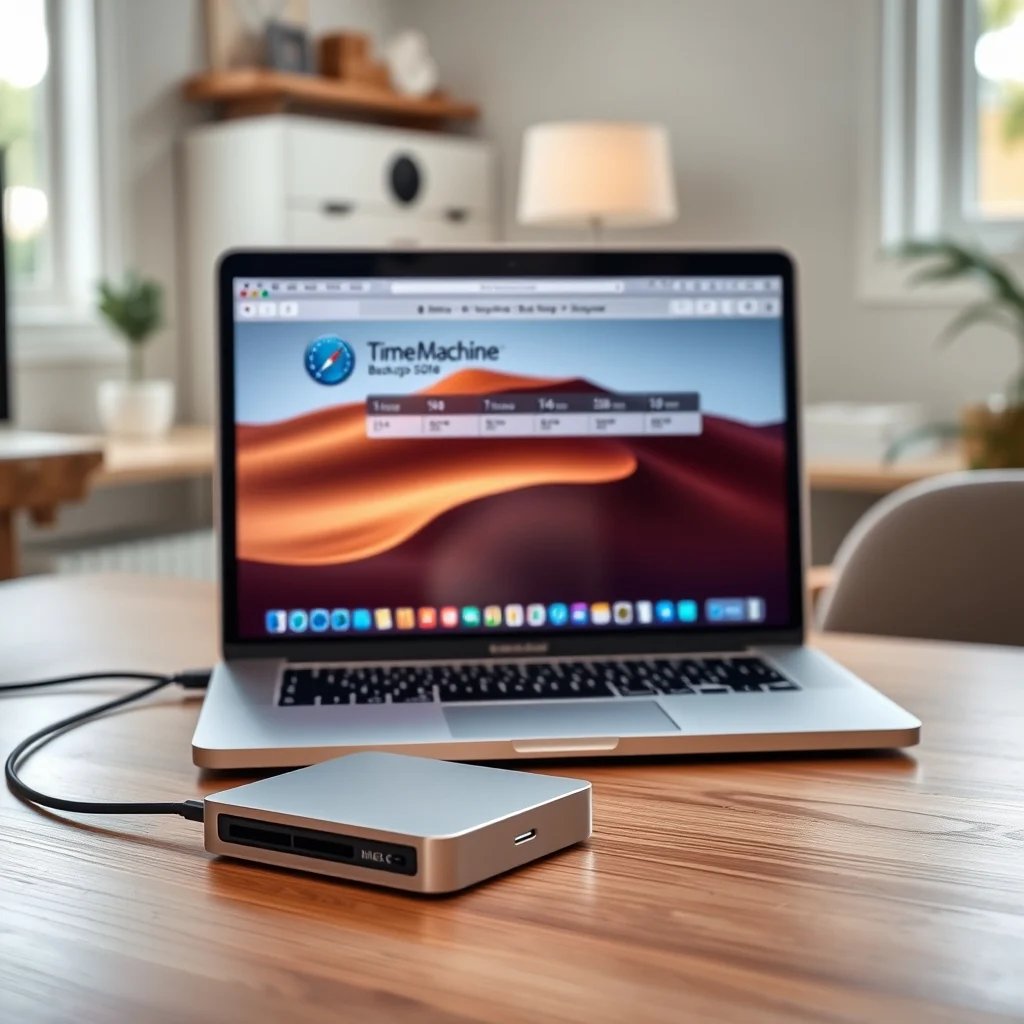

Data loss can strike without warning, whether from accidental deletion, hardware failure, or even a spilled cup of coffee. For macOS users, Time Machine is Apple’s built-in solution designed to safeguard your digital life by creating automated, reliable backups of your entire system. Unlike manual backups, Time Machine works silently in the background, capturing hourly snapshots of your files, applications, and system settings. This ensures that if disaster strikes, you can restore your Mac to its exact state at any point in time.
Setting up Time Machine is straightforward, but optimizing it for performance and reliability requires a bit of know-how. This guide will walk you through every step—from selecting the right backup drive to troubleshooting common issues and restoring files. Whether you’re a first-time Mac user or a seasoned pro, mastering Time Machine will give you peace of mind knowing your data is secure.
🔄 Why macOS Time Machine is Essential for Every User
In today’s digital age, our lives are stored on our devices. Photos, documents, emails, and even our favorite apps represent years of memories and work. A single drive failure or accidental deletion can result in irreversible data loss. Time Machine addresses this risk by providing a fully automated, incremental backup system that captures changes in real time. Unlike basic copy-paste backups, Time Machine uses a snapshot-based approach, allowing you to browse through previous versions of files and restore specific items without overwriting your current data.
Another key advantage is local and external backup support. You can use an external hard drive, a network-attached storage (NAS) device, or even a Time Capsule (Apple’s discontinued wireless backup solution). This flexibility ensures you can back up your data regardless of your setup. Additionally, Time Machine integrates seamlessly with macOS, meaning you don’t need third-party software to get started. The built-in interface makes it easy to navigate backups, compare file versions, and restore entire systems with just a few clicks.
Security is also a major benefit. Time Machine encrypts your backups by default if you format your backup drive as APFS (Apple File System) or Mac OS Extended (Journaled, Encrypted). This ensures your sensitive data remains protected from unauthorized access, even if your backup drive falls into the wrong hands. For users who prioritize data privacy, enabling encryption is a simple yet critical step in the setup process.
📊 Key Benefits of Using Time Machine
- ✅ Automated backups: No manual intervention required—Time Machine runs hourly backups automatically.
- 🎯 Point-in-time recovery: Restore files or your entire system to a specific date and time.
- ⚙️ Seamless integration: Works natively with macOS without requiring additional software.
- 🔒 Built-in encryption: Secure your backups with a password to protect sensitive data.
- 💾 Flexible storage options: Use external drives, NAS devices, or network shares for backups.
- 📁 File versioning: Access previous versions of files to recover accidentally deleted or modified documents.
🔍 Why Users Rely on Time Machine Instead of Alternatives
While third-party backup solutions like Carbonite, Backblaze, or SuperDuper! offer additional features, Time Machine stands out for several reasons:
- Native macOS integration: No need to install or configure third-party software. Time Machine is built into every Mac and ready to use out of the box.
- Incremental backups: Instead of copying every file every time, Time Machine only saves changes, saving storage space and reducing backup time.
- Easy recovery: The macOS recovery interface allows you to restore files directly from the backup without booting into a separate application.
- No subscription required: Unlike cloud-based services, Time Machine doesn’t charge monthly fees. Once you have a backup drive, the service is free indefinitely.
- Local and cloud flexibility: While Time Machine primarily uses local storage, you can combine it with cloud services like iCloud Drive or third-party tools for offsite backups.
For most users, Time Machine provides the perfect balance of simplicity, reliability, and performance. It’s ideal for home users, students, and professionals who need a hassle-free way to protect their data without diving into complex backup software.
🛠️ Technical Breakdown: How Time Machine Works Under the Hood
📌 What is Time Machine and How Does It Store Data?
Time Machine is a file-based backup system that uses a snapshot architecture to capture the state of your Mac at different points in time. Unlike traditional full backups, which require duplicating every file, Time Machine stores only the changes since the last backup. This is known as an incremental backup strategy, which significantly reduces storage requirements and speeds up the backup process.
When you set up Time Machine, it creates a backup bundle on your selected drive. This bundle contains a series of .backupdb folders, each representing a snapshot of your system at a specific time. For example, if you back up your Mac at 2:00 PM, Time Machine will create a snapshot labeled with the date and time. The next backup at 3:00 PM will only store the changes made in that hour, while still maintaining the ability to restore files from the 2:00 PM snapshot.
Internally, Time Machine uses hard links to efficiently store multiple versions of the same file without duplicating data. This means that if a file hasn’t changed since the last backup, Time Machine will reference the existing copy instead of creating a new one. This approach saves both time and disk space, making Time Machine an efficient solution even for large drives with many files.
Another technical aspect is local snapshots. When your backup drive isn’t connected, Time Machine automatically creates temporary local snapshots on your Mac’s internal storage. These snapshots are stored in a hidden folder and are automatically deleted when your backup drive becomes available again. This ensures you always have a recent backup, even if you forget to plug in your external drive.
⚙️ How Time Machine Handles File Changes and Recovery
When you modify or delete a file, Time Machine doesn’t immediately overwrite the old version. Instead, it keeps the previous version in the backup bundle, allowing you to restore it later. This is particularly useful if you accidentally delete a critical file or make changes you later regret. For example, if you edit a document and save it with incorrect information, you can browse through previous versions using the Time Machine interface and restore the correct version.
The recovery process is equally intuitive. When you enter Time Machine (either by clicking the Time Machine icon in the menu bar or by booting into macOS Recovery), you’ll see a timeline on the right side of the screen. This timeline displays all available backups, from the most recent to the oldest. You can navigate through time by clicking on different dates, and when you find the file or folder you want to restore, you simply select it and click Restore. Time Machine will then copy the selected item back to its original location or to a new location of your choice.
One advanced feature is the ability to exclude specific files or folders from backups. This is useful if you have large files (like video projects or virtual machines) that don’t need to be backed up regularly. By excluding these items, you can save space on your backup drive and reduce backup times. You can also exclude system files if you’re using a secondary drive for backups, as macOS can reinstall system files when needed.
🚀 Step-by-Step Guide to Setting Up Time Machine
🧩 Selecting the Right Backup Drive
Before setting up Time Machine, you need a backup drive that meets Apple’s requirements. Time Machine works with any external storage device formatted as APFS or Mac OS Extended (Journaled). For best performance, use a drive with at least twice the capacity of your internal storage. For example, if your Mac has a 512GB SSD, a 1TB or larger drive is recommended to accommodate multiple backups over time.
You can use the following types of drives with Time Machine:
- ✅ External hard drives (HDD): Affordable and widely available, but slower than SSDs. Ideal for bulk storage and less frequent backups.
- 🚀 External SSDs: Faster and more durable, making them perfect for users who need quick backups and restores. However, they tend to be more expensive per gigabyte.
- 📶 Network-attached storage (NAS): Allows multiple users to back up to a central location. Requires a compatible NAS device and proper network configuration.
- 💿 Time Capsule (discontinued): Apple’s wireless backup solution, which combines a router and a hard drive. While no longer sold, existing devices can still be used.
- 🌐 Cloud storage: Not natively supported by Time Machine, but you can use third-party tools like Arq or Backblaze to sync Time Machine backups to the cloud.
When choosing a drive, consider factors like speed, reliability, and portability. If you travel frequently, a compact SSD is ideal. For home use, a larger HDD might be more cost-effective. Always check the drive’s compatibility with your Mac by ensuring it uses a USB-C, Thunderbolt, or USB-A connection, depending on your Mac’s ports.
🖥️ Connecting and Formatting Your Backup Drive
Once you’ve selected a compatible drive, follow these steps to connect and format it for Time Machine:
- Connect the drive to your Mac: Use the appropriate cable (USB-C, Thunderbolt, or USB-A) to plug the drive into your Mac. Ensure the drive is powered on and recognized by your system.
- Open Disk Utility: You can find Disk Utility in Applications > Utilities or by searching for it using Spotlight (press Command + Space and type “Disk Utility”).
- Select your drive: In Disk Utility, locate your external drive in the left sidebar. Be careful to select the correct drive to avoid accidentally formatting the wrong one.
- Erase and reformat the drive: Click the Erase button at the top of the window. Choose a format:
- For macOS Catalina (10.15) and later: Select APFS.
- For older macOS versions: Select Mac OS Extended (Journaled).
If you need encryption, check the Encrypted box and set a password. Click Erase to format the drive.
- Verify the format: After formatting, check the drive’s format in Disk Utility to ensure it’s correct. It should now appear as APFS or Mac OS Extended (Journaled).
Once formatted, your drive is ready for Time Machine. You can now proceed to set up your first backup.
🔄 Enabling Time Machine and Starting Your First Backup
With your drive connected and formatted, enabling Time Machine is a simple process:
- Open Time Machine preferences: Click the Apple menu in the top-left corner of your screen and select System Settings (or System Preferences on older macOS versions). Go to General > Time Machine.
- Add your backup drive: Click the Add Backup Disk button. A list of available drives will appear. Select your formatted external drive and click Add.
- Start the initial backup: Time Machine will begin creating its first full backup. This process may take several hours depending on the size of your data. You can continue using your Mac during the backup, though performance may be slightly reduced.
- Monitor the backup: Check the Time Machine menu bar icon to see the progress. You can also view the backup status in System Settings > Time Machine.
Once the initial backup is complete, Time Machine will automatically run hourly backups whenever your drive is connected. You can also manually trigger a backup by clicking the Time Machine menu bar icon and selecting Back Up Now.
📊 Optimizing Time Machine for Performance and Reliability
✨ Best Practices for External Drive Management
To ensure your Time Machine backups remain reliable and efficient, follow these best practices for managing your external drive:
- ✅ Keep your drive connected regularly: Time Machine can only back up files when your drive is connected. Aim to connect it at least once a week for optimal protection.
- 🎯 Use a dedicated drive for Time Machine: Avoid storing other files on your backup drive to prevent accidental deletions or corruption.
- ⚠️ Eject the drive safely: Always eject your drive using the Eject button in Finder or the ⏏️ Eject option in the Time Machine menu bar. Never unplug the drive while it’s actively backing up.
- 🔒 Regularly check your backups: Every few months, manually browse through your Time Machine backups to ensure files are being saved correctly and can be restored if needed.
- 💾 Monitor available space: If your backup drive runs out of space, Time Machine will stop creating new backups. Delete old backups or upgrade to a larger drive if necessary.
- 🌐 Consider multiple backup locations: For critical data, use a combination of an external drive and cloud storage (via third-party tools) to ensure redundancy.
Proper drive management is key to avoiding backup failures. By treating your Time Machine drive as a critical component of your data protection strategy, you’ll ensure it’s always ready when you need it.
🔄 Scheduling and Automating Backups
Time Machine is designed to run automatically, but you can customize its behavior to suit your needs. By default, Time Machine performs hourly backups when your drive is connected. However, you can adjust this schedule or manually trigger backups as needed:
- Adjust backup frequency: While Time Machine doesn’t allow you to change the hourly backup interval, you can control when it runs by disconnecting and reconnecting your drive. For example, if you only want daily backups, connect the drive once a day and let Time Machine run its backup, then disconnect it.
- Exclude large files: If certain files are causing backups to take too long, exclude them from Time Machine. Go to System Settings > Time Machine > Options and add folders or files to the exclusion list.
- Use third-party tools for advanced scheduling: Apps like ControlPlane or Hazel can help you automate when your backup drive is connected or disconnected based on specific conditions (e.g., only backing up when on a trusted network).
- Monitor backup status: Regularly check the Time Machine menu bar icon to ensure backups are completing successfully. If a backup fails, Time Machine will notify you with an error message.
Automation is Time Machine’s greatest strength. By setting it up once and letting it run in the background, you can rest assured that your data is continuously protected without lifting a finger.
🛡️ Security Considerations: Encrypting Your Backups
Security is a top priority for any backup system. Time Machine supports encryption to protect your sensitive data from unauthorized access. When you format your backup drive as APFS (Encrypted) or Mac OS Extended (Encrypted), Time Machine will encrypt all backups using XTS-AES encryption, a military-grade standard used by governments and corporations.
To enable encryption during setup:
- Format your drive as encrypted: When using Disk Utility to format your drive, check the Encrypted box and set a strong password. Remember this password—there’s no way to recover encrypted data without it.
- Set a backup password: When adding your drive in Time Machine preferences, you’ll be prompted to enter a password. This password applies to all backups stored on the drive.
- Store your password securely: Use a password manager like 1Password or Bitwarden to store your Time Machine password. Avoid writing it down on paper or saving it in an unsecured file.
Encryption adds a small overhead to backup and restore times, but the security benefits far outweigh the minor performance impact. For users handling sensitive data—such as medical records, financial documents, or confidential work files—encryption is a must.
🔄 Restoring Files and Systems with Time Machine
📁 Browsing and Restoring Individual Files
One of Time Machine’s most powerful features is its ability to restore individual files or folders without replacing your entire system. Whether you accidentally deleted a document or need to recover an older version, Time Machine makes it easy:
- Enter Time Machine: Click the Time Machine menu bar icon and select Enter Time Machine. Alternatively, you can access Time Machine from the macOS Recovery menu if you need to restore system files.
- Navigate the timeline: Use the right-side timeline to browse through different dates and times. You can also use the search bar to find specific files.
- Select the file or folder: Once you’ve located the item you want to restore, click on it to highlight it, then click Restore. Time Machine will copy the file back to its original location.
- Choose a new location (optional): If you’d rather restore the file to a different location, right-click the file and select Restore To. You can then choose a new folder or desktop as the destination.
This process works for any type of file, including documents, photos, videos, and even application data. Time Machine preserves file permissions and attributes, ensuring restored files work exactly as they did before.
🖥️ Restoring Your Entire System from a Backup
In the event of a catastrophic failure—such as a corrupted hard drive or a malware attack—Time Machine can restore your entire system to a previous state. This process is called a full system restore and is performed through macOS Recovery:
- Boot into macOS Recovery: Restart your Mac and hold down Command + R until the Apple logo appears. This will boot your Mac into Recovery Mode.
- Select Time Machine Restore: In the Recovery menu, select Restore From Time Machine Backup.
- Choose your backup: Select the date and time of the backup you want to restore. Time Machine will display a list of available backups.
- Start the restore process: Follow the on-screen instructions to restore your whole system. This process may take several hours, depending on the size of your backup.
- Complete the setup: Once the restore is complete, your Mac will reboot, and you’ll be prompted to set up your user account. Your files, applications, and system settings will be restored to their previous state.
This feature is a lifesaver if your Mac becomes unbootable due to software corruption or hardware failure. By restoring from a Time Machine backup, you can get your Mac back to working order without reinstalling macOS or losing your data.
🔄 Migrating to a New Mac Using Time Machine
When upgrading to a new Mac, Time Machine simplifies the migration process. Instead of manually copying files and reinstalling applications, you can use your Time Machine backup to transfer everything seamlessly:
- Connect your backup drive to the new Mac: Ensure the drive contains your latest Time Machine backup.
- Power on the new Mac and follow setup instructions: When prompted to transfer data, select From a Time Machine backup.
- Choose your backup: Select the date and time of the backup you want to use. Time Machine will display a list of available backups.
- Select data to transfer: You can choose to transfer your user account, applications, settings, and files. Customize the selection based on your needs.
- Complete the migration: Time Machine will copy the selected data to your new Mac. Once the process is complete, your new Mac will be set up with all your files and settings intact.
This method ensures a smooth transition to a new Mac without the hassle of manual data transfer. It’s especially useful for users who rely on specific application configurations or custom settings.
⚠️ Troubleshooting Common Time Machine Issues
🔍 Backup Failures: Diagnosing and Fixing Problems
Time Machine is generally reliable, but backup failures can occur due to various reasons. Here are the most common issues and how to resolve them:
🔹 Backup Fails to Start or Stops Mid-Process
- Drive not connected: Ensure your backup drive is properly connected to your Mac. If using a USB hub, try connecting the drive directly to a USB port on your Mac.
- Drive not formatted correctly: Verify that your drive is formatted as APFS or Mac OS Extended (Journaled). Reformat the drive if necessary.
- Insufficient disk space: If your backup drive is full, Time Machine will fail to create new backups. Delete old backups or upgrade to a larger drive.
- File system errors: Run Disk Utility to check for and repair errors on your backup drive. Open Disk Utility, select your drive, and click First Aid.
🔹 Slow Backup Performance
- Large files or many changes: If you’ve made significant changes to your system, the initial backup may take longer. Subsequent backups will be faster as Time Machine only saves changes.
- External HDD vs. SSD: If you’re using a traditional hard drive (HDD), consider switching to an SSD for faster backup and restore times.
- Network issues (for NAS backups): Ensure your network connection is stable. Use an Ethernet cable instead of Wi-Fi for faster and more reliable backups.
🔹 Time Machine Not Detecting the Backup Drive
- Drive not properly connected: Try unplugging and replugging the drive. Restart your Mac if the issue persists.
- Drive not mounted: Check if the drive appears in Finder. If not, it may need to be mounted manually in Disk Utility.
- Drive formatted for Windows: Reformat the drive as APFS or Mac OS Extended (Journaled) if it’s currently formatted as NTFS or exFAT.
🛠️ Fixing Corrupted or Incomplete Backups
If your Time Machine backup becomes corrupted or incomplete, don’t panic. Time Machine provides tools to repair or rebuild your backup. Here’s how to address common corruption issues:
🔹 Repairing a Corrupted Backup Bundle
- Open Terminal: You can find Terminal in Applications > Utilities or by searching for it using Spotlight.
- Run the repair command: Type the following command and press Enter:
sudo tmutil verifychecksums /Volumes/YourBackupDrive/Backups.backupdb
Replace YourBackupDrive with the name of your backup drive.
- Wait for the process to complete: Terminal will scan the backup and report any errors. If corruption is detected, Time Machine may attempt to repair it automatically.
🔹 Rebuilding a Backup from Scratch
If repairing the backup doesn’t work, you may need to rebuild it entirely. This process involves deleting the existing backup and creating a new one:
- Delete the old backup: Open Finder, navigate to your backup drive, and delete the Backups.backupdb folder. Be cautious—this will erase all previous backups.
- Reformat the drive (optional): If you suspect the drive itself is faulty, reformat it using Disk Utility before setting up a new backup.
- Set up a new Time Machine backup: Follow the steps outlined earlier to enable Time Machine and start a fresh backup.
Rebuilding a backup is a last resort, but it ensures your future backups remain reliable. Always verify that your new backup completes successfully before relying on it.
💻 Advanced Tips and Tricks for Power Users
🎯 Best Settings for Maximum Performance
For users who want to optimize Time Machine for speed, efficiency, or specific use cases, consider the following advanced settings and configurations:
✅ Recommended Configuration for Large Drives
- Use an SSD for backups: If you’re backing up a large drive (1TB+), an external SSD will significantly reduce backup and restore times compared to an HDD.
- Exclude unnecessary files: Go to System Settings > Time Machine > Options and add folders like Downloads, Trash, or temporary files to the exclusion list.
- Schedule backups during off-hours: If you’re concerned about performance impact, connect your drive during times when you’re not actively using your Mac (e.g., overnight).
- Use a NAS for automated backups: If you have a compatible NAS, Time Machine can back up to it automatically. This is ideal for users who want offsite or network-based backups without manual intervention.
🚀 Optimizing for Speed and Efficiency
- Disable local snapshots (if needed): Local snapshots can consume disk space on your Mac’s internal drive. To disable them, open Terminal and run:
sudo tmutil disablelocal
- Use a wired connection for NAS backups: If backing up to a NAS, use an Ethernet cable instead of Wi-Fi to ensure a stable and fast connection.
- Monitor backup performance: Check the Time Machine menu bar icon for backup status and errors. If backups are consistently slow, consider switching to a faster drive or network connection.
📌 Advanced Tricks Few Mac Users Know
Time Machine has several hidden features and lesser-known tricks that can enhance your backup experience. Here are some advanced techniques to explore:
🔹 Browsing Backups Without Entering Time Machine
You don’t always need to enter the full Time Machine interface to access your backups. Use these shortcuts to browse and restore files quickly:
- Finder integration: Navigate to the folder containing the file you want to restore. Right-click the file and select Browse All Versions. You can then scroll through previous versions and restore the one you need.
- Terminal commands: Use tmutil commands to list or restore specific files. For example, to list all backups for a specific file, run:
tmutil listbackups
To restore a file from a specific backup, use:
tmutil restore /path/to/backup /path/to/restore
🔹 Excluding System Files from Backups
If you’re using a secondary drive for backups and want to save space, you can exclude system files that can be reinstalled if needed:
- Open Time Machine preferences: Go to System Settings > Time Machine.
- Click Options: Select the folders or files you want to exclude.
- Add system-related folders: Exclude folders like /System, /Library, or /Applications if you’re confident you can reinstall them later.
This is particularly useful for users with limited backup drive space or those who prefer to manage system files manually.
🔹 Combining Time Machine with Cloud Backups
For ultimate data protection, consider combining Time Machine with cloud backups. While Time Machine doesn’t natively support cloud storage, you can use third-party tools to sync your Time Machine backups to the cloud:
- Arq Backup: A popular tool that can back up your Time Machine data to cloud services like Amazon S3, Google Drive, or Backblaze B2.
- Backblaze: Offers a direct Time Machine integration that stores backups in the cloud while keeping local copies on your drive.
- iCloud Drive: While not a direct Time Machine solution, you can manually sync critical files to iCloud for an additional layer of redundancy.
This hybrid approach ensures your data is protected both locally and offsite, guarding against physical drive failures and natural disasters.
🏁 Final Verdict: Is Time Machine the Right Backup Solution for You?
Time Machine is one of the most user-friendly and reliable backup solutions available for macOS. Its seamless integration, automated backups, and point-in-time recovery make it an ideal choice for home users, students, and professionals alike. However, like any tool, it has its strengths and limitations. To help you decide if Time Machine is the right fit for your needs, let’s summarize its key advantages and potential drawbacks.
🔍 The Strengths of Time Machine
Time Machine excels in several areas that make it a standout backup solution:
- Simplicity: Setting up Time Machine requires no technical expertise. It’s built into macOS, so you don’t need to install additional software or configure complex settings.
- Automation: Once configured, Time Machine runs in the background, automatically backing up your files without any manual intervention. This ensures your data is always protected, even if you forget to run backups manually.
- Point-in-time recovery: Unlike traditional backups that only store the latest version of your files, Time Machine allows you to restore files or your entire system to any point in time. This is invaluable if you accidentally delete a file or need to revert to a previous version of a document.
- Local and network backups: Time Machine supports a variety of storage options, including external drives, NAS devices, and network shares. This flexibility ensures you can back up your data regardless of your setup.
- Encryption: Time Machine supports built-in encryption for your backups, protecting your sensitive data from unauthorized access. This is particularly important for users handling confidential information.
- Cost-effective: Time Machine is free and doesn’t require a subscription or additional fees. Once you have a backup drive, the service is yours to use indefinitely.
These strengths make Time Machine an excellent choice for users who prioritize ease of use, reliability, and affordability. It’s especially well-suited for home users, students, and professionals who need a hassle-free way to protect their data.
⚠️ Potential Limitations and Considerations
While Time Machine is a powerful tool, it’s not without its limitations. Understanding these drawbacks will help you determine if Time Machine meets your specific needs:
- Local storage required: Time Machine relies on local storage, which means you need a physical drive to store your backups. This can be a limitation if you prefer cloud-based backups or don’t have space for an external drive.
- No native cloud support: While you can combine Time Machine with third-party cloud services, it doesn’t natively support cloud backups. This means you’ll need additional tools or subscriptions if you want offsite storage.
- Limited versioning for large files: Time Machine stores incremental changes, but if you frequently modify large files (like video projects), your backup drive can fill up quickly. Excluding these files may be necessary to manage storage space.
- Performance impact: Backing up large amounts of data can slow down your Mac, especially if you’re using a traditional HDD. While this impact is usually temporary, it can be frustrating if you’re working on time-sensitive tasks.
- Drive dependency: Time Machine requires your backup drive to be connected to perform backups. If you forget to connect the drive, local snapshots will temporarily store backups on your Mac, but these are not a substitute for a full backup.
- No selective backup scheduling: Time Machine doesn’t allow you to schedule backups at specific times. Backups are triggered hourly when the drive is connected, which may not align with your preferred backup schedule.
If any of these limitations are deal-breakers for you, consider exploring third-party backup solutions like Carbonite, Backblaze, or Arq. These tools offer additional features such as cloud backups, selective scheduling, and more advanced versioning options.
🎯 Who Should Use Time Machine?
Time Machine is an excellent choice for the following groups of users:
- Home users: If you use your Mac for personal tasks like browsing the web, managing photos, or working on documents, Time Machine provides a simple and reliable way to protect your data.
- Students: Students can benefit from Time Machine’s point-in-time recovery to restore accidentally deleted assignments or projects.
- Small business owners: For entrepreneurs and freelancers, Time Machine ensures critical business files are backed up and can be restored in case of hardware failure or data loss.
- Creatives: Photographers, videographers, and designers can use Time Machine to back up large media files and restore previous versions of their work.
- Travelers: If you frequently travel with your Mac, Time Machine’s local snapshots ensure your data is backed up even when your external drive isn’t connected.
Ultimately, Time Machine is a fantastic choice for users who want a no-fuss, reliable backup solution that integrates seamlessly with macOS. Its simplicity, automation, and powerful recovery features make it one of the best backup tools available for Mac users.
❓ Frequently Asked Questions
-
Can I use Time Machine with a network-attached storage (NAS) device?
Yes, Time Machine supports NAS devices as long as they are compatible with Apple’s AFP (Apple Filing Protocol) or SMB (Server Message Block) protocols. Popular NAS brands like Synology, QNAP, and Western Digital My Cloud support Time Machine backups. Ensure your NAS is connected to the same network as your Mac and configured to allow Time Machine backups.
-
How long does the initial Time Machine backup take?
The initial backup can take anywhere from a few hours to several days, depending on the amount of data on your Mac. For a 500GB drive with around 200GB of data, expect the backup to take 4-12 hours. It’s best to run the initial backup overnight or when you won’t be using your Mac for extended periods.
-
Can I exclude certain files or folders from Time Machine backups?
Yes, you can exclude specific files or folders from Time Machine backups. Open System Settings > Time Machine > Options and add the folders or files you want to exclude. Common exclusions include large media files, temporary folders, or system files if you’re using a secondary drive for backups.
-
What happens if my backup drive becomes full?
If your backup drive runs out of space, Time Machine will stop creating new backups until you free up space or replace the drive. You can delete old backups manually by entering Time Machine, selecting the oldest backup, and deleting it. Alternatively, Time Machine will automatically delete the oldest backups when space is needed, but this process can be unpredictable. It’s best to monitor your drive’s available space and upgrade to a larger drive if necessary.
-
Is it safe to use Time Machine with an encrypted drive?
Yes, Time Machine supports encrypted drives. When you format your backup drive as APFS (Encrypted) or Mac OS Extended (Encrypted), Time Machine will encrypt all backups using XTS-AES encryption. This ensures your data is secure, even if your drive is lost or stolen. Always remember your encryption password, as there’s no way to recover encrypted data without it.
-
Can I restore files from Time Machine to a different Mac?
Yes, you can restore files from a Time Machine backup to a different Mac. Connect your backup drive to the new Mac, open Time Machine, and browse to the file you want to restore. Select the file and choose Restore To to save it to a specific location on the new Mac. This is particularly useful when migrating to a new Mac or sharing files between multiple devices.
-
How do I know if my Time Machine backup is working correctly?
You can verify that your Time Machine backup is working correctly by checking the backup status in the Time Machine menu bar. A spinning arrow indicates an active backup, while a checkmark shows that the backup completed successfully. Additionally, you can manually browse through your backups to ensure files are being saved and can be restored. Regularly testing your backups by restoring a file is a good practice to confirm everything is working as expected.
-
Can I use Time Machine to back up my iPhone or iPad?
No, Time Machine is designed specifically for macOS and cannot back up iOS or iPadOS devices. For iPhones and iPads, use iCloud or iTunes/Finder backups to protect your mobile data. However, if you’re backing up your Mac, Time Machine will include any iPhone or iPad backups stored on your Mac (such as iTunes backups) as part of the system backup.
-
What should I do if Time Machine fails to back up?
If Time Machine fails to back up, start by checking the basics: ensure your backup drive is connected and formatted correctly. Verify that there’s enough space on the drive and that no errors are reported in the Time Machine menu bar. If the issue persists, run Disk Utility to check for and repair errors on your backup drive. You can also try deleting the existing backup and creating a new one if corruption is suspected.
-
Can I use Time Machine with an SSD instead of an HDD?
Yes, Time Machine works perfectly with SSDs. In fact, using an SSD for backups can significantly improve backup and restore speeds compared to a traditional HDD. SSDs are more durable, have faster read/write speeds, and consume less power, making them an ideal choice for Time Machine backups. Just ensure your SSD is formatted as APFS or Mac OS Extended (Journaled) for compatibility.
By addressing these frequently asked questions, we hope to clarify any doubts you may have about using Time Machine. Whether you’re setting it up for the first time or troubleshooting an issue, these answers provide practical guidance to ensure your backups remain reliable and secure.