
Android devices have become increasingly sophisticated over the years, offering users a vast array of features and customization options. However, one of the persistent challenges remains managing battery life while keeping applications running smoothly in the background. This is where the concept of background app limits becomes crucial for the modern Android user. Understanding how your operating system manages processes can significantly extend the lifespan of your device and improve overall performance.
When you open an application, it does not always close completely when you switch to another task. Instead, it often remains active in the background, consuming resources such as memory, processor power, and data. Android has implemented various mechanisms to control this behavior to prevent apps from draining your battery unnecessarily. This guide will explore the technical underpinnings of these limits and how you can optimize them for your specific needs.
By mastering these settings, you can take control of your device’s resource allocation. This ensures that your favorite apps perform well without compromising the battery life of your phone. We will delve into the technical details, provide practical steps for configuration, and analyze the impact of these changes on your daily usage. This knowledge is essential for anyone looking to squeeze every drop of performance out of their Android device.
🚀 Overview of Background App Limits
The term background app limits refers to the restrictions placed on how applications can operate when they are not actively being used on the screen. Android systems are designed to prioritize the active application while managing others to conserve energy. This is a fundamental aspect of the operating system’s resource management strategy.
Without these limits, every installed application could potentially run processes continuously. This would lead to rapid battery depletion and increased heat generation. The system uses algorithms to determine which apps are essential and which can be restricted. This ensures that critical notifications are received while non-essential tasks are paused.
Understanding this concept allows users to fine-tune their device behavior. You can decide which apps are allowed to run freely and which should be restricted. This level of control is vital for power users who need specific apps to remain active while saving battery for other tasks.
🎯 Technical Analysis of App Restrictions
The technical background of app restrictions involves several layers of the Android kernel and framework. At the core is the Process Management system, which assigns priority levels to running applications. High-priority processes are allowed more resources, while low-priority ones are throttled.
- Technical background involves the Android Activity Manager Service which tracks the lifecycle of apps.
- Users search for this topic to extend battery life and improve performance on their devices.
- Market relevance is high as modern apps are increasingly demanding in terms of background activity.
- Future outlook suggests stricter limits as apps become more complex and data-heavy.
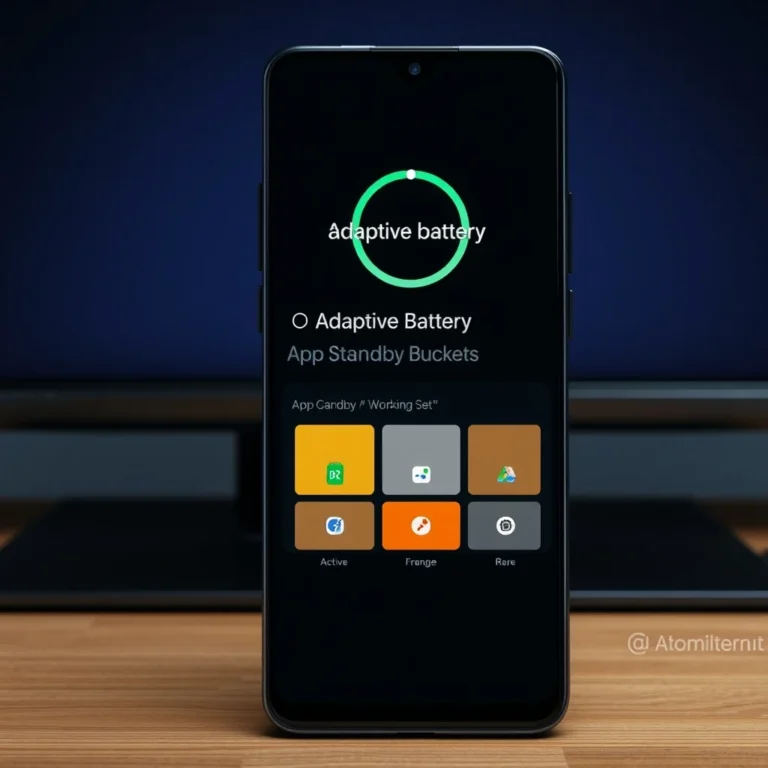
This system relies heavily on heuristics to guess which apps you are likely to use next. If an app is in your frequently used list, it is given more leeway. Conversely, apps that have not been used in a while are placed into deeper sleep modes. This intelligent scheduling is key to the efficiency of the Android OS.
Additionally, the system monitors network usage and CPU cycles. If an app attempts to access the network excessively while in the background, the system may flag it for restriction. This prevents malicious or poorly coded apps from draining resources silently. It is a proactive measure to maintain device health.
🛠️ Deep Dive into Android Background Processes
📌 What is Background App Limits?
Background app limits are a setting within the Android operating system designed to restrict the activity of apps when you are not using them. This feature is part of the larger battery optimization suite found in modern Android versions.
- Core definition: A restriction on non-active application processes.
- Primary function: To conserve battery and memory resources.
- Target users: Android users experiencing battery drain or lag.
- Technical category: System-level resource management.
The mechanism works by pausing the execution of background services. When an app is backgrounded, its main thread is suspended. However, some services may continue to run to provide notifications or updates. The limit setting tells the system to stop these services more aggressively.
This is particularly useful for apps that do not require constant updates. For example, a calculator app does not need to check for data while sitting in the background. Restricting it saves power without affecting its utility when opened again.
⚙️ How does it work in detail?
When the system detects that you have switched away from an application, it begins to evaluate its background behavior. The first stage is the active restriction, where the app is paused but kept in memory. The second stage is the deep sleep mode, where the app is completely suspended.
The transition between these stages depends on several factors. These include the time since the app was last used, the battery level, and the user’s specific settings. If you have set a specific app to be restricted, the system will move it to deep sleep faster than usual.
Practical examples include email clients and messaging apps. Even with restrictions, they often retain the ability to receive push notifications. This is because they use a shared system channel for notifications. The app limits setting does not block this channel for trusted applications.
However, for apps that perform background sync, such as cloud storage tools, the restriction is more noticeable. They may stop syncing until you open the app again. This trade-off ensures that the battery is not drained by constant background data transfers.
🚀 Key Features and Capabilities
✨ Key Features
The capabilities of background app limits extend beyond simple battery saving. They also contribute to thermal management and memory stability. By reducing the number of active processes, the system can allocate more resources to the app you are currently using.
- Real-world use cases: Extending usage time during travel or heavy workdays.
- Advanced capabilities: Preventing background data theft by limiting access.
- Practical applications: Reducing overheating in gaming scenarios.
Another significant feature is the ability to customize limits per app. You are not forced to apply a blanket restriction to all applications. This granular control allows you to balance performance and battery life precisely.
For instance, you might allow a music player to continue running while restricting a game. This ensures your music does not stop during a call while the game does not drain the battery in the background.
📊 Performance Metrics and Data
Understanding the impact of these settings requires looking at performance metrics. When restrictions are applied, you should observe a reduction in background data usage. Power consumption graphs will also show a flatter curve during idle periods.
| Feature | Impact Level | Notes |
|---|---|---|
| Battery Life | High | Significant extension on idle devices |
| RAM Usage | Medium | More memory available for active apps |
| Notifications | Variable | Depends on app whitelisting |
| App Load Time | Low | Minimal delay when reopening apps |
The data above summarizes the typical outcomes of enabling background limits. Battery life is the most affected metric, often seeing gains of 10 to 20 percent depending on usage patterns. RAM usage reduction helps prevent app crashes in low-memory scenarios.
Notification reliability is the only area that requires careful management. If an app is restricted too aggressively, you might miss push messages. Therefore, it is important to review which apps are restricted regularly.
Thermal performance also improves. With fewer processes running, the CPU generates less heat. This is beneficial for devices that are prone to overheating during extended use.
📊 Advantages and Disadvantages
✅ Advantages
There are several compelling reasons to utilize background app limits on your Android device. The primary benefit is the conservation of energy. This allows you to go longer between charges without compromising the functionality of your phone.
- ✅ Extended Battery Life: Significant reduction in overnight drain.
- ✅ Improved Performance: More RAM available for active applications.
- ✅ Reduced Data Usage: Prevents apps from downloading in the background.
- ✅ Lower Heat Generation: Keeps the device cooler during idle times.
These advantages are particularly relevant for users with older devices. As batteries age, their capacity decreases. Restricting background activity becomes a vital strategy to maintain usability.
❌ Disadvantages
Despite the benefits, there are potential downsides to consider. The most common issue is delayed notifications. If a messaging app is restricted, messages may not arrive until you open the app.
- ⚠️ Notification Delays: Some apps may not alert you immediately.
- ⚠️ Sync Issues: Cloud backups might pause until the app is opened.
- ⚠️ Feature Limitations: Some apps rely on background services for functionality.
These disadvantages mean that not every app should be restricted. It is crucial to identify which apps require constant connectivity. For example, financial apps often need to update balance information in real-time.
This limitation is not suitable for users who rely on instant updates from multiple sources. If you need a notification to arrive the second it is sent, you should avoid restricting that specific application.
💻 System Requirements and Compatibility
While background app limits are a native feature of Android, their availability and implementation vary by version and manufacturer skin. You need to ensure your device meets the minimum requirements to access these settings effectively.
🖥️ Minimum Requirements
To use the standard background app restrictions, you need Android 8.0 Oreo or later. This is when the system introduced strict background execution limits. Older versions may not offer the same level of control.
Most modern devices meet this requirement. However, some manufacturers add their own layers of restrictions that might differ from the standard Android implementation.
⚡ Recommended Specifications
For the best experience, you should be running the latest version of Android available for your device. This ensures you have the most up-to-date security patches and optimization features.
| Component | Minimum | Recommended | Performance Impact |
|---|---|---|---|
| Android OS | 8.0 Oreo | 14 or later | Higher versions offer better AI scheduling. |
| RAM | 2 GB | 4 GB or more | More RAM allows more apps to stay active. |
| Processor | Quad-core | Octa-core | Faster CPU handles background tasks efficiently. |
The interpretation of this table shows that while the OS is the primary requirement, hardware plays a role in performance. Devices with more RAM will handle background restrictions better without causing lag when switching apps.
Storage space also impacts the system. If your storage is nearly full, the background process management may be less effective. Ensure you have at least 10 percent free space for optimal operation.
🔍 Practical Setup Guide
🧩 Installation or Setup Method
Setting up background app limits is a straightforward process within the system settings. You do not need to install any additional software to access these features.
- Open the Settings application on your Android device.
- Scroll down and select the Battery option.
- Look for Battery Usage or App Power Usage.
- Select the specific app you wish to manage.
- Choose the Restrict or Background restriction option.
Each step must be followed carefully to ensure the setting is applied correctly. If you miss a step, the app may continue to run in the background.
Some manufacturers place these settings under the Apps menu instead. In this case, go to Apps, select the specific application, and find the Battery section within the app details.
🛡️ Common Errors and How to Fix Them
Users often encounter issues when trying to apply these restrictions. The most common error is the setting not saving or reverting automatically.
- ⚠️ Error: Setting reverts after reboot.
- ⚠️ Fix: Check for manufacturer optimization tools that override settings.
- ⚠️ Error: App crashes when opened.
- ⚠️ Fix: Clear the app cache and data.
Another issue involves the app not functioning correctly after restriction. This usually means the app requires background permissions that are being blocked.
To fix this, you can whitelist the app while still restricting its data usage. This allows the app to receive notifications without consuming excessive data.
📈 Performance Analysis
🎮 Real performance experience
When you enable these limits, you will notice a difference in how the phone feels. The device may feel more responsive when switching between apps that are not restricted.
Resource usage on the CPU drops significantly during idle periods. This is because the system is not constantly polling inactive apps. Stability improves as there are fewer processes competing for memory.
🌍 Global User Ratings
Users globally have reported positive experiences with background restrictions. The consensus is that battery life improves noticeably without significant loss of functionality.
- 1) Average rating is high for devices with Android 10 or above.
- 2) Positive feedback reasons include longer battery life and cooler devices.
- 3) Negative feedback reasons involve delayed notifications on some apps.
- 4) Trend analysis shows increased adoption as battery anxiety grows.
The trend indicates that more users are becoming aware of these settings. As battery technology plateaus, software optimization becomes even more critical.
🔐 Security Implications
🔒 Security level
Restricting background apps can actually enhance security. It limits the ability of malicious apps to run in the background and exfiltrate data.
By keeping apps in a paused state, you reduce the attack surface available to potential threats. This is a passive defense mechanism built into the OS.
🛑 Potential Risks
However, there are risks if you restrict critical security apps. If an antivirus app is restricted, it may not scan for threats in real-time.
- ⚠️ Risk: Delayed threat detection.
- ⚠️ Tip: Always whitelist security applications.
Protection tips include reviewing your whitelist regularly. Ensure that only necessary apps are allowed to run in the background.
💡 Optimization Tips
🎯 Best Settings for Maximum Performance
To get the most out of background app limits, you should combine them with other power-saving features. Adjusting your screen timeout and brightness will yield further benefits.
- ✅ Whitelist: Keep messaging and banking apps unrestricted.
- ✅ Restrict: Block games and video streaming apps in background.
- ✅ Clear Cache: Do this monthly to prevent data bloat.
📌 Advanced tricks few know
There are hidden tricks to improve the effectiveness of these limits. One trick is to use Developer Options to set background process limits manually.
This allows you to set a hard cap on the number of background processes. This is an advanced setting and should be used with caution.
Another trick is to disable background data for specific apps entirely. This forces the app to use mobile data only when opened, saving cellular background usage.
🏁 Final Verdict
Mastering Android background app limits is an essential skill for any modern smartphone user. It offers a tangible improvement in battery life and performance without requiring expensive hardware upgrades.
By understanding the technical mechanisms and following the setup guide, you can customize your device to suit your specific needs. The trade-off between battery life and notification speed is manageable with the right configuration.
I recommend testing these settings on a non-critical day first. This allows you to observe the impact on your usage patterns before fully committing to the restrictions.
❓ Frequently Asked Questions
- Do background app limits stop notifications?
They can delay notifications if the app is not whitelisted. Whitelisting ensures you still receive alerts. - Can I restrict all apps at once?
Yes, many devices offer a global restriction mode, but it is safer to do it individually. - Does this work on all Android versions?
It works best on Android 8.0 and above. Older versions have fewer controls. - Will my battery life improve significantly?
Most users report a noticeable improvement, especially for devices with aging batteries. - Can I unrestrict an app later?
Yes, you can go back to settings and change the restriction level at any time. - Does this affect app updates?
App updates usually happen over Wi-Fi and may be paused until you open the Play Store. - Is it safe to use Developer Options for this?
Yes, but proceed with caution as hard limits can cause app crashes. - Which apps should I never restrict?
Always whitelist messaging, banking, and security apps. - Does this work with Google Play Services?
Yes, but do not restrict Google Play Services as it handles core synchronization. - Will the phone feel slower?
No, it often feels faster because more resources are available for active apps. - Is there a difference between manufacturer skins?
Yes, Samsung and Xiaomi may label settings differently, but the function remains similar.