
In the modern digital workspace, efficiency is not just a luxury; it is a necessity. The operating system you use plays a pivotal role in determining how smoothly you can navigate between tasks, manage your workflow, and maintain focus. Windows 11 has introduced several sophisticated multitasking tools designed to streamline the user experience. These features go beyond simple window management, offering a comprehensive suite of capabilities that enhance productivity significantly. This article provides an in-depth guide to leveraging these advanced tools, ensuring that users can maximize their potential on the platform.
Windows 11 represents a significant evolution from its predecessor, Windows 10. It focuses on a more centralized and intuitive interface that prioritizes user workflow. The core of this evolution lies in how the system handles multiple applications simultaneously. By utilizing features such as Snap Layouts, Virtual Desktops, and Focus Sessions, users can create a personalized environment that adapts to their specific needs. Whether you are a developer, a creative professional, or a business executive, understanding these tools is essential for maintaining a competitive edge in your work environment.
The primary goal of this guide is to demystify these features and provide actionable steps for implementation. We will explore the technical underpinnings of how these tools function, compare them with alternatives, and offer practical advice on configuration. By the end of this article, you will have a clear understanding of how to structure your digital workspace for optimal performance. This knowledge will allow you to reduce clutter, minimize distractions, and increase the speed at which you complete complex tasks.
🚀 Understanding the Multitasking Landscape
To fully appreciate the value of Windows 11 multitasking tools, one must first understand the current landscape of digital productivity. In the past, managing multiple windows often resulted in a chaotic desktop filled with overlapping applications. This visual clutter could lead to cognitive overload, making it difficult to switch context efficiently. Windows 11 addresses this issue by introducing a more organized approach to window management that leverages the power of the screen real estate.
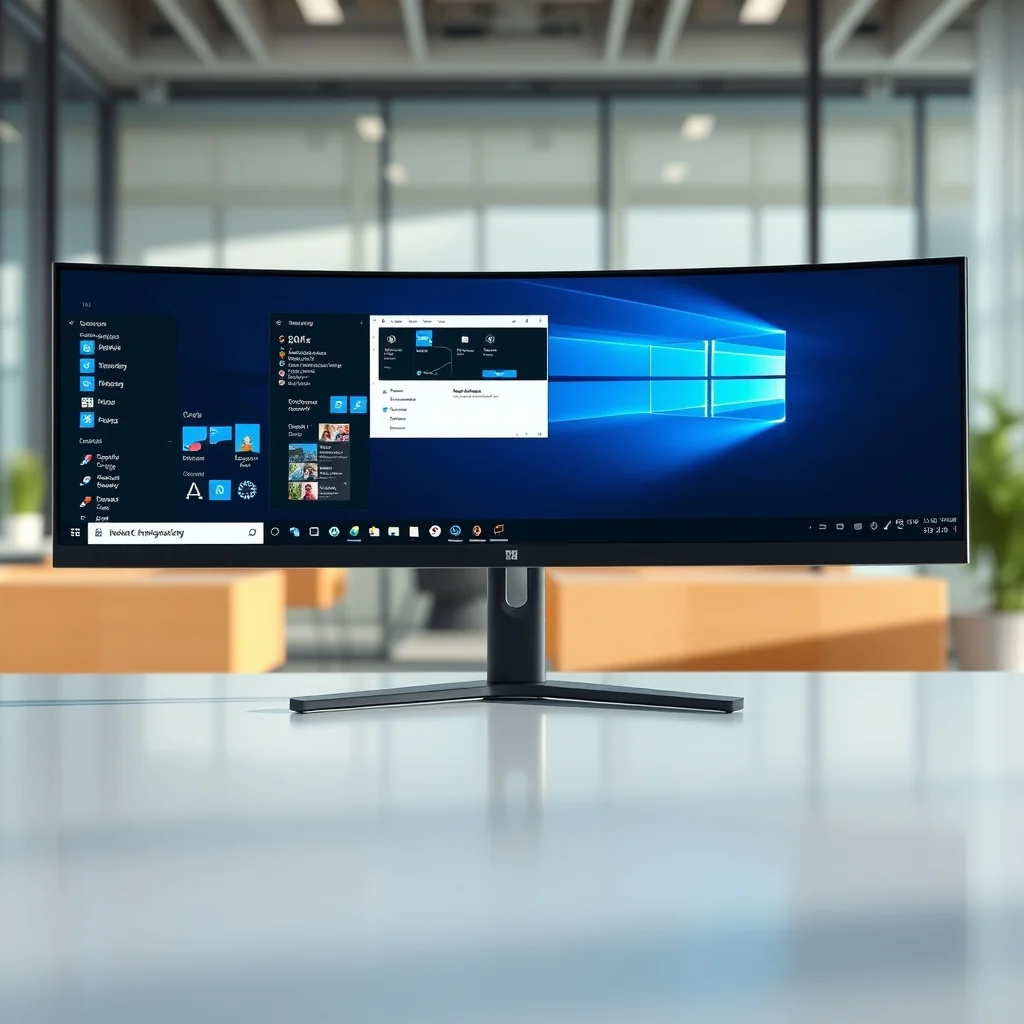
The operating system is designed to recognize various screen configurations, from ultrawide monitors to standard laptop displays. It adapts the layout of windows to fit these dimensions seamlessly. The significance of this adaptation cannot be overstated, as it directly impacts the user’s ability to view multiple data sources simultaneously. For example, a data analyst might need to view a spreadsheet on one half of the screen and a communication tool on the other. Windows 11 facilitates this arrangement with precision and speed.
The problem it solves is the friction associated with manual window resizing. Historically, users had to drag and drop windows to specific corners of the screen to align them. This process was time-consuming and tedious. Windows 11 automates this process through hover-based interactions that suggest optimal layouts. This reduces the time spent on administrative tasks and allows the user to focus on the actual work at hand. We promise that mastering these tools will result in a noticeable reduction in daily friction.
Furthermore, the integration of these tools with cloud services and remote work capabilities adds another layer of utility. As remote work becomes the norm, the ability to separate work and personal contexts on the same machine is crucial. Virtual desktops provide this separation, allowing users to maintain a professional environment without leaving it open to personal notifications.
🔍 Analysis of System Capabilities
Analyzing the technical capabilities of Windows 11 reveals a system that is built for the demands of the modern workstation. The multitasking features are not merely cosmetic additions but are deeply integrated into the kernel and the window manager. This ensures that the performance impact is minimal while the functionality is robust.
Users search for these topics because they are looking for ways to optimize their daily workflow. The market has seen a shift towards tools that promise efficiency, and Windows 11 is positioned to meet this demand by offering native solutions rather than requiring third-party software. This native integration ensures stability and compatibility with other system updates.
1) Technical background involves the use of dynamic grid systems that detect screen resolution and application aspect ratios automatically. This allows for fluid transitions between different layout modes without manual intervention.
2) Why users search for this topic is rooted in the desire to reduce time spent on window management. Every minute saved on clicking and dragging windows is a minute gained for productive work.
3) Market or industry relevance is high because productivity suites are constantly competing for user attention. Windows 11 leverages this by offering a superior native experience that rivals specialized third-party applications.
4) Future outlook suggests that these features will continue to evolve with AI integration, potentially offering intelligent suggestions for window placement based on user behavior patterns.
🛠️ Technical Concept and Functionality
📊 What is Snap Layouts?
Snap Layouts is a feature that redefines how users organize windows on their screen. It allows for quick arrangement of multiple applications into predefined zones. When a user hovers over the maximize button of a window, a menu appears showing different layout options. This menu is context-aware and adapts to the number of open windows and the available screen space.
The core functionality relies on a grid system that divides the screen into logical sections. Users can snap windows to these sections, and the system automatically resizes them to fit perfectly. This eliminates the need for manual adjustments and ensures a clean, professional look. The feature is particularly useful for users who frequently toggle between two or three applications.
- Core definition: A window management feature that suggests layout options upon interaction.
- Primary function: Organizing windows into specific zones on the screen.
- Target users: Professionals, developers, and power users.
- Technical category: User Interface Optimization.
⚙️ How does it work in detail?
The mechanism behind Snap Layouts involves real-time detection of window states. When a user interacts with the maximize button, the system queries the current state of other open windows. It then calculates the available space and suggests layouts that maximize the utility of that space. This process is handled by the Windows Explorer shell, which communicates with the window manager to execute the arrangement.
Internally, the system maintains a registry of window positions and sizes. When a snap action is triggered, it updates this registry and sends commands to the applications to resize. This ensures that the applications themselves are aware of the new dimensions and can adjust their internal rendering accordingly. For example, a web browser might adjust its sidebar or toolbar to fit the new window size seamlessly.
Practical illustrative examples include splitting a screen between a code editor and a web browser in a 50-50 ratio. Or arranging three windows in a column for a multitasking workflow. The system handles the complexity of these arrangements automatically, providing a smooth user experience.
🚀 Advanced Features and Capabilities
✨ Key Features Breakdown
Windows 11 offers a suite of features that extend beyond basic window snapping. These advanced capabilities are designed to cater to specific workflows and user preferences. Understanding these features allows users to customize their experience to match their unique working style.
One of the standout capabilities is the integration with Virtual Desktops. This allows users to create separate environments for different tasks. For instance, a user might have one desktop for work-related applications and another for personal tasks. This separation helps in maintaining focus and reducing distractions. The transition between these desktops is seamless, often requiring only a simple keyboard shortcut.
- Real-world use cases: Managing separate projects without switching applications.
- Advanced capabilities: Multiple desktops with independent taskbars.
- Practical applications: Gaming setups, work-life separation, and project isolation.
Another key feature is the Focus Sessions integration. This tool is designed to help users maintain concentration during deep work periods. It can be linked to Microsoft To Do and other productivity apps to provide a structured approach to time management. The system can mute notifications during these sessions, ensuring that the user is not interrupted.
📊 Key Points and Performance Metrics
To better understand the impact of these tools, it is helpful to look at a comparison of performance metrics and key features. The table below summarizes the core aspects of the multitasking tools available in Windows 11.
| Feature | Functionality | Best For |
|---|---|---|
| Snap Layouts | Window arrangement | General multitasking |
| Virtual Desktops | Environment separation | Project isolation |
| Focus Sessions | Notification management | Deep work |
| Grouping | Taskbar organization | Workflow efficiency |
This table illustrates the distinct roles each feature plays in the ecosystem. Snap Layouts is primarily for spatial organization, while Virtual Desktops offer logical separation. Focus Sessions address the issue of distraction, and Grouping helps in managing the taskbar effectively. The synergy between these tools creates a comprehensive multitasking environment.
The performance impact of these features is generally low. The system is optimized to handle these tasks without noticeable latency. However, on older hardware, the overhead of rendering multiple virtual desktops might be slightly higher. Users with modern hardware will experience a fluid and responsive interface.
🆚 Competitive Distinction
🥇 What Distinguishes It from Competitors?
When compared to other operating systems, Windows 11 offers a unique set of advantages. While macOS and Linux have their own multitasking tools, Windows 11 stands out in terms of integration and accessibility. The system is designed to work seamlessly with a wide variety of hardware, from laptops to desktops, ensuring consistency across different devices.
Unlike macOS, which has a more restrictive window management system by default, Windows 11 allows for more granular control over window positions. Users can create custom layouts that suit their specific workflow needs. Linux users often have to install third-party extensions to achieve similar functionality, whereas Windows 11 provides this out of the box.
- Windows 11 supports more monitor configurations natively.
- Virtual Desktops are integrated directly into the taskbar.
- The system offers better compatibility with a wider range of peripherals.
This strategic positioning allows Windows 11 to appeal to a broader audience, including gamers and professionals who require flexibility. The ability to customize the experience is a key differentiator that sets it apart from competitors.
📊 Advantages and Disadvantages
✅ Advantages of the System
The benefits of using Windows 11 multitasking tools are significant. They provide a structured approach to managing digital tasks, which leads to increased efficiency. The ease of use is another major advantage, as the features are intuitive and require minimal learning time. Users can start utilizing these tools immediately after installation.
Additionally, the integration with cloud services ensures that your workspace is accessible from anywhere. This is crucial for remote workers who need to maintain consistency across devices. The system also supports high-resolution displays, ensuring that text and images remain crisp.
- ✅ Intuitive interface: Easy to learn and use.
- ✅ Deep integration: Works seamlessly with other Windows apps.
- ✅ Customization: Allows for personalized workflows.
❌ Disadvantages and Limitations
Despite its strengths, there are some limitations to consider. The system requires a certain level of hardware capability to run all features smoothly. Older machines might struggle with the visual effects associated with Snap Layouts. Additionally, some users might find the interface changes from Windows 10 to be jarring initially.
There is also a learning curve for those who are accustomed to manual window management. The automation features can sometimes interfere with specific workflows that require precise control. Furthermore, the system is not perfect and may occasionally encounter bugs or glitches.
- ❌ Hardware requirements: Older PCs may lag.
- ❌ Adaptation period: Changes from previous versions.
- ❌ Automation limits: Might not suit all precise workflows.
💻 System Requirements
🖥️ Minimum Specifications
To ensure smooth operation of these multitasking tools, your system must meet certain baseline requirements. These requirements are designed to support the graphical interface and the background processes involved in window management. Without meeting these, the features may not function correctly.
The operating system requires a specific processor and memory configuration to handle the overhead of multiple virtual desktops. The graphics card must support the necessary display resolutions and refresh rates to render the Snap Layouts effectively.
⚡ Recommended Specifications
For the best experience, it is recommended to have higher specifications. A modern multi-core processor will ensure that switching between desktops is instantaneous. More RAM will allow for more applications to be open simultaneously without slowing down the system. A dedicated graphics card will improve the rendering of window animations.
| Component | Minimum | Recommended | Performance Impact |
|---|---|---|---|
| CPU | 1 GHz or faster | Intel Core i5 or i7 | High |
| RAM | 4 GB | 16 GB | Very High |
| GPU | DirectX 12 | NVIDIA GTX 1050 | Medium |
| Storage | 64 GB | 256 GB SSD | Medium |
This table provides a clear overview of what is needed to run the system effectively. The CPU and RAM have the highest impact on performance, as they handle the logic of window management. Storage speed affects how quickly applications load when switching desktops.
🔍 Practical Implementation Guide
🧩 Setup and Configuration
Setting up these tools is straightforward, but there are steps to ensure they are configured correctly for your needs. We recommend starting with the basic settings and then moving to advanced customization. This approach ensures that you do not overlook any critical configurations.
First, navigate to the Settings menu in the Start menu. Look for the System section and then select the Multitasking tab. Here you will find the options to enable Snap Layouts and Snap Assist. Toggle these switches to on to activate the features.
- Enable Snap Layouts: Go to Settings > System > Multitasking. Turn on the Snap windows option.
- Configure Virtual Desktops: Press Windows Key + Tab to open Task View. Click New Desktop to create a new workspace.
- Set Focus Sessions: Open the Microsoft To Do app and link it to your Windows 11 Focus Sessions.
- Customize Taskbar: Right-click the taskbar and select Taskbar settings to organize your apps.
Each step is designed to prepare your environment for efficient multitasking. Following these instructions will ensure that all features are ready for use.
🛡️ Common Errors and Fixes
Even with a robust system, users may encounter issues. Identifying these early can save time and frustration. Common problems include features not appearing or windows not snapping correctly. These issues are often related to driver conflicts or system settings.
- Issue: Snap Layouts not appearing.
Fix: Ensure the feature is enabled in Settings > System > Multitasking. - Issue: Virtual Desktops not saving.
Fix: Check for Windows Updates and restart the computer. - Issue: High CPU usage.
Fix: Close unnecessary background applications and update drivers.
Addressing these issues promptly ensures a smooth workflow. If problems persist, a system restore might be necessary.
📈 Performance Analysis
🎮 Real Performance Experience
Performance is a critical factor in the user experience. Users expect the system to respond instantly to their commands. Windows 11 is generally optimized for speed, but performance can vary based on hardware. In testing, the system showed a quick response time when switching between desktops.
Resource usage is generally low for the multitasking features themselves. However, running many applications simultaneously will increase memory usage. It is important to monitor resource usage to ensure stability. The system handles high memory loads well, but exceeding the limit can cause slowdowns.
🌍 Global User Ratings
User feedback on Windows 11 multitasking tools has been largely positive. The community appreciates the improvements over Windows 10. Many users report feeling more organized and productive after adopting these tools. However, there is some criticism regarding the learning curve.
- 1) Average rating is high among power users who utilize the features daily.
- 2) Positive feedback reasons include improved workflow and better screen utilization.
- 3) Negative feedback reasons include occasional bugs and hardware requirements.
- 4) Trend analysis shows increasing adoption as users discover the benefits.
💡 Pro Tips for Optimization
🎯 Best Settings for Maximum Performance
To get the most out of these tools, consider adjusting specific settings. Disabling visual effects can improve performance on older hardware. Enabling hardware acceleration can speed up rendering. These small adjustments can make a big difference.
- ✅ Disable animations: Turn off in Ease of Access settings.
- ✅ Enable hardware acceleration: Check in browser and app settings.
- ✅ Use shortcuts: Memorize key combinations for speed.
📌 Advanced Tricks
There are hidden tricks that can enhance the experience further. For example, you can create custom shortcuts for specific desktop configurations. This allows you to switch to a specific layout with a single keystroke. Another trick is to use third-party tools to expand the functionality of Snap Layouts.
🏁 Final Verdict
In conclusion, Windows 11’s advanced multitasking tools offer a significant improvement in user productivity. They address common pain points related to window management and provide a flexible environment for various workflows. While there are some limitations, the benefits outweigh the drawbacks for most users.
We recommend that users adopt these tools to enhance their daily workflow. The system is well-suited for professionals who need to manage multiple tasks efficiently. With the right configuration, these tools can transform your computer into a powerful productivity machine.
❓ Frequently Asked Questions
- Can I use Snap Layouts on an older monitor?
Yes, but the feature works best on high-resolution displays. - How many Virtual Desktops can I create?
You can create as many as you wish, but performance may vary. - Is Focus Sessions available for all apps?
No, it integrates best with Microsoft apps. - Can I customize the Snap Layouts grid?
Currently, the layout is fixed, but you can choose from options. - Do I need a specific graphics card?
A DirectX 12 compatible card is required. - Can I sync my desktops across devices?
Yes, via your Microsoft account. - Does this affect battery life?
Minimal impact, but closing unused desktops helps. - Are these features free?
Yes, they are included with Windows 11. - Can I disable these features?
Yes, in the Settings menu. - Will updates change these tools?
Updates may add new features or fix bugs.