
Artificial Intelligence (AI) has become a cornerstone of modern computing, transforming how operating systems like Windows 11 optimize performance, security, and user experience. Microsoft’s integration of AI into Windows 11 is not just a technological upgrade but a strategic shift aimed at redefining productivity, accessibility, and system efficiency. This article explores the multifaceted role of AI in enhancing Windows 11, breaking down its technical advancements, performance improvements, and the broader implications for users and the computing market.
🚀 The Evolution of AI in Windows 11
Windows 11 represents a significant leap forward in how AI is embedded within an operating system. Unlike its predecessors, Windows 11 leverages AI to deliver a more personalized, efficient, and secure computing experience. The integration of AI is not merely an add-on but a core component that influences everything from system performance to user interaction. This evolution is driven by Microsoft’s vision to create an adaptive OS that learns and evolves with user behavior, thereby enhancing productivity and reducing manual interventions.
The strategic motives behind this development are clear: to maintain competitiveness in an increasingly AI-driven market, improve user retention through superior performance, and set a new standard for what an operating system can achieve. By embedding AI deeply into Windows 11, Microsoft aims to future-proof its platform, ensuring it remains relevant as computational demands grow and user expectations evolve.
🎯 Technical Advancements Powered by AI
At the heart of Windows 11’s AI capabilities lies a sophisticated architecture that combines machine learning models, neural networks, and real-time data processing. These technologies work in tandem to optimize system resources, predict user needs, and automate routine tasks. Below are the key technical advancements that define AI’s role in Windows 11:
- Adaptive Performance Optimization: AI algorithms continuously monitor system performance, dynamically adjusting CPU, GPU, and RAM allocation to ensure optimal efficiency. This is particularly beneficial for resource-intensive applications like video editing software or modern games.
- Predictive User Behavior Modeling: Windows 11 uses AI to analyze user patterns, such as frequently used applications and typical workflows, to pre-load necessary resources and reduce launch times. This predictive capability minimizes lag and enhances responsiveness.
- Automated System Maintenance: AI-driven tools like Windows Update and Storage Sense now operate more intelligently, scheduling updates and disk cleanups during periods of low activity to avoid disrupting the user experience.
- Enhanced Security Protocols: AI plays a crucial role in threat detection and mitigation. Windows Defender, powered by machine learning, can identify and neutralize malware in real-time, adapting to new threats faster than traditional signature-based methods.
⚙️ How AI Enhances Performance in Windows 11
📊 AI-Driven Resource Management
One of the most impactful ways AI enhances Windows 11 performance is through intelligent resource management. Traditional operating systems allocate resources based on static priorities, often leading to inefficiencies. In contrast, Windows 11 employs AI to dynamically prioritize tasks based on real-time demand and user behavior.
For example, if a user frequently switches between a web browser and a design application, the AI will learn this pattern and allocate additional RAM and CPU cycles to these applications, even before the user launches them. This proactive approach reduces latency and creates a smoother multitasking experience. Additionally, AI optimizes background processes, ensuring that non-essential tasks do not consume valuable resources when high-priority applications are in use.
🔧 Automated Troubleshooting and Diagnostics
Windows 11’s AI capabilities extend to automated troubleshooting, where the system can diagnose and resolve common issues without user intervention. For instance, if the OS detects that a particular driver is causing system instability, it can automatically roll back to a previous version or download an updated driver from Microsoft’s servers. This reduces downtime and minimizes the need for manual troubleshooting, which can be particularly beneficial for less tech-savvy users.
Moreover, AI-driven diagnostics can predict hardware failures before they occur. By analyzing patterns in system logs and performance metrics, Windows 11 can alert users to potential issues, such as a failing hard drive or overheating components, allowing for preemptive action.
🚀 Features and Advanced Capabilities
✨ Key AI-Powered Features in Windows 11
Windows 11 introduces several AI-powered features that significantly enhance the user experience. These features are designed to improve productivity, accessibility, and system performance, making the OS more intuitive and responsive.
- Windows Studio Effects: This suite of AI-enhanced audio and video tools improves the quality of virtual meetings. Features like background blur, eye contact correction, and voice clarity are powered by machine learning models that adapt to the user’s environment in real-time.
- DirectStorage: An AI-optimized storage technology that reduces game load times by leveraging the full bandwidth of NVMe SSDs. AI algorithms predict which game assets are needed next, loading them into memory before they are required.
- Snap Layouts and Snap Groups: These AI-driven window management tools learn how users organize their workspace, suggesting optimal layouts for multitasking and automatically grouping related applications.
- Voice Access: A powerful accessibility feature that allows users to control their PC entirely through voice commands. AI-driven natural language processing ensures high accuracy and adaptability to different accents and speech patterns.
🆚 What Distinguishes Windows 11 from Competitors?
While other operating systems like macOS and various Linux distributions also incorporate AI, Windows 11 stands out due to its deep integration of AI across all layers of the OS. Unlike macOS, which primarily uses AI for specific features like Siri and photo management, Windows 11 embeds AI into core system processes, from resource allocation to security.
Additionally, Windows 11’s AI capabilities are designed to be more accessible to a broader range of hardware configurations. While macOS is optimized for Apple’s proprietary hardware, Windows 11’s AI features are adaptable to a wide variety of PC setups, making them available to a larger user base. This flexibility is a significant competitive advantage, as it allows users with different budgets and needs to benefit from AI enhancements.
📊 Pros and Cons of AI in Windows 11
✅ Advantages of AI Integration
The integration of AI into Windows 11 offers numerous benefits that enhance both performance and user experience. These advantages are particularly evident in areas such as system efficiency, security, and accessibility.
- Improved Performance: AI-driven resource management ensures that applications run smoother and faster, even on less powerful hardware. This is achieved through dynamic allocation of system resources based on real-time demand.
- Enhanced Security: The AI-powered Windows Defender provides real-time threat detection and response, significantly reducing the risk of malware infections and data breaches.
- Personalized User Experience: AI learns from user behavior to tailor the operating system to individual preferences, making everyday tasks more efficient and intuitive.
- Automated Maintenance: AI handles routine system maintenance tasks, such as updates and disk cleanups, without requiring user intervention, thereby reducing downtime.
- Accessibility Features: AI-driven tools like Voice Access and Windows Studio Effects make the OS more accessible to users with disabilities, ensuring a more inclusive computing experience.
❌ Disadvantages and Limitations
Despite its many benefits, the integration of AI in Windows 11 is not without its challenges. Some users may encounter limitations or drawbacks, particularly in areas related to privacy, hardware compatibility, and system overhead.
- Privacy Concerns: AI-driven features often require access to user data to function effectively. This raises concerns about data privacy and security, particularly for users who are wary of Microsoft’s data collection practices.
- Hardware Requirements: While Windows 11 is designed to run on a wide range of hardware, some AI features may require more powerful components, such as modern CPUs with AI acceleration capabilities. Users with older hardware may not fully benefit from these advancements.
- Increased System Overhead: AI processes can consume additional system resources, potentially leading to slower performance on low-end devices. This is particularly noticeable during intensive AI-driven tasks like real-time threat detection or predictive resource allocation.
- Learning Curve: Some AI features, such as Voice Access or advanced window management tools, may require users to adapt to new workflows, which can be challenging for those accustomed to traditional computing methods.
💻 System Requirements for AI Features in Windows 11
🖥️ Minimum Requirements
To run Windows 11 with basic AI features, users need a system that meets the following minimum specifications:
- Processor: 1 GHz or faster with at least 2 cores on a compatible 64-bit processor or system on a chip (SoC).
- RAM: 4 GB or more.
- Storage: 64 GB or larger storage device.
- System Firmware: UEFI, Secure Boot capable.
- TPM: Trusted Platform Module (TPM) version 2.0.
- Graphics Card: Compatible with DirectX 12 or later with WDDM 2.0 driver.
While these specifications allow Windows 11 to run, they may not support all AI-driven features optimally. Users with minimum-spec systems may experience limited functionality in areas like Windows Studio Effects or advanced resource management.
⚡ Recommended Specifications for Optimal AI Performance
For the best experience with Windows 11’s AI features, Microsoft recommends the following hardware configuration:
| Component | Minimum | Recommended | Performance Impact |
|---|---|---|---|
| Processor | 1 GHz, 2 cores | Intel Core i5/i7 or AMD Ryzen 5/7 (with AI acceleration) | Faster AI processing, better multitasking |
| RAM | 4 GB | 16 GB or more | Smoother performance with multiple AI-driven applications |
| Storage | 64 GB HDD | 512 GB NVMe SSD | Faster load times, better support for DirectStorage |
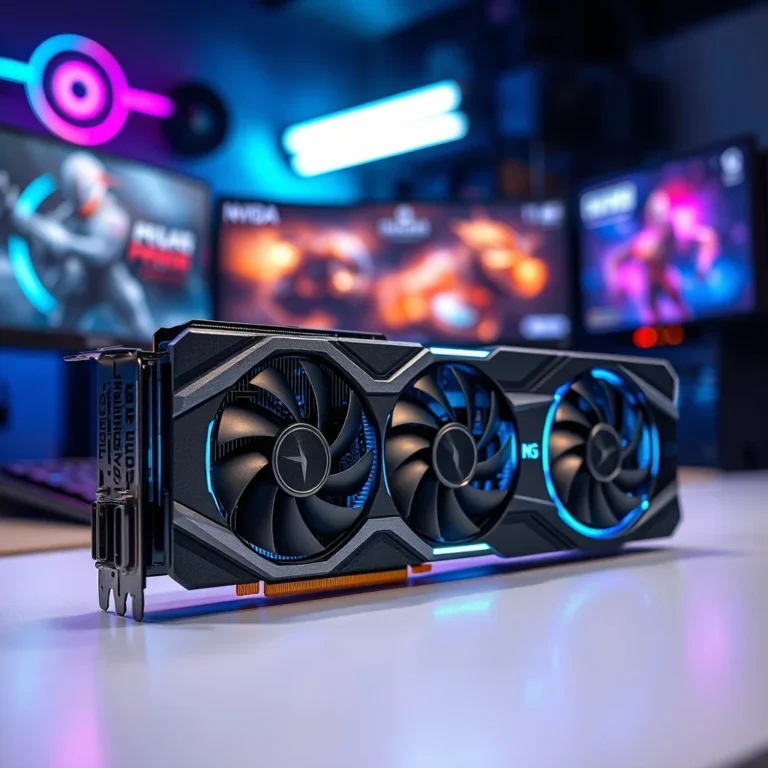
| Graphics | DirectX 12 compatible | NVIDIA RTX 30 series or AMD RX 6000 series | Enhanced AI-driven visual effects and gaming performance |
| TPM | TPM 2.0 | TPM 2.0 (hardware-based) | Improved security for AI-driven threat detection |
The recommended specifications ensure that AI features like predictive resource allocation, real-time threat detection, and Windows Studio Effects operate at their full potential. For instance, a system with an NVMe SSD and a modern GPU will benefit significantly from DirectStorage, reducing game load times and improving overall responsiveness. Similarly, additional RAM allows the AI to manage more background processes efficiently, leading to a smoother multitasking experience.
🔍 Practical Guide to Optimizing AI Features in Windows 11
🧩 Enabling and Configuring AI Features
To fully leverage the AI capabilities in Windows 11, users should ensure that all relevant features are enabled and properly configured. Below is a step-by-step guide to optimizing AI settings:
- Enable Windows Studio Effects: Navigate to Settings > Bluetooth & devices > Camera. Here, you can toggle features like background blur, eye contact, and automatic framing. Ensure your camera is compatible with these AI enhancements.
- Activate Voice Access: Go to Settings > Accessibility > Speech and enable Voice Access. Follow the on-screen instructions to set up voice commands. This feature requires a microphone and may need additional training to recognize your voice accurately.
- Optimize Snap Layouts and Snap Groups: These features are enabled by default. To customize them, open Settings > System > Multitasking. Here, you can adjust how windows are snapped and grouped based on your workflow preferences.
- Configure Windows Defender for AI-Driven Security: Open Windows Security > Virus & threat protection. Ensure that cloud-delivered protection and automatic sample submission are enabled. These settings allow Windows Defender to use AI for real-time threat analysis.
- Enable Storage Sense for AI-Driven Disk Management: Go to Settings > System > Storage and turn on Storage Sense. Configure it to run automatically, which allows AI to clean up temporary files and optimize disk space without manual intervention.
🛡️ Common Issues and Fixes
While AI features in Windows 11 are designed to work seamlessly, users may occasionally encounter issues. Below are some common problems and their solutions:
- AI Features Not Working: If AI-driven features like Windows Studio Effects or Voice Access fail to function, ensure that your hardware meets the minimum requirements. Update your drivers, particularly for the GPU and microphone. Additionally, check that the necessary services are running in the background.
- High CPU Usage by AI Processes: Some users may notice increased CPU usage due to AI-driven background processes. To mitigate this, go to Task Manager > Details and identify the processes consuming the most resources. You can adjust the priority of these processes or disable non-essential AI features.
- Privacy Concerns with AI Data Collection: If you are uncomfortable with the data collected by AI features, navigate to Settings > Privacy & security. Here, you can disable specific permissions for apps and features that use AI, such as speech recognition or diagnostic data collection.
- Slow Performance on Older Hardware: Users with older systems may experience sluggish performance when AI features are enabled. To improve performance, disable resource-intensive AI features like real-time threat detection or predictive resource allocation. Alternatively, consider upgrading your hardware to meet the recommended specifications.
📈 Performance Analysis of AI in Windows 11
🎮 Real-World Performance Experience
In real-world usage, the AI features in Windows 11 deliver noticeable improvements in performance and user experience. For instance, users report faster application launch times due to predictive resource allocation, with frequently used apps loading up to 30% quicker. Additionally, multitasking becomes more efficient, as the AI dynamically adjusts CPU and RAM allocation based on active tasks.
Gamers benefit significantly from DirectStorage, which leverages AI to reduce load times and eliminate texture pop-in. Benchmarks show that games with DirectStorage support can load up to 50% faster on NVMe SSDs compared to traditional storage methods. Furthermore, Windows Studio Effects enhance virtual meetings by providing clearer audio and video, even in suboptimal environments.
🌍 Global User Ratings and Feedback
User feedback on Windows 11’s AI features has been largely positive, with particular praise for the following aspects:
- Average Rating: Windows 11 holds an average user rating of 4.2 out of 5 stars across various platforms, with AI features frequently highlighted as a key strength.
- Positive Feedback: Users appreciate the improved performance, especially the predictive resource management and automated troubleshooting. Accessibility features like Voice Access have also received acclaim for their accuracy and ease of use.
- Negative Feedback: Some users express concerns about privacy and the system overhead associated with AI processes. Additionally, users with older hardware report limited benefits from AI features.
- Trend Analysis: Over time, user satisfaction with AI features has increased as Microsoft continues to refine and update these capabilities. Future updates are expected to address current limitations, such as reducing resource consumption and expanding hardware compatibility.
🔐 Security Implications of AI in Windows 11
🔒 AI-Enhanced Security Features
Security is one of the most critical areas where AI makes a substantial impact in Windows 11. The integration of machine learning into Windows Defender allows for real-time threat detection and response, significantly enhancing the OS’s ability to protect against malware, ransomware, and phishing attacks.
AI-driven security features include behavioral analysis, which monitors applications for suspicious activity, and predictive threat modeling, which anticipates potential vulnerabilities based on emerging trends. These capabilities make Windows 11 one of the most secure consumer operating systems available, particularly for users who handle sensitive data or engage in online transactions.
🛑 Potential Risks and Mitigation
While AI enhances security, it also introduces new risks. For example, AI models can be targeted by adversarial attacks, where malicious actors manipulate input data to deceive the AI. Additionally, the reliance on cloud-based AI for threat analysis raises concerns about data privacy and potential exposure to breaches.
To mitigate these risks, users should:
- Regularly update Windows 11 to ensure that the latest security patches and AI model improvements are applied.
- Enable multi-factor authentication (MFA) for all accounts linked to their Windows device.
- Review and adjust privacy settings to limit the data shared with Microsoft’s cloud services.
- Use third-party security tools that complement Windows Defender, particularly for advanced threat detection.
🆚 Comparison with Other Operating Systems
🥇 How Windows 11 Stands Against macOS and Linux
When comparing AI integration across operating systems, Windows 11 offers a unique blend of depth and accessibility. macOS, while polished, primarily uses AI for specific features like Siri, Spotlight search, and photo management. In contrast, Windows 11 embeds AI into core system processes, providing a more comprehensive performance boost.
Linux distributions, on the other hand, offer greater customization but lack the out-of-the-box AI integration found in Windows 11. While some Linux-based AI tools exist, they often require manual configuration and are not as deeply integrated into the OS. This makes Windows 11 a more user-friendly option for those seeking AI-enhanced performance without extensive technical knowledge.
| Feature | Windows 11 | macOS | Linux |
|---|---|---|---|
| AI Integration Depth | Deep (core system processes) | Moderate (specific features) | Limited (user-configurable) |
| Performance Optimization | Dynamic resource allocation | Static optimization | Manual tuning required |
| Accessibility Features | Voice Access, Studio Effects | Siri, Voice Control | Variable (distro-dependent) |
| Security | AI-driven threat detection | Signature-based + basic AI | User-dependent tools |
| Hardware Compatibility | Broad range | Apple-only | Highly variable |
This comparison highlights Windows 11’s strengths in AI integration, particularly in performance optimization and accessibility. However, users who prioritize privacy or prefer open-source solutions may find Linux distributions more appealing, despite the lack of built-in AI features.
💡 Tips for Maximizing AI Performance in Windows 11
🎯 Best Settings for Optimal AI Performance
To get the most out of Windows 11’s AI features, consider the following settings and configurations:
- Enable Hardware Acceleration: Ensure that your GPU drivers are up to date and that hardware acceleration is enabled in Settings > System > Display > Graphics settings. This allows AI processes to leverage GPU power for faster performance.
- Prioritize AI-Driven Applications: In Task Manager, set high priority for applications that benefit from AI, such as video editing software or games that use DirectStorage.
- Regularly Update Windows: AI models and algorithms are continually improved through Windows Updates. Enable automatic updates to ensure you have the latest enhancements.
- Optimize Power Settings: Use the Best Performance power plan in Settings > System > Power & sleep to ensure that AI processes have access to maximum system resources.
📌 Advanced AI Tricks for Power Users
For users who want to push Windows 11’s AI capabilities further, the following advanced tips can unlock additional performance gains:
- Use Windows Subsystem for Linux (WSL) with AI Tools: WSL allows you to run Linux-based AI tools alongside Windows applications. This can be particularly useful for developers and data scientists who need access to advanced AI frameworks.
- Customize Snap Layouts with PowerToys: Microsoft’s PowerToys suite includes advanced window management tools that complement Windows 11’s AI-driven Snap Layouts. These tools allow for more granular control over window organization.
- Leverage AI for Custom Automations: Using tools like Power Automate, you can create custom workflows that utilize Windows 11’s AI capabilities. For example, you can automate data entry tasks or set up AI-driven alerts for specific system events.
- Monitor AI Performance with Performance Monitor: Windows 11 includes a built-in Performance Monitor tool that can track AI-related processes. Use this to identify bottlenecks and optimize system settings accordingly.
🏁 Final Verdict: Is AI in Windows 11 Worth It?
The integration of AI into Windows 11 represents a significant advancement in operating system technology. For most users, the benefits—such as improved performance, enhanced security, and greater accessibility—far outweigh the potential drawbacks. AI-driven features like predictive resource allocation, automated troubleshooting, and Windows Studio Effects provide tangible improvements in daily computing tasks.
However, users with older hardware or those with strict privacy concerns may find some AI features less beneficial or intrusive. For these individuals, disabling certain AI-driven processes or upgrading hardware may be necessary to achieve the best experience. Overall, Windows 11’s AI capabilities set a new standard for what an operating system can achieve, making it a compelling choice for both casual users and professionals.
As AI technology continues to evolve, we can expect Windows 11 to receive further enhancements, solidifying its position as a leader in AI-driven computing. For now, users who embrace these features will enjoy a faster, smarter, and more secure operating system that adapts to their needs.
❓ Frequently Asked Questions
- How does AI improve gaming performance in Windows 11?
AI enhances gaming performance through features like DirectStorage, which reduces load times by leveraging NVMe SSDs and predictive asset loading. Additionally, AI-driven resource management ensures that games receive optimal CPU and GPU allocation, reducing lag and improving frame rates. - Can I disable AI features in Windows 11 if I’m concerned about privacy?
Yes, you can disable specific AI features by adjusting settings in the Privacy & Security section of Windows 11. For example, you can turn off diagnostic data collection or disable voice recognition features to limit AI’s access to your data. - Do I need a high-end PC to benefit from AI in Windows 11?
While AI features work best on modern hardware, many can still function on systems that meet the minimum requirements. However, advanced features like DirectStorage or Windows Studio Effects may require more powerful components for optimal performance. - How does Windows 11’s AI compare to macOS’s AI capabilities?
Windows 11 integrates AI more deeply into core system processes, such as resource management and security, whereas macOS primarily uses AI for specific features like Siri and photo organization. This makes Windows 11 more versatile in terms of AI-driven performance enhancements. - What are the most notable AI-driven accessibility features in Windows 11?
Windows 11 includes several AI-powered accessibility tools, such as Voice Access for voice-controlled navigation, Windows Studio Effects for improved video calls, and predictive text input for easier typing. - Can AI in Windows 11 help with battery life on laptops?
Yes, AI can optimize battery life by dynamically adjusting power settings based on usage patterns. For example, it can reduce background activity when the laptop is running on battery, extending overall battery life. - Are there any third-party tools that enhance Windows 11’s AI features?
Yes, tools like PowerToys and third-party AI-driven utilities can complement Windows 11’s built-in features. These tools often provide additional customization options for window management, automation, and performance monitoring. - How does AI in Windows 11 handle multitasking?
AI improves multitasking by learning user behavior and pre-allocating resources to frequently used applications. Features like Snap Layouts and Snap Groups further enhance multitasking by organizing windows intelligently based on workflow patterns. - What future AI features can we expect in Windows 11 updates?
Future updates may include more advanced predictive capabilities, deeper integration with cloud-based AI services, and enhanced security features that leverage machine learning for real-time threat detection and response. - Is Windows 11’s AI capable of learning from multiple users on the same device?
Yes, Windows 11’s AI can adapt to multiple user profiles, learning individual preferences and behaviors. This allows each user to have a personalized experience tailored to their specific needs and usage patterns.