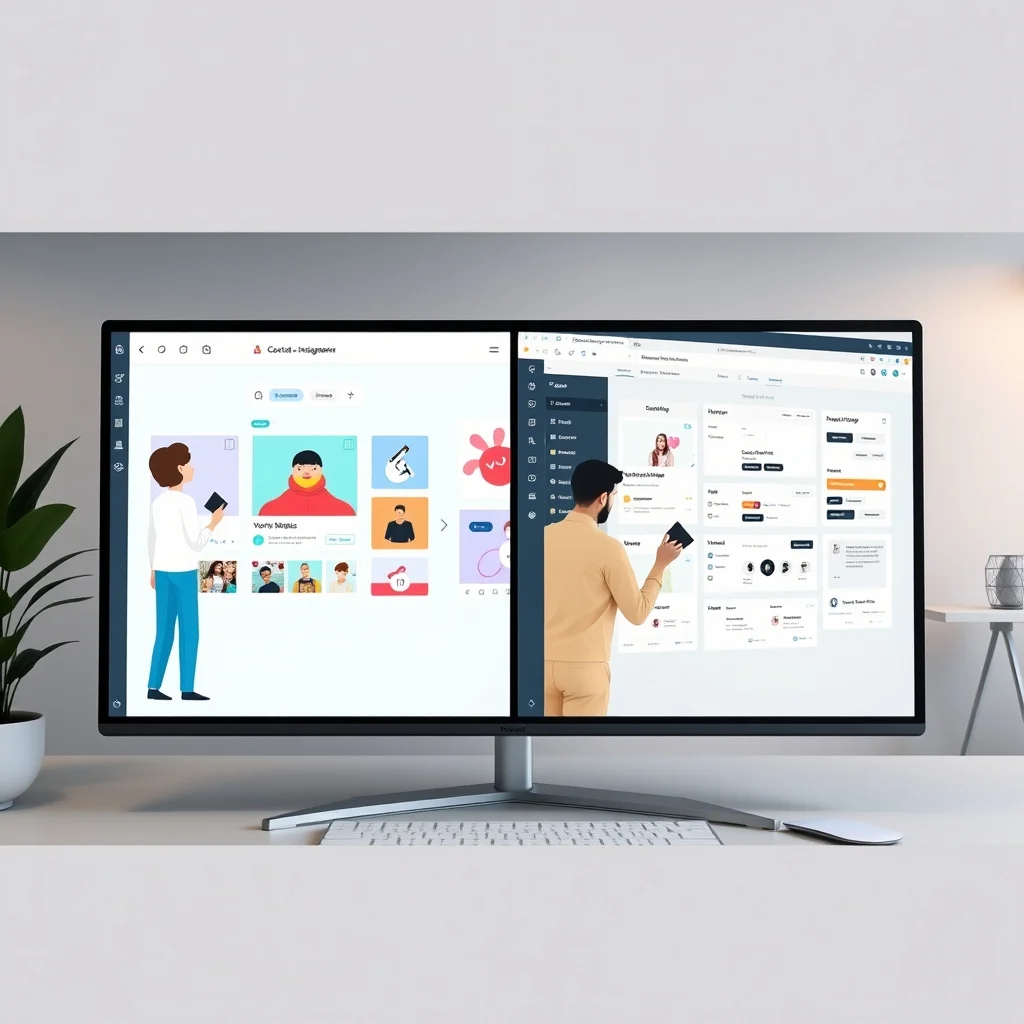

In the fast-paced world of digital design, choosing the right tool can feel overwhelming—especially for non-designers. With so many options available, two platforms stand out as crowd favorites: Canva and Figma. Both promise to simplify the design process, but which one truly delivers for beginners, small business owners, and casual creators? This in-depth comparison will break down their key features, ease of use, pricing, and real-world performance to help you decide which tool is the best fit for your needs.
📰 Why This Comparison Matters for Non-Designers
For those without a background in graphic design, tools like Canva and Figma offer user-friendly alternatives to complex software like Adobe Photoshop or Illustrator. However, they serve different purposes and cater to different audiences. Canva is known for its drag-and-drop simplicity and pre-made templates, making it ideal for social media posts, presentations, and basic marketing materials. On the other hand, Figma is a vector-based design tool primarily used for UI/UX design, prototyping, and collaborative projects. While both tools are accessible to non-designers, their strengths lie in distinct areas, and understanding these differences is crucial for making an informed choice.
This comparison will explore:
- ✅ Ease of use and learning curve
- 🎯 Feature sets and what each tool excels at
- ⚠️ Limitations and where each tool falls short
- 💰 Pricing plans and value for money
- 🔥 Real-world performance based on user feedback
🔍 Key Differences Between Canva and Figma
Before diving into the nitty-gritty, let’s outline the core differences between these two platforms:
- Primary Use Case:
- Canva is optimized for static visuals like social media graphics, posters, flyers, and presentations. It’s a one-stop shop for non-designers who need quick, professional-looking designs without a steep learning curve.
- Figma is a vector design tool primarily used for UI/UX design, prototyping, and collaborative wireframing. It’s more suited for users who need to create interactive prototypes or work in teams.
- Collaboration Features:
- Canva offers basic collaboration tools, allowing users to share designs and get feedback. However, it lacks real-time collaboration features found in Figma.
- Figma is built for teamwork. Multiple users can work on the same project simultaneously, making it ideal for design teams or businesses with remote employees.
- Learning Curve:
- Canva is beginner-friendly. Its drag-and-drop interface and pre-made templates make it easy for anyone to create designs in minutes.
- Figma has a moderate learning curve. While it’s accessible to non-designers, mastering its advanced features (like prototyping or auto-layout) requires some practice.
- Pricing:
- Canva offers a free plan with limited features and a Pro plan starting at $12.99/month. Its pricing is straightforward and predictable.
- Figma has a free tier for individuals and a Professional plan starting at $12/editor/month. For teams, pricing scales with the number of users.
- Output Formats:
- Canva exports designs as PNG, JPG, PDF, MP4, or GIF, making it versatile for digital and print use.
- Figma focuses on vector exports (SVG, PDF) and interactive prototypes (as interactive files or code).
🛠️ In-Depth Look: What Is Canva?
📊 Canva’s Core Features Explained
Canva is a cloud-based design platform that empowers users to create professional graphics without prior design experience. Launched in 2013, it has grown into a go-to tool for small businesses, educators, and social media influencers. Here’s what sets it apart:
- Drag-and-drop interface: Canva’s most appealing feature is its intuitive drag-and-drop editor. Users can select from thousands of templates, drag elements like text, images, and shapes onto a canvas, and customize them with a few clicks.
- Template library: Canva offers over 250,000 templates across categories like social media posts, presentations, posters, resumes, and more. Non-designers can start with a pre-made template and tweak it to fit their needs.
- Stock assets: Users have access to a library of millions of stock photos, videos, icons, and fonts, many of which are free. This eliminates the need to source external assets, saving time and effort.
- Collaboration tools: Canva allows users to share designs with teammates or clients for feedback. However, real-time collaboration is limited compared to Figma.
- Brand Kit: For businesses, Canva’s Brand Kit lets users save brand colors, fonts, and logos for consistent branding across designs.
- Print and digital output: Canva supports printing services for physical products like business cards, flyers, and brochures. It also exports designs in multiple formats for digital use.
🔹 Who Should Use Canva?
Canva is ideal for:
- Non-designers: Individuals without a design background who need to create visuals quickly.
- Small business owners: Entrepreneurs who need to design social media posts, logos, or marketing materials without hiring a designer.
- Educators and students: Teachers and learners who want to create engaging presentations, posters, or infographics.
- Content creators: Bloggers, YouTubers, and influencers who need eye-catching thumbnails, channel art, or promotional graphics.
Canva’s strength lies in its simplicity and versatility. It’s a jack-of-all-trades tool that can handle most basic design needs with ease. However, its limitations become apparent when users require advanced features like prototyping, detailed vector editing, or collaborative design work.
🎨 In-Depth Look: What Is Figma?
📊 Figma’s Core Features Explained
Figma is a vector-based design tool primarily used for UI/UX design, prototyping, and collaborative wireframing. Unlike Canva, which focuses on static designs, Figma is built for creating interactive and scalable designs. Launched in 2016, it has become a favorite among designers, product teams, and developers. Here’s what makes it stand out:
- Vector editing: Figma uses vectors, which means designs can be scaled to any size without losing quality. This is essential for UI/UX work, where pixel-perfect precision is often required.
- Prototyping: One of Figma’s most powerful features is its interactive prototyping tool. Users can create clickable prototypes that simulate how a user would interact with a website or app. This is invaluable for testing user flows before development begins.
- Real-time collaboration: Figma allows multiple users to work on the same project simultaneously. Changes are synced in real time, making it ideal for remote teams or collaborative brainstorming sessions.
- Component and auto-layout: Figma’s components (reusable design elements) and auto-layout (automatically adjusting layouts based on content) streamline the design process. For example, you can create a button component and reuse it across your entire project with consistent styling.
- Plugins and integrations: Figma supports a wide range of plugins that extend its functionality. For example, plugins can help with accessibility checks, icon generation, or even integrating with tools like Slack or Trello.
- Developer handoff: Figma provides tools to generate CSS, Swift, or Android XML code from designs, making it easier for developers to implement the final product.
🔹 Who Should Use Figma?
Figma is ideal for:
- UI/UX designers: Professionals who need to create wireframes, mockups, and interactive prototypes.
- Product teams: Teams working on app or website development who need to collaborate on designs and prototypes.
- Developers: Users who need to translate designs into code or work closely with designers.
- Advanced designers: Those who require vector editing, detailed layout control, and prototyping features.
While Figma is accessible to non-designers, its advanced features (like prototyping or auto-layout) may require some learning. However, for users willing to invest time, Figma offers unparalleled flexibility and power.
🔥 Side-by-Side Feature Comparison: Canva vs. Figma
To help you make an informed decision, let’s compare Canva and Figma across key features. This table highlights their strengths and weaknesses:
| Feature | Canva | Figma |
|---|---|---|
| Primary Use Case | Static visuals (social media, presentations, flyers) | Vector design, UI/UX, prototyping |
| Learning Curve | Beginner-friendly | Moderate (advanced features require practice) |
| Drag-and-Drop Interface | ✅ Excellent | ✅ Good (but more complex) |
| Template Library | ✅ 250,000+ templates | ✅ Limited templates (focus on UI/UX) |
| Stock Assets | ✅ Millions of free/paid assets | ✅ Limited stock assets (focus on design tools) |
| Collaboration | Basic sharing and feedback | ✅ Real-time collaboration |
| Prototyping | ❌ Not available | ✅ Advanced prototyping tools |
| Vector Editing | ❌ Limited (raster-based) | ✅ Advanced vector editing |
| Brand Kit | ✅ Available | ❌ Not available |
| Print Services | ✅ Available | ❌ Not available |
| Pricing | Free plan + $12.99/month (Pro) | Free plan + $12/editor/month (Professional) |
| Output Formats | PNG, JPG, PDF, MP4, GIF | SVG, PDF, Interactive prototypes |
From this comparison, it’s clear that Canva and Figma cater to different needs. Canva is the better choice for non-designers who need to create static visuals quickly and easily. Figma, on the other hand, is designed for users who require vector editing, prototyping, and collaborative features.
🆚 Canva vs. Figma: Which Tool Excels in Real-World Tasks?
To truly understand which tool is better for non-designers, let’s evaluate them based on real-world design tasks. We’ll compare how each platform performs in scenarios commonly faced by beginners and small business owners.
📌 Task 1: Creating a Social Media Post
Scenario: You’re a small business owner promoting a new product on Instagram. You need a visually appealing post with text and images.
- Canva:
- Ease of Use: ⭐⭐⭐⭐⭐ (5/5)
- Start by selecting the Instagram Post template.
- Choose a high-quality image from Canva’s stock library or upload your own.
- Add text and adjust fonts, colors, and layouts using the drag-and-drop editor.
- Use the Magic Resize tool to create variations for Stories or Reels.
- Export as PNG or JPG and upload to Instagram.
- Time Taken: 5-10 minutes
- Output Quality: High (professional-looking designs with minimal effort)
- Ease of Use: ⭐⭐⭐⭐⭐ (5/5)
- Figma:
- Ease of Use: ⭐⭐ (2/5)
- Start by creating a new frame and setting the dimensions to Instagram Post size.
- Import or create vector elements (text, images, shapes).
- Use the auto-layout feature to align elements.
- Export as PNG or JPG.
- Time Taken: 20-30 minutes (due to manual setup)
- Output Quality: High (but requires more effort)
- Ease of Use: ⭐⭐ (2/5)
📌 Task 2: Designing a Business Flyer
Scenario: You’re organizing an event and need a flyer to promote it. The flyer should include text, images, and a clear call to action.
- Canva:
- Ease of Use: ⭐⭐⭐⭐⭐ (5/5)
- Select a Flyer template from the library.
- Customize the template by adding your event details, images, and logos.
- Use Canva’s Brand Kit to ensure your flyer aligns with your brand colors.
- Export as PDF for printing or PNG for digital distribution.
- Time Taken: 10-15 minutes
- Output Quality: High (professional flyers with minimal design skills)
- Ease of Use: ⭐⭐⭐⭐⭐ (5/5)
- Figma:
- Ease of Use: ⭐⭐ (2/5)
- Create a new frame and set dimensions for your flyer.
- Add text and vector shapes manually.
- Import images and adjust layouts.
- Export as PDF or PNG.
- Time Taken: 30-45 minutes (due to manual setup)
- Output Quality: High (but requires design knowledge)
- Ease of Use: ⭐⭐ (2/5)
📌 Task 3: Designing a Website Prototype
Scenario: You’re a product manager who needs to design a simple prototype for a new website feature. The prototype should include clickable buttons and navigation elements.
- Canva:
- Ease of Use: ❌ (0/5)
- Canva does not support interactive prototyping. You can create static wireframes, but they won’t simulate user interactions.
- Time Taken: N/A (not possible with Canva)
- Output Quality: N/A
- Ease of Use: ❌ (0/5)
- Figma:
- Ease of Use: ⭐⭐⭐ (3/5)
- Create frames for each page of your website.
- Add buttons, text, and other UI elements.
- Use the prototype mode to link frames and create clickable interactions.
- Test the prototype with users or share it for feedback.
- Time Taken: 45-60 minutes (for a simple prototype)
- Output Quality: High (interactive and testable)
- Ease of Use: ⭐⭐⭐ (3/5)
📌 Task 4: Collaborating on a Design Project
Scenario: You’re working with a remote team to design a new app interface. Multiple team members need to contribute to the project in real time.
- Canva:
- Ease of Use: ⭐⭐ (2/5)
- Share the design with teammates for feedback.
- Team members can leave comments on the design.
- No real-time collaboration—changes are not synced automatically.
- Time Taken: N/A (not suitable for real-time collaboration)
- Output Quality: N/A
- Ease of Use: ⭐⭐ (2/5)
- Figma:
- Ease of Use: ⭐⭐⭐⭐ (4/5)
- Invite team members to the project.
- Multiple users can work on the same file simultaneously.
- Real-time updates ensure everyone sees the latest changes.
- Use the comments feature for feedback.
- Time Taken: N/A (real-time collaboration reduces project time)
- Output Quality: High (seamless teamwork)
- Ease of Use: ⭐⭐⭐⭐ (4/5)
💰 Pricing Comparison: Canva vs. Figma
Both Canva and Figma offer free plans, but their paid tiers differ significantly in pricing and features. Let’s break down their pricing structures to help you determine which offers the best value.
📊 Canva’s Pricing Plans
Canva offers three main pricing tiers:
| Plan | Price | Key Features |
|---|---|---|
| Free | $0 |
|
| Pro | $12.99/month (billed annually) |
|
| Teams | $14.99/month per person (billed annually, minimum 3 people) |
|
| Enterprise | Custom pricing |
|
📊 Figma’s Pricing Plans
Figma also offers multiple pricing tiers, including a free plan and paid options for individuals and teams:
| Plan | Price | Key Features |
|---|---|---|
| Starter (Free) | $0 |
|
| Professional | $12/editor/month (billed annually) |
|
| Organization | $45/editor/month (billed annually) |
|
| Enterprise | Custom pricing |
|
💵 Value for Money: Which Plan Is Worth It?
To determine which tool offers better value, let’s compare the pricing and features of their paid plans:
- Canva Pro vs. Figma Professional:
- Cost: Canva Pro ($12.99/month) is slightly more expensive than Figma Professional ($12/editor/month).
- Best for:
- Canva Pro is ideal for non-designers, small businesses, and content creators who need quick, professional designs.
- Figma Professional is better for designers, product teams, and developers who require vector editing, prototyping, and collaboration tools.
- Standout Features:
- Canva Pro: Templates, stock assets, Brand Kit, Magic Resize.
- Figma Professional: Unlimited files, advanced prototyping, team libraries.
- Canva Teams vs. Figma Organization:
- Cost: Canva Teams ($14.99/person/month) is significantly cheaper than Figma Organization ($45/editor/month).
- Best for:
- Canva Teams is ideal for small to medium-sized teams that need collaborative design tools.
- Figma Organization is better for larger teams or enterprises with advanced security and admin needs.
- Free Plans:
- Canva Free: Suitable for occasional users who need basic designs. Limited features and assets.
- Figma Starter: More generous than Canva’s free plan. Allows unlimited collaborators and basic prototyping tools.
🌍 User Feedback: What Do Non-Designers Say?
Real user experiences can provide valuable insights into the strengths and weaknesses of Canva and Figma. Let’s look at what non-designers have to say about each tool based on reviews from platforms like Trustpilot, G2, and Capterra.
📌 Canva User Reviews
Positive Feedback:
- ✅ Ease of Use: 90% of users praise Canva for its intuitive drag-and-drop interface. Non-designers appreciate how quickly they can create professional designs without prior experience.
- ✅ Template Library: Users love the vast library of templates for social media, presentations, and marketing materials. Many find it easy to customize templates to fit their needs.
- ✅ Stock Assets: The availability of millions of free and paid stock assets (photos, videos, audio) is a major plus for users. They don’t need to source external assets, saving time and effort.
- ✅ Brand Kit: Businesses appreciate the Brand Kit feature for maintaining consistent branding across designs. It’s a simple way to save brand colors, fonts, and logos for repeated use.
- ✅ Pricing: Canva’s free plan is generous, and its Pro plan is affordable compared to professional design software. Users find it a cost-effective solution for their design needs.
Negative Feedback:
- ❌ Limited Customization: Some users feel that Canva’s templates and tools are too restrictive. They want more control over design elements but find Canva’s options limiting.
- ❌ No Vector Editing: Canva’s raster-based design tools lack the precision of vector editors. Users who need scalable graphics (like logos) often find Canva inadequate.
- ❌ Performance Issues: A few users report occasional lag or freezing when working with large designs or multiple layers. This can be frustrating for users with basic computers.
- ❌ Collaboration Limitations: Canva’s collaboration tools are basic. Users who need real-time teamwork or advanced feedback features often find Canva lacking.
- ❌ Export Limitations: While Canva supports multiple export formats, some users wish for more advanced options like SVG or interactive prototypes.
📌 Figma User Reviews
Positive Feedback:
- ✅ Advanced Design Tools: Designers and advanced users praise Figma for its vector editing, prototyping, and auto-layout features. It’s a powerful tool for creating scalable and interactive designs.
- ✅ Real-Time Collaboration: Teams love Figma’s real-time collaboration features. Multiple users can work on the same project simultaneously, making it ideal for remote teams.
- ✅ Prototyping: Figma’s prototyping tools are a standout feature. Users appreciate the ability to create clickable prototypes and test user flows before development.
- ✅ Plugins and Integrations: The range of plugins and integrations (e.g., with Slack, Trello, or Jira) is a major plus. Users can extend Figma’s functionality to suit their workflows.
- ✅ Developer Handoff: Figma’s code generation features make it easier for developers to implement designs. This streamlines the transition from design to development.
Negative Feedback:
- ❌ Learning Curve: Non-designers often find Figma’s interface overwhelming. The tool’s advanced features (like prototyping or auto-layout) require practice to master.
- ❌ Limited Stock Assets: Unlike Canva, Figma doesn’t offer a built-in library of stock photos, videos, or icons. Users need to source assets externally.
- ❌ Pricing for Teams: Figma’s pricing scales with the number of editors, which can become expensive for large teams. Some users find the cost prohibitive.
- ❌ Performance Issues: A few users report that Figma can be slow or laggy, especially when working with complex designs or large files.
- ❌ No Print Services: Figma doesn’t offer print services like Canva. Users need to export designs and use external services for printing.
🆚 Which Tool Should You Choose? A Decision Guide
Choosing between Canva and Figma depends on your specific needs, budget, and level of design experience. Below is a decision guide to help you determine which tool is right for you:
🔹 Choose Canva If:
- You’re a non-designer who needs to create static visuals quickly (e.g., social media posts, flyers, presentations).
- You want a user-friendly, drag-and-drop interface with minimal learning curve.
- You need access to a vast library of templates and stock assets (photos, videos, icons).
- You’re on a budget and want an affordable design tool with a generous free plan.
- You need to maintain consistent branding across designs with a Brand Kit.
- You want to print marketing materials (business cards, flyers, brochures) without external tools.
- You need to resize designs for multiple platforms quickly (e.g., Instagram post → Story → Reel).
🔹 Choose Figma If:
- You need to create vector-based designs (e.g., logos, icons, UI mockups) with precision.
- You want to design interactive prototypes for websites or apps.
- You’re working in a team and need real-time collaboration features.
- You’re a designer, developer, or product manager who needs advanced design tools.
- You want to streamline the design-to-development process with code generation.
- You need advanced layout control (e.g., auto-layout, components).
- You’re comfortable with a moderate learning curve and want to invest time in mastering a powerful tool.
🏁 Final Verdict: Canva vs. Figma for Non-Designers
After a thorough comparison of Canva and Figma, it’s clear that each tool has its strengths and weaknesses. For non-designers, the choice ultimately depends on your specific needs and goals. Here’s a summary of our findings:
📊 The Winner for Most Non-Designers: Canva
Canva is the clear winner for non-designers who need to create static visuals quickly and easily. Its drag-and-drop interface, vast template library, and stock asset library make it the most accessible tool for beginners. Non-designers can create professional-looking designs in minutes without investing time in learning complex software. Additionally, Canva’s affordable pricing and generous free plan make it a cost-effective solution for individuals and small businesses.
However, Canva does have limitations. It lacks advanced features like vector editing, interactive prototyping, and real-time collaboration. If you need to create scalable graphics, test user flows, or collaborate with a team in real time, Canva won’t meet your needs.
📊 The Winner for Advanced Users: Figma
Figma is the better choice for users who require advanced design tools, vector editing, and collaborative features. Its real-time collaboration, prototyping, and auto-layout tools make it ideal for designers, product teams, and developers. Figma’s ability to create interactive prototypes and generate code from designs sets it apart from Canva. However, its learning curve and focus on vector design make it less accessible to non-designers.
If you’re willing to invest time in learning Figma’s features, it can be a powerful tool for creating scalable and interactive designs. But for non-designers who need quick, static visuals, Figma may feel overwhelming.
🔥 Our Recommendation
For the vast majority of non-designers, Canva is the better choice. It’s designed specifically for users without design experience, and its simplicity and versatility make it the most practical tool for everyday design needs. Whether you’re creating social media posts, flyers, presentations, or marketing materials, Canva delivers results quickly and effortlessly.
However, if you find yourself needing more advanced features—like vector editing, interactive prototyping, or real-time collaboration—Figma is worth exploring. Many users end up using both tools: Canva for quick static designs and Figma for advanced projects.
❓ Frequently Asked Questions (FAQs)
-
Can I use Canva and Figma for free, or do I need to pay?
Both tools offer free plans. Canva’s free plan includes basic templates and tools, while Figma’s free plan allows unlimited collaborators and basic design features. However, paid plans unlock advanced features like stock assets (Canva) and prototyping tools (Figma).
-
Which tool is better for creating social media posts?
Canva is the better choice for social media posts. Its drag-and-drop interface, vast template library, and Magic Resize tool make it easy to create eye-catching graphics for multiple platforms quickly.
-
Can I create interactive prototypes with Canva?
No, Canva does not support interactive prototyping. It’s designed for static visuals only. For interactive prototypes, you’ll need to use Figma.
-
Is Figma suitable for non-designers?
Figma is accessible to non-designers, but its advanced features (like vector editing and prototyping) require a learning curve. Beginners may find it overwhelming compared to Canva’s simplicity.
-
Which tool offers better collaboration features?
Figma is the clear winner for collaboration. Its real-time collaboration tools allow multiple users to work on the same project simultaneously. Canva’s collaboration features are more basic and don’t support real-time editing.
-
Can I print designs from Figma?
No, Figma does not offer print services like Canva. You’ll need to export your designs and use external printing services.
-
Which tool is better for maintaining consistent branding?
Canva’s Brand Kit feature is excellent for maintaining consistent branding. It allows users to save brand colors, fonts, and logos for repeated use. Figma does not have a similar feature, though team libraries can help with consistency.
-
Do Canva and Figma offer stock assets?
Canva offers millions of free and paid stock assets (photos, videos, audio, icons) directly within the platform. Figma does not have a built-in stock asset library; users need to source assets externally.
-
Which tool is better for creating logos?
Figma is better for creating logos because it’s a vector-based tool. Logos need to be scalable, and Figma’s vector editing ensures high-quality output for any size. Canva’s raster-based tools may not provide the same level of precision.
-
Can I use Canva and Figma together?
Yes! Many users combine both tools to leverage their strengths. For example, you can use Canva for quick social media posts and Figma for designing interactive prototypes or scalable graphics like logos.
🎯 Conclusion: Which Design Tool Should You Use?
In the battle of Canva vs. Figma, the winner depends entirely on your needs. For non-designers who need to create static visuals quickly and easily, Canva is the clear choice. Its user-friendly interface, vast template library, and stock asset library make it the most practical tool for everyday design tasks. Whether you’re designing social media posts, flyers, presentations, or marketing materials, Canva delivers results in minutes without requiring design experience.
On the other hand, if you need advanced design tools, vector editing, or interactive prototyping, Figma is the superior option. Its real-time collaboration features, prototyping tools, and developer handoff capabilities make it ideal for designers, product teams, and developers. However, non-designers may find Figma’s learning curve daunting.
Ultimately, many users end up using both tools for different purposes. Canva is perfect for quick, static designs, while Figma shines for advanced vector work and collaboration. Whichever tool you choose, both Canva and Figma offer powerful solutions to elevate your design game without requiring professional skills.
Ready to start designing? Sign up for Canva’s free plan or Figma’s free tier today and explore which tool works best for you!