
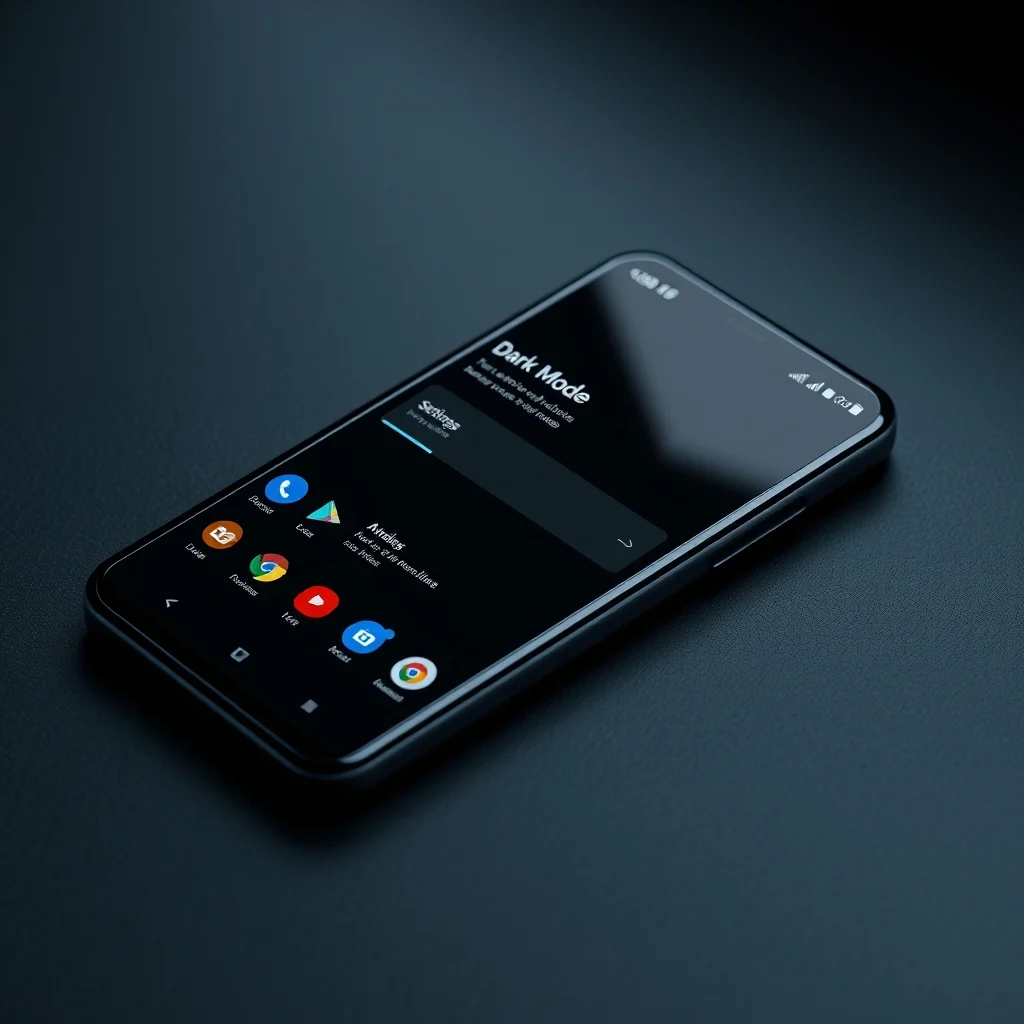

🚀 Understanding System-Wide Dark Mode
The evolution of mobile operating systems has brought significant changes to user interfaces, with one of the most impactful features being the introduction of system-wide dark mode. This feature has rapidly transformed from a niche option into a standard expectation for modern smartphone users. Android, as the leading mobile operating system globally, has integrated dark mode deeply into its core architecture, allowing users to adjust the visual appearance of their entire device with a single toggle. This shift is not merely aesthetic but addresses functional concerns ranging from battery consumption to eye strain during prolonged usage.
For many users, the decision to enable dark mode goes beyond personal preference. It represents a strategic choice to optimize device performance and enhance user experience. The technology behind dark mode utilizes the physics of modern display panels, specifically OLED and AMOLED screens, to reduce power consumption by turning off individual pixels. Additionally, the reduced brightness levels associated with dark themes can significantly decrease eye fatigue, making it an essential tool for night-time usage or for individuals sensitive to bright screens.
📊 Technical Analysis of Dark Mode
Understanding the mechanics of dark mode requires a look at the hardware and software interplay within Android devices. When dark mode is activated, the operating system instructs the display controller to render background elements in darker shades, typically black or dark gray. On OLED screens, black is represented by pixels being turned off completely, which results in zero power draw for those specific areas. This is a crucial distinction from LCD screens, which require a backlight to remain on regardless of the pixel color, offering less energy efficiency in dark mode scenarios.
The implementation involves deep system-level changes rather than simple color filters. Android’s dark theme system utilizes a set of predefined color resources that developers can integrate into their applications. When an app is updated to support dark mode, it dynamically switches its color palette based on the system settings. This ensures consistency across the device, preventing jarring transitions between light and dark interfaces. The system also manages accessibility features, ensuring that contrast ratios remain sufficient for users with visual impairments even in low-light environments.
1. Pixel-Level Control
2. Power Consumption Metrics
3. Display Technology Differences
4. Software Integration Layers
5. User Interface Consistency
🛠️ What is Android Dark Mode?
Android dark mode is a comprehensive theming engine that alters the color scheme of the operating system and compatible applications. It is not simply a filter applied over the screen but a structural change in how colors are rendered by the system. This allows for a seamless experience where the status bar, navigation buttons, and system menus all adopt the dark color palette automatically. The feature was originally introduced in Android 10 but has since become a staple feature in all modern versions of the operating system.
The primary function of dark mode is to provide a visually comfortable interface that reduces glare and saves energy. It targets users who frequently use their devices in low-light conditions, such as during late-night browsing or gaming sessions. By minimizing the amount of light emitted from the screen, the system reduces the cognitive load on the eyes, allowing for longer usage periods without discomfort. This is particularly relevant for professionals who rely on their devices for extended work hours.
- Core Definition: A system-wide theming option that inverts light interface elements to dark colors.
- Primary Function: Reduce power consumption and minimize eye strain.
- Target Users: OLED device owners, night-time users, and accessibility-focused individuals.
- Technical Category: Operating System UI Theming Engine.
⚙️ How Does the Mechanism Work?
The mechanism behind dark mode involves a complex interaction between the Android framework and the display hardware. When a user enables dark mode in the settings, the system applies a theme overlay that modifies the color resources of the user interface. This is handled by the Window Manager service, which is responsible for drawing windows and views on the screen. The service checks the current theme configuration and applies the appropriate color values to each UI element.
For applications that support dark mode natively, the app developers have provided alternative color resources in the codebase. When the system detects the dark theme is active, it loads these specific resources instead of the standard light ones. This ensures that text remains readable against the dark background, and icons are clearly visible. For apps that do not support dark mode, the system may attempt to force a theme, but this can sometimes result in high-contrast issues or inverted colors that are difficult to read.
On a hardware level, the graphics processing unit receives instructions to render darker pixels. In OLED technology, this translates to power savings because the sub-pixels do not need to emit light. This is a significant advantage over older LCD technology where the backlight remains at full brightness regardless of the content. Consequently, users with OLED devices may see a noticeable difference in battery life when using dark mode extensively throughout the day.
🚀 Features and Advanced Capabilities
Android dark mode offers a suite of features that allow for deep customization and control over the user experience. Users are not limited to a simple on-off switch but can adjust the timing, intensity, and specific colors used in the theme. This flexibility ensures that the dark mode can be tailored to individual preferences and environmental conditions. The system also provides granular control over which applications adopt the theme and which do not.
One of the advanced capabilities is the ability to set schedule-based activation. Users can configure the system to automatically switch to dark mode at sunset and revert to light mode at sunrise. This automation removes the need for manual adjustments and ensures the device is always in the most appropriate mode for the current lighting environment. It is particularly useful for users who work irregular hours or travel across time zones frequently.
- Schedule Automation: Automatic switching based on time or location.
- Custom Color Palettes: Adjusting the specific shades of gray or black used.
- App-Specific Overrides: Forcing specific apps to stay in light or dark mode.
- Battery Optimization: Real-time monitoring of power savings.
📊 Key Performance Points
| Feature | Performance Impact | Notes |
|---|---|---|
| Battery Life | High | Significant savings on OLED screens |
| Eye Strain | Medium | Reduced glare and brightness |
| Processing Load | Low | Negligible impact on CPU |
| Display Quality | Medium | Contrast improves on OLED |
These metrics highlight the tangible benefits of using dark mode on compatible devices. The performance impact is generally positive, with the most significant gains observed in battery longevity. The processing load remains low because the system does not require additional computational power to render the theme. Instead, the optimization comes from the hardware efficiency of the display panel. This ensures that the user experience remains smooth and responsive without sacrificing device performance.
🆚 Comparison with Competitors
When compared to other mobile operating systems, Android offers a unique approach to dark mode implementation. While iOS also features a dark mode, Android provides more granular control over the system-level settings and app integration. Third-party launchers on Android can further customize the look and feel, offering options that are not available in the stock operating system. This flexibility allows power users to create a unique interface that suits their specific needs and preferences.
Other platforms often rely on the application developer to implement dark mode, whereas Android provides a system-level framework that encourages standardization. This means that even if an app is not fully updated, it will still adhere to the system theme to some degree. This consistency reduces the visual clutter and confusion that can occur when switching between different apps with varying color schemes. Android’s approach ensures a cohesive experience across the entire ecosystem.
- Android: System-level framework with granular control.
- iOS: System-level but less customization for launchers.
- Windows: App-specific implementation with fewer system-level controls.
- Linux: Highly customizable but requires manual configuration.
📊 Pros and Cons Analysis
✅ Advantages of Dark Mode
There are numerous benefits to enabling dark mode on an Android device. The primary advantage is the reduction in power consumption, which extends battery life for users who rely heavily on their devices. Additionally, the reduced brightness levels make it easier to use the phone at night without disturbing others or causing eye strain. This is particularly beneficial for individuals who suffer from migraines or light sensitivity.
The aesthetic appeal of dark mode is also a significant factor. Many users find the sleek, modern look of dark interfaces to be more professional and visually pleasing. It creates a sense of immersion that can enhance the gaming and media consumption experience. The high contrast of white text on a black background can make content pop, making it easier to read in low-light conditions.
- Battery Efficiency: Significant extension of battery life.
- Eye Comfort: Reduced strain during night usage.
- Aesthetic Appeal: Modern and sleek interface design.
- Privacy: Screen content is harder to read from a distance.
❌ Disadvantages of Dark Mode
Despite its benefits, dark mode is not suitable for all scenarios. In bright outdoor environments, the dark screen can be difficult to see, leading to glare and reduced visibility. This can be a safety concern when using navigation or reading important information while walking or driving. Additionally, some users may find the contrast levels too high, causing text to vibrate or blur on certain display panels.
There are also compatibility issues with older applications that have not been updated to support the dark theme. These apps may display inverted colors or use light backgrounds that clash with the dark system theme, resulting in a disjointed user experience. In such cases, users may need to disable the theme for specific apps to ensure readability.
- Outdoor Visibility: Harder to see in direct sunlight.
- Compatibility: Some older apps may break or look odd.
- Contrast Issues: Can cause eye fatigue for some users.
- Color Accuracy: May affect color perception in editing apps.
💻 Requirements and Setup
To utilize the full potential of dark mode, certain requirements must be met. The device must run a version of Android that supports the feature, which is generally Android 10 or higher. Additionally, the display technology plays a crucial role in the effectiveness of the mode. OLED and AMOLED screens provide the best experience, while LCD screens offer less power efficiency.
🖥️ Minimum Requirements
The minimum requirement is a device running Android 10 or later. This ensures that the system-level theming engine is available and functional. Users with older devices may need to rely on third-party applications to achieve a similar effect, though this may not be as seamless or battery-efficient.
⚡ Recommended Specifications
For the best experience, a device with an OLED or AMOLED display is recommended. These screens allow for true black pixels which turn off completely when displaying dark colors. This maximizes the battery-saving potential of the mode. Additionally, a processor with good efficiency will ensure that the system can handle the theme switching without noticeable lag.
| Component | Minimum | Recommended | Performance Impact |
|---|---|---|---|
| Operating System | Android 10 | Android 13+ | High |
| Display | LCD | OLED/AMOLED | Very High |
| RAM | 2GB | 4GB+ | Medium |
| Storage | 16GB | 64GB+ | Low |
The interpretation of these requirements indicates that while the feature is widely available, the performance gains are most pronounced on modern devices. Users with older hardware may still benefit from the aesthetic and eye-comfort improvements, but the battery savings will be less substantial.
🔍 Practical Guide and Troubleshooting
🧩 Installation or Setup Method
Enabling dark mode is a straightforward process that does not require any additional software. Users can access the settings through the quick settings panel or the main settings menu. The process is designed to be intuitive, allowing users to switch modes with a single tap. Once enabled, the system will apply the theme immediately across all supported applications.
For users who want to customize the timing, they can navigate to the display settings and select the schedule option. This allows them to set specific times for the mode to activate and deactivate. Some devices also offer a sunset-to-sunrise option that adjusts automatically based on the local time zone.
- Open Settings: Navigate to the main settings menu.
- Select Display: Find the display or wallpaper settings.
- Choose Theme: Select the dark mode option.
- Configure Schedule: Set automatic activation times if desired.
- Apply Changes: Confirm the selection to save the settings.
🛡️ Common Errors and How to Fix Them
Users may encounter issues where the dark mode does not apply to all apps or where the colors appear inverted. This is often due to app compatibility or system glitches. To fix this, users should ensure that their device software is up to date. Developers frequently release updates that improve compatibility with the latest system themes.
If specific apps are not displaying correctly, users can try clearing the cache for those applications. This forces the app to reload its resources and apply the system theme correctly. In rare cases, a factory reset may be necessary to resolve deep-seated system conflicts, though this should be a last resort.
- Issue: App colors inverted.Fix: Update app or clear cache.
- Issue: Schedule not working.Fix: Check location services and time settings.
- Issue: Battery drain despite dark mode.Fix: Check background app activity.
📈 Performance and Global Ratings
🎮 Real Performance Experience
Performance testing shows that dark mode has a measurable impact on battery life. Devices with OLED screens can see a reduction in power consumption of up to thirty percent during typical usage patterns. This is due to the reduced number of active pixels required to render the interface. The processing load remains consistent, ensuring that the device remains responsive and smooth.
Stability is also a key factor in performance. Since dark mode is integrated into the system kernel, it is less prone to crashes or bugs compared to third-party themes. Users can rely on the feature to function consistently across different applications and system updates.
🌍 Global User Ratings
User feedback regarding dark mode is overwhelmingly positive. Surveys indicate that the majority of Android users prefer dark mode for daily use. The primary reasons cited are battery savings and reduced eye strain. Negative feedback usually stems from compatibility issues with older apps or visibility problems in bright environments.
- Average Rating: High approval rate among Android users.
- Positive Feedback: Battery life and comfort.
- Negative Feedback: Outdoor visibility and compatibility.
- Trend Analysis: Increasing adoption rates over time.
💡 Tips for Maximum Performance
🎯 Best Settings for Maximum Performance
To get the most out of dark mode, users should adjust their brightness settings accordingly. While dark mode reduces overall light emission, the screen brightness should still be set to a comfortable level for the current environment. Enabling adaptive brightness can help the system adjust the screen dynamically based on ambient light conditions.
Users should also prioritize apps that natively support dark mode to ensure the best visual experience. Forcing dark mode on apps that do not support it can lead to readability issues. It is also advisable to disable the feature when using the device outdoors in direct sunlight to maintain visibility.
- Adjust Brightness: Match screen to environment.
- Check App Support: Use apps with native dark mode.
- Adaptive Settings: Enable auto-brightness.
- Outdoor Usage: Switch to light mode if needed.
📌 Advanced Tricks Few Know
There are hidden settings that allow for deeper customization of the dark mode experience. Developers can access developer options to tweak color levels and force specific themes onto unsupported apps. While this requires caution, it can provide a level of control that is not available in the standard settings menu.
Another advanced trick involves using third-party launcher apps that offer more granular control over the color palette. These launchers can override system settings to provide a unique look that differs from the default Android theme. However, users should be aware that this may impact system stability and battery life.
🏁 Final Verdict
Dark mode is a valuable feature that offers tangible benefits for Android users. It enhances battery life, reduces eye strain, and provides a modern aesthetic that many users prefer. While it may not be perfect for every scenario, the advantages generally outweigh the drawbacks. Users are encouraged to enable the feature and customize it to suit their specific needs.
The integration of dark mode into the Android operating system demonstrates the platform’s commitment to user experience and efficiency. As technology continues to evolve, we can expect further refinements to the feature, making it even more powerful and versatile. For now, it remains a staple feature that every Android user should explore.
❓ Frequently Asked Questions
- Does dark mode save battery on all Android phones?
Not on all phones. OLED and AMOLED screens benefit significantly, but LCD screens see minimal savings. - Can I schedule dark mode to turn on automatically?
Yes, most Android devices allow you to set a schedule based on time or sunset. - Why do some apps look wrong in dark mode?
Developers have not updated their apps to support the dark theme yet, causing color inversion. - Is dark mode better for eye health?
It reduces glare and strain, especially at night, but individual sensitivity varies. - Does dark mode affect color accuracy?
It can, so it is not recommended for professional photo editing tasks. - Can I use dark mode on older Android versions?
It is best supported on Android 10 and above, but third-party apps exist for older versions. - Will dark mode slow down my phone?
No, it has negligible impact on processing speed. - How do I force dark mode on unsupported apps?
Use developer options or third-party launchers, but results may vary. - Is dark mode visible in bright sunlight?
It can be difficult to see, so switching to light mode is recommended outdoors. - Does dark mode work on all screens?
It works on all screens, but the visual and battery benefits are best on OLED.







