
Picture-in-Picture mode has revolutionized how users interact with their Android devices by allowing seamless multitasking capabilities. This feature enables users to continue watching videos or viewing content from supported applications while navigating to other apps or performing different tasks on their device. The integration of Picture-in-Picture, often abbreviated as PiP, represents a significant advancement in mobile operating system functionality, bridging the gap between productivity and entertainment.
For many Android users, the ability to keep a video playing in a small, movable window while checking emails or messaging friends is a game-changer. This functionality is particularly useful for content creators, students, and professionals who need to reference video tutorials or streams while working. Understanding how to enable and utilize this feature effectively can significantly enhance the overall user experience on modern Android smartphones and tablets.
In this comprehensive guide, we will explore the technical underpinnings of Picture-in-Picture mode, provide step-by-step instructions for enabling it, and offer troubleshooting tips for common issues. We will also discuss compatibility requirements, supported applications, and best practices for optimizing performance. Whether you are a casual user or a power user looking to maximize your device capabilities, this article will provide the necessary knowledge to leverage this powerful Android feature.
🚀 Understanding Picture-in-Picture Functionality
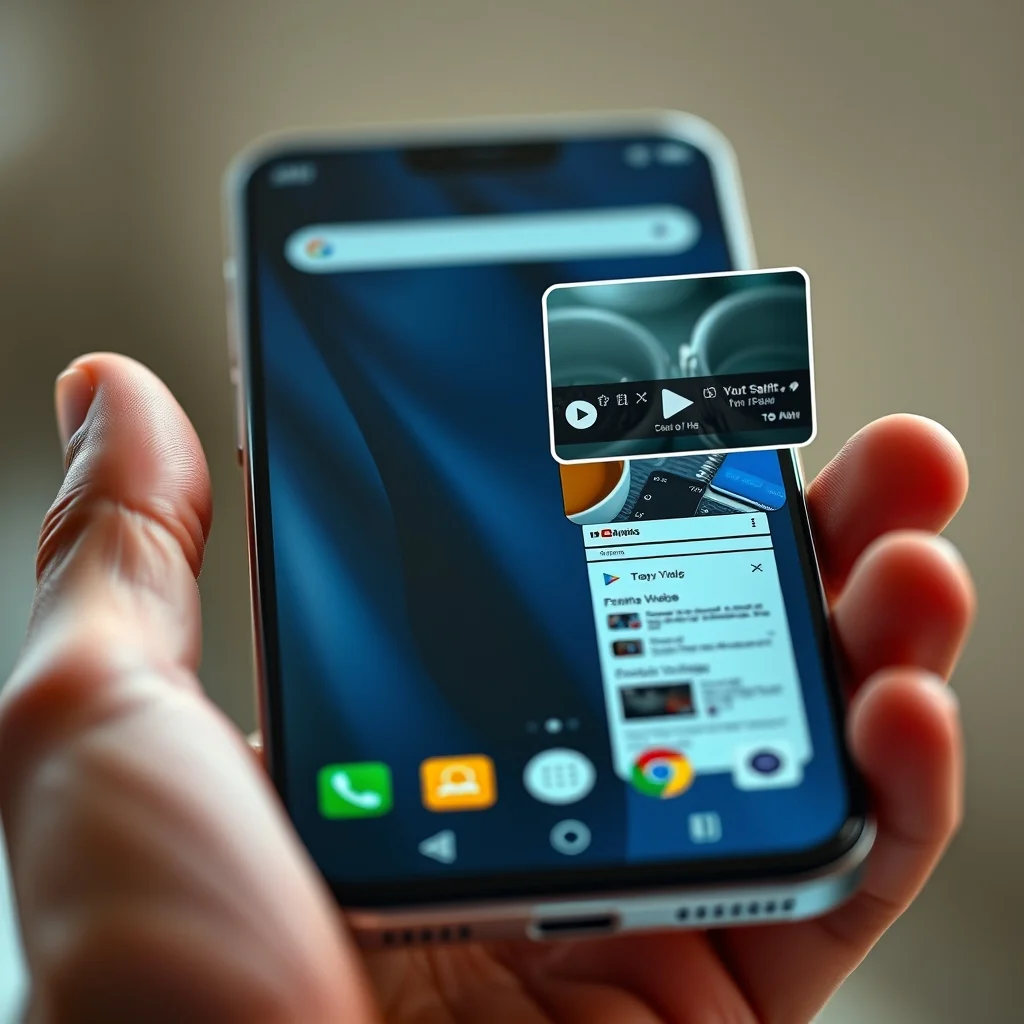
Picture-in-Picture mode allows a video or audio stream to remain visible and audible while the user interacts with other applications on their device. Unlike traditional multitasking where apps run in the background without visual representation, PiP maintains a visual interface that floats above other windows. This creates a unique user experience where content consumption does not interrupt workflow.
The technology relies on the Android operating system to manage window layers and resource allocation efficiently. When an app enters PiP mode, it must adhere to specific guidelines set by Google to ensure consistent behavior across different devices. This standardization helps users know what to expect regardless of the manufacturer or Android version they are using.
Here are the core aspects of how Picture-in-Picture operates within the Android ecosystem:
- System Integration: The feature is built directly into the Android Framework.
- App Support: Applications must explicitly declare support for PiP in their manifest.
- Resource Management: The system optimizes CPU and memory usage to maintain playback.
- User Control: Users can resize, move, or close the PiP window easily.
🎯 Technical Architecture and Requirements
To fully utilize Picture-in-Picture mode, certain technical prerequisites must be met on both the software and hardware levels. The Android operating system version plays a crucial role, as earlier versions did not support this feature natively. Additionally, the applications themselves must be coded to handle the PiP lifecycle events properly.
Not all applications support Picture-in-Picture out of the box. Developers need to implement specific APIs and define the necessary permissions to allow their app to enter this mode. This ensures that apps designed for single-screen interactions do not break when forced into a smaller window environment. Understanding these constraints helps users identify which apps will work immediately and which might require updates.
The following table summarizes the technical requirements for Picture-in-Picture functionality:
| Component | Minimum Requirement | Recommended | Impact on Performance |
|---|---|---|---|
| Android Version | Android 8.0 (Oreo) | Android 13 or higher | High |
| Screen Size | 4.5 inches | 6 inches or larger | Medium |
| RAM | 2 GB | 4 GB or more | High |
| Storage | 100 MB free | 500 MB free | Low |
As shown in the table above, the Android version is the most critical factor. Devices running Android 8.0 or later are capable of supporting Picture-in-Picture, but newer versions offer improved stability and additional customization options. The screen size recommendation is based on usability, as smaller screens may make the PiP window too small to be functional. RAM and storage requirements ensure that the device has enough resources to handle simultaneous tasks without lagging.
🛠️ How Picture-in-Picture Works in Detail
When an application enters Picture-in-Picture mode, it undergoes a specific state change managed by the Android ActivityManager. The system suspends the main activity of the app and transitions it to a background service that continues to render the video stream. This allows the primary user interface to be hidden while the content remains accessible.
The floating window is rendered as a separate surface layer on top of all other applications. This layer is managed by the Window Manager service, which handles positioning and resizing interactions. Users can drag the window to different corners of the screen, and the system automatically adjusts the layout to accommodate the new position.
Here is a detailed breakdown of the internal processes:
- Intent Handling: Apps send a specific intent to request PiP mode entry.
- Surface Creation: The system allocates a new surface for the floating window.
- Audio Focus: The system manages audio channels to prevent conflicts.
- Wake Lock: The device prevents sleep mode to maintain playback.
This architecture ensures that the video continues to play smoothly even when the user is interacting with a different application. The system prioritizes the audio stream to ensure uninterrupted listening experiences. By isolating the PiP window from the main app interface, developers can ensure that background processes do not interfere with the playback quality.
🚀 Key Features and Advanced Capabilities
Modern implementations of Picture-in-Picture mode offer several advanced features that enhance user flexibility and control. These capabilities go beyond simple video playback, allowing for more complex interactions and customization options depending on the device and application.
One of the significant features is the ability to resize the floating window. Users can adjust the window size to make it larger for better visibility or smaller to minimize screen obstruction. This flexibility is particularly important on tablets where screen real estate is abundant, allowing for side-by-side multitasking with other applications.
✨ Advanced Features Breakdown
The following list highlights the key capabilities available to users:
- Resizable Window: Allows users to adjust the floating window size.
- Draggable Interface: Users can move the window to any screen location.
- Audio Control: Volume controls remain accessible within the PiP window.
- Media Buttons: Play, pause, and stop buttons are available for quick access.
- Gesture Support: Swipe gestures can trigger PiP entry in supported apps.
Another notable feature is the integration with media controls. Many applications allow users to control playback directly from the floating window without reopening the main app. This reduces the need to switch contexts frequently, thereby improving efficiency. Additionally, some devices allow for gesture-based entry into PiP mode, further streamlining the user experience.
📊 Performance Metrics and Comparisons
Understanding the performance implications of using Picture-in-Picture mode is essential for users who want to maintain device responsiveness. Running multiple applications simultaneously requires careful resource management to prevent overheating or battery drain.
The following comparison highlights the differences between standard multitasking and PiP mode:
| Feature | Standard Background | Picture-in-Picture Mode | Best Use Case |
|---|---|---|---|
| Visual Visibility | None | Visible Window | Videos, Live Streams |
| Resource Usage | Low | Medium | Active Workflows |
| User Interaction | None | Direct Control | Quick Actions |
| Audio Output | Managed | Dedicated | Music, Podcasts |
As the table indicates, Picture-in-Picture mode consumes more resources than standard background multitasking but offers significantly more utility in terms of visibility and control. This trade-off is generally acceptable for most users who prioritize convenience over minimal resource usage.
🆚 Distinguishing Factors from Competitors
While other operating systems offer similar multitasking features, Android’s implementation of Picture-in-Picture has distinct advantages. The open nature of the Android ecosystem allows for greater customization and third-party integration that competitors may not match.
Unlike iOS, which restricts PiP to specific system applications, Android allows any application that adheres to the guidelines to support the feature. This flexibility empowers developers to create innovative solutions that leverage PiP for various purposes beyond just video playback.
Here are the key differentiators:
- Open Standards: Any app can implement PiP if it follows the rules.
- Customization: Manufacturers can add their own tweaks and enhancements.
- Compatibility: Supports a wide range of devices from budget to flagship.
- Integration: Deep integration with other Android features like notifications.
This openness ensures that users are not limited by the native apps provided by the manufacturer. Third-party video players, browsers, and productivity apps can all leverage Picture-in-Picture mode to enhance the user experience.
📊 Advantages and Disadvantages
✅ Advantages
Picture-in-Picture mode offers numerous benefits that justify its widespread adoption across the Android ecosystem. The primary advantage is the ability to multitask effectively without sacrificing content consumption.
Users can watch a cooking tutorial while preparing ingredients, or follow a coding video while writing code in a separate application. This integration of learning and doing is a powerful productivity tool that was previously difficult to achieve on mobile devices.
Key strengths include:
- Improved Productivity: Allows simultaneous work and learning.
- Better Entertainment: Keeps videos visible while browsing the web.
- Flexibility: Works with many different types of applications.
- Easy Access: Simple gestures to enter and exit the mode.
❌ Disadvantages
Despite its benefits, Picture-in-Picture mode does have some limitations that users should be aware of. The most common issue is battery consumption, as keeping the video stream active drains power faster than standard background playback.
Additionally, not all applications support the feature, which can be frustrating for users who expect it to work universally. Some apps may also have restrictions on PiP based on licensing or content protection policies.
Potential downsides include:
- Battery Drain: Higher power usage compared to background playback.
- App Limitations: Some apps do not support PiP.
- Screen Space: Can obstruct other content on small screens.
- Distraction: May encourage multitasking that reduces focus.
💻 System Requirements and Specifications
🖥️ Minimum Requirements
To run Picture-in-Picture mode, your device must meet certain hardware and software specifications. These requirements ensure that the feature functions correctly without causing instability or performance issues.
The minimum requirement is Android 8.0 (Oreo) or higher. Devices running older versions of the operating system do not have the native support needed for PiP. Additionally, the device should have at least 2 GB of RAM to handle the additional processing load.
⚡ Recommended Specifications
For the best experience, a device with Android 13 or higher and 4 GB of RAM is recommended. These specifications ensure smooth performance even when running multiple heavy applications simultaneously.
The CPU and GPU also play a role in rendering the floating window smoothly. A modern processor will handle the transitions and resizing operations better than an older chip. Storage space is less critical but having at least 500 MB free helps with system caching and temporary files.
| Component | Minimum | Recommended | Performance Impact |
|---|---|---|---|
| OS Version | Android 8.0 | Android 13+ | Critical |
| RAM | 2 GB | 4 GB | High |
| CPU | Quad-Core | Octa-Core | Medium |
| GPU | Basic | Dedicated | Medium |
This table highlights that while the operating system version is the primary requirement, hardware specs significantly impact the smoothness of the experience. Upgrading your device can make a noticeable difference in how well Picture-in-Picture mode performs.
🔍 Practical Guide: Enabling and Using PiP
🧩 Installation and Setup Method
Enabling Picture-in-Picture mode is a straightforward process that primarily involves adjusting settings within the Android operating system. Once enabled, users can start using the feature with supported applications immediately.
The first step is to ensure that your device meets the minimum requirements. If you are running Android 8.0 or higher, you are likely ready to go. Next, you need to enable the feature in the app settings for specific applications.
Step-by-step instructions to enable the feature:
- Open Settings: Navigate to the main settings menu on your device.
- Select Apps: Tap on the Apps or Applications section.
- Choose App: Find the specific application you want to use for PiP.
- Advanced Settings: Look for the Advanced or Special Access options.
- Enable PiP: Toggle the Picture-in-Picture switch to on.
After enabling the setting, open the application and start playing a video. To enter PiP mode, press the home button or use the gesture to minimize the app. The video should remain visible in a floating window.
🛡️ Common Errors and How to Fix Them
Users may encounter issues where Picture-in-Picture mode does not activate or behaves unexpectedly. These problems can stem from outdated software, app conflicts, or incorrect settings.
If the feature does not work, first verify that the app supports PiP. Not all video players or browsers enable this by default. Check the app’s documentation or settings to ensure PiP is enabled within the app itself.
Common troubleshooting steps include:
- Update App: Ensure the application is updated to the latest version.
- Restart Device: Rebooting the phone can clear temporary glitches.
- Check Permissions: Verify that the app has necessary permissions enabled.
- Clear Cache: Clear the app cache to remove corrupted data.
If issues persist, consider contacting the app developer or checking for system updates. Keeping the operating system current ensures compatibility with the latest PiP improvements and security patches.
📈 Performance and User Ratings
🎮 Real Performance Experience
When using Picture-in-Picture mode, users generally report a smooth experience with minimal lag. The system is optimized to handle the floating window efficiently, keeping resource usage in check.
Battery life is the main concern when using PiP for extended periods. Users should monitor their battery usage if they plan to keep the window open for hours. Adjusting screen brightness and lowering video quality can help mitigate power consumption.
Stability is high on modern devices, with few reports of the window crashing or freezing. The integration with the system UI ensures that the window remains responsive even when switching between multiple heavy applications.
🌍 Global User Ratings
User feedback on Picture-in-Picture mode is overwhelmingly positive. Most users appreciate the flexibility it adds to mobile multitasking and find it essential for their daily workflow.
Here are the key points from user feedback:
- Average Rating: High satisfaction scores across Android devices.
- Positive Feedback: Praised for ease of use and productivity boost.
- Negative Feedback: Some complaints about battery drain and app compatibility.
- Trend Analysis: Growing adoption as more apps add support.
The trend analysis shows that Picture-in-Picture is becoming a standard expectation for Android users. As more developers integrate the feature, the overall user experience continues to improve.
🔐 Security and Privacy Considerations
🔒 Security Level
Picture-in-Picture mode does not introduce significant security risks when used correctly. The floating window is managed by the operating system, which applies the same security protocols as any other application.
However, users should be cautious about which apps they allow to use PiP. Malicious applications could potentially use the feature to display unwanted content or overlay information that mimics system dialogs.
Risks and protection tips include:
- App Source: Only install apps from the Google Play Store or trusted sources.
- Permissions: Review permissions granted to apps that use PiP.
- Updates: Keep the OS updated to patch potential vulnerabilities.
- Monitoring: Monitor battery and data usage for anomalies.
🆚 Best Available Alternatives
🥇 Comparison with Other Features
While Picture-in-Picture is the primary multitasking feature for video, there are alternatives like Split Screen mode. Split Screen allows two applications to run side-by-side, whereas PiP keeps one app in a floating window.
Here is a comparison of the two modes:
- Split Screen: Best for comparing data or using two tools simultaneously.
- Picture-in-Picture: Best for consuming content while working.
Users should choose the mode that best fits their current task. For watching videos while writing, PiP is superior. For comparing documents, Split Screen is more effective.
💡 Tips for Maximum Performance
🎯 Best Settings for Optimization
To get the most out of Picture-in-Picture mode, users should optimize their settings for performance and battery life. Small adjustments can make a significant difference in the overall experience.
Recommended configurations include:
- Lower Quality: Reduce video quality to save battery.
- Dark Mode: Use dark themes to reduce screen power usage.
- Close Background Apps: Minimize other running processes.
- Use Headphones: Saves speaker energy and improves audio quality.
📌 Advanced Tricks Few Know
There are several advanced tips that power users can utilize to enhance their Picture-in-Picture experience. These tricks are not always documented but can significantly improve workflow.
One trick is to use the recent apps menu to pin the PiP window. This keeps the window on top of other apps even if you switch tasks. Another trick is to use voice commands to control playback without touching the screen.
These advanced techniques allow for a more seamless integration of PiP into daily routines. Experimenting with these settings can reveal new ways to leverage the feature effectively.
🏁 Final Verdict
Picture-in-Picture mode is an essential feature for modern Android users who value multitasking and flexibility. It transforms the way we interact with video content on mobile devices, making it possible to stay productive while staying entertained.
The ability to keep a video visible while navigating other apps is a powerful tool that enhances the user experience significantly. With proper setup and understanding of the system requirements, users can enjoy a smooth and efficient multitasking environment.
We recommend enabling Picture-in-Picture mode on your device to unlock these capabilities. Start with your favorite video app and explore the possibilities it offers. The future of mobile multitasking is here, and Android is leading the way.
❓ Frequently Asked Questions
- What is Picture-in-Picture mode? It is a feature that allows video to play in a floating window while using other apps.
- Which Android versions support PiP? Android 8.0 Oreo and later versions support this feature natively.
- Can I use PiP with any app? No, only apps that specifically support Picture-in-Picture can use this mode.
- Does PiP drain battery? Yes, it consumes more battery than background playback due to active rendering.
- How do I exit PiP mode? Tap the close button on the window or use the gestures to minimize it.
- Can I resize the PiP window? Yes, most devices allow you to drag the corners to resize the window.
- Why is PiP not working on my phone? Check if your app supports it and if the feature is enabled in settings.
- Can I use PiP with YouTube? Yes, YouTube supports PiP on Android for all users.
- Does PiP work on tablets? Yes, it works on tablets and often provides a better experience due to larger screens.
- Is PiP secure? Yes, it uses system-level security protocols to protect user data and privacy.