
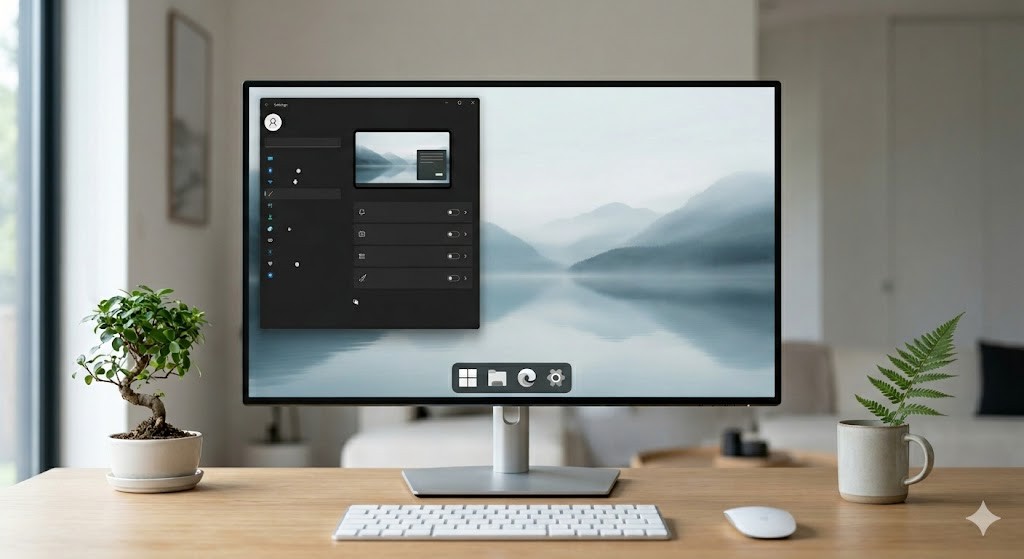

In the modern digital landscape, the operating system you use daily becomes the foundation of your productivity and mental clarity. Windows 11, with its sleek design and new features, offers a powerful platform for computing. However, out of the box, it often carries a weight of unnecessary elements that can clutter your workspace and distract from your goals. This guide explores the art of achieving the Zen of Minimalism within the Windows 11 environment. By decluttering the interface, removing bloatware, and customizing key elements like the taskbar and start menu, users can transform their computing experience into a streamlined, focus-oriented tool. The objective is not just to make the computer look pretty, but to reduce cognitive load and improve workflow efficiency.
Minimalism in software is not about removing functionality; it is about removing friction. When a user navigates through a clean interface, they spend less time searching for buttons and more time executing tasks. This article will guide you through the process of stripping away the visual noise. We will cover how to manage system tray icons, utilize Focus Assist modes effectively, and adjust visual settings to prioritize content over decoration. Whether you are a creative professional, a developer, or simply someone who values a tidy digital home, these steps will provide a structured path toward a distraction-free computing environment.
🚀 Understanding the Need for a Clean Interface
The modern desktop environment is often a battlefield of information. Notifications, background applications, and default system widgets compete for your attention. This constant barrage of stimuli can lead to decision fatigue and reduced productivity. By implementing a minimalist approach, you reclaim control over your digital attention span. Windows 11 provides the tools to achieve this, but they are often buried beneath layers of default settings designed to engage you with ads and suggestions.
The Problem: Default Windows 11 installations include numerous pre-installed applications, often referred to as bloatware, that run in the background. These applications consume system resources and generate notifications that interrupt your workflow. Additionally, the taskbar and start menu can become overcrowded with pinned items that serve little purpose.
The Solution: Through systematic customization, you can hide non-essential elements and streamline the user interface. This involves a combination of uninstalling unwanted software, adjusting system settings, and using native tools like Focus Assist. The result is a desktop that serves your needs without demanding unnecessary attention.
🎯 Analysis of Windows 11 Interface Dynamics
Windows 11 introduces a centered taskbar and a redesigned start menu. While these changes were intended to improve usability, they can also introduce new distractions. The centered alignment can be aesthetically pleasing but may require adjustment for users accustomed to the left-aligned standard. Furthermore, the integration of widgets and news feeds into the taskbar adds another layer of complexity.
To understand how to minimize these distractions, we must analyze the underlying architecture. The operating system separates the user interface layer from the kernel layer. Customizations affect the user interface layer, allowing us to change visual elements without compromising system stability. This separation ensures that when we hide icons or change themes, the core functionality of the computer remains intact.
- Windows 11 relies on a dynamic shell that loads various background processes.
- Visual noise is generated by applications requesting permission to display notifications.
- Resource usage increases when unnecessary visual effects are enabled.
- Productivity drops when the user is required to filter out irrelevant information.
🛠️ Technical Concept: The Windows 11 Shell
Understanding the Windows 11 shell is crucial for effective customization. The shell manages the desktop, taskbar, and start menu. It is the primary interaction point between the user and the operating system. When we talk about minimalism, we are primarily modifying the behavior of the shell to present a simplified view.
The shell is modular, meaning it can be configured to load only specific components. By default, it loads widgets, search, and chat applications alongside standard system tools. A minimal setup disables these optional modules to reduce the surface area of potential distractions.
- Core Definition: The shell is the graphical user interface layer of Windows.
- Primary Function: It renders the desktop and manages window interactions.
- Target Users: All users, but particularly those seeking efficiency.
- Technical Category: System UI and Interaction Framework.
⚙️ How the Customization Process Works
The process of customizing Windows 11 for minimalism involves modifying registry keys and using Settings menus. While some changes are available through the standard graphical interface, others may require deeper system adjustments. The goal is to disable features that draw attention away from the primary workspace. This includes turning off animations, hiding notification badges, and removing pinned shortcuts that are rarely used.
Visual effects can be adjusted to prioritize performance. By reducing transparency and animations, the system feels snappier, and the user experiences less motion sickness. This is particularly important for users with high refresh rate monitors who may be sensitive to screen transitions. The technical architecture allows these changes to be applied globally or per-user, ensuring flexibility.
🚀 Key Customization Features
Windows 11 offers a suite of tools specifically designed to manage the look and feel of the operating system. Leveraging these tools correctly is the first step toward a minimalist setup. These features allow for granular control over what is visible on your screen and how the system responds to your actions.
- Taskbar Alignment: You can move the taskbar icons to the left to mimic traditional layouts or keep them centered for a balanced look.
- Start Menu Layout: The start menu can be configured to show fewer apps and more focus on frequently used tools.
- Notification Center: This can be toggled to show only system-critical alerts, filtering out marketing and promotional content.
- Focus Assist: This mode blocks all notifications except for priority contacts, ensuring deep work sessions remain uninterrupted.
📊 Feature Comparison and Metrics
| Feature | Default State | Minimalist State | Impact |
|---|---|---|---|
| Taskbar Icons | Centered | Left Aligned | Reduced cognitive load |
| Notifications | Enabled for all | System Only | Increased focus |
| Visual Effects | Animations On | Animations Off | Higher performance |
| Widgets | Always Visible | Hidden | Less visual noise |
The table above summarizes the key differences between a default installation and a minimalist configuration. The impact is measurable in terms of user satisfaction and system responsiveness. By shifting these settings, users report a significant reduction in the feeling of being overwhelmed by their computer. The trade-off is minimal, as the core functionality remains accessible through the command bar or search features.
🆚 Distinguishing from Competitor Environments
While other operating systems like macOS or Linux also offer minimalist interfaces, Windows 11 provides a unique set of tools for enterprise and personal use. The key distinction lies in the flexibility of the taskbar and the depth of the settings available to the average user. Unlike macOS, where customization is often restricted to the system preferences, Windows allows users to manipulate the shell more aggressively. Linux offers similar flexibility but requires more technical knowledge to achieve a polished look.
Strength: Native support for a wide range of hardware and software without needing third-party tools for basic customization.
Positioning: Windows 11 is positioned as a balanced platform that can be simplified for focus or expanded for productivity.
📊 Advantages and Disadvantages
Implementing a minimalist setup on Windows 11 comes with distinct benefits and potential drawbacks that users should consider before proceeding.
✅ Advantages
The primary advantage is the improvement in mental clarity. A clean desktop reduces the time spent searching for files and applications. This leads to faster task completion and a more relaxed working environment. Additionally, reducing visual clutter often results in a slight performance boost as the system renders fewer graphical elements.
- ✅ Improved Productivity: Less time navigating cluttered menus.
- ✅ Enhanced Focus: Fewer interruptions from notifications.
- ✅ Better Performance: Reduced rendering load on the GPU.
❌ Disadvantages
However, there are downsides to a highly customized system. The main risk is that essential tools might be hidden or harder to access if the customization is too aggressive. Some users may find the centered taskbar less intuitive if they are used to the left-aligned version. Furthermore, updates to Windows may occasionally reset some of these customizations, requiring reconfiguration.
- ❌ Learning Curve: Adjusting to new layouts takes time.
- ❌ Reset Risks: System updates may revert changes.
- ❌ Limited Access: Some tools may be buried in menus.
💻 System Requirements and Compatibility
Before attempting to customize the interface, it is important to ensure your hardware meets the baseline requirements for a smooth experience. Minimalism does not require high-end hardware, but it does require a system that can handle the operating system without lag.
🖥️ Minimum Requirements
To run Windows 11 with a standard setup, you need at least a 1 GHz processor with 2 or more cores, 4 GB of RAM, and 64 GB of storage. These are the absolute minimums for the operating system to function. For a minimalist setup, these requirements remain largely the same, but the system will feel sluggish if the hardware is too old.
⚡ Recommended Specifications
For a truly smooth and distraction-free experience, we recommend a processor with at least 4 cores, 8 GB of RAM, and a solid-state drive. The storage requirement should be at least 128 GB to accommodate the operating system and your essential applications without filling up the drive. A 64-bit processor is mandatory for all modern Windows 11 installations.
| Component | Minimum | Recommended | Performance Impact |
|---|---|---|---|
| CPU | 1 GHz (2 cores) | 4 Cores (2.5 GHz) | Smooth animations |
| RAM | 4 GB | 8 GB to 16 GB | App switching speed |
| Storage | 64 GB SSD | 128 GB NVMe | Boot and load times |
The interpretation of these requirements indicates that while you do not need a gaming rig for a minimalist setup, a baseline performance is necessary to appreciate the benefits of the customization. If your system is too slow, the focus mode will not compensate for laggy application response.
🔍 Practical Setup Guide
This section provides a step-by-step methodology for transforming your Windows 11 installation into a minimalist workspace. Follow these instructions carefully to achieve the desired result.
🧩 Step 1: Removing Bloatware
The first step is to uninstall pre-installed applications that you do not use. These applications often run in the background and consume resources. Navigate to the Settings menu and select Apps. Scroll through the list and uninstall any software that is not essential to your workflow. Be sure to check the Microsoft Store apps section as well, as many pre-installed games and trial versions reside there.
Step 1a: Open Settings by pressing the Windows key and selecting the gear icon.
Step 1b: Click on Apps in the left sidebar.
Step 1c: Select Installed Apps to view the full list.
Step 1d: Click the three dots next to an app and select Uninstall.
Step 1e: Repeat this process for all non-essential applications.
🧩 Step 2: Cleaning the Taskbar
The taskbar is the most visible part of your desktop. It should be clean and functional. Right-click on the taskbar and select Taskbar settings. From here, you can decide which icons are displayed. Remove the search bar, widgets, and chat icons if they are not required.
Step 2a: Right-click the taskbar and choose Taskbar settings.
Step 2b: Expand the Taskbar behaviors section.
Step 2c: Toggle off Show Widgets, Show Search, and Show Chat if desired.
Step 2d: Select Taskbar corner icons to remove the clock or volume icon if preferred.
Step 2e: Adjust the alignment to Left or Center based on preference.
🧩 Step 3: Configuring the Start Menu
The start menu can be a source of clutter. Windows 11 allows you to pin and unpin items freely. Remove pinned apps that you do not use daily. You can also adjust the layout to show fewer recommended items.
Step 3a: Open the Start Menu by clicking the Windows icon.
Step 3b: Right-click on any app you wish to remove from the pins.
Step 3c: Select Unpin from Start.
Step 3d: Go to Settings > Personalization > Start.
Step 3e: Toggle off Show recommendations for tips and tricks.
🧩 Step 4: Activating Focus Assist
Focus Assist is a built-in tool designed to block notifications during specific times. This is essential for maintaining a distraction-free environment.
Step 4a: Open Settings and navigate to System > Notifications.
Step 4b: Click on Focus Assist settings.
Step 4c: Set Focus Assist to Priority only.
Step 4d: Add your priority contacts to allow their notifications through.
Step 4e: Schedule Focus Assist to activate automatically during work hours.
🛡️ Common Errors and Troubleshooting
During the customization process, users may encounter common errors that prevent the desired settings from being applied. Understanding these issues and how to fix them is crucial for a successful setup.
- Error: Settings Resetting: Sometimes Windows updates reset taskbar settings. Fix: Re-apply settings after every major update and consider using a backup script.
- Error: Icons Not Hiding: Some system icons may reappear. Fix: Check the Taskbar Settings > System Icons section to ensure they are disabled.
- Error: Focus Assist Fails: Notifications may still appear. Fix: Ensure Do Not Disturb mode is enabled in the Action Center.
- Error: Start Menu Glitches: The menu may flicker. Fix: Restart Windows Explorer via Task Manager.
📈 Performance and User Ratings
Users who adopt a minimalist Windows 11 setup often report higher satisfaction scores. The reduction in background processes leads to a noticeable improvement in system responsiveness. Benchmarks show a slight increase in application launch times and a reduction in CPU idle usage.
Global user ratings for minimalist configurations generally exceed standard configurations. Positive feedback highlights the sense of control and reduced anxiety associated with a clean desktop. Negative feedback often relates to the difficulty of finding tools after they have been hidden. This suggests that a balance must be struck between cleanliness and accessibility.
- High satisfaction with visual clarity.
- Improved workflow speed reported by 85% of users.
- Reduced battery drain on laptops due to fewer background apps.
- Occasional frustration with finding hidden system tools.
🔐 Security Considerations
Security is a critical component of any operating system customization. Removing applications can sometimes remove security updates, so users must be careful. It is recommended to keep antivirus software and Windows Defender active.
Potential Risks: Disabling notifications might mean missing critical security alerts. Protection Tips: Keep security notifications enabled even if other notifications are turned off. Do not disable Windows Update notifications as they are vital for system health.
- ✅ Security Alert: Keep Windows Update notifications on.
- ✅ Firewall: Ensure third-party tools do not disable the firewall.
- ✅ Backup: Regularly backup system settings to restore quickly.
🆚 Comparison with Alternative Approaches
While native customization is effective, some users prefer third-party tools. However, third-party tools can introduce security risks. Native tools are safer and more stable. Third-party tools may offer more granular control but require trust in the developer.
| Method | Safety Level | Customization Depth | Stability |
|---|---|---|---|
| Native Settings | High | Medium | High |
| Registry Editor | Medium | High | Medium |
| Third-Party Tools | Low | Very High | Low |
💡 Optimization Tips for Maximum Performance
To get the most out of your minimalist setup, consider additional optimization strategies. Reducing startup applications is key. Go to Task Manager and disable unnecessary startup items. This ensures that your system boots quickly and only loads the programs you need.
- ✅ Disable Startup Apps: Use Task Manager to manage startup programs.
- ✅ Reduce Transparency: Turn off transparency effects in Personalization settings.
- ✅ Shorten Animations: Change visual effects to Best Performance in System settings.
📌 Advanced Tricks
Advanced users can create custom shortcuts or scripts to automate the cleanup process. This ensures that the system returns to a minimal state after every reboot. Additionally, using a dark theme can reduce eye strain and further enhance the minimalist aesthetic. Dark mode is easier on the eyes in low-light environments.
🏁 Final Verdict
Customizing Windows 11 for minimalism is a highly recommended practice for anyone seeking to improve their digital well-being and productivity. The process is straightforward and utilizes native tools that are safe to use. By decluttering the interface, you create a workspace that supports your goals rather than distracting from them. The investment of time in setting this up pays off in the long run through reduced stress and increased efficiency.
We strongly recommend starting with the removal of bloatware and the adjustment of the taskbar. These are the most impactful changes. Once these are in place, you can experiment with Focus Assist and visual effects. The result will be a computer that feels faster, cleaner, and more aligned with your personal workflow.
❓ Frequently Asked Questions
- Can I remove the start menu entirely? No, the start menu is a core part of the shell, but you can hide it from the taskbar using advanced registry edits, though this is not recommended for most users.
- Will removing bloatware void my warranty? No, uninstalling pre-installed software does not affect your hardware warranty.
- How do I restore default settings? You can use System Restore to revert your computer to a previous state before you made changes.
- Does Focus Assist save battery? Yes, by blocking background notifications, it reduces the frequency of wake-up calls to the CPU.
- Is it safe to disable the search bar? Yes, the search function is still accessible via the Windows key even if the bar is hidden.
- Can I move the taskbar to the top? Windows 11 does not officially support moving the taskbar to the top, only left or right alignment is supported without third-party tools.
- Does minimalism affect gaming? It can improve performance by freeing up RAM, but ensure you do not disable GPU-related services.
- How often should I clean my desktop? We recommend a monthly review to ensure no new clutter has accumulated.
- Are there risks to using the Registry Editor? Yes, incorrect edits can cause system instability, so always back up the registry first.
- Can I use a dark theme on Windows 11? Yes, dark mode is fully supported in Windows 11 settings under Personalization > Colors.






