
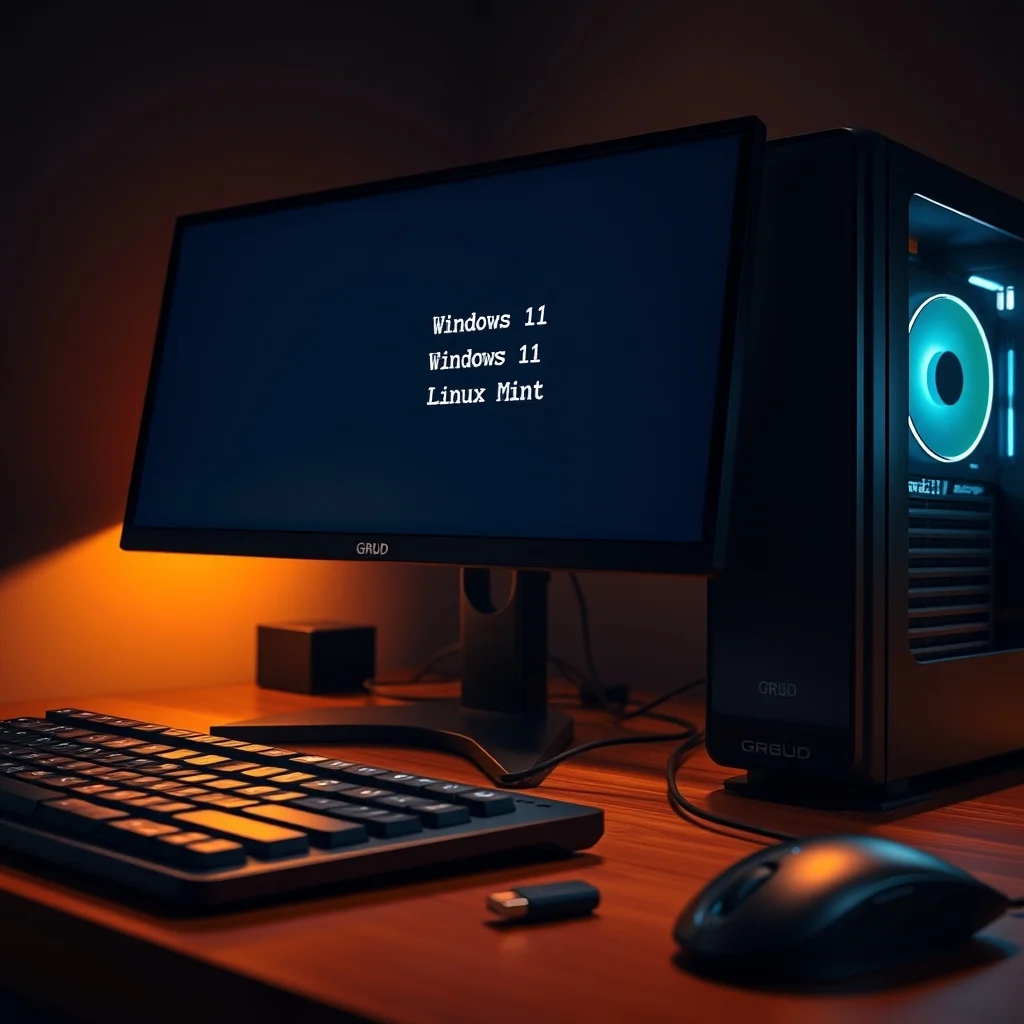

Choosing between operating systems is often a difficult decision for modern computer enthusiasts. Many users find themselves needing the compatibility of Windows 11 for specific gaming or corporate applications while simultaneously desiring the open-source freedom and privacy features of Linux Mint. A dual-boot system allows you to have both capabilities on a single machine without the overhead of virtualization. This comprehensive guide is designed to take you from a complete beginner to a confident pro in managing a dual-boot environment. We will explore the nuances of partitioning, bootloader configuration, and system optimization.
Before we begin, it is essential to understand that this process involves modifying your hard drive structure. While the steps are well-documented, there is always a risk of data loss if not performed correctly. We will emphasize backup procedures and safety measures throughout this tutorial. You will learn how to prepare your Windows 11 system, create a bootable Linux Mint USB, and manage the installation process effectively.
This guide covers the entire lifecycle of setting up a dual-boot system. From the initial preparation to the final troubleshooting of common issues like Secure Boot conflicts or bootloader errors, every aspect is covered in detail. By the end of this article, you will have a fully functional system that allows you to switch between Windows 11 and Linux Mint seamlessly. We will also discuss performance implications and how to maintain system stability over time.
🚀 Overview of the Dual-Boot Experience
Understanding the dual-boot concept is the first step toward successful implementation. A dual-boot configuration means that two separate operating systems are installed on the same physical computer. When you turn on your machine, a menu appears allowing you to select which operating system to load. This is different from running Linux inside a virtual machine, as it provides direct access to your hardware resources.
The primary problem this solution solves is the need for software compatibility. Some users rely on Windows-specific software for work or gaming, while others require Linux for development, privacy, or learning. Instead of owning two separate laptops, you can consolidate your workflow onto one high-performance machine. This setup offers the best of both worlds, maximizing the utility of your hardware investment.
By following this guide, you will gain a clear promise of gaining control over your computing environment. You will learn how to partition your drive safely, ensuring that data in one operating system does not interfere with the other. We will also cover how to update your bootloader to ensure future Windows updates do not break your Linux access.
🔍 Analysis of System Requirements and Intent
Many users search for dual-boot solutions because they want to experiment with Linux without committing to a full replacement. The search intent behind this query is often driven by a desire to save hardware costs while maintaining a versatile setup. Users are looking for a safe, reliable method to install Linux alongside their existing Windows environment.
The market relevance of dual-booting remains high despite the rise of cloud computing and virtualization. While virtual machines offer convenience, they often suffer from performance penalties. A native dual-boot setup delivers near-native performance for both operating systems, making it ideal for resource-intensive tasks like video editing or 3D rendering.
- Technical background: Dual-booting relies on partitioning the hard drive into distinct sections for each operating system and configuring a bootloader to manage the selection process.
- Why users search for this topic: Users often need Linux for specific tools or development environments while still relying on Windows for daily tasks like gaming or office work.
- Market or industry relevance: As remote work and specialized software needs grow, the ability to switch operating systems efficiently becomes a valuable skill for professionals and hobbyists alike.
- Future outlook: The trend toward hybrid work environments suggests that versatility in operating system choice will remain a priority for tech-savvy users.
🛠️ Technical Concept and Architecture
📌 What is a Dual-Boot System?
A dual-boot system is a configuration where two operating systems coexist on a single computer hardware setup. Each operating system resides on its own partition, which is a logically defined section of the hard drive. The bootloader, typically GRUB in the context of Linux, acts as the gatekeeper that allows you to choose which OS to initialize during the boot process.
- Core definition: A method of running two operating systems on one machine.
- Primary function: Allows users to select an OS at startup without data interference.
- Target users: Developers, gamers, and power users needing multiple environments.
- Technical category: System configuration and disk partitioning.
⚙️ How Does Dual-Boot Work in Detail?
The technical architecture of a dual-boot system relies on the Master Boot Record or the EFI Partition. Windows uses its Boot Manager, while Linux typically uses the Grand Unified Bootloader. When you install Linux Mint, it detects the existing Windows installation and installs its bootloader in the EFI partition. This bootloader then presents a menu to the user upon startup.
During the boot process, the firmware loads the bootloader, which then chains the loading of either the Windows kernel or the Linux kernel. This process ensures that the hardware is initialized correctly for the selected operating system. It is crucial to understand that the operating systems do not share files directly, except in the shared data partitions if configured manually.
Practical examples of this include a developer who needs Windows for a specific proprietary tool and Linux for coding environments. By having both installed natively, they can switch contexts instantly without the latency associated with virtualization software. This architecture is robust and widely supported across consumer hardware.
🚀 Features and Advanced Capabilities
✨ Key Features of the Setup
Setting up a dual-boot system offers a range of features that enhance the user experience. One of the primary advantages is the ability to utilize the full power of your hardware for each operating system. Unlike virtualization, which reserves a portion of RAM and CPU for the guest OS, dual-booting allocates resources dynamically based on the active system.
- Native Performance: Both operating systems run directly on the hardware, ensuring maximum speed and efficiency for demanding tasks.
- Software Compatibility: You can run Windows-exclusive applications and Linux-specific development tools on the same machine.
- File Access: With careful partitioning, you can create shared partitions accessible by both OS for data storage.
- Learning Opportunity: It provides a safe environment to learn Linux commands and file systems without risking your primary Windows installation.
Real-world use cases include software testing where a developer needs to verify code across different environments. Another use case is gaming, where users might want to play Windows games and then switch to Linux for productivity work or media consumption without rebooting their entire rig.
📊 Key Points and Comparison Data
To understand the nuances of this setup, it is helpful to compare the requirements and characteristics of the two operating systems involved. The following table outlines the key distinctions and requirements for a successful dual-boot configuration.
| Category | Windows 11 | Linux Mint | Notes |
|---|---|---|---|
| File System | NTFS | EXT4 | Linux cannot natively read/write NTFS without drivers. |
| Bootloader | Windows Boot Manager | GRUB | GRUB manages the menu selection. |
| Memory Usage | Higher | Lower | Linux Mint is generally lighter on resources. |
| Security Model | Proprietary | Open Source | Different approaches to user permissions. |
| Update Policy | Automatic | Manual/Controlled | Linux gives more control over updates. |
This table highlights the structural differences that impact how you manage storage and boot options. The file system distinction is critical because Windows uses NTFS, which Linux can read but often requires additional configuration to write to safely. The bootloader section emphasizes that GRUB will be the interface you see first, which means Windows updates must not overwrite the GRUB bootloader during their own installation cycles.
Understanding these metrics helps in planning the partitioning strategy. For instance, allocating more space for Windows is often necessary due to its larger system requirements. Conversely, Linux Mint is lightweight and can function well on smaller partitions, making it efficient for older hardware or tighter storage constraints.
🆚 What Distinguishes It from Competitors?
When considering alternative solutions to dual-booting, such as virtual machines or WSL (Windows Subsystem for Linux), the native dual-boot setup stands out for performance. Virtual machines introduce an abstraction layer that can reduce performance by up to twenty percent. WSL 2 offers a Linux kernel within Windows, but it does not provide a full desktop environment or access to all hardware features like GPU acceleration.
- Performance: Dual-booting offers the highest performance as there is no virtualization overhead.
- Hardware Access: Direct access to graphics cards and peripherals is superior in a native setup.
- Isolation: Each OS is completely isolated, reducing the risk of one OS corrupting the other.
However, it is important to note that dual-booting requires manual switching at startup. You cannot run both operating systems simultaneously. This trade-off is acceptable for users who prioritize performance over the convenience of running multiple environments at once.
📊 Pros and Cons Analysis
✅ Advantages of Dual-Booting
The benefits of this configuration are substantial for users who need flexibility. The primary advantage is the ability to utilize the full potential of your hardware without compromising the integrity of either operating system. This setup is particularly beneficial for professionals who require specific software that is only available on one platform.
- Cost Efficiency: You do not need to purchase a second computer to access different operating systems.
- Security: Malware on one operating system cannot easily infect the other due to partition separation.
- Customization: You can tailor each operating system to your specific workflow without conflict.
❌ Disadvantages and Limitations
Despite the advantages, there are drawbacks that users must consider before proceeding. The most significant inconvenience is the need to restart the computer to switch between operating systems. This interruption can break workflow continuity for some users.
- Complex Setup: Partitioning a drive can be intimidating for beginners and carries a risk of data loss.
- Bootloader Issues: Windows updates can sometimes overwrite the GRUB bootloader, requiring repair.
- Storage Management: You must manually manage space allocation, which can be inflexible if one OS needs more space later.
These disadvantages are not deal-breakers but are factors that require careful planning. Users who value seamless switching might prefer a virtual machine, but they will sacrifice performance. Users who value performance and are willing to restart occasionally will find dual-booting ideal.
💻 System Requirements and Specifications
To ensure a smooth installation, your hardware must meet specific criteria. Windows 11 has stricter requirements than previous versions, particularly regarding TPM 2.0 and Secure Boot. Linux Mint is generally more flexible but still needs a minimum amount of RAM and storage to function effectively.
🖥️ Minimum Requirements
Your system should have at least an Intel Core i3 or AMD Ryzen 3 processor. A minimum of 4GB of RAM is required for Linux Mint, while Windows 11 officially requires 4GB as well. Storage should be at least 64GB, though 128GB or more is recommended for comfortable dual-booting.
⚡ Recommended Specifications
For optimal performance, a multi-core processor like an Intel Core i5 or AMD Ryzen 5 is recommended. You should aim for 8GB of RAM or more to handle both systems without swapping. An SSD is highly recommended over an HDD to ensure fast boot times and quick application loading. The graphics card should be compatible with your monitor and supported by drivers for both operating systems.
| Component | Minimum | Recommended | Performance Impact |
|---|---|---|---|
| CPU | Intel i3 / AMD Ryzen 3 | Intel i5 / AMD Ryzen 5 | Affects multitasking and boot speed. |
| RAM | 4GB | 8GB or 16GB | Crucial for running applications smoothly. |
| GPU | Integrated Graphics | Dedicated Graphics Card | Important for gaming and rendering. |
| Storage | 120GB SSD | 512GB SSD | SSD is mandatory for Windows 11. |
Following these specifications interpretation ensures that your dual-boot system will not bottleneck. The performance impact of upgrading from minimum to recommended is significant, especially in terms of multitasking capabilities and overall system responsiveness.
🔍 Practical Guide: Installation Steps
🧩 Installation and Setup Method
Preparing your system for dual-booting requires a methodical approach. The first step is to back up all critical data. This is non-negotiable because partitioning carries inherent risks. Once backed up, you need to shrink your Windows partition to create unallocated space for Linux.
- Backup Data: Copy all important files to an external drive or cloud storage to prevent data loss.
- Shrink Partition: Use Windows Disk Management to reduce the size of your C: drive, leaving unallocated space.
- Create USB: Use the Etcher or Rufus tool to write the Linux Mint ISO to a USB drive.
- Boot from USB: Restart your computer and enter the BIOS/UEFI to select the USB drive as the boot device.
- Install Linux: Follow the installer prompts, selecting the option to install alongside Windows.
- Configure GRUB: Ensure the bootloader is installed to the EFI partition, not the Windows partition.
Each step must be executed with care. The shrinking process should be done within Windows to ensure the file system remains consistent. When booting from USB, you may need to disable Secure Boot temporarily if Linux Mint does not recognize the signature.
🛡️ Common Errors and How to Fix Them
Even with careful planning, errors can occur. One common issue is the Windows Boot Manager overwriting the GRUB bootloader after a Windows update. This results in the system booting directly into Windows without showing the Linux option.
- Windows Update Overwrites GRUB: Fix this by booting into a Linux Live USB and reinstalling the GRUB bootloader using the terminal.
- Secure Boot Errors: If Linux fails to boot, go into BIOS settings and disable Secure Boot to allow unsigned bootloaders.
- Date and Time Sync Issues: Windows and Linux handle system time differently. Configure Windows to use UTC time to resolve conflicts.
These issues are manageable with the right knowledge. Regularly updating your Linux system can also prevent compatibility issues with newer Windows updates.
📈 Performance and User Experience
🎮 Real Performance Experience
Users report that a dual-boot setup delivers performance equivalent to a single-boot system. There is no performance penalty for having two operating systems installed, provided the drive is partitioned correctly. Boot times are generally fast on SSDs, taking less than thirty seconds for either OS.
Resource usage is balanced well between the two. Linux Mint consumes significantly less RAM than Windows 11, leaving more resources available for applications. This makes it an excellent choice for older hardware that is struggling to run Windows 11 efficiently.
🌍 Global User Ratings
The community feedback on dual-booting Windows and Linux Mint is overwhelmingly positive. Many users rate the experience as stable and reliable when configured correctly.
- Average rating: High satisfaction rates among tech enthusiasts.
- Positive feedback: Praise for the flexibility and cost-effectiveness of the setup.
- Negative feedback: Complaints about occasional bootloader repair needs.
- Trend analysis: Interest in this setup is growing as more users seek open-source alternatives.
Overall, the consensus is that the setup is worth the initial effort for those who need versatility.
🔐 Security Considerations
🔒 Security Level
Running two operating systems can introduce security considerations. Windows is a larger target for malware, and while partitions are isolated, boot sector viruses can theoretically affect the system. Linux Mint has a strong security model, but user error can still lead to vulnerabilities.
It is recommended to keep both operating systems updated with the latest security patches. Using strong passwords and enabling full disk encryption for the Linux partition adds an extra layer of protection against physical access attacks.
🛑 Potential Risks
There are risks associated with modifying the boot process. The primary risk is losing access to one or both operating systems if the bootloader is corrupted.
- Bootloader Corruption: Mitigated by keeping a Linux Live USB handy for repairs.
- Data Accidental Deletion: Mitigated by careful partitioning and backing up data.
- Hardware Conflicts: Rare, but can occur with specific drivers.
Mitigation strategies include regular backups and understanding the basic repair commands for GRUB.
🆚 Best Available Alternatives
🥇 Alternative Solutions
While dual-booting is robust, other options exist. Virtual machines offer convenience but lack performance. WSL2 offers integration but is limited to the Windows ecosystem. Cloud-based Linux environments are an option but require internet connectivity.
| Option | Performance | Convenience | Best For |
|---|---|---|---|
| Dual-Boot | High | Medium | Power Users |
| Virtual Machine | Medium | High | Testing |
| WSL2 | High | Very High | Windows Developers |
For users who need native hardware access, dual-booting remains the superior choice. For casual users, WSL2 might suffice. The table helps clarify which option suits your specific workflow needs.
💡 Tips for Maximum Performance
🎯 Best Settings
To optimize your dual-boot system, adjust specific settings in both operating systems. In Windows, disable Fast Startup as it can interfere with Linux access. In Linux, configure the swap file to handle hibernation if needed.
- Disable Fast Startup: Ensures Windows does not lock the drive for Linux.
- Update Kernel: Keep Linux kernels updated for hardware compatibility.
- Optimize Filesystems: Use ext4 for Linux and NTFS for shared data partitions.
📌 Advanced Tricks
Advanced users can script the bootloader to default to a specific OS or hide the menu for a quicker boot. You can also configure time synchronization to prevent date conflicts. These tweaks require command-line knowledge but enhance the user experience significantly.
🏁 Final Verdict
Setting up a dual-boot system with Windows 11 and Linux Mint is a powerful way to maximize the utility of your computer. While it requires careful planning and execution, the benefits of having two complete operating environments are substantial. You gain the compatibility of Windows and the freedom of Linux without the performance hit of virtualization.
For users who are willing to learn the basics of partitioning and bootloader management, this setup is highly recommended. It is a skill that will serve you well in a tech-driven world. We encourage you to follow this guide step-by-step and enjoy the flexibility of a dual-boot system.
❓ Frequently Asked Questions
- Is dual-booting safe for my data? Yes, provided you back up your data before partitioning. The risk is low if you follow instructions carefully.
- Can I install Linux on the same partition as Windows? No, you must create a separate partition for Linux to avoid overwriting Windows files.
- Will Windows updates break my Linux boot? Sometimes, but it can be easily fixed by reinstalling the GRUB bootloader from a Linux USB.
- Do I need to buy a separate hard drive? No, you can partition a single drive, though separate drives are easier to manage.
- Can I access Windows files from Linux? Yes, Linux can read NTFS partitions, but write access should be configured carefully.
- Does dual-booting slow down my computer? No, it does not slow down the computer when running either OS natively.
- Is Linux Mint difficult to use? Linux Mint is designed to be user-friendly and is very easy for Windows converts.
- Do I need to disable Secure Boot? You may need to disable it temporarily during installation, but it can often be re-enabled.
- How do I switch between operating systems? You must reboot your computer and select the OS from the GRUB menu at startup.
- Can I remove Linux later if I do not like it? Yes, you can delete the Linux partition and restore the Windows bootloader to return to a single-boot setup.






